

- See how AI Studio website reporting now connects traffic, form submissions, conversion data, and CRM activity in one place.
- Quick Summary – AI Site Analytics at a Glance
- What’s New with AI Site Analytics
- Why AI Site Analytics Matters to GHL Users
- How to Use AI Site Analytics in GoHighLevel
- Pro Tips for Getting More from AI Site Analytics
- Results You Can Expect from AI Site Analytics
- Frequently Asked Questions About AI Site Analytics
- Put AI Site Analytics to Work
See how AI Studio website reporting now connects traffic, form submissions, conversion data, and CRM activity in one place.
AI Site Analytics Makes Tracking Easier
AI Site Analytics now gives you a clear view of how your GoHighLevel AI Studio sites are performing. You can see page views, unique visitors, opt-ins, and opt-in rates without adding extra tracking code or using another tool.
You can also check top pages, traffic sources, time on page, visitor devices, browsers, and locations. Form submissions are easier to review too, and each lead can connect back to a CRM contact so you can see where they came from and what they did before they opted in.
For agencies and marketers, this makes it easier to see which pages are working and which ones need attention. Instead of guessing, you can use real data inside GHL to improve your pages, follow up with leads, and make better decisions.
AI Site Analytics gives you a clear view of how your AI Studio sites turn visitors into leads. You can track traffic, opt-ins, form submissions, and CRM activity in GHL without adding separate tracking code.
Quick Summary – AI Site Analytics at a Glance
Purpose: AI Site Analytics helps you see how your published AI Studio sites perform inside GoHighLevel, from traffic and opt-ins to form submissions and CRM activity.
Why It Matters: You can quickly see which pages are bringing in leads, where visitors came from, and which parts of your site may need improvement.
What You Get: You get built-in reporting for page views, opt-ins, opt-in rate, form submissions, traffic sources, visitor details, and contact activity.
Time To Complete: You can review the main analytics and form submissions in about 5 to 10 minutes once your AI Studio site is published.
Difficulty Level: Beginner. The reports are built into GHL, and there is no extra tracking code to install.
Key Outcome: You get a clearer view of how your AI Studio site turns visitors into leads, so you can make better decisions and improve follow-up.
What’s New with AI Site Analytics
AI Site Analytics now gives every published AI Studio site built-in reporting inside GoHighLevel. You can open your project, go to More, then Analytics, and see page views, unique visitors, opt-ins, and opt-in rate. You can also compare results with the previous period to see whether performance is improving or dropping.
The reporting goes deeper than the main numbers. You can review top pages, time on page, traffic sources, devices, browsers, and visitor locations. This gives you a better idea of where your traffic comes from and how people are using your site. Form submissions also have their own area, where you can filter by form or date and open the matching CRM contact.
Automate marketing, manage leads, and grow faster with GoHighLevel.

GoHighLevel also added AI Studio sites to the main Sites Analytics area. This makes it easier to compare several sites in one place. On the CRM side, contacts created from your site can keep their visit history, including the pages they viewed, where they came from, and which form they submitted. For older connected forms, you may need to reconnect form tracking and publish the site again to capture the full visitor path.
Why AI Site Analytics Matters to GHL Users
AI Site Analytics gives you a better way to judge whether your site is doing its job. Traffic alone does not tell you much. What matters is whether visitors take action, fill out a form, and become real leads.
This is useful for agencies because you can quickly see which pages are getting attention and which ones are converting. You can also check where visitors came from, what pages they viewed, and which form they submitted. That gives your team more context before they follow up with a lead.
It also saves time. Instead of checking several tools for site traffic, form leads, and CRM activity, you can see more of that information inside GHL. For agency owners, marketers, VAs, and small businesses, AI Site Analytics makes it easier to spot weak pages, improve opt-in rates, and focus on the traffic that is most likely to turn into business.
How to Use AI Site Analytics in GoHighLevel
AI Site Analytics are available inside GoHighLevel AI Studio. You can use them to review site traffic, opt-ins, form submissions, and the activity that leads complete before they become contacts.
In this walkthrough, we’ll show you how to open AI Studio, access your project analytics, review form submissions, compare site performance, and check visitor activity inside the CRM.
Here are the steps we will follow:
- Open AI Studio.
- Open the Analytics & Submissions Update.
- Review the New Analytics Update.
- Open an AI Studio Project.
- Access the Project Tools.
- Review Analytics and Form Submissions.
- Compare AI Studio Sites in Sites Analytics.
- Review Lead Activity in the CRM.
To start, make sure you are logged in to the correct GoHighLevel sub-account.
Step 01 – Open AI Studio
- Start from the main GoHighLevel dashboard.
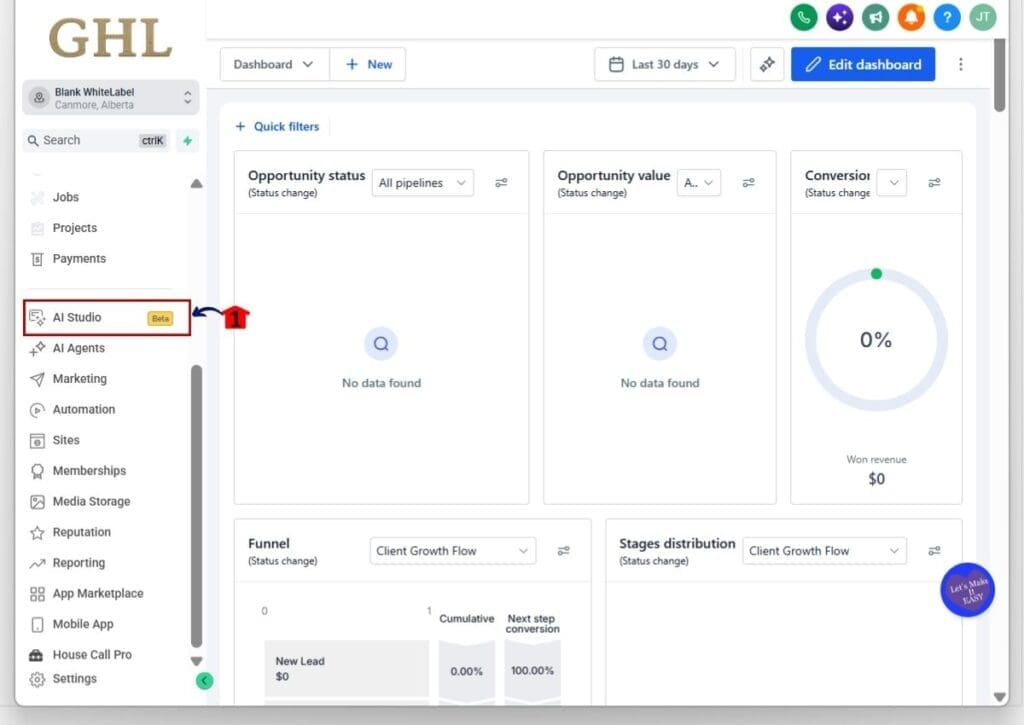
1.1 Click AI Studio on the left-hand menu.
- You will find AI Studio in the main navigation area.
- This opens the AI Studio workspace where you can create and manage your AI-built sites.
Step 02 – Open the Analytics & Submissions Update
- Once AI Studio opens, you will land on the main Home screen.
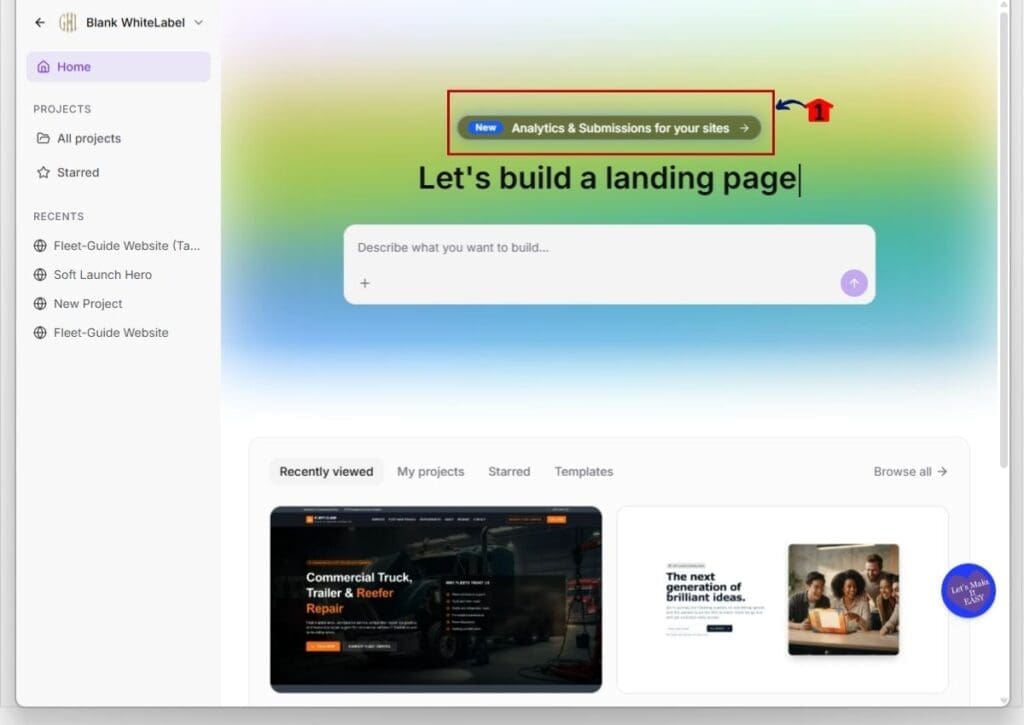
2.1 Click the Analytics & Submissions for your sites banner near the top of the page.
- The banner highlights the new analytics and submissions tools available for AI Studio sites.
- Clicking it opens more information about the update.
Step 03 – Review the New Analytics Update
- The What’s New window opens with details about the feature.
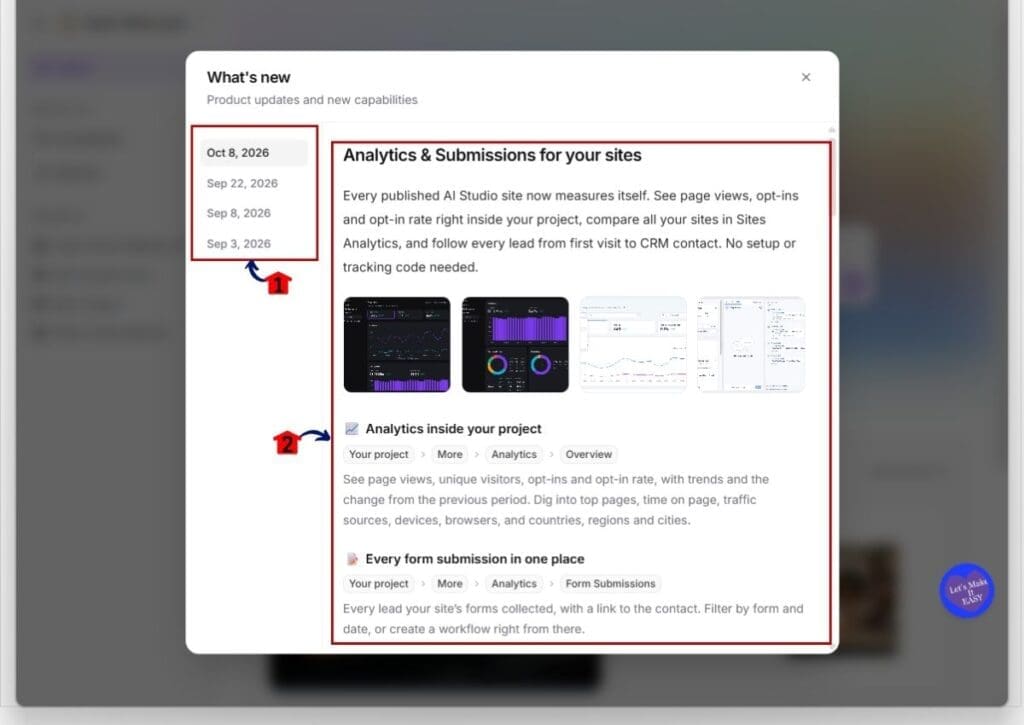
3.1 Select the latest update dated Oct 8, 2026.
- This opens the Analytics & Submissions for your sites update.
3.2 Review the new analytics features listed in the update.
- Published AI Studio sites can track page views, opt-ins, and opt-in rate.
- You can also review form submissions and connect site activity back to CRM contacts.
This window is useful if you want a quick overview of what was added before you start using the reports.
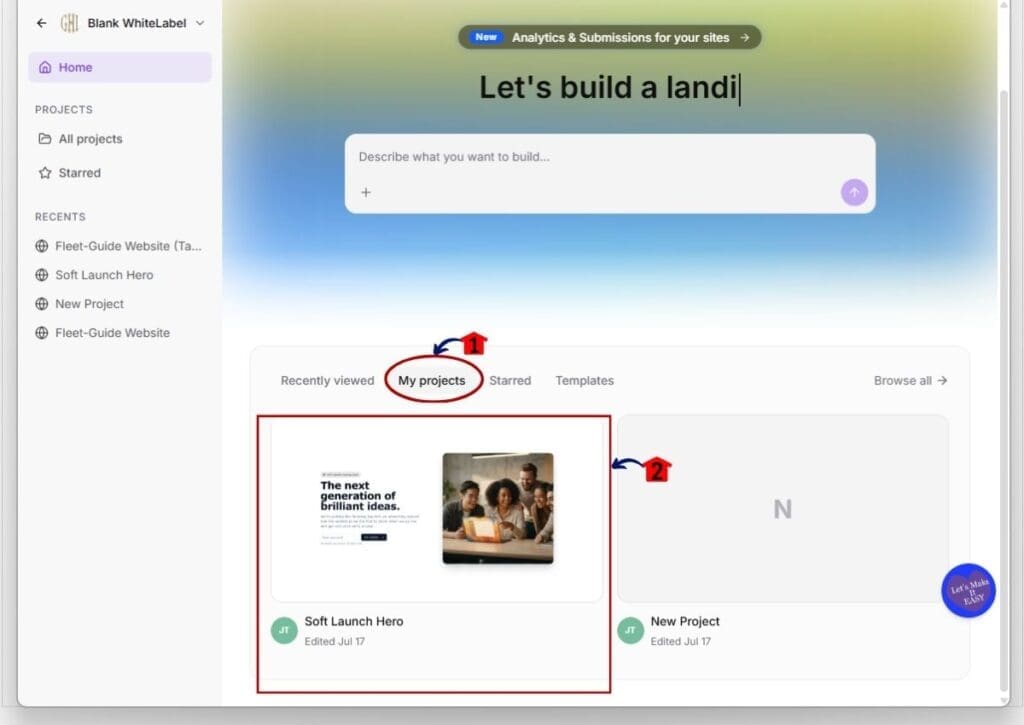
Step 04 – Open an AI Studio Project
- Return to the main AI Studio Home screen.
4.1 Click My projects.
- This shows the AI Studio projects connected to your account.
4.2 Click the project you want to review.
- Choose a published project that has traffic or form activity you want to track.
- This opens the selected AI Studio site inside the project editor.
Step 05 – Access the Project Tools
- Once the project opens, you will see the AI Studio editor and site preview.
5.1 Click the More icon at the top of the project.
- The icon is shown beside the Preview and code options.
- This opens the additional tools available for the project.

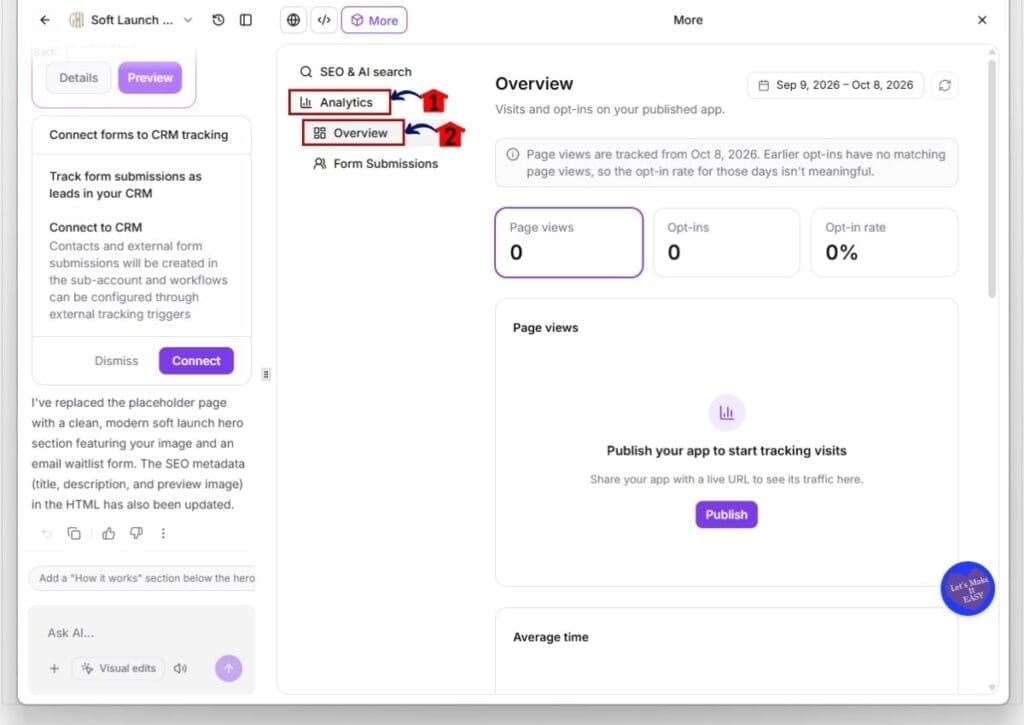
Step 06 – Review Analytics and Form Submissions
- The More panel contains the analytics tools for the selected AI Studio project.
6.1 Click Analytics.
- This opens the analytics section for the project.
6.2 Click Overview.
- Review the main AI Site Analytics numbers for your published site.
- These include page views, opt-ins, and opt-in rate.
- You can also change the reporting date range from the top of the report.
6.3 Scroll through the Overview report to review more site performance data.
- Use the report to understand how visitors are using your published site.
- This can help you spot changes in traffic and opt-in performance.
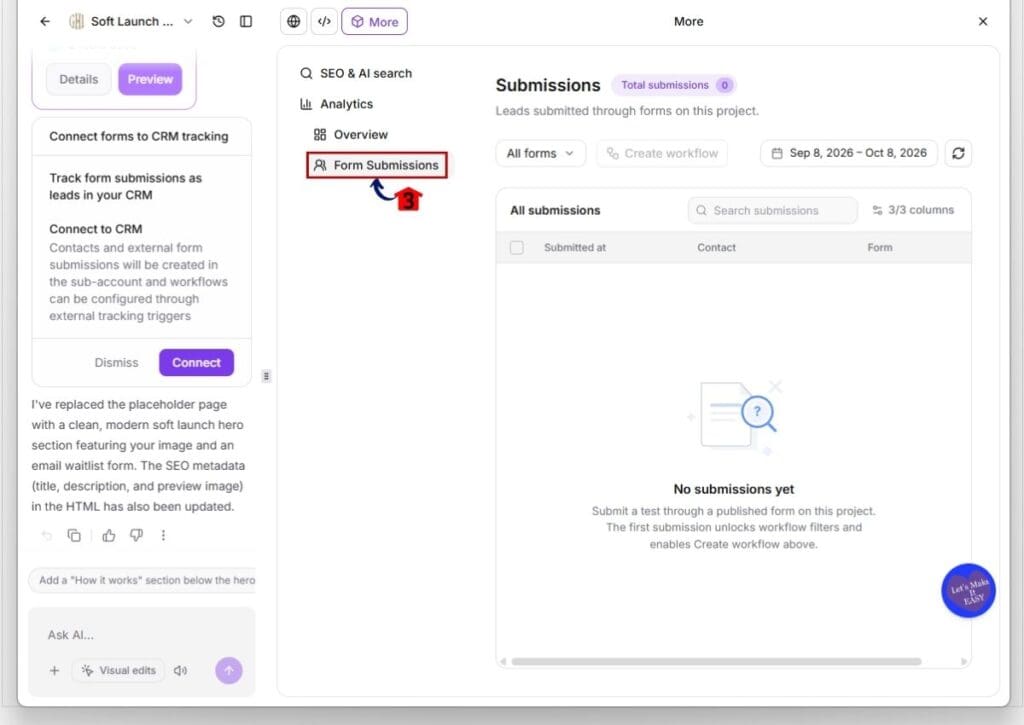
6.4 Click Form Submissions.
- This opens the submissions collected from forms on the current AI Studio project.
6.5 Review or filter your submissions.
- Use the form filter to focus on a specific form.
- Use the date range to narrow the reporting period.
- Submitted leads appear with their contact and form information.
Step 07 – Compare AI Studio Sites in Sites Analytics
- You can also review AI Studio reporting from the main Sites area.
7.1 Click Sites on the left-hand menu.
- This opens the main GoHighLevel Sites section.
7.2 Click Analytics from the top menu.
- This opens the reporting dashboard for your sites.
7.3 Select AI Studio from the site type dropdown.
- This filters the analytics dashboard to your AI Studio projects.
7.4 Select a project or leave the project filter open to review available site data.
7.5 Choose the date range you want to review.
- Use the date selector on the right side of the screen.
7.6 Review your main performance numbers.
- Check page views.
- Review opt-ins.
- Compare the opt-in conversion rate.
- Use the charts below to study performance over time.
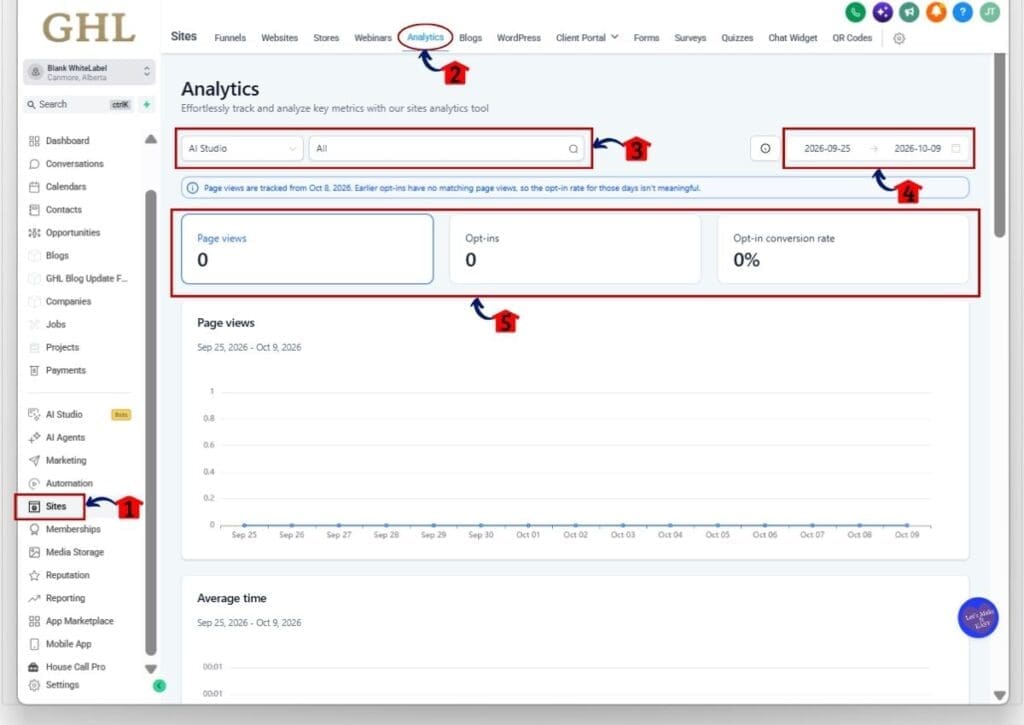
This view is useful when you want to review AI Studio performance outside the individual project editor.
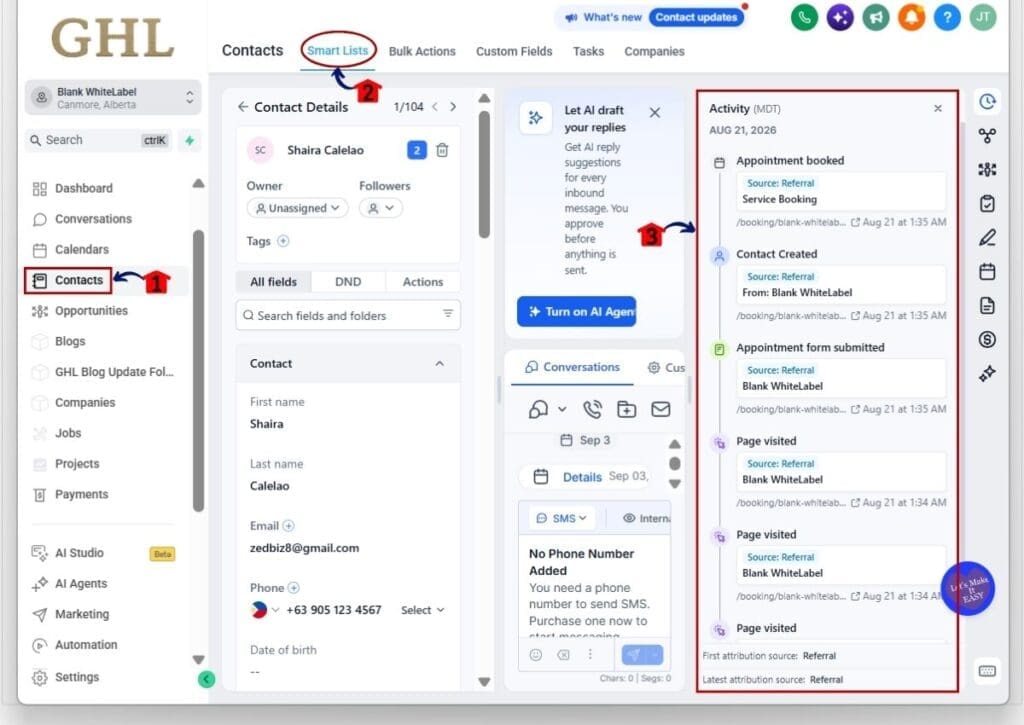
Step 08 – Review Lead Activity in the CRM
- AI Site Analytics can also connect visitor activity with the contact record inside GHL.
8.1 Click Contacts on the left-hand menu.
8.2 Open Smart Lists.
- Use your contact list to find the lead you want to review.
8.3 Open the contact record.
- The Contact Details panel will appear.
8.4 Review the Activity panel on the right side.
- You can see events connected to the contact.
- This can include pages visited, forms submitted, contact creation, and other tracked activity.
- Source information can also appear with the activity.
This gives your team more context before they call, email, or follow up with a lead. Instead of seeing only the final form submission, you can see more of the activity that happened before the contact entered your CRM.
Once you know where each report lives, AI Site Analytics becomes much easier to use. You can check site performance inside a project, review submissions, compare AI Studio sites, and then follow the lead into the CRM to see what happened before they converted.
Pro Tips for Getting More from AI Site Analytics
AI Site Analytics are most useful when you look past the traffic numbers. Page views can tell you how much attention a page gets, but opt-in rate tells you whether that traffic is turning into leads.
Compare pages with similar traffic and look for gaps in conversion. If one page gets plenty of visits but very few opt-ins, check the headline, offer, form, and call to action before you assume the traffic is the problem.
Use the traffic source data before making major changes. A page may look weak because the traffic is poorly matched to the offer. You can also use Form Submissions and CRM activity together to see which leads are actually moving further into your sales process.
For older forms, reconnect the tracking and publish the site again if you want the full visitor path tied to future submissions. That extra context can make follow-up easier because your team can see what a lead viewed before they filled out the form.
Results You Can Expect from AI Site Analytics
AI Site Analytics give you a clearer view of what is working across your AI Studio sites. Instead of looking at traffic on its own, you can connect page views, opt-ins, form submissions, and contact activity to see the full picture.
For agencies, this can make reporting much easier. You can compare site performance, spot pages with low opt-in rates, and see which traffic sources bring in better leads. You can also review contact activity before follow-up, which gives your team more context when they call or message a new lead.
The biggest result is better decision-making. You can use real data inside GHL to improve weak pages, adjust offers, and build faster follow-up workflows. Over time, that should help you focus more on the pages and traffic sources that actually produce leads, not just visits.
Frequently Asked Questions About AI Site Analytics
Put AI Site Analytics to Work
AI Site Analytics gives you a simple way to see how your AI Studio sites are performing inside GoHighLevel. You can track traffic, opt-ins, form submissions, and contact activity without adding extra tracking code or jumping between several tools.
The real value is not just seeing more numbers. It is being able to spot weak pages, compare site performance, understand where leads came from, and give your team better context before follow-up.
If you are already using AI Studio, open one of your published projects and check the Analytics area. Start with your opt-in rate, review your form submissions, then look at the contact activity for a few recent leads.
Have you started using AI Site Analytics yet? Let us know how you plan to use it in your GoHighLevel setup.
Scale Your Business Today.
Streamline your workflow with GoHighLevel’s powerful tools.


