- See how your posts perform right from your main dashboard.
- Quick Summary – Social Media Analytics Dashboard Overview
- What’s New – Social Planner widgets on your dashboard
- What’s Changed – New metrics and flexibility
- Why This Matters – Track performance without extra tools
- How to Use Social Media Analytics Dashboard Widgets in GHL
- Pro Tips – Get more from your social media analytics dashboard
- Results You Can Expect – Better insight, better reporting
- Frequently Asked Questions – Social Planner widgets inside dashboards
- GHL just made social reporting easier
See how your posts perform right from your main dashboard.
Social media analytics dashboard inside GHL
A social media analytics dashboard is now built right into GHL.
If you manage content for clients, you know the drill. You post something, then open three other tabs to check how it performed. It’s slow, messy, and easy to miss what matters.
Now you don’t have to leave the dashboard.
GHL just added new widgets that pull live data from Social Planner and display it right where you start your day. This turns your dashboard into a real social media analytics dashboard. You can quickly check posts, likes, comments, and more without digging around.
It’s simple, clear, and right in front of you. No extra clicks. No switching tools. Just the numbers you need to know.
GoHighLevel now shows your social media stats right on the dashboard. With these new widgets, it’s easy to track what’s working without digging through reports.
Quick Summary – Social Media Analytics Dashboard Overview
Purpose: This update lets you track social media performance using live widgets on your GHL dashboard.
Why It Matters: It saves time by showing post metrics in one place without opening the Social Planner.
What You Get: Real-time widgets for posts, likes, comments, reach, and followers, with filters and grouping options.
Time to Complete: Setup takes about 5 minutes per dashboard.
Difficulty Level: Easy for any GHL user with dashboard access.
Key Outcomes: Faster reporting, better visibility, and cleaner social media analytics for clients and internal teams.
What’s New – Social Planner widgets on your dashboard
You can now build a social media analytics dashboard right inside GHL.
The new Social Planner widgets let you see post performance without opening a new tab. These widgets live on your GHL dashboard and show you real-time data from your connected social accounts.
Automate marketing, manage leads, and grow faster with GoHighLevel.

You’ll see key social media analytics like total posts, likes, comments, reach, shares, and impressions. All in one place.
Each widget adds another layer to your social media analytics dashboard. You can mix and match widgets based on what you care about. Whether you want to focus on engagement or just keep an eye on follower growth, it’s easy to set up.If you’re running social content for clients, these new widgets turn your GHL dashboard into a go-to spot for quick insights.
What’s Changed – New metrics and flexibility
The new social media analytics dashboard widgets aren’t just visual. They’re flexible.
You can track metrics that matter across your connected social platforms. These include posts, likes, comments, shares, impressions, reach, and total followers. Each widget focuses on one stat, so your dashboard stays clean and focused.
But the real upgrade is in how you filter and group the data.
You can filter by platform, specific social account, or a custom date range. Want to see how Instagram performed last week? You can. Need to compare Facebook and LinkedIn side by side? That works too.
You can also group your social media analytics by date, platform, or account. This makes your dashboard easier to read and faster to understand. You can spot trends without opening a single report.It’s all built to help you get answers quicker, without bouncing around inside GHL.
Why This Matters – Track performance without extra tools
A social media analytics dashboard should not slow you down. It should show you what’s working, fast.
Before this update, checking social stats in GHL meant going into the Social Planner, clicking around, and trying to find the right filters. Now, the numbers are right in front of you.
With the new social media analytics dashboard widgets, you don’t need to leave your dashboard to track post reach, likes, comments, or impressions. It’s all there as soon as you log in.
This makes it easier to spot what’s doing well and what needs fixing. It also helps if you’re working with clients. You can give them a clean view of their results without building custom reports.Using a social media analytics dashboard inside GHL saves time, keeps your focus, and helps you move faster. That’s the real win.
How to Use Social Media Analytics Dashboard Widgets in GHL
The new social media analytics dashboard widgets are built right into the GHL dashboard editor. There’s no special setup required, just a few quick steps to add and configure them.
Here’s how to build your own social media analytics dashboard:
Step 01: Access the Main Left Hand Menu in GoHighLevel
- The Main Menu on the Left side of your screen has all the main areas that you work in when using GHL
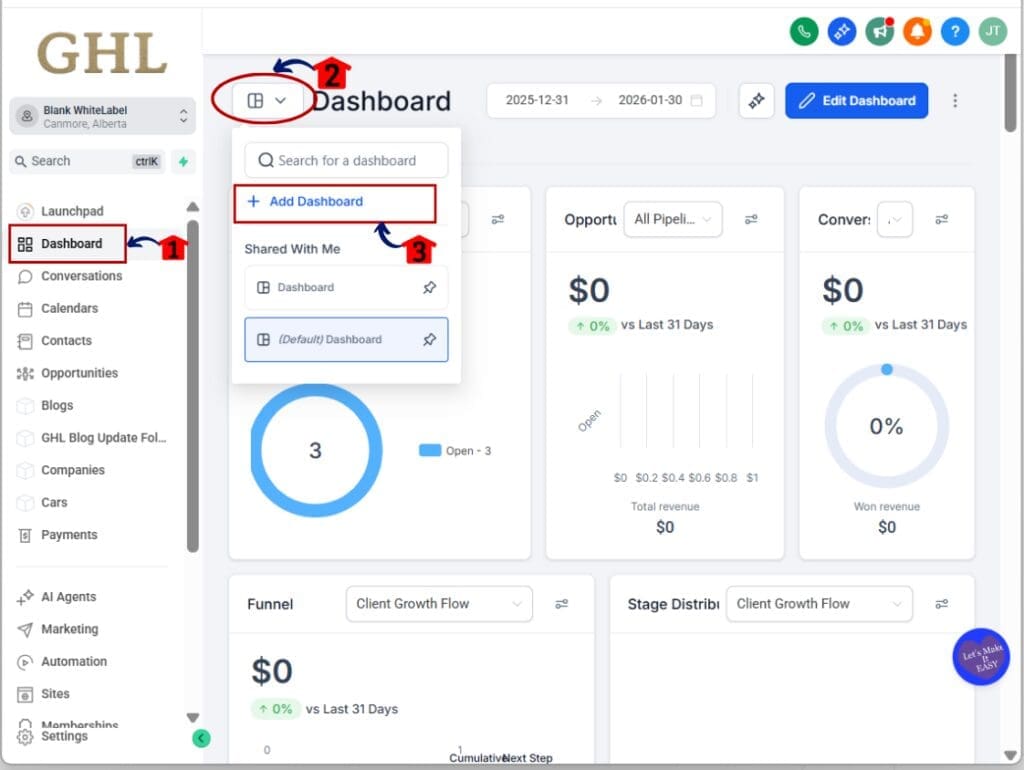
1.1 Click on the Dashboard Menu Item.
- Access the ‘Dashboard’ section of GoHighLevel
- This is where you can add, edit, or customize any dashboard inside your account.
1.2 Click on the drop-down menu beside Dashboard
1.3 Click “+ Add Dashboard” to create a new one or choose an existing dashboard to edit
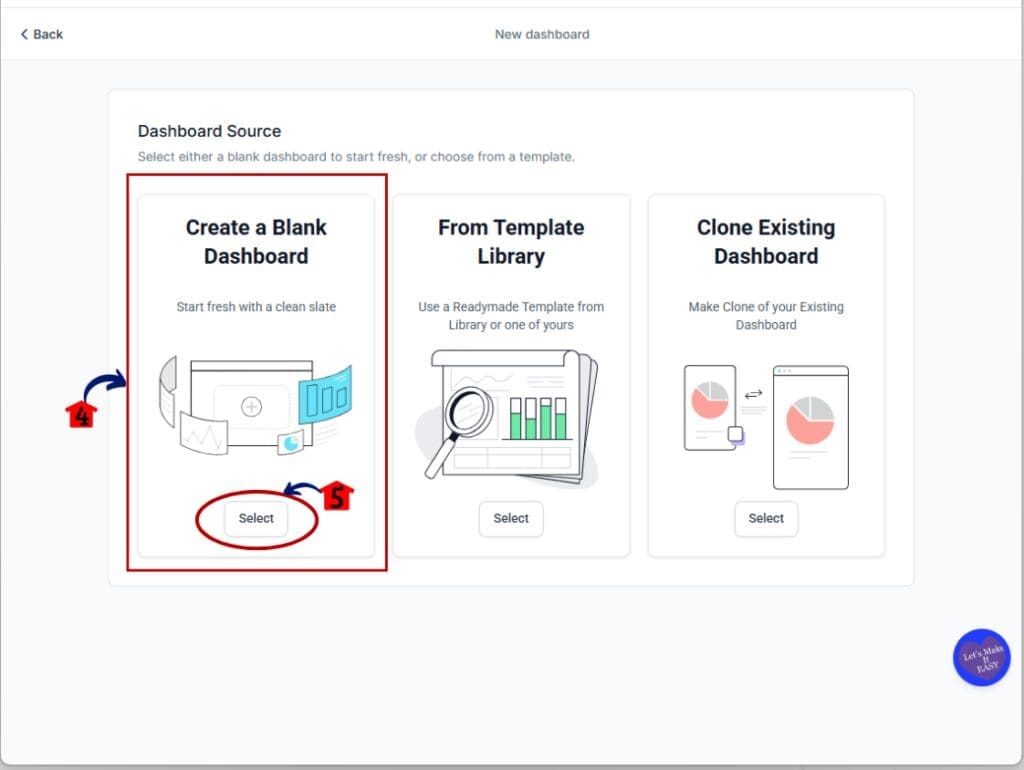
- A new window will appear
1.4 Choose Create a Blank Dashboard Click Select
- A pop-up window will appear
1.5 Name your dashboard then click Confirm button
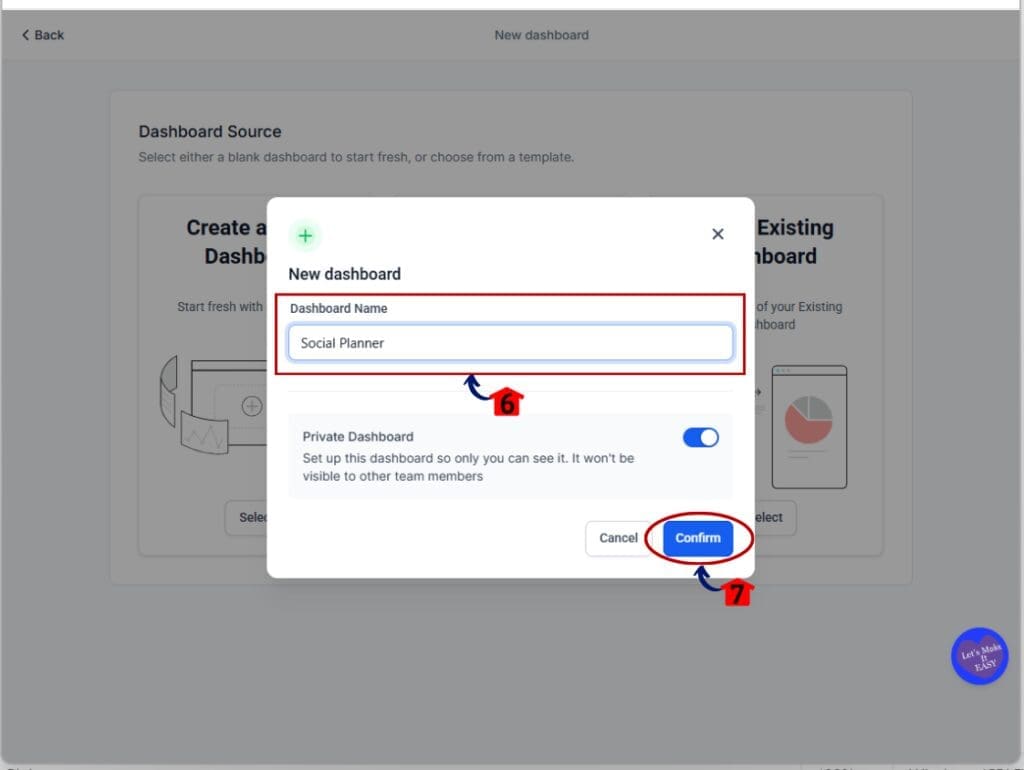
Step 02: Edit Dashboard
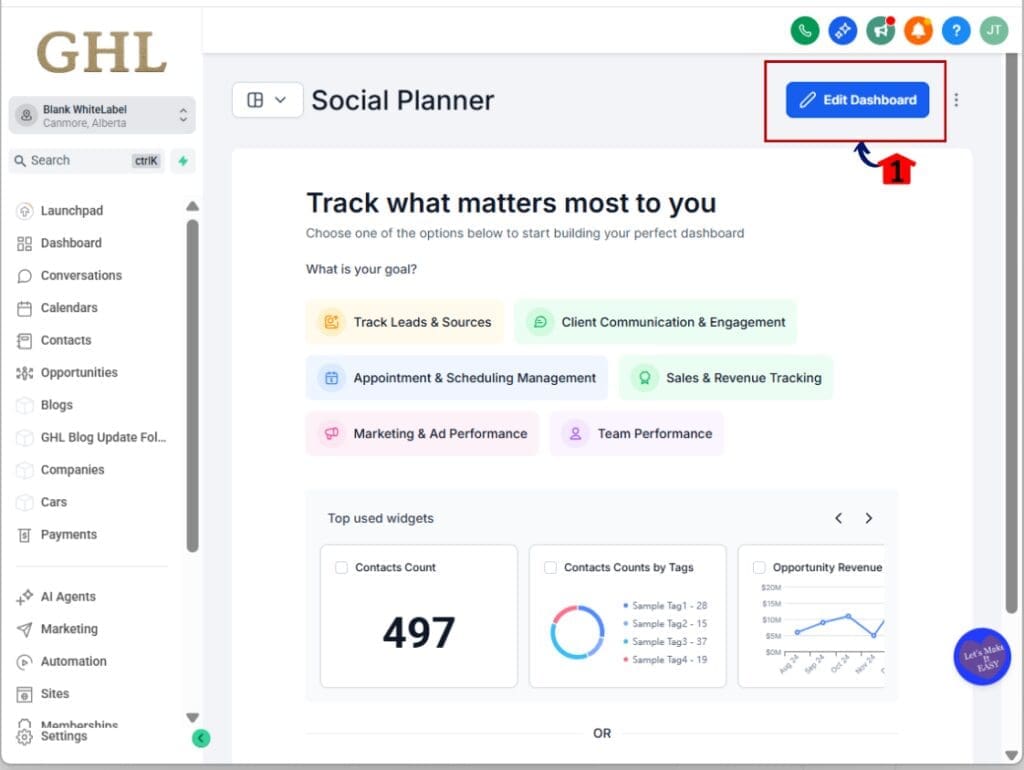
2.1 Click Edit Dashboard button
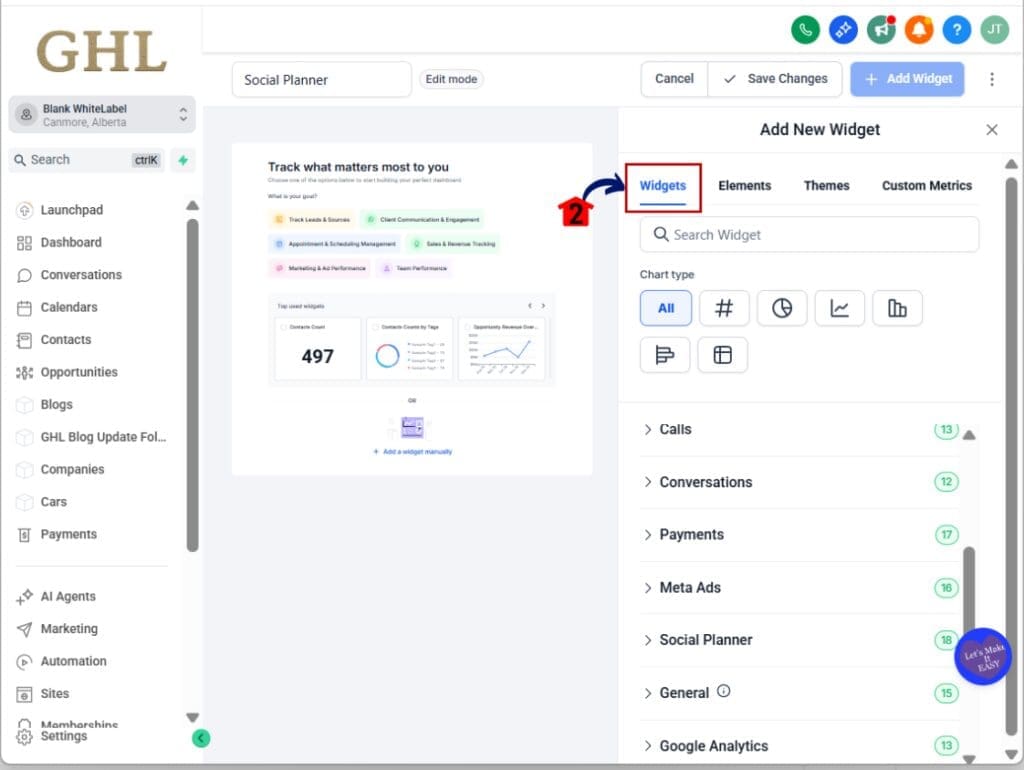
2.2 Under the Add New Widget Window Click the Widgets tab
- This will open a list of widget types you can add.
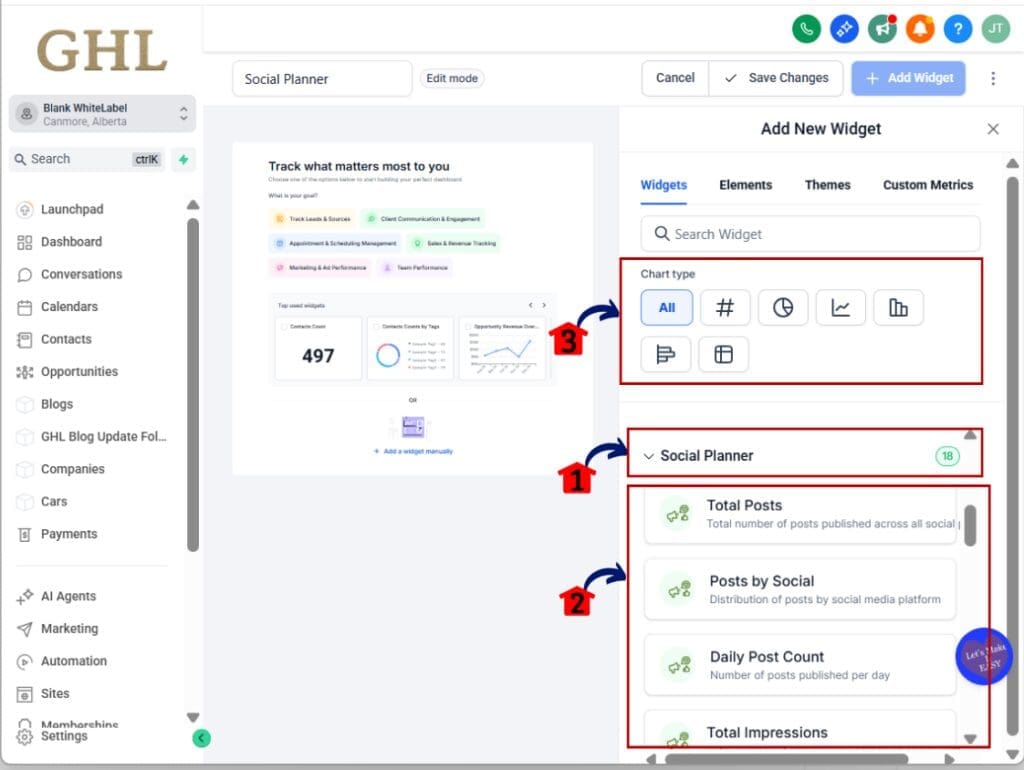
Step 03: Select the Social Planner Widgets
- These are the new widgets designed to show your social media metrics.
3.1 Choose “Social Planner” from the list of available widget types
- A new screen will show the available social metrics.
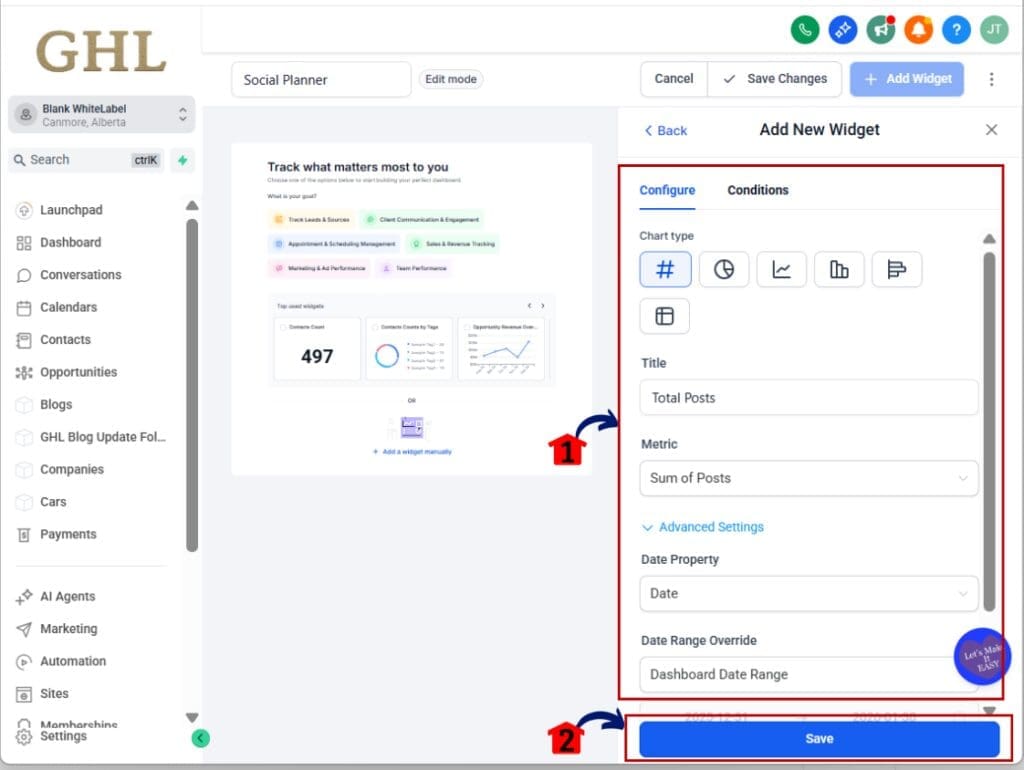
3.2 Pick the metric you want to display
- Options include total posts, post by social, daily post count, total impressions, reach, and followers.
3.3 Choose the Chart Type
- You can use numeric, line graph, or bar graph views depending on how you want the data to show.
Step 04: Apply Filters and Grouping Options
- Now fine-tune how the data is displayed.
4.1 Filter by platform, social account, or date range
- This helps you focus the widget on a specific campaign or brand.
4.2 Group your data by date, platform, or account
- This gives you better insight into where results are coming from.
4.3 Click “Save” button to place it on your dashboard
- Repeat for each metric you want to track.
Step 05: Save and Reuse Your Dashboard
- Once you’re done, you can save and scale this setup across other accounts.
5.1 Click Save Changes
- Your social media analytics dashboard is now active.
5.2 Use the dashboard inside Snapshots, Templates, or Client Sub-Accounts
- This saves time and gives your whole team consistent visibility.
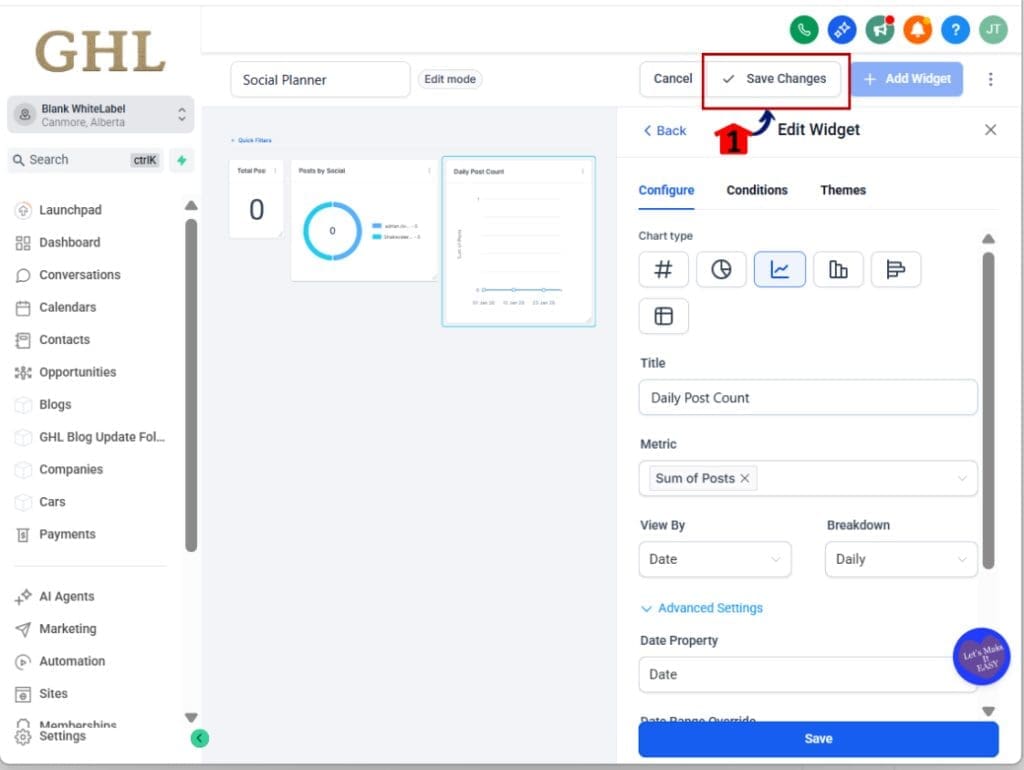
That’s it. You’ve now got a live social media analytics dashboard that updates automatically inside GHL.
Pro Tips – Get more from your social media analytics dashboard
A social media analytics dashboard is more than a place to view stats. It can also help you work faster and spot issues before they grow.
Use numeric widgets to get quick totals like how many posts went out or how many likes they got. These work well when you want a high-level view without extra details.
Try combining your social media analytics dashboard with other data. Add widgets that show leads or landing page visits. This helps you connect your social content to real business results.
If you run client accounts, build one dashboard layout that includes the key social media metrics. Then save it as a template and reuse it across your sub-accounts. It keeps things simple and saves time.
Also use the grouping filters in your social media analytics dashboard. You can sort by date, platform, or account. This makes it easier to see where results are strong and where they’re falling short.Keep your dashboards lean. Show only the metrics that matter. Let the data speak.
Results You Can Expect – Better insight, better reporting
When you start using a social media analytics dashboard inside GHL, you’ll notice the difference right away.
You’ll stop wasting time jumping between tabs just to check basic stats. Everything from posts to reach shows up in one place. It’s faster and easier to stay on top of your content.
Your reports will also get clearer. A well-built social media analytics dashboard makes it simple to show clients or your team what’s working. No need to pull numbers from different tools or explain screenshots.
You’ll also start seeing patterns sooner. When metrics like impressions, shares, and followers are visible every day, it’s easier to catch small changes before they turn into big problems.Best of all, the dashboard updates on its own. Once you set it up, the data flows in. That means less work for you and better results for your campaigns.
Frequently Asked Questions – Social Planner widgets inside dashboards
GHL just made social reporting easier
The new social media analytics dashboard widgets in GHL give you a simpler way to track your content.
You no longer need to switch tools or dig through reports just to see how your posts are doing. With a social media analytics dashboard, everything is right where you need it.
You can view key numbers like reach, likes, comments, and followers in one spot. You can build different dashboards for your team or for each client.
This update saves time and helps you see trends sooner. If you run campaigns across multiple platforms, it helps you stay focused and make better decisions.
Try adding the social media analytics dashboard to your workflow this week. It takes just a few clicks to set up and makes a real difference in how you track results.
Scale Your Business Today.
Streamline your workflow with GoHighLevel’s powerful tools.