- Speed up your GHL workflows with right-click quick actions that let you move, copy, or delete without the menu hunt.
- Quick Summary – Workflow Editing Shortcuts Essentials
- What’s New in Workflow Editing Shortcuts
- What’s Changed in the Way You Edit Workflows
- Why Workflow Editing Shortcuts Matter
- How to Use the New Right-Click Workflow Editing Shortcuts
- Pro Tips for Using Workflow Editing Shortcuts Better
- What Workflow Editing Shortcuts Mean for You
- Results You Can Expect From Workflow Editing Shortcuts
- Frequently Asked Questions About Workflow Editing Shortcuts
- Workflow Editing Shortcuts That Just Make Sense
Speed up your GHL workflows with right-click quick actions that let you move, copy, or delete without the menu hunt.
Workflow Editing Shortcuts That Save Time
Workflow editing shortcuts just got a whole lot better inside GoHighLevel. You can now right-click on any action block in the Workflow Builder to access quick actions without clicking through menus.
This new right-click menu gives you faster access to the tools you use the most copy, move, delete, or add notes. Everything is right at your cursor. No more clicking three dots every time you want to make a small change.
It feels simple, clean, and familiar. And once you start using it, you’ll wonder how you ever built workflows without it.
With the new workflow editing shortcuts, you’ll spend less time clicking and more time building. This one change can speed up your entire automation process.
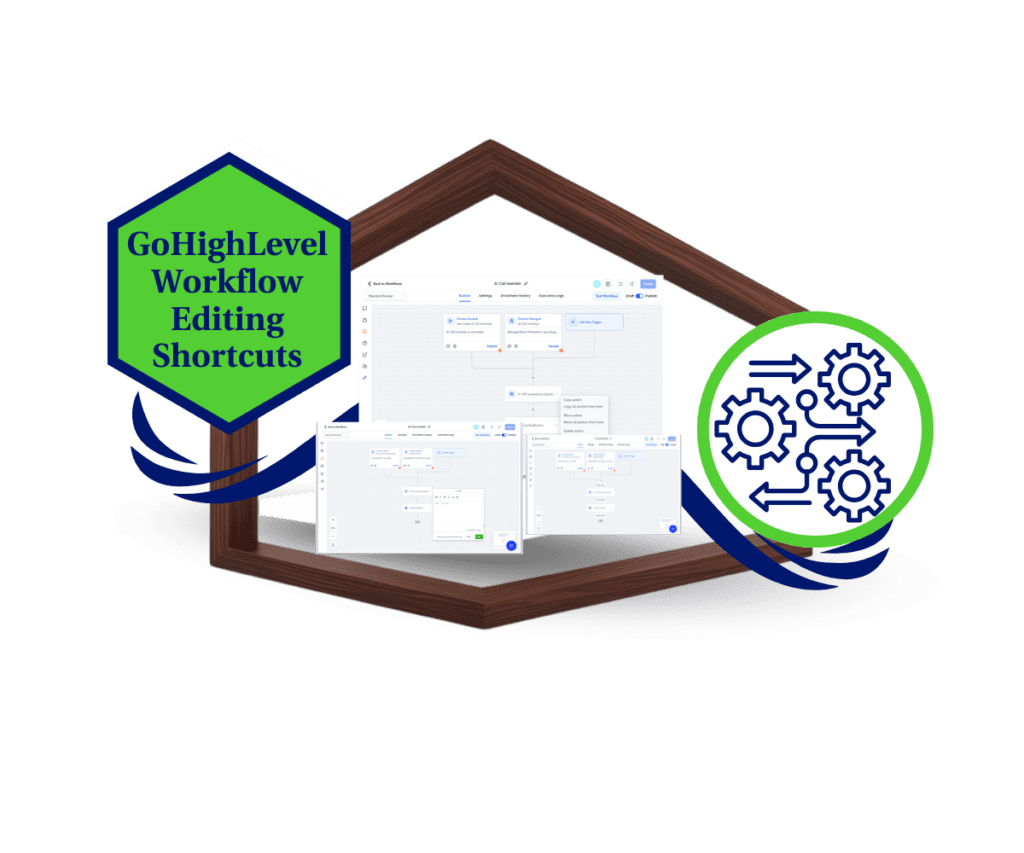
With the new workflow editing shortcuts, you can build automations faster using right-click quick actions. Say goodbye to endless clicks and hello to smoother, faster workflows inside GHL.
Quick Summary – Workflow Editing Shortcuts Essentials
Purpose: This update adds right-click editing to workflows in GoHighLevel, making it faster to manage actions.
Why It Matters: Quick edits help you move faster and reduce mistakes while building or updating automations.
What You Get: Right-click access to copy, move, delete, or add notes to workflow steps no menu hunting.
Time to Complete: Instant. Just right-click in any workflow. No setup needed.
Difficulty Level: Beginner. If you can right-click, you can use this.
Key Outcome: Smoother, faster workflow builds with fewer clicks and cleaner logic.
What’s New in Workflow Editing Shortcuts
GoHighLevel just made workflow editing shortcuts easier to use. You can now right-click on any action block inside the Workflow Builder to bring up a simple menu of quick actions.
This new menu gives you the most common tools without needing to search for the three-dot icon. The options include:
Automate marketing, manage leads, and grow faster with GoHighLevel.

- Copy action or copy all actions from this point
- Paste below (if you have something copied)
- Move action or move all actions from this point
- Delete action or delete all from this point
- Add or edit notes for documentation
The best part about these workflow editing shortcuts is that they show up right where you click. No extra steps, no hunting through menus. Just faster edits right at your fingertips.
This update keeps things clean and simple while saving you time.
What’s Changed in the Way You Edit Workflows
Before this update, making changes inside the Workflow Builder meant clicking the small three-dot menu on each action block. If you build a lot of automations, you know how many extra clicks that can add up to.
Now, with these new workflow editing shortcuts, you can skip the dots completely. Just right-click on an action, and your tools appear right at your cursor.
It feels more like using a regular desktop app. You don’t have to move your mouse across the screen just to copy or delete something. That one change makes a big difference when you’re working with a long or complex workflow.
This isn’t just a visual update. It’s a real improvement in how you move through your builds.
Why Workflow Editing Shortcuts Matter
Workflow editing shortcuts are not just a nice-to-have feature. They change how you work in the Workflow Builder. When you spend less time clicking through menus, you get more done in less time.
This update puts the tools you use most right at your cursor. No more stopping to look for icons. Just right-click and take action. These workflow editing shortcuts help you stay focused, especially during long builds or when working under pressure.
For teams and solo builders, this makes a real difference. When editing becomes smoother, your process improves. You spend less time fixing steps and more time creating results.
Over time, the saved clicks add up. That’s why these workflow editing shortcuts matter.
How to Use the New Right-Click Workflow Editing Shortcuts
Faster, easier editing with fewer clicks in the Workflow Builder
The new workflow editing shortcuts are already live inside GoHighLevel. You don’t need to turn anything on or update your settings. Just follow the steps below to use the new right-click menu and speed up your workflow builds.
Step 01: Access the Main Left Hand Menu in GoHighLevel
- The Main Menu on the Left side of your screen has all the main areas that you work in when using GHL
1.1 Click on the Automation Menu Item.
- Access the ‘Automation’ section of GoHighLevel
1.2 Click on the Workflows Menu
- this will open the workflows dashboard where you can access the available workflow
1.3 Open any workflow you want to edit
- Pick a workflow with multiple steps if you want to test the full range of shortcut actions.

Step 02: Right-Click on Any Action Block
- Use your mouse or trackpad to click or right-click directly on a workflow action.
2.1 A quick menu will appear with editing options:
- Copy action / Copy all actions from here
- Paste below (if you have copied something)
- Move action / Move all actions from here
- Delete action / Delete all actions from here
- Add Notes
2.2 Select the shortcut you want to use
- This menu appears next to your cursor, so you don’t need to search for icons or menus.

Step 03: Use Workflow Editing Shortcuts to Speed Up Your Builds
- Try using different options to find your favorite time-savers.
3.1 Right-click and copy blocks you use often
- This is great for reusing actions across workflows.
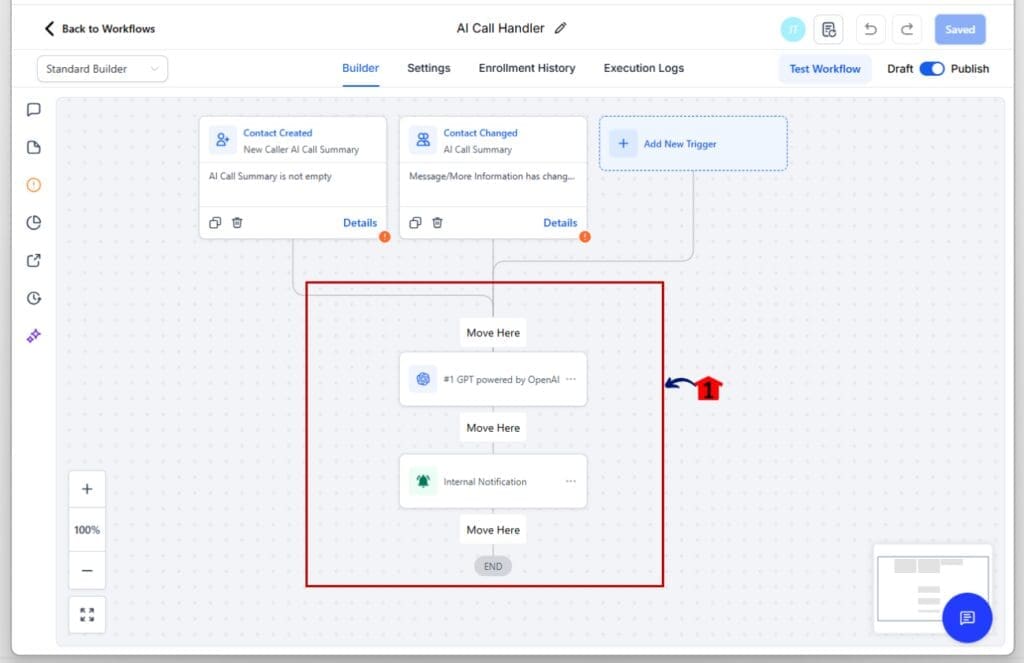
3.2 Use “Move all from here” to rearrange steps quickly
- No more dragging blocks one by one.
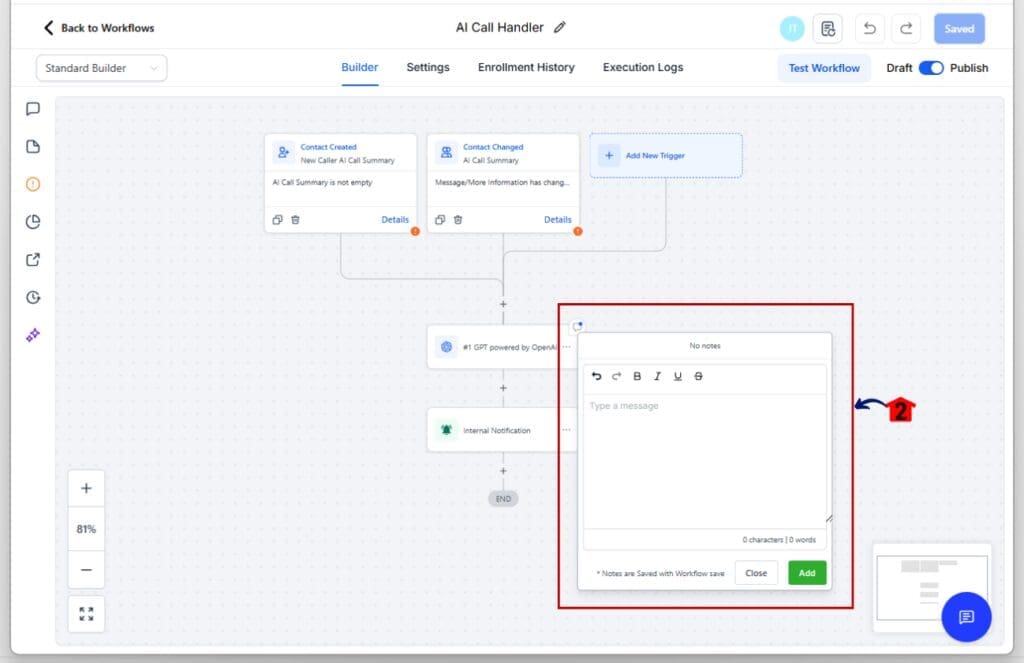
3.3 Add notes to keep track of logic in long builds
- Helpful when working in teams or revisiting old workflows.
That’s it. These workflow editing shortcuts are designed to make your daily builds smoother and faster. Right-click your way to cleaner automations in GoHighLevel.
Pro Tips for Using Workflow Editing Shortcuts Better
Workflow editing shortcuts are built to save time, but a few smart habits can make them even more useful.
Reuse full logic sections
- Instead of rebuilding the same steps over and over, use the “Copy all from here” shortcut. Right-click the top action in a sequence and paste it where you need it. This works well when you’re setting up similar flows in different workflows.
Use notes to stay organized
- Adding notes to action blocks helps you keep track of what each step does. It is especially helpful in long workflows or when working with other team members. Right-click, choose Notes, and write a quick reminder.
Move sections faster
- Dragging steps around can get messy. Use “Move all from here” to shift big chunks of your workflow at once. It is cleaner and faster.
Be careful with bulk deletes
- “Delete all from here” is powerful, but make sure it is what you want. If you delete the wrong steps, you can use the Undo button in the toolbar to go back.
Build muscle memory
- The more you use workflow editing shortcuts, the faster they feel. You will stop reaching for the three-dot menu and start right-clicking without thinking.
The goal is simple. Spend less time clicking around and more time building. These workflow editing shortcuts help you do just that.
What Workflow Editing Shortcuts Mean for You
These new workflow editing shortcuts give you a faster and cleaner way to build inside GoHighLevel. Right-clicking on an action puts the most used tools right where you need them.
This saves time, but it also makes your builds feel more natural. You are not moving your mouse across the screen to find the three-dot menu anymore. You stay in one place and keep your focus on the work.
If you build workflows often, this update will make your process smoother. If you work with a team, it helps everyone stay on the same page. Notes are easier to add, changes are faster to make, and your logic stays cleaner.
Workflow editing shortcuts may seem small, but they add up fast. You can get more done with less effort. That is the kind of change that matters when you build every day.
Results You Can Expect From Workflow Editing Shortcuts
Once you start using workflow editing shortcuts, you will notice the difference right away. It is not just about moving faster. It is about making your process easier and more reliable.
You will spend less time clicking through menus. Right-clicking gives you what you need without breaking your focus. That means fewer errors, fewer delays, and fewer steps to finish a build.
Your workflows will be cleaner. Using shortcuts to move or copy actions helps you stay organized. Notes make it easier to explain logic when handing things off to a teammate or checking your own work later.
You will also cut down on time spent fixing things. When edits are fast, changes take minutes, not hours.
The result? A better build process. Workflow editing shortcuts help you get more done without working harder.
Frequently Asked Questions About Workflow Editing Shortcuts
Workflow Editing Shortcuts That Just Make Sense
Workflow editing shortcuts are the kind of update that helps right away. Right-clicking on a step to copy, move, or delete takes less effort and keeps your builds on track.
You do not need to learn anything new. You just work like you always do, but faster. These shortcuts help you stay focused and save time without changing how you build.
If you use workflows every day, this simple update can speed up your entire process. Try it out. After a few clicks, you will not want to go back.
Scale Your Business Today.
Streamline your workflow with GoHighLevel’s powerful tools.