- Control who sees or edits pipelines in GHL
- Quick Summary – Pipeline Permissions Overview
- New pipeline permission levels
- Key changes to pipeline access
- Why pipeline permissions matter
- How to set pipeline permissions in GHL
- Quick tips for better control
- FAQs about pipeline permissions
- Final thoughts on pipeline access control
Control who sees or edits pipelines in GHL
GoHighLevel now includes pipeline permissions. This update gives users more control over who can access, view, or edit sales pipelines inside the CRM.
Previously, anyone with general access to a subaccount could see or change pipeline details. That setup worked for small teams but created problems for growing agencies. With pipeline permissions, admins can now assign access levels to specific users or roles. These include View Only, Edit, or No Access.
The feature also supports connected tools like dashboards, reports, and workflows. If a user doesn’t have access to a pipeline, those elements will automatically reflect that restriction. This helps keep data clean and ensures everyone sees only what’s relevant to their role.
With GHL’s new pipeline permissions, teams can set clear access rules, prevent unwanted changes, and reduce confusion when managing leads. It’s a straightforward way to stay organized and keep control over your sales process.
Quick Summary – Pipeline Permissions Overview
Purpose: Help admins control access to sales pipelines.
Why It Matters: Reduces errors, protects data, and improves team focus.
What You Get: View, Edit, or No Access settings for each pipeline.
Time To Complete: Takes about 5 minutes to update each pipeline.
Difficulty Level: Easy to set up with no special training needed.
Key Outcome: A more organized and secure CRM workspace.
New pipeline permission levels
GoHighLevel now gives admins more control over how team members interact with pipelines. With the new pipeline permissions feature, each user or role can be assigned one of three access levels. This helps keep the right people focused and protects the pipeline structure from unnecessary changes.
Here’s a breakdown of each permission level:
Automate marketing, manage leads, and grow faster with GoHighLevel.

- View Only: This is the default setting for most users. It lets them see the pipeline and update opportunities, but they can’t move or edit the pipeline stages. It’s useful for sales reps who need to work deals but shouldn’t change the layout.
- Edit: This level gives full access to the pipeline. Users can change stage names, reorder steps, or even delete the pipeline. It’s best for managers or team leads who are responsible for pipeline setup and maintenance.
- No Access: Users with this setting won’t see the pipeline at all. It’s hidden from their dashboard, the mobile app, and even the API. This is helpful when teams are working on different pipelines or when access needs to be limited for privacy.
Admins always have full access and can’t be restricted. If someone owns an opportunity in a pipeline, their access will be protected unless that ownership is reassigned. GHL also includes a bulk reassignment tool to make that process easier.
With these pipeline permissions in place, agencies can manage access more effectively and reduce the risk of mistakes inside the CRM.
Key changes to pipeline access
GoHighLevel’s new pipeline permissions update changes how access works across the CRM. Before this change, anyone with CRM access could view and edit every pipeline, even if they didn’t need to. That setup worked for smaller teams but often led to confusion or unwanted changes.
With the new system, access is now much more controlled. Admins can assign different permission levels to each user or role. This means you can decide who gets full editing rights, who can only view deals, and who should not see a pipeline at all.
Here’s what’s new:
- Access can be set by user or role, giving more flexibility.
- Pipelines can be fully hidden using the No Access option.
- View Only allows users to see and work with opportunities but not change the pipeline layout.
- Edit access is still available for those who need to manage the full pipeline.
These pipeline permissions apply across every part of GHL. If a user doesn’t have access to a pipeline, they won’t see it in the web app, mobile app, or through the API.
This update also connects with other GHL tools. If a pipeline is hidden, that same rule applies in linked dashboards, workflows, forms, and reports. Everything stays in sync automatically.
With this change, agencies can keep pipelines secure, reduce mistakes, and create a cleaner experience for every team member.
Why pipeline permissions matter
Not everyone on a team needs full access to the sales pipeline. GoHighLevel’s pipeline permissions help solve this by giving admins a way to control who sees, edits, or manages each pipeline.
Here’s why it matters:
- It protects sensitive information. Some pipelines include client details, revenue stages, or private sales data. Pipeline permissions allow admins to limit access so only the right people can view or manage those pipelines.
- It prevents accidental changes. When too many people can edit pipeline stages, mistakes happen. Someone might move a stage without realizing the impact. View Only access lets users work on deals without changing the layout.
- It keeps teams focused. In large teams, seeing every pipeline can be overwhelming. Assigning access based on roles helps users stay focused on the pipelines that are relevant to them. This keeps the CRM cleaner and easier to manage.
Pipeline permissions in GHL aren’t about locking people out. They’re about helping teams work better by giving the right level of access to the right people. It’s a simple way to stay organized and avoid problems.
How to set pipeline permissions in GHL
Setting pipeline permissions in GoHighLevel is a simple process. It gives admins a clear way to manage who can see or change each sales pipeline. This helps teams stay organized and avoids confusion.
Here’s how to set it up:
Step 01 – Access the Main Menu in GoHighLevel
- The main menu on the left side of your screen includes all the main areas you work in when using GoHighLevel (GHL).
1.1 Click on the Opportunities item to access the Pipelines section.
- You’ll now be in the Opportunities section, where you can access the Pipelines tab from the top menu.
1.2 Click the Pipelines tab.
1.3 Click the Sharing and Permissions icon on a pipeline.
- It is shown as a key icon.

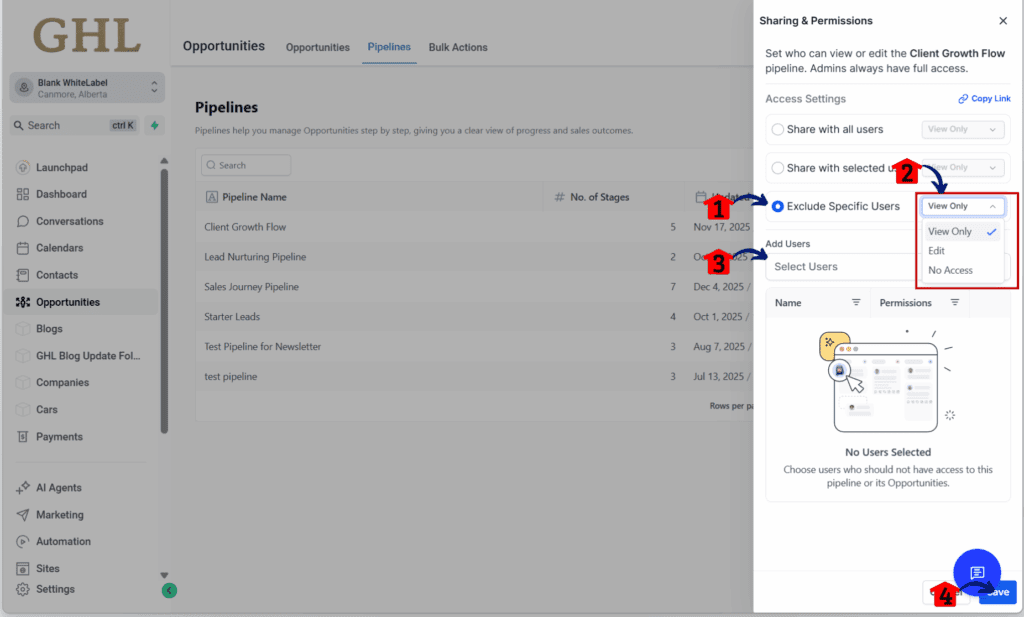
Step 02: Update the Sharing and Permissions Settings
- A slide popup will appear that shows the Sharing and Permissions settings for the selected pipeline.
2.1 Click the Exclude Specific Users radio button.
2.2 Click the sharing and permission dropdown under the Exclude Specific Users option.
- The View only, Edit, and No access options should appear.
2.3 Add the users you want to exclude.
2.4 Click the Save option once done.
If a user owns opportunities in a pipeline, GoHighLevel won’t let you remove their access until those opportunities are reassigned. To handle that, use the Bulk Reassignment tool. It makes the switch easy and avoids any issues with deal ownership.
Once saved, the changes take effect right away. Pipeline permissions update across the platform, including on the mobile app.
This setup helps teams stay focused and keeps your CRM clean and secure.
Quick tips for better control
Once pipeline permissions are set up in GoHighLevel, a few simple habits can help keep things organized. These tips are easy to follow and can prevent access problems before they start.
- Assign permissions by role. Managing users one by one takes time. Setting pipeline permissions by role makes it easier to keep things consistent, especially for growing teams.
- Always check before removing access. If a user owns opportunities in a pipeline, GHL won’t let you remove their access unless those are reassigned. It’s a good idea to review ownership first and use the bulk reassignment tool if needed.
- Keep edit access limited. Only give edit access to people who really need it. Most users can do their job just fine with View Only access.
- Use View Only for training. New team members don’t need full access right away. Starting them with View Only keeps things safe while they learn the system.
- Check audit logs regularly. GHL logs every change to pipeline permissions. Taking a quick look now and then can help catch errors early and keep things secure.
Using these tips along with pipeline permissions helps teams stay focused, avoid mix-ups, and keep pipelines running smoothly.
FAQs about pipeline permissions
Pipeline permissions in GoHighLevel are simple to set up, but some details can still raise questions. Here are a few common ones, answered clearly.
These quick answers should help clear up common issues and make it easier to manage pipeline permissions without confusion.
Final thoughts on pipeline access control
The pipeline permissions update in GoHighLevel gives teams a better way to manage access inside the CRM. It’s a practical fix to a common problem. Not everyone needs to see or change every pipeline, and now you don’t have to give them that access.
By setting clear permission levels, admins can control who edits, who views, and who stays out. This helps reduce mistakes and keeps sensitive information protected. It also makes things easier to manage as teams grow or as new pipelines are added.
One of the best parts is how well this feature connects with the rest of GHL. If someone can’t see a pipeline, they also won’t see it in dashboards, forms, workflows, or reports. Everything stays consistent without extra steps.
For agencies, this is a small change that adds a lot of control. It keeps the CRM clean, focused, and easier for everyone to use.
Scale Your Business Today.
Streamline your workflow with GoHighLevel’s powerful tools.