- Make branded QR codes that look cleaner, click better, and spell out the next step with frames and CTA rim text.
- Quick Summary – QR Code Styling Essentials
- What’s New: QR code styling options you can actually use
- Why This Matters: QR code styling that drives more action
- How to Use QR Code Styling in GHL
- Pro / Quick Tips
- What This Means for Your Business
- Frequently Asked Questions about QR Code Styling
- Cleaner QR codes that get used
Make branded QR codes that look cleaner, click better, and spell out the next step with frames and CTA rim text.
QR code styling just got a real upgrade
If you’ve ever built a QR code inside GoHighLevel and thought, “Cool… but it looks kind of plain,” this update fixes that. GoHighLevel just rolled out new QR code styling options that make your QR codes look more modern, more branded, and more obvious about what someone should do next.
And yes, this is about real design control inside GHL, not “export it and fix it in Canva later.” With QR code styling, you can now change the shape, add a border or frame, and even add CTA text around the edge so your QR code doesn’t just sit there looking mysterious.
Here’s what’s now available across all QR code types: Rounded and Circular QR code shapes, border and frame customization (including color control), and rim content that lets you add text to the top and bottom of your QR code. It’s a small change that makes a big difference when you’re using QR codes on flyers, business cards, signage, menus, mailers, counter displays, or even in digital promos.
You’ll find everything in the same place you already go to generate QR codes: Sites > QR Codes. Once you choose your QR type, the new controls show up in the QR Color and Shape step, where you can dial in the exact look you want without leaving the platform.
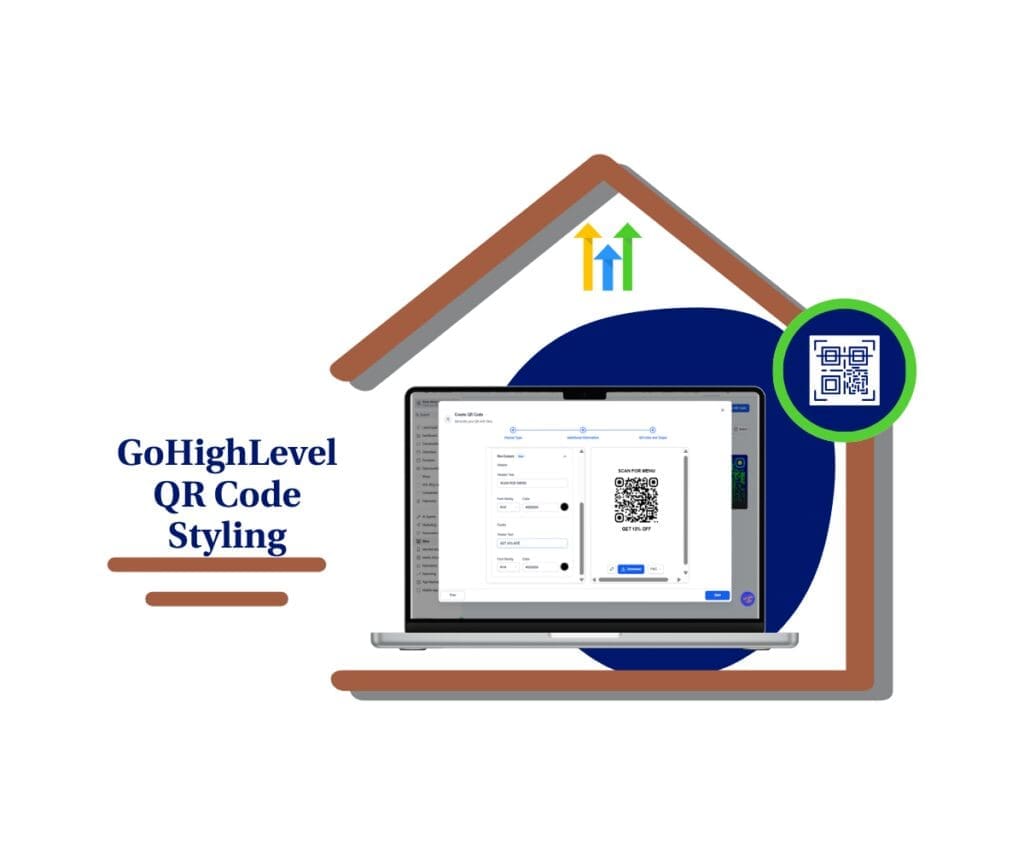
With QR code styling, you can produce cleaner, more branded QR codes that look professional and tell people exactly what to do next. That means better campaign clarity, higher scan confidence, and prettier client deliverables fast.
Quick Summary – QR Code Styling Essentials
Purpose: This guide shows how to use QR code styling in GoHighLevel to create QR codes that look cleaner and more on-brand.
Why It Matters: A QR code can work and still get ignored, so better design and clear CTA text can help more people scan.
What You Get: You learn how to change QR shapes, add borders or frames, and add rim CTA text using QR code styling in GHL.
Time To Complete: Most QR code updates take about 3 to 7 minutes, including a quick scan test.
Difficulty Level: Easy since everything is done inside Sites > QR Codes with simple settings.
Key Outcome: You end up with a polished QR code that fits your branding and clearly tells people what to do next.
What’s New: QR code styling options you can actually use
This update gives you three simple ways to improve how your QR codes look inside GoHighLevel. The goal is to make your QR codes feel more branded and easier for people to act on.
First, you can choose new shapes. Pick Rounded for a clean, modern look, or Circular when you want the code to stand out more on signs, labels, or print pieces.
Automate marketing, manage leads, and grow faster with GoHighLevel.

Second, you can add a border or frame and set the color. This helps the QR code pop on busy designs and match the brand without extra design work.
Third, you can add rim content, which is CTA text at the top and bottom of the QR code. This makes the next step clear, like “SCAN FOR MENU” or “BOOK IN 30 SECONDS.”
These QR code styling features work across all QR code types, so you can keep the same polished look no matter what the QR code does.
Why This Matters: QR code styling that drives more action
A QR code can work fine and still get ignored. Most of the time, the problem is not the link. It is the way the QR code looks and how unclear it feels to scan.
That is why this QR code styling update matters. Rounded and Circular shapes help your QR code look more modern and more intentional. Borders and frames help the code stand out, especially on busy flyers, menus, posters, and social graphics.
Rim text is the real upgrade for results. People scan more when they know what they will get. A simple line like “SCAN TO BOOK” or “GET TODAY’S DEAL” makes the next step clear.
For agencies, this means better client assets with less effort. You can build cleaner, branded QR codes inside GHL and stay consistent across campaigns.
How to Use QR Code Styling in GHL
QR code styling is used inside the QR Codes tool in GHL Sites. You’ll create (or open) a QR code, go to the QR Color and Shape step, then choose a new shape, add a border/frame, and add rim CTA text. Here are the steps to style and publish a QR code using the new QR code styling options in GHL.
- Access QR Codes inside GHL Sites.
- Choose your QR Type.
- Fill in Additional Information
- Customize your QR Code Color
- Pick a new QR code shape (Rounded or Circular)
- Add rim CTA text to the top and bottom (optional)
- Save and Download the QR code
To start, make sure you are logged in to your GoHighLevel sub-account.
Step 01 – Access QR Codes inside GHL Sites
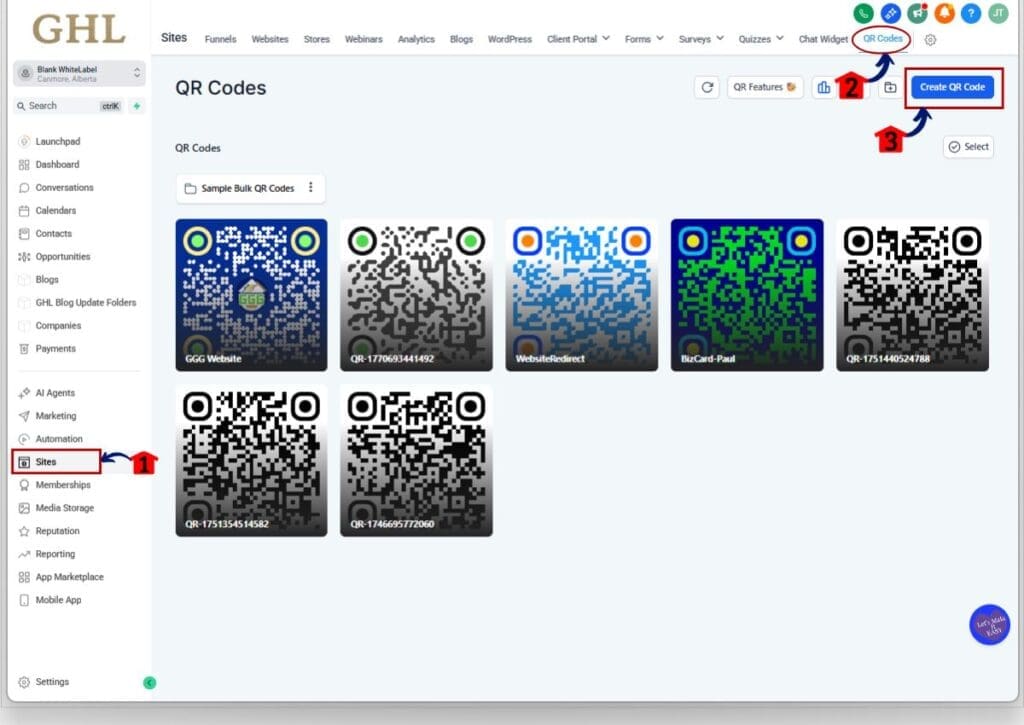
- The Main Menu on the left side of your screen has the main areas you work in when using GHL.
1.1 Click Sites in the main menu.
- This opens the Sites section where you can access website tools and assets.
1.2 Click QR Codes.
- This opens the QR Codes page where you can create and manage QR codes.
1.3 Click the Create QR Code Button.
- A pop-up window opens where you can enter your QR Code Details.
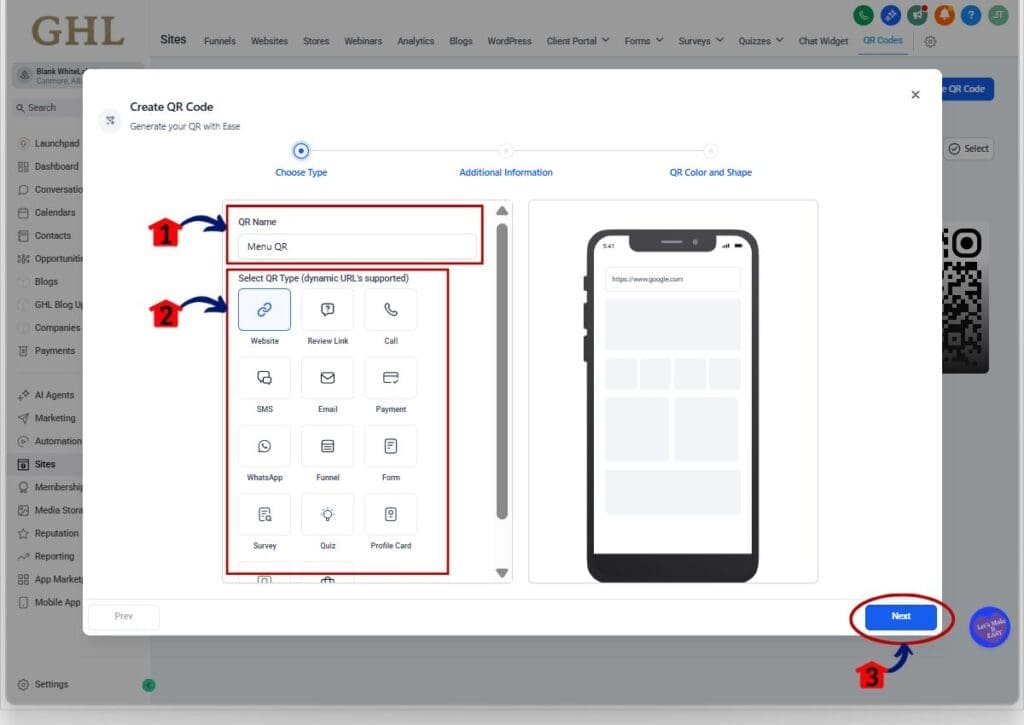
Step 02 – Choose your QR Type
- Your QR Type determines what happens when someone scans the code.
2.1 Enter a name in the QR Name field.
- Use a clear name so you can find it later, like “Menu QR” or “Spring Promo QR.”
2.2 Select your QR Type.
- Choose the option that matches your goal, such as sending people to a website, form, offer, or another destination.
- Note: QR code styling works on all QR code types.
2.3 Click Next Button.
Step 03 – Fill in Additional Information
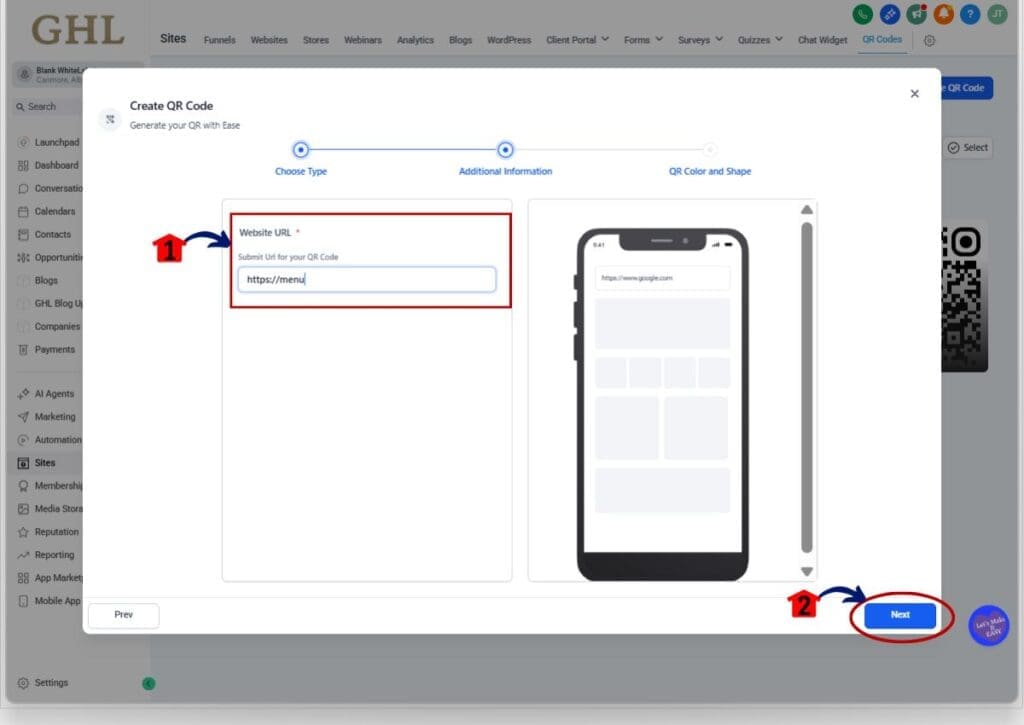
- This step collects the destination details for your QR code.
3.1 Enter the website URL in the Website URL field.
- Double-check the link is correct before moving on.
3.2 Click Next.
- This opens the QR Color and Shape step.
Step 04 – Customize your QR Code Color
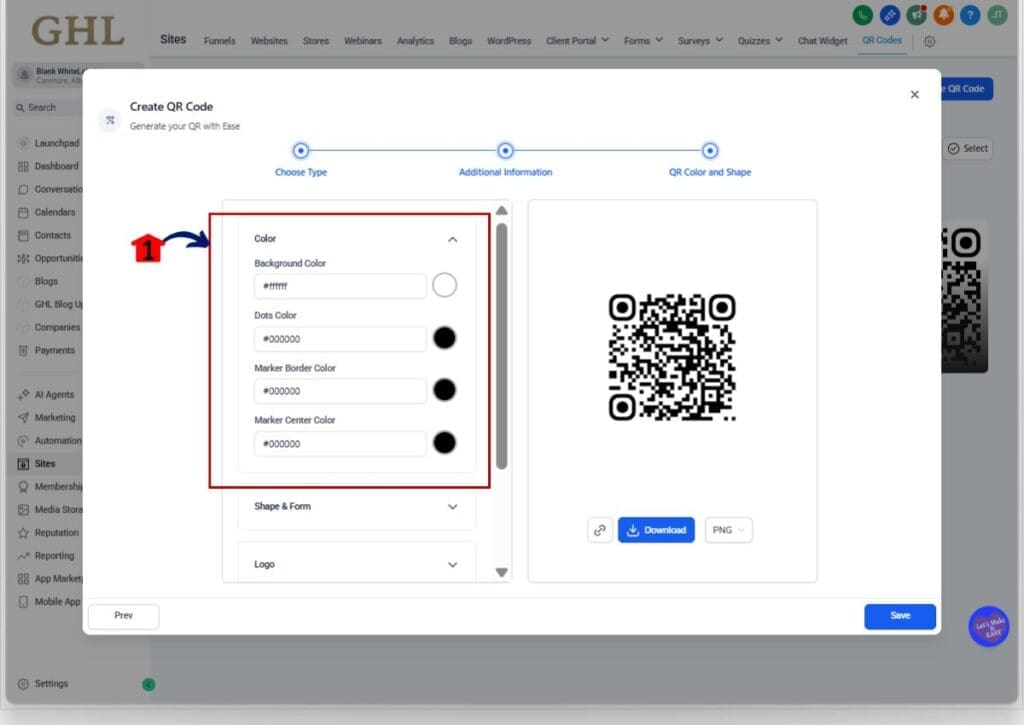
- This is where you can adjust the QR code colors and prepare the design before styling.
4.1 In the QR Color and Shape step, set your colors as needed.
- Background color.
- Dots color.
- Marker border color.
- Marker center color.
- Tip: Keep contrast strong so the QR code stays easy to scan.
Step 05 – Pick a new QR code shape (Rounded or Circular)
- This changes the look of the QR code without changing what it does.
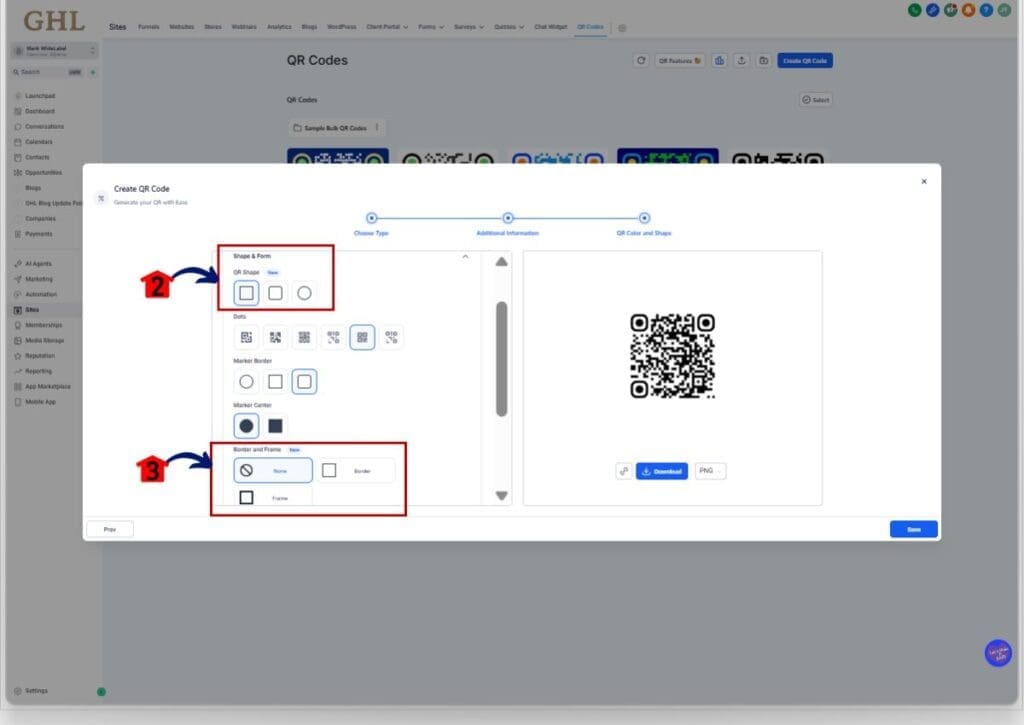
5.1 Click Shape & Form to expand the section.
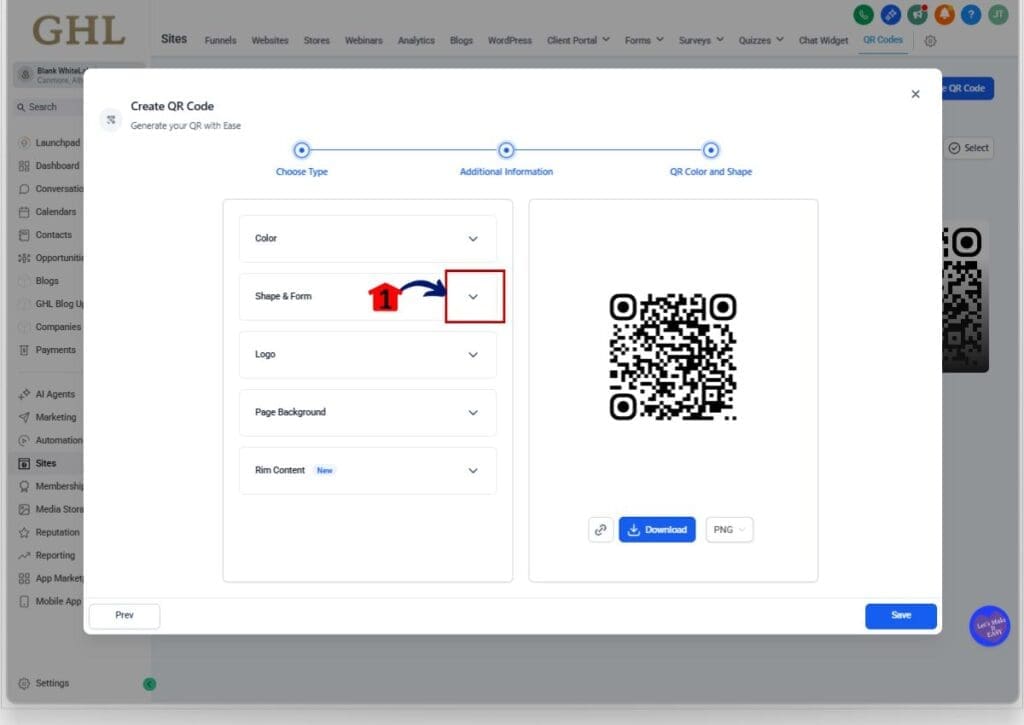
5.2 Choose your shape.
- Rounded: best for a clean, modern look that fits most brands.
- Circular: best when you want a more stylized look for signage and print.
5.3 Set Border and Frame options (if needed).
- Turn on a border or frame and choose a color that matches your brand and helps the QR code stand out.
Step 06 – Add rim CTA text to the top and bottom (optional)
- Rim content helps people understand what they will get after they scan.
6.1 Click Rim Content to expand the section.
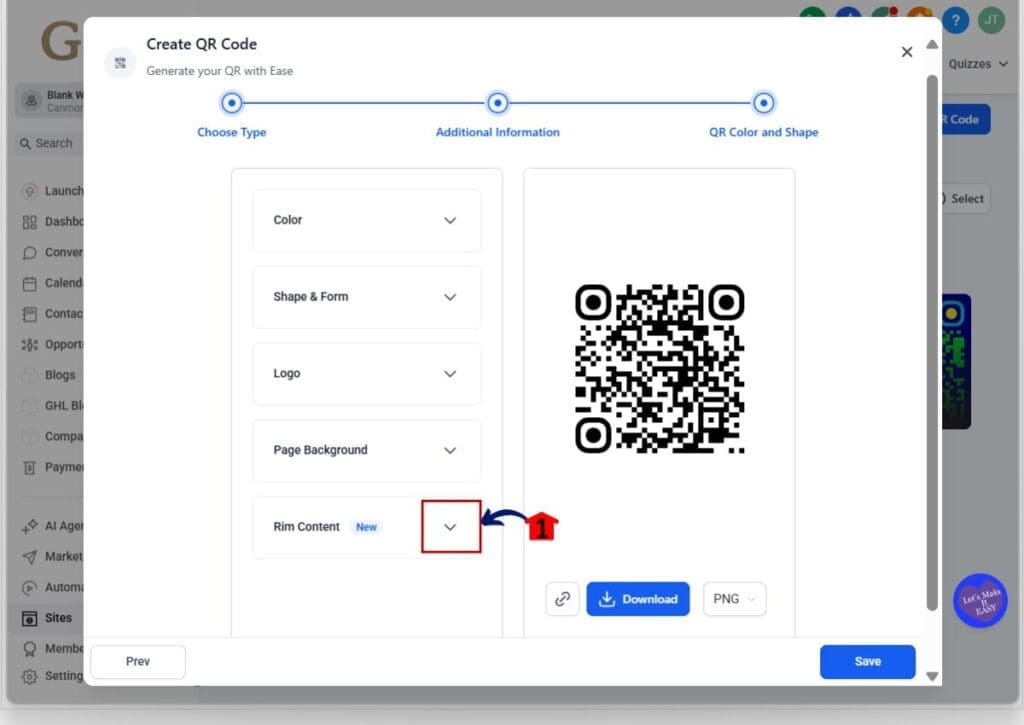
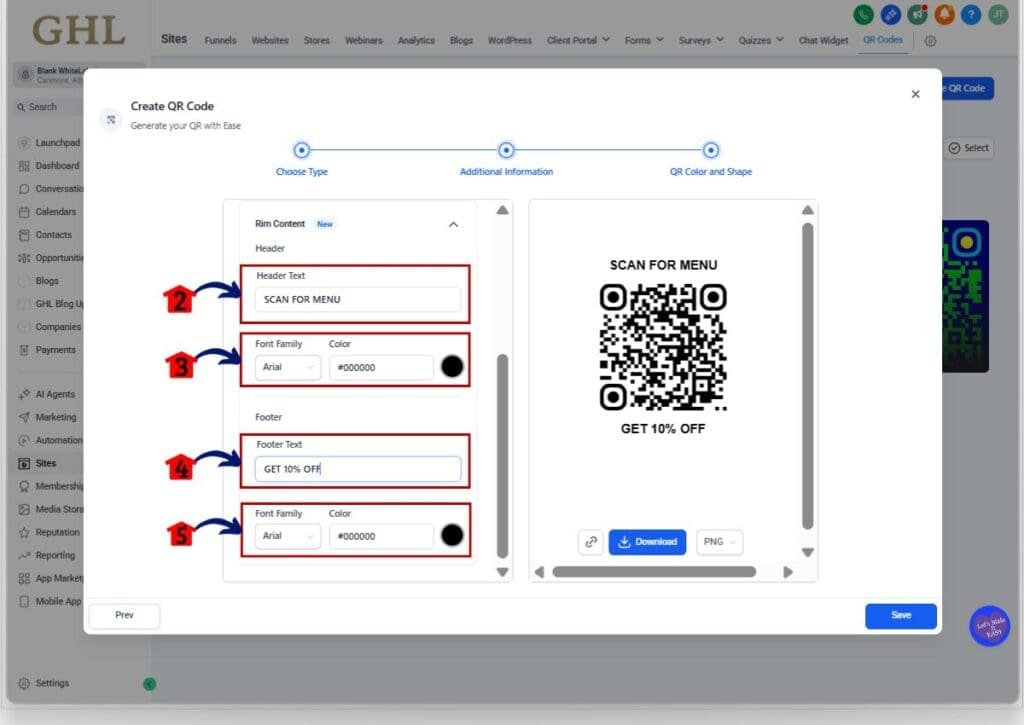
6.2 Add header text (top).
- Use this to label what the QR code is for.
- Examples: SCAN FOR MENU, SCAN TO BOOK, SCAN FOR DETAILS.
6.3 Customize the header style.
- Choose the font style and color so the text matches your branding.
6.4 Add footer text (bottom).
- Use this to reinforce the result or incentive.
- Examples: GET 10% OFF, BOOK IN 30 SECONDS, CLAIM YOUR BONUS.
6.5 Customize the footer style.
- Choose the font style and color for the footer text.
Step 07 – Save and Download the QR code
- This is the final step to lock in your changes and export the QR code.
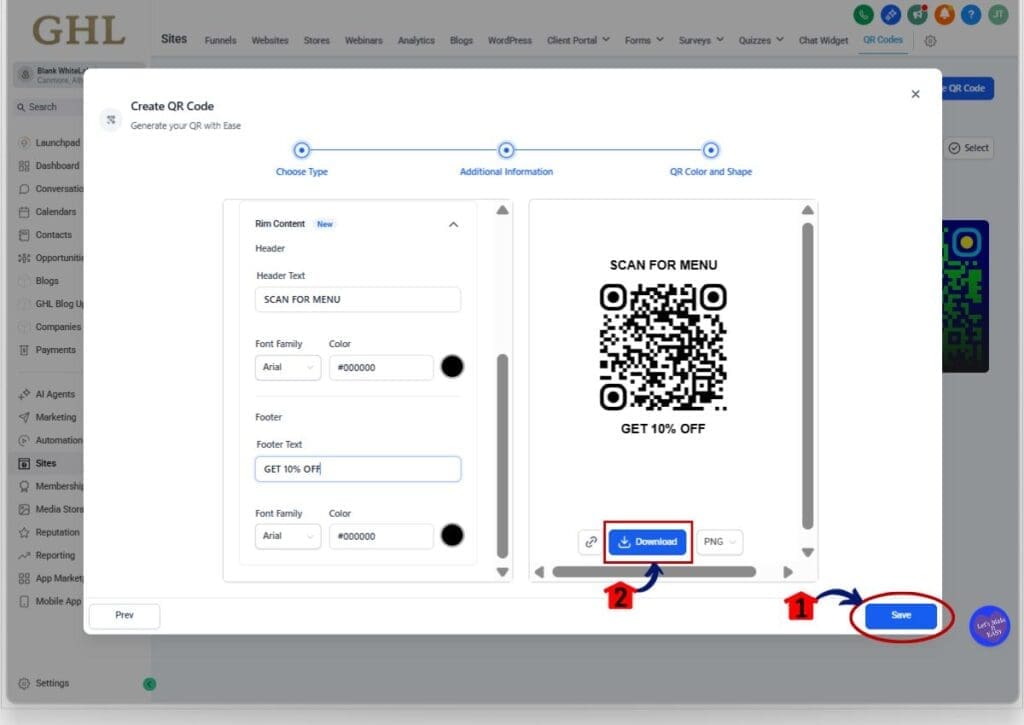
7.1 Click Save to apply your QR code styling.
- Confirm the preview looks correct.
7.2 Click Download to export the QR code.
- Before printing, test-scan the downloaded QR code with at least two phones.
Pro / Quick Tips
Keep it easy to scan. Use a dark code on a light background. If you add a border or frame, pick a color that helps the code stand out.
Rounded works for most brands. Use Circular when you want the QR to catch the eye on signs or flyers.
Keep rim text short. Use 2 to 5 words like “SCAN TO BOOK” or “GET 10% OFF.”
Before printing, test the QR with two phones and from a normal distance.
What This Means for Your Business
With QR code styling, your QR codes look more branded without extra tools. That helps you ship cleaner assets faster.
For agencies, this also makes it easier to reuse the same look across clients and campaigns.Rim CTA text can boost scans because people know what they are getting before they scan.
What This Means for Your Business
With QR code styling, your QR codes can look clean and on-brand without extra design tools. That saves time when you are building campaigns or updating client assets.
If you run an agency, this also helps you stay consistent. You can set one or two standard QR looks and reuse them for booking, menus, reviews, and offers. It keeps your work tidy and faster to deliver.
Rim CTA text can also lift scan rates. People are more likely to scan when they know what they will get. A clear message like “SCAN TO BOOK” removes guesswork and helps the QR code do its job.
Frequently Asked Questions about QR Code Styling
Cleaner QR codes that get used
This update makes it easier to create QR codes that look like they belong in your branding. With QR code styling, you can choose Rounded or Circular shapes, add a border or frame in the right color, and include rim CTA text that tells people what to do next.
If you use QR codes in print or on-screen, this is worth updating right away. Pick one common use case, like booking or menus, rebuild the QR with a simple CTA, then test it on two phones. Once you like the look, reuse that style across your other campaigns and clients.
That’s it. Small changes, cleaner assets, and a clearer call to action.
Scale Your Business Today.
Streamline your workflow with GoHighLevel’s powerful tools.