- Quickly review trigger logic in GHL workflows
- Quick Summary – Workflow Trigger Filters Overview
- New Trigger Narration Feature
- No More Opening Every Trigger
- Why Workflow Trigger Filters Matter
- How to Use Trigger Narration in GHL
- Quick Tips for Workflow Trigger Filters
- Common Questions About Trigger Narration
- Better Visibility for GHL Workflows
Quickly review trigger logic in GHL workflows
GoHighLevel now shows workflow trigger filters directly on each trigger card. No need to open every configuration to understand what’s going on. The new trigger narration feature gives users a simple summary of all filters and conditions used in a trigger.
Before this update, reviewing automation logic was slow and repetitive. Users had to click into each trigger just to see what filters were applied. That process made debugging and collaboration harder than it should be, especially in workflows with multiple steps.
Now, trigger cards display a quick overview of their logic, right where you need it. Users can also click “Details” to view the full list of conditions without breaking their flow.
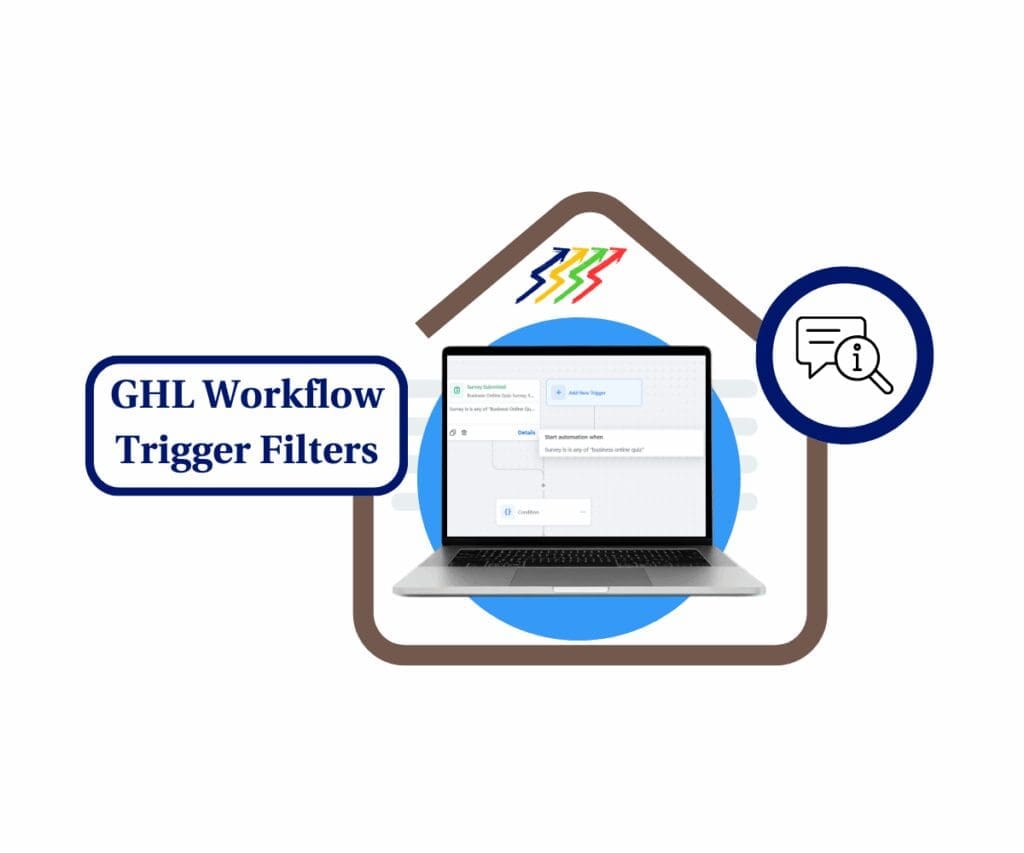
GHL’s new trigger narration shows workflow trigger filters right on the card. It saves time, cuts confusion, and makes automation logic clear and easy to follow.
Quick Summary – Workflow Trigger Filters Overview
Purpose: This update helps users view workflow trigger filters without clicking into each trigger, right from the workflow builder.
Why It Matters: It saves time when reviewing workflows and makes it easier to understand how automations start.
What You Get: Each trigger now shows a short summary of its filters, with a link to view the full list if needed.
Time to Complete: Takes just a few minutes to enable in Labs and start using in any workflow.
Difficulty Level: Easy to use. No setup or special training required.
Key Outcome: Users can scan workflows faster, catch mistakes early, and work more efficiently in GHL.
New Trigger Narration Feature
GoHighLevel has added a new way to see workflow trigger filters without clicking into each trigger. The update introduces trigger narration, a simple summary that appears right on the trigger card. This helps users quickly understand what logic is being used in their workflows.
Instead of opening the settings, users now see a short description of the filters and conditions applied to each trigger. This includes things like tags, appointment statuses, or contact actions.
Automate marketing, manage leads, and grow faster with GoHighLevel.

Key features of trigger narration:
- Shows the main workflow trigger filters right under the trigger name
- Keeps things clear with a “+X more” label when extra filters are applied
- Offers a “Details” button to view the full list of filters in one place
This update is helpful for anyone building or reviewing automations. It makes it easier to:
- Understand what each trigger is doing without clicking around
- Spot issues faster when reviewing a workflow
- Train new team members who are learning GHL automations
Trigger narration gives users more control and clarity inside the workflow builder. It’s a small change that helps make bigger workflows easier to manage.
No More Opening Every Trigger
In the past, checking workflow trigger filters in GoHighLevel meant clicking into each trigger one by one. That might seem small at first, but it slows things down when you’re managing bigger automations or reviewing workflows for clients.
With the new trigger narration feature, that step is gone. Users can now see a quick summary of each trigger’s logic right on the workflow builder screen. No need to guess what filters are applied or open up extra windows.
Here’s how it helps:
- The filter summary shows up directly on the trigger card
- Longer filters are shortened with a “+X more” preview
- Clicking “Details” opens a full view of all filter conditions in one place
This update makes it easier to read and understand workflow trigger filters without leaving your spot. It cuts out repetitive clicks and helps users stay focused when building or editing automations.
For agencies managing multiple workflows, this makes reviews faster and helps reduce small errors that can be missed when filters are hidden inside settings.
Why Workflow Trigger Filters Matter
Workflow trigger filters are what decide when an automation should start. If those filters are wrong or unclear, the workflow might not fire at the right time or could miss important actions. That can lead to lost leads, missed follow-ups, or extra work fixing things later.
By showing these filters right on the trigger card, GoHighLevel makes it easier for users to see what’s happening before anything runs. It takes away the guesswork and gives users a faster way to double-check their logic.
Here’s why that matters:
- It helps users scan workflows quickly without opening each trigger
- It makes it easier to catch filter mistakes early
- It supports better teamwork, since others can review logic without clicking through settings
For teams or agencies managing lots of client accounts, having clear workflow trigger filters saves time and avoids confusion. It also makes onboarding new staff smoother, since they can understand the workflow setup more easily.
Seeing the logic upfront means fewer surprises later. That’s a win for anyone working inside GHL workflows.
How to Use Trigger Narration in GHL
Trigger narration is built right into the workflow builder in GoHighLevel. Once the feature is turned on, users can see workflow trigger filters without opening any extra settings. It gives a quick overview of the logic behind each automation.
Here’s how to start using it:
Step 01 – Access the Main Menu in GoHighLevel
- The main menu on the left side of your screen includes all the main areas you work in when using GoHighLevel (GHL).
1.1 Click on the Automation menu item to access the Workflows section.
- You’ll now be in the Automation section, where you can access the Workflows tab from the top menu.
1.2 Click the Workflows tab.
1.3 Click any existing workflow.
- This workflow should have at least one trigger, and its trigger should use filters to confirm the workflow trigger updates.

Step 02: Open the Trigger Details
- You should now be inside the workflow editor.
2.1 Click the Details button on any trigger.
- The trigger narration popup should appear.

Quick Tips for Workflow Trigger Filters
Trigger narration is easy to use, but a few small habits can help users get even more out of it. These tips are helpful for anyone working in GoHighLevel, especially when building or reviewing workflows with detailed logic.
- Check filter summaries before going live. A quick scan of the trigger summaries can help catch setup issues. Make sure each workflow trigger filter matches what the automation is supposed to do.
- Use clear trigger names. Naming each trigger clearly makes the filter summary easier to understand. This is helpful when multiple people work inside the same account.
- Avoid cluttered filters. If a trigger includes too many conditions, the summary can be hard to read. Try to keep filters focused on one goal. For more complex logic, break it into smaller workflows.
- Open “Details” for longer filters. Some filters may be shortened in the summary. Use the “Details” panel to see everything without opening the full trigger settings.
- Support team collaboration. Trigger narration helps team members understand workflows without asking for help. Even new users can follow the logic with fewer questions.
Keeping workflow trigger filters clean and easy to read saves time and avoids confusion. These small steps make a big difference when managing many automations in GHL.
Common Questions About Trigger Narration
Trigger narration is a helpful update, but it’s normal to have a few questions when using something new. Here are some common answers to help users understand how it works with workflow trigger filters in GoHighLevel.
This feature keeps the workflow builder easier to read without changing how your systems work. It gives users a faster way to check and understand each workflow trigger filter.
Better Visibility for GHL Workflows
Trigger narration is a simple change, but it solves a real problem. It helps users see workflow trigger filters without opening each trigger. That saves time and makes the whole automation process easier to manage.
This feature does not change how workflows run. It only makes the logic easier to read. That means fewer mistakes and faster reviews, especially when working with large or complex setups.
For teams and agencies, better visibility leads to smoother handoffs and faster onboarding. It also helps when explaining workflows to clients or team members who are still learning the platform.
To try it out, go to Labs in your GHL settings and turn on Trigger Narration. Once it is active, every trigger will show a clear summary of its filters. If you want more detail, just click the “Details” link.
With trigger narration, GHL users can check automation logic faster and with less confusion. It is a smart way to make workflows easier to understand and easier to build.
Scale Your Business Today.
Streamline your workflow with GoHighLevel’s powerful tools.