- Build workflows quicker in GoHighLevel with the new drag-and-drop triggers and actions inside the standard builder.
- Quick Summary – Workflow Drag and Drop Essentials
- What’s New with Workflow Drag and Drop in GHL
- How workflow drag and drop removes friction from building automations
- Why Workflow Drag and Drop Matters for Agencies and Power Users
- How to Use Workflow Drag and Drop in GoHighLevel
- Pro Tips for Building Faster, Cleaner Workflows
- Frequently Asked Questions About Workflow Drag and Drop
- Workflow drag and drop for bigger, cleaner automations
- Results You Can Expect from Workflow Drag and Drop
- Final Thoughts and Next Steps on Workflow Drag and Drop
Build workflows quicker in GoHighLevel with the new drag-and-drop triggers and actions inside the standard builder.
Workflow Drag and Drop Changes Everything
Workflow drag and drop changes how you build automations in GoHighLevel from the very first click. If you have ever built a long workflow, you already know the pain. Too many clicks. Too much stopping and starting. It works, but it slows you down and breaks your focus.
This update fixes that friction. You can now grab triggers and actions from the sidebar and drop them right onto the workflow canvas. No digging through menus. No extra steps. You see exactly where the action will land before you place it.
Workflow drag and drop makes building feel more natural. You think through the logic and place steps as you go. The builder keeps up instead of getting in your way. That matters when you are working on larger workflows or making quick changes for a client.
Nothing changes about how workflows run. This is about speed, clarity, and confidence while building. For agencies and power users, that time savings shows up fast.
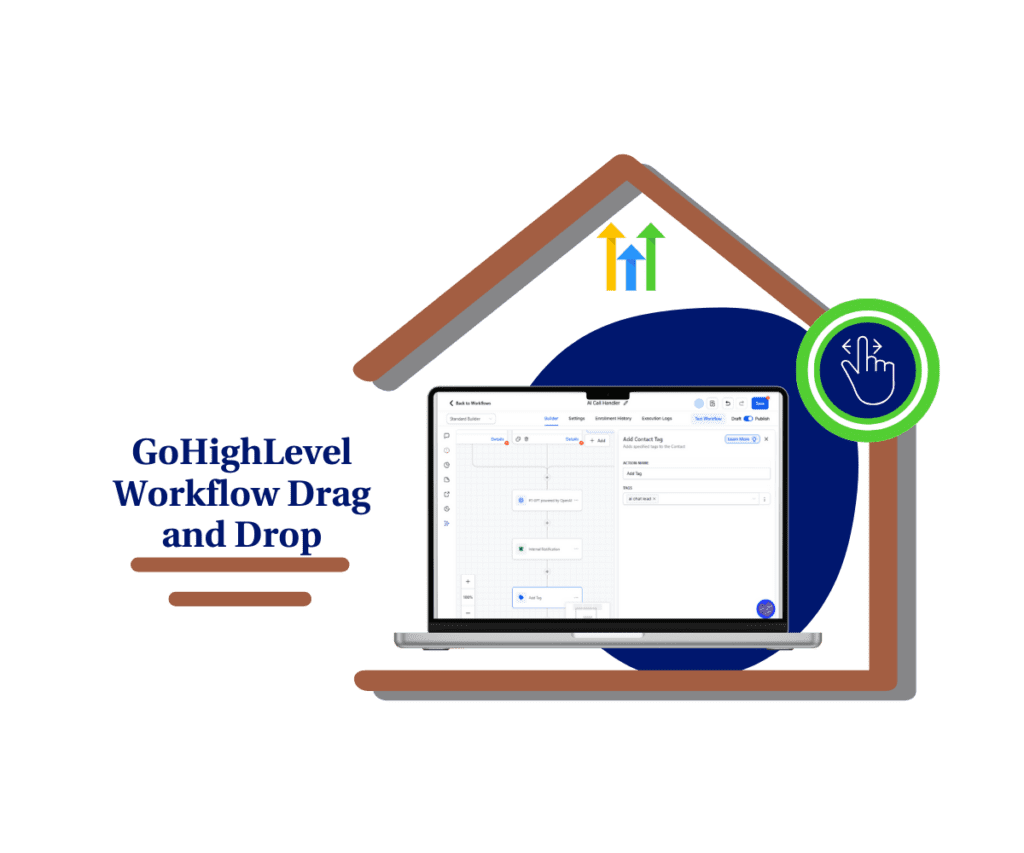
The workflow drag and drop update removes friction from building automations in GoHighLevel, letting agencies add triggers and actions faster, stay in flow, and scale workflows with confidence.
Quick Summary – Workflow Drag and Drop Essentials
Purpose: This update introduces workflow drag and drop to make building automations faster and easier inside GoHighLevel.
Why It Matters: Workflow drag and drop reduces extra clicks and keeps builders focused, especially when working with larger or more complex workflows.
What You Get: You can drag triggers and actions directly from the sidebar onto the workflow canvas with clear visual placement.
Time to Complete: Using workflow drag and drop requires no setup and can be used immediately in existing workflows.
Difficulty Level: This update is beginner friendly and fits naturally into how workflows are already built.
Key Outcome: Agencies and teams build cleaner workflows faster while reducing mistakes and builder fatigue.
What’s New with Workflow Drag and Drop in GHL
The workflow drag and drop update introduces a new way to add steps inside the standard workflow builder. Instead of clicking through menus to insert triggers or actions, you can now drag them directly from the sidebar onto the canvas. It is a simple change, but it has a real impact on how fast you can build.
Triggers and actions are now interactive elements in the sidebar. You click and hold the one you want, then move it onto the workflow canvas. As you hover over a valid location, such as a plus marker or the space between existing steps, the builder shows a highlighted placeholder. This makes it clear where the step will be added before you drop it.
Automate marketing, manage leads, and grow faster with GoHighLevel.

Once you drop the trigger or action, it opens just like normal so you can configure it. After you save, the step becomes a permanent part of the workflow. Nothing feels experimental or temporary once it is saved. It behaves exactly like steps added the old way.
Workflow drag and drop does not remove any existing functionality. All triggers and actions work the same. The logic stays the same. The only thing that changes is how you add them to the workflow.
This update focused on flow. You spend less time clicking and more time building. When you are mapping out automation logic, that smoother experience makes a noticeable difference.
How workflow drag and drop removes friction from building automations
Workflow drag and drop changes how steps get added, but the real difference shows up when you compare it to the old process. Before this update, every new step meant stopping what you were doing. You had to click the plus icon, scan the list, pick an action, then repeat the same steps again.
That friction added up fast, especially in longer workflows. Each extra click broke your focus. When you were trying to think through logic or clean up an automation, the builder pulled your attention away from the actual work.
With workflow drag and drop, that pattern is gone. You grab the step you want and place it where it belongs. You see the placement before you drop it, which cuts down on mistakes. Nothing about how workflows run has changed. Building them is simply faster, cleaner, and easier to stay focused.
Why Workflow Drag and Drop Matters for Agencies and Power Users
Workflow drag and drop matters most when speed and consistency are non negotiable. Agencies build workflows every day, often across multiple accounts. Small delays add up fast. When the builder slows you down, it affects delivery timelines, internal focus, and client confidence.
This update removes a lot of that daily friction. With workflow drag and drop, you spend less time clicking through menus and more time building logic that works. You can move quickly while staying organized, even inside large or complex automations. That makes it easier to build once and reuse patterns across clients.
For power users, this change supports better thinking while building. You can map workflows visually and place steps as you go without breaking focus. The result is cleaner workflows, fewer mistakes, and faster edits when things need to change. It is a small upgrade on the surface, but it has a real impact on how efficiently teams work inside GoHighLevel.
How to Use Workflow Drag and Drop in GoHighLevel
Workflow drag and drop is built to fit into how you already build automations in GoHighLevel. There is nothing new to turn on and nothing extra to learn. If you have built workflows before, this will feel familiar, just faster. Here is how to use workflow drag and drop inside the standard builder.
Step 01: Access the Main Left Hand Menu in GoHighLevel
- The Main Menu on the Left side of your screen has all the main areas that you work in when using GHL
1.1 Click on the Automation Menu Item.
- Access the ‘Automation’ section of GoHighLevel
1.2 Click on the Workflows tab
1.3 Click on the All Workflows tab
- You will see a list of all workflows for the sub account.
1.4 Open an existing workflow you want to test or create new one
- You can edit an active workflow or start from scratch.

Step 02: Open the Triggers or Actions Sidebar
- Workflow drag and drop works directly from the sidebar.
2.1 Click the + Icon or select action on the builder canvas to open Actions panel on the right side
- This panel lists all available triggers and actions.
2.2 Decide which trigger or action you want to add
- You do not need to click the plus icon first.

Step 03: Drag the Trigger or Action Onto the Canvas
- This is where workflow drag and drop replaces extra clicks.
3.1 Click and hold the trigger or action
- Keep holding while you move it toward the canvas.
3.2 Drag it over a plus marker or between existing steps
- A highlighted placeholder will appear to show placement.
3.3 Release the mouse to drop the step
- The system inserts it exactly where shown.
Step 04: Configure and Save the Step
- Dropped steps still need to be saved like any other action.
4.1 Configure the trigger or action settings
- Fill in the required fields as usual.
4.2 Click Save Trigger
- Once saved, the step becomes part of the workflow.

Important Note
- If you exit the workflow without saving, the dragged action will not be added. Always save before leaving the builder.

That’s it. Workflow drag and drop simply changes how you add steps, not how workflows behave. You build faster, stay focused, and spend less time clicking through menus.
Pro Tips for Building Faster, Cleaner Workflows
Workflow drag and drop is simple on the surface, but a few smart habits can help you get more value out of it. These tips are especially useful if you build workflows often or manage multiple client accounts.
One of the easiest wins is to map the workflow visually before configuring details. With workflow drag and drop, you can place all the main steps first, then go back and fill in the settings. This keeps your thinking focused on logic instead of forms and fields. It also makes it easier to spot missing steps or unnecessary branches early.
Another helpful approach is to build in small sections. Drag in a group of related actions, save, and then move to the next part of the workflow. This keeps the canvas clean and reduces mistakes. Clear naming also matters. When steps are added quickly, simple and consistent names make workflows easier to review later.
Finally, use workflow drag and drop when cleaning up older automations. Rebuilding messy workflows is faster when you can place steps exactly where they belong. You spend less time fighting the builder and more time improving how the automation actually works.
Frequently Asked Questions About Workflow Drag and Drop
Workflow drag and drop is simple to use, but a few common questions come up once people start using it inside real workflows. These answers should clear up how it works and what to expect.
Workflow drag and drop for bigger, cleaner automations
Workflow drag and drop matters more as automations get bigger. In short workflows, the time savings are small but helpful. In longer workflows, the difference is obvious. When you are working with many steps and branches, being able to place actions quickly keeps the build from feeling slow.
Larger workflows also need clarity. With workflow drag and drop, you can see where each step will land before it is added. That makes it easier to follow the logic as you build and reduces mistakes. Instead of fixing placement after the fact, you get it right the first time.
This update also makes changes easier later. When a workflow needs updates, you can add new actions without disrupting the rest of the flow. Workflow drag and drop helps you improve complex automations while staying focused on how everything connects.
Results You Can Expect from Workflow Drag and Drop
Workflow drag and drop leads to faster builds almost immediately. When you remove extra clicks from the process, workflows come together quicker. That speed matters when you are building from scratch or making changes under time pressure.
You can also expect cleaner workflows. Being able to place steps exactly where they belong reduces clutter and misplaced actions. With workflow drag and drop, the structure stays clear as you build, which makes workflows easier to review, test, and maintain over time.
For teams, the result is consistency. New builders can follow the logic more easily, and experienced users spend less time correcting small mistakes. Workflow drag and drop helps keep automations organized while reducing the effort it takes to manage them day to day.
Final Thoughts and Next Steps on Workflow Drag and Drop
Workflow drag and drop is a small change that improves everyday work inside GoHighLevel. It does not add new automation logic or features. It simply makes building workflows faster and easier to manage. When the tool stays out of the way, you can focus on building automations that actually work.
This update is especially useful for agencies and teams that build often. Over time, fewer clicks and cleaner placement add to real time savings. Workflow drag and drop helps reduce mistakes, keeps workflows organized, and makes changes easier when updates are needed.
The next step is simple. Open an existing workflow and try rebuilding a section using workflow drag and drop. Once you use it a few times, it becomes the natural way to build. It is a practical improvement that fits into how you already work without forcing you to change how workflows run.
Scale Your Business Today.
Streamline your workflow with GoHighLevel’s powerful tools.