- Discover how the latest Advanced Builder enhancements improve workflow visibility, layout flexibility, and user interaction for a smoother automation experience.
- Quick Summary – Workflow Builder UX Overview
- What’s New in the Workflow Builder UX
- What’s Changed Inside the Advanced Builder
- Why This Workflow Builder UX Update Matters
- How to Use the Workflow Builder UX Features in GoHighLevel
- What This Means for Agencies & Automation Strategy
- Frequently Asked Questions About Workflow Builder UX in GoHighLevel
- Conclusion – Small UX Upgrades, Big Workflow Gains
Discover how the latest Advanced Builder enhancements improve workflow visibility, layout flexibility, and user interaction for a smoother automation experience.
The new Workflow Builder UX inside GoHighLevel makes building automations faster, cleaner, and easier to manage. If you work inside workflows every day, these Workflow Builder UX improvements will save you time and reduce friction. Small annoyances slow you down. Stats that only show in read-only mode. Layouts that overlap when data appears. Views that reset after reload. None of it is dramatic. But it adds up.
This update fixes that. The Advanced Builder now lets you toggle stats in edit mode. Your stats view stays saved when you reload. The layout adjusts automatically when stats are visible. The default AI Builder screen is cleaner. Even click animations feel smoother and more responsive. These upgrades are not flashy. They are practical. And practical improvements matter when you build, audit, and optimize workflows for clients. Better visibility. Better layout control. Better interaction. That is what strong Workflow Builder UX should look like inside GoHighLevel.

The new Workflow Builder UX improvements in GoHighLevel make editing, optimizing, and managing automations faster and cleaner. With flexible stats controls and smarter layout behavior, your workflows are easier to build and easier to scale.
Quick Summary – Workflow Builder UX Overview
Purpose:
This update improves the Workflow Builder UX inside GoHighLevel by making stats easier to access, layouts cleaner, and interactions smoother while building automations.
Why It Matters:
You can now view stats in edit mode, keep your preferred stats view saved, and rely on automatic layout adjustments. This reduces friction and speeds up workflow optimization.
What You Get:
Flexible stats controls, saved stats visibility, improved auto layout behavior, a cleaner AI Builder starting screen, and upgraded click animations for clearer feedback.
Time to Complete:
Less than 5 minutes to explore the new features inside your existing workflows.
Difficulty Level:
Beginner friendly. No setup required. The Workflow Builder UX improvements are already active.
Key Outcome:
Faster workflow edits, cleaner visual structure, better accuracy, and improved confidence when building and scaling automations inside GoHighLevel.
What’s New in the Workflow Builder UX
The latest Workflow Builder UX update brings small but powerful improvements to the Advanced Builder inside GoHighLevel. These changes focus on visibility, layout control, and smoother interaction.
Here is what is new.
Automate marketing, manage leads, and grow faster with GoHighLevel.

Stats Mode Improvements
You can now toggle stats while in edit mode.
Before, stats were limited to read-only view. That meant switching modes just to check performance data. Now you can see workflow stats while actively editing.
Your stats view also stays saved.
If you turn stats on and save the workflow, that view remains active when you reload. No more resetting your layout every time you come back.
This makes optimization much faster.
Auto Layout Improvements
When stats are visible, the builder now adjusts spacing automatically.
Previously, enabling stats could cause overlaps or tight spacing. Now the layout shifts cleanly. Nodes remain readable. Connections stay organized.
This reduces visual clutter in large workflows.
Cleaner Default AI Builder Screen
When creating a new workflow, the default AI Builder screen is simpler.
It gives you a clearer starting point. Less distraction. Better focus. Faster setup.
For new team members or VAs, this improves onboarding.
New Click Animations
Workflow nodes now respond with a drop effect and highlight color when clicked.
This small visual change improves feedback. You know exactly what you selected. The builder feels more responsive and modern.
It is subtle. But it improves the overall Workflow Builder UX experience inside GoHighLevel.
What’s Changed Inside the Advanced Builder
The core purpose of the Advanced Builder has not changed. You still build automations the same way. But the Workflow Builder UX now feels smoother and more flexible.
The biggest change is how stats behave.
Before this update, you had to switch to read-only mode to view performance stats. That slowed down optimization. Now you can toggle stats while editing. You can build and analyze at the same time. That is a major improvement for workflow audits.
The builder also handles spacing better.
When stats are turned on, the layout adjusts automatically. Nodes no longer crowd each other. Connections stay clean. You spend less time dragging elements around just to make them readable.
Another change is view persistence.
If you save a workflow with stats enabled, that view remains active when you reopen it. You no longer need to reset your display every time you log back in.
The default AI Builder screen is also cleaner. It gives you a clearer starting point when creating new automations. Less clutter means fewer mistakes.
Even click feedback has improved. When you select a node, the drop effect and highlight color confirm your action instantly. It feels faster and more precise.
These changes may look small.
But together, they upgrade the overall Workflow Builder UX inside GoHighLevel in a practical and noticeable way.
Why This Workflow Builder UX Update Matters
If you build automations often, this update saves time.
The improved Workflow Builder UX reduces friction while you work. You no longer switch between edit mode and read-only mode just to check stats. You can build and analyze at the same time. That speeds up optimization.
For agency owners, this means faster audits.
When reviewing a client workflow, you can see performance data instantly. You adjust triggers, delays, or actions without changing screens. It keeps your focus where it should be.
For automation builders, layout improvements matter.
When stats are visible, the builder now adjusts spacing automatically. That means fewer overlapping nodes and less manual rearranging. Large workflows stay readable.
For teams and virtual assistants, the cleaner AI Builder screen helps with onboarding.
New users see a simpler starting point. They are less likely to feel overwhelmed when creating workflows from scratch.
Even the new click animations play a role.
Clear visual feedback reduces mistakes. You always know what node you selected. That builds confidence when editing complex automations.
Strong Workflow Builder UX is not about flashy design.
It is about speed, clarity, and control. And that is exactly what this GoHighLevel update improves.
How to Use the Workflow Builder UX Features in GoHighLevel
The new Workflow Builder UX updates are built directly into the Advanced Builder. You do not need to enable anything in Labs or Settings. These improvements are already active inside your sub-account.
In this section, you will learn how to access your Workflows, enable Stats in edit mode, save your Stats view, observe the new auto layout behavior, use the cleaner AI Builder screen, and understand the updated click animations.
Here are the steps to use the Workflow Builder UX improvements inside GoHighLevel:
- Access the Workflows page
- Open a Workflow in the Advanced Builder
- Enable Stats in Edit Mode
- Save Your Workflow with Stats Enabled
- Create a New Workflow Using the AI Builder Screen
- Test the New Click Animations
To start make sure you are logged in to your GoHighLevel sub-account.
Step 1.0 – Access the Workflows page of GoHighLevel
The Main Menu on the left side of your screen has all the main areas that you work in when using GHL.
1.1 Click Automation main menu item
• Inside the Automation section you will find Overview, Workflows, and Global Workflow Settings.
1.2 Click Workflows in the top menu if the Workflow List page is not already open
- The Workflow List page displays all existing workflows.
- You can view workflows in folders or as a full list.
- You can also create a new workflow from this page.
1.3 Click on the name of any existing Workflow
- The Advanced Builder page will open.
- You will see your workflow nodes connected visually.

Step 2.0 – Enable Stats in Edit Mode
2.1 Set Workflow into Advance Builder
- Set your Workflow into Advance Builder if your Using Standard Builder
2.2 Locate the Stats inside the builder view
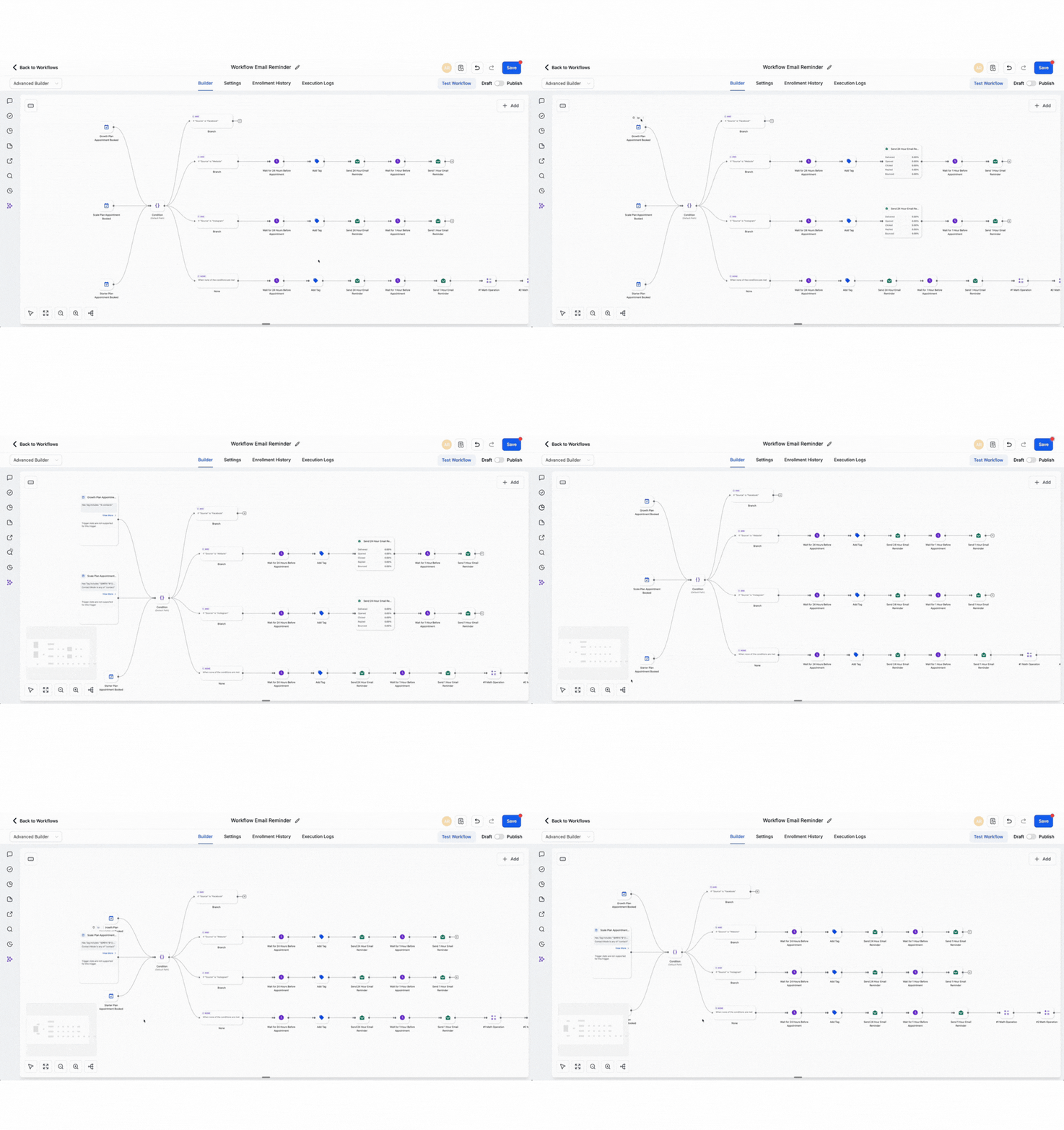
- The Stats View allows you to display performance data directly on workflow nodes.
- Performance metrics will appear on each node.
- You remain in Edit Mode.
- You no longer need to switch to Read-Only mode.

Step 3.0 – Test the New Click Animations
3.1 Click on any workflow node
- A drop effect animation will appear.
- The node will highlight with a color change.
This update improves clarity when working inside complex workflows.

Pro Tips to Maximize Workflow Builder UX
The new Workflow Builder UX improvements are simple. But if you use them properly, they can save you hours each month.
Here is how to get the most out of them.
Keep Stats On During Optimization
- Turn Stats on while editing workflows
- Review performance without leaving edit mode
- Adjust delays, triggers, or actions immediately
- Avoid switching between views
This speeds up audits and client reviews.
Use Stats View Before Client Calls
- Enable stats before presenting a workflow
- Show real numbers directly inside the builder
- Walk clients through performance step by step
It looks clean and professional.
Clean Layout Before Scaling
- Turn stats on
- Review node spacing
- Use auto layout adjustments
- Manually adjust if needed
Even with auto spacing, keep workflows organized. Clean structure reduces mistakes later.
Train New Team Members on the AI Builder Screen
- Use the cleaner Create Workflow screen
- Start with templates for faster setup
- Avoid building from scratch if not needed
This helps new VAs or junior team members move faster.
Avoid Overbuilding
Better Workflow Builder UX does not mean bigger workflows.
- Keep logic simple
- Break large automations into smaller workflows
- Use naming conventions clearly
Clean automation always wins.
Pay Attention to Click Feedback
- Watch the highlight effect
- Confirm you are editing the correct node
- Slow down when working in large workflows
This small animation reduces accidental edits.
The Workflow Builder UX upgrades are about clarity and speed.
Use them intentionally.
What This Means for Agencies & Automation Strategy
The improved Workflow Builder UX is more than a visual upgrade. It changes how agencies build, review, and scale automations inside GoHighLevel.
For agency owners, this means faster workflow audits. You can now review performance data while editing, which removes unnecessary steps. Instead of switching views, you can spot issues, optimize logic, and improve results in one smooth process. This saves time across every client account.
For automation specialists and technical team members, cleaner layouts make a big difference. When stats are visible, the builder automatically adjusts spacing. This keeps complex workflows readable and organized. Less time is spent fixing layout issues, and more time is spent improving performance.
For onboarding and team collaboration, the cleaner AI Builder screen creates a better starting experience. New hires, virtual assistants, and junior marketers can begin building workflows with more confidence and less confusion. This reduces training time and improves consistency across your team.
The enhanced click animations also support accuracy. Clear visual feedback helps prevent editing the wrong node, especially in large and detailed workflows. Fewer mistakes mean fewer disruptions and faster deployment.
Overall, the upgraded Workflow Builder UX helps agencies work smarter. It improves clarity, speeds up optimization, and supports scalable automation systems that are easier to manage and maintain.
Results You Can Expect from Workflow Builder UX Improvements
The updated Workflow Builder UX in GoHighLevel delivers real, measurable improvements in how you build and manage automations. These changes may seem small at first, but their impact becomes clear the moment you start working inside your workflows.
First, you will notice faster workflow editing. With stats available directly in edit mode, you no longer need to switch views to analyze performance. This reduces interruptions and helps you make quicker, smarter adjustments.
You can also expect cleaner and more organized workflows. The automatic layout adjustments ensure that nodes stay spaced properly when stats are visible. This makes even large and complex automations easier to read, understand, and maintain.
Another key result is improved accuracy. The new click animations provide clear visual feedback when selecting workflow nodes. This helps prevent accidental edits and gives you greater confidence when working inside detailed workflows.
The cleaner default AI Builder screen also improves speed and usability. New workflows are easier to start, and team members can get up to speed faster. This is especially helpful for agencies onboarding new staff or scaling operations.
Overall, the enhanced Workflow Builder UX leads to faster optimization, clearer visibility, fewer errors, and a smoother automation-building experience inside GoHighLevel.
Frequently Asked Questions About Workflow Builder UX in GoHighLevel
Conclusion – Small UX Upgrades, Big Workflow Gains
The new Workflow Builder UX improvements inside GoHighLevel may look small on the surface. But when you build automations daily, small upgrades make a big difference.
You can now toggle stats while editing. Your stats view stays saved. Layout adjusts automatically when performance data is visible. The AI Builder screen is cleaner. Even click animations feel sharper and more responsive.
This means fewer interruptions.
Less visual clutter.
Faster optimization.
More confidence while building.
For agencies, this is about speed and scale. When your workflows are easier to read and manage, you can optimize client campaigns faster and reduce mistakes across accounts.
Better Workflow Builder UX is not about flashy design. It is about clarity and control.
Log into your sub-account today. Open a workflow. Turn on stats in edit mode. Experience the difference for yourself.
Have you tested the new Advanced Builder updates yet? What part of the Workflow Builder UX improvement do you like most?
And as always, check back with the team here at GHL Growth Garage for more practical GoHighLevel mini-guides designed to help you build smarter and scale faster.
Scale Your Business Today.
Streamline your workflow with GoHighLevel’s powerful tools.