- Introduction – GHL Workflow Find Replace
- Quick Summary – Workflow Find Replace Essentials
- Here are this weeks HighLevel Updates
- What’s New with Workflow Find Replace
- Why Workflow Find Replace Matters
- How to Use Workflow Find Replace in GHL
- Pro / Quick Tips for Workflow Find Replace
- What This Means for Your Business
- Real-Time Application for Agencies
- Frequently Asked Questions About Workflow Find Replace
- Conclusion – GHL Workflow Find Replace Made Easy
Introduction – GHL Workflow Find Replace
If you’ve ever maintained a large Workflow Find Replace inside GHL, you know the real work starts after it’s built. Creating it was fast. Editing it later? Not so much. Changing a tag or updating a custom value across multiple steps meant digging through every action manually. It worked, sure. But it wasn’t efficient, and one missed update could cause problems down the line.
Now, Workflow Find Replace allows you to search inside a single workflow for custom values, tags, or text and instantly jump to the exact node on the canvas. Instead of clicking through dozens of actions, you can move between matches with precision and replace supported values one at a time or across the entire workflow in just a few clicks. No more manual scanning. No more guessing where something lives.
It works the same in both builder views, so no learning curve there. You don’t have to type things perfectly either, partial searches and different capitalizations still show up. And if you mess something up, undo has your back. The result? Smoother edits and fewer headaches.
For agencies managing complex client automations, this is a serious upgrade. Workflow Find Replace removes friction from maintenance, reduces human error, and makes scaling workflow systems inside GHL far more practical. What used to take 20 minutes now takes seconds.
The latest GoHighLevel Changelog includes several other GHL feature updates that round out your daily workflow:
- New QR Code Styling Options: Shapes, Borders, and Rim Text
- Collapse & Resize Pipeline Stages in Kanban View
- Notes just got smarter for the contacts page!
- New Asana actions in workflows – Find Project and Find section
- Email AI + Knowledge Base Integration 🚀
- Dialer: Auto-minimize, Pin & Drag
- Schema Markup Using AI
Keep reading for much more on all these updates and a deep dive into the Workflow Find Replace feature!
Quick Summary – Workflow Find Replace Essentials
Purpose:
Workflow Find Replace allows you to quickly search and update tags or custom values inside a single workflow without manually opening every action.
Why It Matters:
Large automations are difficult to manage manually. This feature reduces errors, saves time, and makes workflow maintenance scalable for agencies.
What You Get:
Instant search navigation, case-insensitive matching, Replace and Replace All functionality, undo protection, and compatibility with both Standard and Advanced Builder.
Time to Complete:
Most updates take less than five minutes, even inside large workflows.
Difficulty Level:
Beginner-friendly. No advanced setup required.
Key Outcome:
Cleaner workflows, faster updates, fewer missed tags, and more reliable automation systems inside GHL.
Here are this weeks HighLevel Updates
New QR Code Styling Options: Shapes, Borders, and Rim Text
What it does:
Lets you stop using boring QR codes. You can now tweak the shape, style the border, and add text around the edge.
Where in GHL:
Accessible via Sites → QR Codes and within QR tools embedded in Funnel and Website builders.
Automate marketing, manage leads, and grow faster with GoHighLevel.

Impact:
Improves visual presentation and brand alignment while increasing scan appeal.
Best suited for:
Agencies that care about branding, small businesses running local promotions, online stores, and teams pushing QR campaigns.
Collapse & Resize Pipeline Stages in Kanban View
What it does:
Lets you hide pipeline stages you’re not actively using and adjust column widths so your board fits the way you work.
Where in GHL:
Inside Opportunities when you’re viewing your pipeline in Kanban mode.
Impact:
No more dragging your screen forever just to find the deals that matter.
Best suited for:
Owners running multi-stage pipelines, reps working deals every day, and anyone fed up with a messy board.
Notes Just Got Smarter for the Contacts Page
What it does:
Upgrades the notes area so it’s easier to write, review, and keep things organized inside a contact record.
Where in GHL:
Found directly within each contact’s profile under Notes.
Impact:
Makes it simpler to see what’s been discussed and who added what — without digging through clutter.
Best suited for:
Teams collaborating on accounts and businesses that document every client touchpoint.
New Asana Actions in Workflows – Find Project & Find Section
What it does:
Lets your workflow check what already exists in Asana before adding anything new.
Where in GHL:
Go to Workflows, add an action, and choose the Asana integration.
Impact:
No more duplicate projects. No more messy task boards. Just cleaner automation.
Best suited for:
Operations teams and agencies that rely on Asana to manage client delivery.
Email AI + Knowledge Base Integration
- What it does:
Allows Email AI to reference your Knowledge Base for smarter, more accurate responses. - Where in GHL:
Found in Conversations → Email composer with AI enabled and Knowledge Base settings under AI configuration. - Impact:
Smarter email suggestions that understand your business and help you reply quicker. - Best suited for:
Support teams, agencies managing inboxes, and businesses scaling communication with AI.
Dialer: Auto-Minimize, Pin & Drag
- What it does:
Lets you auto-minimize the dialer during calls, pin it in place, and drag it anywhere on screen. - Where in GHL:
Found in Conversations → Dialer. - Impact:
Cleaner workspace and easier multitasking during sales or support calls. - Best suited for:
Sales teams, outbound callers, appointment setters, and agencies making daily calls.
Schema Markup Using AI
- What it does:
Generates structured schema markup automatically using AI for SEO enhancement. - Where in GHL:
Found in Sites → Website or Funnel settings within AI or SEO sections. - Impact:
Improves search visibility without manual coding. - This works well for:
Teams building websites that need stronger search visibility, from agencies to small local businesses.
What’s New with Workflow Find Replace
Each workflow now comes with its own internal search panel. Launch it from the toolbar icon or use the Alt+F shortcut. From there, you can filter your search by custom values, tags, or general text fields within the automation.
As soon as you enter your search term, matching results appear instantly. The first match opens automatically, and the workflow canvas jumps directly to that node. No scrolling. No guessing. You can move through each match using the navigation arrows, and the builder continues jumping to the selected action so you can review it in context.
The Replace option adds even more power. When turned on, you can choose a new custom value or tag from the picker and replace the current match. If the same value appears multiple times, you can use Replace All to update every supported match within that workflow in seconds. This only applies to custom values and tags, keeping replacements controlled and predictable.
Search is case-insensitive and supports partial matches, which makes finding variations fast and simple. Step names and trigger names can be found through text search, but in this version, they cannot be replaced. That keeps structural elements protected while still making them easy to locate.
You’ll find it in both versions of the workflow builder, so no switching required. Made a change you didn’t mean to? Undo fixes that fast. Plus, GHL added a short in-app guide to help you get comfortable with it right away.
This isn’t just a visual update. It’s a workflow management upgrade designed to remove friction when maintaining complex automations.
Why Workflow Find Replace Matters
If you’ve ever managed a large automation inside GHL, you already know the problem. Workflows grow fast. You add tags. You insert custom values. You duplicate sections. You tweak campaigns. And before long, what started simple becomes layered and complex.
Making changes used to mean opening every single action manually.
That’s where Workflow Find Replace changes everything.
Instead of scanning your workflow step by step, you can instantly search for the exact custom value or tag you want to update. The builder jumps straight to it. You review it in context. Then you replace it cleanly.
No scrolling through a maze of actions. No second-guessing if you missed one. No manual cleanup after every client change.
For agencies, this is massive. Imagine updating a client’s support email across 30 email steps. Or replacing a deprecated tag used in multiple conditional branches. Or standardizing naming conventions before exporting a snapshot. What used to take 15–30 minutes now takes seconds.
It also reduces human error. When you manually edit workflows, it’s easy to miss one instance. That single missed tag can break logic, misroute contacts, or cause reporting issues. Workflow Find Replace helps eliminate those blind spots by showing you every match inside the workflow.
This is especially important for teams. When multiple VAs or automation specialists are working inside the same account, consistency matters. Having a reliable way to locate and replace values keeps workflows clean and predictable.
Workflow Find Replace isn’t flashy. But it’s the kind of upgrade that saves time every single week. And over time, that compounds.
How to Use Workflow Find Replace in GHL
Workflow Find Replace is located inside the workflow builder in your GHL sub-account. You will access the workflow, open the Find panel, choose what you want to search for, and apply Replace or Replace All where needed. Following the correct sequence ensures you update only what you intend to change.
Below, you’ll find the exact steps to access the feature, search for custom values, tags, or text, navigate between matches, and safely apply updates using Replace and Undo.
- Access the Workflows Section in GoHighLevel.
- Open the Find Panel and Use Search and Replace.
- Review and Undo If Needed the Replace.
To start, make sure you are logged into your GoHighLevel sub-account.
Step 01 – Access the Workflows Section in GoHighLevel
- The Main Menu on the left side of your screen contains all primary working areas where you manage automation, contacts, marketing, and more.
1.1 Click on the “Automation” menu item.
- This opens your Automation dashboard where all workflow tools are located.
1.2 Click on “Workflows.”
- This displays the full list of existing workflows in your sub-account.
1.3 Click “Create Workflow” to build a new one.
- This opens the workflow creation screen where you choose how to start.
1.4 Click “Start from Scratch.”
- This creates a blank workflow canvas so you can build your AI Workflow Automation from the ground up.

Step 02 – Open the Find Panel and Use Search and Replace
- Once inside your workflow builder, you can access the new Find feature.
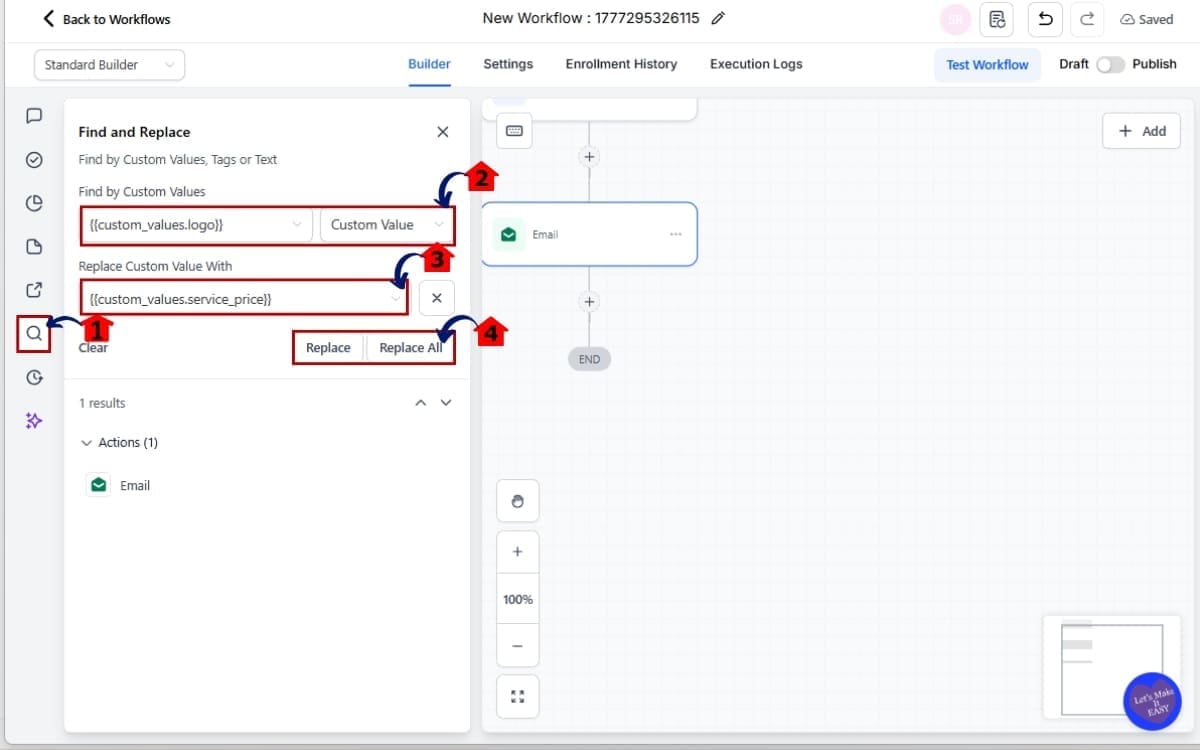
2.1 Look for the Search icon inside the workflow builder toolbar.
- Click the search icon to open the Find panel.
2.2 Select your search type:
- Example: Custom Values – Logo
2.3 Toggle the Replace option inside the Find panel.
- Replace is available for Custom Values and Tags only. Example: Custom Values – Service Price
2.4 Click Replace to update the current match. Or Click Replace All to update every supported match in the workflow.
- This applies only within the current workflow. It will not affect other workflows.
Step 03 – Review and Undo If Needed the Replace
- After making changes, review your workflow.
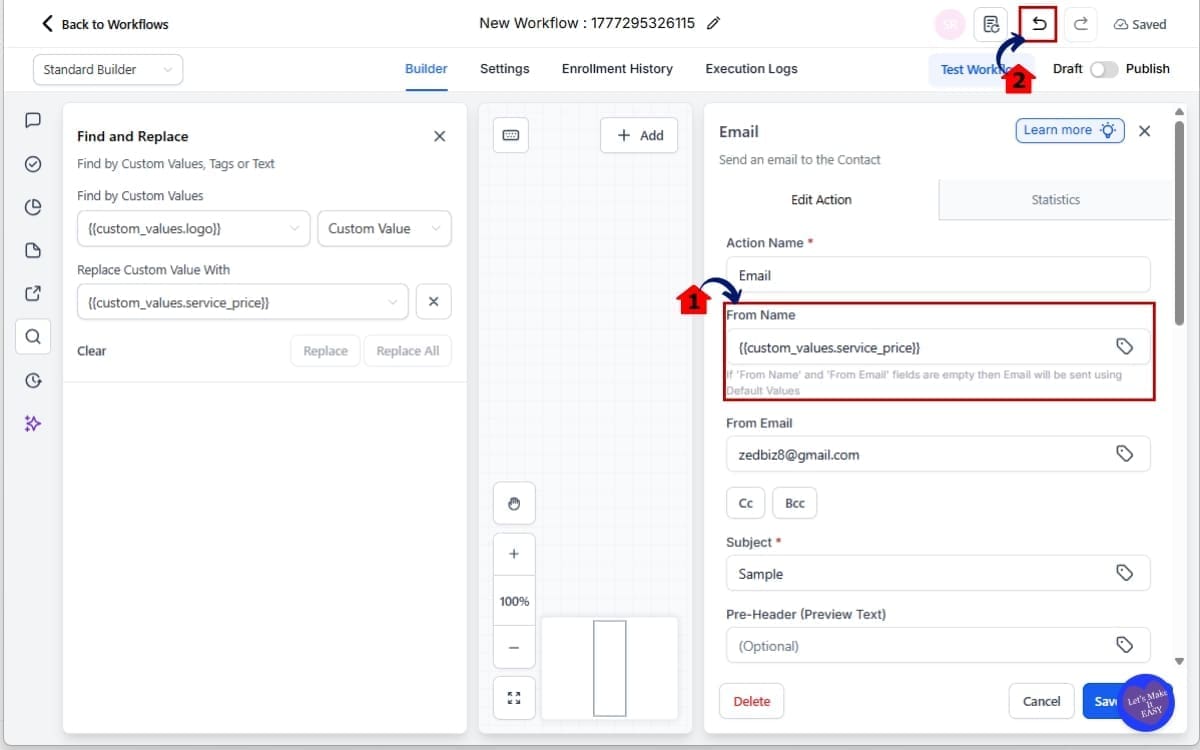
3.1 Scroll through your workflow and confirm updates were applied correctly.
- Carefully review each updated step to ensure the correct tag or custom value was replaced and no unintended changes were made.
3.2 If you made a mistake, use the Undo action.
- This will revert your most recent change.
Important Notes:
- Step names and trigger names can be found through text search.
- They cannot be replaced in this version.
- Replace All works only within the current workflow.
- This feature is available in both Standard and Advanced Builder.
Pro / Quick Tips for Workflow Find Replace
On the surface, it’s straightforward. The real win happens when you use it deliberately — that’s when it starts saving you serious time.
A few practical tips to help you use it smarter, not just faster.
1. Duplicate Before Major Changes
If you’re planning to use Replace All across a large workflow, duplicate the workflow first.
This gives you a backup in case you replace something incorrectly. Especially important when updating mission-critical automations like onboarding or lead routing.
2. Use Partial Matches Carefully
Search supports partial matches, which is powerful.
But be careful.
If you search for something too broad, you might see matches you didn’t intend to update. Always review the results list before hitting Replace All.
Precision saves headaches.
3. Standardize Tag Naming First
Workflow Find Replace is perfect for cleaning up inconsistent tag structures.
For example:
- HighPriority
- high_priority
- HIGH-PRIORITY
Instead of leaving messy naming across workflows, use Replace to standardize everything into one clean format.
Cleaner tags = cleaner reporting.
4. Great for Rebranding
If a client changes their support email, business name, or internal terminology, this feature makes updates simple.
Search for:
- Old support email
- Old agency name
- Old department tags
Replace them instantly.
No more opening 20 email steps manually.
5. Snapshot Cleanup Before Distribution
If you build and sell snapshots, Workflow Find Replace is your best friend.
Before exporting:
- Remove internal tags
- Replace test emails
- Update placeholder custom values
This ensures your snapshot looks polished and professional.
6. Review Replace All Before Clicking
Replace All is powerful.
But don’t rush.
Scroll through the results first. Confirm that every instance should be changed. Then apply it confidently.
Fast doesn’t mean careless.
7. Use It During Team Transitions
If a team member leaves and their email is hardcoded into tasks or notifications, use Workflow Find Replace to update everything in seconds.
No manual audit required. Workflow Find Replace isn’t flashy. But it’s one of those features that quietly saves hours every month. And for agencies managing scale, hours matter.
What This Means for Your Business
Workflow Find Replace is not just a convenience feature. It’s a scale feature.
When you manage one small workflow, manual edits are manageable. But once you start running multi-step automations across multiple clients, small changes turn into time-consuming maintenance work.
That time adds up.
With Workflow Find Replace, updating automations becomes controlled and predictable. You can clean up tags, update custom values, and standardize messaging without breaking your flow or missing hidden steps.
For agencies, this changes how you maintain systems.
If a client changes their support email, you update it once across the workflow. If you restructure your tag system, you apply it cleanly. If you duplicate workflows across sub-accounts, you can refine them quickly before launch.
That means:
- Faster onboarding
- Faster updates
- Less VA time spent clicking
- Fewer automation errors
- Cleaner reporting
- More scalable systems
This also improves internal operations. When your workflows are consistent, your team can trust them. When your tags are standardized, your reporting is accurate. When updates are clean, your automations behave the way they’re supposed to.
And that reliability matters. Because broken workflows don’t just waste time.
They cost leads. They delay follow-ups. They create confusion inside client accounts.
Workflow Find Replace removes that friction. It turns workflow maintenance from a chore into a controlled process. For agencies building repeatable systems inside GHL, that’s a serious operational upgrade.
Real-Time Application for Agencies
Let’s move beyond theory.
Here’s what Workflow Find Replace looks like in the real world inside an agency environment.
Imagine you have a nurture sequence with 35 steps. Emails, internal notifications, conditional branches, tagging logic. The workflow works perfectly. But your client changes their support email from [email protected] to [email protected].
Before Workflow Find Replace, you would open every email action manually. Check every notification. Review every task step. One by one.
Now? You search the old email once. Review the matches. Click Replace All. Done. That’s minutes instead of half an hour.
Here’s another example. Your agency decides to restructure its tag naming system. Maybe you move from HighPriority to Urgent. Or from NewLead to Lead-New. Instead of leaving messy tag variations inside older workflows, you standardize everything cleanly in seconds.
This also helps when preparing snapshots.
Before exporting a snapshot to sell or deploy across sub-accounts, you can:
- Replace internal testing tags
- Remove placeholder emails
- Update agency branding references
- Clean up temporary custom values
That means your snapshot ships clean and professional.
It’s also powerful during staff changes. If a team member’s email is hardcoded into task assignments or notifications, you don’t need to audit the workflow manually. Just search and replace it instantly.
Workflow Find Replace doesn’t just save time. It protects your systems.
And when your systems are clean, predictable, and easy to update, scaling your agency inside GHL becomes a lot less stressful.
Frequently Asked Questions About Workflow Find Replace
Conclusion – GHL Workflow Find Replace Made Easy
Workflow Find Replace is one of those updates that may look small at first glance, but once you use it, you won’t want to go back. Managing automations inside GHL just became faster, cleaner, and far more scalable.
Instead of manually opening every action to update a tag or custom value, you can now search inside a workflow, jump directly to the exact node, and replace supported items in seconds. That means fewer errors, faster client updates, and more confidence in your systems.
For agencies, this is about operational efficiency. When you’re managing multiple sub-accounts, running complex nurture sequences, and preparing snapshots for deployment, small maintenance tasks add up. Workflow Find Replace removes that friction and gives you control over your automation structure.
It helps you:
- Clean up tag systems
- Update internal emails quickly
- Standardize custom values
- Prepare workflows for scaling
- Reduce manual VA time
- Prevent missed logic steps
And the best part? It works inside both the Standard Builder and Advanced Builder, with undo protection built in.
This isn’t a flashy feature.
It’s a practical one.
And practical upgrades are what make agencies profitable.
The team here at GHL Growth Garage loves features that remove friction from automation management. Workflow Find Replace does exactly that.
If you haven’t tested it yet, open one of your larger workflows and try it. Search something simple. Replace it. Watch how fast the update happens.
You’ll immediately see the difference.
Have you tried Workflow Find Replace yet? Let us know how it’s improving your automation cleanup inside GHL.
Scale Your Business Today.
Streamline your workflow with GoHighLevel’s powerful tools.