

- Verify risky emails inside GoHighLevel workflows to protect deliverability and keep your sender reputation clean.
- Quick Summary – Email Verification Workflow Essentials
- What’s New (Email verification workflow inside workflows)
- How It Works (valid vs risky vs invalid)
- Why This Matters to You (deliverability + reputation)
- How To Use Email Verification Action in GoHighLevel Workflows
- Pro / Quick Tips (Email verification workflow)
- What This Means for Your Business (Email verification workflow)
- Frequently Asked Questions (Email verification workflow)
- Conclusion: Email verification workflow
Verify risky emails inside GoHighLevel workflows to protect deliverability and keep your sender reputation clean.
Email verification workflow
Want your email verification workflow to do the dirty work before your emails ever leave GoHighLevel? Good. Because nothing tanks deliverability faster than blasting messages to bad addresses.
Until now, most people found out their list was messy after the damage was already done. You’d send, you’d bounce, and then you’d spend the next week wondering why your open rates fell off a cliff.
This new Workflow Action lets you verify a contact’s email address inside the workflow before any email step runs. It checks the email and labels it as valid, risky, or invalid, then you decide what happens next. That means fewer bounces, fewer failed deliveries, and way less risk to your sender reputation.
Here at GHL Growth Garage, we like updates like this because they’re simple, practical, and they protect every campaign you run.
With an email verification workflow, you can block invalid emails before GoHighLevel sends anything, so your deliverability stays strong and your sender reputation doesn’t take a hit.
Quick Summary – Email Verification Workflow Essentials
Purpose: This guide shows how to add an email verification workflow step in GoHighLevel so you can check email quality before sending messages.
Why It Matters: Sending invalid or risky emails can increase bounces and hurt deliverability, which can drag down results across future campaigns.
What You Get: You get a simple setup that sorts contacts as valid, risky, or invalid and lets your workflow continue, branch, or stop based on that result.
Time To Complete: Most users can set this up in about 10 to 20 minutes, depending on how complex the workflow is.
Difficulty Level: This is beginner-friendly if you have used the workflow builder before.
Key Outcome: Your emails go to higher-quality contacts, and your sender reputation stays more stable over time.
What’s New (Email verification workflow inside workflows)
This update adds a new Workflow Action that lets you verify an email address before GoHighLevel sends anything.
Here’s the simple version:
Automate marketing, manage leads, and grow faster with GoHighLevel.

You drop the Email Verification action into a workflow, put it right before an email step, and the workflow checks the contact’s email quality first. No guessing. No “send and pray.”
The biggest change is that email verification is now part of the automation itself, not a separate cleanup task you have to remember to do later. That’s huge for agencies running lots of client sends, or anyone importing leads from ads, forms, webinars, or old lists.
So instead of your workflow blindly hitting “Send Email” to every contact…
…your workflow can pause, verify, and only let the good addresses through.
Additional notes worth calling out:
- It works as a standalone action inside workflows, so you can use it anywhere it makes sense.
- It’s built to reduce bounces and failed deliveries.
- And it supports better deliverability and sender reputation management long-term.
How It Works (valid vs risky vs invalid)
The Email Verification action runs a quick quality check on the contact’s email address before the workflow moves forward. When it’s done, GoHighLevel will classify that email into one of three buckets:
Valid
- This email looks good.
- Use this path when you want the workflow to continue normally and send the email (or run the rest of your nurture sequence).
Risky
- This email might work, but it’s more likely to bounce or cause deliverability issues.
- Think of these as “proceed carefully” contacts. They may be role-based addresses, temporary inboxes, old domains, or just borderline quality.
Invalid
- This email is not safe to send to.
- If you send anyway, you’re basically volunteering for bounces, suppression, and reputation damage.
What happens next is the best part: the workflow doesn’t decide for you. You decide.
- After verification, you can:
- Continue the workflow (for valid emails)
- Branch the workflow (send risky emails down a safer path)
- Stop the workflow (for invalid emails)
That means your automations can finally treat email quality like a real decision point, not an afterthought.
Why This Matters to You (deliverability + reputation)
If you send emails to bad addresses, the punishment is real. You’ll see more bounces, more failed deliveries, and more emails landing in spam. And once your sender reputation takes a hit, it’s a grind to earn it back.
That’s why this update is bigger than it looks.
With an email verification workflow in GoHighLevel, you’re cleaning the list at the exact moment it matters most: right before the send. That means you’re protecting every nurture sequence, every broadcast, and every client account that depends on email to convert.
Here’s what you get out of it:
- Fewer bounces and suppressions, because invalid emails get blocked before they cause damage.
- Better deliverability over time, because your sends stay cleaner and more consistent.
More reliable campaign results, because your open and click rates aren’t being dragged down by junk contacts.
Ideal use cases where this shines:
- New lead capture from forms and funnels, where typos happen all the time.
- Imported lists, especially older leads that haven’t been emailed in months.
- Agencies running multiple sub-accounts, where one bad import can blow up a client’s sending reputation.
- Long nurture workflows, where you don’t want risky addresses getting hammered with 10+ emails.
Bottom line: this turns list hygiene into automation. No reminders. No manual cleanup days later. Just smarter workflows that only email real people.
How To Use Email Verification Action in GoHighLevel Workflows
Email Verification is added as a Workflow Action inside the workflow builder. You will open the Workflows list, create or open a workflow, add the Email Verification action, and save it. After that, you can use the verification result to decide if the workflow should continue, branch, or stop.
Here are the steps to set up an email verification workflow in GoHighLevel.
- Open the Workflows list.
- Create a new workflow or open an existing one.
- Open the Add Action menu inside the workflow builder.
- Search for and select the Email Verification action.
- Save the Email Verification action.
To start make sure you are logged in to your GoHighLevel sub-account.
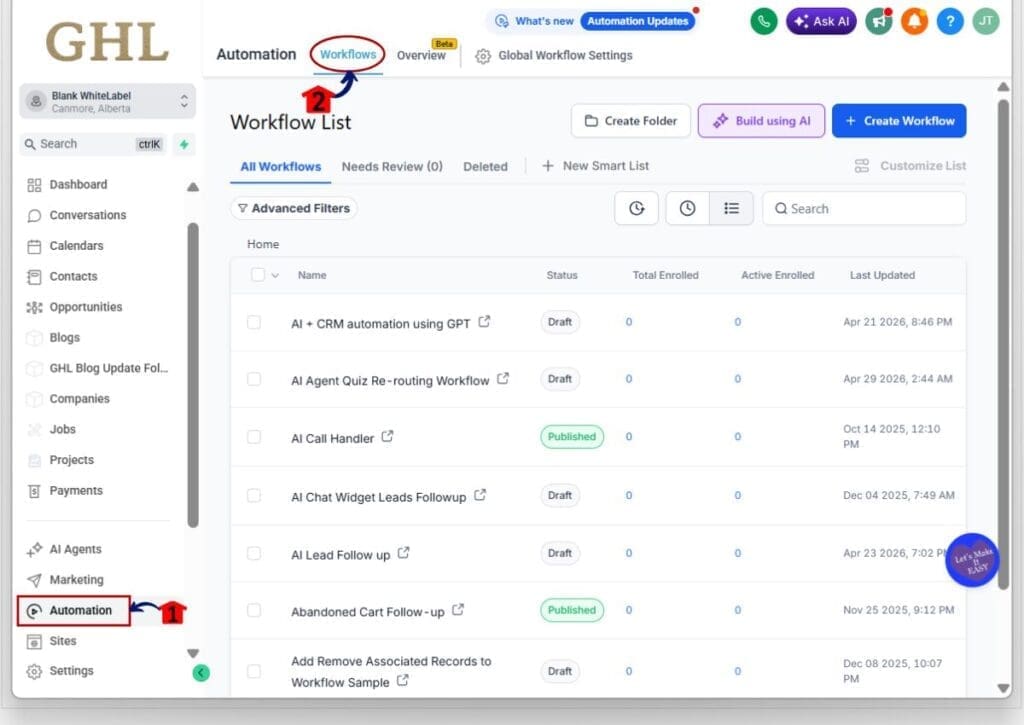
Step 01 – Open the Workflows list
- The Main Menu on the left side of your screen has all the main areas that you work in when using GHL.
1.1 Click Automation in the left-hand menu.
- This opens the Automation section.
1.2 Click Workflows.
- This opens the Workflow List.
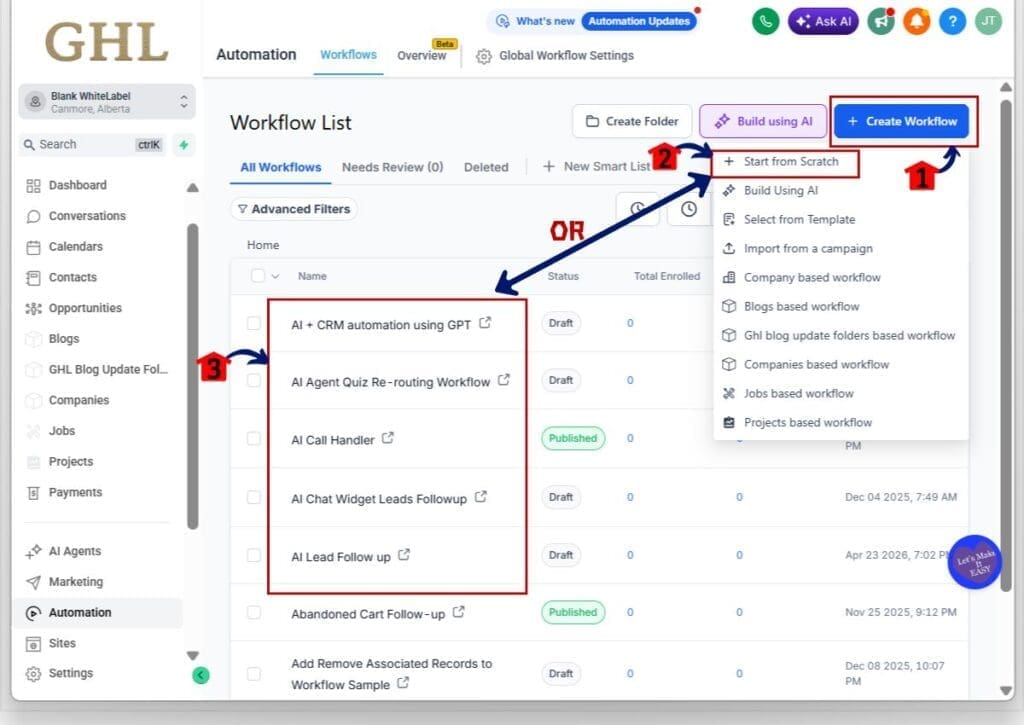
Step 02 – Create a new workflow or open an existing one
2.1 Click Create Workflow button.
- This opens the workflow creation options.
2.2 Choose Start from Scratch (or select your preferred workflow type).
- This creates a new workflow in Draft mode.
2.3 If you already have a workflow you want to update, click the workflow name from the list instead.
- This opens the workflow builder for that workflow.
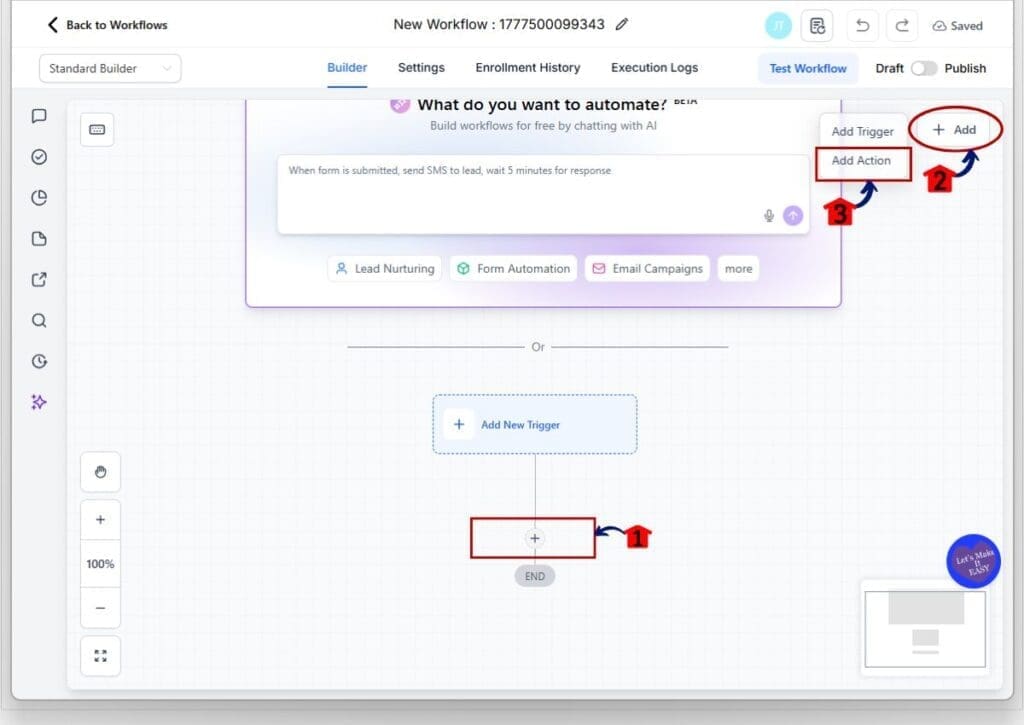
Step 03 – Open the Add Action menu inside the workflow builder
3.1 In the workflow builder, find the spot where you want to add Email Verification.
- Most users add it right after the trigger and before any email send steps.
3.2 Click the + Add button.
3.3 Click Add Action.
- This opens the Actions panel.
Step 04 – Search for and select the Email Verification action
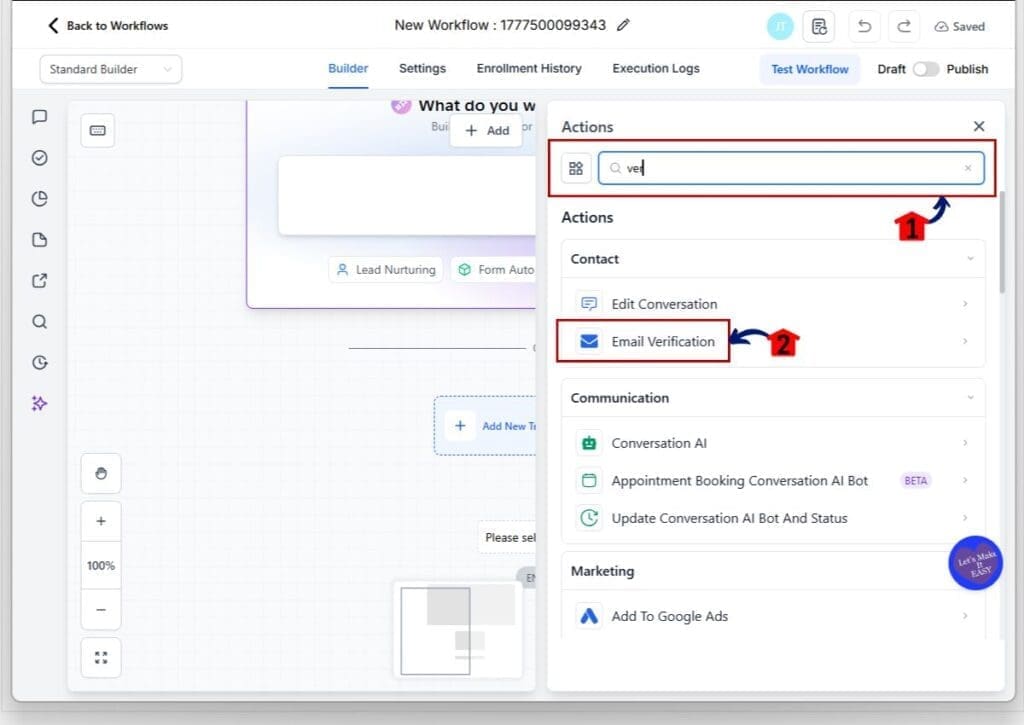
4.1 In the Actions panel search bar, type verification email.
- This filters the actions list.
4.2 Under Contact actions, click Email Verification.
Step 05 – Save the Email Verification action
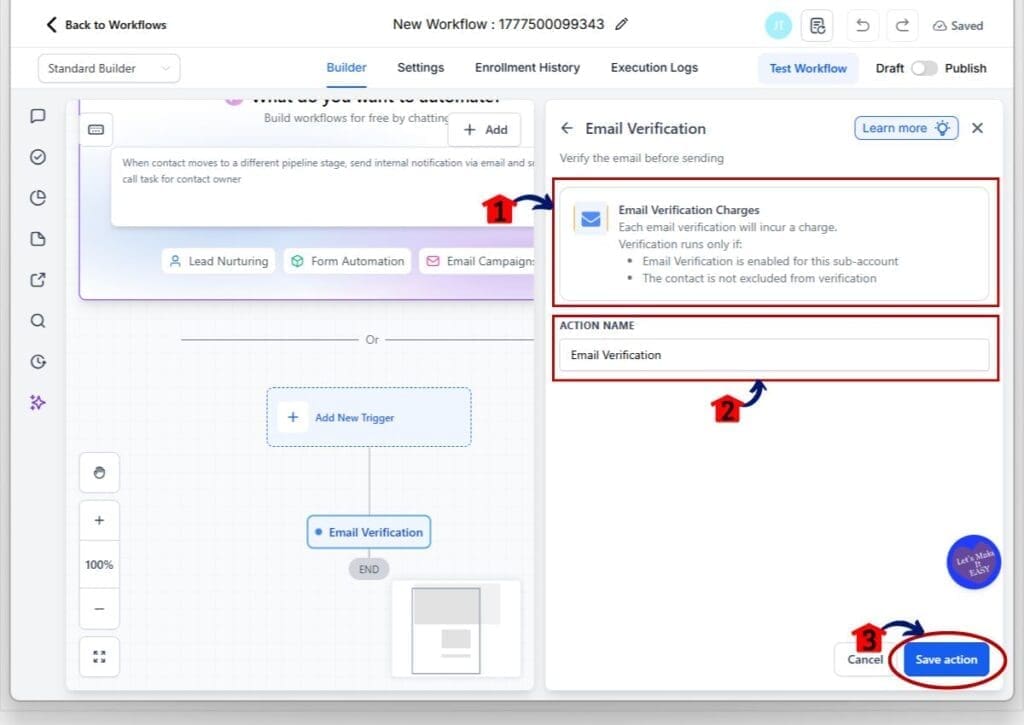
5.1 Review the Email Verification panel message about charges.
- It explains that each verification will incur a charge.
5.2 Confirm the verification can run.
- The panel notes verification runs only if:
- Email Verification is enabled for this sub-account.
- The contact is not excluded from verification.
5.3 (Optional) Update the Action Name if you want it labeled differently.
5.4 Click Save action.
- This adds the Email Verification step into your workflow.
Pro / Quick Tips (Email verification workflow)
If you want this email verification workflow to protect your deliverability actually, put it before the first Send Email step. If it sits after an email action, it is too late and the damage is already done.
Next, treat “Risky” emails like a yellow light. Do not push them into a long email sequence. Tag them, send an SMS to confirm their address, or route them to a quick review step. Save your email sends for contacts that come back as Valid.
One more thing. Each verification can incur a charge, so do not run it five times in the same workflow unless you truly need it. Verify once near the start, tag the result, and keep your workflow clean and predictable.
What This Means for Your Business (Email verification workflow)
For agencies, this email verification workflow is a simple way to protect every client account from the same ugly problem. One bad import or one spammy form can spike bounces and hurt sending performance fast. Adding verification at the start helps keep campaigns stable, especially when you manage multiple sub-accounts and can’t babysit every list.
For lead gen, it stops you from wasting follow-up on junk contacts. Invalid emails get blocked before they ever touch your email steps. Risky emails can be routed to a safer path like SMS confirmation, a quick form request, or a manual check. That keeps your email list cleaner without extra work.
The best part is the long-term effect. When you send to better addresses, you usually see fewer failed deliveries and more consistent opens and clicks over time. It is not magic. It is just better list hygiene built into the workflow where it belongs.
Frequently Asked Questions (Email verification workflow)
Conclusion: Email verification workflow
If you send emails inside GoHighLevel, this is one of those small changes that prevents big problems. The email verification workflow lets you check addresses before you send, so invalid emails do not drag down your deliverability and risky emails do not sneak into your longer sequences.
Set it up once, place it before your first Send Email step, and branch based on the result. Tag the outcomes so you can spot bad lead sources and keep your lists clean without extra effort.
Try it in one workflow today and watch what happens to your bounce rate over the next week. If you find a smart way to handle “Risky” leads, share it. That’s where the real wins usually show up.
Scale Your Business Today.
Streamline your workflow with GoHighLevel’s powerful tools.


