

- Bulk upload full folders, keep subfolders intact, and download Media Center folders as a zip without the messy re-sorting.
- Quick Summary – Media Folder Upload Essentials
- What Changed in Media Center
- Before and After (Quick Comparison)
- Why This Matters to You
- How to Use Media Folder Upload and Zip Download in GoHighLevel
- Pro / Quick Tips for Media Folder Upload
- What This Means for Your Business
- Frequently Asked Questions
- Conclusion: Media Folder Upload Without the Mess
Bulk upload full folders, keep subfolders intact, and download Media Center folders as a zip without the messy re-sorting.
Media Folder Upload Made Simple
Media folder upload just got easier in GoHighLevel, and it matters if you handle a lot of client files. The Media Center is where you store things like logos, photos, PDFs, and graphics you use across websites, funnels, and landing pages.
Before this update, uploading big batches was a pain. You often had to upload files in pieces, then rebuild your folders inside GHL. It took time, and it was easy to miss something.
Now you can upload full folders with subfolders, drag and drop folders, and download folders as a single zip while keeping the same folder structure. You also get clearer progress tracking and faster performance when you are moving lots of files.

This media folder upload update makes it way easier to move big client asset libraries in and out of GoHighLevel without breaking your folder structure. You can bulk upload full folders, see cleaner progress, and zip-download entire folders for fast handoffs.
Quick Summary – Media Folder Upload Essentials
Purpose: This guide shows you how to use media folder upload and folder zip download inside GoHighLevel Media Storage so you can manage large file libraries faster.
Why It Matters: It reduces cleanup work by keeping your folder structure intact during upload and download, which helps teams avoid missing files and wasted time.
What You Get: You get a clear, repeatable process for uploading full folders with subfolders, tracking progress, and exporting folders as a single zip for clean handoffs.
Time To Complete: Most teams can upload and confirm a full folder set in 5 to 15 minutes, depending on file size and volume.
Difficulty Level: This is beginner-friendly because it is mostly clicks, folder selection, and simple checks in the progress panel.
Key Outcome: Your Media Storage stays organized, and client or team handoffs become faster because you can zip-download a complete folder without rebuilding anything.
What Changed in Media Center
This update upgrades the Media Center in a big way, especially if you deal with large batches of files. The goal is simple: move folders in and out faster, keep your structure intact, and make uploads easier to track.
Here’s what’s new and improved:
Automate marketing, manage leads, and grow faster with GoHighLevel.

- Upload Folder is now available in the Media Center header, right beside Upload File.
- You can upload entire folders, including subfolders and files, in one go.
- Drag and drop now supports folders, multiple folders, and mixed uploads with both folders and individual files.
- You can download a folder as a single zip file.
- Upload progress is clearer and folder-based, so you can see nested files and subfolders as they upload.
- Folder uploads and downloads keep the original folder structure.
- Sorting improvements carry into the Move to Folder modal, so it reflects the order you picked in the main grid.
- Upload and download performance is improved for larger file batches.
- Better handling for upload limits, skipped files, and partial completion so you know what happened and what to fix.
Before and After (Quick Comparison)
Before this update, the Media Center worked, but it was not built for big uploads. If you had a full client asset library, you usually had to upload files in chunks, then rebuild the folder layout inside GoHighLevel. That meant extra clicks, extra sorting, and more chances to miss a file.
Now, media folder upload is built for real-world use. You can upload a full folder with subfolders in one go, or drag and drop folders and mixed batches without breaking the structure. When you need to hand files back to a client or a teammate, you can download a folder as a single zip and keep everything organized the same way it started.
The biggest difference is the flow. You spend less time managing files and more time using them because the structure stays intact and the progress view makes it clear what uploaded, what skipped, and what still needs attention.
Why This Matters to You
If you deal with client assets, this update saves time in a very practical way. Big uploads are usually where things break down. Files get missed, folders get rebuilt wrong, and someone on your team wastes 30 minutes fixing what should have taken 3.
With media folder upload, you can move a full folder structure into GoHighLevel in one shot and keep it organized the way it was on your computer. That means less cleanup, fewer “where did that file go?” messages, and a smoother handoff between you, your VA, and your client.
This is especially useful for agencies that manage:
- Website and funnel assets like images, icons, PDFs, and brand files
- Client onboarding packs with folders already organized by type or campaign
- Monthly promos where you drop in a new batch of creatives every week
- Team workflows where one person uploads and another person builds pages or emails using those assets
How to Use Media Folder Upload and Zip Download in GoHighLevel
Media folder upload happens inside the Media Storage area in GoHighLevel. You will open Media Storage, use the Upload menu to choose Upload folder, watch the folder-based progress panel, then download a folder as a zip when you need a clean handoff. This keeps your folder structure intact.
Here are the steps to upload full folders and download folders as a zip in GHL.
- Open Media Storage and Upload Menu.
- Select Upload folder.
- Select the folder you want to download.
- Start a folder zip download.
- Confirm the zip download completes.
To start make sure you are logged in to your GoHighLevel sub-account.
Step 01 – Open Media Storage and Upload Menu
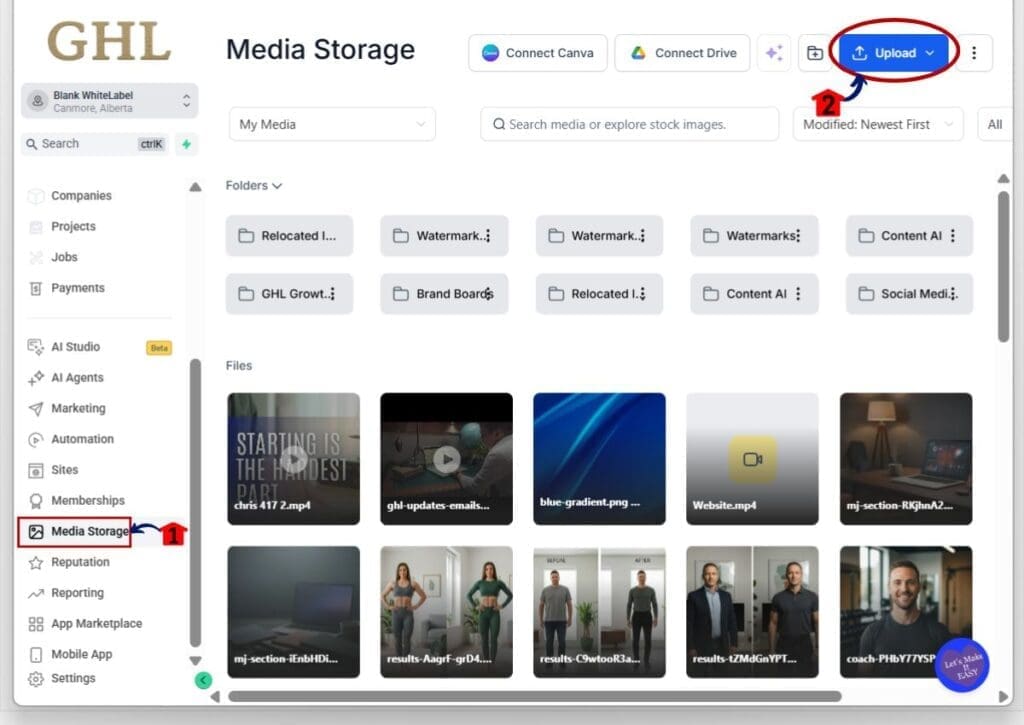
- The Main Menu on the left side of your screen has all the main areas that you work in when using GHL.
1.1 Click Media Storage in the left-hand menu.
- This opens Media Storage where your folders and files are stored.
1.2 Confirm you see the Media Storage page with folders at the top and files listed below.
- This helps you confirm you are in the right place before uploading anything.
1.3 Click the Upload button.
- This opens the Upload menu so you can choose what you want to upload.
Step 02 – Select Upload folder
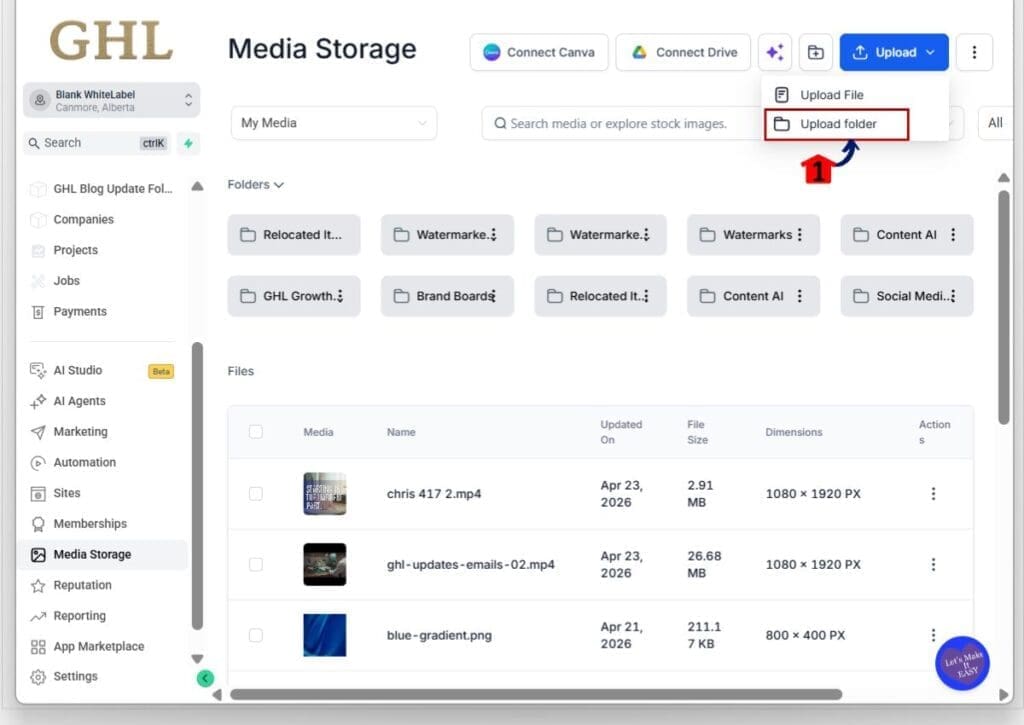
2.1 In the Upload menu, click Upload folder.
- This opens your computer file picker so you can choose a folder.
2.2 Select the folder you want to upload.
- This can include subfolders and files inside the folder.
2.3 Confirm the upload starts after you select the folder.
- This begins the media folder upload and keeps the folder structure.
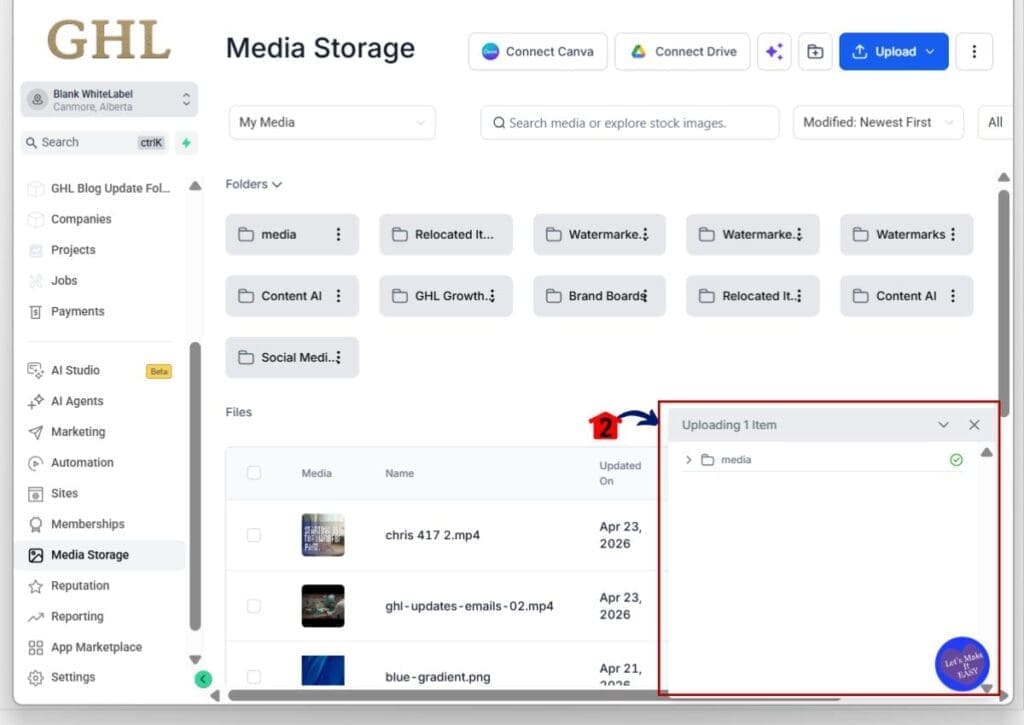
2.4 Look for the upload progress panel in the bottom right area of the screen.
- This shows the status of your upload.
2.5 Expand the folder line if it is collapsed.
- This lets you see nested files and subfolders.
2.6 Confirm the upload completes successfully.
- This helps you verify the folder is fully uploaded before you move on.
Step 03 – Select the folder you want to download
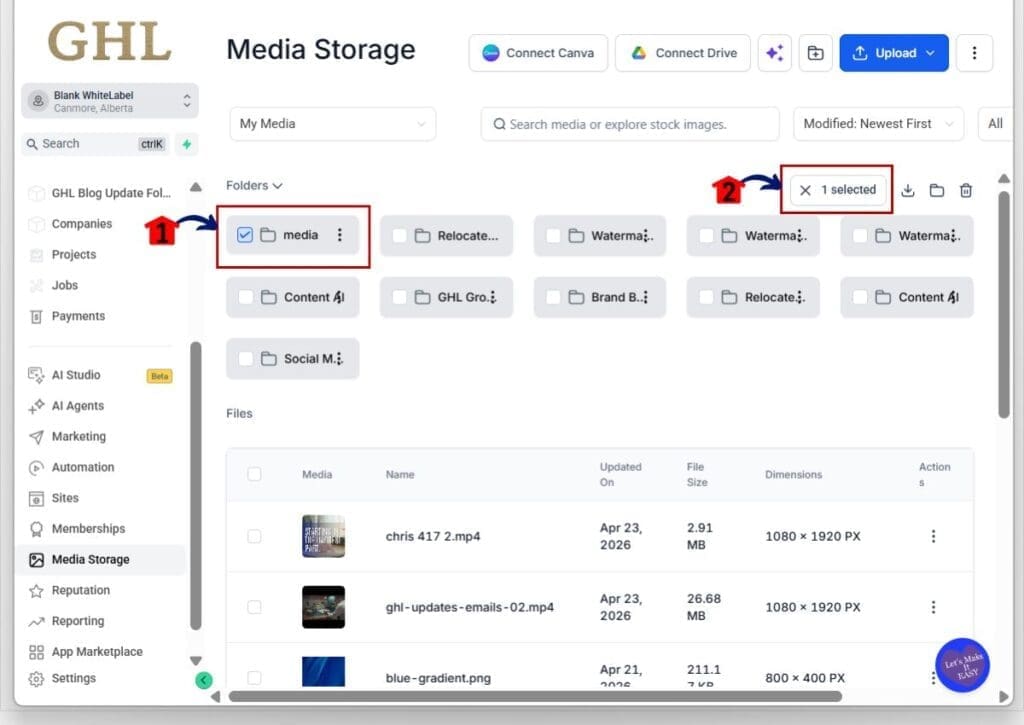
3.1 In the folders grid, select the folder you want to download.
- This marks the folder as selected.
3.2 Confirm you see the selected count near the top of the folder area.
- This confirms you selected the right folder before downloading.
Step 04 – Start a folder zip download
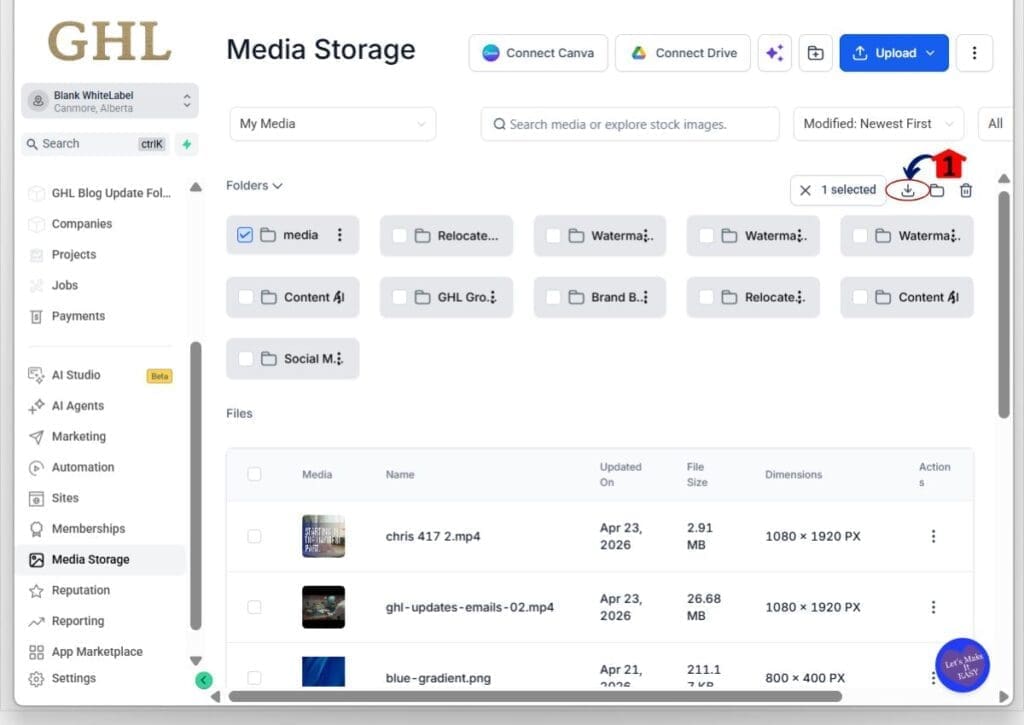
4.1 Click the download icon near the top right of the Media Storage page.
- This starts the download flow for the selected folder.
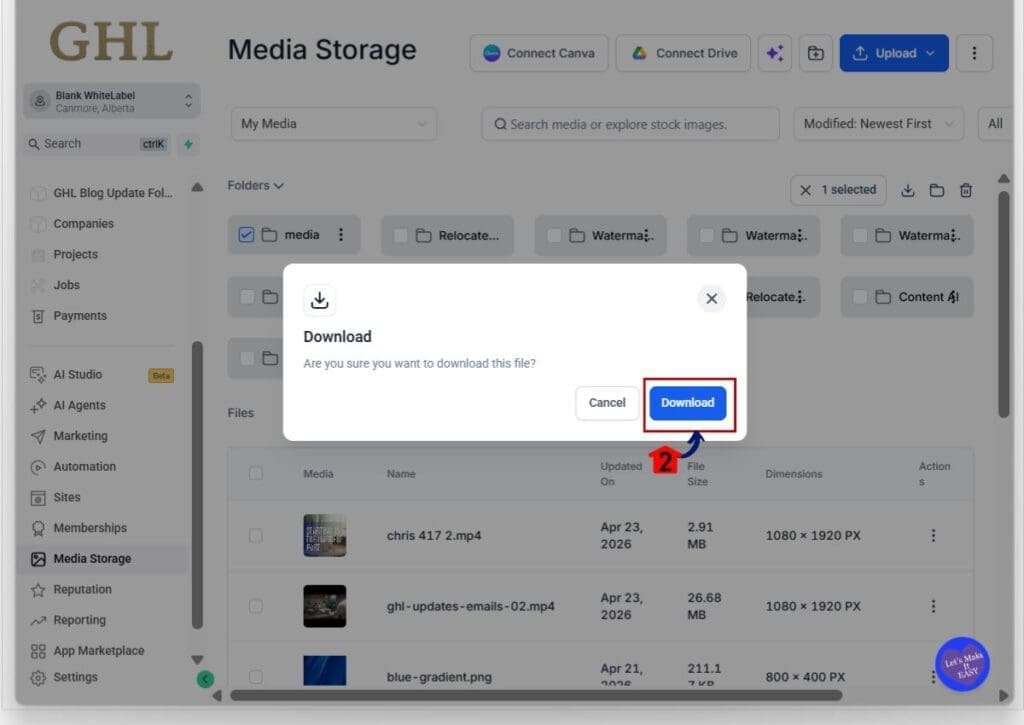
4.2 Review the download confirmation popup.
- This helps you confirm you are downloading the right item.
4.3 Click Download in the popup.
- GoHighLevel will prepare the folder as a single zip file.
Step 05 – Confirm the zip download completes
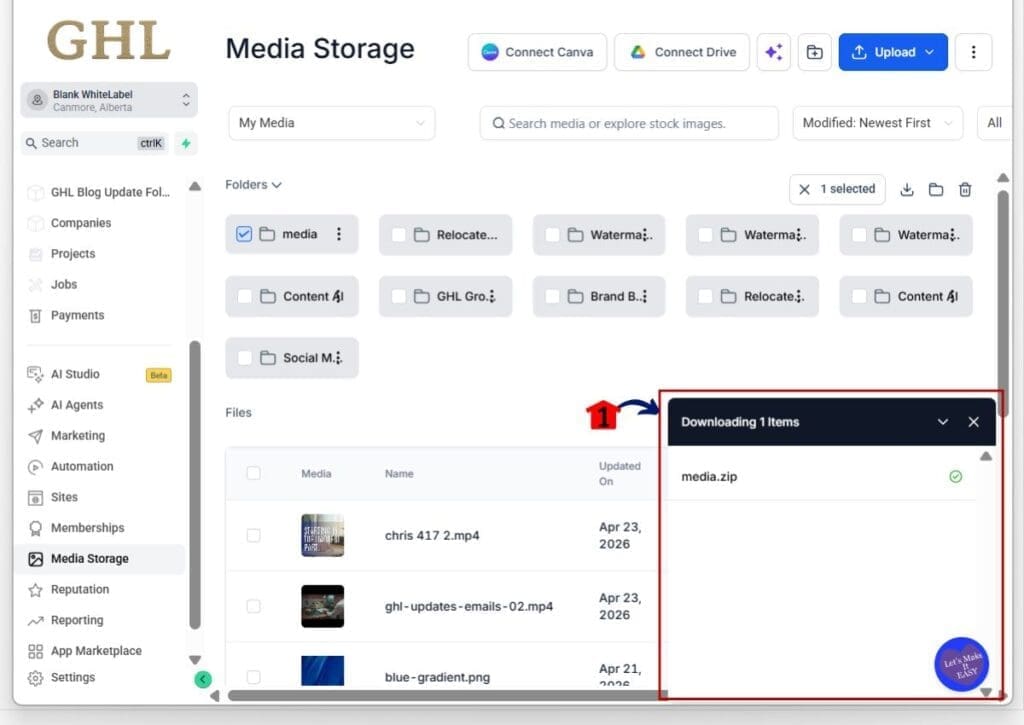
5.1 Watch the download status panel that appears on the right side of the screen.
- This shows the zip file being generated and downloaded.
5.2 Confirm the download shows as completed.
- This tells you the folder zip is ready on your computer.
5.3 Extract the zip and confirm the folder structure is preserved.
- This verifies the subfolders and file layout stayed intact.
Important note: If you rename or move items after uploading, the downloaded zip will match the current folder structure inside Media Storage, not the original structure on your computer.
Pro / Quick Tips for Media Folder Upload
Media folder upload is only useful if it stays organized, so keep your process simple. Build one standard folder layout your team uses every time, then reuse it for each new client or campaign. That way you are not rebuilding folders inside GoHighLevel after every upload.
Before you upload, clean up file names. Keep them short, clear, and consistent. Avoid special characters and very long names since those are common reasons files get skipped or uploads finish with partial results.
When you need to hand files to a client or a teammate, download the folder as a zip and keep it clean. If you keep one “handoff” folder ready to go, you can zip it in minutes and move on with your day.
What This Means for Your Business
If you run an agency, this update removes a common time-waster. Media folder upload lets you bring in a full client asset library in one clean shot, with the same folder structure your team already understands. Less time organizing files means more time building funnels, pages, and campaigns.
It also makes handoffs easier. You can keep a client-ready folder inside Media Storage, then download it as a zip when a client asks for “everything in one place.” No scavenger hunt, no missing pieces, and no messy folder rebuild on your end.
The real win is consistency. When your team follows the same folder layout, your VA can upload, your builder can grab assets fast, and your client gets a clean experience. That is how you keep projects moving without constant back and forth.
Frequently Asked Questions
Conclusion: Media Folder Upload Without the Mess
This Media Center update fixes a real workflow problem. Media folder upload now lets you bring in full folders with subfolders, keep the structure intact, and track progress in a way that actually makes sense.
On the flip side, the zip download option makes client handoffs cleaner. You can pull down an entire folder as one zip file, with the same folder layout, and send it off without extra sorting or cleanup.
Try it this week with a real client asset folder and see how much faster it feels. What is the first folder you are going to upload into Media Storage?
Scale Your Business Today.
Streamline your workflow with GoHighLevel’s powerful tools.


