

- Introduction – Custom Video Thumbnails in GHL
- Quick Summary – Custom Video Thumbnails
- Here are this weeks HighLevel Updates
- What’s New with Custom Video Thumbnails
- What’s Changed in CSV Bulk Uploads
- Why Custom Video Thumbnails Matter
- How to Use Custom Video Thumbnails in CSV Uploads
- Pro Tips for Using Custom Video Thumbnails
- What This Means for Agencies & Marketers
- Real Results You Can Expect
- Conclusion – Take Control with Custom Video Thumbnails
Introduction – Custom Video Thumbnails in GHL
Custom Video Thumbnails used to be the missing piece in bulk video scheduling. If you’ve ever uploaded posts using CSV inside GoHighLevel’s Social Planner, you know the real limitation wasn’t the upload itself.
It was the preview. You’d prepare your spreadsheet. Upload your videos. Schedule everything at once. And then… hope the auto-generated thumbnail looked decent.
Sometimes it worked. Sometimes it didn’t. But when you’re managing multiple clients, “it looks fine” isn’t good enough. It has to convert.
Before this update, bulk video posts inside GHL didn’t let you control the thumbnail from the CSV file. You were stuck with whatever preview the platform pulled automatically. No branding control. No visual consistency. No optimization at scale.
That meant agencies either accepted mediocre previews… or manually edited posts one by one. Neither option scales. Now that changes.
With Custom Video Thumbnails added directly to CSV uploads, you can define exactly how your video appears before anyone clicks. The thumbnail is pulled in automatically during upload and applied to the first video in your post.
Upload once. Brand everything. Scale cleanly.
The latest GoHighLevel Changelog includes several other GHL feature updates that round out your daily workflow:
- New QR Code Styling Options: Shapes, Borders, and Rim Text
- Collapse & Resize Pipeline Stages in Kanban View
- Notes just got smarter for the contacts page!
- New Asana actions in workflows – Find Project and Find section
- Email AI + Knowledge Base Integration 🚀
- Dialer: Auto-minimize, Pin & Drag
- Schema Markup Using AI
Keep reading for much more on all these updates and a deep dive into the CSV Thumbnail feature!

Quick Summary – Custom Video Thumbnails
Purpose: This update allows you to add Custom Video Thumbnails directly inside CSV uploads in GHL, giving you control over how your video posts appear before they are published.
Why It Matters: Video thumbnails are the first impression users see. Controlling them improves click-through rates, strengthens branding, and ensures visual consistency across bulk scheduled campaigns.
What You Get: A new thumbnailUrl column inside the CSV/XLSX template that automatically applies a custom thumbnail to the first video in your post during upload.
Time to Complete: Setup takes less than 10 minutes once you download the updated template and prepare your image URLs.
Difficulty Level: Beginner-friendly. No advanced setup, integrations, or automation edits required.
Key Outcome: More professional video posts, improved engagement potential, and scalable control over visual presentation inside Social Planner.
Here are this weeks HighLevel Updates
New QR Code Styling Options: Shapes, Borders, and Rim Text
What it does:
Lets you stop using boring QR codes. You can now tweak the shape, style the border, and add text around the edge.
Where in GHL:
Accessible via Sites → QR Codes and within QR tools embedded in Funnel and Website builders.
Automate marketing, manage leads, and grow faster with GoHighLevel.

Impact:
Improves visual presentation and brand alignment while increasing scan appeal.
Best suited for:
Agencies that care about branding, small businesses running local promotions, online stores, and teams pushing QR campaigns.
Collapse & Resize Pipeline Stages in Kanban View
What it does:
Lets you hide pipeline stages you’re not actively using and adjust column widths so your board fits the way you work.
Where in GHL:
Inside Opportunities when you’re viewing your pipeline in Kanban mode.
Impact:
No more dragging your screen forever just to find the deals that matter.
Best suited for:
Owners running multi-stage pipelines, reps working deals every day, and anyone fed up with a messy board.
Notes Just Got Smarter for the Contacts Page
What it does:
Upgrades the notes area so it’s easier to write, review, and keep things organized inside a contact record.
Where in GHL:
Found directly within each contact’s profile under Notes.
Impact:
Makes it simpler to see what’s been discussed and who added what — without digging through clutter.
Best suited for:
Teams collaborating on accounts and businesses that document every client touchpoint.
New Asana Actions in Workflows – Find Project & Find Section
What it does:
Lets your workflow check what already exists in Asana before adding anything new.
Where in GHL:
Go to Workflows, add an action, and choose the Asana integration.
Impact:
No more duplicate projects. No more messy task boards. Just cleaner automation.
Best suited for:
Operations teams and agencies that rely on Asana to manage client delivery.
Email AI + Knowledge Base Integration
- What it does:
Allows Email AI to reference your Knowledge Base for smarter, more accurate responses. - Where in GHL:
Found in Conversations → Email composer with AI enabled and Knowledge Base settings under AI configuration. - Impact:
Smarter email suggestions that understand your business and help you reply quicker. - Best suited for:
Support teams, agencies managing inboxes, and businesses scaling communication with AI.
Dialer: Auto-Minimize, Pin & Drag
- What it does:
Lets you auto-minimize the dialer during calls, pin it in place, and drag it anywhere on screen. - Where in GHL:
Found in Conversations → Dialer. - Impact:
Cleaner workspace and easier multitasking during sales or support calls. - Best suited for:
Sales teams, outbound callers, appointment setters, and agencies making daily calls.
Schema Markup Using AI
- What it does:
Generates structured schema markup automatically using AI for SEO enhancement. - Where in GHL:
Found in Sites → Website or Funnel settings within AI or SEO sections. - Impact:
Improves search visibility without manual coding. - This works well for:
Teams building websites that need stronger search visibility, from agencies to small local businesses.
What’s New with Custom Video Thumbnails
GHL didn’t just tweak CSV uploads. It upgraded them. Here’s exactly what’s new with Custom Video Thumbnails inside Social Planner.
Thumbnail Support in CSV Uploads
The updated template includes a thumbnailUrl column. This is where you drop in the public link to the image you want shown as your video preview. Once uploaded, GHL uses that image as the thumbnail without any extra steps.
No guessing. No auto-generated randomness. You decide what people see first.
Auto-Applied During Upload
When you upload your CSV file into Social Planner, GHL automatically applies the thumbnail to the first video in your post.
There is no manual selection step after upload. If the thumbnailUrl is present and valid, it’s applied instantly. That means your bulk scheduling workflow stays fast.
Updated CSV/XLSX Templates
GHL has updated the downloadable templates to include the thumbnailUrl field.
This makes it easy to:
- Follow the correct formatting
- Avoid mapping confusion
- Get started without trial and error
If you’re already using bulk publishing, you simply download the latest template and start using the new column.
No new integrations. No complicated setup. Just one added field that changes how your video content performs.
What’s Changed in CSV Bulk Uploads
This update may look small on the surface. But it changes how bulk publishing feels inside GHL.
Before This Update. Before Custom Video Thumbnails were added to CSV uploads, bulk scheduling had one limitation.
You had no control over how your video preview looked. GHL would automatically generate a thumbnail based on the video file or platform behavior.
Sometimes it grabbed a good frame. Sometimes it didn’t. If the preview looked off-brand or low quality, you had two choices:
- Accept it
- Edit the post manually after upload
For agencies scheduling dozens or hundreds of posts, that created friction. It slowed down scale.
Now With Custom Video Thumbnails
Now, the thumbnail is defined directly in your spreadsheet. That means:
- You control the image before upload
- You maintain branding consistency
- You eliminate post-upload edits
- You optimize presentation at scale
The biggest change is control. You’re no longer reacting to whatever preview is generated. You’re intentionally designing the first impression.
Important Notes & Limitations
A few quick notes before you start:
- The thumbnail applies only to the first video in the post
- Multiple video thumbnails are not supported
- Final display behavior may vary slightly across social platforms
But for most agencies running structured campaigns, this solves the real problem — bulk thumbnail control.
Why Custom Video Thumbnails Matter
Custom Video Thumbnails are not just a visual upgrade. They directly affect performance.
On social media, the thumbnail is the hook. Before someone reads your caption… Before they see your CTA… Before they watch your video…
It starts with the visual. If it looks cheap or unclear, the scroll continues.
Improve Click-Through Rates
A strong thumbnail increases curiosity. It gives context. It highlights benefits. It pulls attention in crowded feeds.
When you control Custom Video Thumbnails inside GHL, you’re designing for clicks — not leaving it to chance.
Maintain Brand Consistency
Agencies managing multiple clients know this pain. One bad preview can make a polished campaign look sloppy.
With Custom Video Thumbnails:
- Brand colors stay consistent
- Fonts match campaign assets
- Visual style stays uniform
- Feeds look intentional
That consistency builds authority. And authority builds trust.
Scale Without Sacrificing Quality
Bulk scheduling is about speed. But speed without control creates messy results. This update allows you to scale content production while keeping quality high. You don’t have to choose between efficiency and presentation anymore.
Competitive Advantage for Agencies
Most businesses still let platforms auto-generate thumbnails. Agencies using Custom Video Thumbnails inside GoHighLevel now have an edge.
Better previews.Higher perceived quality. Stronger engagement signals. And over time, that compounds.
How to Use Custom Video Thumbnails in CSV Uploads
Adding Custom Video Thumbnails to your bulk video posts is a straightforward process inside GoHighLevel. You will work directly inside the Social Planner and use the updated CSV or XLSX template to define your thumbnail before uploading your content.
In this section, you’ll download the latest template, add a public image link to the thumbnailUrl column, upload your file, and confirm the thumbnail is applied automatically to your first video. There are no extra settings, integrations, or workflow changes required. Follow the steps below to implement this update correctly and start optimizing your video posts at scale.
- Access Social Planner in GHL.
- Download the Updated CSV/XLSX Template.
- Open in Google Sheets and Add Your Custom Video Thumbnail.
- Upload Your CSV File in posting.
- Choose What Social Accounts to Upload Your CSV.
- Schedule or Publish Your Post.
To start, make sure you are logged in to your GoHighLevel sub-account.
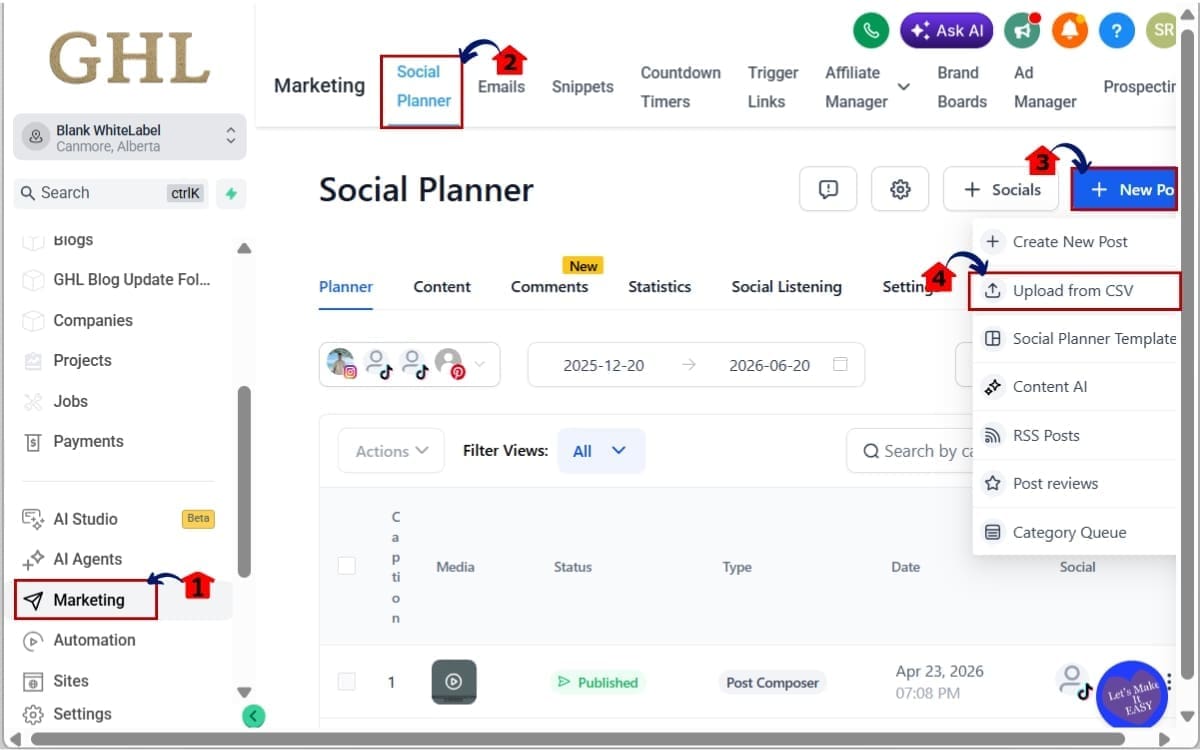
Step 01 – Access Social Planner in GHL
- The Social Planner is where you create and bulk schedule posts.
1.1 Go to the left-hand main menu inside GHL
- Click on Marketing
1.2 Inside the Marketing section
- Click on Social Planner
1.3 In the Social Planner dashboard
- Click Create Post
1.4 Select CSV Post
- This opens the bulk upload interface You are now inside the bulk publishing workflow.
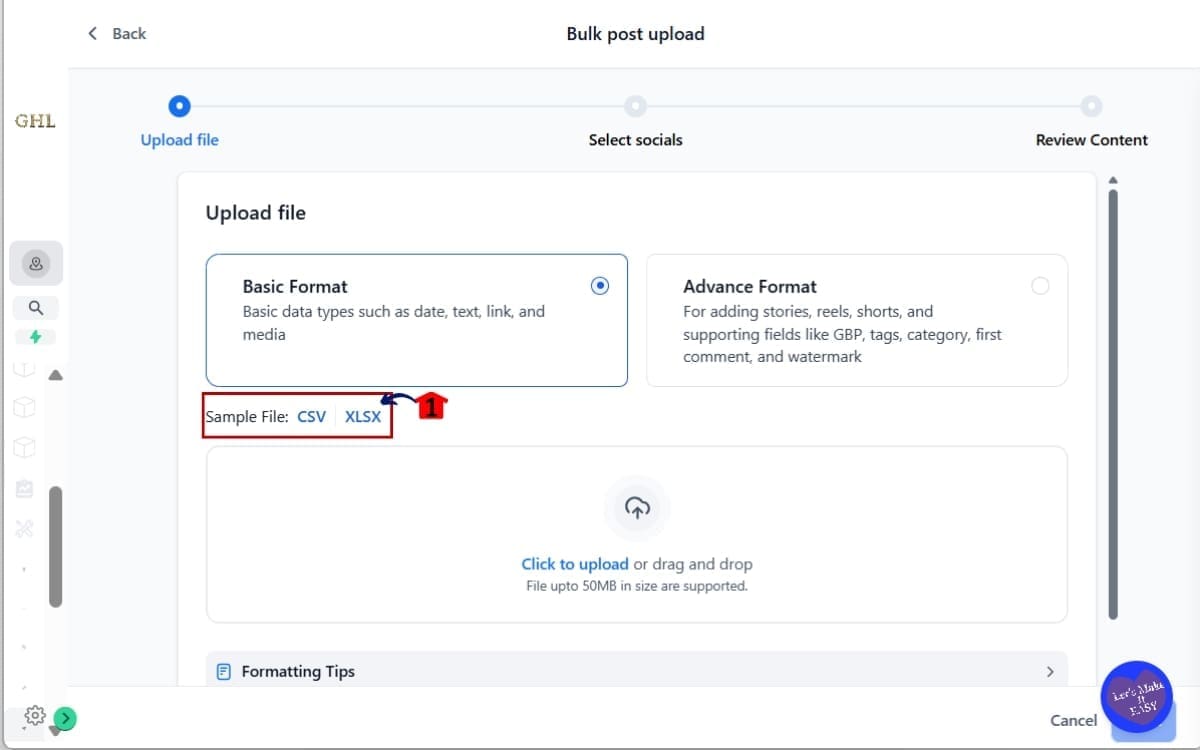
Step 02 – Download the Updated CSV/XLSX Template
- You need the latest template because it includes the new thumbnailUrl column required for Custom Video Thumbnails. Before uploading, make sure you are using the correct file format.
2.1 Click Download CSV Template or Download XLSX Template
- This ensures you are working with the updated structure that supports thumbnail customization.
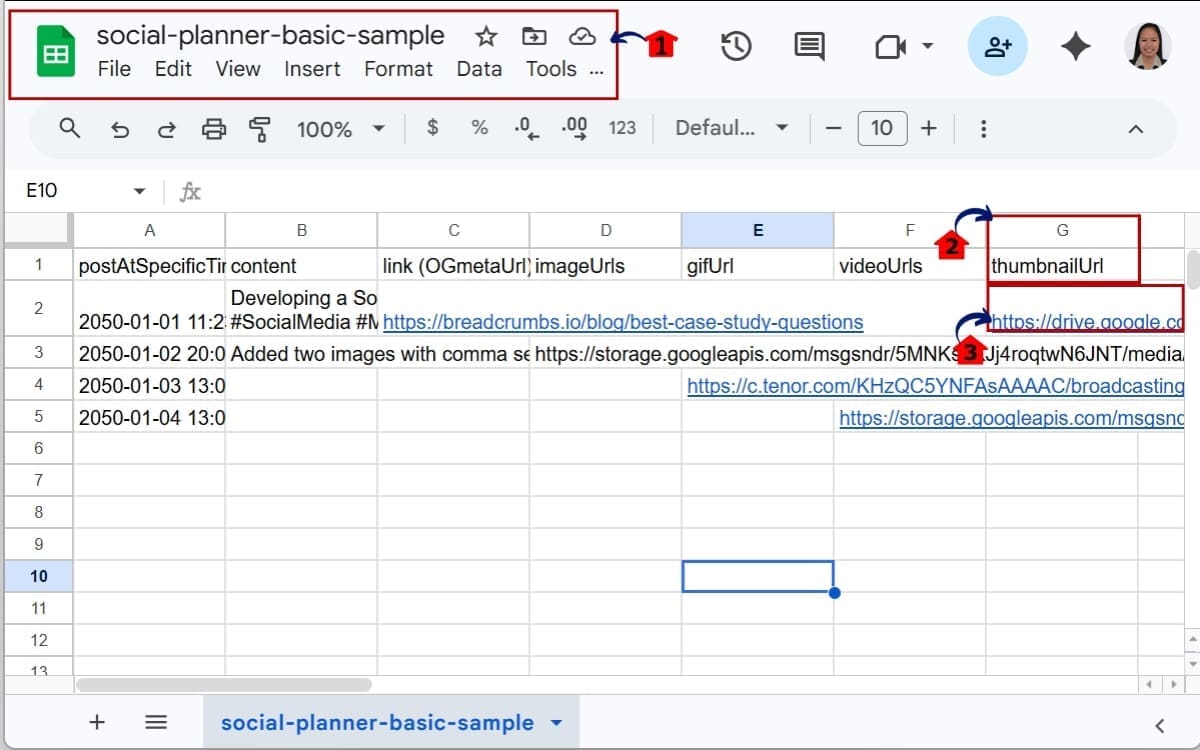
Step 03 – Open in Google Sheets and Add Your Custom Video Thumbnail
- You will now edit the file to define exactly which image should be used as your video thumbnail during upload.
3.1 Open the file in Excel, Google Sheets, or your preferred spreadsheet tool
- This allows you to edit the CSV/XLSX file and prepare it for bulk upload.
3.2 Locate the new column labeled thumbnailUrl
- This column is where you define the image that will be used as the Custom Video Thumbnail.
3.3 Put link in the thumbnailUrl column and save your file
- Paste a direct public image link. Make sure the image link is Publicly accessible, Not behind login permissions, Not a private Google Drive link and Not expiring
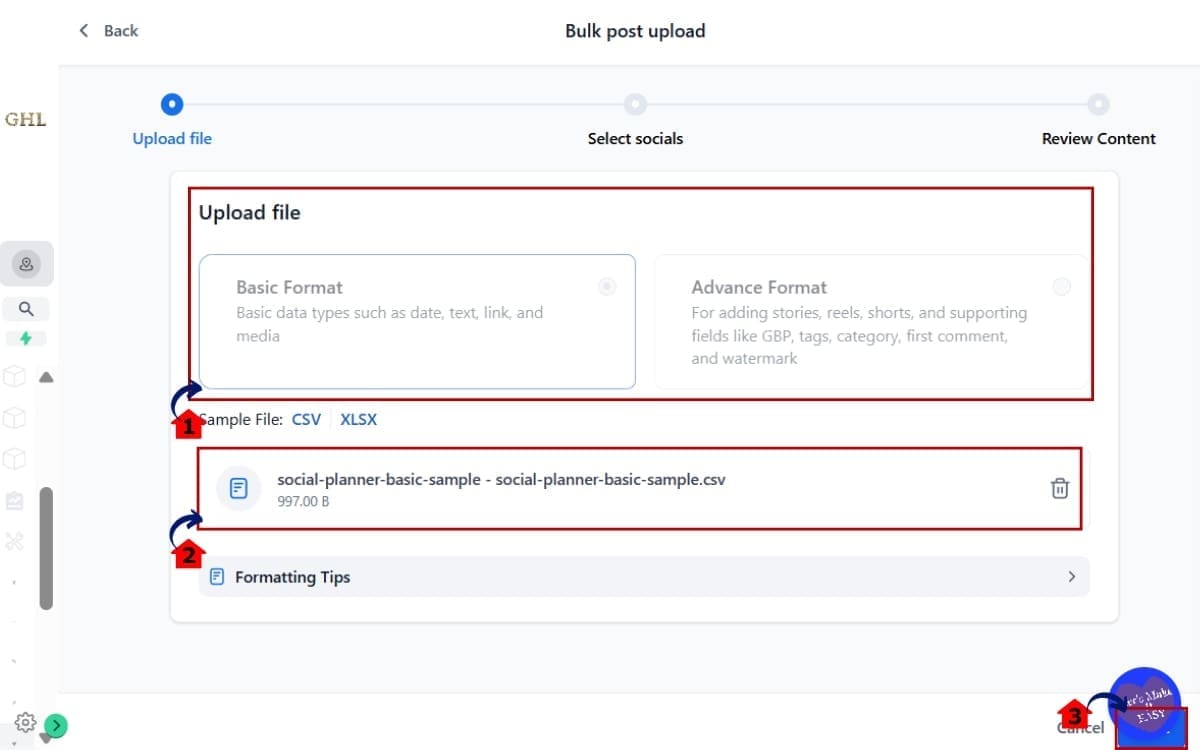
Step 04 – Upload Your CSV File in posting
- You will now upload your prepared file into Social Planner so GHL can process your video posts and apply the thumbnail.
4.1 Click Upload CSV
- This opens the file selector so you can choose your completed CSV or XLSX file.
4.2 Select your saved file and review the preview screen
- This step allows you to confirm that your content and Custom Video Thumbnails are loading correctly before scheduling. Confirm your video is mapped correctly Confirm the Custom Video Thumbnails appears as expected
4.3 Click Next
- This moves you to the final scheduling stage where you can select accounts and publish settings.
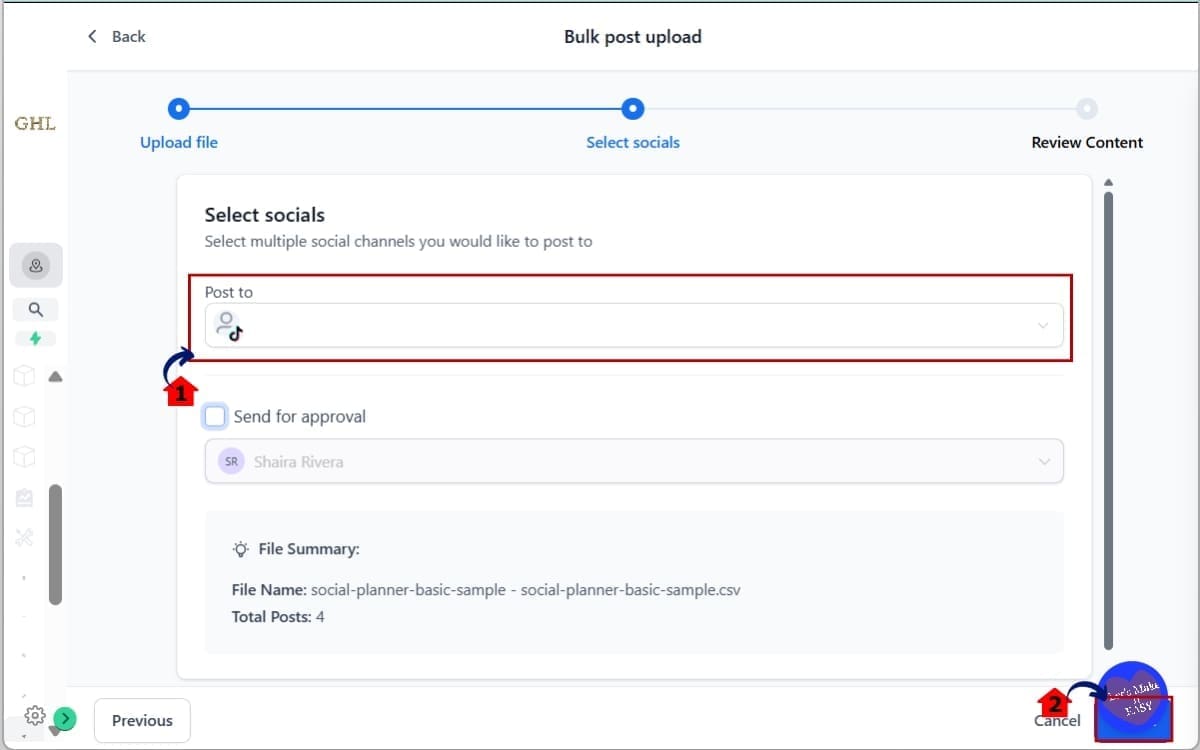
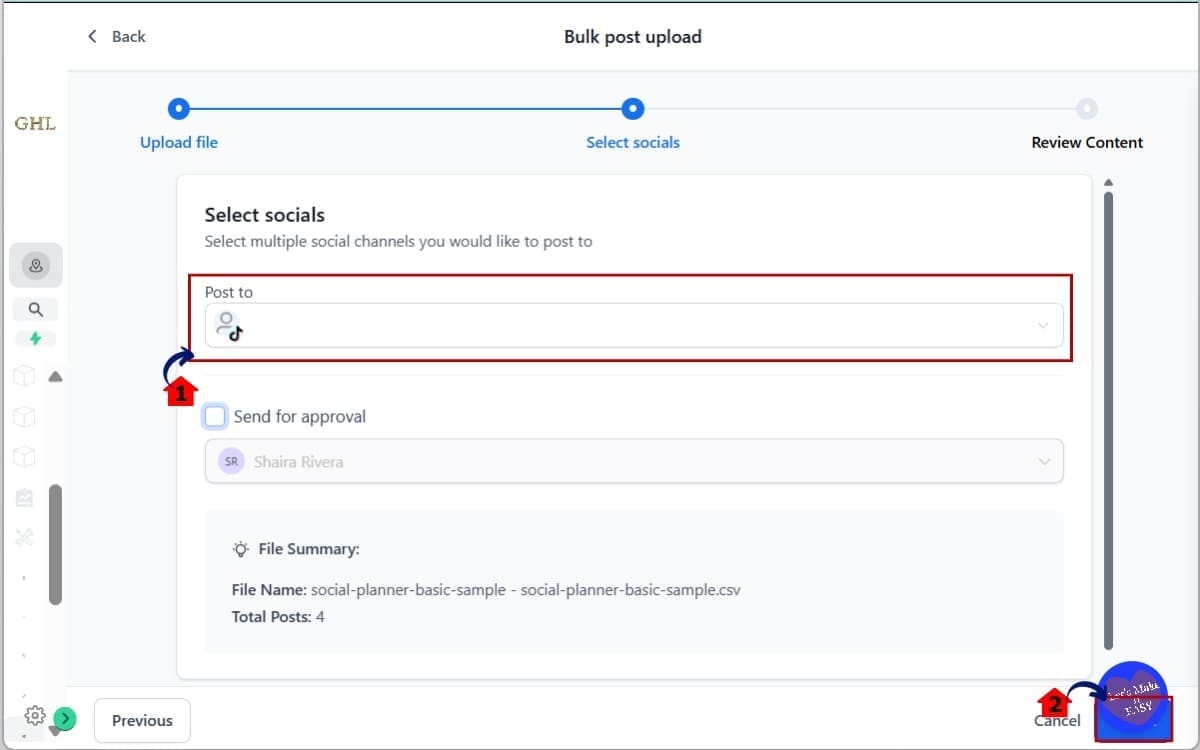
Step 05 – Choose What Social Accounts to Upload Your CSV
- You will now select the social media accounts where your video posts will be published.
5.1 Select the social accounts you want to upload the CSV posts to
- Choose the connected profiles or pages where your video content should be scheduled or published.
5.2 Click Next
- This confirms your selection and moves you to the final scheduling or publishing screen.
Step 06 – Schedule or Publish Your Post
- You will now finalize your post by choosing when it should go live.
6.1 Click Schedule
- Select your desired date and time to publish the post automatically, or choose to publish immediately if needed.
Your video will now publish with your selected Custom Video Thumbnail. You have successfully optimized your video preview at scale.
Pro Tips for Using Custom Video Thumbnails
Custom Video Thumbnails give you control. But how you use them determines the results. Here are practical ways to get the most out of this feature inside GHL.
Design for Scroll-Stopping Contrast
Social feeds are crowded. Your thumbnail should stand out instantly.
Use:
- High contrast colors
- Bold, readable text
- Clear subject focus
- Minimal clutter
If someone can’t understand your message in one second, it’s too busy.
Stay consistent with your visual branding across every campaign.
Agencies managing multiple clients should standardize Custom Video Thumbnails templates.
Create:
- A branded layout per client
- Consistent font styles
- Recognizable color palettes
- Logo placement rules
This keeps feeds looking clean and professional. Over time, consistency builds recognition.
Organize Your Custom Video Thumbnails Assets
Don’t store random images in random folders. Instead:
- Create campaign-based folders
- Use clear naming conventions
- Store final versions only
- Keep backup master files
When you’re scheduling at scale, organization saves hours.
Test Different Thumbnails
Not all thumbnails perform equally. Try:
- Benefit-driven headlines
- Curiosity-based text
- Minimal text vs bold text
- Face-centered vs graphic-centered
Track engagement rates inside the platform. Over time, patterns will appear.
A few things that can trip you up
Avoid these errors when using Custom Video Thumbnails:
- Using private Google Drive links
- Linking to expired URLs
- Uploading low-resolution images
- Using thumbnails with tiny unreadable text
- Forgetting that only the first video gets the thumbnail
Small technical mistakes can prevent the thumbnail from appearing correctly.
Quick Quality Checklist Before Upload
Before submitting your CSV:
- Is the image publicly accessible?
- Is the resolution high enough?
- Is text readable on mobile?
- Does it match brand guidelines?
If you can check all four, you’re ready to scale.
What This Means for Agencies & Marketers
Custom Video Thumbnails may look like a small update. But for agencies, this is operational leverage.
Better Control at Scale
When you’re handling content for several clients, the little stuff starts adding up. Fixing thumbnails one by one after upload eats into your time. And settling for weak previews? That usually costs you clicks.
With Custom Video Thumbnails in GHL, that friction disappears. You define the visual once in your spreadsheet. Upload. Schedule. Done. That’s scalable control.
Stronger White-Label Delivery
If you offer social media management as a white-label service, presentation matters. Clients judge quality quickly.
When every video post looks intentional and branded, it increases perceived value. Your service feels premium. Not automated. Even though it is automated.
More Professional Client Reporting
When clients review their posts, they see:
- Consistent Custom Video Thumbnails
- Clear messaging
- Cohesive branding
- Professional presentation
That visual consistency strengthens client confidence. And confident clients renew contracts.
Faster Campaign Execution
Campaign launches often involve dozens of scheduled posts.
Now you can:
- Prepare Custom Video Thumbnails in advance
- Include them in your CSV
- Upload once
- Launch cleanly
No last-minute edits. No scrambling.
Real Agency Advantage
Most businesses still rely on auto-generated previews. Agencies using Custom Video Thumbnails inside GoHighLevel now operate differently.
More control. Better branding. Higher performance signals. That advantage compounds over time.
Real Results You Can Expect
Custom Video Thumbnails are not just about aesthetics. They influence real performance metrics.
Higher Click-Through Rates
The preview image sets the tone. If you don’t choose it, the platform will — and that’s not always ideal.
- Highlight the main benefit
- Add bold messaging
- Use contrast to grab attention
- Create curiosity
Better thumbnails lead to more clicks. More clicks lead to more engagement.
Stronger Engagement Signals
Social platforms reward engagement.
If your video earns:
- More clicks
- More watch time
- More interactions
It increases reach potential. Even small improvements in thumbnail performance can create noticeable differences across a full campaign.
Cleaner Feed Appearance
When thumbnails are consistent, your client’s social grid looks intentional. That visual consistency:
- Builds brand authority
- Makes campaigns look structured
- Increases perceived professionalism
A clean feed often improves trust before someone even presses play.
More Predictable Campaign Performance
Random previews create unpredictable results. Controlled thumbnails create repeatable systems.
Once you identify what type of thumbnail works best for a client, you can:
- Replicate it
- Scale it
- Optimize it
Now your bulk scheduling inside GHL becomes performance-driven, not just time-saving. This is where efficiency meets strategy.
Conclusion – Take Control with Custom Video Thumbnails
Custom Video Thumbnails remove one of those small but frustrating limitations inside bulk scheduling. Before this update, CSV uploads inside GHL were efficient.
Now they’re optimized. You’re no longer relying on auto-generated previews that may or may not represent your brand correctly. You’re defining exactly what users see before they click.
That shift matters. It improves presentation. It increases perceived professionalism. It supports higher click-through rates. And it lets agencies scale without sacrificing quality.
For GoHighLevel users managing multiple clients, this is the kind of update that tightens operations.
Less manual cleanup. More intentional branding. Stronger campaign consistency.
If you’re already using Social Planner, download the updated template and test Custom Video Thumbnails on your next batch upload.
It takes minutes to implement. But the visual impact is immediate.
Have you tried using Custom Video Thumbnails inside GHL yet? Let us know how it’s improving your video performance.
Scale Your Business Today.
Streamline your workflow with GoHighLevel’s powerful tools.


