- See contact preference updates right inside your GHL conversations, so your team never misses an opt-out, DND, or preference switch again.
- Quick Summary – Preference Change Logs Overview
- What’s New: Preference Change Logs
- How to Use Preference Change Logs in GoHighLevel Conversations
- Preference Change Logs Pro Tips
- Preference Change Logs for Your Business
- Preference Change Logs Frequently Asked Questions for GHL Teams
- Preference Change Logs Wrap Up
See contact preference updates right inside your GHL conversations, so your team never misses an opt-out, DND, or preference switch again.
Preference Change Logs
Preference change logs just made Conversations a whole lot clearer in GoHighLevel. When a contact updates their communication preferences, or when someone on your team changes them, that update now shows up right inside the conversation thread.
Before this, you often had to leave the chat and dig through the contact record to confirm what changed. That meant more tab switching, more guessing, and more chances to message someone the wrong way.
Now you get the context where you need it most. You can spot preference changes fast, understand what happened, and take the right next step without leaving Conversations.

Preference change logs give your team instant clarity on when a contact’s communication preferences changed and why it matters, right inside the conversation thread. With preference change logs, you’ll reduce mistakes, speed up follow-ups, and keep every rep on the same page.
Quick Summary – Preference Change Logs Overview
Purpose: This guide shows you how to use preference change logs in GoHighLevel so your team can see preference updates inside the conversation thread.
Why It Matters: It helps you avoid messaging a contact on the wrong channel after an opt-out, DND, or preference update.
What You Get: You get a simple walkthrough to find the log in Conversations, plus practical tips for team handoffs and daily inbox work.
Time To Complete: Most users can review and confirm a log in about 2 to 5 minutes per contact thread.
Difficulty Level: Easy since it is mostly navigation and a quick timeline check.
Key Outcome: Your team gets clearer context in Conversations and fewer follow-up mistakes tied to contact preferences.
What’s New: Preference Change Logs
Preference change logs now show up inside the Conversations view. So when a contact’s communication preferences get updated, you will see a log entry right in the conversation timeline instead of having to leave the thread.
This applies to updates triggered on both sides. If the contact changes a preference, it gets logged. If a user on your team updates that same preference, it also gets logged. Either way, you get a clean trail of what changed and when.
Automate marketing, manage leads, and grow faster with GoHighLevel.

Bottom line: your team gets instant context while they are replying. Less guessing, fewer mistakes, and no extra clicking around just to confirm a preference update.
How to Use Preference Change Logs in GoHighLevel Conversations
Preference change logs can be checked right from the Team Inbox inside GoHighLevel Conversations. You will open Conversations, open the Team Inbox view, open the contact thread, and then confirm the timeline shows the preference change log. This makes it easier to understand preference updates without leaving the conversation screen.
Here are the steps to confirm the preference update is logged in Conversations.
- Open Conversations in GHL.
- Open Conversations on the top menu to open the Team Inbox.
- Access contact to open conversation thread.
To start make sure you are logged in to your GoHighLevel sub-account.
Step 01 – Open Conversations in GHL
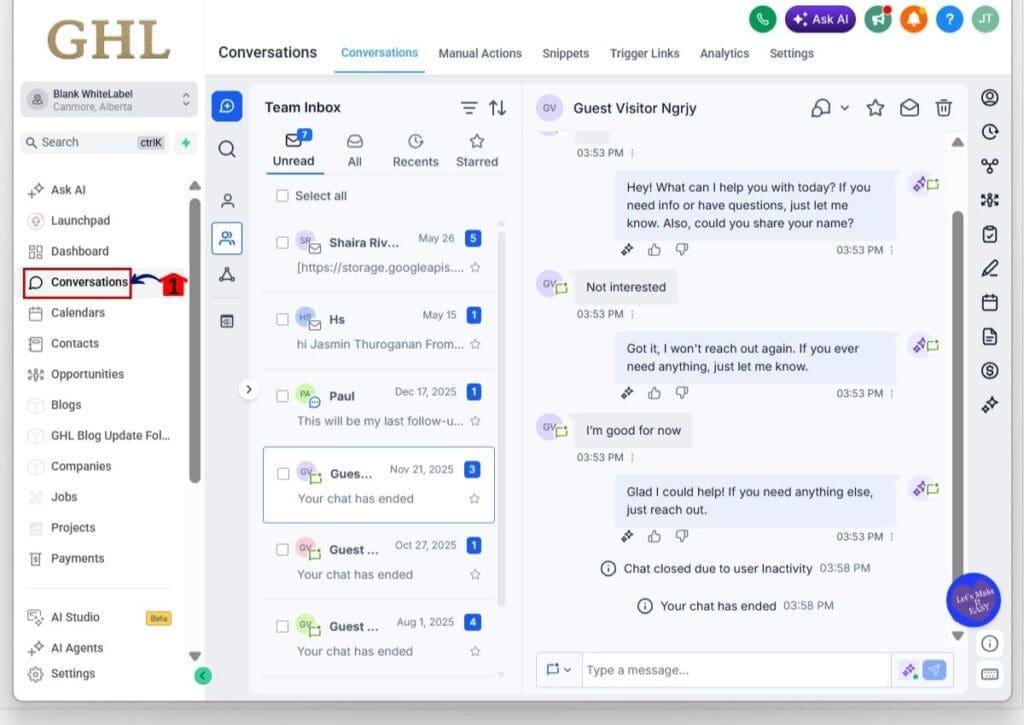
- The Main Menu on the left side of your screen has all the main areas that you work in when using GHL.
1.1 Click Conversations in the left-hand menu.
- This opens the Conversations section.
Step 02 – Open Conversations on the top menu to open the Team Inbox
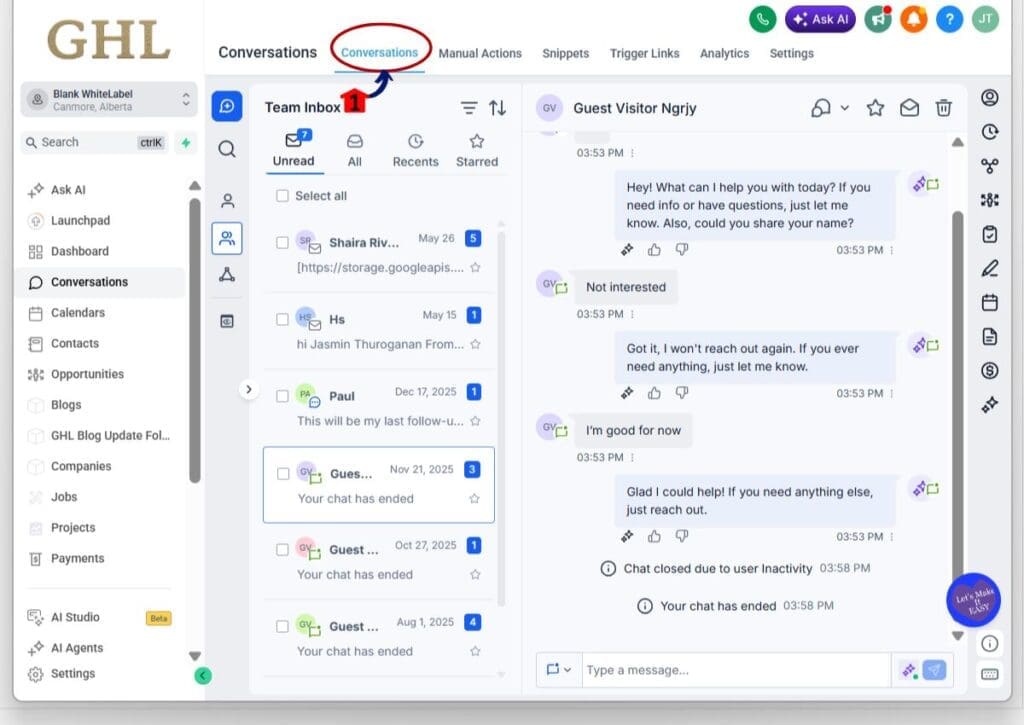
- Inside the Conversations section, the top menu controls which Conversations view you are working in.
2.1 At the top of the page, click Conversations.
- This opens the Team Inbox view where you can see your contact list and message threads.
Step 03 – Access contact to open conversation thread
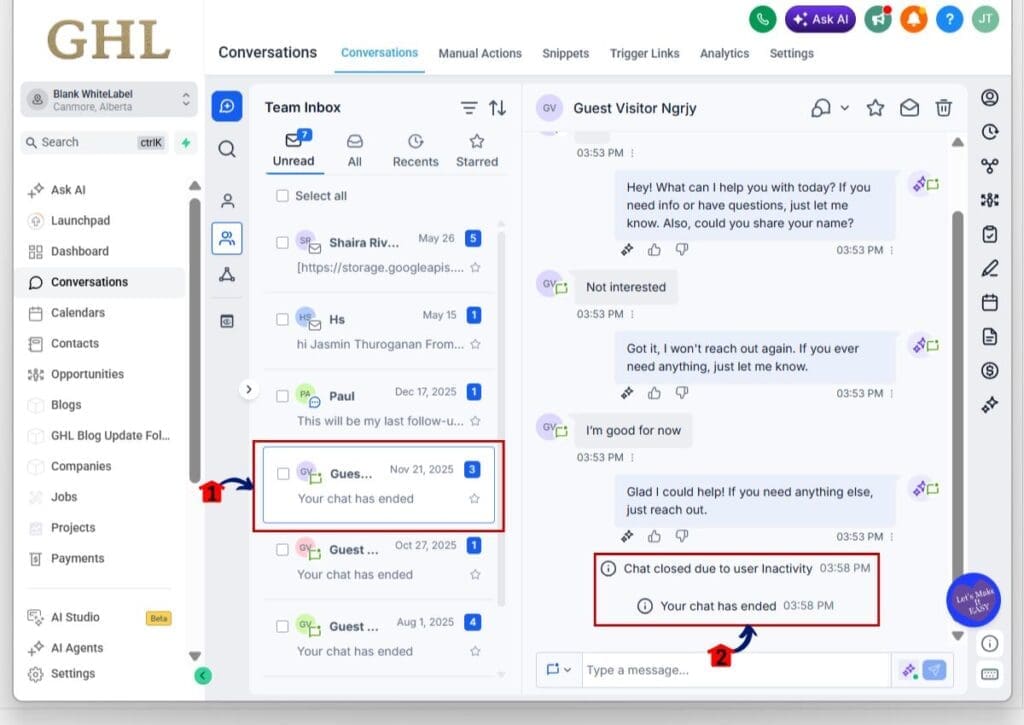
3.1 In the Team Inbox list, click the contact you want to review.
- This opens the contact’s conversation thread on the right side of the screen.
3.2 In the conversation thread, scroll the timeline.
3.3 Look for the preference change log entry.
3.4 Confirm the log shows the preference update.
- This confirms the preference update is being captured as a conversation log in GoHighLevel.
Preference Change Logs Pro Tips
Preference change logs should be the first thing your team checks before replying in a conversation. Open the thread, scroll a little, and confirm the latest preference update. This simple habit prevents your team from using the wrong channel.
If a user on your team changes a preference, add a short internal note right after. The log shows what changed, but the note explains why it changed. Keep it plain, like “Requested email only” or “Opted out of SMS.”
Set one clear rule and stick to it. Do not change a preference just to push a message out. Use preference change logs for quick weekly spot checks too, so you catch issues early and keep your follow-ups clean.
Preference Change Logs for Your Business
Preference change logs make your follow-up cleaner and safer. When a contact changes their communication preference, your team sees it right in the conversation thread. That means fewer “oops” moments where someone sends the wrong message on the wrong channel.
This also improves team handoffs. If one rep talks to the contact in the morning and another rep picks it up later, both people can see the same preference history. Preference change logs reduce guesswork and cut down on internal back and forth. You spend less time asking “what happened” and more time taking the right next step.
Over time, this tightens your process. You can train your team to check the latest log before replying, and you can spot-check threads for mistakes during QA. It is a small change in GHL, but it supports a more consistent workflow, especially as GoHighLevel keeps adding more visibility tools across Contacts and Conversations.
Preference Change Logs Frequently Asked Questions for GHL Teams
Preference Change Logs Wrap Up
Preference change logs are one of those small updates that make your day easier. You get preference context right inside the conversation thread, which means fewer mistakes and less guessing. Your team can see what changed and keep moving.
If you run a busy inbox, make this part of your process. Teach your team to check the latest log before they reply. If someone on your team updates a preference, add a quick internal note so the reason is clear for the next person.
That’s it. Simple, useful, and long overdue. The team at GHL Growth Garage will keep an eye on the next visibility updates too, like the upcoming Contact Listing filters. Have you already seen preference change logs in your Conversations, and did it change how your team handles follow-ups?
Scale Your Business Today.
Streamline your workflow with GoHighLevel’s powerful tools.