- Email Personalization Defaults w/o Broken Fields
- Quick Summary – Email Personalization Defaults
- Here are this weeks HighLevel Updates
- What Email Personalization Defaults Do in GHL
- Email Personalization Defaults Matter for Agencies
- How to Use Email Personalization Defaults in GHL
- Pro Tips for Email Personalization Defaults
- Real-World Uses for Email Personalization Defaults
- Common Email Personalization Defaults Mistakes
- Email Personalization Defaults FAQ
- Final Thoughts on Email Personalization Defaults
Email Personalization Defaults w/o Broken Fields
Personalized emails are powerful. Until they break. You’ve seen it. “Hi ,” in the first line. Blank company name in the body. Subject line missing half the sentence. It worked… until the contact data didn’t.
If you’ve built email campaigns inside GHL, you know the risk. Custom values pull from contact records. But when the data is missing? The merge field doesn’t magically fix itself. It leaves a gap.
And when you’re running multiple client accounts, importing leads from ads, or automating follow-ups at scale, “just make sure the data is clean” isn’t a system.
It creates awkward emails. It creates brand damage. It lowers open rates. Email Personalization Defaults fix that gap.
Instead of hoping every contact record is perfect, you can now set fallback values directly inside the email editor. If the first name is missing? Use “there.” If the company name is empty? Insert a clean alternative.
Click the custom value. Add a default. Done. The email still reads naturally. The subject line still makes sense. The automation keeps running.
And here’s what agencies will love. You can set different defaults for the same custom value in different emails. Context matters. Now you control it.
Email Personalization Defaults make your campaigns cleaner, safer, and more professional inside GoHighLevel.
Less broken personalization. Less embarrassment. More control.
The latest GoHighLevel Changelog includes several other GHL feature updates that round out your daily workflow:
- New QR Code Styling Options: Shapes, Borders, and Rim Text
- Collapse & Resize Pipeline Stages in Kanban View
- Notes just got smarter for the contacts page!
- New Asana actions in workflows – Find Project and Find section
- Email AI + Knowledge Base Integration 🚀
- Dialer: Auto-minimize, Pin & Drag
- Schema Markup Using AI
Keep reading for much more on all these updates and a deep dive into the Email Personalization Defaults feature!
Quick Summary – Email Personalization Defaults
Purpose
This guide explains how to use Email Personalization Defaults inside GHL to prevent broken merge fields and blank personalization in your emails.
Why It Matters
Missing contact data can create awkward subject lines and incomplete messages. Email Personalization Defaults protect your brand and keep your automation looking professional.
What You Get
You learn how to configure fallback values inside workflow emails, campaigns, bulk actions, and templates. You also learn how to test and optimize them for real-world marketing use.
Time to Complete
Most users can implement Email Personalization Defaults in under 5 minutes per email once they understand the process.
Difficulty Level
Beginner-friendly. No advanced automation skills required.
Key Outcome
Your emails remain clean, natural, and conversion-ready even when CRM data is incomplete.
Here are this weeks HighLevel Updates
New QR Code Styling Options: Shapes, Borders, and Rim Text
What it does:
Lets you stop using boring QR codes. You can now tweak the shape, style the border, and add text around the edge.
Where in GHL:
Accessible via Sites → QR Codes and within QR tools embedded in Funnel and Website builders.
Automate marketing, manage leads, and grow faster with GoHighLevel.

Impact:
Improves visual presentation and brand alignment while increasing scan appeal.
Best suited for:
Agencies that care about branding, small businesses running local promotions, online stores, and teams pushing QR campaigns.
Collapse & Resize Pipeline Stages in Kanban View
What it does:
Lets you hide pipeline stages you’re not actively using and adjust column widths so your board fits the way you work.
Where in GHL:
Inside Opportunities when you’re viewing your pipeline in Kanban mode.
Impact:
No more dragging your screen forever just to find the deals that matter.
Best suited for:
Owners running multi-stage pipelines, reps working deals every day, and anyone fed up with a messy board.
Notes Just Got Smarter for the Contacts Page
What it does:
Upgrades the notes area so it’s easier to write, review, and keep things organized inside a contact record.
Where in GHL:
Found directly within each contact’s profile under Notes.
Impact:
Makes it simpler to see what’s been discussed and who added what — without digging through clutter.
Best suited for:
Teams collaborating on accounts and businesses that document every client touchpoint.
New Asana Actions in Workflows – Find Project & Find Section
What it does:
Lets your workflow check what already exists in Asana before adding anything new.
Where in GHL:
Go to Workflows, add an action, and choose the Asana integration.
Impact:
No more duplicate projects. No more messy task boards. Just cleaner automation.
Best suited for:
Operations teams and agencies that rely on Asana to manage client delivery.
Email AI + Knowledge Base Integration
- What it does:
Allows Email AI to reference your Knowledge Base for smarter, more accurate responses. - Where in GHL:
Found in Conversations → Email composer with AI enabled and Knowledge Base settings under AI configuration. - Impact:
Smarter email suggestions that understand your business and help you reply quicker. - Best suited for:
Support teams, agencies managing inboxes, and businesses scaling communication with AI.
Dialer: Auto-Minimize, Pin & Drag
- What it does:
Lets you auto-minimize the dialer during calls, pin it in place, and drag it anywhere on screen. - Where in GHL:
Found in Conversations → Dialer. - Impact:
Cleaner workspace and easier multitasking during sales or support calls. - Best suited for:
Sales teams, outbound callers, appointment setters, and agencies making daily calls.
Schema Markup Using AI
- What it does:
Generates structured schema markup automatically using AI for SEO enhancement. - Where in GHL:
Found in Sites → Website or Funnel settings within AI or SEO sections. - Impact:
Improves search visibility without manual coding. - This works well for:
Teams building websites that need stronger search visibility, from agencies to small local businesses.
What Email Personalization Defaults Do in GHL
Email Personalization Defaults give you control when contact data is missing.
Inside GoHighLevel, you use custom values like {{contact.first_name}}, {{contact.company_name}}, or appointment details to personalize emails. Normally, those fields pull directly from the contact record.
If the data exists, everything works perfectly. If it doesn’t? You get blank spaces. That’s where Email Personalization Defaults come in.
You can now set a fallback value for each custom value directly inside the email editor. So if a first name is empty, the system inserts your chosen default instead. No broken greeting. No awkward gap. And this is important.
The default value is set per usage instance. That means you can use different fallback text for the same custom value in different emails. A cold lead campaign might say “there.” A reactivation email might say “friend.” You control the context.
Also, this feature does not overwrite CRM data. It doesn’t change the contact record. It only affects how the email displays when that field is empty.
Email Personalization Defaults work across:
- Workflow emails
- Campaign emails
- Bulk email actions
- Email templates
- Subject lines
- Preview text
It’s a small change inside the editor. But it fixes a big personalization problem.
Email Personalization Defaults Matter for Agencies
If you run one small list, missing data is annoying. If you run multiple client accounts, automation builds, imports, snapshots, and cold campaigns… missing data becomes dangerous.
Email Personalization Defaults protect you at scale.
When leads come in from Facebook Lead Ads, CSV imports, or third-party integrations, fields are often incomplete. First names are blank. Company names are missing. Appointment fields aren’t filled yet.
Without defaults, your automation exposes that gap. With Email Personalization Defaults, your emails stay clean no matter what the CRM record looks like.
That means:
- No broken greetings
- No half-written subject lines
- No awkward personalization errors
- No client complaints
It also improves performance. Subject lines with missing fields crush open rates. A clean fallback keeps your message readable and clickable.
Agencies especially benefit because you can tailor defaults per campaign. A real estate funnel can use one tone. A dental reminder sequence can use another. Same custom value. Different fallback.
That flexibility matters. You stop relying on “perfect data.” You start building automation that protects itself. And when your systems are safer, you scale faster inside GHL.
How to Use Email Personalization Defaults in GHL
You will configure Email Personalization Defaults directly inside the email editor in GoHighLevel. This involves inserting a custom value, adding a fallback default inside the custom value settings, and then testing the email to confirm the fallback displays correctly when contact data is missing.
The process works the same across workflow emails, campaign emails, bulk email actions, and email templates. Follow the steps below to set up and test default values properly inside your account.
- Access the Email Editor in GoHighLevel.
- Insert a Custom Value in the Template.
- Configure the Default Value in the email.
- Test the Email Before Sending.
To start, make sure you are logged in to your GoHighLevel sub-account.
Step 01 – Access the Email Editor in GoHighLevel
- This is where you manage and edit all email content inside your GHL sub-account.
1.1 Access the Email Editor in GoHighLevel. Click on “Marketing”
- This is where all email campaigns, broadcasts, and templates are managed inside your sub-account.
1.2 Click “Emails”
- This opens the main email dashboard where you can view and manage all email-related assets.
1.3 Then click “Templates” if you are editing a Template
- Choose Templates when you want to edit a reusable email layout that can be used across workflows or campaigns.
1.4 Open the specific email you want to edit
- Click the name of the email template to launch it inside the Email Editor.
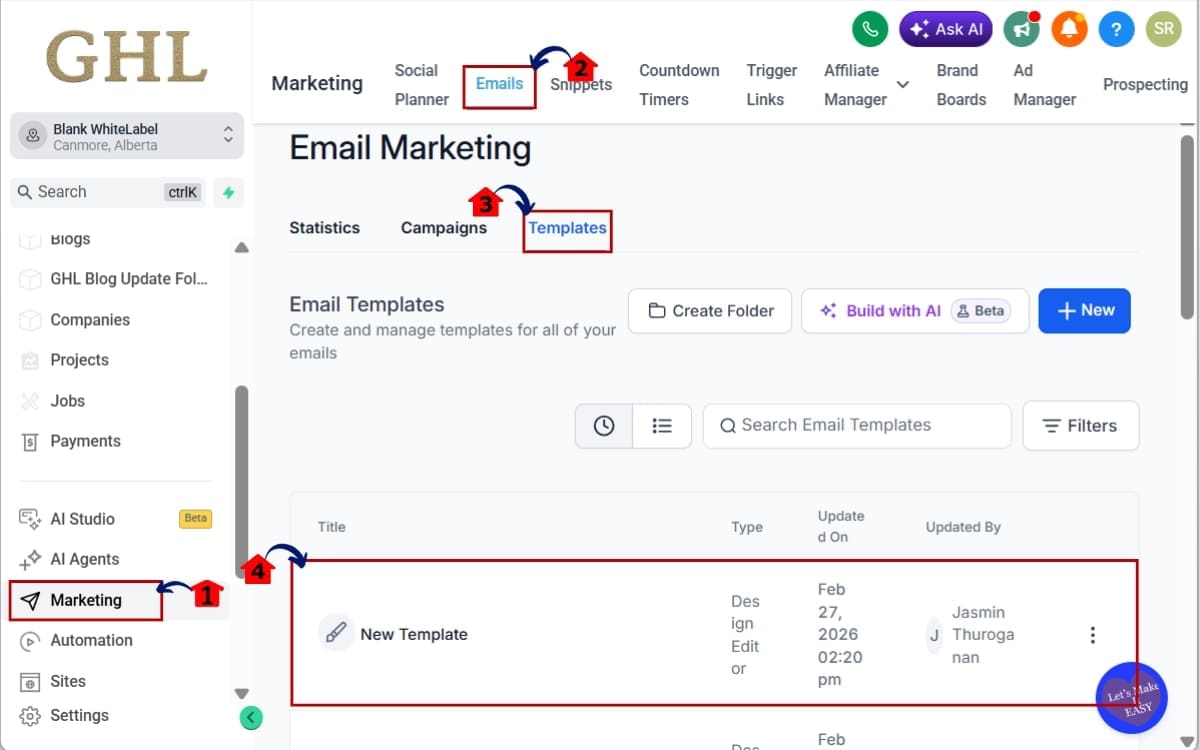
You will now be inside the Email Editor where you can modify subject lines, preview text, and body content. This is where you will insert your custom values and configure default fallback settings.
Step 02 – Insert a Custom Value in the Template
- In this step, you will add dynamic personalization to your email content.
2.1 Place your cursor where you want personalization to appear. Click on the Custom Values icon inside the editor toolbar
- This allows you to insert dynamic fields that pull data directly from the contact record.
2.2 Select the custom value you want to use. Example: contact.first_name
- Choose the field that matches the information you want to personalize in the email.
2.3 Confirm the custom value appears in your email. Example: {{contact.first_name}}
- This confirms the personalization token has been inserted correctly into your email content.
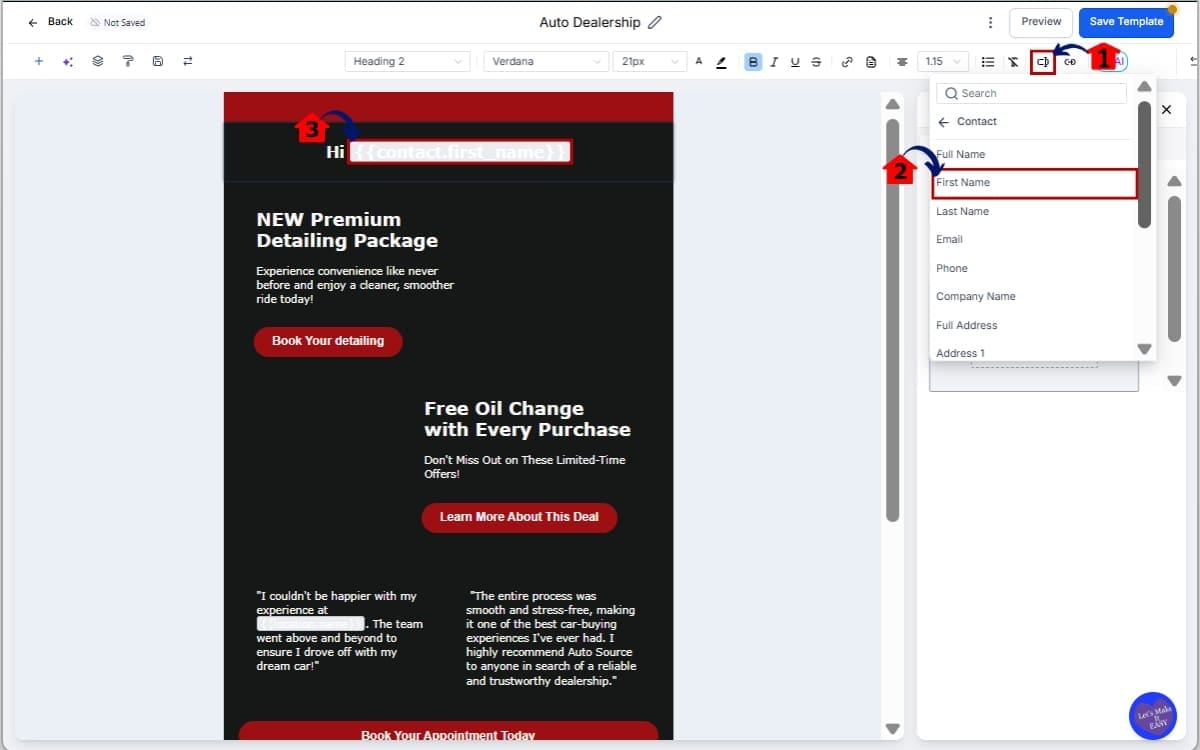
Step 03 – Configure the Default Value in the email
- In this step, you will add a fallback value to prevent blank personalization fields.
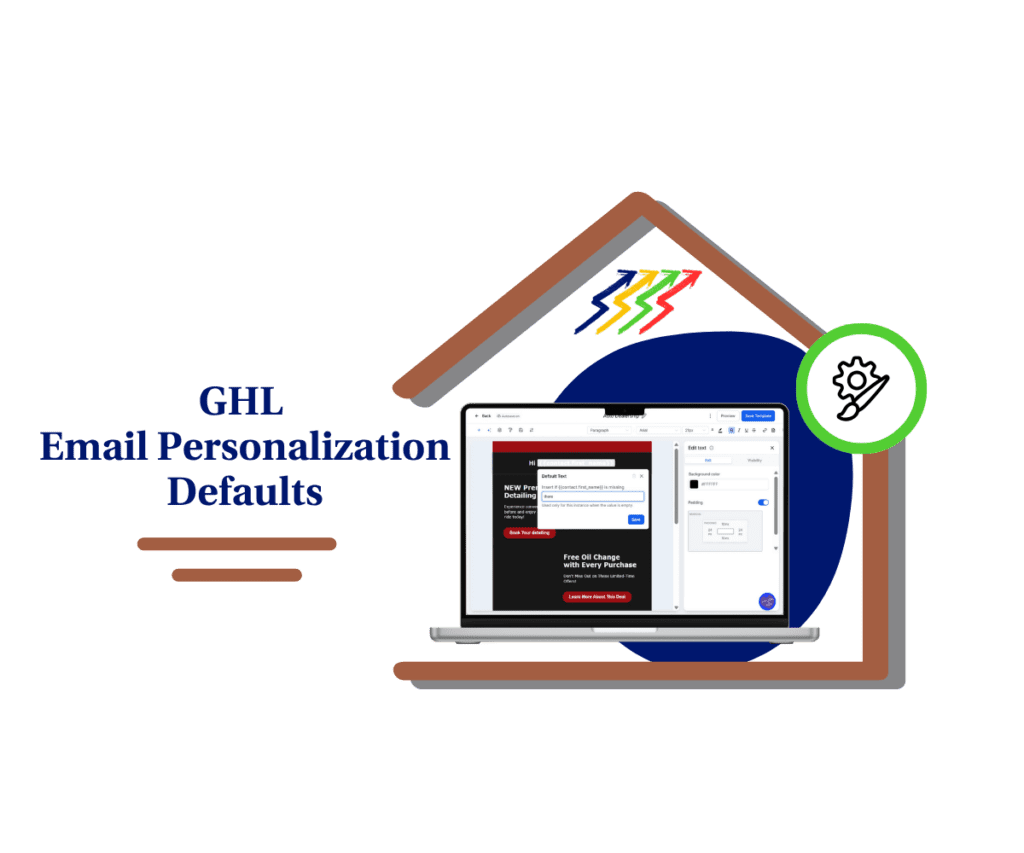
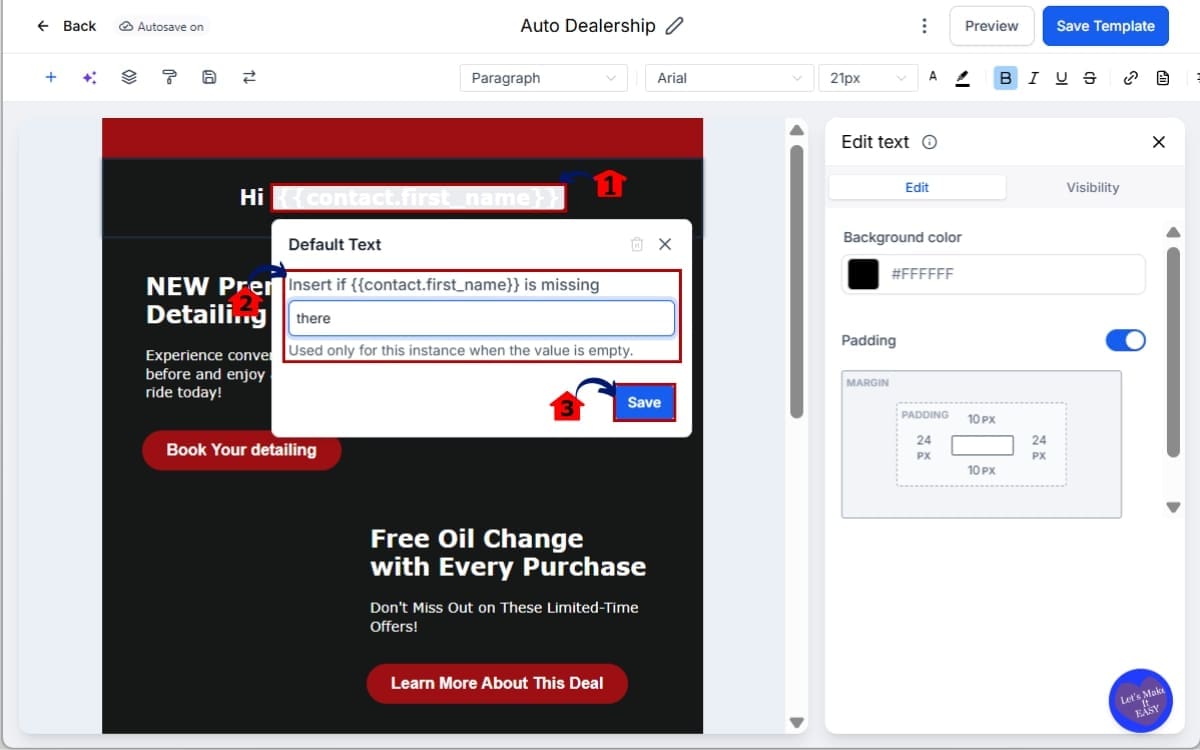
3.1 Click directly on the inserted custom value inside the email and open the Custom Value Edit modal
- This opens the settings panel where you can control how the personalization field behaves if data is missing.
3.2 Locate the field labeled “Default Value” and enter your fallback text. Example: there
- This text will appear automatically if the contact record does not contain data for that field.
Your greeting would now read:
Hi {{contact.first_name}}
Default value: there
If the first name is missing, the email will display “Hi there” instead of leaving a blank space.
3.3 Click Save
- This confirms the default value and applies it to that specific custom value instance. The system will now use your default value whenever the contact field is empty.
Step 04 – Test the Email Before Sending
- This step ensures your default value displays correctly before sending the email to real contacts.
4.1 Click “Save Template”
- This saves your changes and ensures the default value configuration is properly stored.
4.2 Click “Test Email” and send a test email to yourself
- This allows you to preview how the email will appear in an inbox.
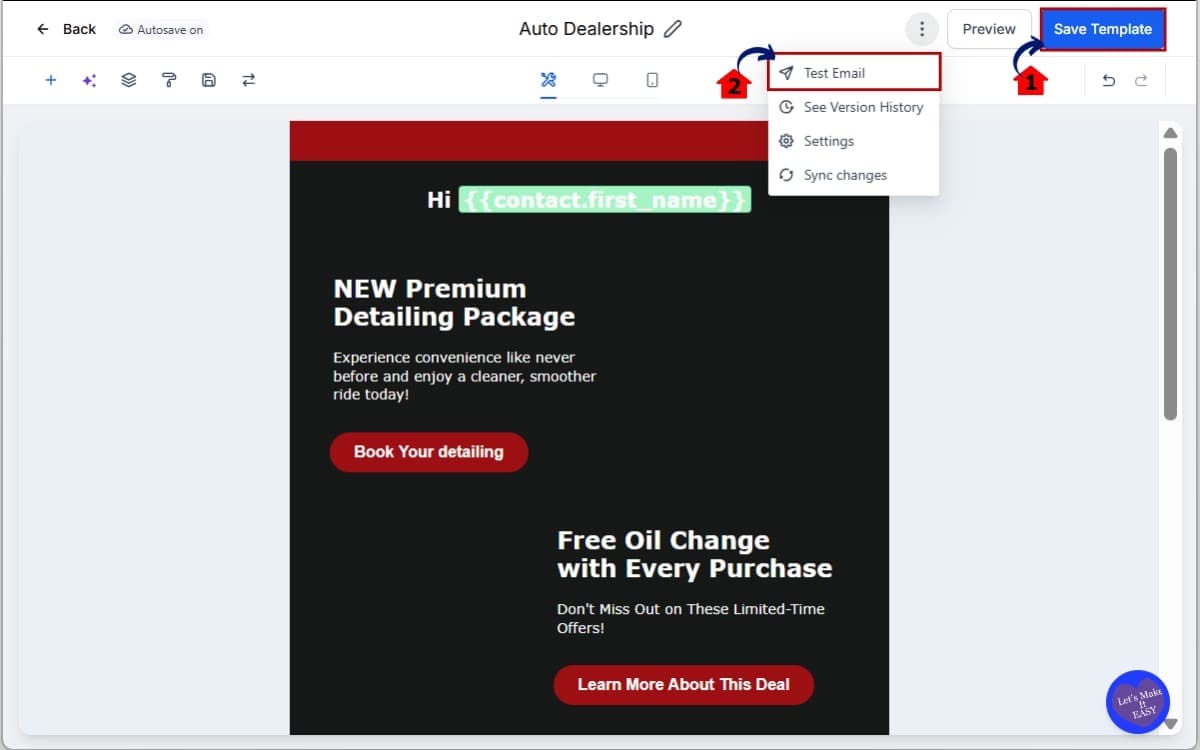
This confirms your Email Personalization Defaults are working correctly. Once configured, your emails will remain clean and readable even if CRM data is incomplete.
Pro Tips for Email Personalization Defaults
Email Personalization Defaults are simple to set up. But if you use them strategically, they become powerful.
First, use conversational fallback text. “Hi there” feels natural. “Hi valued customer” feels robotic.
Write your defaults the way you’d actually talk. If it sounds robotic, change it.
Second, customize defaults based on campaign type.
A cold outreach email may use “there.” A reactivation campaign might use “friend.” An appointment reminder could avoid the greeting entirely.
Remember, defaults are set per usage instance. That means you can tailor the tone for every campaign.
Third, protect your subject lines.
If you use {{contact.first_name}} in the subject, always set a default. A broken subject line kills open rates instantly. Even a simple fallback keeps the message clean.
Fourth, test edge cases.
Create a test contact with:
- No first name
- No company name
- No appointment details
Send yourself a preview. See how it reads. Fix anything that sounds unnatural.
Finally, do not rely on defaults as a data strategy.
Email Personalization Defaults protect your messaging. They do not replace proper CRM hygiene. Continue improving form capture and data collection where possible.
Use defaults as a safety net. Not a crutch.
Real-World Uses for Email Personalization Defaults
This is where Email Personalization Defaults really shine. Let’s say you’re running Facebook Lead Ads. Someone submits their email… but skips the first name field. It happens all the time. Without a default, your email starts with “Hi ,”.
With a fallback? It reads naturally. No friction. No embarrassment. Now think about imported lists.
You upload 2,000 contacts from a past CRM. Half of them are missing company names. If your campaign says, “We help {{contact.company_name}} grow faster,” that sentence breaks instantly.
A smart default like “your business” keeps the sentence intact. Appointment reminders are another big one.
If you reference appointment time, location, or staff name, and something is missing, the message can become confusing. Email Personalization Defaults protect the clarity of that communication.
Agencies building SaaS snapshots benefit even more. When you sell white-label systems to sub-accounts, you can’t control every contact record they import. Defaults act as a built-in safety system. Your automation works, even when their data doesn’t.
Reactivation campaigns also improve. If someone hasn’t engaged in months, you may not have full profile data. Defaults let you keep the tone warm without risking broken personalization.
In short, Email Personalization Defaults allow you to build automation that is resilient. Not fragile. And that matters when you scale.
Common Email Personalization Defaults Mistakes
Email Personalization Defaults are powerful. But there are a few mistakes you want to avoid.
First mistake. Forgetting the subject line.
Most users add a default inside the email body… but forget the subject. If the subject line uses {{contact.first_name}} and there’s no fallback, your open rate takes the hit. Always protect the subject first.
Second mistake. Using robotic fallback text.
“Valued Customer.” “Dear User.” “Hello Client.”
That sounds automated. If the goal is natural personalization, your default should still feel human. Keep it simple. “There” works. So does restructuring the sentence to avoid awkward phrasing.
Third mistake. Assuming defaults fix your CRM.
Email Personalization Defaults do not update contact records. They only control how the email displays. If your CRM data is messy, you still need better forms, better integrations, or better cleanup workflows.
Fourth mistake. Using the same fallback everywhere.
Not every email should sound the same. A reminder message hits differently than a cold intro. Adjust your fallback text to match the situation.
Fifth mistake. Not testing.
Always create a contact with missing fields. Send a preview. Read it out loud. If it sounds strange, adjust it.
Email Personalization Defaults are a safety net. But like any safety system, they work best when configured intentionally.
Email Personalization Defaults FAQ
Final Thoughts on Email Personalization Defaults
Broken personalization makes your automation look careless. And in marketing, careless costs money.
Email Personalization Defaults fix a small detail that has a big impact. No more blank greetings. No more awkward subject lines. No more merge fields exposing incomplete CRM data.
Instead, your emails stay clean. Professional. Natural. That matters when you’re running campaigns at scale. It matters even more when you’re managing multiple clients inside GoHighLevel.
This feature does not replace good CRM hygiene. But it protects your messaging when data isn’t perfect. And let’s be honest — data is rarely perfect.
If you build workflows, campaigns, templates, or SaaS snapshots, you should start adding defaults immediately. It takes seconds. But it prevents headaches later.
Less broken personalization. Less brand risk. More control over your messaging.
The team here at GHL Growth Garage loves updates like this. Small feature. Big leverage.
Now it’s your move. Go into your next campaign. Add fallback values. Test them. Lock it in.
Have you started using Email Personalization Defaults yet? If so, how are you setting your fallback text?
Scale Your Business Today.
Streamline your workflow with GoHighLevel’s powerful tools.