

- How to Use GoHighLevel’s New AI Action to Convert Emails, SMS, and Webhooks Into Clean, Usable Data
- Quick Summary – AI Data Extraction at a Glance
- Why AI Data Extraction Matters to You
- What’s New With AI Data Extraction in Workflows
- How to Use AI Data Extraction in GoHighLevel
- Frequently Asked Questions About AI Data Extraction in GoHighLevel
- Conclusion – AI Data Extraction Makes Your Workflows Smarter
How to Use GoHighLevel’s New AI Action to Convert Emails, SMS, and Webhooks Into Clean, Usable Data
AI Data Extraction inside GoHighLevel workflows just changed the automation game. If you’ve ever struggled to pull clean data from messy emails, SMS replies, webhook payloads, or AI responses, this update is going to feel like a breath of fresh air. Until now, extracting structured data from unstructured text required workarounds. You either used external tools, wrote complicated logic, or manually cleaned up information inside your CRM. It worked. But it wasn’t smooth. Now, AI Data Extraction is a native workflow action inside GHL. You simply tell it what fields you want.
Point it to your input source. And the AI handles the rest. It takes raw text and turns it into clean, typed variables that you can instantly use in downstream actions. That means emails become structured lead data. SMS replies become usable fields. Webhook payloads become organized automation triggers. No code. No third-party tools. No duct tape fixes. This is one of those updates that quietly unlocks serious power for agencies and automation builders.

AI Data Extraction lets you instantly turn messy emails, SMS replies, and webhook payloads into structured workflow variables inside GoHighLevel. No code. No external tools. Just clean, usable data that powers smarter automation.
Quick Summary – AI Data Extraction at a Glance
Purpose
This guide shows you how to use AI Data Extraction inside GoHighLevel workflows to turn raw emails, SMS replies, webhook payloads, and AI outputs into structured, usable workflow variables.
Why It Matters
Unstructured text slows down automation and creates messy CRM records. AI Data Extraction removes manual cleanup and replaces complex parsing logic with a simple, no-code workflow action.
What You Get
You learn how to add the AI Data Extract action, define structured fields, improve accuracy with context, test properly, and use extracted variables in downstream automation.
Time to Complete
Setting up your first AI Data Extraction workflow takes about 10–15 minutes if you follow the step-by-step instructions.
Difficulty Level
Beginner to Intermediate. No coding required. If you can build a basic workflow in GHL, you can use this feature.
Key Outcome
You will be able to convert unstructured communication into structured data that powers smarter automation, faster lead routing, and cleaner CRM management.
Why AI Data Extraction Matters to You
AI Data Extraction solves a problem almost every agency faces.
Unstructured text is messy.
Automate marketing, manage leads, and grow faster with GoHighLevel.

Emails don’t follow a format. SMS replies are unpredictable. Webhook payloads can feel overwhelming. And AI responses? Sometimes they read like paragraphs when you only need three clean fields.
Before this update, you had two options.
Option one: Build complicated workflows with filters and custom logic.
Option two: Use external tools to parse data and send it back into GoHighLevel.
Both worked. Neither was simple.
Now, AI Data Extraction lives directly inside your workflows.
You define the fields you need. The system reads the raw text. Then it returns structured variables you can use instantly.
That means:
- Less manual cleanup
- Fewer broken automations
- Faster workflow builds
- Smarter lead handling
If you run an agency, this is big.
You can automatically pull:
- Name
- Phone number
- Service request
- Budget
- Timeline
- Intent
All from a single email or SMS message.
Virtual assistants will love it.
Automation builders will move faster.
SaaS agencies can create smarter snapshots.
This is not just convenience.
It’s control.
When your data is structured, your automations become powerful.
And powerful automations save time, reduce errors, and increase revenue.
What’s New With AI Data Extraction in Workflows
AI Data Extraction is now a native workflow action inside GoHighLevel.
That means you no longer need external parsing tools. Everything happens directly inside your automation builder.
Here’s what makes this update powerful.
Custom Value Input
You can choose any text-based input inside your workflow.
This includes:
- Email body
- SMS message content
- Webhook payload
- AI response output
- Custom text fields
You simply select the source using the custom value picker.
Optional Context Field
Sometimes text can be confusing.
For example, a long email may contain extra details that are not relevant.
Now you can add context to guide the AI.
You can tell it what the text represents and what it should focus on.
This improves accuracy when extracting structured data.
Pre-Built Templates
You do not have to start from scratch.
AI Data Extraction includes ready-made templates for common patterns.
These templates help you quickly define fields without guessing.
You can also create your own custom field set if needed.
Downstream-Ready Variables
Every extracted field becomes a workflow variable.
That means you can instantly use the output in:
- SMS actions
- Email actions
- Opportunity updates
- Custom field updates
- Webhook responses
- Tag assignments
No formatting required.
No manual mapping needed.
No coding skills required.
This is what makes AI Data Extraction powerful.
It turns raw text into structured, automation-ready data inside GHL workflows.
How to Use AI Data Extraction in GoHighLevel
AI Data Extraction allows you to convert raw text such as emails, SMS messages, webhook payloads, or AI responses into structured workflow variables. In this section, you will add the AI Data Extract action inside a Workflow, configure the input source, define the fields you want returned, and then use those variables in downstream automation.
You are not rebuilding your workflow. You are adding one powerful AI action that reads unstructured text and converts it into clean, usable data fields.
Here are the steps to add and configure AI Data Extraction inside GoHighLevel.
- Access the Workflows page of GoHighLevel
- Add the AI Data Extract Action
- Select the Input Source
- Define the Fields to Extract
- Add Optional Context
- Save and Test the AI Data Extraction
- Use Extracted Variables in Downstream Actions
To start make sure you are logged in to your GoHighLevel sub-account.
Step 01 – Access the Workflows page of GoHighLevel
- The Main Menu on the left side of your screen has all the main areas that you work in when using GHL.
1.1 Click Automation main menu item.
- Inside the Automation section you will find Overview, Workflows, and Global Workflow Settings.
1.2 Click Workflows in the top menu if the Workflow List page is not already open.
- The Workflows page displays all existing workflows.
- You can open an existing workflow or click Create Workflow to build a new one.
1.3 Open the Workflow where you want to use AI Data Extraction.
• The Workflow Builder page will load.

Step 02 – Add the AI Data Extract Action
2.1 Click the + Add Action button inside the Workflow Builder
- The Actions panel will open on the right side of your screen.
2.2 In the search bar inside the Actions panel, type AI Data Extract.
- The AI category will display the AI Data Extract action.
2.3 Click AI Data Extract.
- The AI Data Extract configuration section will open.

Step 03 – Select the Input Source
3.1 Click inside the Input field.
- • The Custom Value picker window will open.
3.2 Choose the correct dynamic value that contains your raw text.
- Examples include:
- Email Body
- SMS Message Body
- Webhook Payload
- AI Response Output
- Custom Text Field
3.3 Confirm your selection.
- The selected dynamic value will now appear inside the Input field.
- This tells AI Data Extraction which text to analyze.

Step 04 – Define the Fields to Extract
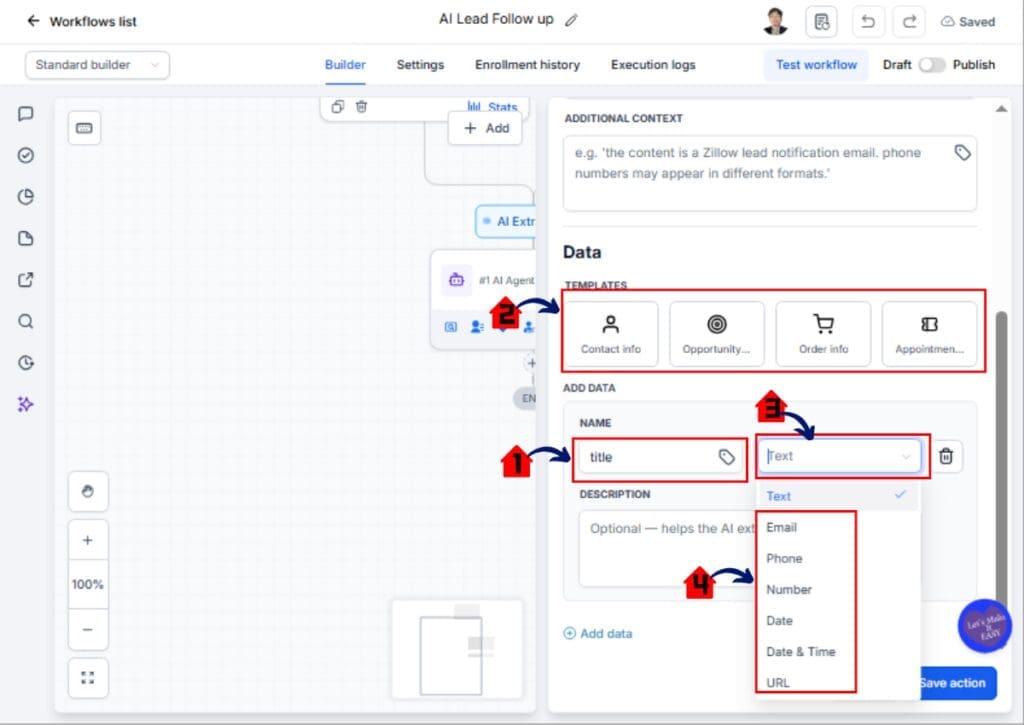
4.1 Locate the Fields to Extract section.
4.2 Choose a Pre-Built Template if available.
- Select a template that matches your use case.
- The fields will auto-populate.
OR
4.3 Click to add Custom Fields manually.
- Enter the Field Name clearly.
- Examples:
- First Name
- Phone Number
- Service Requested
- Budget
- Appointment Date
- Examples:
4.4 Select the correct Field Type for each field.
- Text
- Number
- Date
- The system will now know what structured data to return.
Step 05 – Add Optional Context
5.1 Locate the Context field inside the AI Data Extract section.
5.2 Enter guiding instructions if needed.’
- Examples:
- Extract only the client contact details and requested service.
- Ignore email signatures and disclaimers.
- Adding context improves accuracy when the input text is long or unclear.
5.3 Click Save.
- The AI Data Extract action will now appear inside your Workflow.

Step 06 – Save and Test the AI Data Extraction
6.1 Trigger the Workflow using test data.
- Submit a test form, send a test email, or simulate the trigger.
6.2 Review the extracted output.
- Confirm each field is populated correctly.
- If a field is missing or incorrect, adjust the Field definitions or Context.
- Testing ensures consistent AI Data Extraction performance.
Step 07 – Use Extracted Variables in Downstream Actions
7.1 Click + Add Action below the AI Data Extract step.
7.2 Insert the extracted variables into downstream actions such as:
- Send SMS
- Send Email
- Update Contact Field
- Create or Update Opportunity
- Add Tag
- Create Task
- Webhook
7.3 Use the Custom Value picker to select the new variables created by AI Data Extraction.
- The extracted fields now behave like standard workflow variables.
- Your automation now runs on structured data instead of raw text.
Pro Tips to Maximize AI Data Extraction
AI Data Extraction is powerful. But like any tool, it works best when you use it the right way.
Here are some smart ways to get better results inside your GHL workflows.
Keep Your Input Clean When Possible
AI can handle messy text. But cleaner input improves accuracy.
If you control the source, keep formatting simple. Avoid unnecessary text blocks when possible.
For example, if using forms, make labels clear. If using AI responses, ask for structured output.
Use Clear Field Names
Name your fields clearly.
Instead of writing “Info1” or “Field A,” use:
• First Name
• Service Type
• Budget Range
• Appointment Date
Clear names make your workflow easier to manage later.
Add Context for Complex Inputs
If the text contains multiple topics, use the Context field.
Tell the system exactly what to focus on.
For example:
Extract only booking details. Ignore marketing text.
Small instructions can dramatically improve AI Data Extraction accuracy.
Test With Multiple Examples
Do not test once and assume it works.
Use:
• A short email
• A long email
• A messy SMS reply
• A detailed webhook payload
This ensures consistency across different lead types.
Avoid Extracting Too Many Fields at Once
Start simple.
Extract 3–5 important fields first.
Once it works reliably, expand.
Too many fields can increase complexity and reduce clarity.
Combine With Conditional Logic
After AI Data Extraction runs, add If/Else conditions.
For example:
If Service Requested equals “Roof Repair” → Move Opportunity to Roofing Pipeline.
Now your workflow reacts intelligently to extracted data.
Use It With Tags and Opportunities
Automatically tag contacts based on extracted intent.
Move them to different pipeline stages.
Create tasks for your team.
This turns conversations into action.
That is where the real automation power happens.
Real-World Marketing Automation Use Cases for AI Data Extraction
AI Data Extraction is not just a cool feature.
It changes how your workflows think.
Here are real ways agencies can use it inside GoHighLevel.
Extract Booking Details From Email Inquiries
A lead sends an email:
“Hi, my name is John. I need a kitchen remodel. Budget is around $25k. Looking to start in July.”
Instead of manually reading it, AI Data Extraction can pull:
• First Name
• Project Type
• Budget
• Timeline
Then your workflow can:
• Create an Opportunity
• Assign a sales rep
• Send a personalized SMS
• Move the lead into the correct pipeline
All automatically.
Parse Facebook Lead Ad Webhook Data
Sometimes webhook payloads contain extra technical fields.
You don’t need all of it.
Use AI Data Extraction to isolate only:
• Name
• Email
• Phone
• Service Interest
Then map those clean variables into your CRM.
No more messy webhook mapping.
Turn SMS Replies Into Structured Lead Data
A prospect texts:
“Yes I’m interested in the premium plan. My email is [email protected].”
AI Data Extraction can pull:
• Intent
• Plan Type
• Email Address
Now your workflow can:
• Update the contact record
• Send onboarding details
• Tag as Premium Lead
Extract Structured Data From AI Chatbot Responses
If you use Conversation AI, responses can be long.
Instead of guessing, extract:
• Service Type
• Urgency
• Location
• Contact Info
Then route the lead correctly.
Capture Form-Like Data From Conversational Text
Some leads don’t fill forms properly.
They just reply with paragraphs.
AI Data Extraction turns that messy response into structured fields.
Now your CRM stays organized.
Automate Opportunity Stage Movement
If extracted data shows:
Service Requested = “Emergency Repair”
Your workflow can:
• Move the Opportunity to High Priority
• Notify your team
• Trigger a call task
No delays. No manual sorting.
This is where AI Data Extraction becomes a serious automation tool.
It turns conversations into clean, structured data.
And structured data drives smart automation inside GoHighLevel.
Frequently Asked Questions About AI Data Extraction in GoHighLevel
Conclusion – AI Data Extraction Makes Your Workflows Smarter
AI Data Extraction is one of those updates that quietly upgrades everything.
You are no longer stuck trying to clean messy emails.
You are no longer wrestling with webhook payloads.
You are no longer building complicated parsing logic.
Now, your GoHighLevel workflows can read raw text and return structured, usable data automatically.
That means:
• Faster automation builds
• Cleaner CRM records
• Smarter pipeline movement
• Better lead qualification
• Less manual cleanup
For agencies, this is a big deal.
You can extract intent from SMS replies.
Pull booking details from email inquiries.
Parse AI chatbot responses.
Route leads based on real data.
All inside one workflow.
No external tools.
No code.
No duct tape fixes.
AI Data Extraction turns conversations into structured intelligence. And structured intelligence drives revenue.
If you build automations for clients, this feature will save you time and make your systems stronger.
Try it in one workflow this week.
Start simple. Extract 3 fields. Test it. Then build from there.
The team here at GHL Growth Garage was excited for this one. And now that it is live, it is worth using.
Have you tested AI Data Extraction yet?
What workflow are you adding it to first?
Scale Your Business Today.
Streamline your workflow with GoHighLevel’s powerful tools.


