

- Make faster design changes in AI Studio by clicking directly on text, images, icons, colors, spacing, and layouts.
- Quick Summary – Visual Website Editor Essentials
- What’s New With the Visual Website Editor
- Why the Visual Website Editor Matters
- How to Use the Visual Website Editor in GHL
- Pro Tips for the Visual Website Editor
- Results You Can Expect From the Visual Website Editor
- Frequently Asked Questions About the Visual Website Editor
- Faster Site Edits With Less Friction
Make faster design changes in AI Studio by clicking directly on text, images, icons, colors, spacing, and layouts.
Visual Website Editor Makes Site Edits Faster
Visual Website Editor gives GoHighLevel users a faster way to make simple design changes inside AI Studio. Instead of writing a new prompt for every small update, you can click the part of the page you want to change and edit it right in the live preview.
You can update text, colors, fonts, spacing, images, icons, buttons, links, and layout settings without sending every change through AI. Most direct edits happen at once and do not use your AI tokens, which makes quick client changes much easier to handle
.This update gives agencies, freelancers, and business owners more control over website edits without adding extra steps. You can see each change as you make it, then choose to save it or discard it before anything is applied.
The Visual Website Editor gives GHL users a faster way to update websites directly inside the live preview. Make precise design changes, reduce unnecessary AI prompts, and save token usage while keeping full control over the result.
Quick Summary – Visual Website Editor Essentials
Purpose: The Visual Website Editor helps GHL users make direct site changes inside AI Studio without writing a new prompt for every small update.
Why It Matters: It speeds up common edits and reduces unnecessary AI token use for simple design changes.
What You Get: You can update text, colors, spacing, images, icons, buttons, links, and layout settings from the live preview.
Time to Complete: Most simple edits can be completed in a few minutes once the project is open.
Difficulty Level: Beginner-friendly since you can click an element and use the controls that appear.
Key Outcome: You can make faster site updates, review each change before saving, and keep better control over the final design.
What’s New With the Visual Website Editor
The Visual Website Editor gives you a simpler way to update a site inside AI Studio. Click the part of the page you want to change, and the right controls appear in the live preview.
You can edit text, colors, fonts, spacing, images, icons, buttons, links, and form fields. You can also choose from more than 1,600 Lucide icons, change image layouts, and adjust padding, margins, borders, shadows, and opacity.
Automate marketing, manage leads, and grow faster with GoHighLevel.

Most direct edits happen right away and do not use AI tokens. AI is only used when you select several items and send a prompt. Once you are done, you can save the changes or discard them before they are added to the code.
Why the Visual Website Editor Matters
The Visual Website Editor cuts out a lot of small, slow steps. You no longer need to write a fresh prompt just to change a color, fix spacing, swap an icon, or update a line of text.
That matters for agencies, freelancers, and small teams that handle regular client edits. Simple changes can be made in the live preview, reviewed at once, and saved without using extra AI tokens.
It also gives you better control over the final design. You can see each update before it is applied, which helps you catch mistakes early and keep the site clean, clear, and consistent.
How to Use the Visual Website Editor in GHL
The Visual Website Editor lets you update site elements inside AI Studio without writing a new prompt for every small change. In this guide, you’ll learn how to open AI Studio, choose a project, turn on Visual Edits, and select an element to update.
Here are the steps we will follow:
- Access AI Studio in GoHighLevel.
- Open an AI Studio project.
- Turn on Visual Edits.
- Select an element and review its settings.
To start, make sure you are logged in to the correct GoHighLevel sub-account.
Step 01 – Access AI Studio in GoHighLevel
- The AI Studio area gives you access to your AI-built websites and projects.
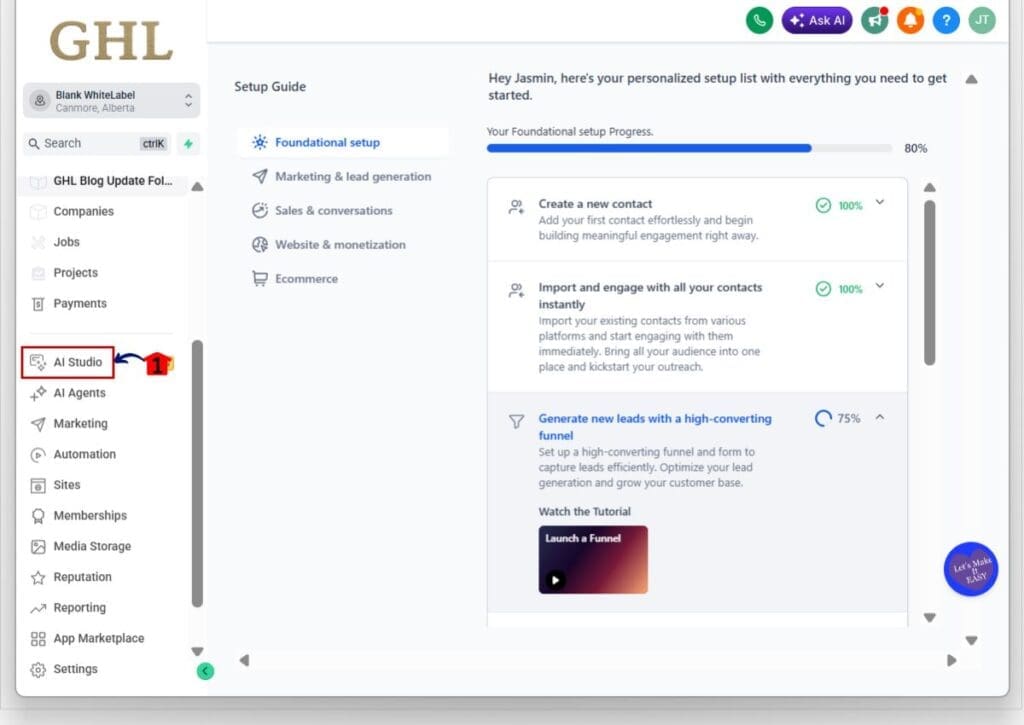
1.1 Go to the main menu on the left side of your screen.
- This menu includes the main areas you use inside your GHL sub-account.
1.2 Click AI Studio.
- This opens the AI Studio dashboard.
Step 02 – Open an AI Studio Project
- The AI Studio home screen lets you create a new project or open one you have already started.
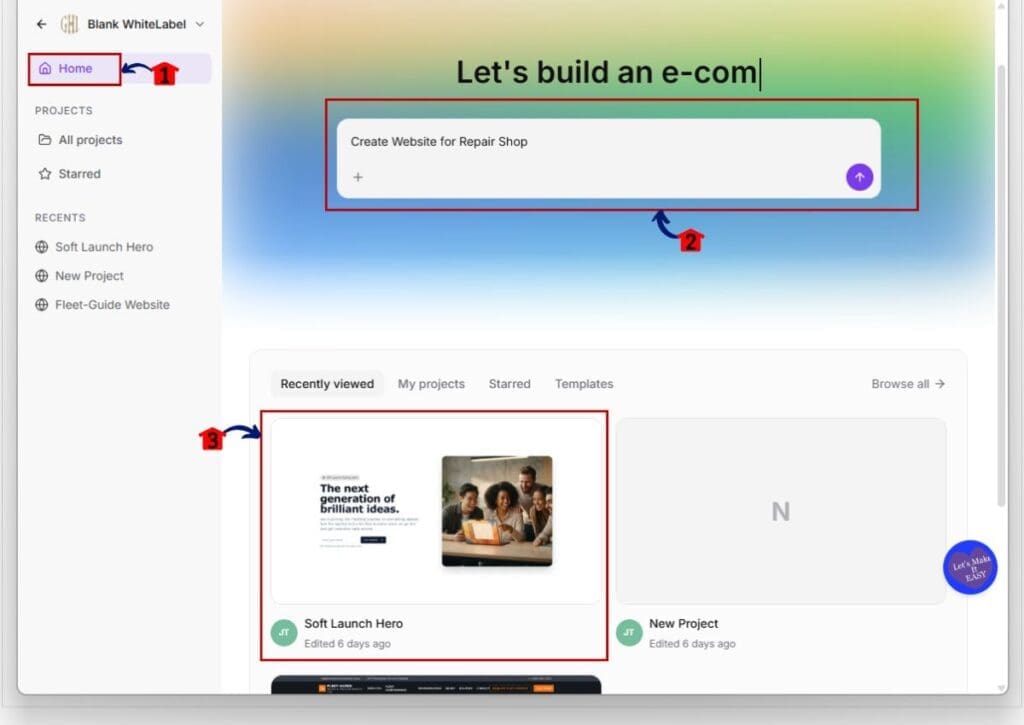
2.1 Stay on the Home page inside AI Studio.
- The Home area shows your recent projects and the main website prompt box.
2.2 Use the prompt box if you want to create a new website.
- Enter a clear description of the website you want to build, then click the purple arrow to begin.
2.3 Open an existing project from the Recently viewed section.
- Click the project card you want to edit.
- You can also browse projects under:
- Recently viewed
- My projects
- Starred
- Templates
Step 03 – Turn On Visual Edits
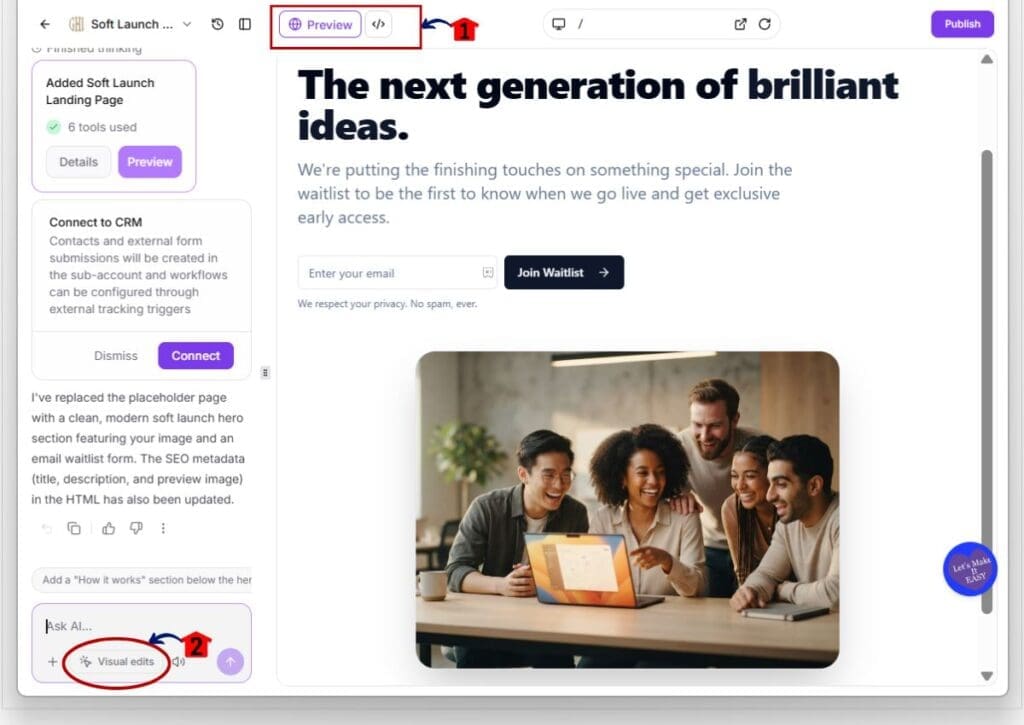
- Once the project opens, you will see the site preview on the right and the AI controls on the left.
3.1 Review the page in Preview mode.
- The preview shows how the current page looks before you make changes.
3.2 Find the Ask AI box in the lower-left panel.
- This is where you can send prompts or switch to direct visual editing.
3.3 Click Visual edits.
- The editor will switch from prompt-based editing to direct element editing.
Step 04 – Select an element and review its settings.
- Visual Edits lets you click an item on the page and change its settings from the left panel.
4.1 Click the element you want to change.
- In this example, the Join Waitlist button is selected.
4.2 Confirm that the selected element is outlined in the preview.
- A label will appear above the item to show the type of element you selected.
4.3 Review the Visual edits panel.
- The available settings will change based on the selected element.
- For a button, the panel may include:
- Content
- Button type
- Aria label
- Font family
- Font size
- Font style
- Font weight
- Alignment
4.4 Use the Ask AI box when you want help changing the selected element.
- The selected item appears above the prompt box, so GHL knows which element the request should apply to.
4.5 Update the settings you need.
- Change the text, style, size, or other available options.
4.6 Review the change in the live preview.
- The update will appear on the page as you make it.
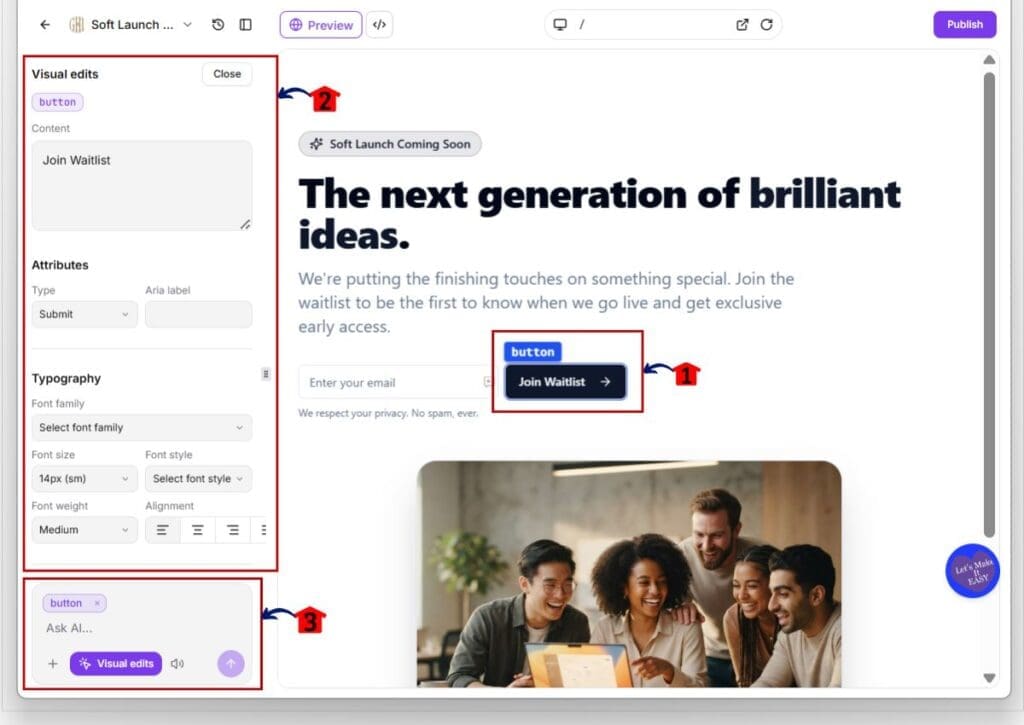
Once the element is selected, work through the settings shown in the Visual Edits panel. The controls will change based on whether you select text, a button, an image, an icon, a link, or another page element.
Pro Tips for the Visual Website Editor
The Visual Website Editor works best when you use direct edits for small changes. Update text, colors, spacing, images, and icons without sending a prompt. This keeps the process quick and avoids using AI tokens when they are not needed.
Use your project theme colors to keep the design consistent. Keep spacing linked when all four sides should match, and unlink it only when one side needs a different value. For images, use Cover when the image should fill the area, or Contain when the full image needs to stay visible.
Before you save, review the full page instead of checking only the selected item. A small change can affect nearby text, buttons, or images. Also check links, alt text, and aria labels so the page looks right and remains easy to use.
Results You Can Expect From the Visual Website Editor
The Visual Website Editor should help you make common site changes faster. You can update text, colors, spacing, images, icons, and buttons right in the live preview, without stopping to write a new prompt for each small edit.
For agencies and freelancers, this can make client revisions easier to handle. A request to change a button color, fix spacing, swap an icon, or update a headline can be done in one place. Most direct edits do not use AI tokens, so you can save those for larger tasks that need a prompt.
You can also expect better control over the final design. Each change appears before you save it, which gives you time to review the full page, catch small issues, and keep the site consistent.
Frequently Asked Questions About the Visual Website Editor
Faster Site Edits With Less Friction
The Visual Website Editor gives GHL users a simpler way to handle site changes inside AI Studio. You can update text, colors, spacing, images, icons, buttons, links, and other page elements without writing a new prompt each time.
That means faster edits, fewer wasted AI tokens, and better control over the final design. You can review each change in the live preview, save what works, and discard what does not.
For agencies, freelancers, and business owners, this makes everyday site updates easier to manage. Which part of the Visual Website Editor do you think will save you the most time?
Scale Your Business Today.
Streamline your workflow with GoHighLevel’s powerful tools.


