

- Introduction – GHL AI Workflow Editing Explained
- Quick Summary – AI Workflow Editing
- Here are this week's HighLevel Updates 🚀
- What's New with GHL AI Workflow Editing?
- Why Scoped Bulk AI Workflow Editing Matters
- How to Use GHL AI Workflow Editing
- Pro Tips for Better AI Workflow Editing
- What This Means for Agencies
- Results You Can Expect
- FAQs – AI Workflow Editing
- Conclusion – AI Workflow Editing
Introduction – GHL AI Workflow Editing Explained
AI Workflow Editing don’t stay finished forever. Offers change. Emails get rewritten. Sender details need updating. Pipeline stages get reorganized. None of these jobs are particularly difficult, but when the same update needs to be made across several workflow actions, the work starts piling up.
It happens every day for agencies and businesses using GoHighLevel. A workflow that worked perfectly last month suddenly needs updating. Before long, someone is opening workflow after workflow, editing emails, changing SMS messages, updating sender identities, or modifying pipeline actions one by one.
The next step is usually repetitive. Someone manually finds each workflow action, makes the required changes, double-checks everything, and hopes nothing was accidentally missed. That process works… until your business starts managing dozens or even hundreds of workflows.
Now imagine maintaining automations across multiple client accounts.
You either spend hours manually updating workflow actions, or you risk inconsistent messaging, outdated automation, and unnecessary human error. The more workflows you manage, the more difficult ongoing maintenance becomes.
Until now, AI Builder could certainly help create and improve workflows, but making precise updates to existing automations still required careful instructions and manual verification. Broad AI changes could sometimes affect more than you intended, making workflow maintenance slower than it needed to be.
That job just got a whole lot easier. GHL has improved AI Builder so you can be much more specific about what you want changed. Tell it to update certain emails, a handful of SMS actions, your sender details, or particular pipeline stages, and it sticks to the scope you give it. You can then look over the proposed edits before saving anything. Less clicking around. Less repetitive AI Workflow Editing. And a lot more control over what actually gets changed.
Updating workflows is only part of the story. What really makes this feature valuable is how it allows agencies and businesses to maintain complex automations faster, with fewer mistakes and far less manual effort.
Less repetitive work. More accurate updates. Smarter GHL AI Workflow Editing.
The latest GoHighLevel Changelog includes several other GHL feature updates that round out your daily workflow:
- Wait Action Enhancement: TikTok DM Replies
- India Recurring Mandate Support for Affiliate Indian Signup Pages
- Housecall Pro – More Workflow Actions & Triggers
- Email Services Dashboard for Agencies
- Email Sequences Now Available in Beta Labs
- Group Your Contacts by Source in Dashboards & Reporting
- MMLite Adoption Banner in Conversations
Keep reading for much more on all these updates and a deep dive into the AI Workflow Editing feature!
Quick Summary – AI Workflow Editing
Purpose
Learn how GHL AI Workflow Editing helps you make precise, AI-powered bulk updates to existing workflows without manually editing every workflow action.
Why It Matters
Maintaining workflows becomes more challenging as your business grows. This update reduces repetitive work while improving the accuracy of workflow maintenance.
What You Get
AI Builder can now perform scoped bulk edits on supported workflow actions, including emails, SMS messages, sender identities, and pipeline stages, while allowing you to review every proposed change before saving.
Time to Complete
Most workflow updates can be completed in just a few minutes, depending on the number of changes and your review process.
Difficulty Level
Beginner to Intermediate. If you’re familiar with GoHighLevel’s Workflow Builder, you’ll find AI Workflow Editing easy to use.
Key Outcome
Spend less time maintaining workflows, reduce manual editing errors, and confidently manage larger automations with faster, more accurate AI-assisted updates.
Here are this week’s HighLevel Updates 🚀
Wait Action Enhancement: TikTok DM Replies
What’s New:
Instead of continuing after a fixed delay, your workflow can pause until someone replies to your TikTok DM.
Where in GHL:
Found in Automation → Workflows using the Wait action after sending a TikTok DM.
Automate marketing, manage leads, and grow faster with GoHighLevel.

Impact:
Your automation responds when someone actually joins the conversation, rather than after a timer runs out.
Recommended For:
Anyone using TikTok DMs to start conversations with potential customers.
India Recurring Mandate Support for Affiliate Indian Signup Pages
What’s New:
Supports recurring payment mandates for Indian affiliates, helping subscriptions comply with local banking requirements.
Where in GHL:
Available on Affiliate Program signup pages for users in India.
Impact:
Creates a smoother signup experience while reducing payment failures for recurring subscriptions.
Recommended For:
Agencies, SaaS businesses, and affiliate programs onboarding customers in India.
Housecall Pro – More Workflow Actions & Triggers
What’s New:
Adds new workflow triggers and actions for the Housecall Pro integration, giving you more ways to automate field service processes.
Where in GHL:
Inside Automation → Workflows when using the Housecall Pro integration.
Impact:
Expands automation possibilities between HighLevel and Housecall Pro, reducing manual work and improving operational efficiency.
Recommended For:
Home service businesses, field service companies, and agencies managing Housecall Pro clients.
Email Services Dashboard for Agencies
What’s New:
Introduces a centralized dashboard where agencies can monitor email services across their accounts.
Where in GHL:
Found in the Agency View under the new Email Services Dashboard.
Impact:
Makes it easier to monitor email health, identify issues, and manage deliverability from one place.
Recommended For:
Agency owners, support teams, and admins managing multiple client email services.
Email Sequences Now Available in Beta Labs
What’s New:
Introduces Email Sequences as a Beta Labs feature, providing another way to create structured email follow-up campaigns.
Where in GHL:
Enable it from Settings → Labs, then access Email Sequences after activation.
Impact:
Cuts down the time spent checking different areas just to see how your email services are performing.
Recommended For:
Marketers, agencies, coaches, and businesses running nurture campaigns or onboarding emails.
Group Your Contacts by Source in Dashboards & Reporting
What’s New:
Lets you organize contact reports based on where your leads originated.
Where in GHL:
Available within Dashboards & Reporting when viewing contact analytics.
Impact:
Makes it easier to compare lead sources and identify which marketing channels are producing the best results.
Recommended For:
Marketing teams, agency owners, and businesses tracking campaign performance across multiple lead sources.
MMLite Adoption Banner in Conversations
What’s New:
Displays a helpful banner inside Conversations to encourage users to adopt the new MMLite messaging experience.
Where in GHL:
Appears within the Conversations module for eligible accounts.
Impact:
Helps users discover and transition to MMLite while highlighting its benefits directly inside the messaging interface.Recommended For:
Current HighLevel users exploring the latest messaging experience and teams preparing to migrate to MMLite.
What’s New with GHL AI Workflow Editing?
Building a workflow in GoHighLevel doesn’t always mean starting with a blank screen anymore. With AI Builder, you can explain the automation you’re trying to create and let GHL put together much of the workflow for you.
Building the workflow is really only the beginning. Once it’s running, things change. Offers get replaced, emails need rewriting, sales teams adjust how they handle leads, and old sender details eventually need updating. Keeping everything current can become a job of its own.
That’s where this latest update makes a real difference.
GHL has enhanced AI Builder so it can now understand much more specific AI Workflow Editing instructions when working with existing workflows. Rather than making broad changes across an entire automation, you can ask the AI to update only the workflow actions you specify.
For example, you can now ask AI Builder to:
- Update multiple email actions at once.
- Change SMS messages across a workflow.
- Replace sender identities.
- Modify pipeline stages.
- Make targeted edits to other supported workflow actions.
Rather than clicking into one action, making the edit, and then doing the whole thing again on the next one, you can give AI Builder the job once. It’ll prepare the changes and show you what it’s planning to update. Nothing gets saved until you’ve had a chance to look it over.
It sounds like a fairly simple update, but anyone who looks after a lot of workflows will notice the difference pretty quickly. Those little AI Workflow Editing jobs that used to mean clicking through action after action can now be handed to AI Builder with one clear instruction.
The result is a smarter way to maintain automations. Less repetitive clicking. More accurate workflow updates. And far greater confidence that only the changes you intended are being made.
Why Scoped Bulk AI Workflow Editing Matters
This isn’t a massive new tool with a bunch of settings to learn. It’s a practical fix for something GHL users deal with all the time: keeping bigger workflows updated without spending hours clicking through them.
No workflow stays exactly the same forever. An offer ends, someone changes roles, your sales team tweaks the pipeline, or an old email needs fresh copy. Make those changes across a large GHL account and what should’ve been a quick job can eat up a surprising amount of time.
For agencies, that challenge grows even faster.
Once you’re looking after workflows for several clients, the little edits are what start stealing your time. A client changes their From Name. Another wants a different CTA. Neither job sounds difficult until you realize the change appears in 15 different places. Miss one, and now customers are seeing two different versions.
Scoped bulk AI Workflow Editing changes that.
Instead of searching through every workflow action individually, GHL’s enhanced AI Builder allows you to describe exactly what needs to change. Whether you’re updating email actions, replacing SMS content, changing pipeline stages, or modifying sender identities, the AI focuses only on the workflow actions you’ve instructed it to edit.
Another important improvement is the review process. Before any changes are applied, AI Builder generates a preview of the proposed updates. This gives you the opportunity to verify every modification before saving, helping reduce mistakes while maintaining complete control over your workflows.
Saving time is nice, but that’s not the whole point. The real advantage is knowing your workflow changes are easier to keep track of. Your team can get the routine edits out of the way and get back to building automations that actually matter to the client.
As your automation library grows, small maintenance tasks become large operational challenges. Features like scoped bulk editing help remove that complexity, allowing you to keep your workflows accurate, consistent, and up to date without the manual workload that traditionally comes with managing large-scale automations.
How to Use GHL AI Workflow Editing
Getting started with GHL AI Workflow Editing only takes a few minutes, especially if you’re already using Workflow Builder. Instead of manually updating individual workflow actions, you can use AI Builder to make targeted bulk changes by simply describing what you want to update.
In this guide, you’ll open an existing workflow, launch AI Builder, provide your AI Workflow Editing instructions, review the AI-generated preview, and save your changes. The process is designed to help you maintain existing automations faster while giving you full control over every update before it’s applied.
- Access the Workflow Builder in GoHighLevel.
- Launch AI Builder.
- Describe Your Workflow Changes.
- Review the Proposed Changes.
- Save and Test Your Workflow.
Before you begin, make sure you’re logged in to your GoHighLevel sub-account and have a workflow you’d like to update.
Step 01 – Access the Workflow Builder in GoHighLevel
- Start by opening the Workflow Builder, where you’ll create and set up your Todoist automation.
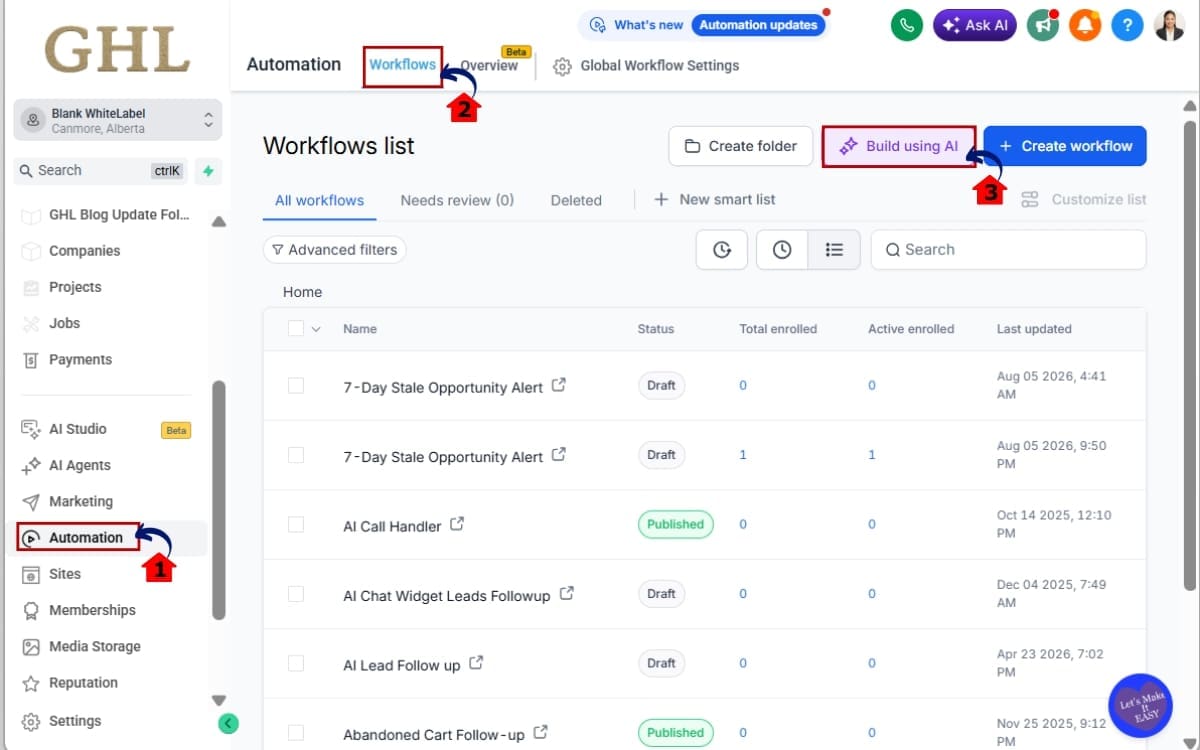
1.1 Go to the main menu on the left side of your screen. Click Automation.
- This opens the Automation area where you can build and manage your GHL workflows.
1.2 Click Workflows.
- Here, you’ll find your existing workflows and the option to create a new one.
1.3 Click Build Using AI
Step 02 – Launch AI Builder
- Next, you’ll open the AI Assistant inside the Workflow Builder.
2.1 Add prompt in Build using AI
- Type a short instruction explaining what you want AI Builder to do. For example: “Create a workflow for new contacts with an email and SMS follow-up.”
2.2 Click arrow up or build
- Check the workflow structure and make sure the triggers and actions match what you asked for before moving on and generate.

Step 03 – Describe Your Workflow Changes
- Now it’s time to tell AI Builder exactly what you’d like to update.
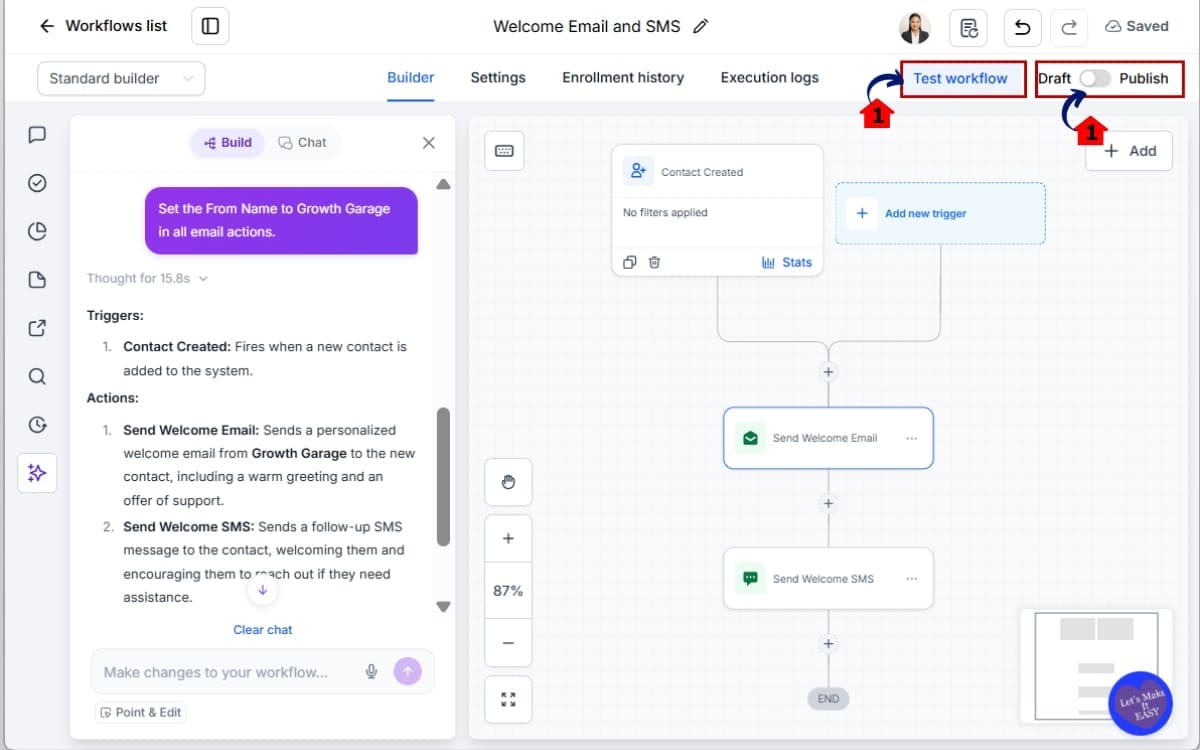
3.1 Enter your editing instructions.
- Be as specific as possible so AI Builder understands exactly which workflow actions should be modified.
For example, you could ask AI Builder to:
- “Set the From Name to Growth Garage in all email actions.”
Because AI Workflow Editing now supports scoped instructions, the AI focuses only on the workflow actions you’ve specified rather than making broad changes across the entire workflow.

Step 04 – Review the Proposed Changes
- Before any edits are applied, AI Builder generates a preview for you to review.
4.1 Review every suggested change.
- Check that each proposed update matches your original request.

Step 05 – Save and Test Your Workflow
- Once you’re satisfied with the proposed changes, it’s time to apply them.
5.1 Test your automation.
- Run a test contact through the workflow to confirm that your updated emails, SMS messages, pipeline stages, sender identities, or other workflow actions perform exactly as expected.
5.2 Save your workflow.
- Approve the changes and save the updated workflow.
Spending a few minutes testing your workflow helps catch small issues before they affect live contacts and ensures your automations continue running smoothly after the update.
Once you’ve used AI Workflow Editing a few times, maintaining workflows becomes much faster. Instead of spending valuable time making repetitive manual edits, you can focus on improving customer journeys while AI Builder handles much of the heavy lifting, making workflow maintenance quicker, more accurate, and far easier to manage as your automations continue to grow.
Pro Tips for Better AI Workflow Editing
After you’ve tried this a couple of times, one thing becomes pretty obvious. Clear instructions matter. “Change my emails” leaves plenty of room for interpretation. “Change the From Name to Sarah in all email actions” gives AI Builder something much more useful to work with.
Don’t leave AI Builder guessing. If you need five emails changed, tell it which five and spell out the change you want. “Update my emails” could mean almost anything. A specific request gives AI Builder a much clearer job to work with.
Try not to throw everything at AI Builder in one giant request. If the emails need work, deal with those first. Then tackle the SMS actions. Pipeline changes can come next. Smaller jobs are much easier to check when the preview comes back.
Even though AI Workflow Editing generates a preview before applying any updates, always take a few moments to review the proposed changes carefully. This final check ensures every modification matches your original request before it’s saved to your workflow.
If you’re making significant changes to a business-critical automation, consider testing the workflow before using it with live contacts. Running a quick test can help confirm that emails, SMS messages, pipeline updates, and other workflow actions still perform exactly as expected after the edits have been applied.
If you’re running workflows for several clients, do yourself a favor and name things properly. “Email 1” and “Email 2” might make sense today, but six months from now they’re not much help. Clear action names make it easier to find what you’re looking for and tell AI Builder exactly what you want changed.
Speed is useful, but only when the workflow still works afterward. Once AI Builder has made the edits, spend a minute checking them. Then test the automation before sending real leads through it. That’s not extra busywork. It’s simply good workflow housekeeping.
Nobody wants workflow housekeeping taking over the afternoon. Get those repeated changes handled, check the work, and move on to something more worthwhile—like tightening up a sales sequence or building the next client automation.
What This Means for Agencies
If you manage GHL for clients, you already know workflows never really stay finished.
Clients change things all the time, and their workflows have to follow along. Maybe there’s a new promotion this month. Maybe the calendar link has changed again. Maybe somebody who left six months ago is somehow still the sender on three emails. It’s usually simple stuff, just scattered all over the account.
The trouble starts when you have to make that same change in 10, 20, or 30 different places.
And that’s just one client.
Do that for one client and it’s annoying. Do it across eight or ten sub-accounts and suddenly a decent chunk of the week is gone. Someone on your team is sitting there opening actions, making the same edit, saving it, and doing it all over again. There’s got to be a better job for them to be doing.
This is where GHL AI Workflow Editing becomes useful for an agency.
Instead of working through every action by hand, you can tell AI Builder what needs changing and where you want the change made. Maybe every email needs a new From Name. Perhaps six SMS actions need updated copy. Or maybe an old pipeline stage appears throughout a workflow and needs to be replaced.
Give AI Builder a clear target and it can work through those requested edits together.
Nothing needs to be accepted blindly. Once AI Builder has worked through your request, you can see what it plans to change before saving. If it misunderstood something, you’ll have a chance to spot it before those edits go any further.
That matters when you’re working inside a client’s account.
Nobody wants to explain why an old offer went out because one email action got missed, or why a lead landed in the wrong pipeline stage after an update. Cutting down the manual editing helps, but being able to check the proposed changes before saving them is just as useful.
The payoff gets bigger as your agency grows. Ten workflows are one thing. A few hundred spread across multiple clients is something else entirely. At that point, even small maintenance jobs can start taking up hours that could’ve been spent elsewhere.
That’s really where this update earns its keep.
Let AI Builder deal with more of the repetitive AI Workflow Editing. Your team can spend that time building the next automation, improving a client’s follow-up, fixing a campaign that isn’t converting, or getting another project out the door.
Less workflow housekeeping. More time for the work your clients are actually paying you to do.
Results You Can Expect
On paper, this looks like a pretty small change to AI Builder. But if workflow cleanup is something you do every week, you’ll probably appreciate it pretty quickly. One instruction can take care of several repeated edits, and you still get to look everything over before saving.
This is where you start getting some time back. Maybe you’ve got eight emails that need new copy or a sender name that’s used throughout the workflow. Rather than opening each action and fixing it yourself, AI Builder can work through the requested changes together.
There’s another nice side effect: fewer odd differences between actions. When AI Builder makes the same requested change across several places, you don’t end up with nine emails showing the new details and one forgotten email still using the old version.
Another major advantage is improved confidence when making changes. Rather than wondering whether you’ve missed an action somewhere in the workflow, AI Builder provides a preview of every proposed edit before you save it. That extra layer of verification helps reduce human error while giving you complete control over the final result.
Add more clients and the workflow housekeeping adds up with them. That’s why cutting down these repetitive edits matters. Your team can finish the boring stuff sooner and get back to building automations, checking campaigns, or sorting out the next client request.
Ultimately, GHL AI Workflow Editing isn’t just about making workflow updates faster. It’s about making ongoing workflow management more scalable. As your business and automation library continue to expand, having the ability to perform precise, targeted bulk edits will help keep your workflows accurate, up to date, and easier to maintain for the long term.
FAQs – AI Workflow Editing
Conclusion – AI Workflow Editing
The more you automate in GHL, the more there is to come back and update later. An offer changes. A sales step gets moved. An email needs fresh copy. Then you realize the same old information is sitting in another five actions. That’s where workflow maintenance starts taking up more time than you’d expect.
That’s exactly the problem GHL AI Workflow Editing is designed to solve.
By introducing more accurate scoped bulk AI Workflow Editing, GoHighLevel’s enhanced AI Builder allows you to make targeted changes without manually updating every individual workflow action. Simply describe what you’d like to change, review the proposed edits, and apply them with confidence—all while maintaining complete control over your workflows.
Agency teams already have enough client work competing for their attention. Spending hours fixing the same thing across old workflows shouldn’t be high on that list. AI Workflow Editing can shorten those cleanup jobs, especially once an account starts filling up with larger automations.
Workflow edits are one of those jobs that don’t seem to take long until you add them all together. A few minutes on this workflow, another ten on the next, then the same thing again tomorrow. If you’re looking after dozens of automations, cutting down those little jobs can make a noticeable difference.
If you regularly maintain workflows inside GoHighLevel, now is the perfect time to start using GHL AI Workflow Editing. A few well-written instructions can replace repetitive manual work, helping you update workflows faster, reduce AI Workflow Editing errors, and spend more time building automations that drive real business results.
Scale Your Business Today.
Streamline your workflow with GoHighLevel’s powerful tools.


