

- Add structured data to your pages with less work
- Quick Summary – Automatic Schema at a Glance
- What Changed with Automatic Schema
- Why Automatic Schema Matters
- How to Turn On Automatic Schema in GHL
- Quick Tips for Automatic Schema
- What Automatic Schema Means for Your Business
- Frequently Asked Questions About Automatic Schema
- Automatic Schema Makes SEO Easier to Manage
Add structured data to your pages with less work
Automatic Schema in GoHighLevel makes it much easier to keep your pages ready for search.
Automatic Schema in GoHighLevel makes it easier to keep your pages ready for search without adding schema by hand every time. Before this update, you had to add schema page by page. If you missed it, that page could go live without structured data.
Now, when Automatic Schema is turned on, GHL checks the page as you publish it. If no schema is there, GoHighLevel creates it in the background while the page goes live as normal. It works with Websites, Funnels, and Webinars, and it will not overwrite the schema you have already added.
That means less manual work and fewer missed SEO tasks. It also gives search engines and AI tools more context about your page, which can support better SEO, AEO, and GEO visibility. For agencies managing many client pages, this is a small change that can make publishing much easier.
Automatic Schema helps keep your GHL pages covered with structured data without adding it by hand each time. It saves time, protects existing schema, and makes your pages easier for search and AI tools to understand.
Quick Summary – Automatic Schema at a Glance
Purpose: Automatic Schema helps GHL add structured data to published pages that do not already have schema.
Why It Matters: It reduces missed SEO tasks and gives search engines and AI tools clearer information about your pages.
What You Get: GHL can create schema in the background for Websites, Funnels, and Webinars without delaying publishing.
Time To Complete: Turning on the setting should only take a few minutes for each asset.
Difficulty Level: Easy. You only need to open the asset settings, find SEO & AEO, turn on Auto-generate schema, and save.
Key Outcome: You get a more consistent publishing process with less manual schema work and no risk of overwriting existing schema.
What Changed with Automatic Schema
Before this update, schema had to be added by hand inside the page editor. That meant one more task to remember each time you published a new page. If you skipped it, the page could go live without structured data.
Automatic Schema changes that process. When the setting is turned on, GHL checks the page when you publish it. If no schema is already there, GoHighLevel creates it in the background. The page still publishes right away, so you do not have to wait for the schema to finish.
Automate marketing, manage leads, and grow faster with GoHighLevel.

GHL also protects any schema you already added. Existing schema is not replaced or overwritten. The setting works with Websites, Funnels, and Webinars, and it applies across the main page publish paths. Existing assets keep the setting off by default, while new assets created after the release have it turned on by default.
Why Automatic Schema Matters
Automatic Schema matters because schema is easy to forget. When you are building pages, fixing copy, checking links, and getting everything ready to publish, structured data can fall to the bottom of the list.
This update helps close that gap. If a page has no schema, GHL can create it for you when the page is published. That means fewer missed SEO tasks and a more consistent setup across Websites, Funnels, and Webinars.
It can also help search engines and AI tools understand your pages more clearly. For agencies, that is the real value. You spend less time doing repeat work, while giving client pages a better chance to be understood and found.
How to Turn On Automatic Schema in GHL
Automatic Schema is managed inside the settings for each Website, Funnel, or Webinar in GoHighLevel. In this guide, you’ll learn how to open the correct asset, find the SEO & AEO setting, turn on Auto-generate schema, and save your changes.
Here are the steps we will follow:
- Open the Website in GHL.
- Open the Website Settings.
- Turn on Auto-generate schema and save.
To start, make sure you are logged in to the correct GoHighLevel sub-account.
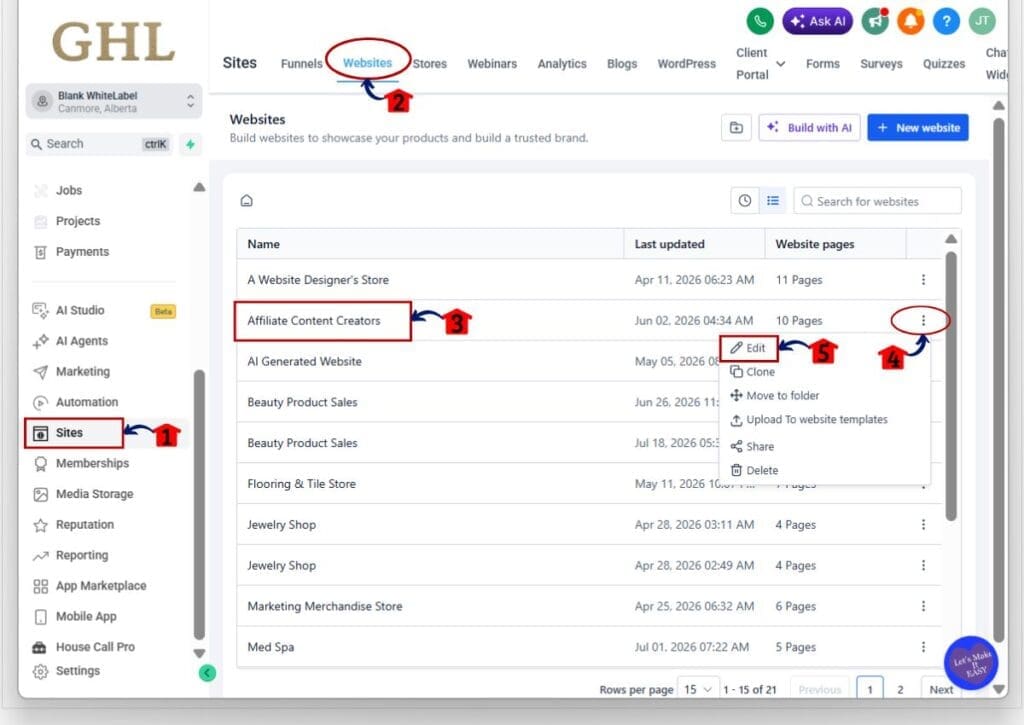
Step 01 – Open the Website in GHL
- The main menu on the left side of your screen includes the main areas you can access in GoHighLevel.
1.1 Click Sites in the left-hand menu.
- The Sites area will open.
1.2 Click Websites in the top menu.
- Your list of websites will appear.
1.3 Find the Website you want to update.
1.4 Click the three-dot menu on the right side of that Website.
1.5 Click Edit.
- The Website details area will open.
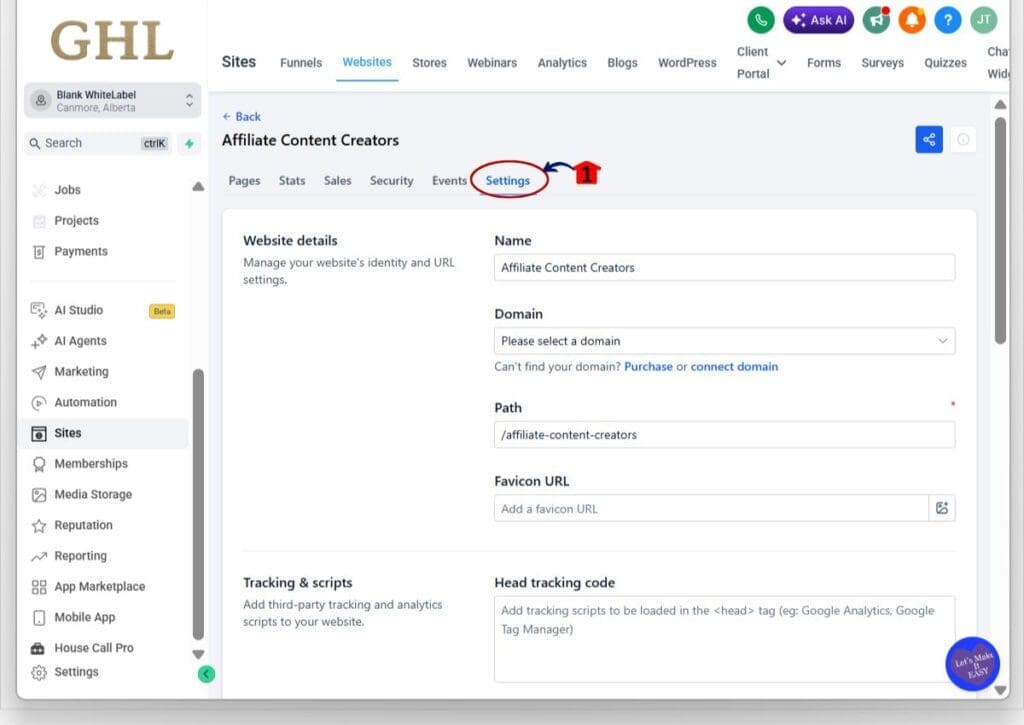
Step 02 – Open the Website Settings
- The Website area includes several tabs for managing pages, stats, sales, security, events, and settings.
2.1 Click Settings in the top menu.
- The Website settings page will open.
This is where you can manage settings for the selected Website.
Step 03 – Turn on Auto-generate schema and save
- The SEO & AEO section includes the Auto-generate schema setting.
3.1 Scroll down to the SEO & AEO section.
3.2 Find Auto-generate schema.
- The setting says GHL will automatically add schema markup to pages that do not already have it when published.
3.3 Turn the Auto-generate schema toggle ON.
3.4 Click Save Button.
- Your Automatic Schema setting will now be saved for that Website.
- When you publish a page without schema, GHL can create it in the background.
- Existing schema will not be overwritten.
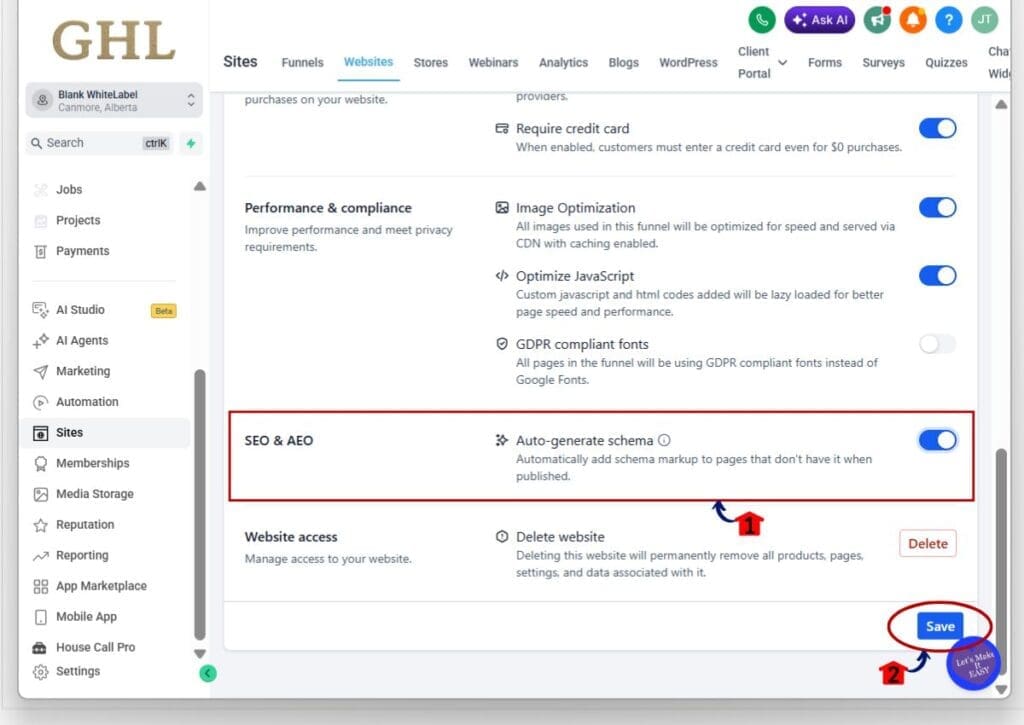
Once saved, Automatic Schema will be active for that Website. You can follow the same basic process for Funnels and Webinars by opening the asset, going to its Settings, and finding the SEO & AEO section.
Existing assets have this setting turned off by default, so it is worth checking older Websites, Funnels, and Webinars before you publish.
Quick Tips for Automatic Schema
Automatic Schema works best as a backup, not a full SEO plan. It helps stop pages from going live without schema, but you still need strong titles, clear content, useful headings, and solid on-page SEO.
Check older Websites, Funnels, and Webinars before you assume the setting is on. Existing assets keep Auto-generate schema turned off by default, while newer assets have it turned on. That small difference can easily be missed.
If you already added a custom schema, leave it in place. GHL will not overwrite it. For agencies, the smart move is to add Automatic Schema to your normal setup checklist so each new client asset starts with a more consistent SEO setup.
What Automatic Schema Means for Your Business
Automatic Schema can make your publishing process more consistent, especially if you manage several client Websites, Funnels, or Webinars. You no longer have to rely on someone remembering to add schema every time a new page goes live.
For agencies, that can mean fewer missed SEO tasks and less time spent checking each page by hand. You can still use custom schema where needed, while GHL fills the gap on pages that do not have any.
The real value is simple. Automatic Schema helps your team save time, reduce small mistakes, and keep more pages ready for search. It is a small setting, but across many client assets, that can make a real difference.
Frequently Asked Questions About Automatic Schema
Automatic Schema Makes SEO Easier to Manage
Automatic Schema gives GHL users a simpler way to keep pages covered with structured data. If a page has no schema when it is published, GoHighLevel can create it in the background without slowing down the publish process.
For agencies, this means fewer missed SEO tasks and less manual checking across Websites, Funnels, and Webinars. Existing schema stays in place, and you still have full control over whether the setting is turned on.
If you manage older assets, it is worth checking the SEO & AEO settings now. A quick review can help make sure Automatic Schema is working where you want it.
Have you started turning on Automatic Schema across your client assets yet?
Scale Your Business Today.
Streamline your workflow with GoHighLevel’s powerful tools.


