

- Take Control With GHL Calendar User Permissions
- Quick Summary – Calendar User Permissions
- Here are this week's HighLevel Updates 🚀
- What’s New With Calendar User Permissions
- Why Calendar User Permissions Matter
- How to Set Up Calendar User Permissions
- How to Maximize Calendar User Permissions
- What Calendar User Permissions Mean for Your Business
- Calendar User Permissions FAQs
- Take Control With Calendar User Permissions
Take Control With GHL Calendar User Permissions
GoHighLevel has expanded Calendar User Permissions, giving you more say over who can do what. You can now fine-tune access for team members working with appointments, services, and rentals.
Previously, the existing permission model focused on Meetings. GHL has now expanded these controls across Meetings, Services, and Rentals. That means admins can create a more consistent permission setup across the different scheduling tools their teams use.
You’ve got a lot more say over calendar access now. One person can handle bookings, another can work with resources or categories, while broader settings stay with your admins.
For agencies, this is especially useful as your team grows. Instead of handing someone broad access just so they can manage bookings, you can build access around their actual role.
In this GHL Growth Garage Mini Guide, we’ll break down what changed, why it matters, and how to configure these permissions for your team.
Calendar User Permissions give you more precise control over what each team member can view and manage across Meetings, Services, and Rentals. Give staff the access they need for bookings, setup, resources, and settings without handing them unnecessary control.
The latest GoHighLevel Changelog includes several other GHL feature updates that round out your daily workflow:
- Wait Action Enhancement: TikTok DM Replies
- India Recurring Mandate Support for Affiliate Indian Signup Pages
- Housecall Pro – More Workflow Actions & Triggers
- Email Services Dashboard for Agencies
- Email Sequences Now Available in Beta Labs
- Group Your Contacts by Source in Dashboards & Reporting
- MMLite Adoption Banner in Conversations
Keep reading for much more on all these updates and a deep dive into the Calendar User Permissions feature!

Quick Summary – Calendar User Permissions
Purpose: GHL Calendar User Permissions give admins more control over what team members can view and manage across Meetings, Services, and Rentals.
Why It Matters: You can give each team member the access they need without automatically giving them control over unrelated scheduling settings, resources, or preferences.
What You Get: You can separately control calendar access, setup, appointments and bookings, groups and categories, associated resources, and global settings.
Time to Complete: Most admins should only need a few minutes per team member to review and configure their Calendar User Permissions.
Difficulty Level: Beginner-friendly. The settings are managed directly from the team member’s Roles & Permissions area in GHL.
Key Outcome: You get cleaner role-based access across your scheduling tools, making it easier to manage staff responsibilities as your agency or account grows.
Here are this week’s HighLevel Updates 🚀
Wait Action Enhancement: TikTok DM Replies
What’s New:
Instead of continuing after a fixed delay, your workflow can pause until someone replies to your TikTok DM.
Where in GHL:
Found in Automation → Workflows using the Wait action after sending a TikTok DM.
Automate marketing, manage leads, and grow faster with GoHighLevel.

Impact:
Your automation responds when someone actually joins the conversation, rather than after a timer runs out.
Recommended For:
Anyone using TikTok DMs to start conversations with potential customers.
India Recurring Mandate Support for Affiliate Indian Signup Pages
What’s New:
Supports recurring payment mandates for Indian affiliates, helping subscriptions comply with local banking requirements.
Where in GHL:
Available on Affiliate Program signup pages for users in India.
Impact:
Creates a smoother signup experience while reducing payment failures for recurring subscriptions.
Recommended For:
Agencies, SaaS businesses, and affiliate programs onboarding customers in India.
Housecall Pro – More Workflow Actions & Triggers
What’s New:
Adds new workflow triggers and actions for the Housecall Pro integration, giving you more ways to automate field service processes.
Where in GHL:
Inside Automation → Workflows when using the Housecall Pro integration.
Impact:
Expands automation possibilities between HighLevel and Housecall Pro, reducing manual work and improving operational efficiency.
Recommended For:
Home service businesses, field service companies, and agencies managing Housecall Pro clients.
Email Services Dashboard for Agencies
What’s New:
Introduces a centralized dashboard where agencies can monitor email services across their accounts.
Where in GHL:
Found in the Agency View under the new Email Services Dashboard.
Impact:
Makes it easier to monitor email health, identify issues, and manage deliverability from one place.
Recommended For:
Agency owners, support teams, and admins managing multiple client email services.
Email Sequences Now Available in Beta Labs
What’s New:
Introduces Email Sequences as a Beta Labs feature, providing another way to create structured email follow-up campaigns.
Where in GHL:
Enable it from Settings → Labs, then access Email Sequences after activation.
Impact:
Cuts down the time spent checking different areas just to see how your email services are performing.
Recommended For:
Marketers, agencies, coaches, and businesses running nurture campaigns or onboarding emails.
Group Your Contacts by Source in Dashboards & Reporting
What’s New:
Lets you organize contact reports based on where your leads originated.
Where in GHL:
Available within Dashboards & Reporting when viewing contact analytics.
Impact:
Makes it easier to compare lead sources and identify which marketing channels are producing the best results.
Recommended For:
Marketing teams, agency owners, and businesses tracking campaign performance across multiple lead sources.
MMLite Adoption Banner in Conversations
What’s New:
Displays a helpful banner inside Conversations to encourage users to adopt the new MMLite messaging experience.
Where in GHL:
Appears within the Conversations module for eligible accounts.
Impact:
Helps users discover and transition to MMLite while highlighting its benefits directly inside the messaging interface.
Recommended For:
Current HighLevel users exploring the latest messaging experience and teams preparing to migrate to MMLite.
What’s New With Calendar User Permissions
Calendar User Permissions in GHL now give admins more control across the full scheduling setup. The existing permission model used for Meetings has been expanded to cover Services and Rentals too.
That means you can use a more consistent set of permissions across all three areas. Existing permissions can now control appointments and bookings, groups and categories, and the setup of calendars, services, and rental listings.
GHL has also added a new “Manage associated resources” permission. This lets you control whether a team member can manage related items such as locations, staff, resources, add-ons, and other components connected to the scheduling module.
There’s also a new “Manage preferences & global settings” permission. This separates access to module-level settings and preferences from other management permissions. That’s useful when someone needs to handle day-to-day bookings but shouldn’t be changing broader settings.
The big improvement is flexibility. Instead of treating Calendar access as one broad permission, admins can mix and match Calendar User Permissions based on each person’s responsibilities.
You could let one employee manage appointments while another handles setup and associated resources. An administrator could then keep control of global settings.
For agencies with different staff roles, that makes GHL scheduling access much easier to organize.
Why Calendar User Permissions Matter
Calendar User Permissions matter because not every team member needs the same level of access in GHL. Someone responsible for handling appointments shouldn’t automatically need permission to change services, rental listings, resources, or global settings.
With these expanded controls, admins can match access more closely to each person’s actual job. An appointment setter could manage bookings, while a manager could have additional access to setup, groups, categories, and associated resources.
This becomes even more useful when an agency has several people working inside the same account. You can give staff the tools they need without opening up parts of the scheduling system they don’t need to touch.
There’s a security benefit too. HighLevel already supports granular authorization rules so customers can assign appropriate privileges and limit user access. These expanded Calendar User Permissions give admins more ways to apply that approach to Meetings, Services, and Rentals.
It can also make growing your team easier. Instead of giving every new employee broad access, you can build permissions around their responsibilities from the start.
For example, your booking team could manage appointments. A service manager could control services and related resources. Your account administrator could keep access to preferences and global settings.
The result is simple: the right people get the right access. That means cleaner responsibilities, fewer unnecessary permissions, and a scheduling setup that’s easier to manage as your business grows.
How to Set Up Calendar User Permissions
To set up Calendar User Permissions, you’ll open the team member’s Roles & Permissions and go to the Calendars section. From there, you can choose what they can view and manage based on their role.
The steps are slightly different in Agency View and Account View, so both options are covered below. You’ll also see how to select the right permissions without giving a team member access to calendar settings or tools they don’t need.
- Open Settings to Access My Staff.
- Open Calendar Permissions in Agency View.
- Choose the Right Calendar User Permissions.
Before you begin, make sure you’re logged in to your GoHighLevel sub-account and have a workflow you’d like to update.
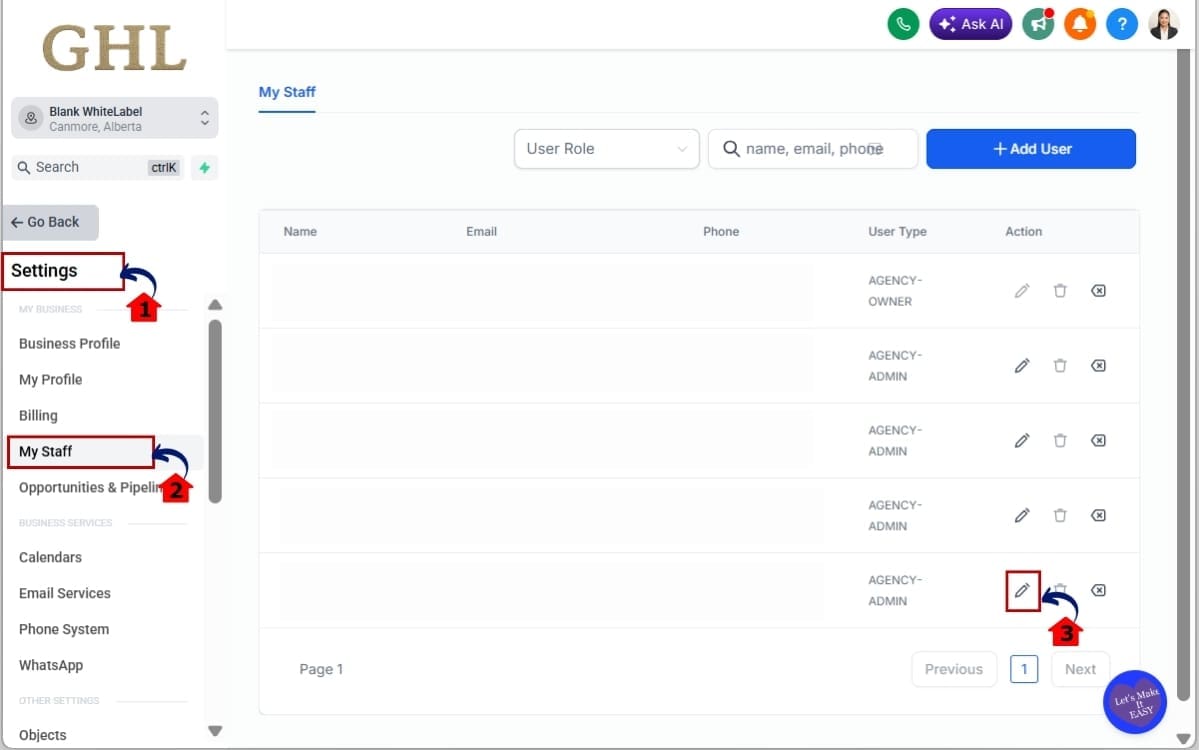
Step 01 – Open Settings to Access My Staff
- Use this option when you’re managing a team member from your GoHighLevel account.
1.1 Go to the Settings area in GHL.
- Click the Settings gear icon at the bottom of the left-hand menu to open your account settings.
1.2 Click on My Staff.
- Select My Staff to view the team members who currently have access to the account.
1.3 Find the team member whose access you want to change and click Edit.
- Locate the correct team member, then click Edit to open their user settings and permissions.
Step 02 – Open Calendar Permissions in Agency View
- From the team member’s settings, you can open their permission controls and find the section used to manage Calendar access.
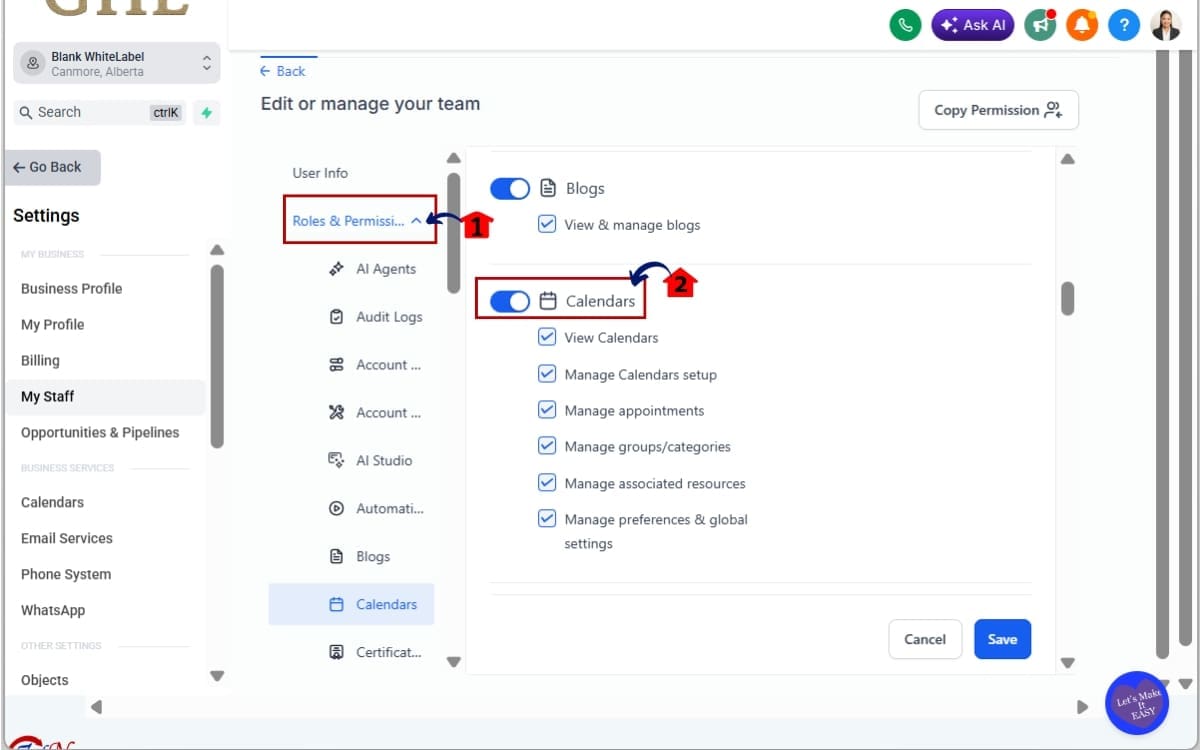
2.1 Open Roles & Permissions for that team member.
- Select Roles & Permissions to view and adjust what the team member is allowed to access and manage.
2.2 Find the Calendars section.
- Scroll to the Calendars section, where you can review and configure the team member’s Calendar User Permissions.
Step 03 – Choose the Right Calendar User Permissions
- Use the Calendars section to decide exactly what the team member can view and manage based on their role and responsibilities.
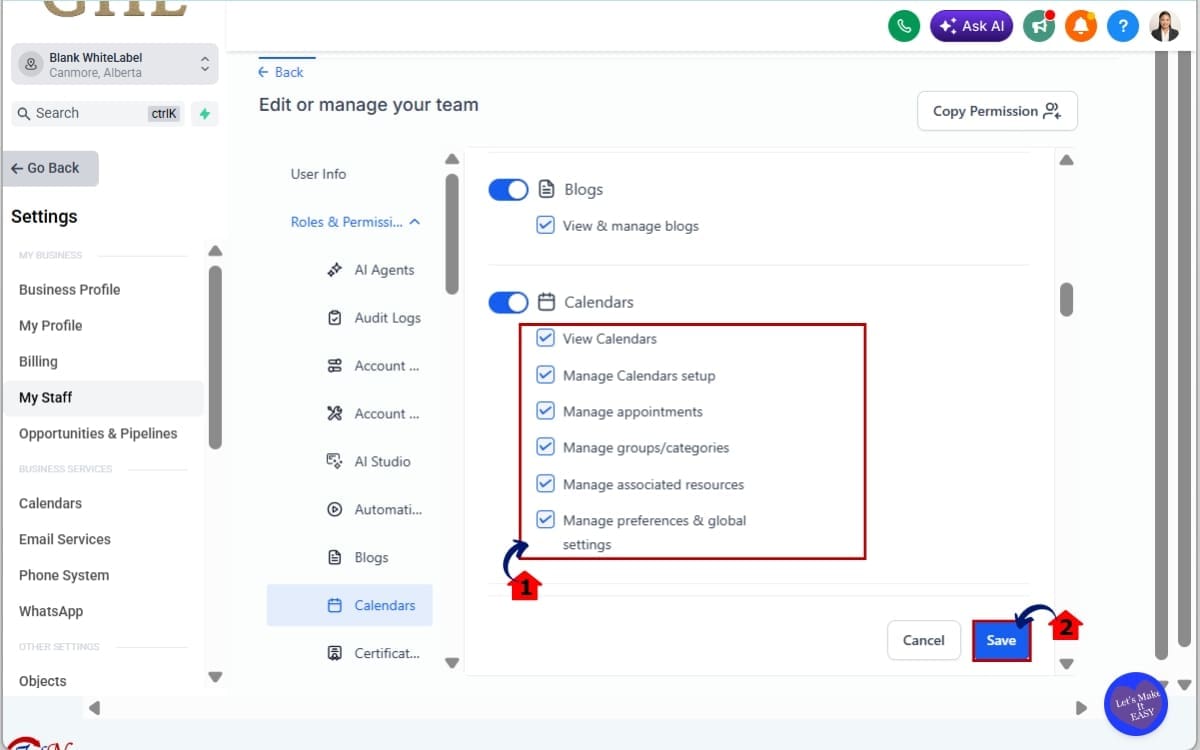
3.1 Configure the required Calendar User Permissions.
- Choose the permissions the team member needs, including View Calendars, Manage setup, Manage appointments, Manage groups/categories, Manage associated resources, and Manage preferences & global settings. Consider limiting broader settings permissions to admins or team members responsible for the overall scheduling setup.
3.2 Click Save.
- Review your selections, then click Save to apply the updated Calendar User Permissions to the team member.
The goal isn’t to turn everything on. Give each person enough access to do their job without giving them control over parts of Meetings, Services, or Rentals they don’t need to manage.
How to Maximize Calendar User Permissions
Calendar User Permissions work best when you match access to the job instead of simply turning everything on. A few minutes spent planning permissions now can make managing your GHL team much easier later.
Start with the minimum access each person needs. If someone only handles appointments and bookings, they may need View Calendars and Manage appointments, but they may not need access to setup, associated resources, or global settings.
Keep “Manage preferences & global settings” for team members who actually need to control the wider scheduling setup. This could include an account administrator or manager rather than every staff member working with bookings.
Be careful with “Manage associated resources” too. This permission can provide management access to locations, staff, resources, add-ons, and other related components. Only enable it when those tasks are part of the team member’s responsibilities.
For larger teams, create a consistent approach for similar roles. Your appointment setters could use one permission setup, service managers another, and administrators a more advanced setup. This makes onboarding new team members faster and keeps access more predictable.
Finally, review Calendar User Permissions whenever someone changes roles. An employee who gets promoted may need additional access, while someone moving to a different responsibility may no longer need permissions they previously used.
The quick rule is simple: don’t give everyone everything. Use GHL’s granular controls to give each person the access they need to get their work done.
What Calendar User Permissions Mean for Your Business
Calendar User Permissions can make managing a growing GHL team much cleaner. Instead of giving several employees the same broad access, you can match permissions to what each person is responsible for.
Imagine you run an agency with appointment setters working inside client accounts. Those team members may need to view calendars and manage appointments, but they don’t necessarily need to change services, rental listings, resources, or global settings.
A manager could have broader Calendar User Permissions. They might manage appointments along with groups, categories, setup, staff, locations, resources, and add-ons. An account administrator could then keep control over preferences and global settings.
This separation becomes even more useful as you add employees or manage more complex client accounts. You can create a clearer line between the people handling daily bookings and the people responsible for the overall scheduling setup.
It can also make staff onboarding easier. When someone joins your team, you can configure their GHL access around their responsibilities instead of giving them broad permissions and trying to clean things up later.
The practical result is better control as your operation grows. Meetings, Services, and Rentals now follow a more consistent permission structure, making it easier to decide who should manage what.
For an agency with several people working inside GHL, this makes life easier. Staff can get access to the calendar tools they use every day without being able to mess around with settings that aren’t part of their job.
Calendar User Permissions FAQs
Take Control With Calendar User Permissions
Calendar User Permissions give GHL admins a much better way to control who can view and manage scheduling tools. With the same permission structure now covering Meetings, Services, and Rentals, managing different staff roles becomes much more straightforward.
You can separate appointment management from setup, groups and categories, associated resources, and global settings. That means your booking staff can handle the work they’re responsible for without automatically getting access to settings they don’t need.
The two new permissions make that control even stronger. Manage associated resources lets you control access to locations, staff, resources, add-ons, and related components. Manage preferences & global settings gives you separate control over broader module settings.
Take a few minutes to check who can do what with your GHL calendars. If someone only handles bookings, their permissions should probably look different from the person running the whole account.
Don’t just switch everything on because it’s easier. A few extra minutes spent setting up permissions properly can give you a cleaner structure as your team and scheduling operations grow.
Have you reviewed your team’s Calendar User Permissions yet? Jump into Roles & Permissions and see where you can tighten up access.
And keep checking back with GHL Growth Garage for more practical GoHighLevel Mini Guides that help you get more from the platform.
Scale Your Business Today.
Streamline your workflow with GoHighLevel’s powerful tools.


