

- A More Consistent Calendar Week Start
- Quick Summary – Calendar Week Start
- Here are this week's HighLevel Updates 🚀
- What’s New With the Calendar Week Start
- Why the Calendar Week Start Matters
- How to Set Your Calendar Week Start
- Calendar Week Start Quick Tips
- What the Calendar Week Start Means for Your Business
- FAQs – Calendar Week Start
- Get Your Calendar Week Start Set Up
A More Consistent Calendar Week Start
Calendar Week Start settings in GoHighLevel just got more consistent, making it easier to organize your schedule around the way your business actually works.
GoHighLevel has cleaned up how the Calendar Week Start setting works. Pick Saturday, Sunday, or Monday, and that choice will now show up across more of the scheduling areas you use inside GHL.
That preference carries across key areas like Calendar views, appointment creation and editing, schedules, staff availability, date pickers, and business operating hours.
You can also set the preference separately for Meetings, Services, and Rentals. That gives you more control when different parts of your business handle scheduling in different ways.
And here’s an important detail: your customer-facing Booking Widget settings stay separate. Changing your internal Week Start preference won’t automatically change how the week appears on your booking widgets.
If you’re running an agency with multiple calendars and staff to manage, this little change should make everyday scheduling easier to keep straight.
Set your Calendar Week Start to match how your team actually works, giving you a more consistent scheduling experience across Meetings, Services, and Rentals. You can keep your internal GHL calendars organized without changing the separate Week Start settings used by your customer-facing Booking Widgets.
The latest GoHighLevel Changelog includes several other GHL feature updates that round out your daily workflow:
- Wait Action Enhancement: TikTok DM Replies
- India Recurring Mandate Support for Affiliate Indian Signup Pages
- Housecall Pro – More Workflow Actions & Triggers
- Email Services Dashboard for Agencies
- Email Sequences Now Available in Beta Labs
- Group Your Contacts by Source in Dashboards & Reporting
- MMLite Adoption Banner in Conversations
Keep reading for much more on all these updates and a deep dive into the Calendar Week Start feature!

Quick Summary – Calendar Week Start
Purpose: The Calendar Week Start setting lets you choose Saturday, Sunday, or Monday as the first day of your week across relevant in-app GHL scheduling experiences.
Why It Matters: A consistent Week Start makes it easier for your team to move between Calendar views, appointments, availability, staff schedules, date pickers, and operating hours without dealing with different week layouts.
What You Get: You can configure Week Starts On separately for Meetings, Services, and Rentals, giving you more control over how each scheduling area is organized.
Time to Complete: Allow around 2–5 minutes to review and update your Week Start preferences across Meetings, Services, and Rentals.
Difficulty Level: Beginner. This is a simple settings change with no workflows, integrations, or advanced configuration required.
Key Outcome: Your internal GHL scheduling experience can match the way your business actually organizes its week while remaining consistent across relevant Calendar areas.
Booking Widget Note: Your customer-facing Booking Widget Week Start preferences stay independent, so changing your in-app settings won’t override your widget configuration.
Here are this week’s HighLevel Updates 🚀
Wait Action Enhancement: TikTok DM Replies
What’s New:
Instead of continuing after a fixed delay, your workflow can pause until someone replies to your TikTok DM.
Where in GHL:
Found in Automation → Workflows using the Wait action after sending a TikTok DM.
Automate marketing, manage leads, and grow faster with GoHighLevel.

Impact:
Your automation responds when someone actually joins the conversation, rather than after a timer runs out.
Recommended For:
Anyone using TikTok DMs to start conversations with potential customers.
India Recurring Mandate Support for Affiliate Indian Signup Pages
What’s New:
Supports recurring payment mandates for Indian affiliates, helping subscriptions comply with local banking requirements.
Where in GHL:
Available on Affiliate Program signup pages for users in India.
Impact:
Creates a smoother signup experience while reducing payment failures for recurring subscriptions.
Recommended For:
Agencies, SaaS businesses, and affiliate programs onboarding customers in India.
Housecall Pro – More Workflow Actions & Triggers
What’s New:
Adds new workflow triggers and actions for the Housecall Pro integration, giving you more ways to automate field service processes.
Where in GHL:
Inside Automation → Workflows when using the Housecall Pro integration.
Impact:
Expands automation possibilities between HighLevel and Housecall Pro, reducing manual work and improving operational efficiency.
Recommended For:
Home service businesses, field service companies, and agencies managing Housecall Pro clients.
Email Services Dashboard for Agencies
What’s New:
Introduces a centralized dashboard where agencies can monitor email services across their accounts.
Where in GHL:
Found in the Agency View under the new Email Services Dashboard.
Impact:
Makes it easier to monitor email health, identify issues, and manage deliverability from one place.
Recommended For:
Agency owners, support teams, and admins managing multiple client email services.
Email Sequences Now Available in Beta Labs
What’s New:
Introduces Email Sequences as a Beta Labs feature, providing another way to create structured email follow-up campaigns.
Where in GHL:
Enable it from Settings → Labs, then access Email Sequences after activation.
Impact:
Cuts down the time spent checking different areas just to see how your email services are performing.
Recommended For:
Marketers, agencies, coaches, and businesses running nurture campaigns or onboarding emails.
Group Your Contacts by Source in Dashboards & Reporting
What’s New:
Lets you organize contact reports based on where your leads originated.
Where in GHL:
Available within Dashboards & Reporting when viewing contact analytics.
Impact:
Makes it easier to compare lead sources and identify which marketing channels are producing the best results.
Recommended For:
Marketing teams, agency owners, and businesses tracking campaign performance across multiple lead sources.
MMLite Adoption Banner in Conversations
What’s New:
Displays a helpful banner inside Conversations to encourage users to adopt the new MMLite messaging experience.
Where in GHL:
Appears within the Conversations module for eligible accounts.
Impact:
Helps users discover and transition to MMLite while highlighting its benefits directly inside the messaging interface.
Recommended For:
Current HighLevel users exploring the latest messaging experience and teams preparing to migrate to MMLite.
What’s New With the Calendar Week Start
GoHighLevel has expanded how your Calendar Week Start preference works across its in-app scheduling tools. Once you choose your preferred starting day, GHL now uses that setting across more of the places where you manage appointments and availability.
Not every business treats Monday as day one. GHL now lets you start your calendar on Saturday, Sunday, or Monday, whichever makes the most sense for your schedule.
Your Calendar Week Start preference is now reflected across Calendar views, appointment creation and editing, schedules and availability settings, staff availability, date pickers, and business operating hours.
There’s another useful detail here. Meetings, Services, and Rentals each have their own Week Starts On setting. That means you can configure these scheduling areas separately instead of being locked into one preference across everything.
Your Booking Widget is the exception. Its Week Start preference remains independent from your in-app settings. So, for example, your team could use Monday as the start of the week internally while a customer-facing Booking Widget starts on Sunday.
It’s not a massive new scheduling feature, but it fixes an important consistency issue. Moving between different parts of GHL Calendars should now feel more predictable because your preferred week layout follows you across the relevant scheduling areas.
Why the Calendar Week Start Matters
A consistent Calendar Week Start might sound like a small change, but when you spend your day managing appointments, staff, and client schedules, small inconsistencies get annoying fast.
The biggest benefit is simple: your calendar can now better match how your business actually operates. If your team considers Monday the start of the working week, you can set it that way. If your business works around a Saturday or Sunday start, GHL gives you those options too.
This is especially useful for agencies managing different types of businesses. A professional services client might prefer a Monday-first schedule, while another business may organize its working week differently. You’re not stuck trying to make one calendar layout work for everyone.
Consistency also makes GHL easier for your team to use. When the same Calendar Week Start appears across relevant calendar views, availability settings, appointment screens, date pickers, and operating hours, there’s less jumping around between different layouts.
And because Meetings, Services, and Rentals have separate preferences, you still have flexibility when you need it.
Best of all, your customer-facing Booking Widget remains independent. You can organize the internal scheduling experience around your staff while keeping the booking experience configured separately for your customers.
It’s a simple quality-of-life improvement, but for teams that live inside GHL Calendars every day, it can make scheduling cleaner and easier to manage.
How to Set Your Calendar Week Start
Setting your Calendar Week Start in GoHighLevel is straightforward, but there’s one important thing to know before you begin. Meetings, Services, and Rentals each have their own Week Starts On preference. So, if you use more than one of these scheduling tools, you’ll want to check each setting separately.
You can choose Saturday, Sunday, or Monday. Once saved, GHL will apply your preference across the relevant in-app Calendar and scheduling experiences.
- Access Calendars in GoHighLevel.
- Set the Week Start for Meetings.
- Set the Week Start for Services.
- Set the Week Start for Rentals.
- Check Your Calendar Week Start.
To start, make sure you’re logged in to the correct GoHighLevel sub-account.
Step 01 – Access Calendars in GoHighLevel
- Start by opening the Calendars area where you manage your appointments and scheduling settings.
1.1 Go to the main menu on the left side of your screen. Click Calendars to access the scheduling area of your GHL sub-account.
- This opens the main Calendars section, where you can view your schedules and access the settings needed for this update.
1.2 Open Calendar Settings.
- From here, you can configure the Week Start preference for the scheduling tool you want to update.

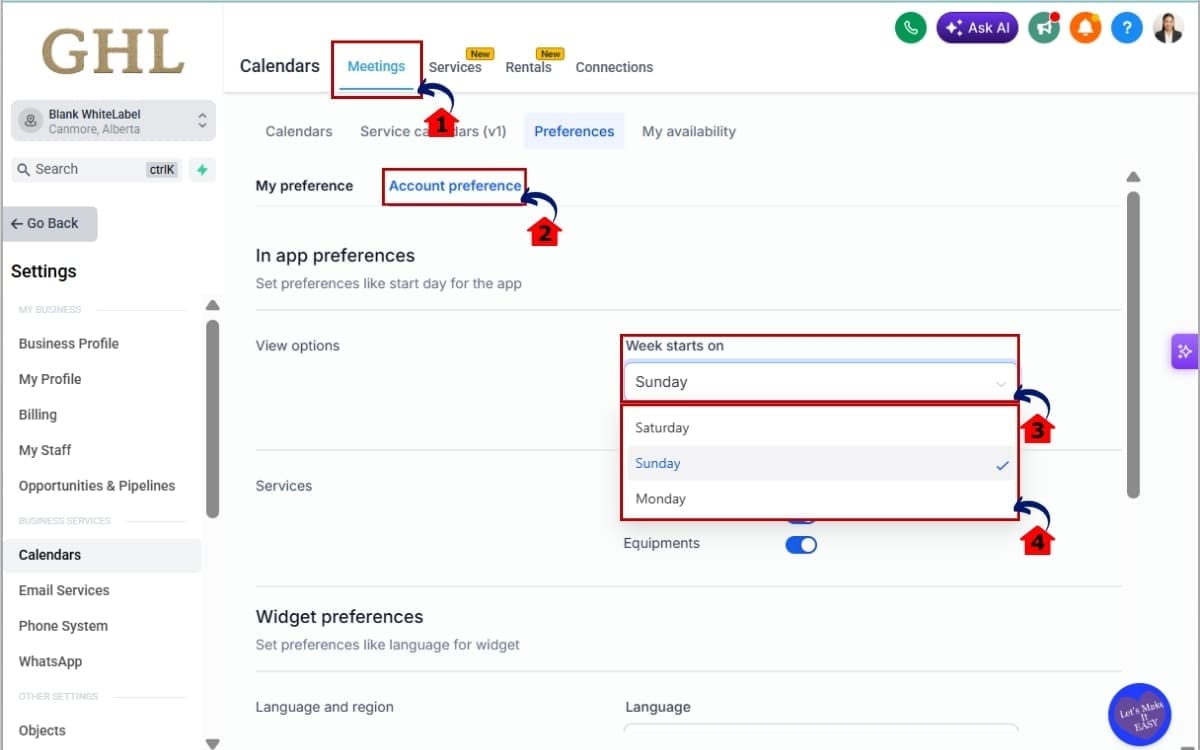
Step 02 – Set the Week Start for Meetings
- Meetings have their own Week Start preference, so you can choose the day that works best for this part of your schedule.
2.1 From Calendar Settings, open Meetings.
- This takes you to the area where you can manage your Meeting calendar options and settings.
2.2 Click Account Preferences.
- This is where you’ll find the general settings that control how Meetings appear and behave inside GHL.
2.3 Find the Week Starts On setting.
- This setting controls which day appears first when viewing the week in the relevant Meetings scheduling areas.
2.4 Choose your preferred starting day:
- Saturday
- Sunday
- Monday
Your selected Calendar Week Start will now be used across the relevant in-app Meetings scheduling experience.
Step 03 – Set the Week Start for Services
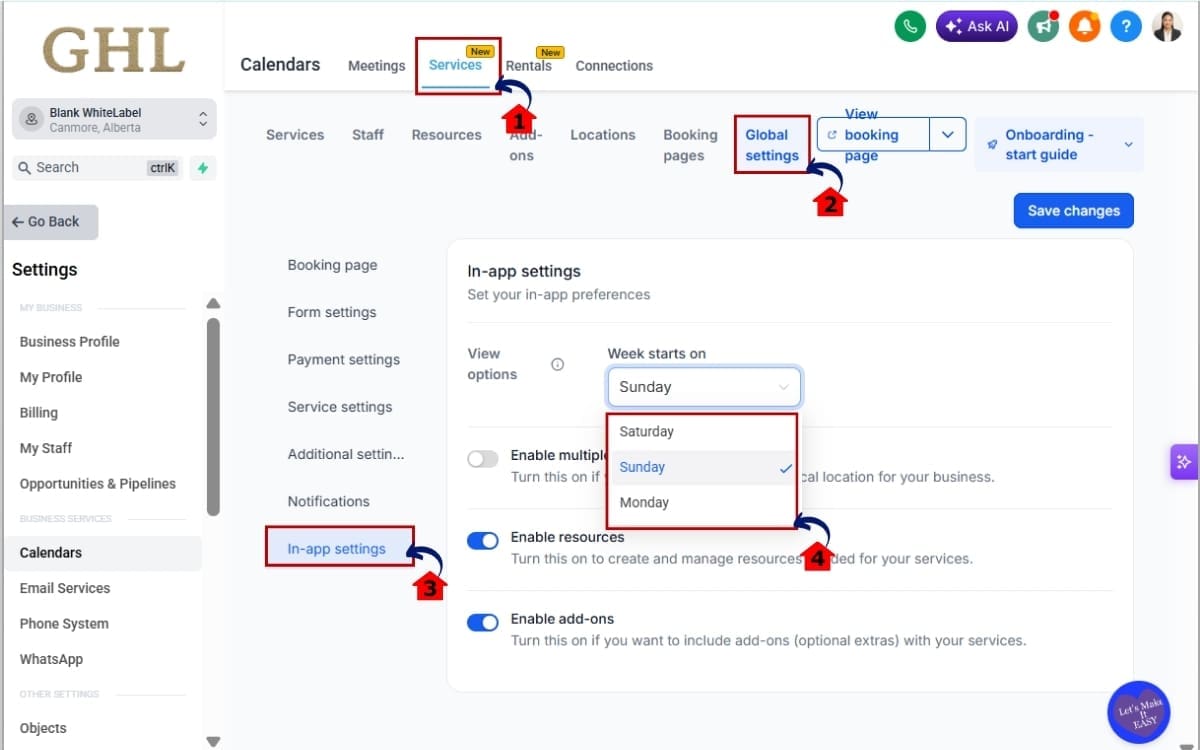
- Services has its own Week Start setting, giving you control over how the week is displayed when managing service-based bookings.
3.1 Go to Services inside Calendar Settings.
- This opens the section where you can manage the main scheduling options for your Services calendars.
3.2 Open Global Settings.
- Global Settings contains the broader options used to control how Services work inside your GHL account.
3.3 Select In-App Settings.
- This area contains the settings that control your internal Services scheduling experience.
3.4 Find the Week Starts On option.
- This is the setting that determines which day appears first in the relevant Services scheduling areas.
3.5 Select Saturday, Sunday, or Monday.
- Your selected preference will now be reflected across the relevant in-app Services scheduling areas.
Step 04 – Set the Week Start for Rentals
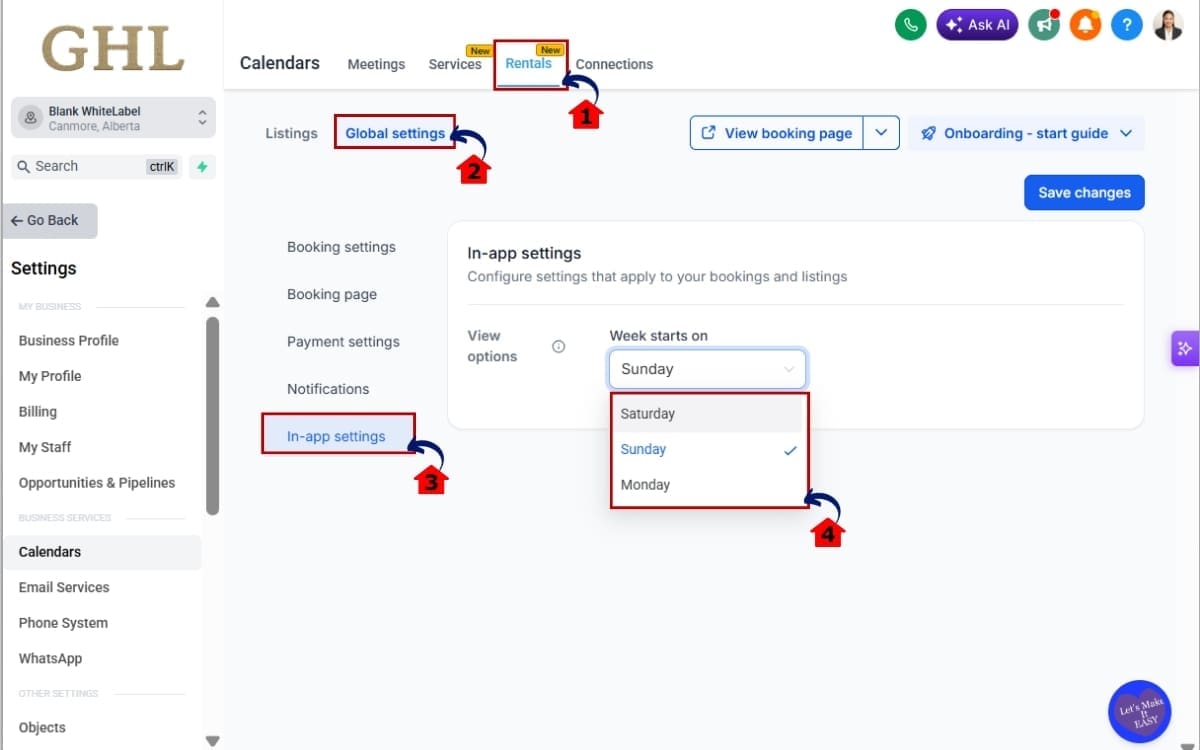
- Rentals have a separate Week Start preference, so you can set up the calendar to match how your rental schedule normally runs.
4.1 Go to Rentals inside Calendar Settings.
- This opens the area where you can manage the settings for your Rentals calendars.
4.2 Open Global Settings.
- Here you’ll find the broader settings that control how Rentals are managed in your GHL account.
4.3 Select In-App Settings.
- This section controls settings related to your internal Rentals scheduling experience.
4.4 Locate Week Starts On. Choose Saturday, Sunday, or Monday.
- Pick the starting day that makes the most sense for your rental schedule and how your team plans its week.
4.5 Save your preference.
- GHL will then use your selected Calendar Week Start across the relevant Rentals scheduling experience.
Step 05 – Check Your Calendar Week Start
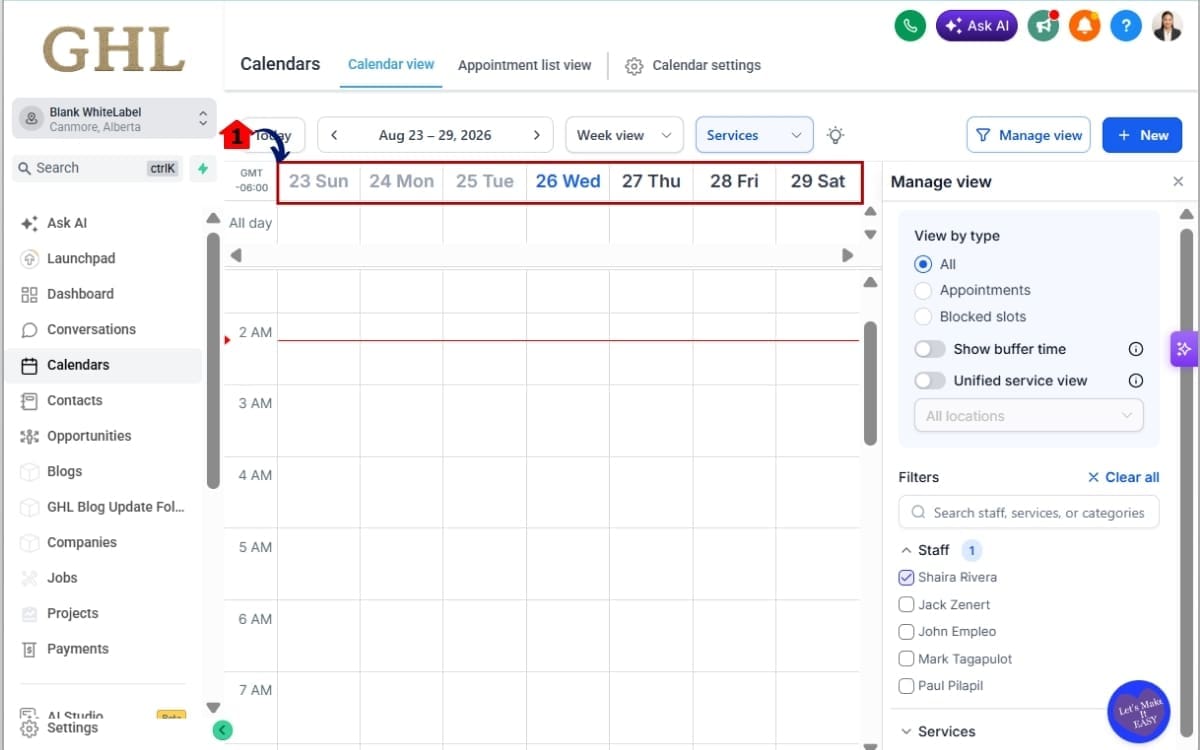
- Return to the scheduling area you just updated.
5.1 Check your Calendar views and confirm that the week begins on your selected day.
- When relevant, also check areas such as appointment screens, schedules, availability, staff availability, date pickers, and operating hours.
One final thing to remember: these settings control the relevant in-app scheduling experience. Your Booking Widget Week Start settings remain independent.
That means you don’t need to change your customer-facing booking experience just because you want your internal GHL calendar organized differently.
Calendar Week Start Quick Tips
Once you’ve set your Calendar Week Start, a few simple checks can help you get more from the update and avoid confusion for your team.
Keep Your Internal Calendars Consistent
If your business uses Meetings, Services, and Rentals, consider using the same starting day across all three. A consistent Monday, Sunday, or Saturday start makes it easier for staff to move between scheduling areas without having to adjust to a different calendar layout.
Use Different Settings When They Make Sense
You don’t have to use the same Calendar Week Start everywhere. Because the preferences are configured separately, you can choose different starting days when a specific part of the business operates on a different schedule.
Don’t Forget Your Booking Widgets
This is the big one.
Your in-app Week Start preference does not override the Week Start setting on your Booking Widgets. If you want customers to see a specific starting day when they book, check the widget configuration separately.
Think of these as two different experiences: your in-app settings are for how your team works inside GHL, while your Booking Widget settings control how customers see the booking calendar.
Check Staff Availability After the Change
After updating the preference, take a quick look at your staff availability and scheduling views. Make sure the new layout feels natural for the people actually managing appointments.
For agencies, it’s also worth checking these preferences when setting up a new client account. Getting the Calendar Week Start right from day one is a small detail that can make the scheduling setup feel much cleaner.
What the Calendar Week Start Means for Your Business
The real value of the Calendar Week Start update is flexibility. Your team can organize schedules around the way the business actually runs instead of adjusting to a calendar layout that doesn’t quite fit.
Take an agency managing several client accounts. A consulting company may run a traditional Monday-to-Friday schedule, so Monday makes sense as its Week Start. Another client may operate heavily on weekends and prefer Saturday or Sunday.
Now you can configure the relevant scheduling experience around those needs.
There’s also a practical benefit for your staff. When your preferred Calendar Week Start carries through relevant appointment screens, availability settings, date pickers, and operating hours, your team gets a more consistent view as they move around GHL.
That can be especially helpful when several staff members manage appointments or availability throughout the week. You’re removing one small bit of friction from something they may use every day.
The independent Booking Widget setting adds another layer of control.
Your team could use Monday internally while keeping Sunday as the first day customers see when booking online. Your internal scheduling setup doesn’t have to dictate the customer-facing experience.
For agencies, that separation is useful. You can build an internal setup that works for your team while tailoring the public booking experience to each client and their customers.
It’s a small setting with a simple goal: make GHL Calendars fit the business instead of making the business fit the calendar.
FAQs – Calendar Week Start
Get Your Calendar Week Start Set Up
The Calendar Week Start update gives you a simple way to make GoHighLevel Calendars better match how your business actually works.
You can choose Saturday, Sunday, or Monday as the beginning of your week and have that preference reflected across relevant in-app scheduling areas. That includes Calendar views, appointment screens, availability settings, staff availability, date pickers, and business operating hours.
Just remember that Meetings, Services, and Rentals have their own Week Starts On preferences. If you want a consistent setup across all three, take a minute to check each one.
Your Booking Widget settings also remain independent. That means you can organize your internal GHL scheduling experience one way while keeping the customer-facing booking experience set up differently.
For agencies, that extra control makes it easier to tailor Calendar settings around each client instead of forcing every business into the same scheduling setup.
So, jump into Calendar Settings, check your Week Starts On preferences, and make sure they match the way your team works.
So, what’s day one for your business: Saturday, Sunday, or Monday?
Scale Your Business Today.
Streamline your workflow with GoHighLevel’s powerful tools.


