- Quickly remove outdated or unwanted cards from SaaS v2 sub-accounts.
- Quick Summary – Delete Payment Method at a Glance
- What’s New With Delete Payment Method
- Why Delete Payment Method Matters
- How to Delete Payment Method in GHL
- Pro Tips for Delete Payment Method
- What Delete Payment Method Means for Business
- Frequently Asked Questions About Delete Payment Method
- Delete Payment Method and Keep Billing Clean
Quickly remove outdated or unwanted cards from SaaS v2 sub-accounts.
Delete Payment Method in GHL Without the Clutter
If you need to delete payment method details you no longer use, GoHighLevel now makes that much easier in SaaS v2 sub-accounts. You can remove old, expired, or unused cards instead of leaving them saved in the account.
This gives you better control over billing and keeps the payment area easier to manage. It is especially useful if you handle several client accounts and want to avoid confusion over which cards are still active.
In this guide, we’ll show you what changed and how to delete payment method details from a GHL SaaS v2 sub-account. The process is simple, and it only takes a few steps.
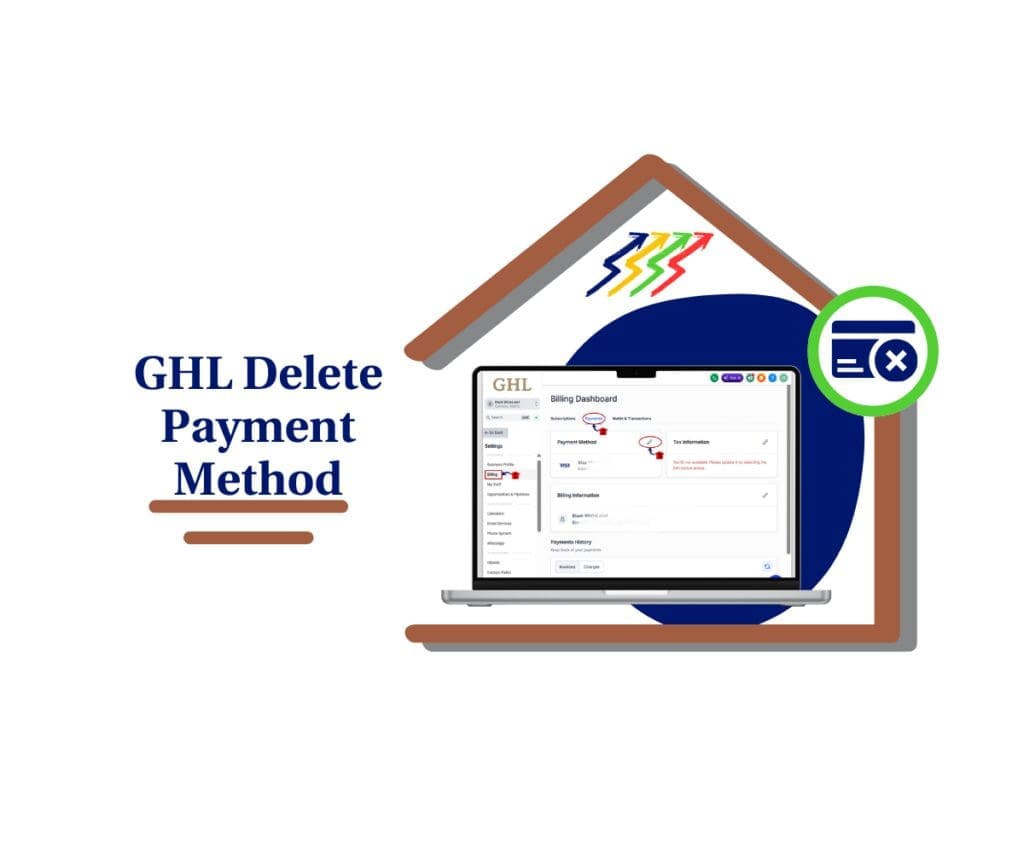
The new delete payment method option gives SaaS v2 users more control over saved cards inside GHL. You can remove outdated or unused payment methods and keep billing easier to manage.
Quick Summary – Delete Payment Method at a Glance
Purpose: This update lets SaaS v2 users remove saved payment methods they no longer need from a GoHighLevel sub-account.
Why It Matters: Old or expired cards can make billing harder to manage, especially when several payment methods are saved.
What You Get: You can open the Billing area, review saved cards, and delete payment method details that are outdated or no longer needed.
Time To Complete: Most users should be able to remove a saved card in just a few minutes.
Difficulty Level: Easy. The process only takes a few clicks inside the Billing settings.
Key Outcome: A cleaner billing setup with fewer outdated cards and less confusion over which payment method is active.
What’s New With Delete Payment Method
GoHighLevel has added a simple but useful update for SaaS v2 sub-accounts. You can now delete payment method details that are saved in the account when they are no longer needed.
Before this change, an old or expired card could stay on file even after you stopped using it. That made the billing area harder to manage, especially if more than one payment method had been added over time.
Automate marketing, manage leads, and grow faster with GoHighLevel.

Now, if a card is outdated, expired, or no longer required, you can remove it directly from the sub-account. This gives you more control over saved payment methods and helps keep the billing area clean and easy to review.
Why Delete Payment Method Matters
The new delete payment method option gives you more control over how billing is managed inside a SaaS v2 sub-account. Instead of keeping old cards on file, you can remove the ones you no longer need.
That makes it easier to see which payment methods are still active. It can also reduce mistakes when you manage several client accounts or update billing details for different businesses.
For agencies, this is mostly about cleaner account management. A small billing change like this can save time, cut down on confusion, and make each sub-account easier to review.
How to Delete Payment Method in GHL
The delete payment method option makes it easy to remove old or unused cards from a GoHighLevel SaaS v2 sub-account. In this section, you’ll see how to open the Billing area, find your saved payment methods, and delete the card you no longer need.
The goal is simple: remove outdated cards and keep your billing setup clean and easy to manage.
Here are the steps to remove a saved payment method:
- Access the Settings area in GoHighLevel.
- Open Billing and view your saved payment methods.
- Select the card and delete it.
To start, make sure you are logged in to the correct GoHighLevel SaaS v2 sub-account.
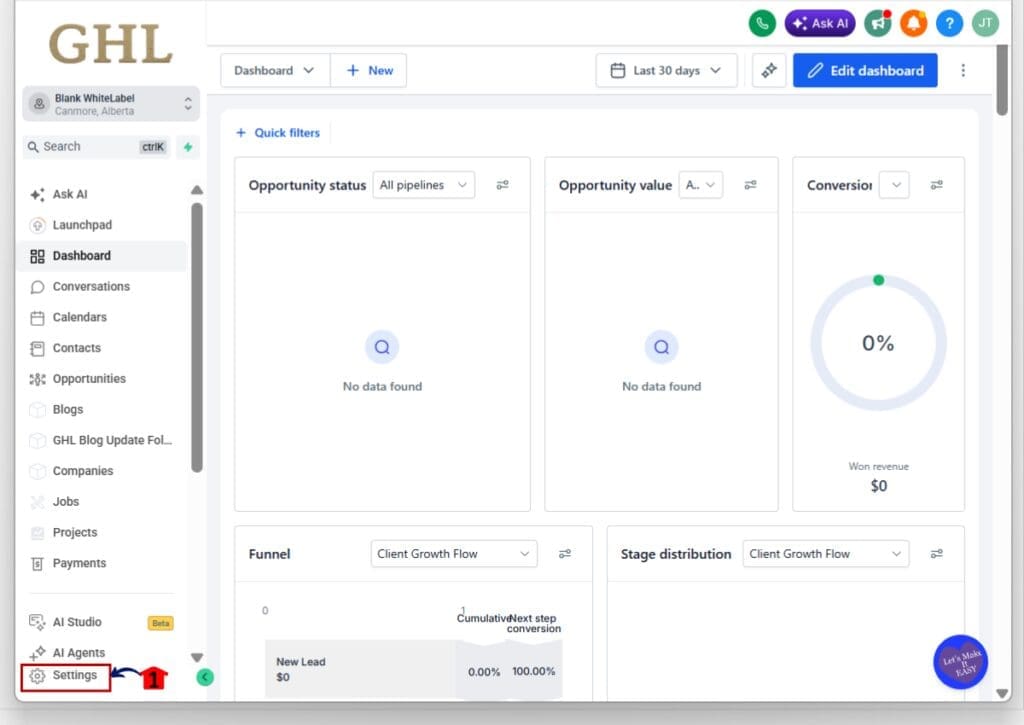
Step 01: Access the Settings Area in GoHighLevel
- Go to the bottom of the Main Menu on the left-hand sidebar.
1.1 Click the Settings gear icon ⚙️.
- This opens the Settings area for your sub-account.
Step 02: Open Your Saved Payment Methods
- Inside the Settings area, use the menu on the left-hand side.
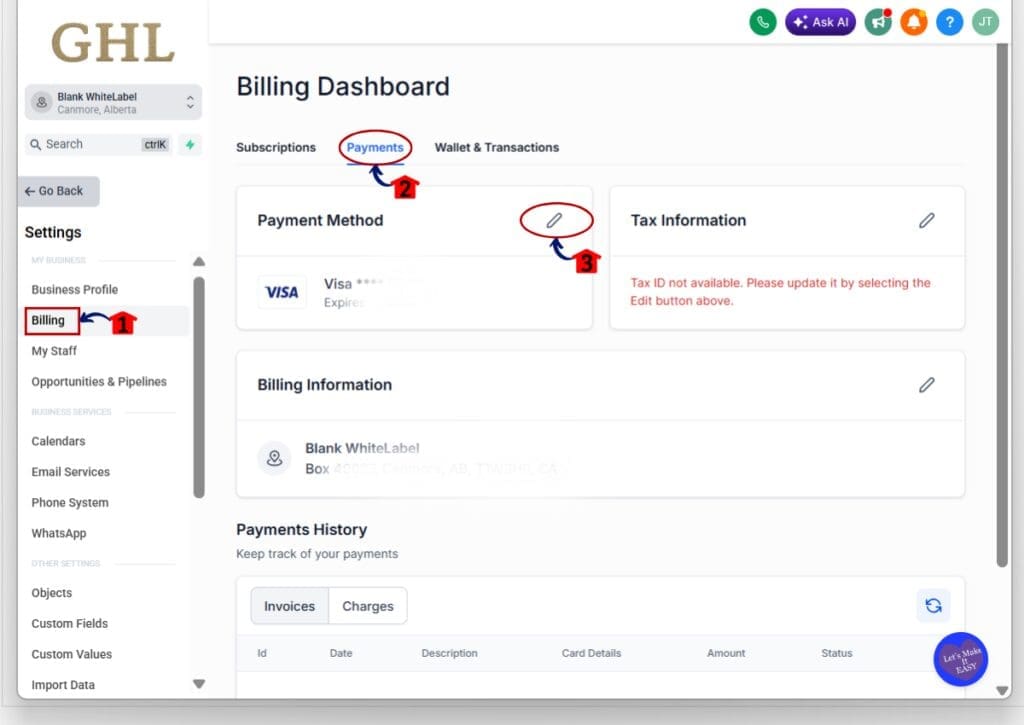
2.1 Click Billing.
- This opens the Billing Dashboard.
2.2 Click the Payments tab.
- This opens the section where your payment method and billing details are shown.
2.3 Find the Payment Method section.
2.4 Click the pencil edit icon.
- This opens the Manage your payment methods window.
Step 03: Delete the Saved Payment Method
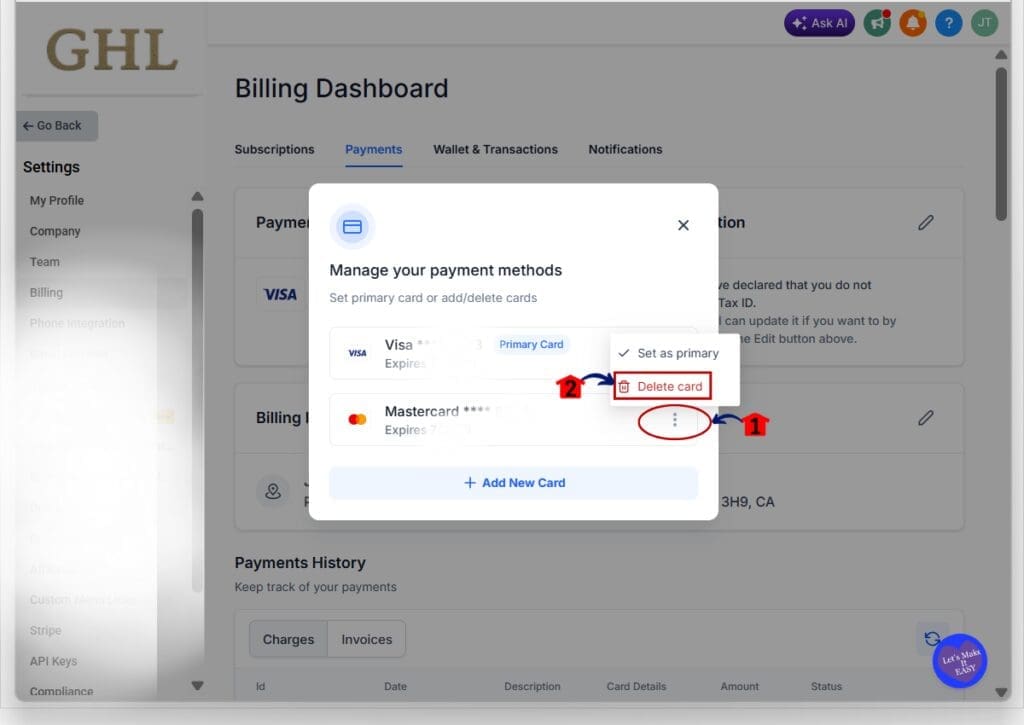
- The Manage your payment methods window shows the cards saved to the sub-account.
3.1 Find the card you want to remove.
3.2 Click the three-dot menu beside the card.
- This opens the available options for that payment method.
3.3 Click Delete card.
- The selected card will be removed from the saved payment methods.
- If needed, you can also use Set as primary for another card before removing an old one.
That’s it. The old payment method is now removed from the SaaS v2 sub-account, leaving your billing area cleaner and easier to manage.
Pro Tips for Delete Payment Method
The delete payment method option is easy to use, but it is still worth checking a few things first. Before you remove a card, make sure another valid payment method is available if the sub-account still needs one for billing.
If more than one card is saved, set the right one as primary before deleting the old card. This helps avoid confusion and keeps the correct payment method ready for future charges.
It is also a good habit to review saved cards from time to time. Remove expired or unused cards so the billing area stays clean and easier to manage, especially when you handle several SaaS clients.
What Delete Payment Method Means for Business
The delete payment method update gives agencies a cleaner way to manage billing inside SaaS v2 sub-accounts. When old cards stay on file, it is easy for clients or team members to wonder which payment method is still in use.
For agencies that manage several client accounts, this can help reduce simple billing mistakes. You can remove outdated cards, keep the right card active, and make each sub-account easier to review.
It is a small change, but useful admin tools matter when you work across many accounts. The easier it is to keep billing details current, the less time you spend sorting out avoidable issues later.
Frequently Asked Questions About Delete Payment Method
Delete Payment Method and Keep Billing Clean
The new delete payment method option gives SaaS v2 users more control over the cards saved in a sub-account. You can remove old, expired, or unused payment methods and keep the billing area easier to review.
For agencies, this is a simple update that can make account management cleaner. It also helps reduce confusion when several cards have been added over time.
If you manage SaaS v2 sub-accounts, it is worth checking your saved payment methods and removing the ones you no longer need. Have you tried the new option yet?
Scale Your Business Today.
Streamline your workflow with GoHighLevel’s powerful tools.