- Manage legal notices and consent in GoHighLevel with more control and less confusion.
- Quick Summary – Chat Widget Consent at a Glance
- What Changed in Chat Widget Consent
- Why Chat Widget Consent Matters to You
- How to Use Chat Widget Consent in GoHighLevel
- Pro Tips for Better Chat Widget Consent
- What This Means for Your Business
- Frequently Asked Questions about Chat Widget Consent
- What to Do Next With Chat Widget Consent
Manage legal notices and consent in GoHighLevel with more control and less confusion.
Chat Widget Consent Made Simple
Chat Widget Consent is now much easier to manage in GoHighLevel. The new Compliance notice & consent section separates legal notices from marketing consent, so you can control each one without mixing them together.
You can show a legal notice, add a custom consent checkbox, make consent required or optional, and choose whether the box is checked when the form loads. GHL also adds a clear message when required consent is missing, which helps visitors know exactly what they need to do before they can continue.
For agencies and businesses, this makes consent easier to set up and easier to track. You can also review Activity details to see if consent was given, whether it was required, and the exact wording the visitor saw. That gives you a clearer record and a cleaner way to manage Chat Widget Consent across different client needs.

Chat Widget Consent now gives you more control over how legal notices and opt-ins appear inside GoHighLevel. You can separate disclosures from consent, choose what’s required, and keep a clearer record of what each lead agreed to.
Quick Summary – Chat Widget Consent at a Glance
Purpose: This update gives you more control over Chat Widget Consent by separating legal notices from visitor opt-ins.
Why It Matters: You can make consent required or optional, use custom wording, and keep the visitor experience clearer.
What You Get: You can manage legal notices, consent checkboxes, pre-checked settings, validation messages, and consent tracking in one place.
Time To Complete: Most users should be able to review and update a Chat Widget in about 5 to 10 minutes.
Difficulty Level: Easy. The settings are all inside the Chat Widget builder and can be reviewed in the live preview.
Key Outcome: You get a cleaner consent setup and a better record of what each visitor agreed to.
What Changed in Chat Widget Consent
Chat Widget Consent used to sit under one main compliance setting, which made legal notices and marketing consent feel like the same thing. Now, GoHighLevel has split them into a new Compliance notice & consent section, so each part can be managed on its own.
You can show a legal notice without asking the visitor to take action, then add a separate consent checkbox for SMS or email opt-ins. You can make that consent required or optional, choose if the box is pre-checked, and show a clear message when required consent is missing.
Automate marketing, manage leads, and grow faster with GoHighLevel.

GHL also gives you better records. Activity details can now show whether consent was given, whether it was required, and the exact wording shown to the visitor. Existing widgets stay as they are until you open and save them, so there is no need to change your embed code right away.
Why Chat Widget Consent Matters to You
Chat Widget Consent matters because a legal notice and marketing permission do two different jobs. One explains important terms. The other asks a visitor if they agree to receive messages. Keeping them separate makes the form clearer for both you and the person filling it out.
This is especially useful for agencies, local businesses, and teams that use SMS or email follow-up. You can decide when consent should be required, when it can stay optional, and what wording the visitor sees before they submit the form.
You also get a better record of what happened. GoHighLevel can show whether consent was given, whether it was required, and the exact text shown at the time. That makes it easier to review lead activity later and gives your team a clearer picture of what each person agreed to.
How to Use Chat Widget Consent in GoHighLevel
Chat Widget Consent in GHL gives you more control over legal notices and visitor opt-ins. In this guide, you’ll learn how to open the Chat Widget, find the new Compliance notice & consent settings, and configure the legal notice and consent checkbox.
Here are the steps we will follow:
- Open the Chat Widget in GHL.
- Open the Chat window settings.
- Configure Chat Widget Consent
To start, make sure you are logged in to the correct GoHighLevel sub-account.
Step 01 – Open the Chat Widget in GHL
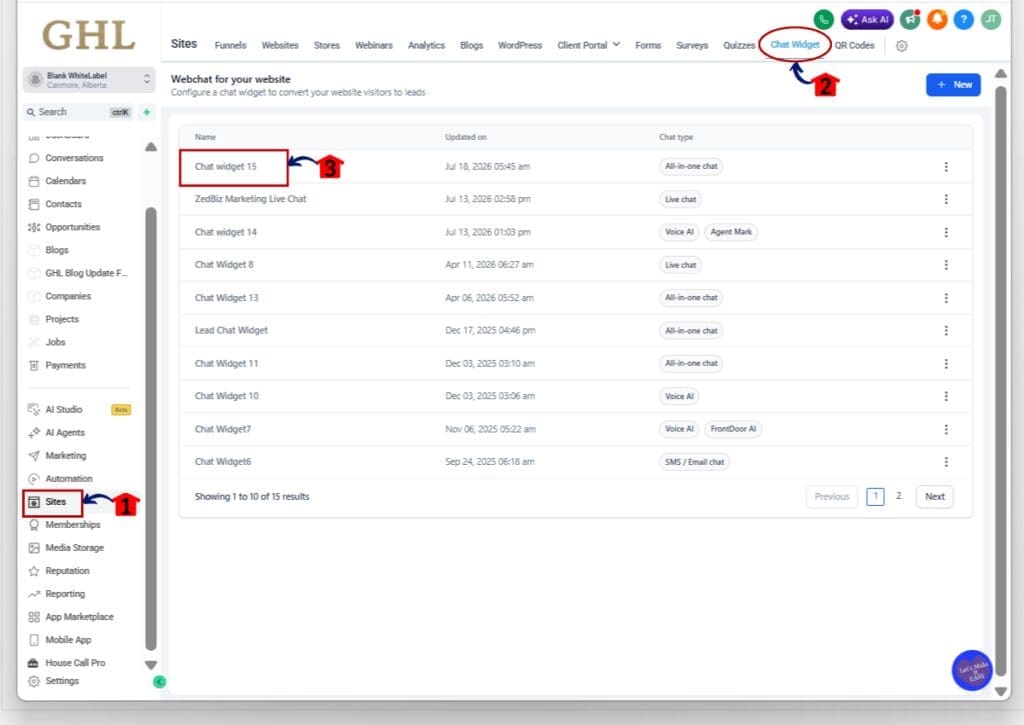
- The main menu on the left side of your screen includes the main areas you use in GoHighLevel.
1.1 Click Sites.
- This opens the Sites area in your GHL sub-account.
1.2 Click Chat Widget in the top menu.
- The Chat Widget page will open.
- You will see a list of the chat widgets in the sub-account.
1.3 Click the chat widget you want to edit.
- This opens the Chat Widget builder for that widget.
Step 02 – Open the Chat Window Settings
- The Chat window area includes the settings that control how the widget appears and works for visitors.
2.1 Click the Chat window at the top of the builder.
- The Chat window settings will open on the left side of the screen.
2.2 Click Additional options.
- This expands the extra settings available for the Chat Widget.
- The Compliance notice & consent controls are found in this section.

Step 03 – Configure Chat Widget Consent
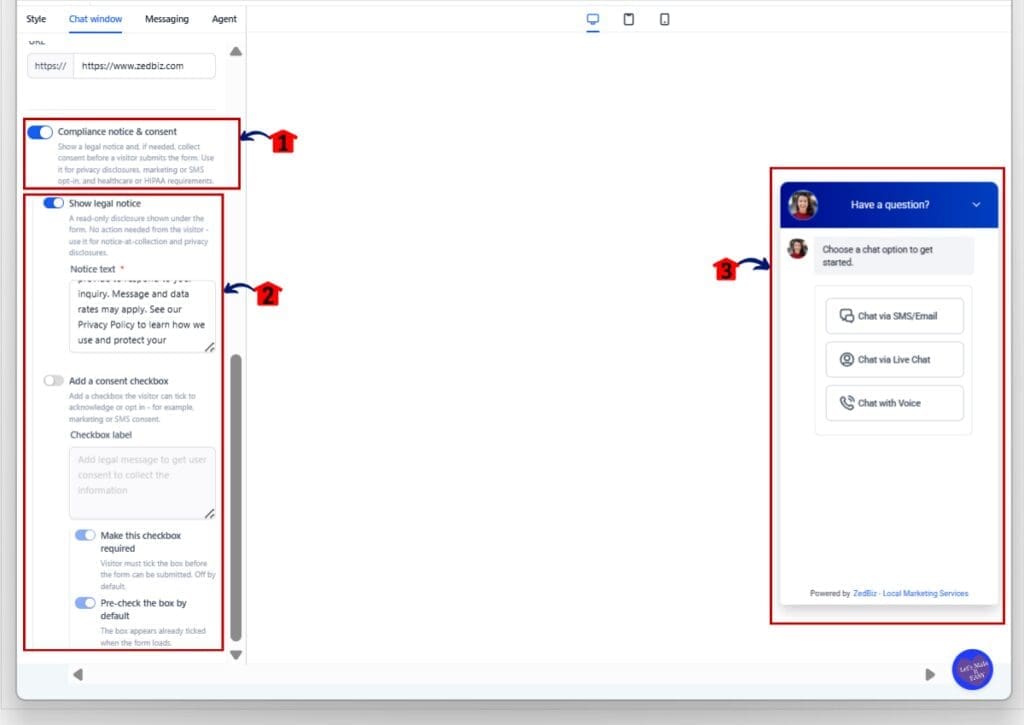
- The Compliance notice & consent section lets you manage the legal notice and consent checkbox separately.
3.1 Turn on Compliance notice & consent.
- This enables the compliance settings for the Chat Widget.
- You can then choose which notice and consent options you want to use.
3.2 Turn on Show legal notice if you want to display a notice below the form.
- Enter or review the text in the Notice text field.
- This notice is shown to the visitor without asking them to take any action.
- Use it for privacy notices, disclosures, or other information you need to display.
3.3 Turn on Add a consent checkbox if you want visitors to give clear consent.
- Enter your wording in the Checkbox label field.
- The text should clearly explain what the visitor is agreeing to.
- This can be used for things such as:
- SMS consent
- Email marketing consent
- Other opt-in requests
3.4 Turn Make this checkbox required on or off.
- Turn it on if visitors must give consent before they can submit the form.
- Leave it off if consent should remain optional.
- When required consent is missing, GHL shows the visitor a message telling them to tick the box before continuing.
3.5 Choose whether to Pre-check the box by default.
- Turn this on if you want the checkbox selected when the form loads.
- Leave it off if you want the visitor to select the checkbox themselves.
3.6 Review the live preview on the right side of the screen.
- Check how the notice and consent options appear to visitors.
- Review the wording and layout before you finish your changes.
Once your Chat Widget Consent settings are in place, you can use the legal notice and consent checkbox as separate controls. This makes it easier to match the widget to the type of notice or permission your business needs.
Pro Tips for Better Chat Widget Consent
Chat Widget Consent works best when the wording is clear and the setup matches what you actually plan to do with the lead. Keep the legal notice focused on disclosures, and use the consent checkbox only when you need the visitor to agree to something specific.
A few simple tips can help:
- Keep consent text short and easy to understand.
- Match the wording to the type of follow-up you plan to send.
- Use required consent only when it is truly needed.
- Check the live preview before you save.
- Test the form yourself so you can see what the visitor sees.
- Review Activity details after a test submission to make sure the consent record is clear.
For older widgets, check the current setup before making changes. Existing widgets stay the same until you open and save them, so it is worth reviewing the settings first instead of changing them by accident.
What This Means for Your Business
Chat Widget Consent gives you more control over how you collect leads without making the form harder to manage. You can show a legal notice when needed, then ask for separate consent for SMS, email, or other follow-up. That keeps the message clear for the visitor and gives your team a cleaner setup to work with.
For agencies, this is useful because different clients may need different consent rules. One client may need a simple legal notice, while another may want a required checkbox for marketing consent. You can now set each widget to match the business instead of forcing the same setup across every account.
The biggest win is better clarity. Visitors can see exactly what they are agreeing to, and GHL keeps a record of the consent details in Activity. That makes it easier for your team to review what happened later and manage lead follow-up with more confidence.
Frequently Asked Questions about Chat Widget Consent
What to Do Next With Chat Widget Consent
Chat Widget Consent is a practical update that gives you more control over how legal notices and opt-ins work inside GoHighLevel. You can now separate the notice from the consent checkbox, choose if consent is required, and control how the form behaves for each client or business.
The added Activity tracking also makes it easier to review what each lead agreed to later. If you use GHL Chat Widgets for lead capture, it is worth checking your current settings and making sure the consent setup matches the way you follow up with leads.
Have you updated your Chat Widget Consent settings yet, or are you planning to keep your current setup for now?
Scale Your Business Today.
Streamline your workflow with GoHighLevel’s powerful tools.