

- GHL can now skip closed days and count only the days your business is available.
- Quick Summary – Booking Date Range at a Glance
- What Changed in the Booking Date Range?
- Why This Booking Date Range Matters
- How to Use the Booking Date Range Setting
- Pro Tips for Your Booking Date Range
- What This Booking Date Range Means for Your Business
- Frequently Asked Questions about Booking Date Range
- Final Thoughts on the Booking Date Range
GHL can now skip closed days and count only the days your business is available.
Smarter Booking Date Range in GoHighLevel
A smarter booking date range in GoHighLevel now counts the days your business is actually available. That means weekends, closed days, and other unavailable dates no longer have to use up part of the booking window.
Before this update, a short booking date range could be filled with days you were closed. That could leave customers looking at an empty calendar, even when open appointment times were coming up soon. Now, GHL can skip those unavailable days and keep counting until the full number of working days is shown.
The new “Count available days only” option works with Meeting Calendars, Services, and Rentals. It also works with Minimum Scheduling Notice, team calendars, and date-specific hours, which makes the booking experience more accurate for both businesses and customers.

The new booking date range option helps GHL users show real working days instead of wasting the booking window on closed dates. This means clearer availability, fewer empty calendars, and a smoother booking experience for customers.
Quick Summary – Booking Date Range at a Glance
Purpose: This update improves how the booking date range is counted in GoHighLevel by letting you count only days when your business is actually available.
Why It Matters: Closed days no longer need to use up part of your booking window, which helps customers see more accurate availability.
What You Get: You can use Count available days only with Meeting Calendars, Services, and Rentals, along with Minimum Scheduling Notice and date-specific hours.
Time To Complete: Most users can turn on and test this setting in about 5 minutes.
Difficulty Level: Easy. The setting is simple to find and does not require any advanced setup.
Key Outcome: Your booking calendar can now show the full number of real working days instead of counting dates when no bookings can happen.
What Changed in the Booking Date Range?
The booking date range in GoHighLevel now has a new option called “Count available days only.” When this setting is turned on, GHL skips the days your business is closed and only counts days when bookings can actually happen.
Before this update, closed days could still count toward your booking window. For example, if your business is closed on weekends and you had a 2-day range, someone checking on Friday could see little or no availability. Now, GHL can skip Saturday and Sunday and continue the range into Monday and Tuesday instead.
Automate marketing, manage leads, and grow faster with GoHighLevel.

The update also works with Minimum Scheduling Notice, date-specific hours, and team calendars. For round robin and collective calendars, a day counts as available if at least one assigned team member is free. This gives your booking date range a much more accurate view of when your business can actually take appointments.
Why This Booking Date Range Matters
A more accurate booking date range gives customers a clearer view of when they can actually book. That matters because an empty calendar can make people think there are no appointments available, even when open times are just a few days away.
This update is especially useful for businesses with custom schedules. Salons, clinics, consultants, field service teams, and part-time businesses can now show a booking window that matches their real working days instead of standard calendar days.
The result is simple. Customers see more useful availability, staff schedules are reflected more accurately, and there is less confusion around closed days. For agencies, it also means fewer client questions about why a booking page looks empty when the business still has open times.
How to Use the Booking Date Range Setting
The booking date range setting in GoHighLevel can now count only the days your business is available. This helps prevent closed days from using up part of the booking window.
In this walkthrough, we’ll first update a Meeting Calendar, then show where to find the same setting for Services.
Here are the steps we will follow:
- Open Calendar Settings.
- Select the Meeting Calendar.
- Turn On Count Available Days Only.
- Open the Services Global Settings.
- Turn On the Setting for Services.
To start, make sure you are logged in to the correct GoHighLevel sub-account.
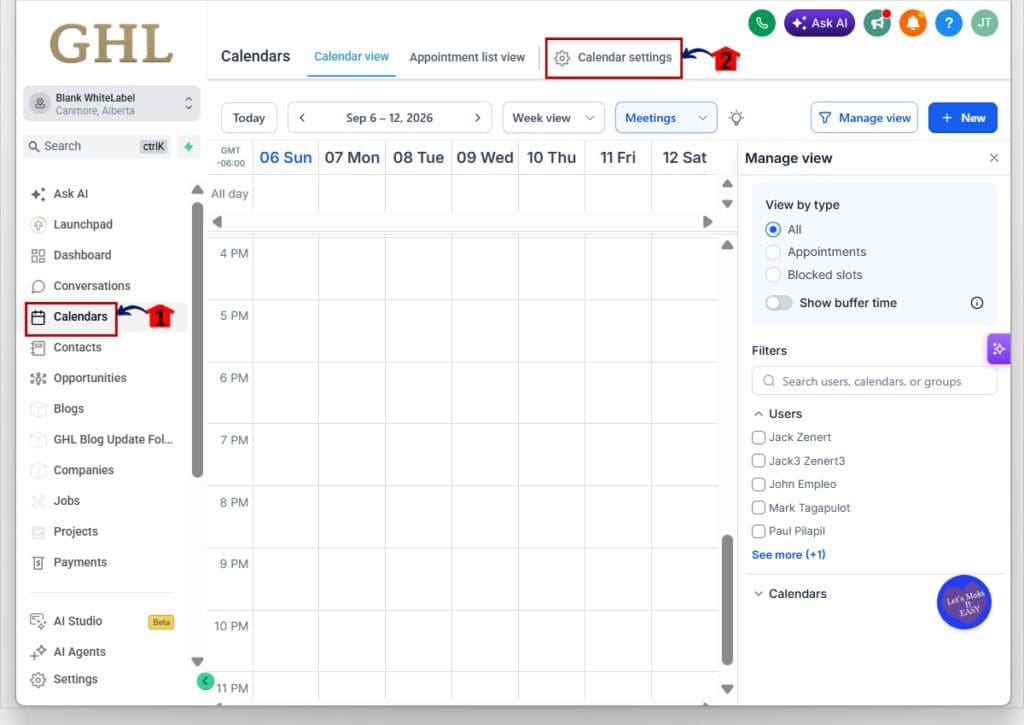
Step 01 – Open Calendar Settings
- The main menu on the left side of your screen includes the main areas you use in GoHighLevel.
1.1 Click Calendars.
- This opens the Calendars area in your GHL sub-account.
1.2 Click Calendar settings in the top menu.
- This opens the calendar settings area where you can manage your calendars.
Step 02 – Select the Meeting Calendar
- The Meetings section includes the calendars used for scheduled appointments.
2.1 Click Meetings at the top of the page.
- This opens the list of Meeting Calendars in the sub-account.
2.2 Find the calendar you want to update.
- Review the list and choose the correct calendar.
2.3 Click the calendar or its edit option.
- This opens the settings for that Meeting Calendar.

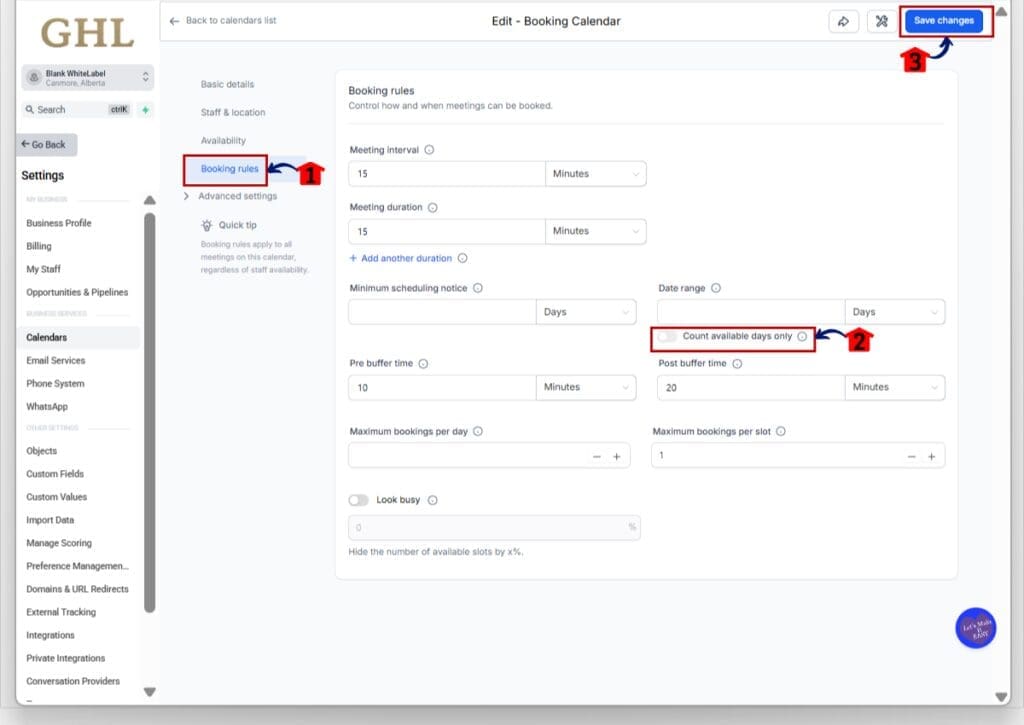
Step 03 – Turn On Count Available Days Only
- The Booking Rules section controls how and when customers can book appointments.
3.1 Click Booking rules in the left menu.
- This opens the booking settings for the calendar.
3.2 Find the Date range setting.
- The new Count available days only option appears directly below it.
3.3 Turn on Count available days only.
- GHL will now skip days when the business is not available.
- Only available days will count toward the booking date range.
3.4 Review your Minimum scheduling notice if you use one.
- GHL will first apply the notice period.
- It will then count the booking range from the first available day after that period.
3.5 Click Save changes.
- Your Meeting Calendar will now use the updated booking date range rules.
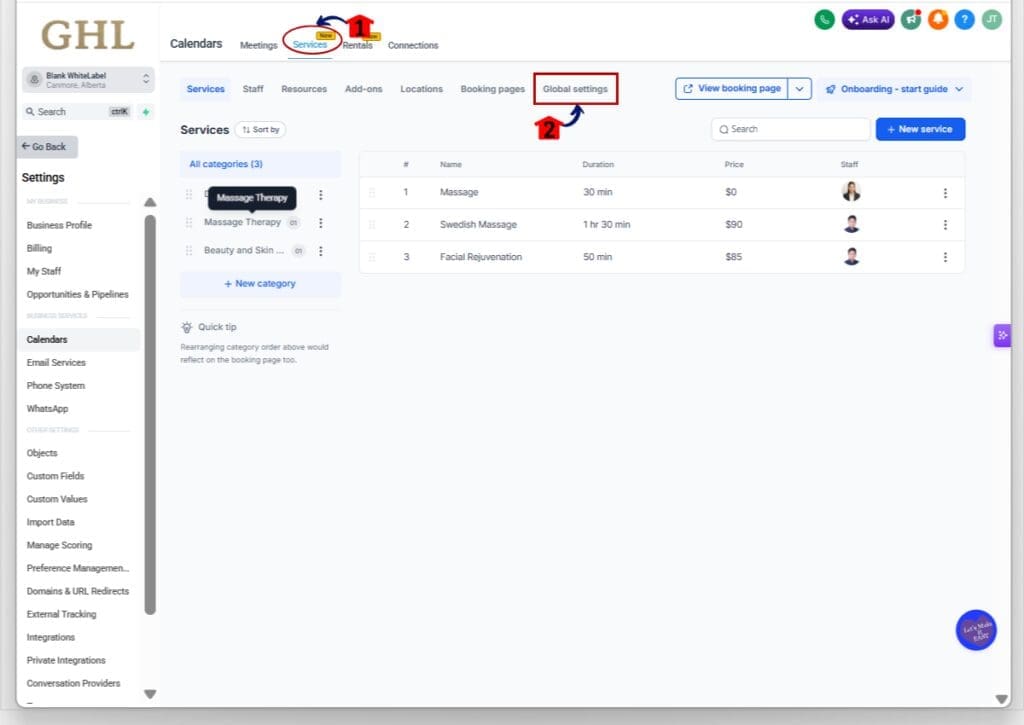
Step 04 – Open the Services Global Settings
- The same setting is also available for Services.
4.1 Click Services at the top of the Calendars area.
- This opens the Services section.
4.2 Click Global settings.
- This opens the settings that apply across your Services setup.
Step 05 – Turn On the Setting for Services
- The Service Settings area includes the booking window controls used for Services.
5.1 Click Service settings in the left menu.
- This opens the main scheduling options for Services.
5.2 Find the Booking window section.
- Make sure Range based is selected if you are using a rolling booking window.
5.3 Find Count available days only.
- The toggle appears below the booking window range.
5.4 Turn on Count available days only.
- Closed or unavailable days will no longer count toward the booking window.
5.5 Click Save changes.
- Your Services booking window will now count only the days when bookings are available.

Once this setting is active, your booking date range will better match the days your business can actually take appointments. Meeting Calendars and Services use slightly different paths, but the result is the same: customers see a more useful booking window instead of losing days to dates when you are closed.
Pro Tips for Your Booking Date Range
Your booking date range works best when it matches your real schedule. After you turn on Count available days only, check the booking page near a weekend, holiday, or closed day. This is a quick way to make sure GHL is skipping unavailable dates and still showing the right number of booking days.
Also review your Minimum Scheduling Notice. GHL applies that notice first, then starts counting from the next available day. If you use round robin or collective calendars, remember that a day can still count as available when at least one team member is free.
It is also worth checking any date-specific hours you use. Added hours can make a day available, while blocked hours can remove it from the booking window. A quick test after any schedule change can help you catch problems before your customers do.
What This Booking Date Range Means for Your Business
A smarter booking date range can make your calendar feel much more reliable to customers. If you are closed on certain days, GHL can now skip those dates and still show the full number of days you want people to book.
This is useful for businesses with custom hours, part-time schedules, or rotating teams. A salon closed on Sunday and Monday, for example, can still show the next real booking days instead of wasting part of the window on dates when no one is working.
The result is a cleaner booking experience with fewer empty-looking calendars. Customers can see when they can actually book, and your team spends less time explaining why available appointments are not showing.
Frequently Asked Questions about Booking Date Range
Final Thoughts on the Booking Date Range
The smarter booking date range setting gives GoHighLevel users a simple way to make booking windows match real working days. Closed dates no longer have to use up part of the range, and customers get a clearer view of when they can actually book.
This is especially helpful for businesses with custom hours, rotating teams, or weekend closures. It also works with Minimum Scheduling Notice, date-specific hours, Meeting Calendars, Services, and Rentals.
If your booking calendar has ever looked empty when open times were still available, this update is worth turning on and testing. How are you planning to use the new Count available days only setting in your GHL account?
Scale Your Business Today.
Streamline your workflow with GoHighLevel’s powerful tools.


