

- Save your QR codes to Apple or Google Wallet for quick access anywhere.
- Quick Summary – QR Code Wallet at a Glance
- What’s New with QR Code Wallet
- Why QR Code Wallet Matters
- How to Use QR Code Wallet in GoHighLevel
- Quick Tips for Using QR Code Wallet
- What QR Code Wallet Means for Your Business
- Frequently Asked Questions About QR Code Wallet
- QR Code Wallet Makes QR Codes Easier to Use
Save your QR codes to Apple or Google Wallet for quick access anywhere.
QR Code Wallet Makes Access Simple
QR Code Wallet in GoHighLevel gives you a simple way to keep your most-used QR codes close at hand. Instead of searching through saved images on your phone, you can add them to Apple Wallet or Google Wallet and open them when you need them.
This update works with both new and existing QR codes, so you do not need to rebuild anything. It gives you a cleaner way to keep QR codes organized for websites, funnels, profiles, offers, and other customer actions.
For agencies and local businesses, QR Code Wallet can make in-person interactions much easier. Open your wallet, choose the right QR code, and let the customer scan it in seconds.
QR Code Wallet makes it easier to keep your most-used GHL QR codes organized and ready when you need them. Instead of searching through saved images, you can open your wallet, choose the right QR code, and let the customer scan it.
Quick Summary – QR Code Wallet at a Glance
Purpose: QR Code Wallet lets you save GoHighLevel QR codes to Apple Wallet or Google Wallet so they are easier to access when you need them.
Why It Matters: You can stop searching through saved images and open the right QR code from your digital wallet in seconds.
What You Get: You can save both new and existing QR codes, keep useful pass details visible, and use the right code during in-person customer interactions.
Time To Complete: Most users can add a QR code to their wallet in just a few minutes.
Difficulty Level: Easy. The setup only takes a few steps inside the QR Code Builder and on your phone.
Key Outcome: QR Code Wallet gives you a faster, cleaner way to keep important GHL QR codes ready for customers, events, meetings, and everyday business use.
What’s New with QR Code Wallet
QR Code Wallet gives GoHighLevel users a faster way to access the QR codes they already use. You can now save both new and existing QR codes to Apple Wallet or Google Wallet, so there is no need to keep hunting through saved images on your phone.
Each wallet pass also shows useful details about the QR code. This can include the QR type, location, destination, and other key information. That makes it much easier to tell one code from another when you need it fast.
Automate marketing, manage leads, and grow faster with GoHighLevel.

The pass may look a little different on Apple Wallet and Google Wallet because each platform supports different display options. Agency branding is also shown in the pass header by default, with an option to make that branding optional planned for a future update.
Why QR Code Wallet Matters
QR Code Wallet solves a simple problem that gets worse as you use more QR codes. Saving them as phone images works at first, but once you have several codes for reviews, funnels, offers, or profiles, finding the right one can slow you down.
With GoHighLevel, you can now keep those QR codes inside Apple Wallet or Google Wallet. The pass can show useful details about the code, which makes it easier to choose the right one during a customer visit, sales meeting, event, or checkout.
For agencies and local businesses, this means less time searching and fewer mistakes. Open the wallet, pick the right QR code, and let the customer scan it. That small change can make in-person interactions feel much smoother.
How to Use QR Code Wallet in GoHighLevel
QR Code Wallet in GoHighLevel lets you save new or existing QR codes to Apple Wallet or Google Wallet. The option is built into the QR Code Builder, so you can add a pass without downloading the QR code as an image first.
Here are the steps we will follow:
- Open Your QR Code in GHL.
- Click Add to Wallet.
- Scan the Digital Wallet QR Code.
- Add the Pass to Your Digital Wallet.
- Open and Use Your QR Code.
To start, make sure you are logged in to the correct GoHighLevel sub-account.
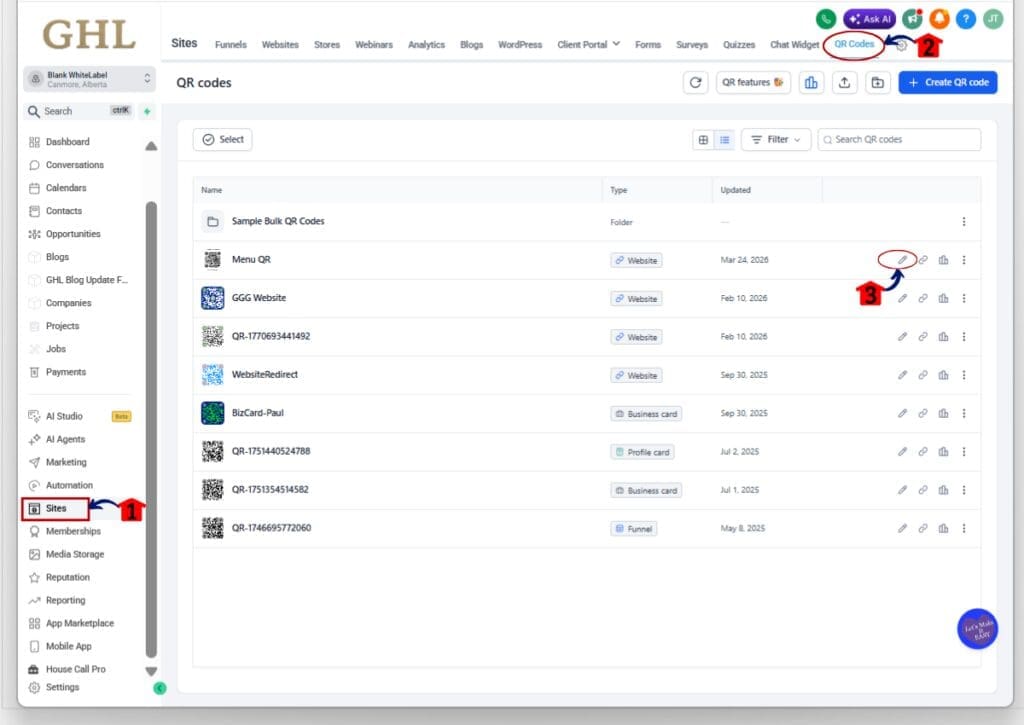
Step 01 – Open Your QR Code in GHL
- The main menu on the left side of your screen includes the main areas you use in GoHighLevel.
1.1 Click Sites.
- This opens the Sites area in your GHL sub-account.
1.2 Click QR Codes in the top menu.
- The QR Codes section will open.
- You will see the QR codes already created in the sub-account.
1.3 Click the Edit icon beside the QR code you want to add to your wallet.
- The Edit icon looks like a small pencil.
- This opens the QR Code Builder for that QR code.
- If you want to create a new QR code instead, click Create QR code and complete the setup before moving to the final step of the builder.
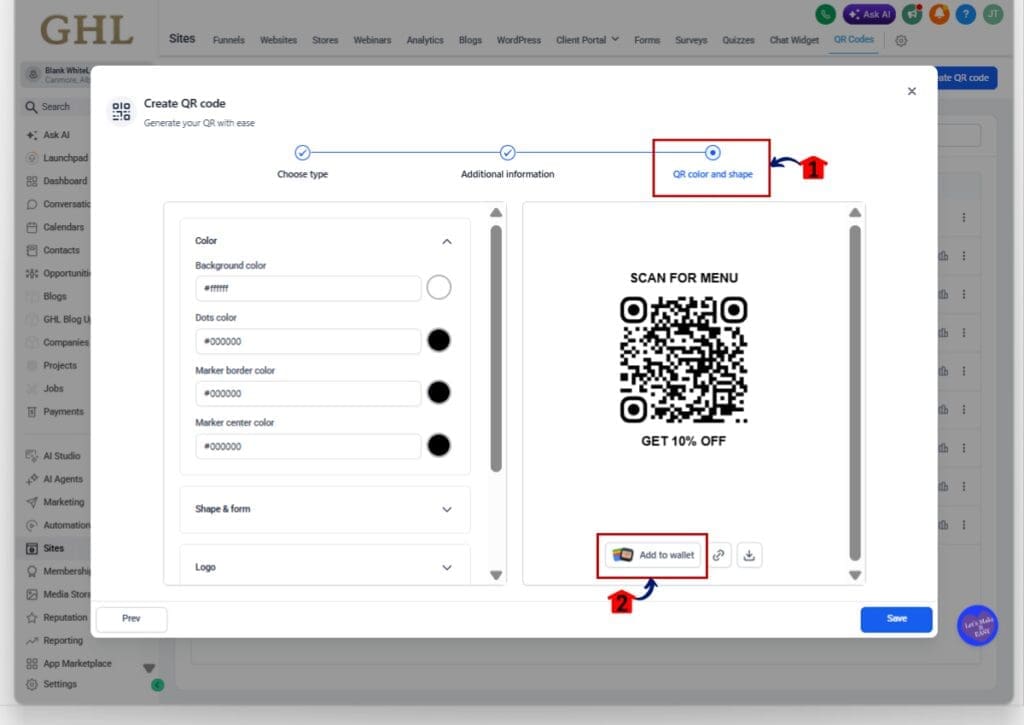
Step 02 – Click Add to Wallet
- After opening or creating your QR code, continue to the final step of the QR Code Builder.
2.1 Go to the QR color and shape step.
- This is the final section of the QR Code Builder.
- You can review the design and preview of your QR code here.
2.2 Review the QR code before adding it to your wallet.
- Check that the QR code looks right.
- Make sure the destination and other details are correct.
2.3 Click Add to wallet below the QR code preview.
- The Add to wallet button appears beneath the QR code on the right side of the builder.
- Clicking this button opens the digital wallet QR code.
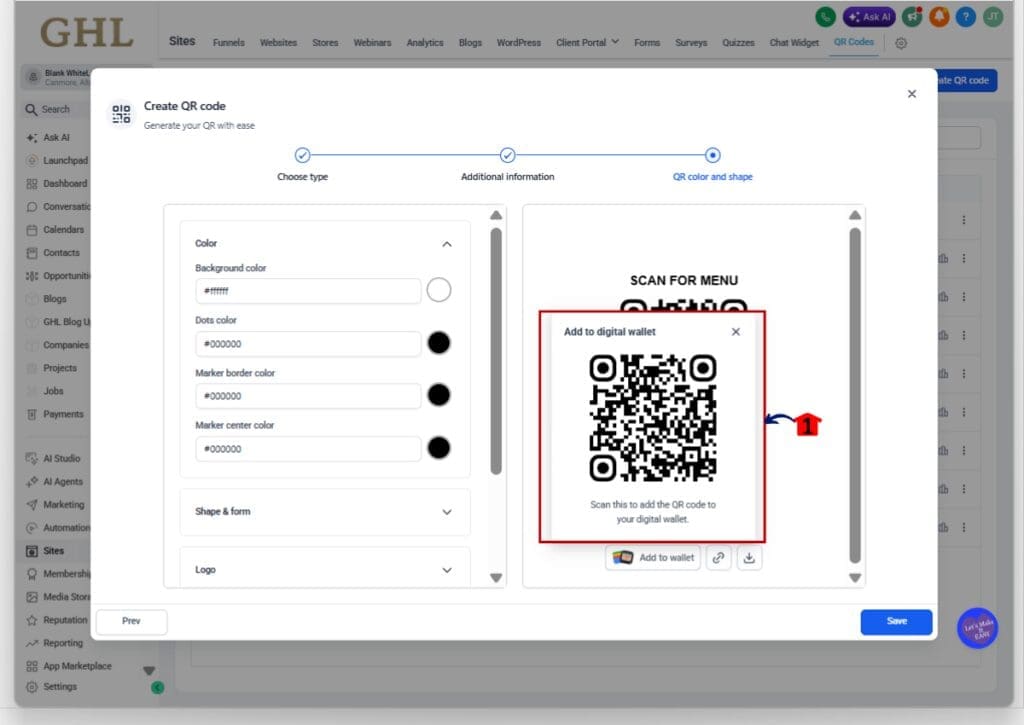
Step 03 – Scan the Digital Wallet QR Code
- A new Add to digital wallet window will appear over the QR code preview.
3.1 Find the new QR code inside the Add to digital wallet window.
- This is not the QR code you show to customers.
- This code is used to add your QR code pass to your phone.
3.2 Open the camera or QR scanner on your phone.
- Point your phone at the QR code shown in the Add to digital wallet window.
3.3 Scan the QR code.
- Your phone will recognize the wallet pass.
- Follow the prompts that appear on your device.
Step 04 – Add the Pass to Your Digital Wallet
- The wallet used will depend on your device and operating system.
4.1 Follow the wallet prompts on your phone.
- Apple devices will use Apple Wallet.
- Supported Android devices will use Google Wallet.
4.2 Add the QR code pass to your wallet.
- The pass will now be stored with the other items in your digital wallet.
- It can include useful details that make it easier to identify the correct QR code later.
Step 05 – Open and Use Your QR Code
- Once the pass is saved, you can open it whenever you need the QR code during an in-person interaction.
5.1 Open Apple Wallet or Google Wallet on your phone.
- Find the QR code pass you saved.
5.2 Select the correct pass.
- Check the details on the pass so you know you have the right QR code.
5.3 Present the QR code to the customer.
- Let them scan the QR code directly from your phone.
- The QR code will take them to the destination already linked to it in GoHighLevel.
Once it is saved, your QR code is ready whenever you need it. Instead of searching through photos, open your wallet, choose the right pass, and present it for scanning.
Quick Tips for Using QR Code Wallet
QR Code Wallet works best when you keep only the codes you use often. Add QR codes for things like reviews, offers, booking pages, profiles, or event check-ins. This keeps your wallet useful instead of turning it into another cluttered list.
Use clear names and details for each QR code in GoHighLevel before you save it. That makes it easier to tell one pass from another later. Also test the QR code first so you know it opens the right page before you use it with a customer.
Keep in mind that Apple Wallet and Google Wallet may display passes a little differently. Agency branding also appears in the pass header by default, so check how the pass looks before using it in front of clients or customers.
What QR Code Wallet Means for Your Business
QR Code Wallet makes it easier to use QR codes during real customer interactions. Staff can open the right code in seconds, whether it links to a review page, booking form, funnel, offer, or business profile.
For agencies, this can also make client work more organized. You can keep key QR codes ready for events, meetings, or on-site visits without storing a pile of images on your phone.
The main benefit is simple. Faster access means less friction. When the right QR code is easy to find, it is easier to guide a customer to the next step while the conversation is still happening.
Frequently Asked Questions About QR Code Wallet
QR Code Wallet Makes QR Codes Easier to Use
QR Code Wallet gives GoHighLevel users a cleaner way to manage QR codes they need on the go. You can save both new and existing QR codes to Apple Wallet or Google Wallet, then open the right pass when you need it.
For agencies, local businesses, and sales teams, this can make in-person use much smoother. There is less searching, less confusion, and a faster path from conversation to scan.
If you use QR codes often, this is a simple update worth trying. Add your most-used codes to your wallet and see how much easier they are to access.
Scale Your Business Today.
Streamline your workflow with GoHighLevel’s powerful tools.


