

- Custom form rules can now control what happens after booking.
- Quick Summary – Conditional Booking Forms at a Glance
- What Changed in Conditional Booking Forms?
- Conditional Booking Forms Before and After
- Why Conditional Booking Forms Matter
- How to Use Conditional Booking Forms
- Pro Tips for Conditional Booking Forms
- What Conditional Booking Forms Mean for Business
- Frequently Asked Questions about Conditional Booking Forms
- Conditional Booking Forms Give You Better Control
Custom form rules can now control what happens after booking.
Now, GHL can carry those rules into the next step.
Conditional booking forms now give you more control over what happens after someone books in GoHighLevel. Before this update, custom form logic could show or hide fields during the booking process, but the post-booking experience was still handled separately.
Now, GHL can use your custom form rules after the booking is submitted. You can send people to a different URL, show a custom message, disqualify a lead, or use the form’s On Submit action to control the confirmation page.
For agencies and service businesses, this makes conditional booking forms much more useful. You can create a smoother booking flow, guide different leads to the right next step, and keep a fallback in place if no form rule applies.
Conditional booking forms now give you more control over what happens after a customer books. In GHL, you can use form rules to send people to the right page, show a custom message, or disqualify leads based on their answers.
Quick Summary – Conditional Booking Forms at a Glance
Purpose: This update lets conditional booking forms control what happens after a customer submits a booking in GoHighLevel.
Why It Matters: You can guide different customers to different next steps based on their form answers, which makes the booking flow more flexible.
What You Get: You can use redirects, custom messages, lead disqualification, and supported On Submit actions after booking.
Time To Complete: Most users should be able to set this up and test it in about 10 to 15 minutes.
Difficulty Level: Easy. The main task is selecting the correct form and turning on the custom form override setting.
Key Outcome: Your booking process can now react to customer answers from start to finish while still using Global Settings as a fallback when no form rule applies.
What Changed in Conditional Booking Forms?
Conditional booking forms in GoHighLevel now have more control after someone submits a booking. Before this update, your custom form could show or hide fields based on a customer’s answers, but the confirmation step was still handled by separate booking settings.
Now, GHL lets the custom form control what happens next. You can redirect someone to a different URL, show a custom message, disqualify a lead, or use the form’s On Submit action to manage the confirmation page.
Automate marketing, manage leads, and grow faster with GoHighLevel.

GHL also added a smart fallback and new inline banners. If no post-booking rule applies, the system uses your Global Settings confirmation page. The banner at the listing or service level also shows whether the form rules are active, so you can see what is happening without digging through extra settings.
Conditional Booking Forms Before and After
Before this update, conditional booking forms could change what people saw while they were filling out a booking form. You could show or hide fields based on their answers, but the confirmation step was still controlled elsewhere in GHL.
Now, the same form can also control what happens after the booking is submitted. You can send people to a different URL, show a custom message, disqualify a lead, or use the form’s On Submit action to manage the next step.
The main difference is simple. Your form can now guide more of the booking journey from start to finish. If no form rule applies, GHL falls back to your Global Settings confirmation page, so your existing setup can still keep working.
Why Conditional Booking Forms Matter
Conditional booking forms give you more control over what each customer sees after they book. That matters when different answers should lead to different next steps.
A service business can send qualified leads to a booking page, show a custom message to someone who needs more information, or disqualify a lead that is not a good fit. This can save time and reduce manual follow-up.
For agencies, it also means you can build cleaner booking flows for clients without relying on extra tools or separate confirmation settings. The result is a simpler setup and a smoother experience for both the business and the customer.
How to Use Conditional Booking Forms
The conditional booking forms setting in GoHighLevel lets a custom form control what happens after someone submits a booking. This includes redirects, custom messages, lead disqualification, and supported form rules.
Here are the steps we will follow:
- Open Calendar Settings.
- Open the Services area and edit a service.
- Select the Service-Level Form.
- Allow the Custom Form to Control Confirmation.
To start, make sure you are logged in to the correct GoHighLevel sub-account.
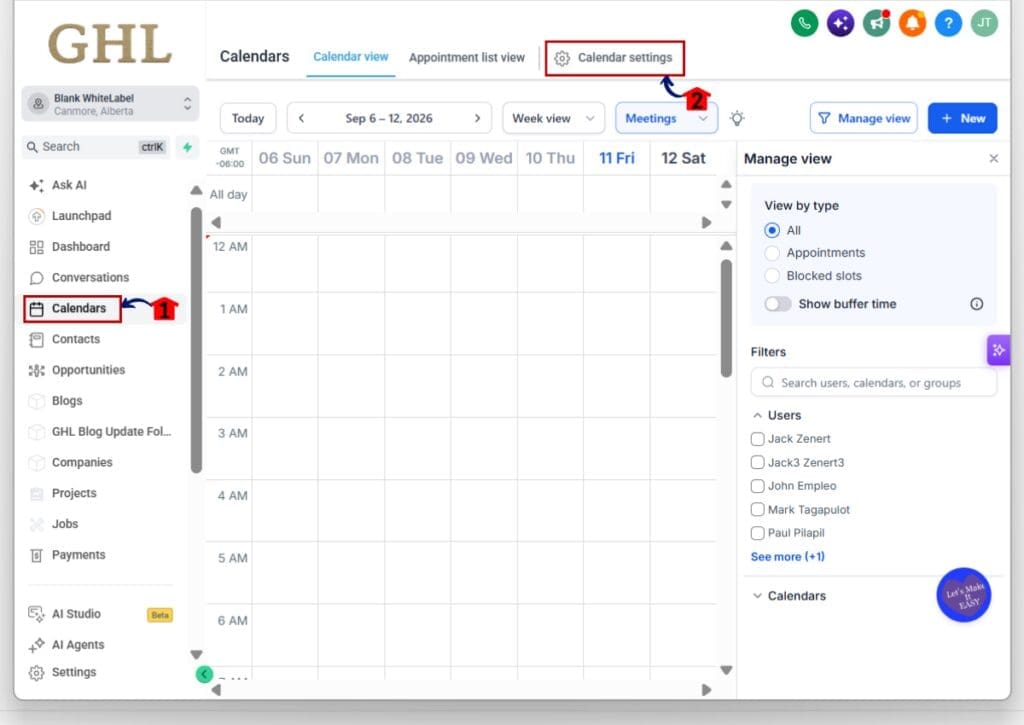
Step 01 – Open Calendar Settings
- The main menu on the left side of your screen includes the main areas you use in GoHighLevel.
1.1 Click Calendars.
- This opens the Calendars area in your GHL sub-account.
- You will see the Calendar view and other calendar tools across the top of the page.
1.2 Click Calendar settings.
- This opens the main calendar settings area.
- From here, you can access Services and Rentals.
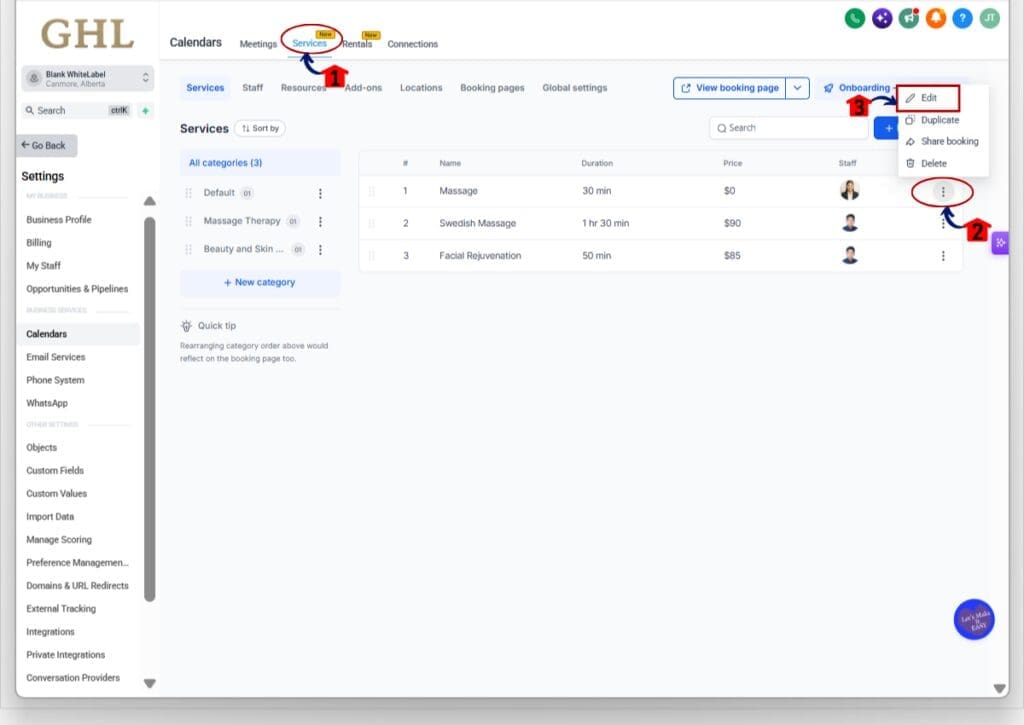
Step 02 – Open Services and Edit a Service
- The Services area lets you manage the services customers can book.
2.1 Click Services in the top menu.
- This opens the Services section.
- You will see your service categories and individual services.
2.2 Find the service you want to update.
- Click the three-dot menu on the right side of the service.
2.3 Click Edit.
- This opens the settings for that service.
- You can now update the form used for this booking.
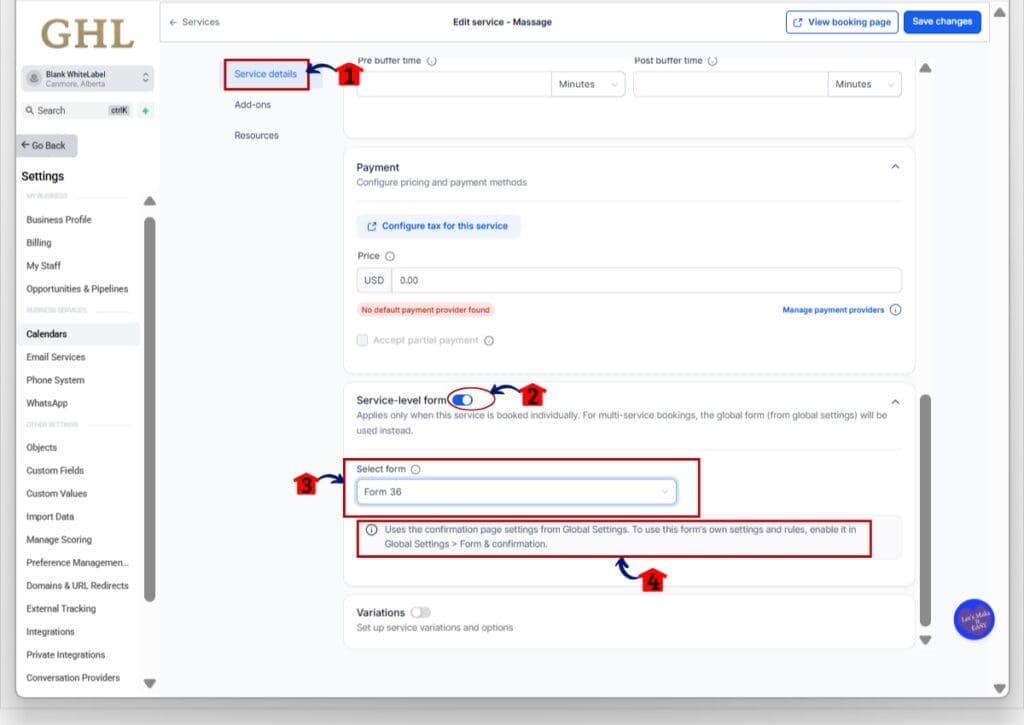
Step 03 – Select the Service-Level Form
- The Service details area includes the form settings for the selected service.
3.1 Stay on Service details.
- Scroll down until you reach the Service-level form section.
3.2 Turn on Service-level form.
- This allows the service to use its own custom form.
- For multi-service bookings, GHL will use the global form instead.
3.3 Open the Select form dropdown.
- Choose the custom form you want to use for this service.
3.4 Review the message below the form.
- GHL will show whether the form is using the confirmation page settings from Global Settings.
- The message also tells you where to enable the form’s own settings and rules.
Step 04 – Allow the Custom Form to Control Confirmation
- The final setting is found inside Global settings under Form & confirmation.
4.1 Click Global settings.
- This opens the settings that apply across your Services booking setup.
4.2 Click Form & confirmation.
- Scroll down to the Confirmation page section.
4.3 Find “Let a custom form override this with its own rules.”
- Check the box to turn this setting on.
- When enabled, the custom form can control the confirmation page using its own settings and rules.
- If no form rule applies, the Global Settings confirmation page is used instead.
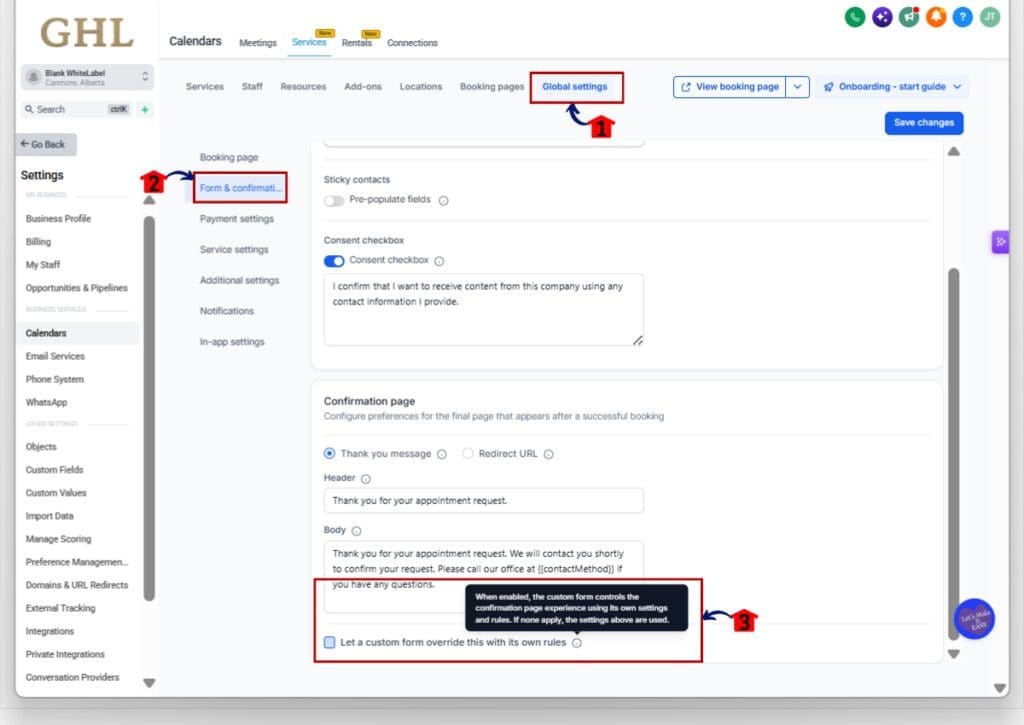
Once this setting is enabled, your conditional booking forms can control more of what happens after a booking is submitted. The service can use its selected custom form, while GHL keeps the Global Settings confirmation page as a fallback when no form rule applies.
Pro Tips for Conditional Booking Forms
Conditional booking forms work best when you keep the rules simple. Build only the paths you need, then test each one before you send real bookings through the form.
Use redirects when someone needs to take a clear next step, such as visiting another page. Use a custom message when they only need a short update or instruction. If you use lead disqualification, test it carefully so the wrong people do not get blocked.
Also remember that show and hide field rules still work during the booking itself. The new override setting mainly affects what happens after the booking is submitted, so check that setting first if your post-booking rules are not working.
What Conditional Booking Forms Mean for Business
Conditional booking forms can help you handle different types of customers without adding more manual work. For example, a home service company could ask what type of job a customer needs, then send qualified leads to the right next step while showing a different message to people outside its service area.
For agencies, this gives you a cleaner way to build booking flows for clients inside GHL. You can keep more of the logic inside the custom form, which means fewer separate settings to manage and less chance of sending every customer through the same path.
The real benefit is a smoother booking process. Customers get a next step that matches their answers, and the business spends less time sorting leads after the booking is complete.
Frequently Asked Questions about Conditional Booking Forms
Conditional Booking Forms Give You Better Control
Conditional booking forms now give you more control over the full booking process in GoHighLevel. You can use the form to manage redirects, custom messages, lead disqualification, and other supported actions after someone books.
The new override setting also gives you a safer setup. If no form rule applies, GHL can still use the confirmation page from Global Settings, so your booking flow keeps working.
This update makes custom forms more useful for agencies, service businesses, and rental businesses that need different customers to follow different paths. Have you started using these new form rules in your GHL booking setup yet?
Scale Your Business Today.
Streamline your workflow with GoHighLevel’s powerful tools.


