

- See the latest websites, ads, social posts, workflows, and snapshot updates now available in GHL.
- Quick Summary – Template Update at a Glance
- What’s New in This Template Update
- How to Use the New Website Templates in GoHighLevel
- Quick Tips for This Template Update
- Results You Can Expect from This Template Update
- Frequently Asked Questions About This Template Update
- A Faster Way to Build with This Template Update
See the latest websites, ads, social posts, workflows, and snapshot updates now available in GHL.
Template Update: A Fresh Batch of GHL Templates
The latest Template Update gives GoHighLevel users more ready-to-use options for websites, ads, social posts, workflows, and more. Instead of building every asset from scratch, you can start with a solid base and shape it to fit your client or campaign.
This release adds new templates across several areas of GHL, including websites, Facebook Ads, Google Ads, LinkedIn Ads, social content, and a client onboarding workflow. It also includes a revamped Plumber snapshot with an updated website, funnel, forms, emails, workflows, pipeline setup, and a new Facebook Ad.
For agencies, the biggest win is simple. You can move faster, keep your work consistent, and spend less time on setup. The Template Update gives you more starting points, while still leaving plenty of room to adjust the branding, message, and offer for each client.
This Template Update gives GHL users more ready-to-use assets across websites, ads, social content, workflows, and snapshots. That means less setup time and a faster path from idea to launch.
Quick Summary – Template Update at a Glance
Purpose: This Template Update gives GHL users a new website, social, ad, workflow, and snapshot options to start from instead of building from scratch.
Why It Matters: The update can save setup time and help agencies launch client assets faster across several industries.
What You Get: New website templates, social templates, Facebook Ads, Google Ads, LinkedIn Ads, a client onboarding workflow, and a revamped Plumber snapshot.
Time To Complete: Most users can review, choose, and start customizing a template in just a few minutes.
Difficulty Level: Beginner-friendly. The main work is choosing the right template and updating it to fit the client.
Key Outcome: You can build and launch client assets faster while still keeping the final result clean, consistent, and tailored to the business.
What’s New in This Template Update
This Template Update adds a broad mix of new assets across GoHighLevel. The release includes 2 website templates, 8 social templates, 2 Facebook Ad templates, 5 Google Ad templates, 5 LinkedIn Ad templates, and 1 workflow template.
The new website templates cover Health & Wellness and Home Services. The social templates add fresh options for Health & Wellness, Business Coaching and Consulting, Creative, and Travel & Hospitality. GHL also added new paid ad templates across Finance, Insurance, Beauty & Fashion, Automotive, Travel & Hospitality, Restaurant & Bar, Real Estate, and Creative.
Automate marketing, manage leads, and grow faster with GoHighLevel.

There is also a new Client Onboarding workflow template under the Industry-Specific group. On top of that, the Plumber snapshot has been fully refreshed with a new website, matching funnel, updated forms, improved emails, cleaner workflow naming, pipeline updates, and a new Facebook Ad. This makes the Template Update useful for agencies that want more ready-made options across several parts of GHL.
How to Use the New Website Templates in GoHighLevel
This Template Update gives GoHighLevel users new website templates that can be added from the Website Builder. You can choose a template, preview it, load it into your sub-account, and then customize it before publishing.
For our example, we will use a Website as it often is more critical for SEO and first impressions.
Here are the steps we will follow:
- Open the Websites Area in GHL.
- Choose a Website Template.
- Find and Preview a Template.
- Choose the Template.
- Customize and Publish the Website.
To start, make sure you are logged in to the correct GoHighLevel sub-account.
Step 01 – Open the Websites Area in GHL
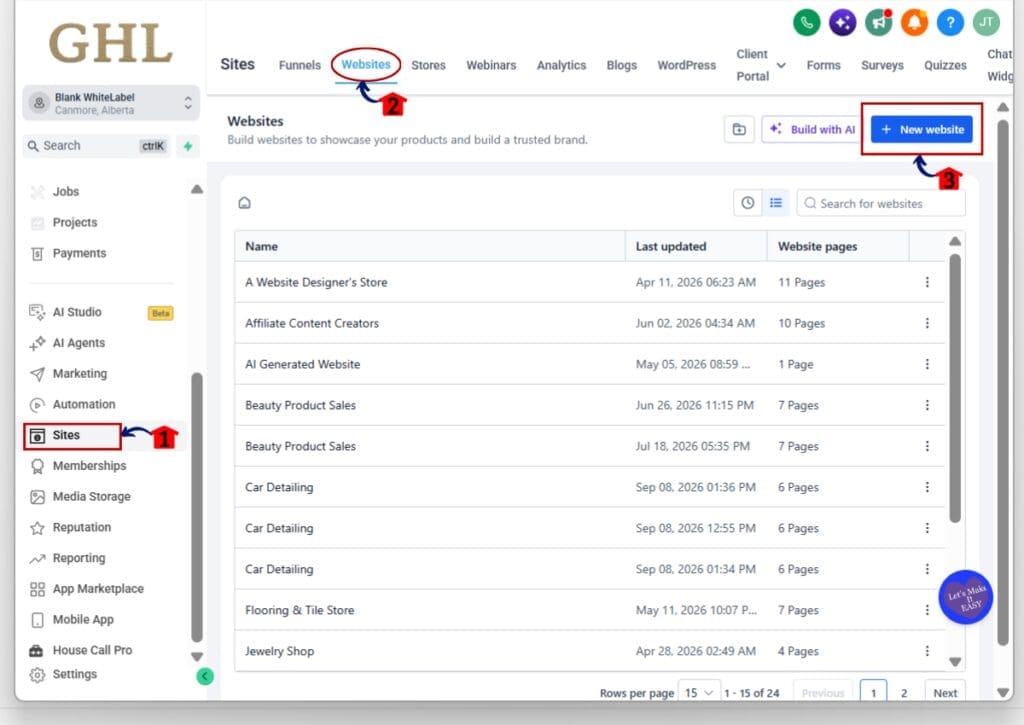
- The main menu on the left side of your screen includes the main areas you use in GoHighLevel.
1.1 Click Sites.
- This opens the Sites area in your GHL sub-account.
1.2 Click Websites in the top menu.
- The Websites section will open.
- You will see the websites already created in the sub-account.
1.3 Click the New website button.
- This opens the Create new website window.
- From here, you can choose whether to start from a blank website or use an existing template.
Step 02 – Choose a Website Template
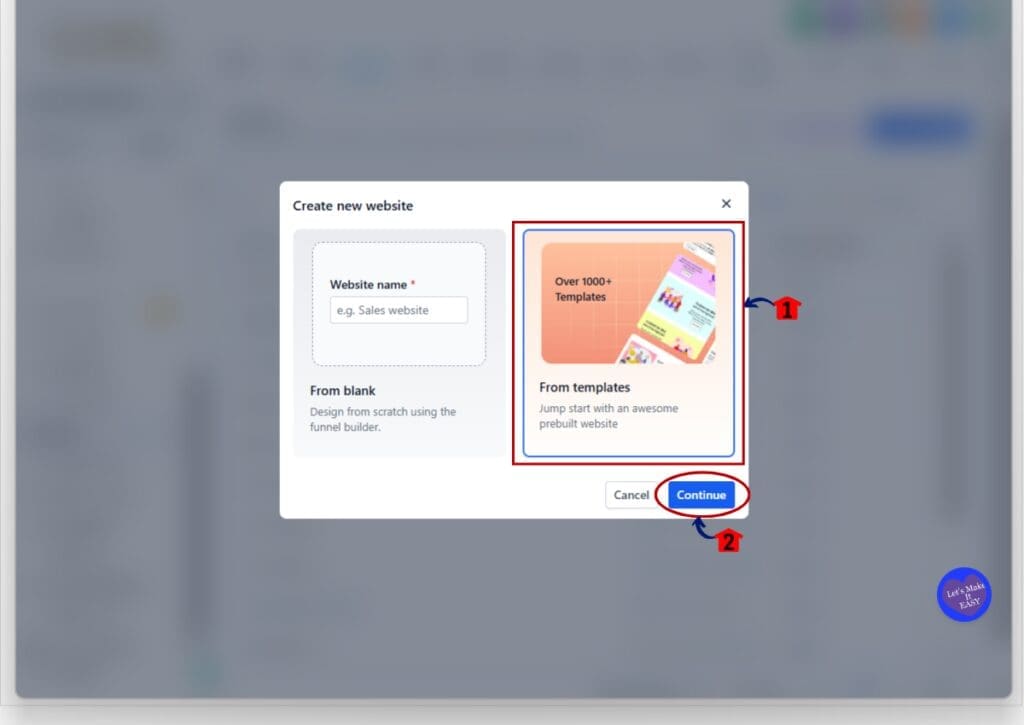
- The Create new website window gives you two options for starting your site.
2.1 Click From templates.
- This option lets you start with a prebuilt website instead of building from scratch.
- The template option includes a large library of ready-made website designs.
2.2 Click Continue.
- The Template Library will open.
- You can now browse and filter the available website templates.
Step 03 – Find and Preview a Template
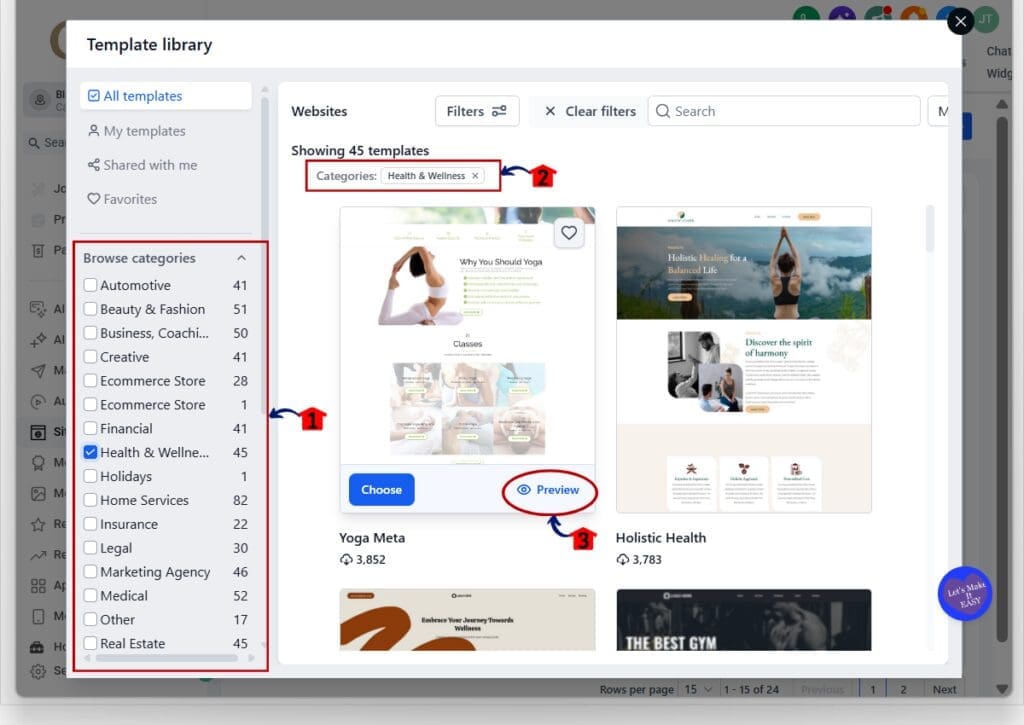
- The Template Library lets you narrow down the available designs by category.
3.1 Use Browse categories on the left side of the Template Library.
- Select the category that best matches your client or business.
- For example, you can choose Health & Wellness or Home Services.
3.2 Check the selected category near the top of the template results.
- This confirms that the correct filter is active.
- Only templates that match the chosen category will appear.
3.3 Click Preview on the template you want to review.
- This opens a larger preview of the website.
- You can check the design, structure, and overall layout before choosing it.
Step 04 – Choose the Template
- The template preview lets you look through the design before adding it to your account.
4.1 Use the device preview buttons at the top of the screen.
- Check how the template looks on desktop, tablet, and mobile.
- This helps you confirm the design works well across different screen sizes.
4.2 Click Choose template.
- GoHighLevel will add the selected template to your website area.
- The website will then open in the Website Builder so you can begin editing it.

Step 05 – Customize and Publish the Website
- Once the template opens in the Website Builder, you can edit each part of the site to match the business.
5.1 Click the section or element you want to edit.
- The selected area will be highlighted in the builder.
- You can change text, images, menus, buttons, and other page elements.
5.2 Use the builder tools at the top of the screen.
- These tools let you add or manage sections, elements, code, and other website features.
5.3 Use the settings panel on the right side.
- The options shown will depend on the element you selected.
- For example, you can edit navigation menu items, styles, links, and other settings.
5.4 Use the desktop, tablet, and mobile preview options.
- Check how the website looks on each screen size.
- Make any needed layout changes before publishing.
5.5 Click Publish when the website is ready.
- Review the page one last time before publishing.
- Make sure your links, forms, buttons, branding, and contact details are correct.
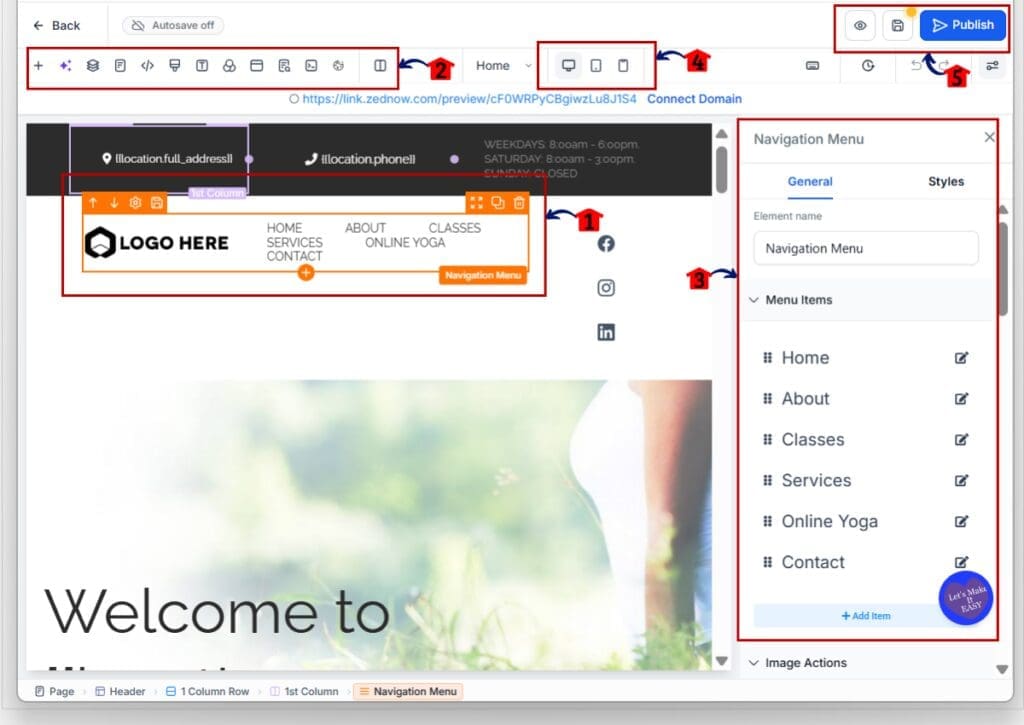
Once the template is loaded, the hard part is already done. From there, you can shape the design around the business, check the details, and publish a site that feels much more custom without starting from a blank page.
Quick Tips for This Template Update
This Template Update works best when you treat each design as a solid starting point, not a finished job. Pick the template that is closest to the client’s industry, then update the copy, images, colors, and calls to action so the site feels like it belongs to that business.
Before you publish, check every form, button, link, phone number, and contact detail. Small errors are easy to miss, so run a quick test and make sure leads go to the right place.
Keep your edits simple. You do not need to rebuild the whole page to make it feel custom. A few smart changes to the branding, offer, images, and message can save time and still give the client a clean, professional result.
Results You Can Expect from This Template Update
This Template Update can save agencies a lot of setup time. Instead of building a website, ad, social post, or workflow from scratch, you can start with a ready-made layout and focus on the parts that matter most, like the offer, branding, and message.
It can also help you move into new niches faster. If you pick up a new wellness, home services, insurance, or coaching client, you already have a relevant starting point inside GHL. That makes it easier to launch a polished campaign without rebuilding the same basic structure each time.
The biggest result is a smoother workflow. You can spend less time on setup, keep your work more consistent, and get client assets live faster without cutting corners.
Frequently Asked Questions About This Template Update
A Faster Way to Build with This Template Update
This Template Update gives GoHighLevel users more ways to build faster without starting from scratch. With new website, social, ad, workflow, and snapshot options, agencies have more useful starting points for client work.
The real value is the time saved. Pick the right template, make a few smart changes, test the important details, and get the asset live without rebuilding everything from the ground up.
If you manage several clients or work across different industries, this update is worth checking out. Which new template do you see yourself using first?
Scale Your Business Today.
Streamline your workflow with GoHighLevel’s powerful tools.


