- Custom Service Pricing Makes Booking More Flexible
- Quick Summary – Custom Service Pricing
- Here are this week's HighLevel Updates 🚀
- What’s New with Custom Service Pricing
- What’s Changed with Custom Service Pricing
- Why Custom Service Pricing Matters
- How to Use Custom Service Pricing in GHL
- Quick Tips for Custom Service Pricing
- What Custom Service Pricing Means for Your Business
- Results You Can Expect from Custom Service Pricing
- FAQs About Custom Service Pricing
- Conclusion: Custom Service Pricing Keeps Things Simple
Custom Service Pricing Makes Booking More Flexible
Sometimes the price listed for a service just isn’t the price you need to charge. With Custom Service Pricing, you can change the amount for one GHL appointment without changing the regular service price for everyone else.
This update lets you change the price while you’re already working on the appointment. You can do it on a new booking, an existing one, or a duplicated appointment. As soon as you enter the new amount, GHL recalculates the total so you can check it before saving.
The big win is that your standard pricing stays untouched. Change the price to $125 for one appointment, and your regular $150 service can still stay at $150 everywhere else. GHL also adds a “Custom” tag beside an edited price, making special pricing easy for your team to spot.
It’s not a huge feature, but it solves an annoying day-to-day issue. Your team can make quick price changes when needed without risking changes to the regular service rate.
Custom Service Pricing gives GHL users a faster way to handle negotiated, complimentary, or one-off rates without changing the standard service price. You get more pricing flexibility for each appointment while keeping your main service setup clean and consistent.
The latest GoHighLevel Changelog includes several other GHL feature updates that round out your daily workflow:
- Wait Action Enhancement: TikTok DM Replies
- India Recurring Mandate Support for Affiliate Indian Signup Pages
- Housecall Pro – More Workflow Actions & Triggers
- Email Services Dashboard for Agencies
- Email Sequences Now Available in Beta Labs
- Group Your Contacts by Source in Dashboards & Reporting
- MMLite Adoption Banner in Conversations
Keep reading for much more on all these updates and a deep dive into the Custom Service Price feature!

Quick Summary – Custom Service Pricing
Purpose: This update lets you change a service price for one specific GHL appointment without changing the standard service price used everywhere else.
Why It Matters: You can handle negotiated rates, one-off discounts, complimentary services, and special pricing without creating messy workarounds or risking changes to future bookings.
What You Get: GHL lets you edit the service price inside the appointment modal, instantly updates the total, adds a Custom tag, and supports the same process on mobile.
Time To Complete: In most cases, changing the price for an appointment should only take a minute or two once you’re inside the booking.
Difficulty Level: Easy. The feature is built directly into the Services appointment flow and doesn’t require any advanced setup.
Key Outcome: Custom Service Pricing gives your team more flexibility at the booking level while keeping your global and staff-specific pricing structure clean and consistent.
Here are this week’s HighLevel Updates 🚀
Wait Action Enhancement: TikTok DM Replies
What’s New:
Instead of continuing after a fixed delay, your workflow can pause until someone replies to your TikTok DM.
Where in GHL:
Found in Automation → Workflows using the Wait action after sending a TikTok DM.
Automate marketing, manage leads, and grow faster with GoHighLevel.

Impact:
Your automation responds when someone actually joins the conversation, rather than after a timer runs out.
Recommended For:
Anyone using TikTok DMs to start conversations with potential customers.
India Recurring Mandate Support for Affiliate Indian Signup Pages
What’s New:
Supports recurring payment mandates for Indian affiliates, helping subscriptions comply with local banking requirements.
Where in GHL:
Available on Affiliate Program signup pages for users in India.
Impact:
Creates a smoother signup experience while reducing payment failures for recurring subscriptions.
Recommended For:
Agencies, SaaS businesses, and affiliate programs onboarding customers in India.
Housecall Pro – More Workflow Actions & Triggers
What’s New:
Adds new workflow triggers and actions for the Housecall Pro integration, giving you more ways to automate field service processes.
Where in GHL:
Inside Automation → Workflows when using the Housecall Pro integration.
Impact:
Expands automation possibilities between HighLevel and Housecall Pro, reducing manual work and improving operational efficiency.
Recommended For:
Home service businesses, field service companies, and agencies managing Housecall Pro clients.
Email Services Dashboard for Agencies
What’s New:
Introduces a centralized dashboard where agencies can monitor email services across their accounts.
Where in GHL:
Found in the Agency View under the new Email Services Dashboard.
Impact:
Makes it easier to monitor email health, identify issues, and manage deliverability from one place.
Recommended For:
Agency owners, support teams, and admins managing multiple client email services.
Email Sequences Now Available in Beta Labs
What’s New:
Introduces Email Sequences as a Beta Labs feature, providing another way to create structured email follow-up campaigns.
Where in GHL:
Enable it from Settings → Labs, then access Email Sequences after activation.
Impact:
Cuts down the time spent checking different areas just to see how your email services are performing.
Recommended For:
Marketers, agencies, coaches, and businesses running nurture campaigns or onboarding emails.
Group Your Contacts by Source in Dashboards & Reporting
What’s New:
Lets you organize contact reports based on where your leads originated.
Where in GHL:
Available within Dashboards & Reporting when viewing contact analytics.
Impact:
Makes it easier to compare lead sources and identify which marketing channels are producing the best results.
Recommended For:
Marketing teams, agency owners, and businesses tracking campaign performance across multiple lead sources.
MMLite Adoption Banner in Conversations
What’s New:
Displays a helpful banner inside Conversations to encourage users to adopt the new MMLite messaging experience.
Where in GHL:
Appears within the Conversations module for eligible accounts.
Impact:
Helps users discover and transition to MMLite while highlighting its benefits directly inside the messaging interface.
Recommended For:
Current HighLevel users exploring the latest messaging experience and teams preparing to migrate to MMLite.
What’s New with Custom Service Pricing
Custom Service Pricing now lets you change the price of a service directly inside a GHL appointment. That means you can adjust what a customer pays without going back and editing the service’s standard price.
This works when you create a new Services appointment, edit an existing appointment, or duplicate one. Once you enter a new amount, the appointment total updates right away so you can confirm the final price before saving.
GHL also adds a clear “Custom” tag beside any edited service price. That gives your team an easy visual check that the appointment is using a special rate instead of the normal configured price.
There are also some smart safeguards built in. You can set the service price to zero for things like complimentary appointments, but GHL blocks negative values and shows a validation error before the appointment can be saved.
Another important change is how Custom Service Pricing works with staff-specific rates. If a staff member already has their own service price, the custom amount entered on the appointment takes priority for that booking.
And this isn’t limited to desktop. You can also edit a service price from the GHL mobile app, which makes the feature useful for teams handling bookings while they’re away from a desk.
What’s Changed with Custom Service Pricing
Custom Service Pricing changes how GHL users handle exceptions to their normal service rates. Before this update, special pricing could force staff into workarounds, manual adjustments, or changes to the main service price.
You can now change the price on just that appointment. The new amount stays with that booking and doesn’t change the service price anywhere else.
This comes in handy when one customer isn’t paying the usual rate. Just enter the amount for that appointment, save it, and your normal service price stays the same for everyone else.
Custom Service Pricing also takes priority over staff-specific pricing. If a team member already has a different configured price for that service, the amount entered directly on the appointment becomes the price used for that booking.
GHL has also added sensible validation. A zero-dollar price is allowed, which works well for complimentary services or special offers. Negative prices are blocked, so staff can’t accidentally save an invalid amount.
The “Custom” tag is another small but useful change. It gives your team a quick visual signal that the appointment is not using the standard rate, which makes special pricing easier to spot when reviewing bookings.
Why Custom Service Pricing Matters
Not every appointment fits the standard price. Some clients have special rates, some are part of a package, and sometimes you just need to make an exception.
Before this, special pricing usually meant a bit more work. Staff might have to track the change somewhere else, leave a note, or temporarily edit a price that wasn’t supposed to change.
Now, GHL lets you handle the exception exactly where it happens. You can enter the agreed price on that appointment and keep the main service price untouched.
This makes it much harder to change the wrong price by accident. One customer can pay $175 even if the usual rate is $200, and the regular price stays put.
This also helps when different team members charge different rates. If you need a special price for one booking, you can set it there without changing that staff member’s usual service price.
For agencies and service businesses, this means more flexibility without creating a messy pricing system. Your team can respond to real customer situations while keeping your standard pricing structure clear and consistent.
How to Use Custom Service Pricing in GHL
Custom Service Pricing is handled directly inside the GoHighLevel Services appointment modal. You can use it when creating a new appointment, editing an existing appointment, or duplicating a booking.
You’ll first open the appointment and edit the service price. You can then enter the amount you want to charge, check the updated total, and save the appointment without changing the service’s global price.
- Open the Services Appointment in GoHighLevel.
- Open the Service Price Editor.
- Review Your Custom Service Pricing.
- Save the Appointment.
To start, make sure you are logged in to your GoHighLevel sub-account.
Step 01 – Open the Services Appointment in GoHighLevel
- Start by opening the GoHighLevel sub-account where you want to create or update the appointment.
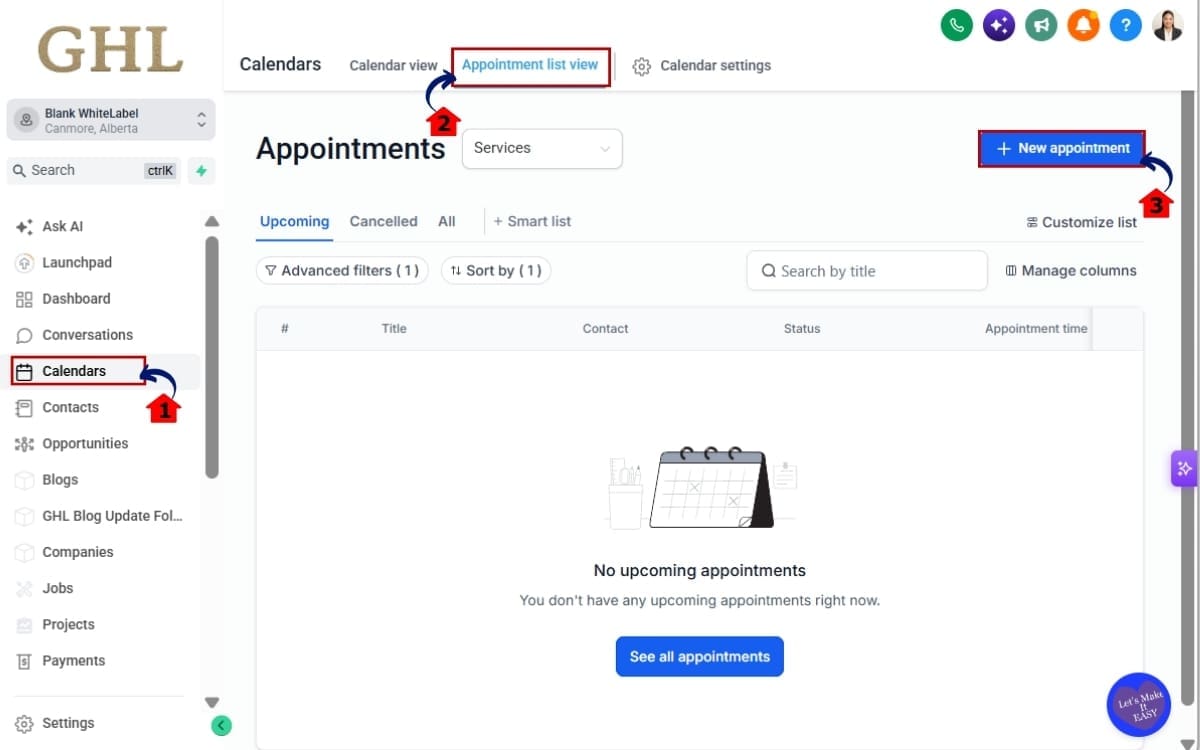
1.1 Go to the area where you manage Services appointments, click calendars.
- Open the appointment you want to work with, or start creating a new Services appointment.
1.2 Click appointment list view
- Custom Service Pricing works when creating a new appointment, editing an existing booking, or duplicating an appointment.
1.3 Click +New appointment
- The service and its current price will appear inside the appointment modal.
Step 2.0 – Open the Service Price Editor
- Use the edit option beside the service to access the appointment-specific price.
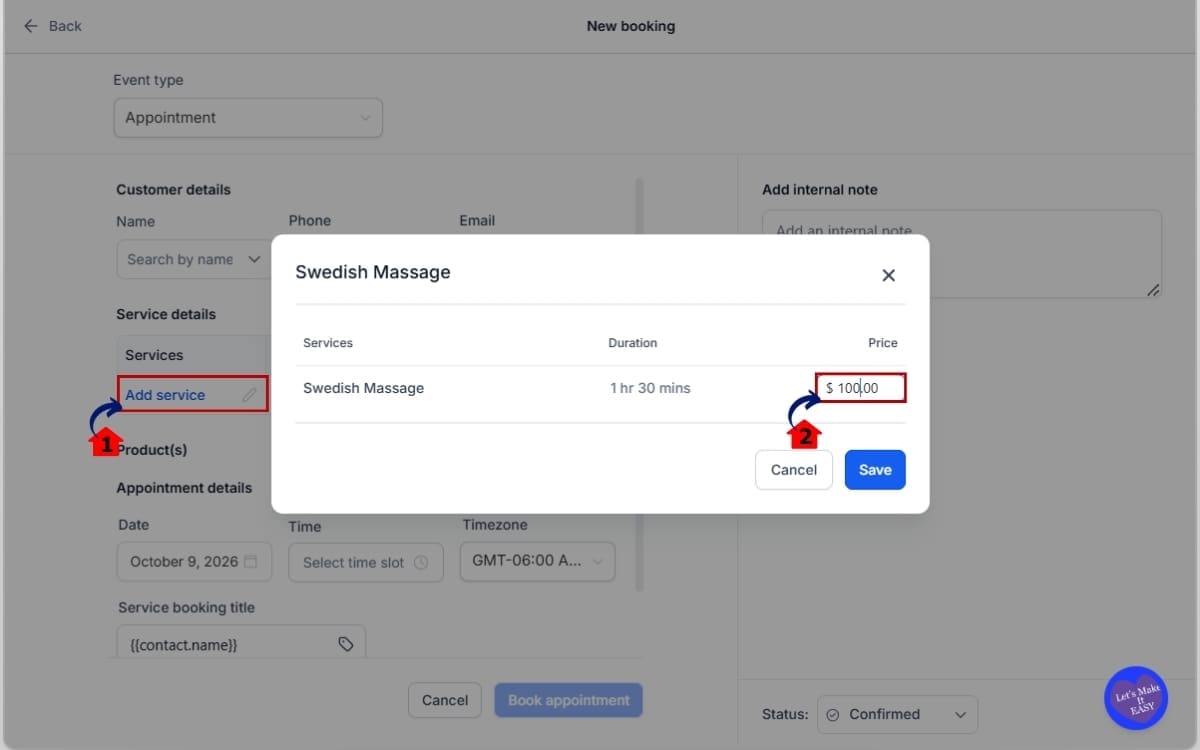
2.1 Click the edit icon next to the service.
- This opens the service details that can be adjusted for this appointment.
2.2 Locate the service price and Enter the new price you want to charge.
- The price shown here is the amount currently being used for the booking. Add the negotiated, discounted, complimentary, or other custom amount that should apply to this appointment.
Step 3.0 – Review Your Custom Service Pricing
- Check the updated appointment before saving so you know the correct amount will be used.
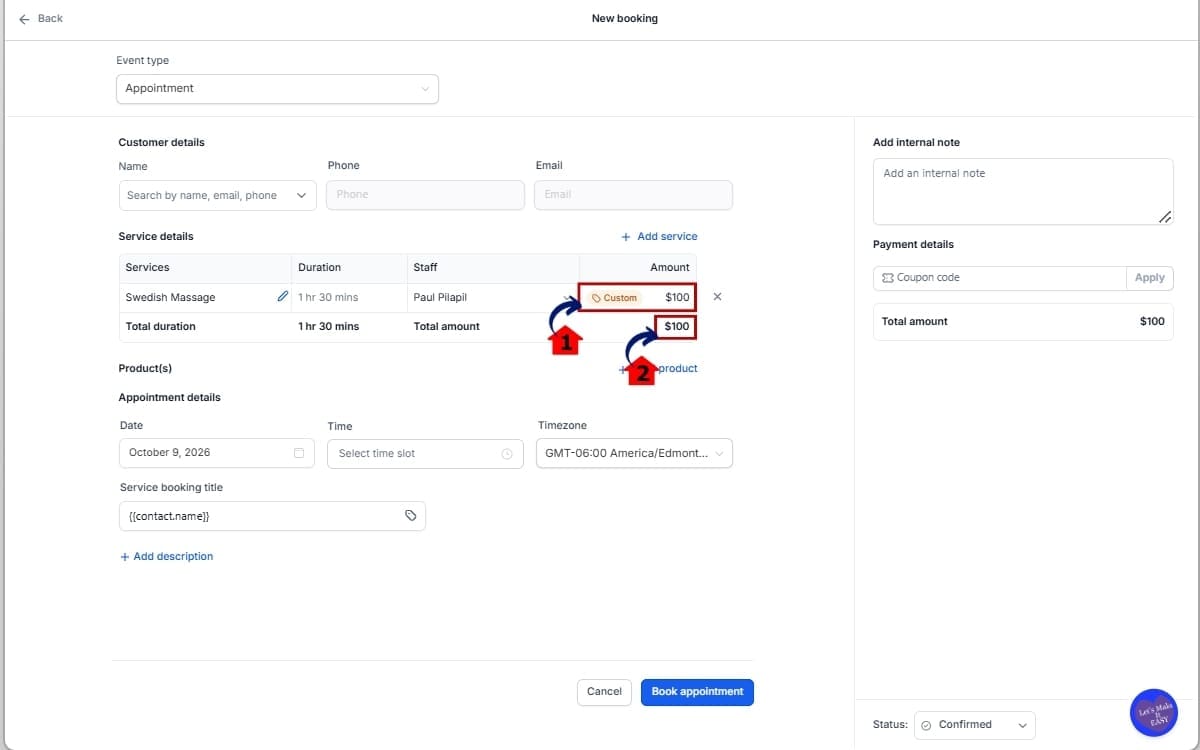
3.1 Confirm the appointment total has updated. Look for the Custom tag beside the edited price.
- GoHighLevel updates the total immediately after you change the service price.
3.2 Make sure the price is valid.
- You can enter zero for a complimentary service, but GHL will block negative prices and show a validation error.
Step 4.0 – Save the Appointment
- Once the price and appointment details are correct, save the booking as usual.
4.1 Save the appointment.
- The custom price will now apply to that appointment only.
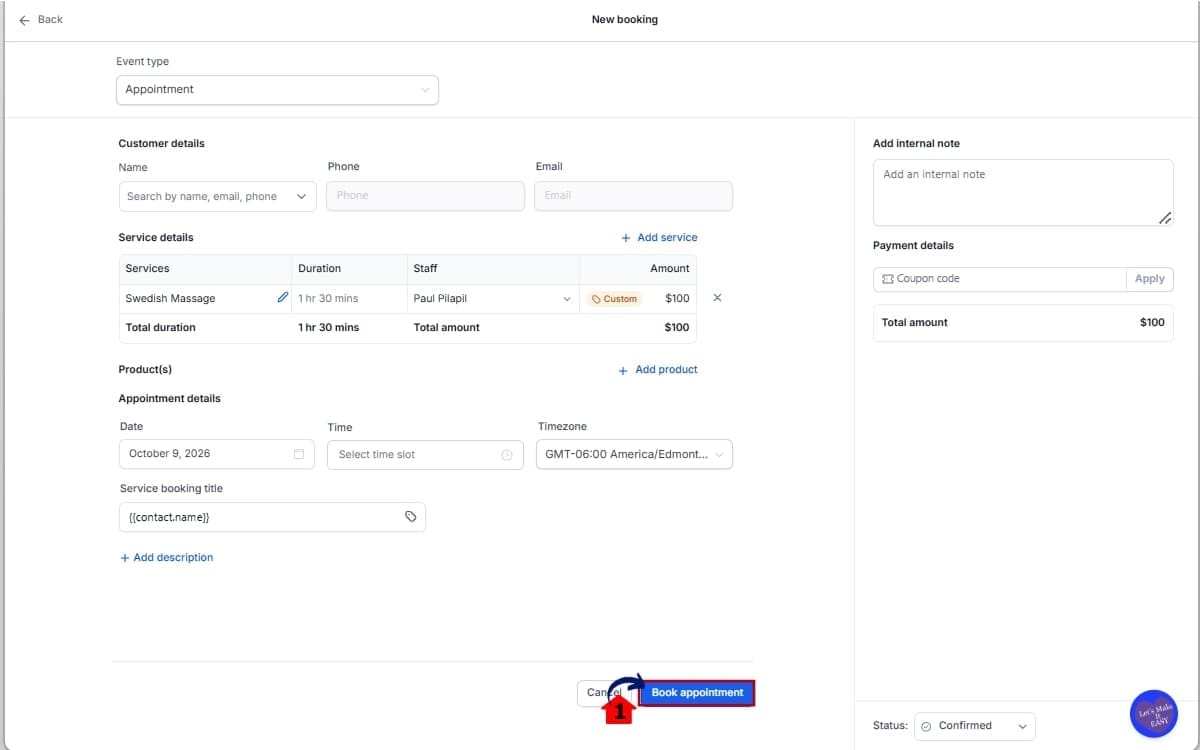
If the selected staff member has their own service-specific price, the amount entered directly on the appointment will override that staff price for this booking.
Note: The changelog confirms that Custom Service Pricing works when creating, editing, and duplicating Services appointments, supports zero-value pricing, blocks negative amounts, overrides staff-specific pricing, and is available on mobile. It does not provide every current navigation label or button name, so the steps above avoid adding unsupported interface details.
Quick Tips for Custom Service Pricing
Custom Service Pricing is simple, but a few smart habits can make it much more useful in day-to-day bookings.
Use it for negotiated pricing when a customer has agreed to a special rate. Instead of changing the main service price, enter the agreed amount directly on that appointment.
If the appointment is free, just enter $0 for the service. That works well for follow-ups, make-good appointments, included sessions, or anything else you don’t plan to bill for.
Always look for the Custom tag after changing a price. It gives you a quick visual check that the appointment is using a special amount instead of the standard service rate.
Be careful with staff-specific pricing. If a staff member already has a custom rate for that service, the appointment-level price will override it for that booking. That’s useful, but your team should know which price is taking priority.
Avoid using Custom Service Pricing when you actually want to change the rate for every future booking. In that case, update the main service pricing instead. Appointment-level pricing is best for exceptions, not permanent price changes.
If your team is out in the field, they can still change the price from the GHL mobile app. That makes it easier to update a booking while talking to a client or handling appointments away from the office.
What Custom Service Pricing Means for Your Business
You get more control over what you charge without adding a bunch of extra pricing work behind the scenes.
Let’s say you normally charge $150, but one of your regular clients is paying $125 for this visit. Your team can just put $125 on that appointment and leave the usual price alone.
Every other appointment can still use the normal $150 rate.
That matters even more when different staff members already have their own pricing. The appointment-level custom price takes priority for that booking, so your team can handle one-off pricing decisions without changing the staff member’s standard setup.
For agencies managing service-based clients, this can also make operations cleaner. Your clients can keep their regular service pricing consistent while giving staff enough flexibility to handle discounts, negotiated rates, complimentary appointments, or special situations when they come up.
Because Custom Service Pricing also works in the GHL mobile app, the same process can be used whether someone is managing bookings from a computer or while they’re away from the desk.
The result is a simpler pricing process with fewer workarounds and less risk of changing the wrong price.
Results You Can Expect from Custom Service Pricing
Custom Service Pricing should make appointment handling faster and cleaner for teams that deal with special rates.
The biggest improvement is fewer workarounds. Staff can enter the correct price directly on the appointment instead of changing the main service rate or tracking the difference somewhere else.
You should also see fewer pricing mistakes. Because the custom amount only applies to that booking, there’s less risk of accidentally changing the price for every future customer.
The Custom tag also makes special pricing easier to spot. Your team can quickly see when an appointment is using a different amount instead of the standard service price.
For businesses with staff-specific rates, Custom Service Pricing adds another layer of flexibility. A one-off appointment price can override the staff member’s usual rate without changing their normal setup.
And because the feature works on mobile, staff can make the same pricing adjustments while they’re away from a desk.
The overall result is a smoother booking process, clearer pricing, and more control over exceptions without making your service setup more complicated.
FAQs About Custom Service Pricing
Conclusion: Custom Service Pricing Keeps Things Simple
Custom Service Pricing gives GHL users a much cleaner way to handle special rates without messing with their standard service setup.
You can set a different price on one booking without changing your normal service rate, and GHL still makes it obvious when that appointment has a special amount.
That makes this update especially useful for negotiated pricing, complimentary services, one-off discounts, and any situation where the final price needs to be different from the normal rate.
The mobile support is a nice bonus too. Staff can make the same pricing changes whether they’re at a desk or managing appointments on the go.
If your business or clients deal with special pricing even occasionally, this is one of those small GHL updates that can save time and prevent unnecessary mistakes.
Have you tried Custom Service Pricing yet? Think about where it could replace one of your current pricing workarounds.
Scale Your Business Today.
Streamline your workflow with GoHighLevel’s powerful tools.