- Add and edit quizzes right inside your funnels and websites.
- Quick Summary – Quiz Element at a Glance
- What’s New With the Quiz Element
- Why the Quiz Element Matters
- How to Add the Quiz Element in GHL
- Quick Tips for Using the Quiz Element
- What the Quiz Element Means for Your Business
- Quiz Element Frequently Asked Questions
- A Cleaner Way to Build With Quizzes
Add and edit quizzes right inside your funnels and websites.
Add Quizzes Without the Extra Steps
The new Quiz Element makes it much easier to add quizzes to your GoHighLevel funnels and websites. You can now place a quiz right inside the builder without copying embed codes or jumping between different screens.
Before this update, the process took more work than it should. You had to build the quiz, copy the embed code, return to your funnel or website, and paste it into the page. Now, you can create a new quiz, choose an existing one, and edit it without leaving the builder.
For agencies, marketers, and small business owners, that means fewer steps and a cleaner workflow. You can spend less time setting things up and more time building useful quiz experiences that help collect information, qualify leads, and guide visitors.

The new Quiz Element gives you a faster way to add and manage quizzes inside GoHighLevel. You can create, reuse, and edit quizzes right inside the builder, with no embed codes and fewer steps.
Quick Summary – Quiz Element at a Glance
Purpose: The Quiz Element lets you add quizzes directly inside GoHighLevel Funnels and Websites without using embed codes.
Why It Matters: It removes extra setup steps and keeps more of the quiz workflow inside the page builder.
What You Get: You can add a quiz, choose an existing one, create a new one, and edit it from inside the builder.
Time To Complete: Most users should be able to add and set up a basic quiz in just a few minutes.
Difficulty Level: Easy. The process is simple enough for beginners and fast enough for experienced GHL users.
Key Outcome: You get a cleaner way to build quiz-based pages for lead qualification, data collection, and visitor engagement.
What’s New With the Quiz Element
The Quiz Element now lets you add quizzes directly inside the GoHighLevel Funnel and Website Builder. You can drag it onto the page, choose a quiz, and keep building without using embed codes.
You can also create a new quiz or pick one you already made. If you need to make changes, the Quiz Builder opens in a large popup, so you can edit the quiz without leaving your funnel or website.
Automate marketing, manage leads, and grow faster with GoHighLevel.

The biggest win is simple. The Quiz Element cuts out extra steps and keeps the whole process in one place. That makes building quiz-based pages faster and much easier to manage.
Why the Quiz Element Matters
The Quiz Element matters because it removes a clunky part of the old setup. You no longer have to build the quiz in one place, copy an embed code, and then paste it into your funnel or website.
That saves time and makes the feature easier to use, especially for agencies, marketers, VAs, and small business owners who build pages often. It also makes quizzes more practical for lead generation, lead qualification, and simple visitor engagement.
For GHL users, the real benefit is a smoother workflow. The Quiz Element keeps more of the work in one place, which means fewer steps, fewer mistakes, and less time spent switching between different areas of the platform.
How to Add the Quiz Element in GHL
The Quiz Element is now built right into the GoHighLevel Website and Funnel Builder. You can add it to a page, choose a quiz, and edit it without using embed codes.
In this walkthrough, we’ll show you how to open your website, add the Quiz Element, select a quiz, and edit it from inside the builder.
Here are the steps we will follow:
- Open your website.
- Open the page you want to edit.
- Add the Quiz Element.
- Choose your quiz.
- Edit your quiz and its settings.
To start, make sure you are logged in to the correct GoHighLevel sub-account.
Step 01 – Open Your Website
- Start from the main dashboard inside your GoHighLevel sub-account.
1.1 Click Sites in the main left-hand menu.
- This opens the main Sites area in GHL.
1.2 Click Websites from the top menu.
- This opens the list of websites inside your sub-account.
1.3 Click the website you want to edit.
- Choose the website where you want to add the Quiz Element.
- For this guide, we are using a website.

Step 02 – Open the Page You Want to Edit
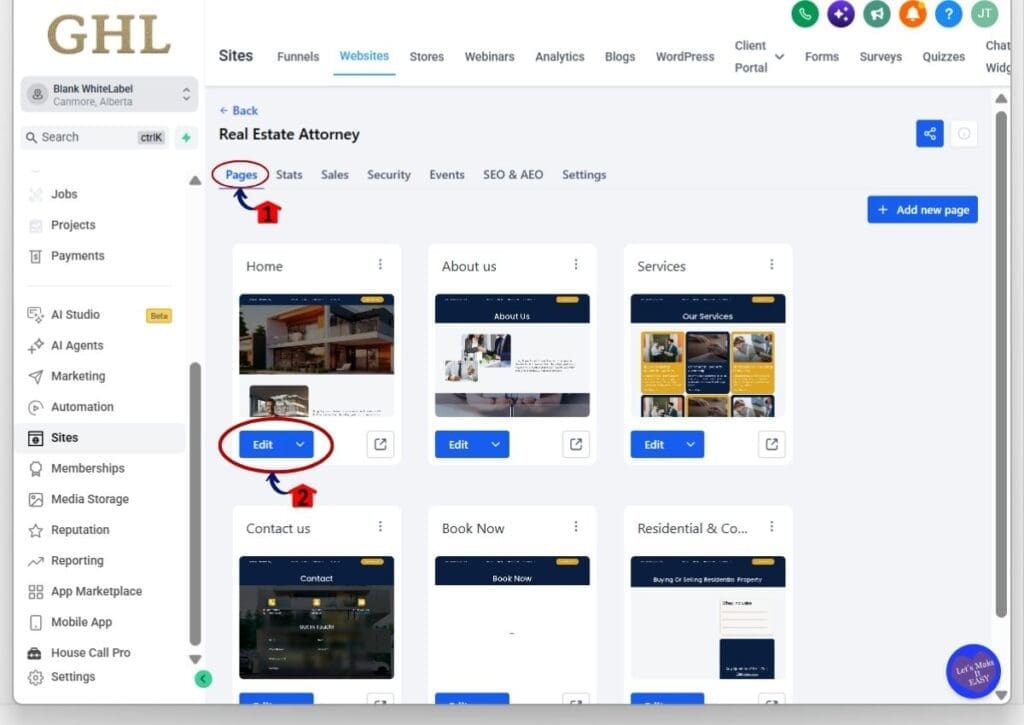
- Once you open the website, you will see the pages connected to it.
2.1 Make sure you are on the Pages tab.
- This area shows all the pages inside the selected website.
2.2 Click Edit on the page you want to update.
- This opens the page inside the GoHighLevel Website Builder.
- Choose the page where you want your quiz to appear.
Step 03 – Add the Quiz Element
- Once the page opens in the builder, you can add the new Quiz Element.
3.1 Click the + icon in the top-left corner.
- This opens the Quick Add panel.
3.2 Search for Quiz in the search box.
- Type “quiz” to quickly find the new element.
3.3 Select the Quiz Element.
- Click the Quiz option shown in the results.
- Drag it to the area of the page where you want the quiz to appear.

Step 04 – Choose Your Quiz
- After adding the Quiz Element, GHL will ask you to select the quiz you want to use.
4.1 Open the Select your Quiz dropdown.
- You will see a list of quizzes already created in your sub-account.
4.2 Choose the quiz you want to add or Create New Quiz.
- Select the correct quiz from the list.
- GHL will then load that quiz into the page.
- If you already have quizzes built, this makes it easy to reuse them without copying embed codes.

Step 05 – Edit Your Quiz and Settings
- Once the quiz is added, you can manage it from the settings panel on the right side of the builder.
5.1 Open the General tab.
- This is where you can manage the main Quiz Element settings.
- You can also confirm which quiz is connected to the page.
5.2 Click Edit Quiz.
- This opens the Quiz Builder so you can make changes to the quiz.
- You can edit the quiz without leaving the Funnel or Website Builder.
5.3 Open the Styles tab if you want to adjust the appearance.
- Use this section to review or change the styling options available for the Quiz Element.
Once the Quiz Element is added, you can manage the quiz directly from the page builder. This removes the old embed-code process and makes it much easier to update quizzes as your funnel or website changes.

Before publishing the page, run through the quiz once as a visitor. Check the questions, layout, and flow so you know everything works as expected.
Quick Tips for Using the Quiz Element
The Quiz Element is simple to use, but a few small choices can make the experience better for both you and your visitors.
Keep the quiz focused on one clear goal. Use it to qualify leads, collect useful details, or guide visitors toward the right next step. If the quiz tries to do too much, people are more likely to drop off before they finish.
Before you publish, test the full quiz from start to finish. Check the questions, page flow, and how the quiz looks on the page. If you reuse the same quiz in different funnels or websites, review the wording first to make sure it still fits the offer and audience.
What the Quiz Element Means for Your Business
The Quiz Element can make it easier to use quizzes as part of a real sales or lead generation process. You can place a quiz on a landing page, service page, or funnel step to collect details and help sort visitors based on their answers.
For agencies, this can save time when building or updating client funnels. Instead of dealing with embed codes, you can manage the quiz inside the same builder you are already using. That makes changes faster and reduces the chance of setup mistakes.
The bigger benefit is flexibility. You can use quizzes to qualify leads, learn more about a visitor, or guide them toward the right offer or next step. When the Quiz Element is easy to add and edit, it becomes much simpler to include quizzes in more of your GHL campaigns.
Quiz Element Frequently Asked Questions
A Cleaner Way to Build With Quizzes
The Quiz Element makes a small but useful change to the way quizzes work inside GoHighLevel. You can now add, select, and edit quizzes directly inside the Funnel and Website Builder without dealing with embed codes.
For agencies and marketers, that means a cleaner setup and fewer steps when building pages. It also makes quizzes easier to use for lead qualification, data collection, and guiding visitors toward the right next step.
If you already use quizzes in GHL, this update is worth testing on one of your existing pages. Have you tried the new Quiz Element yet?
Scale Your Business Today.
Streamline your workflow with GoHighLevel’s powerful tools.