

- AI Studio GitHub Sync Changes How You Build
- Quick Summary – AI Studio GitHub Sync
- Here are this week's HighLevel Updates 🚀
- Why AI Studio GitHub Sync Matters for Teams
- What’s New in AI Studio GitHub Sync
- How to Use AI Studio GitHub Sync
- How the Two-Way GitHub Sync Works
- Keeping Main Clean With AI Studio GitHub Sync
- How AI Studio Handles New Preview Builds
- How Diverged Branches Work in AI Studio
- What Sync History Shows You
- How GHL Checks Your Code Before It Reaches GitHub
- How to Control Who Gets Git Access
- Tips for Keeping AI Studio GitHub Sync Under Control
- How This Makes Custom Projects Easier to Manage
- AI Studio GitHub Sync FAQs
- How AI Studio GitHub Sync Changes Custom Development
AI Studio GitHub Sync Changes How You Build
Working on a GHL project in an outside editor is easier with AI Studio GitHub sync. Link your GitHub account, and you can send saved versions out of AI Studio GitHub and bring committed changes back. There’s less copying files around and checking whether you’ve opened the right version.
Prefer working with Cursor, Codex, Claude Code, Copilot, or Gemini CLI? You can still start the project in GoHighLevel AI Studio. Work on the same code with your preferred tool, send your commits to GitHub, and pull the updated code back into AI Studio.
The AI Studio GitHub link isn’t just for sending code out of GHL. Save a version in AI Studio GitHub, and it can go to your GitHub repository. Edits made elsewhere can come back once they’re committed and pushed to the connected branch.
That gives agencies, developers, and technical teams more freedom to work the way they want without losing the convenience of AI Studio GitHub.
For GHL users building custom projects, this is a big workflow upgrade. You get GitHub version control, branch management, sync history, preview updates, and added security checks while keeping the project connected to GoHighLevel.
In this guide, we’ll show you what changed, how the sync works, and how to connect AI Studio GitHub project step by step.
The latest GoHighLevel Changelog includes several other GHL feature updates that round out your daily workflow:
- Wait Action Enhancement: TikTok DM Replies
- India Recurring Mandate Support for Affiliate Indian Signup Pages
- Housecall Pro – More Workflow Actions & Triggers
- Email Services Dashboard for Agencies
- Email Sequences Now Available in Beta Labs
- Group Your Contacts by Source in Dashboards & Reporting
- MMLite Adoption Banner in Conversations
Keep reading for much more on all these updates and a deep dive into the AI Studio GitHub feature!

Quick Summary – AI Studio GitHub Sync
Purpose: AI Studio GitHub sync connects a GoHighLevel AI Studio project to GitHub so project code can move between both platforms.
Why It Matters: Agencies can let developers work in outside coding tools while keeping the AI Studio project connected, updated, and easier to manage.
What You Get: You get private repository creation, two-way push and pull syncing, branch controls, preview rebuilds, Sync History, secret scanning, and Git access permissions.
Time To Complete: Most users should be able to connect GitHub and confirm the first project sync in just a few minutes.
Difficulty Level: Beginner to Intermediate. The connection is simple, but teams should understand branches, push and pull actions, and diverged changes before using it on important client projects.
Key Outcome: AI Studio GitHub sync gives your team a cleaner development workflow with better version control, easier collaboration, and less manual file handling.
Here are this week’s HighLevel Updates 🚀
Wait Action Enhancement: TikTok DM Replies
What’s New:
Instead of continuing after a fixed delay, your workflow can pause until someone replies to your TikTok DM.
Where in GHL:
Found in Automation → Workflows using the Wait action after sending a TikTok DM.
Automate marketing, manage leads, and grow faster with GoHighLevel.

Impact:
Your automation responds when someone actually joins the conversation, rather than after a timer runs out.
Recommended For:
Anyone using TikTok DMs to start conversations with potential customers.
India Recurring Mandate Support for Affiliate Indian Signup Pages
What’s New:
Supports recurring payment mandates for Indian affiliates, helping subscriptions comply with local banking requirements.
Where in GHL:
Available on Affiliate Program signup pages for users in India.
Impact:
Creates a smoother signup experience while reducing payment failures for recurring subscriptions.
Recommended For:
Agencies, SaaS businesses, and affiliate programs onboarding customers in India.
Housecall Pro – More Workflow Actions & Triggers
What’s New:
Adds new workflow triggers and actions for the Housecall Pro integration, giving you more ways to automate field service processes.
Where in GHL:
Inside Automation → Workflows when using the Housecall Pro integration.
Impact:
Expands automation possibilities between HighLevel and Housecall Pro, reducing manual work and improving operational efficiency.
Recommended For:
Home service businesses, field service companies, and agencies managing Housecall Pro clients.
Email Services Dashboard for Agencies
What’s New:
Introduces a centralized dashboard where agencies can monitor email services across their accounts.
Where in GHL:
Found in the Agency View under the new Email Services Dashboard.
Impact:
Makes it easier to monitor email health, identify issues, and manage deliverability from one place.
Recommended For:
Agency owners, support teams, and admins managing multiple client email services.
Email Sequences Now Available in Beta Labs
What’s New:
Introduces Email Sequences as a Beta Labs feature, providing another way to create structured email follow-up campaigns.
Where in GHL:
Enable it from Settings → Labs, then access Email Sequences after activation.
Impact:
Cuts down the time spent checking different areas just to see how your email services are performing.
Recommended For:
Marketers, agencies, coaches, and businesses running nurture campaigns or onboarding emails.
Group Your Contacts by Source in Dashboards & Reporting
What’s New:
Lets you organize contact reports based on where your leads originated.
Where in GHL:
Available within Dashboards & Reporting when viewing contact analytics.
Impact:
Makes it easier to compare lead sources and identify which marketing channels are producing the best results.
Recommended For:
Marketing teams, agency owners, and businesses tracking campaign performance across multiple lead sources.
MMLite Adoption Banner in Conversations
What’s New:
Displays a helpful banner inside Conversations to encourage users to adopt the new MMLite messaging experience.
Where in GHL:
Appears within the Conversations module for eligible accounts.
Impact:
Helps users discover and transition to MMLite while highlighting its benefits directly inside the messaging interface.
Recommended For:
Current HighLevel users exploring the latest messaging experience and teams preparing to migrate to MMLite.
Why AI Studio GitHub Sync Matters for Teams
The hard part isn’t always writing the code. Sometimes it’s figuring out which copy everyone should be working on. Once files start moving between GHL, a developer’s computer, and a shared folder, checking versions becomes another job.
AI Studio GitHub sync gives you a better way to handle that handoff. Saved work can move from GoHighLevel to GitHub, and commits pushed to the connected branch can come back into AI Studio GitHub. You aren’t responsible for transferring every file yourself.
Your marketer can keep building in GHL while a developer makes code changes using Cursor, Claude Code, Copilot, or another tool. They don’t have to use the same workspace to contribute to the project.
Branches give the team somewhere to try larger changes without editing main straight away. You still need to agree on which branch to use, but there’s room to test before changing the version everyone relies on.
For agencies, the benefit is practical: less time passing files around and more time getting the actual work finished.
What’s New in AI Studio GitHub Sync
The big change here is simple: your AI Studio GitHub project no longer has to live only inside GHL.
You can now connect it directly to GitHub from More → Git. The connection can use either a personal account or a GitHub organization, and you can choose whether it belongs just to you or is available across the sub-account.
Once connected, GHL creates a private repository for the project and sends the current version over. It also remembers that repository, so reconnecting later does not start from scratch.
The sync can handle more than just code edits. Saved AI prompts, visual changes, restores, and code updates can all move from AI Studio GitHub.
Changes made outside GHL can travel the other way as well. As long as they are committed to the connected branch, AI Studio GitHub can pull them back in.
Automatic syncing is optional. If you would rather decide when changes move, use the manual Push now and Pull now controls.
You are also not stuck on main. Change branches whenever you need to, or create a new one with the next push.
Add in preview rebuilding, branch conflict options, Sync History, secret scanning, and new Git permissions, and this is a pretty substantial upgrade for anyone using AI Studio GitHub for serious project work.
How to Use AI Studio GitHub Sync
The AI Studio GitHub sync update gives you a simple way to connect a GitHub account directly to a GoHighLevel AI Studio GitHub project.
Once connected, GHL can create a private repository for the project, push saved versions to GitHub, and pull commits made outside AI Studio back into the project. You can also control branches, use manual push and pull options, and keep track of sync activity.
- Open Your AI Studio in menu.
- Open Your AI Studio Project.
- Open the Git Settings.
- Connect Your GitHub Account.
- Let AI Studio Create the Repository.
- Manage Automatic Push and Pull.
- Review Sync History.
To start, make sure you are logged in to the correct GoHighLevel sub-account and have access to the AI Studio project you want to connect.
Step 01 – Open Your AI Studio in menu
- Start inside the GoHighLevel sub-account that contains the AI Studio project you want to connect.
1.1 Open AI Studio.
- Use the main GHL navigation to access the AI Studio area.
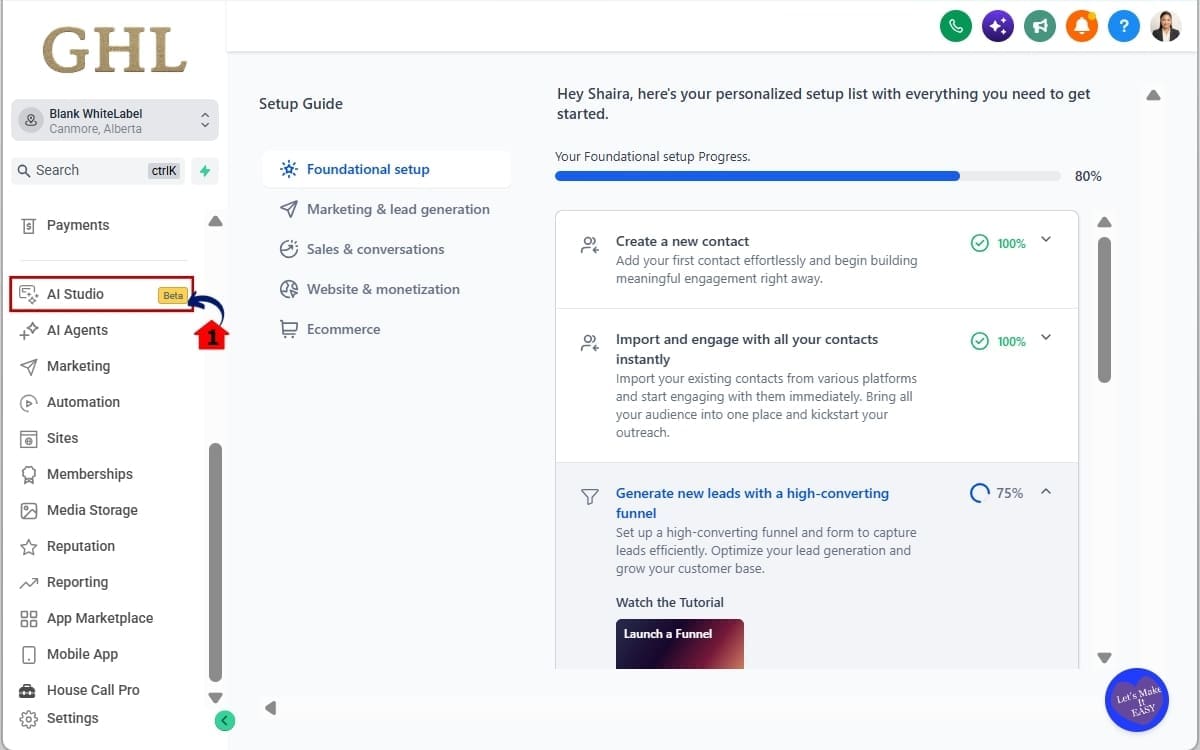
Step 02 – Open Your AI Studio Project
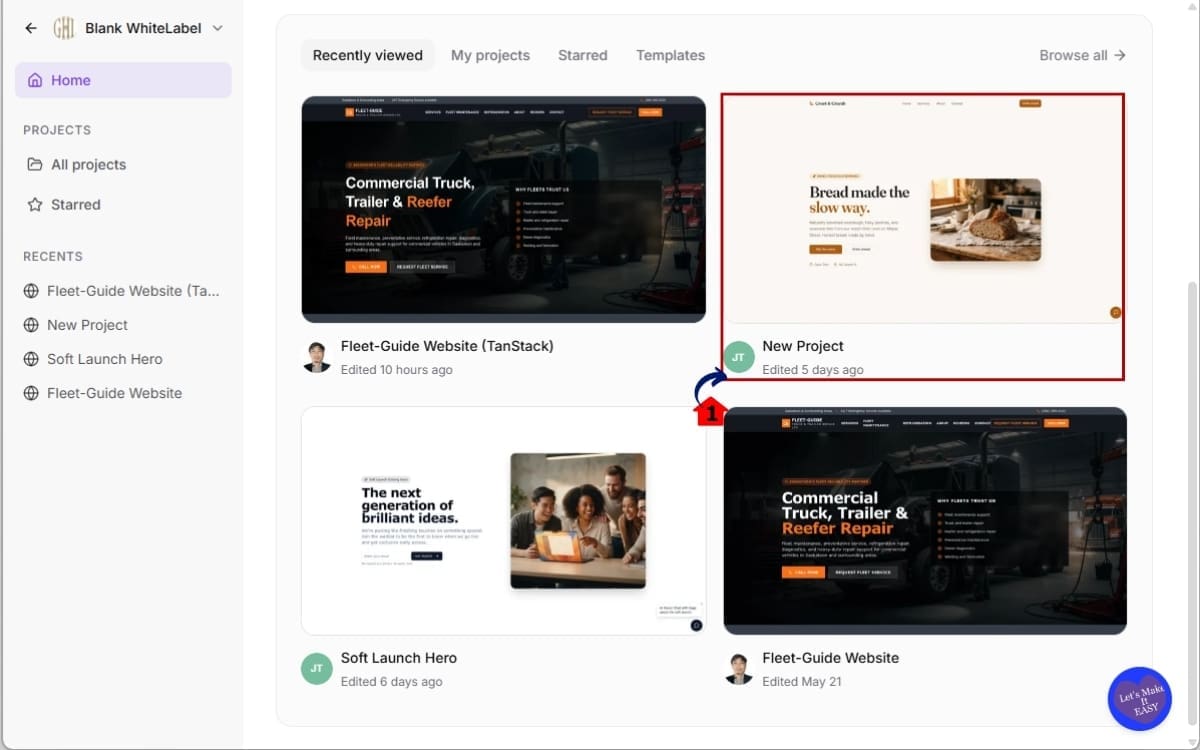
Step 02 – Open Your AI Studio Project
- Review your available AI Studio projects and choose the one you want to sync with GitHub.
2.1 Find the project you want to connect to and open.
- Click into the project so you can access its project-level settings and controls.
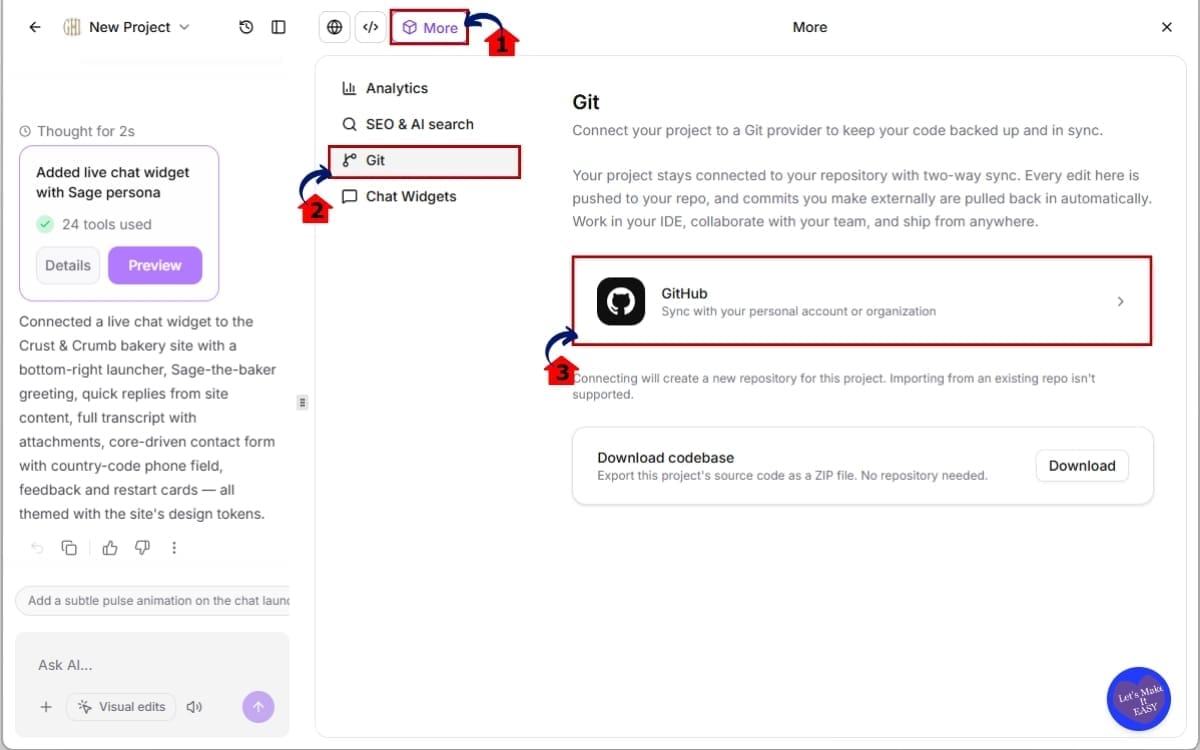
Step 3.0 – Open the Git Settings
- Once the project is open, access the Git options from inside AI Studio.
3.1 Click More.
- Look for the More option inside the project interface.
3.2 Select Git.
- Open the Git area where you can connect and manage your GitHub integration.
3.3 Review the available Git options.
- If the project has not been connected before, you will see the option to start the GitHub connection.
Step 4.0 – Connect Your GitHub Account
- GHL lets you connect either a personal GitHub account or a GitHub organization.
4.1 Confirm the connection.
- Finish the setup so AI Studio can create and connect the project repository.
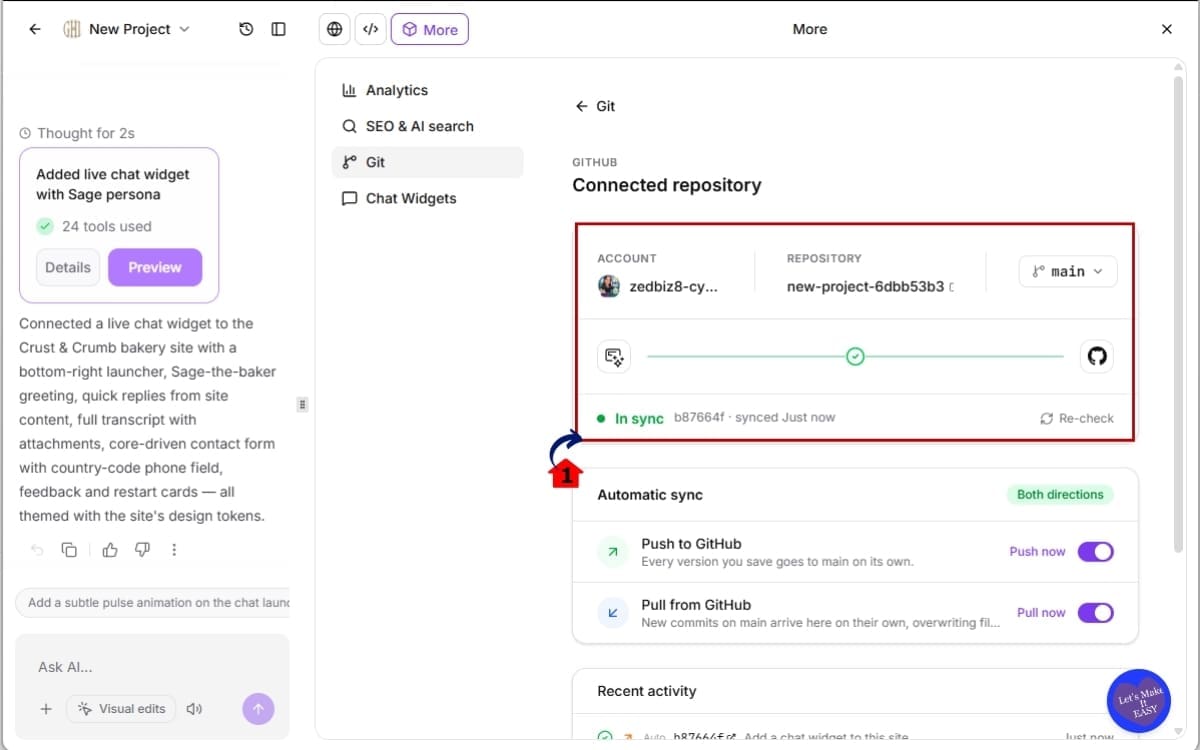
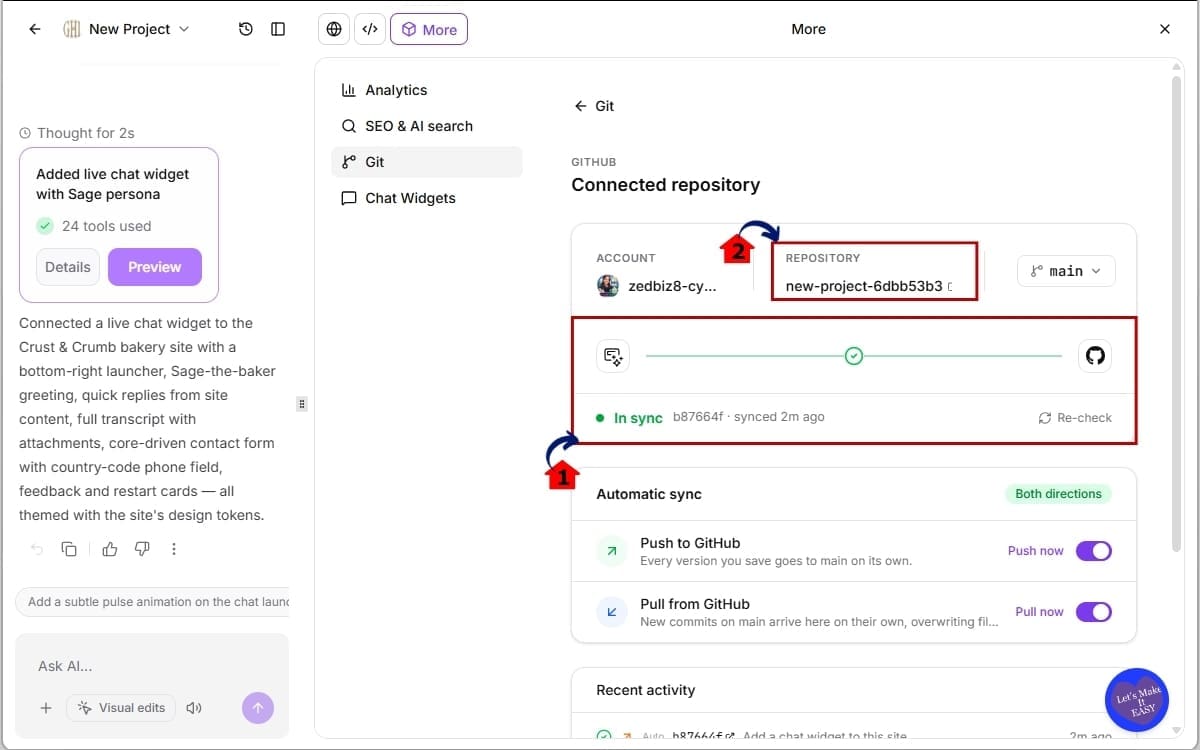
Step 5.0 – Let AI Studio Create the Repository
- After you connect GitHub, AI Studio creates a private repository for the project.
5.1 Allow the first push to complete.
- AI Studio will automatically push the current project version to GitHub.
5.2 Check the repository name.
- The private GitHub repository will be named after your AI Studio project.
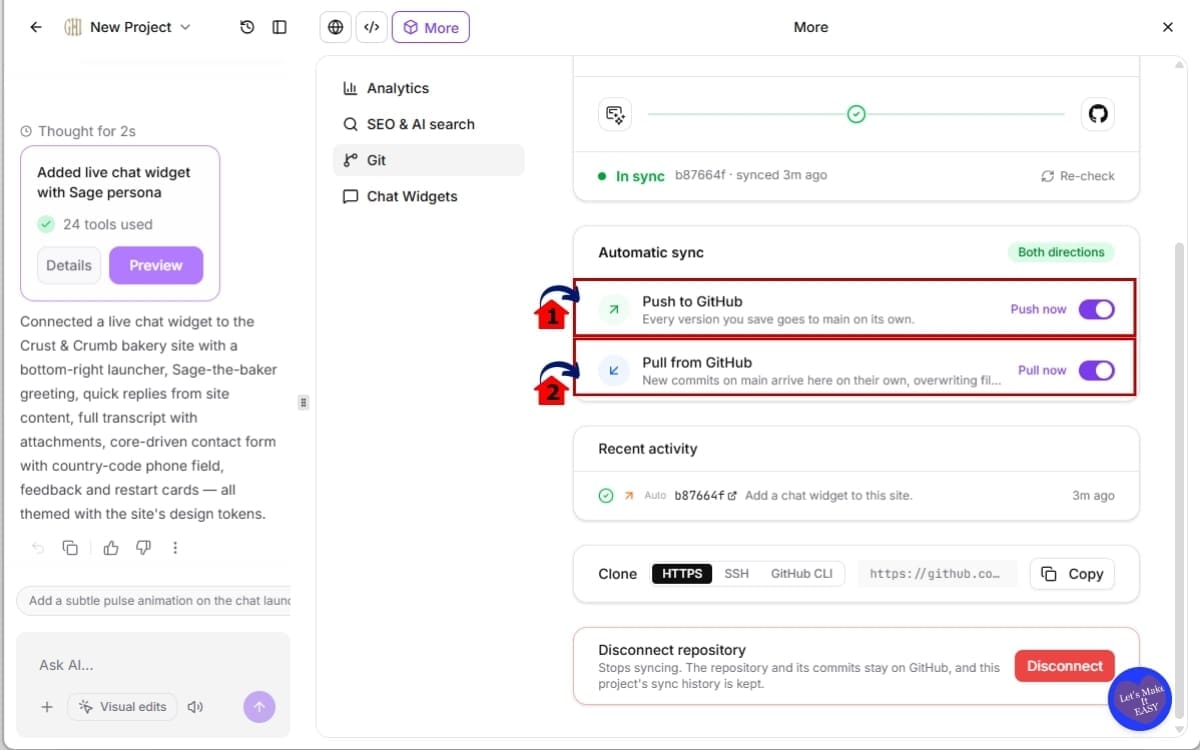
Step 6.0 – Manage Automatic Push and Pull
- GHL can automatically move changes between AI Studio and GitHub in both directions.
6.1 Leave automatic push enabled for regular syncing.
- Every version you save in AI Studio can be pushed to the connected GitHub branch.
6.2 Leave automatic pull enabled when you want outside commits brought back into AI Studio.
- New commits made on the connected branch can be pulled back into the project automatically.
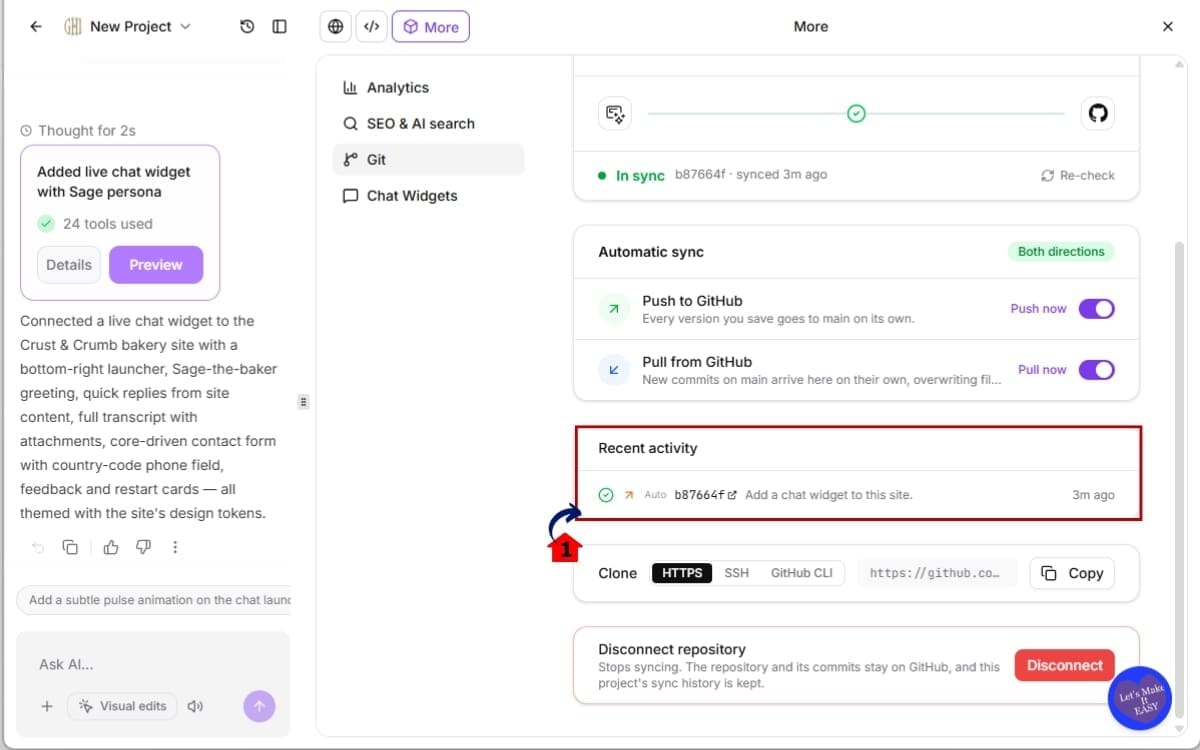
Step 7.0 – Review Sync History
- Sync History helps you see what has moved between AI Studio and GitHub.
7.1 Review the total number of syncs.
- This shows how much push and pull activity has taken place.
AI Studio GitHub sync works with React using Vite and TanStack Start projects. AI Studio commits appear in GitHub as “GHL AI Studio,” and only the connected branch is synced. Projects that do not connect GitHub will continue working as they did before.
How the Two-Way GitHub Sync Works
AI Studio does not just send code to GitHub. It can receive changes back as well.
When you save work inside GHL, that version can be pushed to the branch linked to your AI Studio project. This can include code changes, visual edits, AI-generated updates, and restored versions.
Now flip the process around.
A developer can make changes outside GoHighLevel, commit them, and push them to the connected GitHub branch. AI Studio can then pull those updates back into the project.
That is what makes the setup useful for teams that do not all work in the same tool.
One person might stay inside GHL while another works in Cursor or Claude Code. GitHub becomes the place that keeps those changes connected.
You can let GHL handle the syncing, or do it yourself when you’re ready.
Automatic push sends new AI Studio versions out to GitHub. Automatic pull brings new commits back in.
If your team prefers to review changes first, simply turn those options off and use the manual controls instead.
The only branch that matters to AI Studio is the one currently connected, so make sure your team knows where active work is happening.
Keeping Main Clean With AI Studio GitHub Sync
One of the better parts of the GitHub update is that you are not forced to do all your work on main.
AI Studio connects there first, but you can switch to another branch for testing or development work.
That means you can leave the approved project alone while someone else works on a larger change.
Say your developer is rebuilding a section of the project. Instead of pushing that straight into main, they can use another branch until the work is ready.
You can even create that branch from the GHL workflow by entering a new name. It will appear after the next push.
There is one rule to keep in mind: AI Studio only syncs the branch it is connected to.
If changes are happening elsewhere, they will not come into the project automatically.
With multiple people making changes, keeping track of the active branch becomes a lot more important.
How AI Studio Handles New Preview Builds
When AI Studio pulls in a new GitHub commit, it does not force the updated version onto your screen straight away.
Instead, it builds a fresh preview in the background.
You can keep working with the version already open while that happens.
Once the new build is finished, click Update preview to switch over.
This gives you time to review the change when you are ready rather than having the project suddenly reload.
If the preview does not build properly, you can try again with Retry build.
There is also a Try to fix option when AI Studio is able to help with the issue.
For teams, this makes outside code changes easier to manage.
A developer can push a larger update without disrupting whatever someone else is currently reviewing in GHL.
How Diverged Branches Work in AI Studio
A diverged branch simply means AI Studio and GitHub both have newer work.
Neither side has the other side’s latest changes yet.
That can happen when someone is editing inside GHL at the same time another person is coding through GitHub.
Once both versions have moved ahead, AI Studio asks you how you want to handle it.
Force push makes the AI Studio version take priority.
That sends the GHL version over the connected GitHub branch.
If that GitHub work is important, you could lose it, so only use Force push when you know exactly what you are replacing.
New branch keeps both versions alive.
It gives you another branch where the AI Studio version can live while the team reviews what happened.
If you are not sure which work should become the final version, this is generally the safer route.
The best habit is simple: review first, then choose.
What Sync History Shows You
Sync History gives you a quick look at what has been happening behind the GitHub connection.
You can check whether recent syncs worked, how many have run, and whether the project has been pushing more often than pulling.
You can also see the commits that were transferred.
That gives you a clearer record when several people are working on the same AI Studio project.
If the wrong version shows up, or something seems to be missing, Sync History is a good place to check before making more changes.
You can jump into the GitHub commit and check the exact changes that were sent across.
When a sync fails, GHL also explains the problem in simpler terms.
That makes it easier to troubleshoot without having to understand every Git message.
How GHL Checks Your Code Before It Reaches GitHub
Before AI Studio sends a project update to GitHub, GHL runs a quick check for sensitive information.
GHL looks for commonly exposed credentials, including AWS, GitHub, Stripe, and OpenAI keys, plus private keys.
If the scan spots something it should not, the push is blocked.
That matters because keys are often exposed by accident during everyday edits and testing.
A developer may be testing something. AI-generated code may include a value that should have been removed. Someone may simply forget.
The scan gives you another chance to catch that.
Keep your keys and login credentials somewhere secure instead of putting them directly in the code.
The update also makes sure binary assets are not dropped during the sync.
Images, fonts, and other project files continue to move along with the code.
How to Control Who Gets Git Access
The new AI Studio GitHub setup includes its own permission control.
Agency admins can use Manage Git & download code to decide who gets access to Git and project downloads.
The permission is enabled for all roles by default.
You can manage it from Settings → Team → Permissions → AI Studio.
Turn it off and the user will stop seeing the Git tab and download choices.
They can still work inside AI Studio.
Editing, building, and previewing are not removed.
For agencies, this makes it easier to avoid giving everyone full code access.
A developer may need the repository and download options. Someone handling content or client reviews probably does not.
You can separate those responsibilities without taking away access to the project itself.
Tips for Keeping AI Studio GitHub Sync Under Control
The easiest workflows usually come from setting a few rules before everyone starts working.
Decide first whether you want automatic syncing on.
For solo work, leaving it enabled may be fine.
For client projects or larger teams, manual syncing can give you more control.
Keep main clean.
Put bigger changes on a separate branch first, then move them over once you know they’re ready.
Check Sync History whenever something does not match what you expected.
That can save you from making extra changes before you know what actually happened.
If the branch has diverged, be careful with Force push.
Use New branch if you want to protect both versions while you compare them.
Do not put sensitive keys directly in the code just because GHL scans for secrets.
And review the Manage Git & download code permission before giving access to contractors or temporary staff.
Small setup choices like these can prevent a lot of cleanup later.
How This Makes Custom Projects Easier to Manage
Custom projects can get messy when too many people are working from different copies.
AI Studio GitHub sync gives the team a better setup.
You can build the first version in GHL, then let the developer continue the technical work in their preferred coding tool.
Once they commit the changes, those updates can come back into AI Studio.
That helps keep everyone on the same project without everyone using the same software.
GitHub also becomes the place where the code history lives.
Use branches to park work that is not ready yet. Sync History shows what changed hands, and permissions decide who gets access to the code.
For agencies, that means less time managing files and more time actually finishing the project.
AI Studio GitHub Sync FAQs
How AI Studio GitHub Sync Changes Custom Development
This update makes it easier to split project work between GHL and outside coding tools.
You can start the build in AI Studio, then let a developer continue the technical work somewhere else.
Once their changes are pushed to GitHub, AI Studio can bring them back into the project and prepare a new preview.
That saves a lot of unnecessary back-and-forth.
Your internal team does not need to learn a developer’s workflow, and your developer does not need to stay inside GHL all day.
Everyone can stick with the software they already know for their part of the work.
You also get useful controls around the connection.
Branches help separate work in progress. Sync History gives you a place to check recent activity. Secret scanning checks for exposed credentials. Permissions help control who gets access to the technical side of the project.
If you want to use this on larger client work, test the setup first on something less important.
Run through the full workflow before depending on it.
Scale Your Business Today.
Streamline your workflow with GoHighLevel’s powerful tools.


