

- Introduction – Universal Elements in GHL
- Quick Summary – Reusable Website Elements
- What’s New – Reusable Website Elements
- What’s Changed – No More Manual Duplication
- Why This Matters – Speed, Consistency, Scale
- How to Use Reusable Website Elements in GHL
- Pro Tips & Smart Use Cases
- FAQs – Universal Elements in GHL
- What This Means – Big Win for Agencies
- Results You Can Expect
- Conclusion & CTA
Introduction – Universal Elements in GHL
Ever wished you could update a button, form, or nav menu just once, and have it instantly update across every page, funnel, blog, or store in your GHL account? Reusable Website Elements is the answer.
Now you can.
With GoHighLevel’s new Reusable Website Elements, reusable website elements are finally here. This update gives you the power to create synced, branded components that update everywhere they’re used. No more cloning, no more copy-paste hacks, and no more double-checking 12 different funnel steps just to make a text or color change.
If you’ve ever spent your afternoon fixing the same design issue across multiple pages, you’re going to love what this solves.

If you’re juggling dozens of pages or clients, Universal Elements are like having a sync button for your brand, clean, simple, and reliable.
Quick Summary – Reusable Website Elements
Purpose: Universal Reusable Website Elements let you build synced, reusable design components, like buttons, forms, and menus, across your entire GHL account.
Why It Matters: This eliminates manual duplication, reduces errors, and helps agencies deliver consistent branding at scale across funnels, websites, blogs, and eCommerce.
What You Get: A new save option for Reusable Website Elements with automatic sync logic, guardrails to prevent duplicates, and built-in snapshot logic for cloned pages.
Time to Complete: Less than 5 minutes to save and use your first Universal Element.
Difficulty Level: Beginner-friendly, no tech skills required.
Key Outcome: Instant updates across all pages using the same element, saving time and keeping design consistent.
What’s New – Reusable Website Elements
Universal Reusable Website Elements are a brand-new way to save and reuse design components inside the GHL builder. Think buttons, nav menus, forms, icons, sections, pretty much any element you use often.
Now, when you save an element, you’ll get two options:
Automate marketing, manage leads, and grow faster with GoHighLevel.

- Universal Element – This version syncs across your entire account. Change it once, and it updates everywhere it’s used.
- Template – A one-off saved copy with no syncing. Great for static reuse.
You’ll find your saved pieces in the builder’s sidebar under Saved Assets → Elements. Just drag one onto the page wherever you need it—funnels, Reusable Website Elements, blogs, even ecom pages.
What’s even better? Each saved element comes with an auto-generated thumbnail so you can preview before placing. And once placed, any edits made to a Universal Element will prompt a confirmation modal, ensuring you know you’re syncing the change account-wide.
This is more than just a “convenience” feature, it’s the foundation of a scalable, systemized design workflow in GoHighLevel.
What’s Changed – No More Manual Duplication
Before Universal Elements, building consistent funnels or Reusable Website Elements meant a whole lot of copying, pasting, and praying you didn’t miss something. Every button, every nav bar, every form had to be duplicated manually. If you wanted to tweak a color, label, or link? Time to go hunt down every version and update it by hand.
That’s over.
With Universal Elements in GHL, your changes now sync automatically, across every funnel, page, blog, or store using that element. Change one, update all. Simple.
There are a few built-in smart controls to keep things clean:
- You can’t add the same Universal Element twice on the same page. GHL blocks duplicates for you.
- Cloning a page or funnel? GHL adds a snapshot ID (_snapshot) to the copied elements, so they don’t sync back and break your originals.
- Cloning a Universal Element on the same page? It converts into a regular element to avoid conflicts.
This update doesn’t just save time. It eliminates mistakes, keeps your design consistent, and makes your brand look a whole lot more polished with way less work.
Why This Matters – Speed, Consistency, Scale
If you’ve ever tried to keep a dozen client sites looking the same, you already know, it’s harder than it should be.
Universal Elements solve that.
You no longer need to “remember” to fix a button color or “check” every footer link on 12 different pages. One change. Sync everywhere. Done.
This update is a huge win for branding, especially if:
- You offer done-for-you services across different niches
- You manage client sites and want to standardize builds
- You’ve built your own white-labeled SaaS and need visual consistency at scale
It’s also the missing piece for agencies trying to scale design systems inside GHL. You can now create branded components once, buttons, CTAs, menus, testimonial blocks, and use them across all client builds.
And let’s not forget speed. Whether you’re doing 5 builds a week or 50, shaving even 10–15 minutes per page adds up fast.
With Universal Elements, GoHighLevel becomes a smarter, faster place to build.
How to Use Reusable Website Elements in GHL
Sick of redoing the same footer or button on every page? This new feature lets you save those elements once and reuse them anywhere, without the usual copy-paste grind. Here’s how to set it up and start saving serious time:
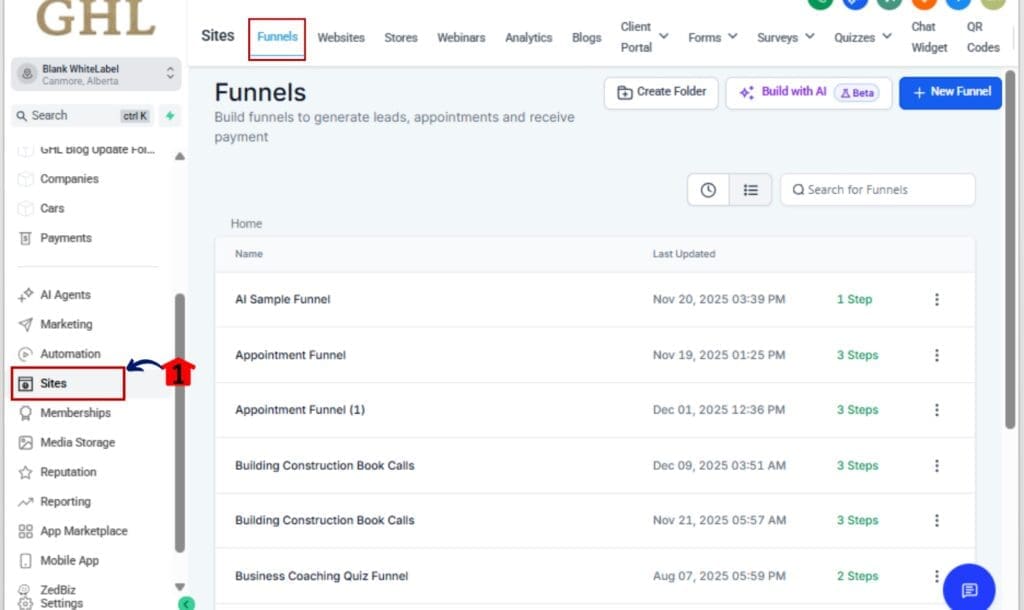
Step 01 – Open Any Page in the Builder
1.1 From your GHL account, go to Funnels, Websites, Blogs, or Stores.
1.2 Open a page where your reusable element exists.
Step 02 – Save the Element
2.1 Find the section or element you want to reuse, like a button, navigation bar, or form.
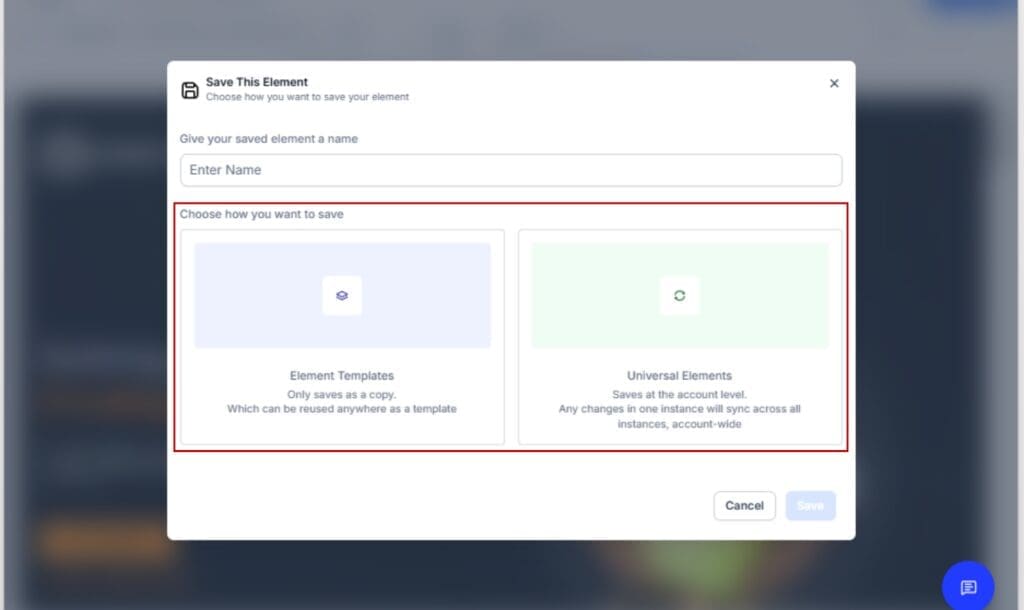
2.2 Click Save Element in the toolbar.
2.3 Choose Universal Element to sync changes across your entire account.
2.4 Give it a name. GHL auto-generates a thumbnail for easy preview.
Step 03 – Add the Element to Any Page
3.1 Go to the builder sidebar.
3.2 Click Saved Assets → Elements.
3.3 Drag the saved Universal Element into any funnel, site, or blog.

Step 04 – Edit and Sync Changes Everywhere
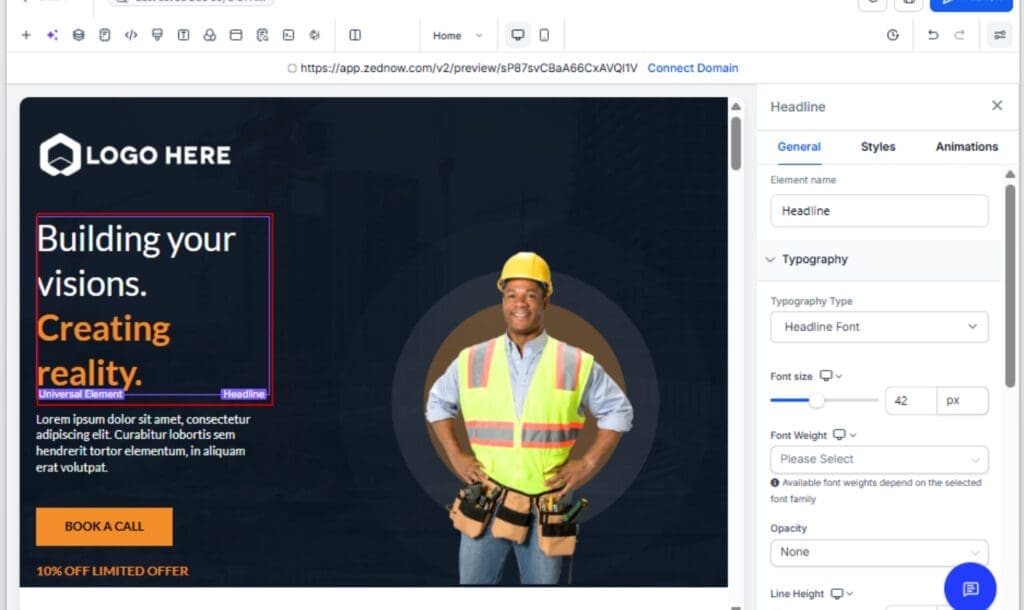
4.1 Click on any Universal Element in a builder.
4.2 Make your edits (style, text, links).
4.3 Click Save Page.
4.4 A sync modal will appear, click Confirm. All uses of that element are updated instantly.
Step 05 – Understand Cloning Behavior
5.1 Cloning a funnel or page creates snapshot IDs to prevent unwanted syncing.
5.2 Cloning a Universal Element on the same page automatically turns it into a regular element.
5.3 GHL won’t let you place the same Universal Element twice on one page (guardrail protection).

That’s it. You’ve now got a synced, scalable design system right inside GHL, ready to reuse across every build.
Pro Tips & Smart Use Cases
With Universal Reusable Website Elements ready to go, here’s how to really take advantage of them, whether you’re working on one brand or ten.
Pro Tips for Using Reusable Website Elements Like a Pro
- Use consistent naming: Prefix your saved Reusable Website Elements with a clear label like BTN – Primary, Header – Dark, or Form – Lead Magnet. This keeps things clean and fast to locate.
- Organize by brand or purpose: If you’re managing multiple brands, use naming tags or even emojis to separate groups visually.
- Keep your Reusable Website Elements tight: Avoid saving overly large sections with too many nested components. Keep things modular so they can mix and match cleanly across different designs.
- Use Templates for non-synced reuse: Want to reuse a design without global sync? Save it as a Template instead of a Universal Element.
- Test on a dummy funnel first: Before applying Universal Elements to high-traffic pages, test changes in a draft or unpublished page to preview styling and spacing.
Smart Use Cases for Agencies and SaaS Mode Pros
- Branded CTA Buttons: Use Universal Elements for buttons with consistent colors, hover states, and click actions.
- Global Footers: Change a footer once and have it update across 50+ client sites? Yes, please.
- Navigation Menus: Perfect for multi-page sites or client microsites, edit once, done everywhere.
- Form Blocks: Standardize opt-in forms, contact forms, or lead gen offers across your entire account.
- Client Compliance Sections: Legal disclaimers, HIPAA notices, or refund policies, sync across all relevant pages.
Universal Elements aren’t just a design trick, they’re an operational upgrade for your entire agency workflow.
FAQs – Universal Elements in GHL
What This Means – Big Win for Agencies
Universal Elements aren’t just a nice-to-have, they’re a strategic upgrade for how agencies, marketers, and SaaS builders use GoHighLevel.
Here’s why this feature is a game-changer:
- You’re building a design system inside GHL. One that’s modular, reusable, and centralized.
- You’re reducing human error. Fewer duplicated elements mean fewer chances to forget a link, misalign a button, or leave outdated content on the wrong page.
- You’re scaling smarter. For teams juggling multiple builds, brands, and offers, this saves hours per week in editing, QA, and launch prep.
What really makes this update shine? You can finally keep everything consistent across all your pages, without calling in a developer or writing a bunch of step-by-step docs.
Whether you’re a solo builder or running a white-label SaaS, Universal Elements help you grow without adding more work.
Results You Can Expect
Once you start using Reusable Website Elements, you’ll quickly notice the ripple effects across your entire build process:
- Faster Page Creation
Save up to 50–70% on time spent rebuilding headers, footers, and repeated sections across funnels and sites. - Fewer Design Mistakes
Eliminate version mismatches and “oops” edits caused by manually duplicating and tweaking the same element in multiple places. - Cleaner Handoff to Teams or VAs
Your team can grab pre-approved, brand-aligned components instead of guessing what button or nav style to use. - Tighter Branding Across All Pages
You can now tweak your buttons, forms, and menus in one spot, and those changes carry across your whole account. No more chasing down design fixes. - Quicker Updates for Promos, Legal, or Compliance
Change one disclaimer, promo code, or phone number and update it everywhere instantly, without the back-and-forth.
Bottom line: Reusable Website Elements bring serious leverage to your design workflow. This is how agencies scale builds without scaling headaches.
Conclusion & CTA
GoHighLevel just handed you a shortcut to scalable, consistent, and stress-free page design.
With Reusable Website Elements, you can build once and reuse everywhere. Whether you’re syncing branded CTAs across a client funnel, managing 100 sites in SaaS Mode, or just tired of rebuilding your nav bar, this update is your solution.
No more messy edits. No more duplicated effort. Just clean, synced, smart design.
Ready to try it?
Hop into any funnel, site, or blog and save your first element as Universal. Build smarter. Launch faster. And never edit the same thing twice again.
Scale Your Business Today.
Streamline your workflow with GoHighLevel’s powerful tools.


