

- Keep learners and instructors in sync with automated course progress emails
- Quick Summary – Course Email Notifications Overview
- What’s New: 7 Course Email Notifications That Just Work
- Why Course Email Notifications Matter
- How to Enable Course Email Notifications in GHL
- Customizing Course Email Notifications Your Way
- Pro Tips for Smarter Course Email Notifications
- Frequently Asked Questions About Course Email Notifications
- What to Expect from Course Email Notifications
Keep learners and instructors in sync with automated course progress emails
Course Email Notifications Just Got Smarter
Course email notifications in GoHighLevel now make it easier to keep everyone in the loop. Learners get updates when they submit work or receive grades. Instructors get alerts when it’s time to review or respond. It’s a simple fix to a common problem in online education.
If you’re building courses inside GHL, this update helps remove the guesswork. You’ll spend less time chasing down emails and more time teaching, grading, or helping your clients grow.
These new notifications won’t change your course overnight, but they’ll clean up the back-and-forth and make everything run smoother.
GoHighLevel just made it easier to stay on top of course progress. With seven new course email notifications, learners know when work is graded, and instructors get alerts on every submission. It’s a simple way to boost engagement and save time on back-and-forth messages.
Quick Summary – Course Email Notifications Overview
Purpose: Help GHL users improve course communication by sending automatic updates to learners and instructors.
Why It Matters: Course email notifications keep everyone in sync without extra messages. They reduce confusion, support questions, and manual follow-ups.
What You Get: Seven built-in email templates for quizzes, assignments, grading, and comments. All fully customizable inside GHL.
Time to Complete: 5 to 10 minutes per course.
Difficulty Level: Easy. Just toggle on notifications and edit the templates.
Key Outcome: A cleaner learning experience with faster feedback, fewer missed updates, and more professional communication.
What’s New: 7 Course Email Notifications That Just Work
GoHighLevel just rolled out seven course email notifications built to help you stay on top of student activity. These notifications cover key moments in your course like quiz submissions, assignment grading, and new comments. Each one can be customized and turned on when you’re ready.
Here’s a quick look at what’s included:
Automate marketing, manage leads, and grow faster with GoHighLevel.

1. Quiz Submitted (User)
- Sends a course email notification to the learner right after they submit a quiz. It confirms everything went through and gives peace of mind.
2. Quiz Submitted (Admin)
- Notifies the instructor or admin when someone finishes a quiz. You’ll know it’s time to review without checking manually.
3. Assignment Submitted (User)
- This course email notification lets the learner know their assignment was received. It’s a clean handoff with no confusion.
4. Assignment Submitted (Admin)
- Instructors get notified instantly when a new assignment comes in. No more surprise uploads or missed reviews.
5. Assignment Graded (User)
- As soon as grading is done, this course email notification goes out to the learner. They know the results without needing to ask.
6. Assignment Graded (Admin)
- This one confirms the grade has been saved and sent. Useful if your team shares grading tasks or reviews each other’s work.
7. Course Comments (Admin)
- When a student drops a comment in a course, this course email notification alerts the instructor. It keeps the conversation going and helps with follow-up.
All seven course email notifications are off by default. You’ll find them under Settings → Email Settings → Courses. Each one has its own template you can edit to match your brand and voice.
Why Course Email Notifications Matter
Course email notifications in GoHighLevel help solve a simple but annoying problem. People need to know what’s going on. Learners want to know if their quiz or assignment was received. Instructors need to know when something new comes in. Without updates, things fall through the cracks.
These course email notifications take care of that. They send out quick updates when someone submits a quiz, finishes an assignment, or leaves a comment. Everyone gets the info they need, when they need it.
If you build courses for clients or run your own programs, this matters. Course email notifications help reduce support requests, save you time, and make the whole experience smoother for everyone involved.
You don’t need more tools. You just need better timing. These notifications give learners peace of mind and help instructors stay focused on teaching, not tracking.
How to Enable Course Email Notifications in GHL
Stay on top of every course update with just a few quick steps
Course email notifications are built right into your GoHighLevel dashboard. There’s nothing extra to install or activate. You just need to know where to go and what to switch on.
Here’s the step-by-step process for enabling course email notifications in GHL:
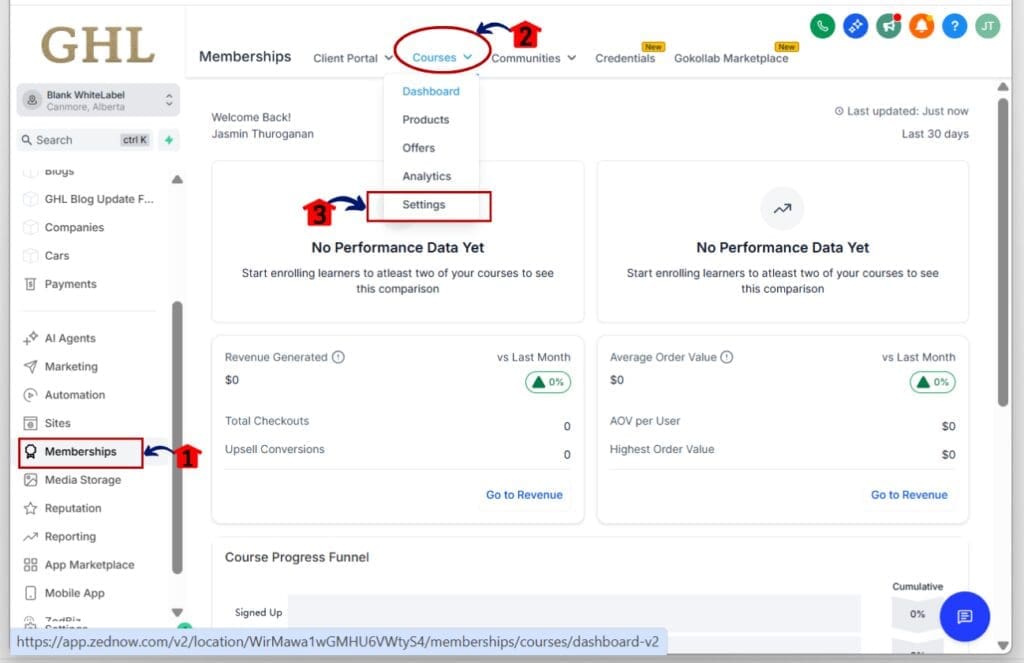
Step 01: Access the Main Left Hand Menu in GoHighLevel
- The Main Menu on the Left side of your screen has all the main areas that you work in when using GHL
1.1 Click on the Memberships Menu Item.
- Access the ‘Memberships’ section of GoHighLevel
1.2 Hover on the Courses Menu
- A drop-down menu will appear select settings
1.3 Click on the Settings
- A new window will appear
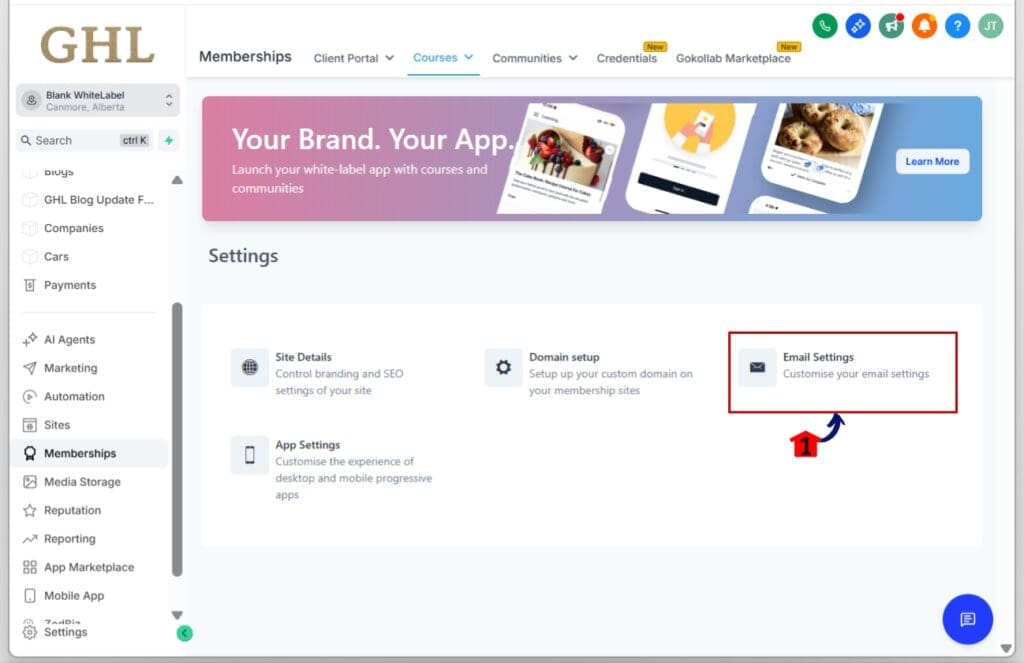
Step 02: Access Email Settings for Courses
2.1 Click on the Email Settings
- Another window will open
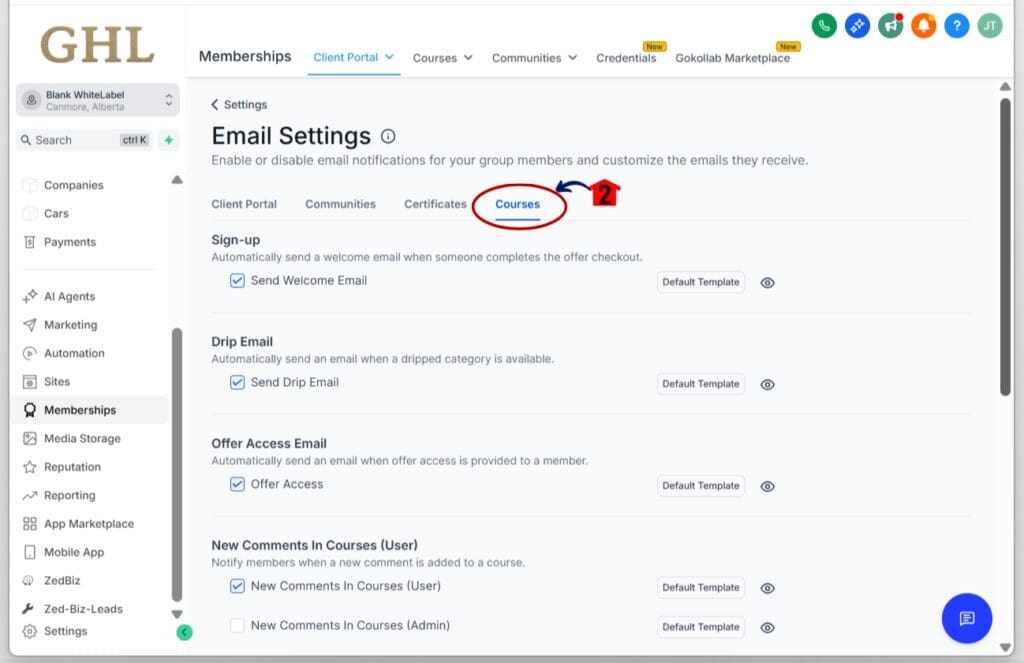
2.2 Click the Courses tab
- This is where all course email notifications are managed.
2.3 Scroll down to find the Assessment Email
Step 03: Review and Enable the Notifications You Want
- Each notification type is listed with a toggle switch
3.1 Look for the 7 available notification types
- These include quiz submitted, assignment submitted, and assignment graded.
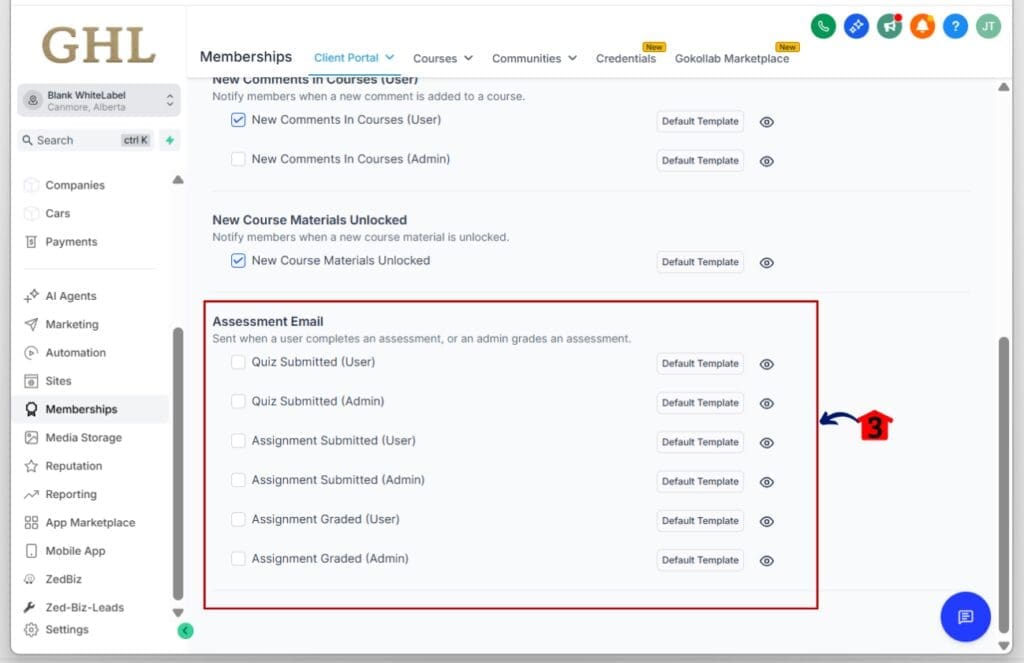
3.2 Toggle ON any notification you want to use by checking the checkbox
- Each switch controls one specific type of course email notification.
3.3 Click the 👁️ icon to preview the email
- You can see the default version of each email template here.
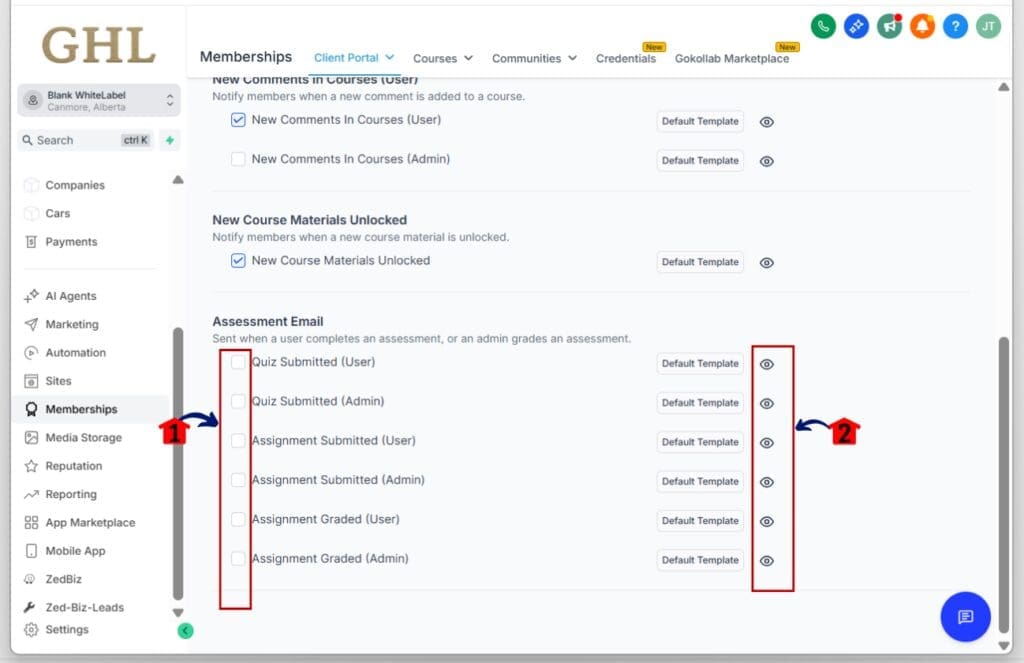
Step 04: Customize the Email Templates to Match Your Brand
- Make your emails feel like a natural part of your course
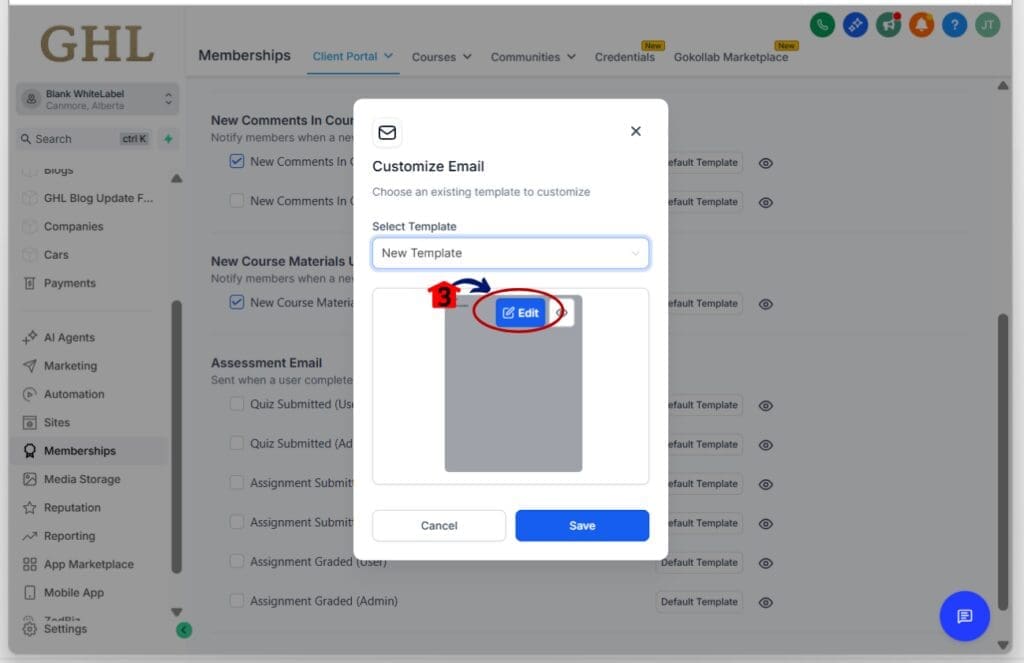
4.1 Click the Default Template button
- New window will appear
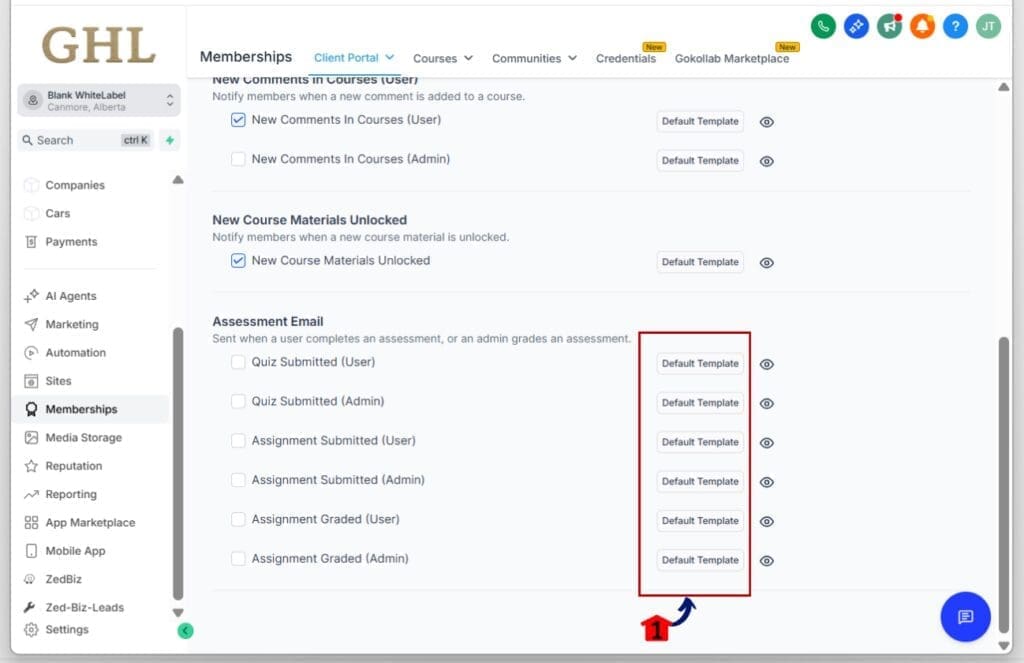
4.2 Select template for the notification
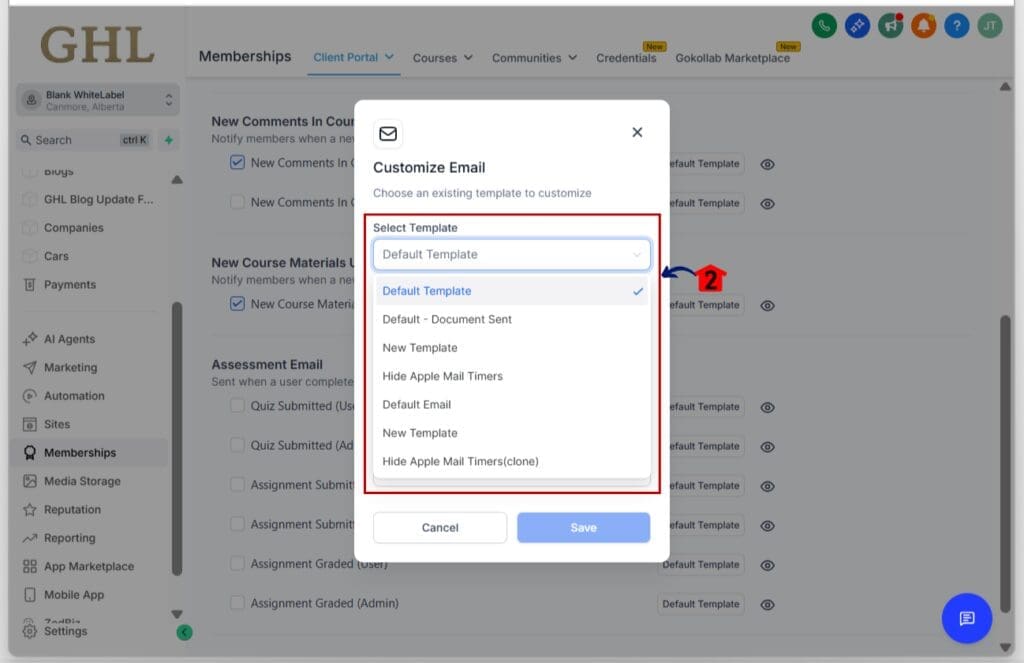
4.3 Click Edit Button to edit the notification
- A new window will open where you can edit the email template
4.4 Use merge fields like [[user.first_name]] and [[course.title]]
- These pull in key course and learner info automatically.
4.5 Edit subject lines, body text, and sender name
- Adjust tone, content, and branding to fit your course style.
4.6 Save your changes for each template
- Your updates will apply to all new notifications moving forward.
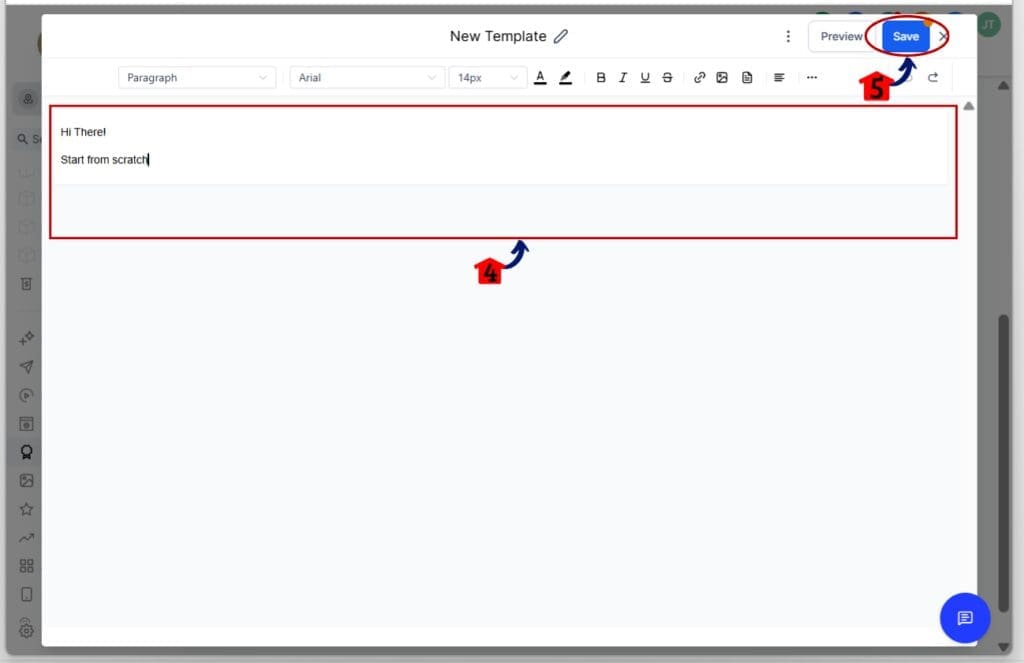
That’s it. Once course email notifications are turned on, GHL handles the rest. You’ll reduce manual follow-ups, help learners stay informed, and make your course feel more professional.
Customizing Course Email Notifications Your Way
Course email notifications are only helpful if they feel like they belong. The good news is GoHighLevel makes it easy to change what they say, how they sound, and how they look.
Here’s how to customize course email notifications so they work better for your brand or your clients:
Start with a Better Subject Line
Most course email notifications come with basic subject lines. You can change those. Make them clear and useful. Try something like:
- “Your quiz was submitted”
- “You’ve got new feedback”
- “A new comment was posted”
Edit the Message Body
- This is where your tone comes through. Keep it short. Use plain language. Be direct. Add any important reminders or links the learner might need.
Use Merge Fields for Key Details
Course email notifications can pull in dynamic info. Use merge fields like:
- [[user.first_name]] for the learner’s name
- [[course.title]] for the course name
- [[assessment.title]] for the quiz or assignment
These fields keep the message accurate and personal.
Add a Contact Line or Signature
- It helps to end with a sign-off. This could be from the instructor, the course team, or your agency. You can also add a support link so learners know where to go if they need help.
Keep It Aligned with Your Brand
- Match the tone, layout, and style you use in your other messages. When course email notifications sound like you, it builds trust and keeps your communication consistent.
This doesn’t need to be fancy. It just needs to be clear. A few small changes go a long way.
Pro Tips for Smarter Course Email Notifications
Once your course email notifications are turned on, you can stop there. But if you want them to work a little harder for you, adding a few automation steps can help.
Here are some simple ways to make course email notifications even more useful:
Send Internal Alerts to Your Team
- Create a workflow that notifies your team when a learner submits something. This could be an internal email, a Slack message, or a task in your system. Everyone stays updated without checking manually.
Use Tags to Track Progress
- You can set tags when course email notifications go out. These tags help trigger follow-up actions, like reminders, bonuses, or course unlocks.
Add Custom Fields for More Personalization
- Custom fields let you include extra details like course type, instructor name, or support links. Course email notifications can pull in that info so each message feels more personal.
Apply Filters with Conditional Logic
- Want to send some notifications only to certain students? Use conditions in your workflows. You can filter by course level, student tags, or custom values.
Add a Short Delay to Avoid Email Overload
- If a student triggers more than one course email notification at once, you can add a delay. This spaces them out and keeps the experience from feeling too rushed.
Course email notifications are built to make your life easier. Adding automation just makes them more flexible and even more helpful.
Frequently Asked Questions About Course Email Notifications
Got questions about course email notifications in GoHighLevel? Here are a few common ones that come up when setting them up or using them across different courses.
What to Expect from Course Email Notifications
Course email notifications in GoHighLevel do one thing really well. They keep people informed. That alone can clean up a lot of problems in your course.
Here’s what you’ll notice once you start using course email notifications:
More Engagement from Learners
- Students feel better when they know their work was received. A quick course email notification after a quiz or assignment keeps them in the loop and reduces confusion.
Less Support Overload
- When learners stop asking if you got their quiz or when they’ll get feedback, your inbox stays quiet. These course email notifications give clear updates so you don’t have to.
Faster Feedback for Everyone
- Instructors get notified right away when something needs a response. That means grading and replies happen sooner. It also makes the whole course feel more active.
Clearer Communication Across the Course
- With course email notifications turned on, the right info goes to the right people at the right time. No more missed updates or guessing who said what.
A More Polished Course Experience
- These email updates might seem small, but they help your course run smoother. And if you’re building courses for clients, this adds value without adding more work.
Course email notifications don’t change how you teach. They just help everything around it work better.
A Straightforward Win with Course Email Notifications
Course email notifications in GoHighLevel don’t add more work. They take work off your plate. That’s what makes them useful.
Once you turn them on, you start to see the small things run smoother. Learners know their work went through. Instructors know what needs attention. You don’t have to send reminders or check the dashboard five times a day.
If you’re building courses for clients, these course email notifications also help you deliver a better product. They add value without needing another tool or plugin.
They may not be flashy, but course email notifications do what they’re supposed to. They keep your course connected, your team informed, and your users more engaged.
Sometimes, that’s all you need.
Scale Your Business Today.
Streamline your workflow with GoHighLevel’s powerful tools.


