- Customize sender domains for each email campaign and boost deliverability with smart domain checks and flexible options.
- Quick Summary – Campaign Domain Control at a Glance
- What’s New – Smarter Email Domain Settings for Campaigns
- What’s Changed – Domain Compliance Without the Guesswork
- How to Use – Set Up Sender Domains for Campaigns
- Step 01 – Access the Main Left Hand Menu in GoHighLevel
- Pro Tips – Agency-Level Control and Best Practices
- Results You Can Expect – More Emails Delivered, Less Headache
- Conclusion – One of the Most Useful Updates for LC Email Senders
Customize sender domains for each email campaign and boost deliverability with smart domain checks and flexible options.
If you’ve ever launched an email campaign in GoHighLevel and watched it crash because of a sender email issue, you’re not alone. Until now, LC users had little control over which domain their campaigns used—and when things didn’t match up, emails failed to send altogether. Public domains like Gmail or Yahoo? Blacklisted by default. And if your sender email didn’t match the selected sending domain? Blocked. The system just didn’t give you room to adjust. You were stuck with defaults—and your deliverability took the hit.
That’s why this update is a game-changer. GHL just rolled out email domain settings inside the email campaign editor for LC users—and it’s exactly what agencies need to keep their emails flowing and their domain reputation intact. This update gives LC users total control over which domain each email campaign uses—boosting email deliverability, preventing campaign failures, and helping agencies send smarter. With the new email domain settings, your emails are more likely to reach the inbox, not the junk folder.

This update gives LC users total control over which domain each email campaign uses—boosting email deliverability, preventing campaign failures, and helping agencies send smarter. With the new email domain settings, your emails are more likely to reach the inbox, not the junk folder.
Quick Summary – Campaign Domain Control at a Glance
Purpose:
The new sender domain settings give LC users control over which domain is used for each email campaign, solving common delivery issues.
Why It Matters:
Email campaigns often fail due to mismatched or unverified domains. This update prevents those failures and improves deliverability.
What You Get:
Smart domain matching, pre-send error alerts, automatic fixes for public domains, and flexibility to choose domains per campaign.
Time to Complete:
5–10 minutes to review and select the correct domain during campaign setup.
Difficulty Level:
Beginner to Intermediate—no DNS editing required during setup.
Key Outcome:
Fewer failed emails, better inbox rates, and greater confidence in your campaign delivery.
What’s New – Smarter Email Domain Settings for Campaigns
GoHighLevel just made email campaigns a whole lot smarter for LC users by introducing new email domain settings directly inside the campaign builder. Now, instead of relying on default settings or hoping your sender email passes, you get full control over which domain each campaign uses.
Here’s what’s now available:
Automate marketing, manage leads, and grow faster with GoHighLevel.

- Shared Domains (GHL or Agency-managed):
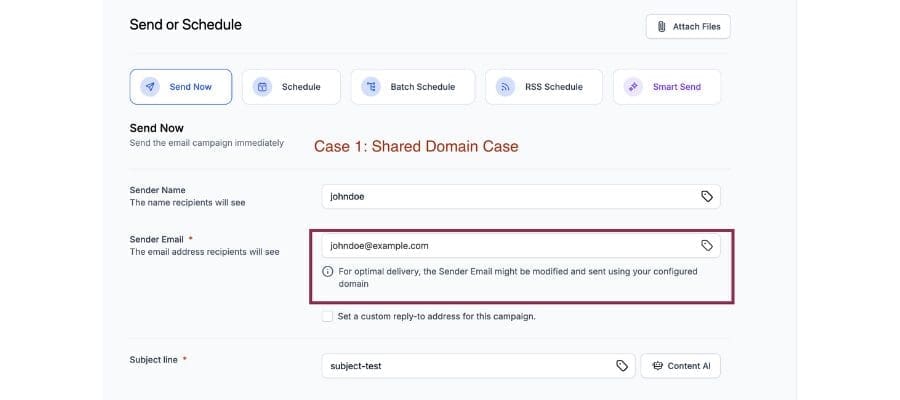
If you’re sending from a public or shared email address (like [email protected]), the system will now auto-modify the sender domain on the backend to make it compliant. No more blocked campaigns due to domain mismatches. - Dedicated Domain (Agency or Default):
Using a dedicated domain? GHL now automatically pre-selects the correct one. You’ll see a sleek new UI that verifies your sender email and flags any issues—before anything fails. - Multiple Domains? No Problem:
For those managing multiple domains (hello, agencies), you can now select a specific domain or choose “All Domains” based on your setup. Finally—freedom and flexibility. - Quick Access to Domain Settings:
Need to check your domain configuration fast? A one-click shortcut in the UI lets you review your setup right from the campaign screen.
This isn’t just a surface-level UI change. It’s a powerful under-the-hood improvement that gives you error prevention, flexibility, and peace of mind.
What’s Changed – Domain Compliance Without the Guesswork
Before this update, email campaign setup was a gamble. You’d hit “Send,” only to find your campaign had failed—because your sender email didn’t match the domain rules. Worse, there were no clear warnings until it was too late.
Now, things are different. Here’s how:
- Pre-selected Sender Domains:
The system now automatically selects the correct sender domain based on your configuration. It’s smart, accurate, and saves you time. - Real-Time Error Detection:
If there’s a mismatch—say your sender email doesn’t line up with your verified domain—the new UI flags it immediately. You get crystal-clear error messages and guidance to fix the issue on the spot. - Automatic Adjustments for Shared Domains:
Sending from a generic or shared address? GHL quietly updates it in the background to ensure your campaign doesn’t fail. - Domain Selector Dropdown:
If you’ve got multiple domains configured, you’ll now see a dropdown menu that lets you pick the one you want. Or go with “All Domains” for broader coverage (if supported by your setup). - Direct Link to Domain Settings:
See an issue? One click takes you straight to your domain setup page to make fixes fast.
With these updates, campaign failures from domain issues are no longer a mystery. You’ll know what’s wrong, how to fix it, and never waste time guessing.
Why This Matters – Boost Deliverability and Avoid Sending Issues
Let’s get real: email deliverability is everything.
If your messages aren’t hitting the inbox, your campaigns are dead before they even start. And when domains don’t match up—or you’re sending from a sketchy public address—it’s like waving a red flag to spam filters.
That’s exactly why this update to email domain settings is such a big win for LC users and agencies.
Here’s what it solves:
- Stops Domain-Based Failures Cold:
No more blocked emails because of mismatched sender addresses or unverified domains. - Protects Your Domain Reputation:
Using verified domains consistently helps build trust with inbox providers. That means fewer bounces, more opens, and less “why didn’t this send?” frustration. - Agency Flexibility = Power:
If you manage multiple clients or brands under one GHL account, you can now assign the correct domain per campaign. No more one-size-fits-all sending logic. - Compliance with Industry Standards:
Domain alignment is critical for SPF, DKIM, and DMARC. These settings help you stay compliant—automatically.
It’s not just about tech. It’s about performance, peace of mind, and being able to promise your clients their emails will get delivered.
How to Use – Set Up Sender Domains for Campaigns
Getting started with the new email domain settings is fast and friction-free. Here’s exactly how to use it inside your GoHighLevel account.
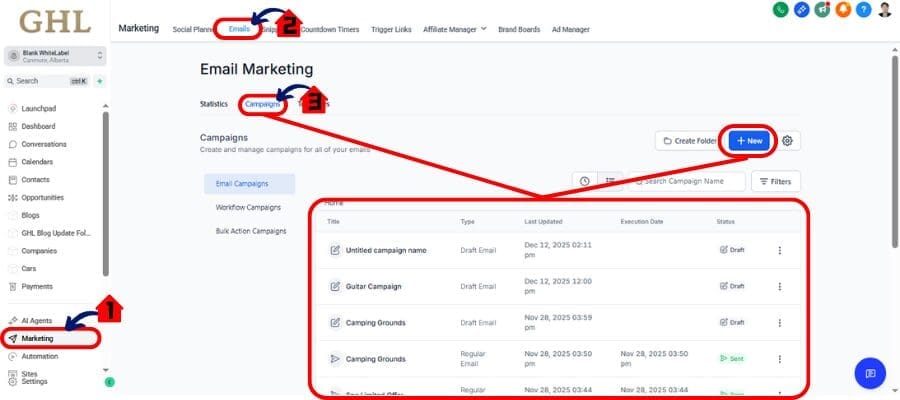
Step 01 – Access the Main Left Hand Menu in GoHighLevel
The Main Menu on the Left side of your screen has all the main areas that you work in when using GHL
1.1 Click on the Marketing Menu Item.
- Access the ‘Marketing’ section of GoHighLevel
- You’ll now be in the ‘Marketing’ section of GHL, where you can access the Email section from the top menu:
1.2 Click on the ‘Email’ menu link.
1.3 Click Campaign
- Create or Open a Campaign, Either start a new campaign or edit an existing one.
- Click “Send” or “Schedule”:
- You’ll now see a new option for selecting the sender domain.
- Choose Your Sender Domain
- If you only have one verified domain, it will be auto-selected.
- If you have multiple domains, use the dropdown to pick the right one for the campaign.
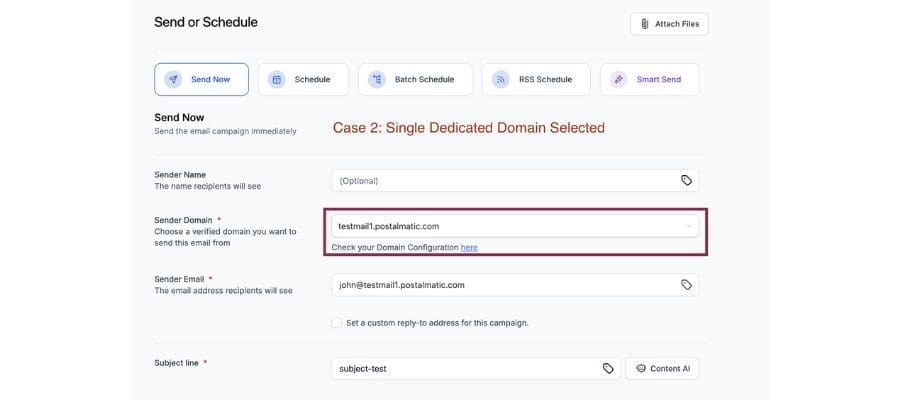
You can also choose “All Domains” if your domain configuration allows it.
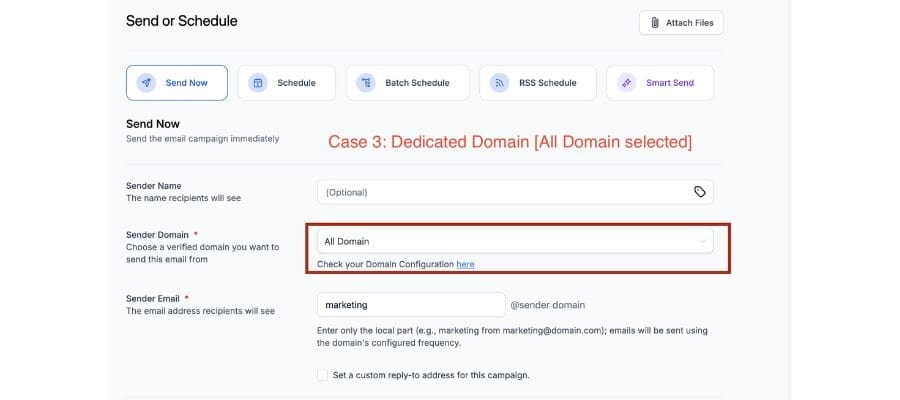
- Review Alerts or Errors:
- The UI will scan your sender email and domain settings in real time. If there’s a mismatch or an issue, you’ll get an alert with exact instructions.
- Fix or Adjust Settings (if needed):
- Click the built-in shortcut to access your domain configuration. From there, verify your domains, fix records, or adjust your DNS settings.
- Send with Confidence:
- Once your domain is confirmed and matches the sender email, hit send. Your emails are now more likely to reach the inbox.
Pro Tip:
Avoid using public domains like Gmail or Yahoo. GHL will adjust it automatically, but you’ll get better results using a verified business domain you own.
Pro Tips – Agency-Level Control and Best Practices
This update isn’t just helpful—it’s powerful when used right. If you’re running an agency, here’s how to take full advantage of the new email domain settings and avoid the pitfalls that can ruin your deliverability.
1. Use a Dedicated Domain for Each Brand or Client
Shared domains work in a pinch, but a dedicated domain per brand builds trust with inbox providers and keeps domain reputation clean. It also makes each campaign feel more professional.
2. Stop Sending from Public Domains—Now
If you’re still using a Gmail or Yahoo address as the sender email, change that today. These addresses hurt deliverability, can cause spam flags, and scream amateur hour. Let GHL help fix that—or better, use a verified domain you control.
3. Train Your Team on Domain Matching
Make sure everyone on your team knows: the sender email and the sending domain must match. One weak link can trigger bounce storms or blocklists.
4. Keep Your DNS Settings Clean and Verified
SPF, DKIM, and DMARC records must be correctly set. Use the quick link in the campaign UI to audit your domain health. Regularly.
5. For Agencies: Use Naming Conventions
If you’re managing lots of domains, use clear naming conventions in the domain setup (like “ClientBrand_Email” or “Agency_Domain”). This makes campaign domain selection fast and foolproof.
6. Test Before You Blast
Always run a test send before launching a full campaign—especially after domain changes. It’s better to catch issues before you hit 10,000 inboxes.
These small steps add up to big wins in your email marketing. Clean domains + the right setup = better inboxing, fewer headaches, and happier clients.
Results You Can Expect – More Emails Delivered, Less Headache
The real impact of the new email domain settings goes far beyond the UI. This update solves one of the biggest silent killers in email marketing: domain mismatch.
Here’s what you can expect once you start using it:
1. Fewer Failed Campaigns
No more wondering why emails didn’t send. The system now catches issues before you launch—and fixes what it can behind the scenes.
2. Higher Deliverability Rates
When your sender domain matches your email address and DNS records are solid, inbox providers trust you more. That means better inbox placement, not spam folders.
3. Better Domain Reputation
Sending from the right domain consistently helps protect your sender score and builds long-term domain authority. That’s crucial for high-volume senders and agencies.
4. Smoother Team Operations
No more support tickets or internal Slack chaos trying to troubleshoot domain issues mid-launch. It’s all handled with smart defaults and real-time alerts.
5. Client Confidence
When your agency can promise reliable campaign delivery, clients stay longer. They get better results, and you get fewer “why didn’t this send?” emails.
Whether you’re sending a hundred emails or a hundred thousand, this update keeps things running smoothly—and keeps your brand (and your clients’) looking sharp.
Conclusion – One of the Most Useful Updates for LC Email Senders
GoHighLevel’s new email domain settings for LC users solve a major pain point that’s been lurking in the background for too long: email campaigns failing due to mismatched or unverified domains.
With this update, LC users and agencies now have:
- Clear domain selection per campaign
- Real-time alerts before issues cause failure
- Smarter defaults for shared or public email addresses
- Total flexibility when managing multiple brands or clients
If email is part of your strategy—and it should be—this feature is now one of the most important things to configure correctly. It saves time, protects your reputation, and ensures your campaigns actually land in inboxes.
One final note: This change only applies to LC email sending users. If you’re using your own SMTP provider, your setup stays the same.
So go take five minutes, check your domain settings, and start sending smarter.
Scale Your Business Today.
Streamline your workflow with GoHighLevel’s powerful tools.