- Introduction – Sales Pipeline Automation Inside GHL
- Quick Summary – Sales Pipeline Automation
- Here are this weeks HighLevel Updates
- What’s New With Sales Pipeline Automation
- What’s Changed in Pipeline Management
- Why Sales Pipeline Automation Matters for Agencies
- How to Use Sales Pipeline Automation
- Pro Tips to Maximize Sales Pipeline Automation
- What This Means for Your CRM Workflow
- Results You Can Expect From Sales Pipeline Automation
- Frequently Asked Questions About Sales Pipeline Automation
- Conclusion – Smarter Prospecting, Faster Deals
Introduction – Sales Pipeline Automation Inside GHL
GoHighLevel Updates for February 2026 just introduced a powerful new way to send prospects directly to your Sales pipeline automation in GoHighLevel, turning outbound research into trackable CRM opportunities in a single step. This featured GoHighLevel update connects the Prospecting Tool with your sales pipelines so you can move from discovery to deal management without the usual manual copy‑paste grind.
- What changed: You can now add a prospect, choose a pipeline and stage, and instantly create an opportunity with the Source automatically tagged as “Prospecting” in GoHighLevel.
- Who it impacts: Sales teams, agencies, and any business using GHL for outbound prospecting and pipeline management.
- What we’ll demonstrate: How to use this GHL feature update inside your sub‑accounts, plug it into workflows, and track revenue generated specifically from Prospecting in GoHighLevel.
The latest GoHighLevel Changelog includes several other GHL feature updates that round out your daily workflow:
- Improved Documents & Contracts staff selection for precise signers
- Invoices & Estimates that open in a new tab for easier billing management
- Import from Media Storage in GoHighLevel Courses for faster content deployment
- Manus triggers and actions in GoHighLevel Workflows for AI task automation
- New templates and a Physical Therapy Clinic snapshot to launch campaigns faster
- Expanded Workflows error highlight feature that catches config issues early.
- Deskphone‑to‑deskphone calling & transfer in GoHighLevel’s phone system for smoother call handling.
- AI Builder conversational editing for If‑Else & Wait actions.
- Voice Dictation in AI Builder & Assistant to build workflows just by talking to GoHighLevel.
Keep reading for much more on all these updates and a deep dive into the new Pipelines feature!

Quick Summary – Sales Pipeline Automation
Purpose: This update connects the Prospecting Tool directly to your CRM pipelines, enabling true Sales pipeline automation inside your Sub-Accounts.
Why It Matters: It removes manual opportunity creation, speeds up deal tracking, and gives you accurate ROI reporting from outbound prospecting.
What You Get: Instant Opportunity creation, automatic “Prospecting” source tagging, correct pipeline stage placement, and seamless workflow triggers.
Time To Complete: Setup takes less than 5 minutes if your pipelines and stages are already created.
Difficulty Level: Easy. No advanced configuration required beyond selecting a pipeline and stage.
Key Outcome: Prospects move directly into your structured sales process, giving you faster follow-up, cleaner reporting, and measurable outbound revenue tracking.
Here are this weeks HighLevel Updates
Documents & Contracts: Staff selection in templates
- What it does
- Lets admins assign signature and other fillable fields to any specific staff member directly in the template instead of just Contact/Sender/Self.
- Where in GHL
- Sub‑Account → Documents & Contracts → Templates → create or edit template → add Signature/field → set “To be signed by” to a chosen staff member.
- Who benefits most
- Agencies managing docs for multiple businesses or locations.
- Brick‑and‑mortar businesses with designated signers.
- Teams with multi‑step internal approval/signing workflows.
- Impact
- Big for teams with structured approvals, improving operations and reducing confusion, though it does more for efficiency than raw revenue.
Automate marketing, manage leads, and grow faster with GoHighLevel.

Invoices & Estimates: Open in new tab
- What it does
- Lets you open an invoice or estimate in a separate browser tab from the 3‑dot menu without losing your filtered list view.
- Where in GHL
- Sub‑Account → Payments → Invoices & Estimates → 3‑dot menu on an item → “Edit in a new tab.”
- Who benefits most
- Bookkeepers and admins.
- Agencies handling billing across many clients.
- Any business doing bulk review or edits.
- Impact
- Strong quality‑of‑life upgrade for finance/admin teams that saves time but is mainly about efficiency, not new revenue.
Courses: Import from Media Storage (Labs)
- What it does
- Lets you import existing audio/video from Media Storage straight into course lessons, so you can reuse content without re‑uploads.
- Where in GHL
- Sub‑Account → Settings → Labs → enable “Courses: Import from Media Storage.”
- Then: Courses → open course → lesson → Create/Edit → choose from Media Library.
- Who benefits most
- Course creators and membership businesses.
- Agencies selling training/education.
- Anyone turning existing content into structured courses.
- Impact
- Speeds up course production and repurposing, which is huge if education is core to the model, but neutral if you do not sell trainings.
Manus triggers and actions in Workflows
- What it does
- Adds native Manus triggers (New Task, Task Stopped) and actions (Create, Get, Update, Fetch, Delete, Continue Task) to workflows, so GHL can orchestrate and react to Manus AI tasks.
- Where in GHL
- Sub‑Account → Automation → Workflows → add trigger/action → choose Manus.
- Integration: Sub‑Account → Settings → Integrations → Manus → connect via API key.
- Who benefits most
- Power users building advanced AI automations.
- Agencies productizing AI‑driven services.
- Tech‑savvy businesses wanting multi‑step AI processes tied into CRM data.
- Impact
- Huge potential for automation‑heavy setups, but requires extra tools and design, so it is high upside and high complexity rather than plug‑and‑play.
Introducing new templates
- What it does
- Adds new templates for websites, emails, forms, surveys, social posts, Facebook ads, plus a Physical Therapy Clinic snapshot, across verticals like finance, home services, coaching, medical, creative, and wellness.
- Where in GHL
- Templates: inside Sites, Emails, Forms, Surveys, Social Planner → Templates → filter by relevant category.
- Snapshot: Agency view → Accounts/Snapshots → add/import “Physical Therapy Clinic.”
- Who benefits most
- Agencies spinning up new vertical offers.
- Local businesses in the covered niches.
- Anyone that prefers starting from proven layouts instead of from scratch.
- Impact
- Excellent accelerators for speed‑to‑launch, especially for agencies, but they do not change what is possible, only how fast you can deploy it.
Workflows: Expanded error highlight feature
- What it does
- Extends error validation to 48 actions and 28 triggers and strengthens checks on If‑Else and Wait, catching misconfigurations when saving.
- Where in GHL
- Sub‑Account → Automation → Workflows → any workflow builder view; errors show as visual highlights on problematic steps when you save.
- Who benefits most
- Agencies maintaining lots of automations.
- Teams that delegate workflow building.
- Anyone who has been burned by quietly broken workflows.
- Impact
- Makes automations more reliable and reduces invisible failures, which is critical for stability even though it is mostly invisible when everything works.
Deskphone‑to‑deskphone calling & transfer
- What it does
- Enables transferring IVR‑routed calls from one deskphone to another by extension and supports extension‑to‑extension calling.
- Where in GHL
- Config: Sub‑Account → Settings → Phone / HL Phone / Twilio, where IVR and deskphones are set up.
- Usage: on the physical deskphone during calls, using transfer plus extension dialing.
- Who benefits most
- Call centers and sales floors with physical phones.
- Medical and service offices with front desk and internal staff.
- Any team using IVR heavily with internal call routing.
- Impact
- Big operational win for phone‑centric teams, but a non‑event for SMS/email‑first or softphone‑only setups.
AI Builder: Conversational editing for If‑Else & Wait
- What it does
- Lets you modify If‑Else and Wait actions conversationally, adjusting branches, conditions, timeouts, and wait types via natural language.
- Where in GHL
- Sub‑Account → Automation → Workflows → AI Builder.
- Use the AI Builder chat to request changes to existing If‑Else/Wait logic.
- Who benefits most
- Non‑technical users intimidated by complex logic.
- Agencies iterating high‑complexity workflows.
- Anyone preferring “describe the logic in English” over manual clicking.
- Impact
- Makes sophisticated workflows more accessible and faster to adjust, improving build speed and reducing errors for teams that tweak logic often.
Voice dictation in AI Builder & Assistant
- What it does
- Adds voice input so you can speak ideas or instructions into AI Builder or the AI Assistant, with transcription and multi‑language support.
- Where in GHL
- Sub‑Account → Automation → Workflows → AI Builder → mic icon in the prompt box.
- Also in AI Assistant interfaces where the mic icon appears.
- Who benefits most
- Busy owners and sales pros who think aloud.
- Agencies rapidly building workflows during calls or screen shares.
- Multilingual teams that want to use their native language in prompts.
- Impact
- Reduces friction in getting ideas into the system and favors power users building lots of automations, though it mostly boosts speed rather than capability.
What’s New With Sales Pipeline Automation
This update removes the biggest friction point between Prospecting and your CRM.
Before this change, you could find great prospects inside the Prospecting Tool… but then you had to manually move them into your pipeline. That meant switching tabs, creating an Opportunity, assigning a stage, and making sure everything was tracked correctly.
Now? It’s handled in one clean motion.
Here’s what’s new inside GHL’s Sales pipeline automation upgrade:
You can add prospects directly into an existing pipeline the moment you find them. No extra navigation. No duplicate entry.
You can choose the exact pipeline you want the deal to live in. If you run multiple pipelines for different services or client types, you’re not stuck with a default location. You decide where it goes.
You can select the correct stage immediately. That means your deal starts in the right place from day one. No messy backlog of “Unassigned” or “Needs Review” opportunities.
An Opportunity is automatically created the second you confirm the action. You don’t have to manually generate anything.
The Opportunity Source is automatically marked as “Prospecting.” That’s huge for reporting. Now you can clearly see which deals originated from outbound research versus ads, referrals, or other channels.
And most importantly, this all happens inside your Sub-Account, where pipeline and opportunity management actually lives.
This is real Sales pipeline automation. It connects research directly to revenue tracking.
Instead of bouncing between tools, your prospect becomes a tracked deal in seconds.
That’s cleaner data. Faster follow-up. And better control over your sales process.
What’s Changed in Pipeline Management
This isn’t just a convenience tweak. It changes how pipeline management flows inside GHL.
Before this update, Prospecting and Opportunities felt like two separate steps in your process.
- Step one: Find the prospect.
- Step two: Manually create the Opportunity.
- Step three: Assign a pipeline.
- Step four: Choose a stage.
- Step five: Hope you didn’t forget to tag or track it properly.
That gap between discovery and deal tracking created friction. And friction slows teams down.
Now, Sales pipeline automation removes that disconnect.
The moment you add a prospect and enable “Add to a pipeline,” GHL handles the Opportunity creation instantly. The prospect goes straight into your selected pipeline and stage without any manual CRM entry.
This changes a few important things.
First, it reduces human error. No more forgetting to create an Opportunity. No more missing stage assignments. No more half-tracked deals sitting outside your pipeline.
Second, it improves reporting accuracy. Because the Opportunity Source is automatically labeled as “Prospecting,” your dashboard now clearly shows how many deals originated from outbound research. That means better visibility into performance and ROI.
Third, it helps your team follow up faster. When a prospect lands in the right stage automatically, your workflows can kick in right away. No delays. No backtracking.
This update effectively makes Prospecting part of your core CRM engine instead of a separate tool.
That’s what strong Sales pipeline automation should do, remove extra steps and tighten your sales system.
Why Sales Pipeline Automation Matters for Agencies
If you run an agency, speed and structure are everything.
You’re not just generating leads. You’re managing volume. You’re tracking performance. You’re proving ROI. And if your systems aren’t tight, things slip through the cracks fast.
That’s why this Sales pipeline automation update matters more than it looks on the surface.
First, it eliminates admin drag.
When you have to jump through a few extra steps just to log a deal, it doesn’t seem like much at first. But stack that across a busy week of prospecting, and it quietly eats into your time. Now it doesn’t.
Second, it strengthens your outbound process.
Outbound prospecting only works if it feeds directly into a structured pipeline. When leads sit outside your CRM, they don’t get tracked. They don’t get followed up properly. They don’t get reported on accurately.
With this Sales pipeline automation feature, every prospect you decide to pursue becomes a measurable deal instantly.
Third, it improves accountability.
Because the Opportunity Source is automatically marked as “Prospecting,” you can now clearly separate:
- Inbound leads
- Paid traffic leads
- Referral leads
- Outbound prospecting leads
That means you can finally answer the real question:
Is Prospecting actually producing revenue?
Fourth, it supports automation.
Once a prospect enters a pipeline stage, workflows can trigger automatically. That means:
- Auto-assigning a rep
- Sending internal notifications
- Starting follow-up sequences
- Creating tasks
- Tracking response time
That’s where Sales pipeline automation becomes powerful, when it feeds directly into workflows.
And finally, it creates consistency across your team.
No more “Did you add that lead?”
No more “What stage is this in?”
No more shadow spreadsheets.
Everything lives in the pipeline. From day one.
For agencies scaling outbound services or managing multiple clients, this isn’t just helpful.
It’s operational leverage.
How to Use Sales Pipeline Automation
This section shows you exactly how to send prospects directly into your pipeline using Sales pipeline automation inside your GoHighLevel sub-account. You will switch to the correct sub-account, access the Prospecting Tool, enable the pipeline option, select the appropriate stage, and confirm the Opportunity is created properly.
By following these steps, you ensure every prospect you decide to pursue is instantly added to your CRM, properly staged, and ready for follow-up or automation. This keeps your pipeline clean, your reporting accurate, and your outbound process structured from the start.
- Use the Prospects Accounts Page inside Marketing >> Prospecting to find a New Prospect.
- Find a New Prospect(s) using the Search options in Find Local Leads, Run Audits & Push to CRM page.
- Choose a single business, or multiple businesses to generate a Marketing Audit Report and add to a Pipeline.
- Add Prospect(s) to assigned Category, Pipeline and Pipeline Stage.
- Go to the Contact Details page for the business you want to verify new Opportunity, Pipeline, and Pipeline Stage.
- Verify the business(es) are added to the Pipeline and Pipeline Stage and an Opportunity is created.
- Review the Opportunity Details.
To start make sure you are logged in to your GoHighLevel sub-account.
Step 1.0 – Use the Prospects Accounts Page inside Marketing >> Prospecting to find a New Prospect
- Access the Prospecting section within your sub-account to begin searching for businesses or contacts you want to add to your pipeline.
1.1 click Marketing main menu link.
- This opens the Marketing section where Prospecting and other outreach tools are located.
1.2 click Prospecting in the top menu.
- This takes you to the Prospecting dashboard where you can search and manage potential leads.
1.3 click + Add Prospect button.
- This opens the form that allows you to add the selected prospect and proceed with pipeline assignment.

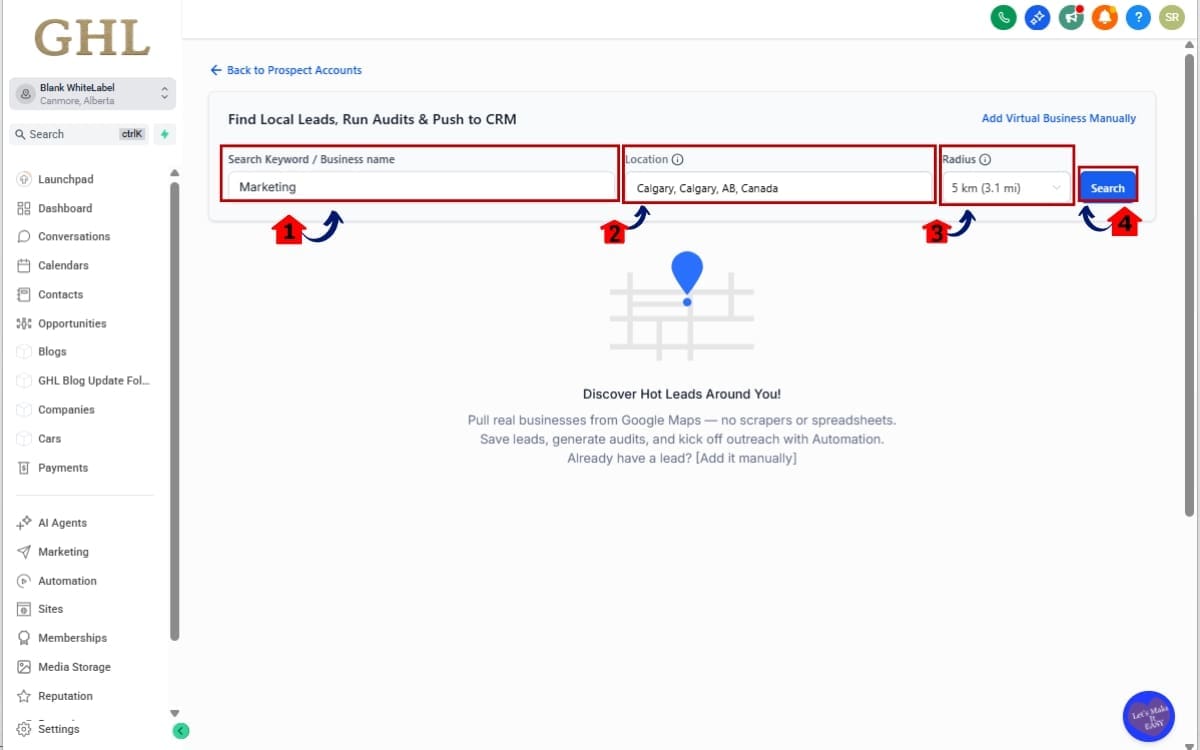
Step 02 – Find a New Prospect(s) using the Search options in Find Local Leads, Run Audits & Push to CRM page
- Use the search tools on this page to locate businesses that match your targeting criteria before adding them to your pipeline.
2.1 Enter in your Search Keyword or the Business name.
- Type in the industry, niche, or exact business name you want to locate.
2.2 Put in your Location.
- Input the city, state, or area where you want to find businesses.
2.3 Set radius to limit results to businesses with your chosen selected location.
- Adjust the radius setting to control how far outside the selected location the system should search.
2.4 click search.
- Run the search to generate a list of businesses that match your selected keyword and location filters.
Step 03 – Choose a single business, or multiple businesses to generate a Marketing Audit Report and add to a Pipeline
- Choose one or more businesses from the search results to generate a Marketing Audit Report and push them into your selected pipeline.
3.1 Click the + Add Button next to a single business to generate their Marketing Audit Report and add it to a Pipeline.
- This generates the Marketing Audit Report for that business and opens the option to assign it to a pipeline.
3.2 Check the boxes next to multiple businesses to Add Prospects in Bulk.
- Use this option when you want to add several prospects at the same time.
3.3 Click the Add Multiple Prospects Button to generate their Marketing Audit Reports and add it to a Pipeline.
- This generates Marketing Audit Reports for all selected businesses and allows you to add them to a pipeline in bulk.

Step 04 – Add Prospect(s) to assigned Category, Pipeline and Pipeline Stage
- Define how the selected prospects should be organized and tracked inside your CRM before adding them.
4.1 – Choose the correct category for the business.
- Choose the category that matches the business type or niche for proper organization and filtering.
4.2 – Click the Add to a Pipeline checkbox.
- Check this option to activate pipeline assignment for the selected prospect(s).
4.3 – Select the Pipeline from the drop box.
- Choose the existing pipeline where the Opportunity should be created.
4.4 – Select the Pipeline Stage from the drop box.
Choose the stage that represents the current status of the prospect (e.g., New Lead).
4.5 – Click the Add Selected Prospects button
- This generates the Marketing Audit Report, creates the Opportunity, and places the prospect(s) into the selected pipeline stage.

Step 05 – Go to the Contact Details page for the business you want to verify new Opportunity, Pipeline, and Pipeline Stage
- Access the Contact Details page to confirm the new Opportunity, assigned Pipeline, and selected Pipeline Stage were created correctly.
5.1 On the Prospect Accounts page (this is shown in Step 1.0), click the View Contact icon below the business you are verifying, this will open up the Contact Details for that Business.
- This opens the Contact Details page for that business where you can review the Opportunity record and confirm the assigned pipeline and stage.

Step 06 – Verify the business(es) are added to the Pipeline and Pipeline Stage and an Opportunity is created
- Confirm the selected business(es) were successfully added to the correct pipeline and stage, and that an Opportunity record was created.
6.1 – In the right hand panel, click on the Details link.
- Review the Opportunity information to confirm the assigned Pipeline, Pipeline Stage, and Opportunity Source are correctly displayed.

Step 7.0 – Review the Opportunity Details
- Open and review the Opportunity record to ensure all information was created and assigned correctly.
7.1 – Confirm the Pipeline and Stage
- Verify the Opportunity is placed in the correct Pipeline and assigned to the intended Pipeline Stage.
7.2 – Review and adjust if necessary the rest of the Opportunity details. Opportunity Name, Status, Opportunity Value, and Opportunity Source.
- Check the Opportunity Name, Status, Opportunity Value, and Opportunity Source to ensure accuracy.
7.3 – Confirm the Tags and the Created By Prospecting Tool details.
- Verify the appropriate Tags are applied and confirm the Opportunity indicates it was created by the Prospecting Tool.

Pro Tips to Maximize Sales Pipeline Automation
Now that you know how to use it, let’s talk about how to use it properly.
Because Sales pipeline automation isn’t just about moving prospects into a pipeline. It’s about building a system that scales.
Here are the smart ways agencies should be using this feature.
Create a Dedicated “Prospecting” Stage
If you don’t already have one, create a clear stage like:
- Prospecting Added
- Outbound – New
- Research Complete
This gives you a clean starting point for every outbound lead and keeps your reporting structured.
Trigger Workflows Automatically
The real power of Sales pipeline automation kicks in when you connect it to workflows.
Set up automation that triggers when:
- An Opportunity is created
- A deal enters a specific stage
- Opportunity Source equals “Prospecting”
From there, you can:
- Auto-assign a sales rep
- Send internal notifications
- Create follow-up tasks
- Start an email or SMS outreach sequence
This turns one click into a full follow-up engine.
Track Prospecting ROI Separately
Because the Opportunity Source is automatically tagged as “Prospecting,” you can now measure:
- Total deals created from outbound
- Close rate from prospecting
- Revenue generated from outbound efforts
Most agencies don’t track this properly.
Now you can.
Standardize Stage Placement
Train your team to always place new prospects in the correct stage.
If some reps drop them into “New Lead” and others drop them into “Contacted,” your reporting gets messy fast.
Consistency = clean data.
Build a Prospecting Dashboard
Use pipeline reporting to build a simple outbound dashboard:
- Number of prospects added
- Number of opportunities created
- Deals moved to next stage
- Deals closed
- Revenue from Prospecting
This is where Sales pipeline automation becomes a growth lever instead of just a feature.
Eliminate Shadow Tracking
If your team is still using spreadsheets to track outbound leads, shut that down.
Everything should now live inside your pipeline from day one.
Prospect → Pipeline → Revenue.
Clean. Structured. Scalable.
What This Means for Your CRM Workflow
This update officially connects outbound prospecting to your core CRM engine.
Before this Sales pipeline automation upgrade, Prospecting felt like a separate activity. You’d research leads. Maybe qualify them. Then manually move them into your pipeline later.
Now, Prospecting isn’t separate.
It’s built directly into your deal flow.
That changes how your CRM operates.
First, your pipeline becomes the single source of truth.
The moment a prospect is worth pursuing, they enter your structured sales process. No waiting. No side notes. No “I’ll add them later.”
Second, your data gets cleaner.
Because every Opportunity created from Prospecting is automatically tagged with the correct Source, your reporting becomes more reliable. You’re no longer guessing which deals came from outbound efforts.
You know.
Third, your workflows become more powerful.
When Sales pipeline automation feeds directly into Opportunity stages, you can trigger:
- Automated follow-ups
- Task assignments
- Team notifications
- Nurture sequences
- Stage-based reminders
That means your CRM doesn’t just store deals.
It moves them.
Fourth, your team becomes more consistent.
Instead of each rep managing outbound leads differently, everyone follows the same structure:
Find prospect → Add to pipeline → Follow the process.
That’s scalable.
And finally, it tightens your revenue tracking.
When outbound leads move straight into your pipeline, forecasting becomes more accurate. You can see how many deals started from Prospecting and how many turned into closed revenue.
That’s not just Sales pipeline automation.
That’s operational clarity.
Results You Can Expect From Sales Pipeline Automation
When you implement this properly, the impact shows up fast.
This isn’t one of those “nice to have” updates. Sales pipeline automation directly affects speed, tracking, and revenue visibility.
Here’s what agencies can realistically expect.
Faster Deal Movement
Because prospects enter your pipeline instantly, there’s no delay between research and outreach.
That means:
- Reps follow up sooner
- Deals move stages quicker
- Less time sitting in limbo
Speed matters in outbound. The first follow-up often wins.
Reduced Admin Time
Creating Opportunities by hand doesn’t seem like a big deal… until you’re doing it over and over. Cut that step out, and you get a lot of time back, especially if your team handles serious volume.
Instead of data entry, your team focuses on conversations and closing.
That’s leverage.
Higher Follow-Up Consistency
When every prospect automatically becomes a tracked Opportunity, nothing slips through the cracks.
No more “I thought someone added them.”
No more lost leads sitting in notes.
No more half-tracked deals.
Sales pipeline automation forces structure.
Better Prospecting ROI Tracking
Because the Opportunity Source is automatically labeled “Prospecting,” you can now measure:
- Total outbound opportunities created
- Stage progression rates
- Close rates from Prospecting
- Revenue generated from outbound
Most agencies guess at outbound ROI.
Now you can prove it.
Cleaner Reporting and Forecasting
With prospects entering your pipeline correctly from the start, your forecasting becomes more accurate.
Your pipeline reflects real deal flow, not partial data.
That improves:
- Revenue projections
- Sales performance analysis
- Team accountability
More Scalable Outbound Systems
When Prospecting feeds directly into CRM workflows, scaling becomes easier.
Add more reps.
Increase prospect volume.
Launch new outbound campaigns.
Your structure holds.
That’s the real win of Sales pipeline automation.
It’s not just about saving clicks.
It’s about building a predictable outbound machine.
Frequently Asked Questions About Sales Pipeline Automation
Conclusion – Smarter Prospecting, Faster Deals
This February 2026 GoHighLevel update is more than a convenience tweak.
It’s a structural improvement to how outbound prospecting feeds your CRM.
With Sales pipeline automation, you’re no longer juggling research and deal tracking as separate tasks. The moment you find a qualified prospect, you can turn them into a tracked Opportunity inside the correct pipeline stage, instantly.
- No manual entry.
- No missed deals.
- No messy tracking.
And because every Opportunity is automatically tagged with the “Prospecting” source, you finally get clear visibility into how outbound efforts impact revenue.
That’s the real win.
Prospecting stops being “activity” and becomes measurable pipeline performance.
When you combine this feature with workflows, stage-based automation, and proper reporting, you’re not just adding prospects, you’re building a predictable outbound system.
Prospect → Pipeline → Follow-Up → Revenue.
Simple. Structured. Scalable.
This is the first step toward deeper CRM integration inside GHL. And if your agency relies on outbound growth, this Sales pipeline automation update is one you should implement immediately.
Switch into your Sub-Account.
Start adding prospects directly to your pipeline.
Track the results.
Happy prospecting. 🚀
Scale Your Business Today.
Streamline your workflow with GoHighLevel’s powerful tools.