

- A Step-by-step Guide to Creating Courses in GHL
- Quick Summary – Build Online Course Essentials
- Why Building Online Courses in GHL Matters
- Video Guide: How to Build an Online Course in GHL
- How to Build Online Courses in GHL
- Pro Tips for Building Online Courses in GHL
- Common Questions to Build Online Courses in GHL
- Final Steps for Building Online Courses
A Step-by-step Guide to Creating Courses in GHL
Build online courses in GHL by setting up modules, adding lessons, quizzes, and certificates. Assign access rules for students and publish your course within minutes using GHL’s easy-to-use Course Builder. This guide walks you through each step clearly so you can implement a complete course without extra tools or integrations.
When I tested this feature in my sub-account, I found that dividing content into smaller modules improved student completion rates significantly. In my experience, most courses fail because creators overload lessons, but GHL’s structure keeps learners engaged and progressing consistently.

Online learning adoption is growing rapidly, with over 70 percent of businesses now offering digital courses to clients or employees. Using GHL to build online courses ensures you track engagement, automate access, and provide certificates efficiently. By following this guide, you will create a fully functional, organized course that saves time and enhances the learning experience for every student.
Quick Summary – Build Online Course Essentials
Purpose: This guide explains how to build online course in GHL efficiently and clearly.
Why It Matters: Using GHL reduces manual work, organizes content, and keeps learners on track.
What You Get: Step-by-step instructions to create modules, lessons, quizzes, and certificates.
Time To Complete: A basic course setup and launch can be done in two to three hours.
Difficulty Level: Suitable for beginners and intermediate users with basic familiarity with GHL.
Key Outcome: Users can easily build online course content and gain a professional online course that is fully functional and easy to manage.
Why Building Online Courses in GHL Matters
Creating an online course in GHL is one of the most efficient ways to organize lessons, quizzes, and certificates in a single platform. Businesses that use structured online courses see up to 60 percent higher learner completion rates according to industry studies. This simple setup reduces manual management and ensures students progress consistently.
In my experience managing multiple sub accounts, courses with clearly defined modules outperform overloaded lessons by keeping learners engaged. To build online courses in GHL lets you control access, track progress, and issue certificates automatically.
Automate marketing, manage leads, and grow faster with GoHighLevel.

Key benefits include:
- Easy-to-use interface for creating modules, lessons, and quizzes quickly.
- Assign student access based on membership tiers without extra tools.
- Track engagement and completion rates to measure course effectiveness
Video Guide: How to Build an Online Course in GHL
This video offers a simple walkthrough for those looking to build online course programs in GHL. It breaks down the process into small, easy steps. The instructions are clear and direct. Anyone who wants to build online course content in GHL can follow along and take action right away.
Inside this video:
- Set up your course with modules and lessons in GHL.
- Add videos, PDFs, and quizzes step by step.
- Assign student access using membership tiers correctly.
- Enable certificates and track progress for every student.
This short guide makes building an online course simple, clear, and ready to launch.
How to Build Online Courses in GHL
Building an online course in GoHighLevel allows you to create structured learning content, organize lessons, add quizzes, and sell access through offers. In this guide, you will set up your course from the ground up, starting with course creation and pricing, then building modules and lessons, and finally publishing your offer.
You will also learn how to manage course details, upload branding assets, customize your theme, configure quizzes, and test your checkout page. By the end of this process, your online course will be fully structured, published, and ready for student enrollment.
Below is a complete overview of the process you will follow to build online courses successfully.
- Access the Products page inside GHL Courses.
- Choose Start from scratch to create a new course.
- Start with the basics on the Create Course page, then click Upload Thumbnail.
- Upload the course thumbnail, then move on to Set Up Pricing.
- Begin creating an Offer by choosing a pricing plan, then click Create Course.
- Set the price of the course, then continue building the online course.
- Clean up the outline to build the online course structure.
- Delete all unnecessary course elements.
- Edit the first module of your online course.
- Update the details of the first module.
- Edit the first lesson of the first module.
- Configure the first lesson settings before saving.
- Add more lessons to the first module.
- Create a new module after the first module.
- Add a lesson to the new module.
- Name the first lesson of the new module.
- Add more lessons to the new module and start creating a quiz.
- Create the quiz for the first module.
- Open the quiz for the first module.
- Add your first question to the first module quiz.
- Add more answer options to the first question.
- Finalize the quiz for the first module.
- Set the status of each lesson, module, and quiz.
- Add a course credential to your online course.
- Choose a certificate template from the Certificate Library.
- Open the Course Details section of your online course.
- Edit the instructor information.
- Add your branding logos before moving to theme customization.
- Browse the course theme templates.
- Preview and apply a theme to your course.
- Open the Offers section of your online course.
- Edit the Offer details.
- Upload your Offer thumbnail and publish the course.
- Preview the checkout page of your course.
- Test your course.
Before starting, you need to add at least one payment method inside your GoHighLevel account. For help with this step, you can review the blog post titled The Complete Guide to PayPal Payment Setup.
Make sure you are logged in to your GoHighLevel sub-account.
Step 01 – Access the Products page inside GHL Courses
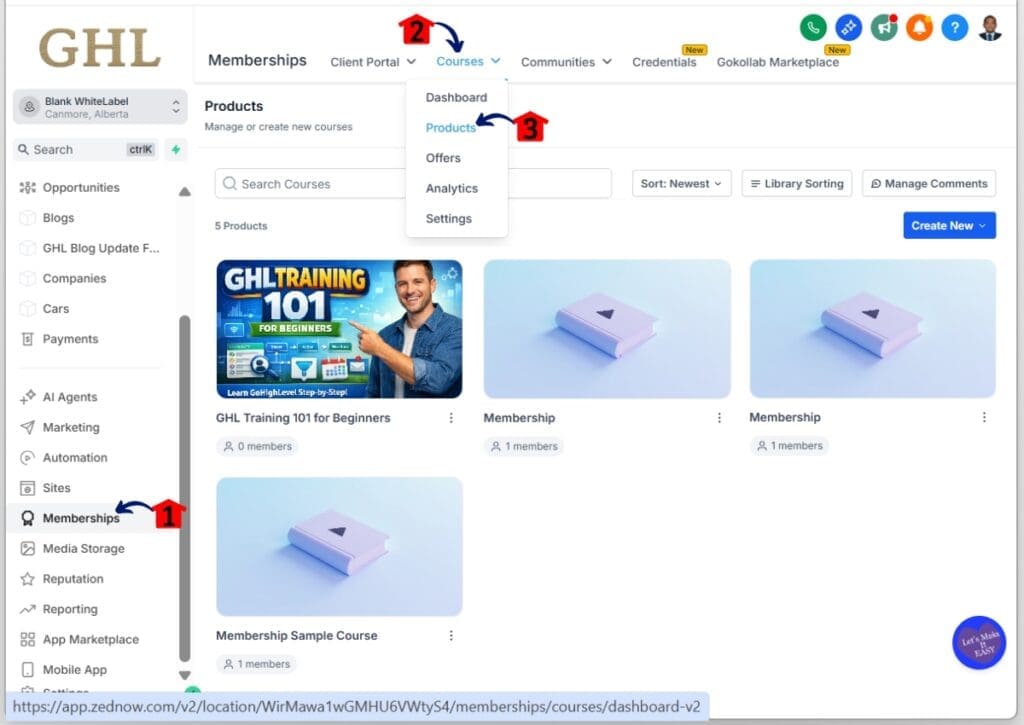
- The Products page is located under the Courses tab in the Membership section.
1.1 Click the Memberships menu item.
- Inside the Memberships section, you will find Client Portal, Courses, Communities, and more.
1.2 Hover your cursor over the Courses tab in the top menu.
- A dropdown menu should appear with Dashboard, Products, Offers, and more.
1.3 Click Products from the dropdown menu.
- You should land in the Products section, where you can manage and create courses.
- This is also where you can view the list of all your created online courses.
- You should now be in the Products dashboard, where you can search, manage, and create your online courses.
Step 02 – Choose Start from scratch to create a new course
- The Start from Scratch option will appear after you click the Create New button to create a course.
2.1 Click the Create New button.
- This is on the right side of the Products dashboard, under the Manage Comments button.
- A dropdown menu should appear with options like Start from scratch and Import from Kajabi.
2.2 Click Start from scratch from the Create New dropdown menu.
- You should be taken to the Create Course section, where you can add your course title and description to build online course details.

Step 03 – Start with the basics on the Create Course page, then click Upload Thumbnail
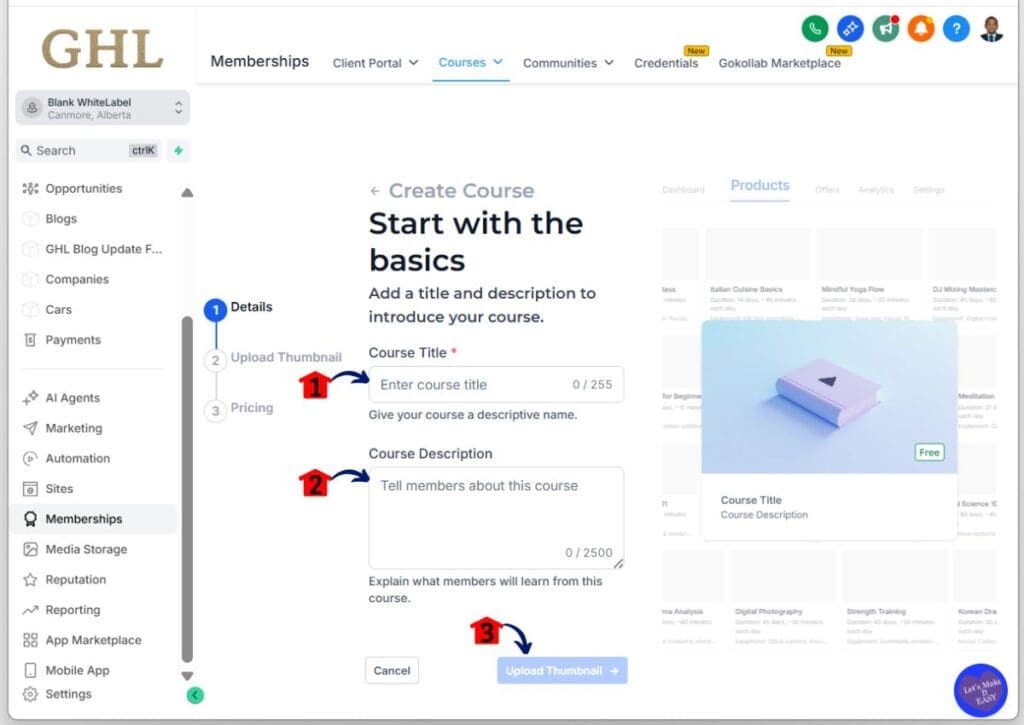
- You are now in the Details section, where you can create your course and enter the title and description in the input boxes.
3.1 Type your course title in the Course Title input box.
- Keep your title to a maximum of 255 characters. Make it clear and concise.
3.2 Type your course description in the Course Description input box.
- Keep this to a maximum of 255 characters. Add a short summary of what your online course is about.
3.3 Click the Upload Thumbnail button under the Course Description input box.
- This button turns blue and becomes clickable after you fill in the title and description. If those fields are empty, it will not be clickable.
Step 04 – Upload the course thumbnail, then move on to Set Up Pricing
- You are now in the Upload Thumbnail section, where you can upload your course thumbnail.
4.1 Click the course thumbnail upload button in the Upload Thumbnail section.
- A popup should appear where you can drag and drop your course thumbnail as you start to build online course assets.
- A progress bar should appear under the upload area while it uploads. Once it finishes, your thumbnail should show in the upload box.
4.2 Click the Set Up Pricing button under the course upload box.
- This button should turn blue and become clickable once your thumbnail uploads successfully.

Step 05 – Begin creating an Offer by choosing a pricing plan, then click Create Course
- You are now in the Pricing section, where you can choose your pricing plan before you create the course.
5.1 Choose a pricing plan: Free, Recurring, or One-Time under Pricing Plan.
- Choose Free if you want everyone to access the course with no cost.
- Choose Recurring if you want payments on a schedule.
- Choose One-Time if you want a single payment for access.
- For this example, I chose Free. The selected option should be outlined in blue.

Step 06 – Set the price of the course, then continue building the online course
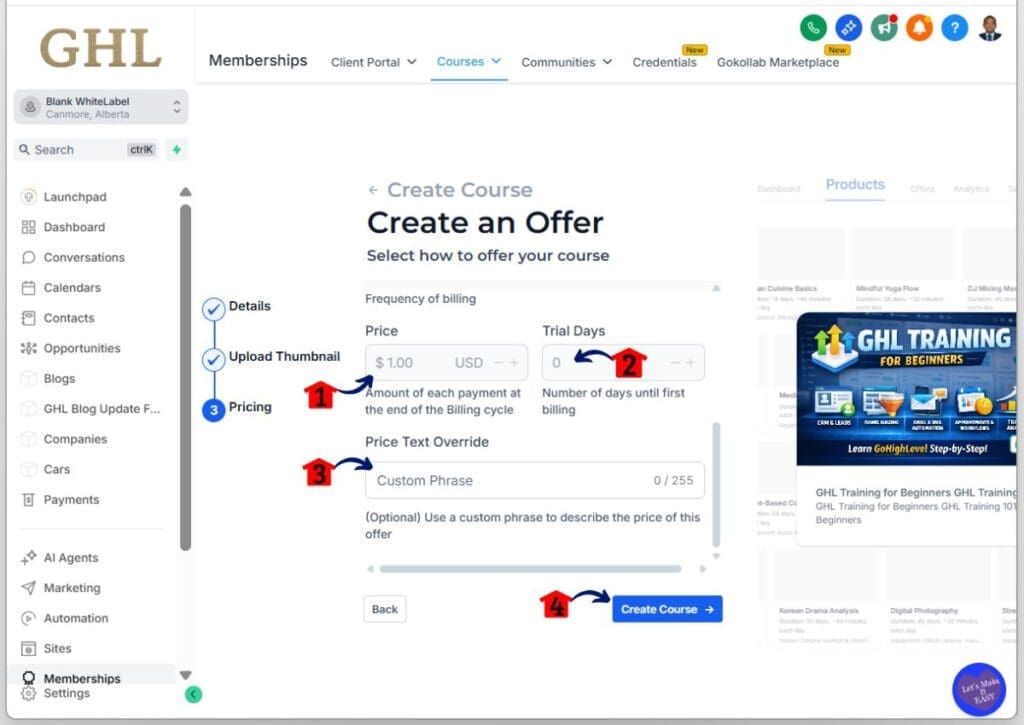
- Scroll down in the Pricing section to set the price, trial days, and price text override for this course.
6.1 Set the course price in the Price input box.
- This field is not editable if you chose the Free plan.
- If you chose Recurring or One-Time, you can enter a price.
- Your course currency depends on your sub-account settings. You can check it in Settings > Business Profile > Business Currency.
6.2 Set the number of days until first billing in the Trial Days input box.
- This field is not editable if you chose the Free plan.
6.3 Set the Price Text Override in its input box.
- This is optional and is mainly used for paid courses. You can leave it blank if you want.
6.4 Click the Create Course button under the Price Text Override input box.
- You should be taken to the Course Builder, where you can outline and build online course content, customize settings, and more.
Step 07 – Clean up the outline to build the online course structure
- You should now be in the Outline section of the Course Builder, where you can add, edit, or delete modules, lessons, quizzes, and more.
- Default items may appear, such as a Welcome badge, 1 module, 5 sample lessons, and one course completion credential.
7.1 Delete any items you do not need in the Course Builder.
- This could be a module, lesson, badge, or certificate.
- Hover over the item and click the trash icon to delete it.
- The delete icon is between the Preview and Status buttons of that item.
- In this example, the Welcome badge is selected for deletion.

Step 08 – Delete all unnecessary course elements
- A delete popup should appear for the item you selected.
- You should see both Cancel and Delete buttons.
8.1 Click the Delete button inside the popup.
- This button is in the lower right corner of the popup and confirms the deletion.
- You will return to the Outline section, and the deleted item should no longer appear as you continue to build online course content step by step.

Step 09 – Edit the first module of your online course
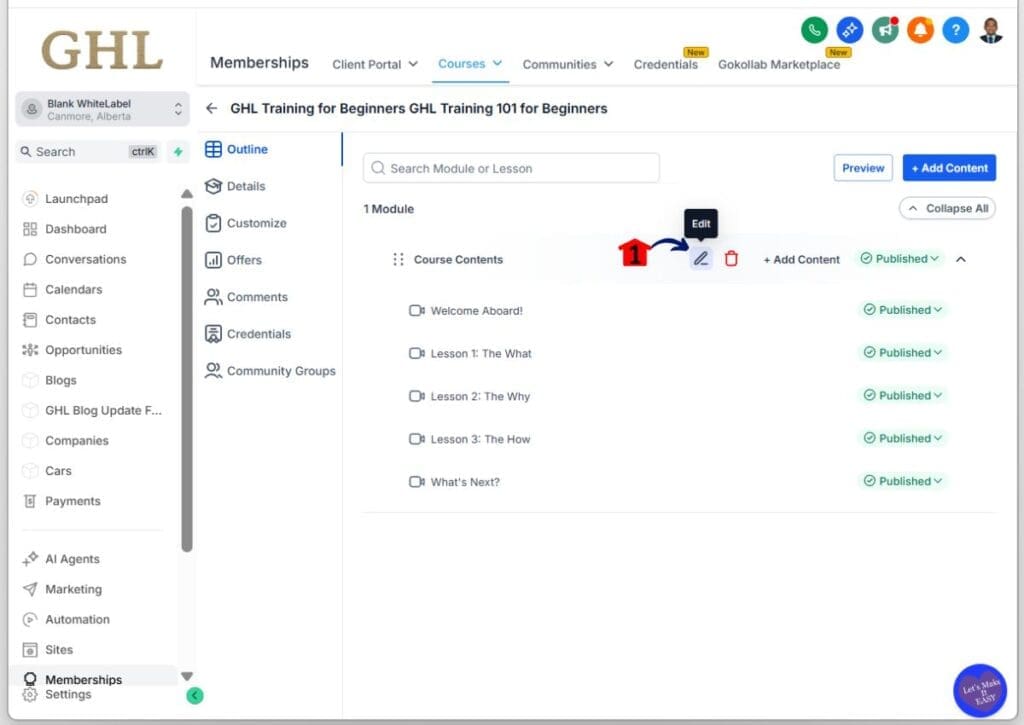
- You are now back in the course outline, where you can edit the first module.
9.1 Hover over the edit icon of the first module called Course Content.
- Click the pencil icon to open the module editor so you can continue to build online course structure.
Step 10 – Update the details of the first module
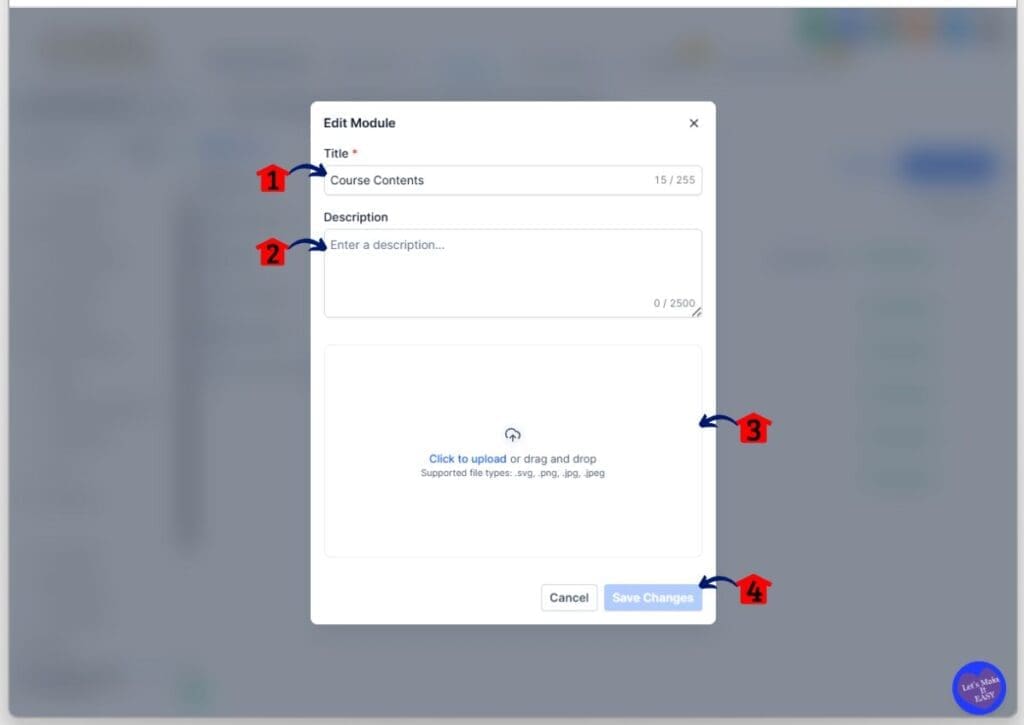
- Update the title, description, and thumbnail of the first module.
10.1 Enter the module title in the Title input box.
- Keep it under 255 characters. Clear titles make your build online course easier to follow.
10.2 Enter the module description in the Description box.
- You can use up to 2500 characters. Write the description clearly and detailed.
10.3 Upload a module thumbnail.
- Drag and drop your image into the upload popup, then click Upload. The image will appear once finished.
10.4 Click Save Changes in the lower right corner.
- The button will be clickable once all required fields are completed.
Step 11 – Edit the first lesson of the first module
- This is where you can edit the first lesson of the first module.
11.1 Click the pencil icon next to the first lesson under Module 1.
- This opens the lesson settings so you can continue to build online course lessons.

Step 12 – Configure the first lesson settings before saving
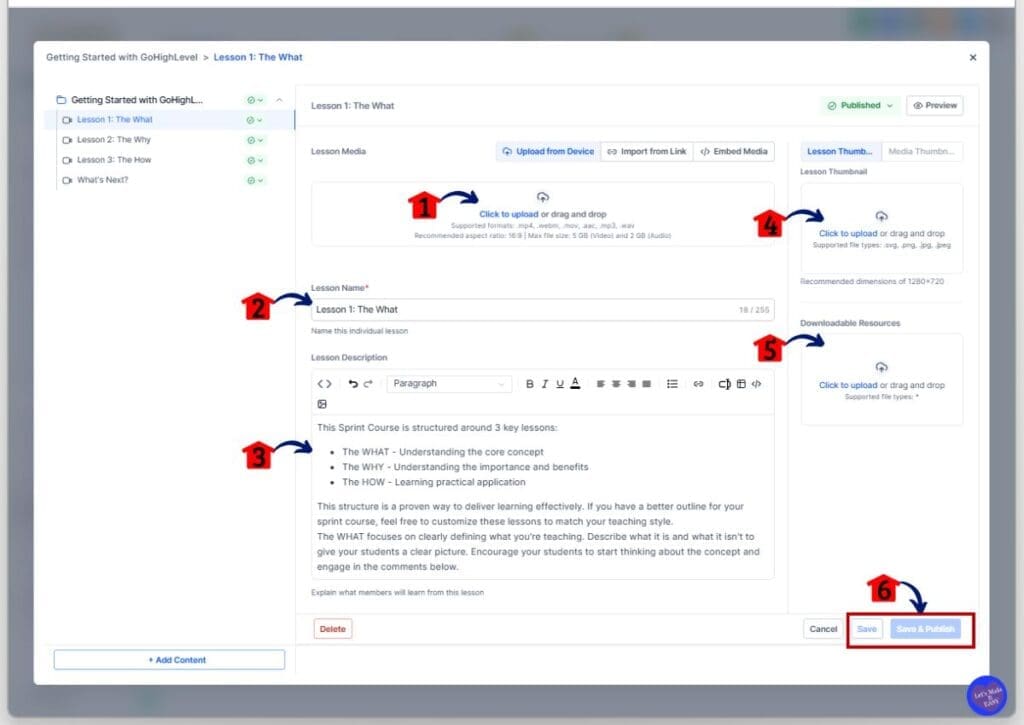
- The lesson configuration popup will appear.
- Here, you can upload your lesson video or audio, edit the title and description, add a thumbnail, and upload downloadable resources for your students.
12.1 Click the upload box in the Lesson Media section.
- A popup will appear where you can drag and drop your video or audio file.
12.2 Enter the lesson title in the Lesson Name input box.
- Keep it under 255 characters.
- As you build your online course, include the lesson number and use a clear, easy-to-understand title.
12.3 Enter the lesson description in the Description input box.
- Briefly explain what students will learn in this lesson.
- This can include a short introduction or key takeaways.
12.4 Upload a lesson thumbnail in the Lesson Thumbnail box.
- A popup will appear where you can drag and drop your image.
- The thumbnail will appear once the upload is complete.
12.5 Upload any resources in the Downloadable Resources section.
- While you build online course lessons, a popup will appear where you can upload files for students to download.
- This step is optional.
12.6 Click the Save and Publish button in the lower right corner.
- Once you enter the lesson name, the button will turn blue, allowing you to move forward as you build online course content step by step.
- If you are not ready to publish, click Save instead.
Step 13 – Add more lessons to the first module
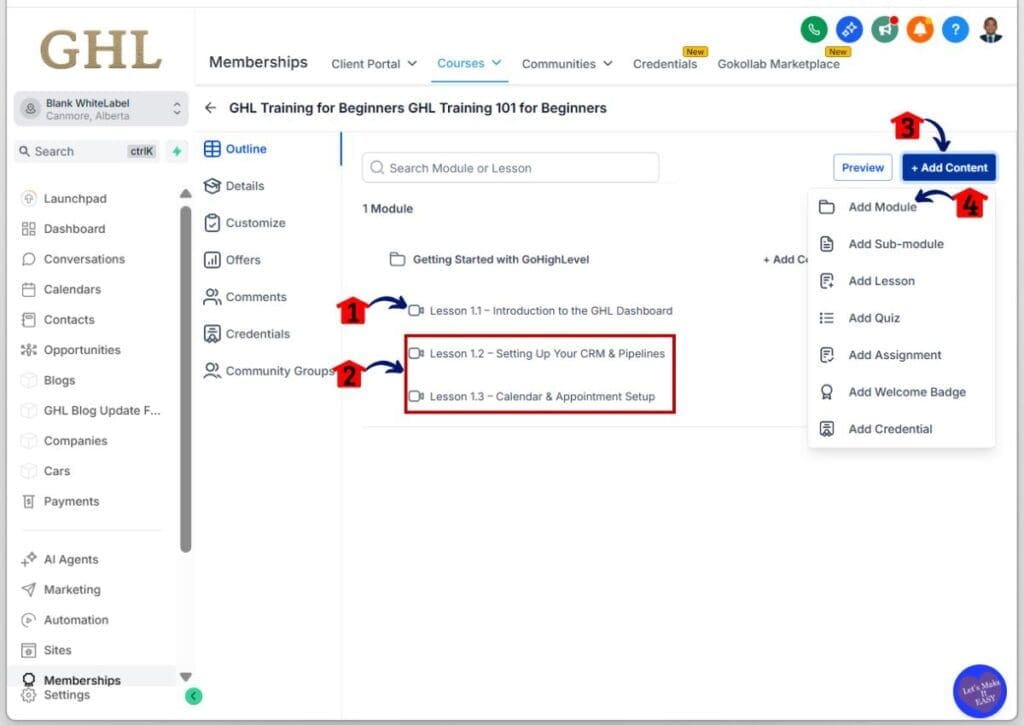
- You will return to the Outline section of the Course Builder.
- Your updated lesson should now appear with the correct title.
13.1 Check the lesson title and status.
- Confirm the title is updated.
- When you build online course content, check the status on the right side. It may show Draft, Published, or Drip.
13.2 Edit or delete the remaining default lessons as needed.
- Follow the same steps you used for Lesson 1.
13.3 Click the + Add Content button in the upper right corner.
- As you build your online course, a dropdown will appear with options such as Add Module, Add Sub-Module, and Add Lesson.
13.4 Select Add Module from the dropdown.
- A popup will appear where you can create another module.
Step 14 – Create a new module after the first module
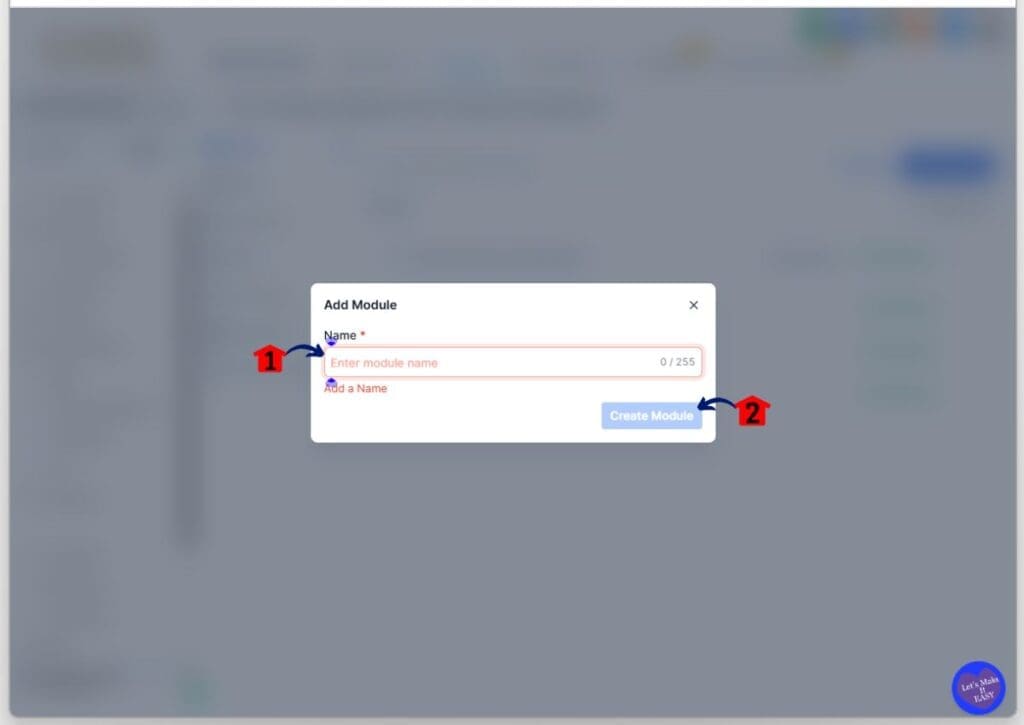
- The Add Module popup will appear with a name input field.
14.1 Enter the name of the new module.
- When you build online course modules, keep the description under 255 characters.
- You can add a module number to stay organized.
14.2 Click the Create Module button.
- The button will turn blue once the name is entered.
- The module will appear in the course outline.
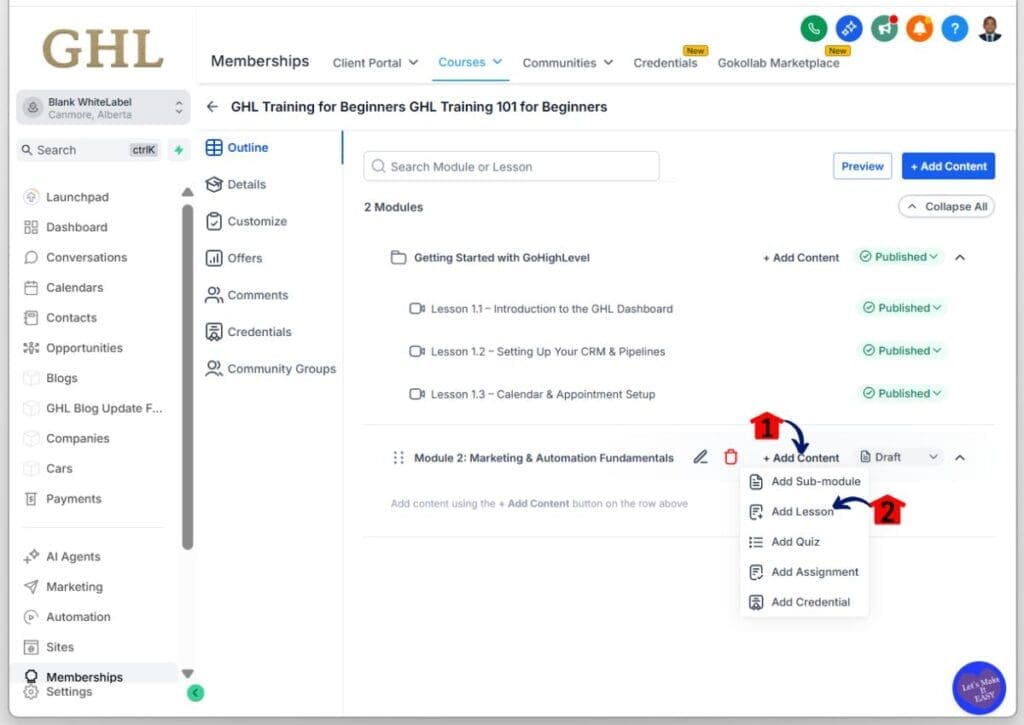
Step 15 – Add a lesson to the new module
- You can find the Add Lesson option when you click + Add Content inside the newly created module.
15.1 Click the + Add Content button inside the new module.
- A dropdown menu will appear with content options.
15.2 Select Add Lesson from the dropdown.
- A popup will appear where you can name the lesson.
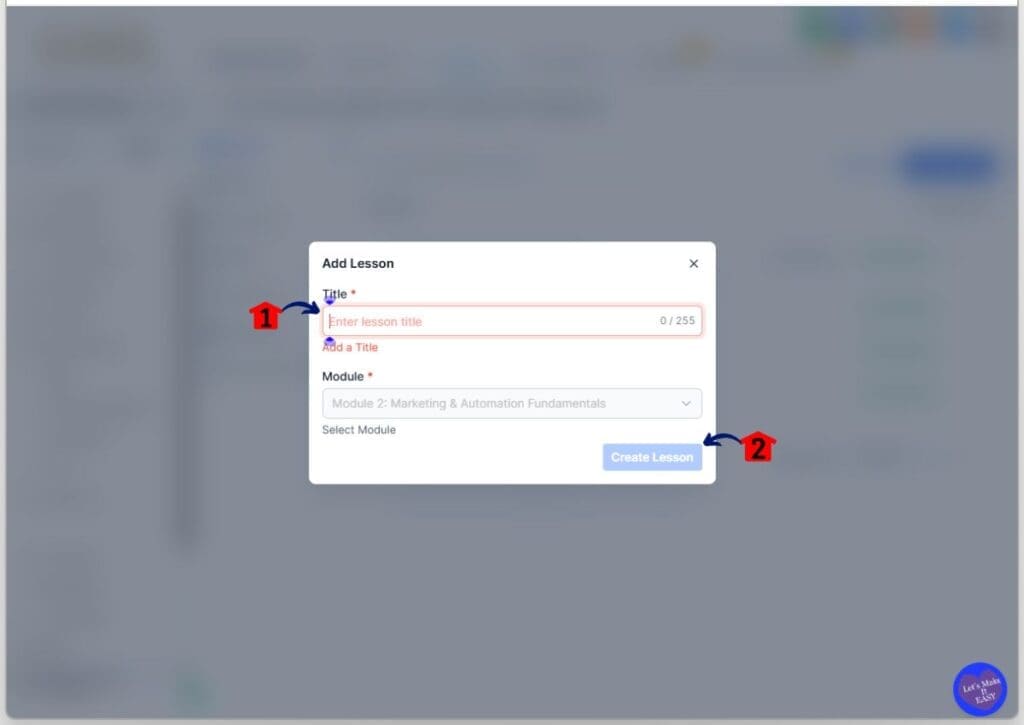
Step 16 – Name the first lesson of the new module
- As you build online course lessons, the Add Lesson popup will display the lesson name field.
16.1 Enter the lesson name in the Lesson Name box.
- When you build online course lessons, add the lesson number and a clear title.
16.2 Click the Create Lesson button.
- The button will turn blue once the name is added.
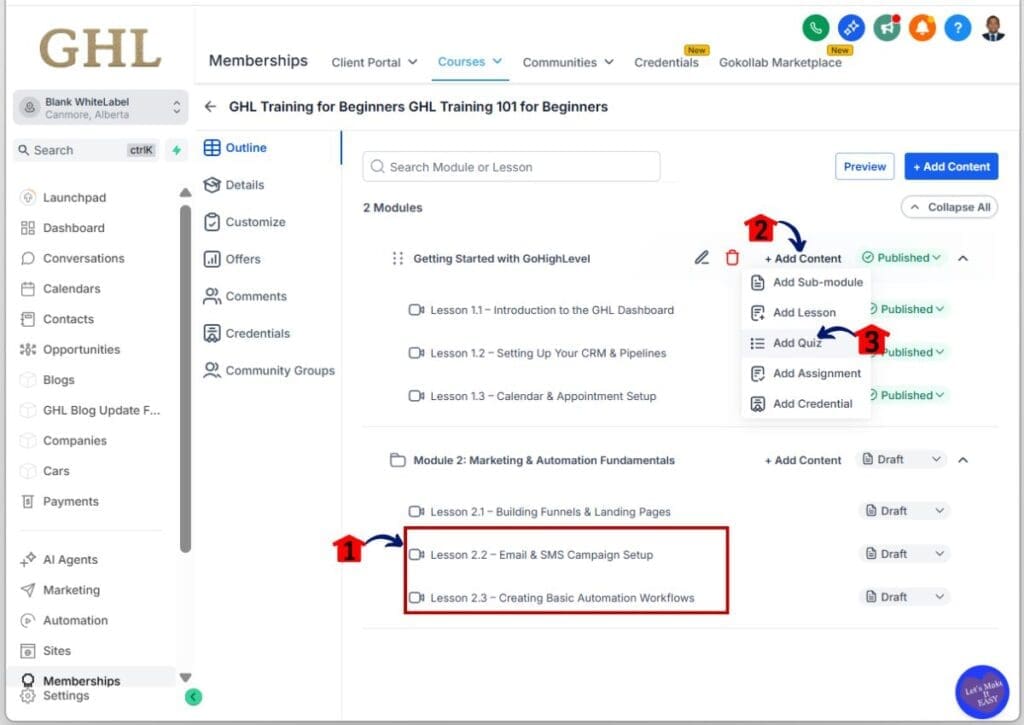
Step 17 – Add more lessons to the new module and start create a quiz
- Add new lessons to the new module, then start creating the quiz in the first module.
17.1 Create additional lessons if needed.
- Repeat Steps 15 and 16 to add more lessons.
- Follow Step 12 to edit each lesson.
17.2 Click the + Add Content button in the first module.
- The dropdown menu will appear.
17.3 Select Add Quiz from the dropdown.
- A popup will appear where you can name your quiz.
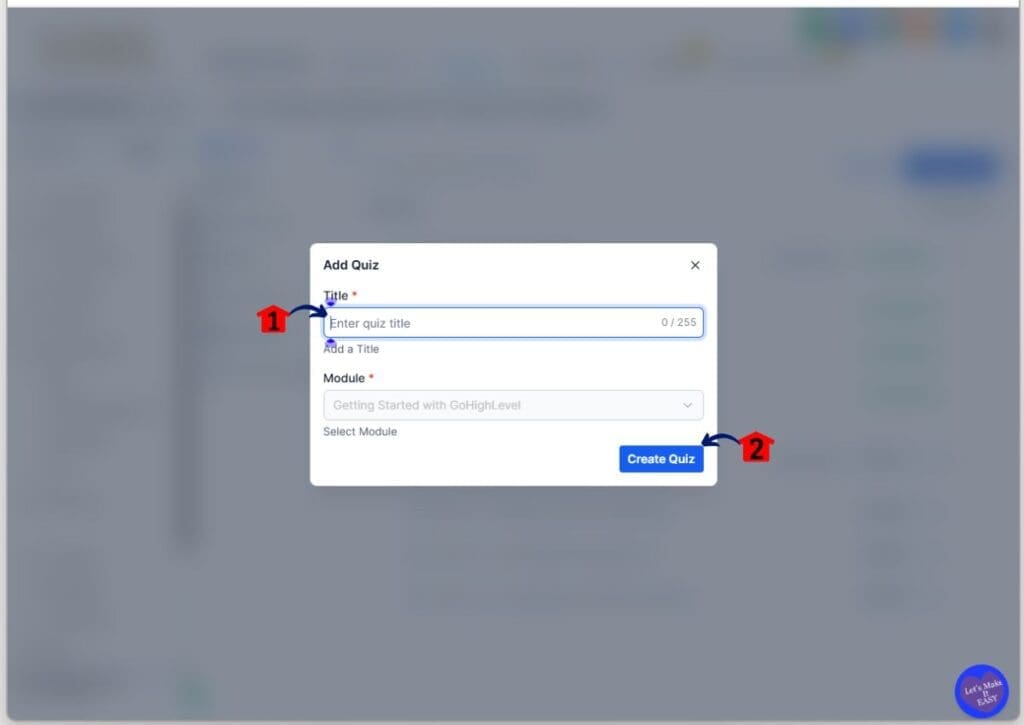
Step 18 – Create the quiz for the first module
- Add the title of the quiz for the first module.
18.1 Enter the quiz title in the Title input box.
- To keep things organized as you build online courses, number the quizzes to avoid confusion.
18.2 Click the Create Quiz button.
- The button will turn blue once the title is entered.
Step 19 – Open the quiz for the first module
- The quiz will appear under the last lesson in the module.
19.1 Hover over the quiz and click the pencil icon.
- This will open the quiz configuration popup.

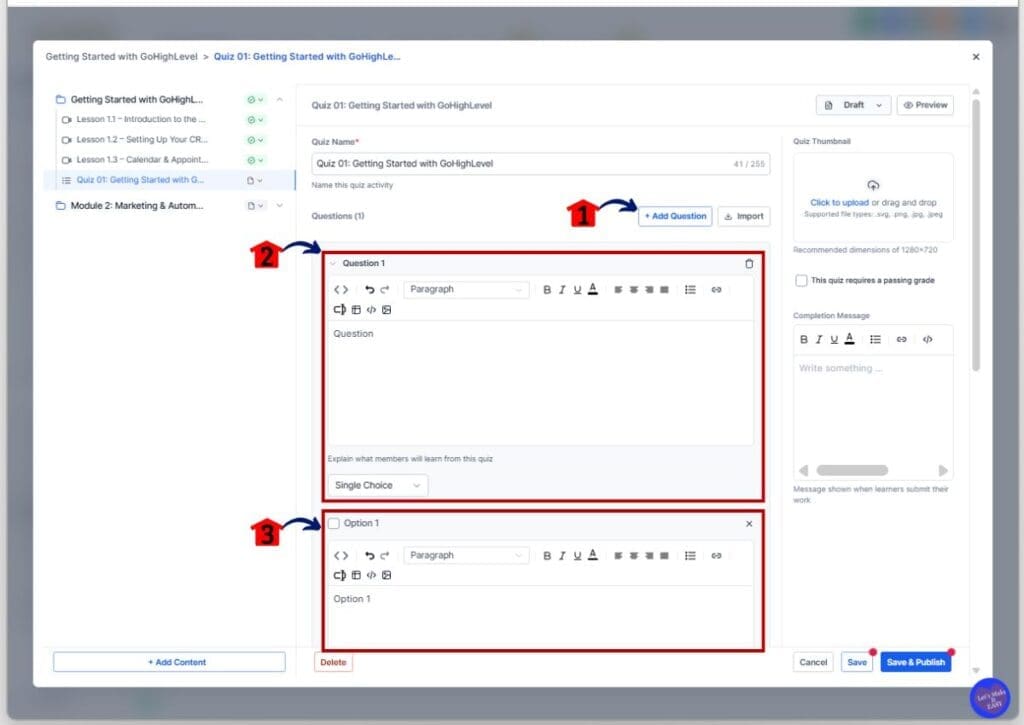
Step 20 – Add your first question to the first module quiz
- The quiz configuration popup will appear, where you can add the first question to the quiz.
20.1 Click the + Add Question button.
- A gray Question 1 box will appear below it.
20.2 Click the Question 1 box to expand it.
- You can enter the question text.
- Add answer choices.
- Select the correct answer.
- Choose whether it allows a single or multiple answers.
20.3 Enter the first answer option in its input box.
- To stay organized as you build online course materials, format them clearly, such as “A. Workflows”.
Step 21 – Add more answer options to the first question
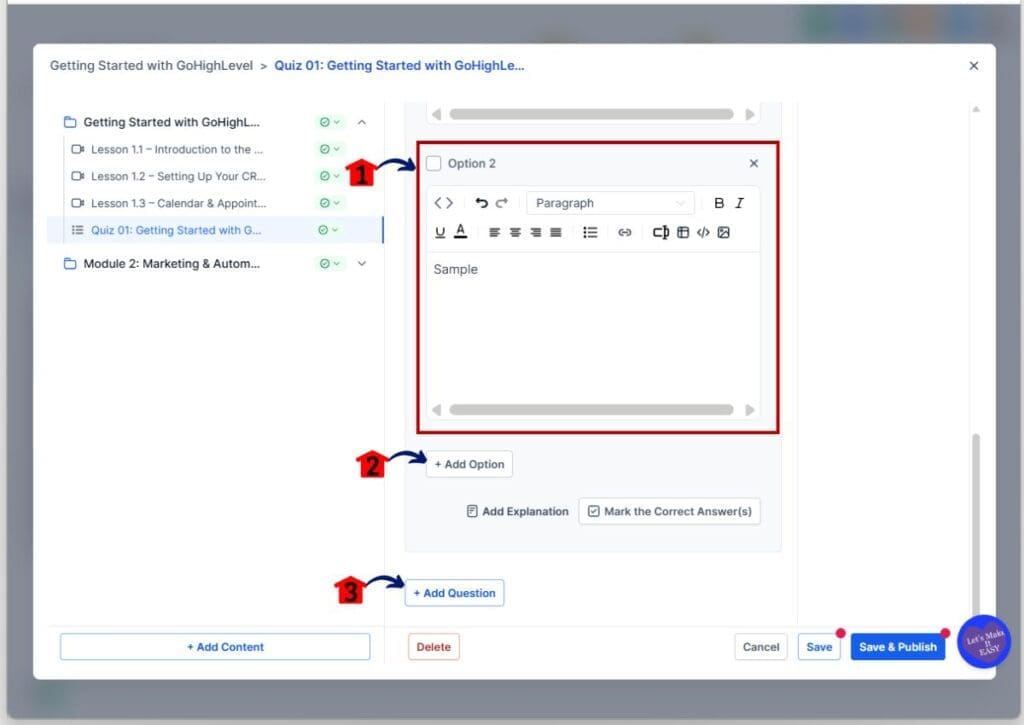
- Scroll down to complete the remaining answer options.
21.1 Enter the second answer option.
- Follow the same format as the first option.
21.2 Click + Add Option if you need more choices.
- A new option field will appear.
21.3 Click + Add Question to add another question.
- A new gray question box will appear.
- Repeat the same steps to configure it and build online course assets the right way.
Step 22 – Finalize the quiz for the first module
- When you build online course quizzes, you can collapse the questions after adding them to stay organized.
22.1 Review all questions carefully.
- Make sure everything is correct.
- You can delete any question using the trash icon.
22.2 Upload a quiz thumbnail.
- Click the upload box and add your image.
22.3 Enter a completion message.
- This message will appear after students finish the quiz.
22.4 Click Save and Publish when ready.
- If you are not ready, click Save instead.

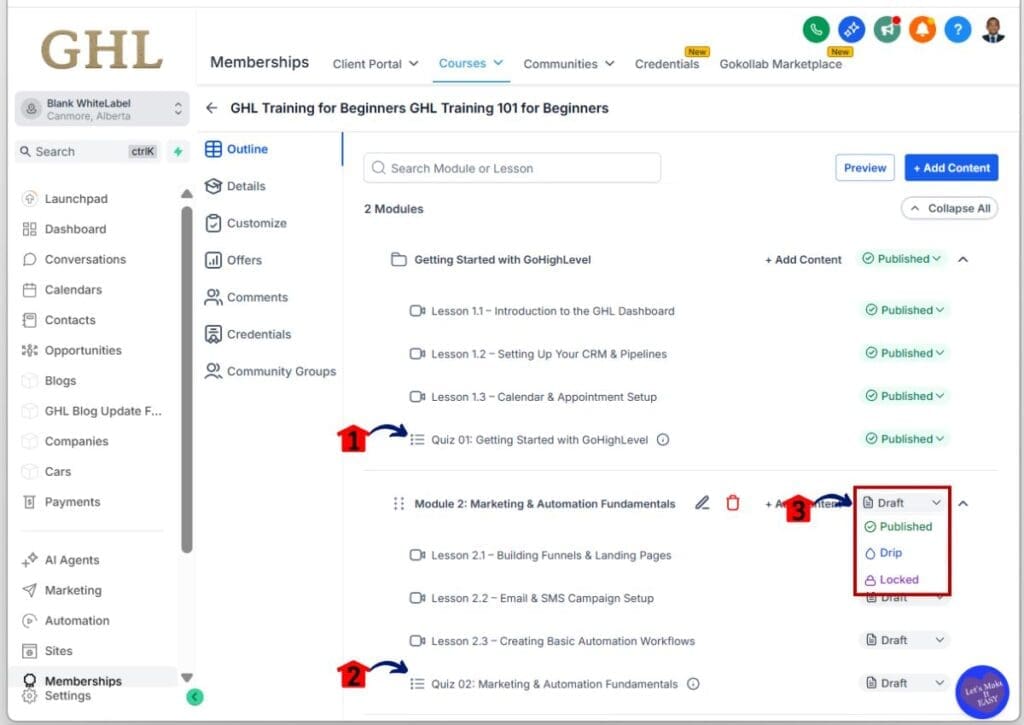
Step 23 – Set the status of each lesson, module, and quiz
- You will return to the Outline section.
23.1 Confirm the quiz appears under the correct lesson.
- When you build online course content, check that it is placed under the last lesson of the module.
23.2 Create quizzes for other modules if needed.
- Follow the same steps used for Quiz 1.
23.3 Set the status of each module, lesson, and quiz.
- Click the Status button on each element.
- Choose Draft, Publish, Drip, or Locked.
Step 24 – Add a course credential to your online course
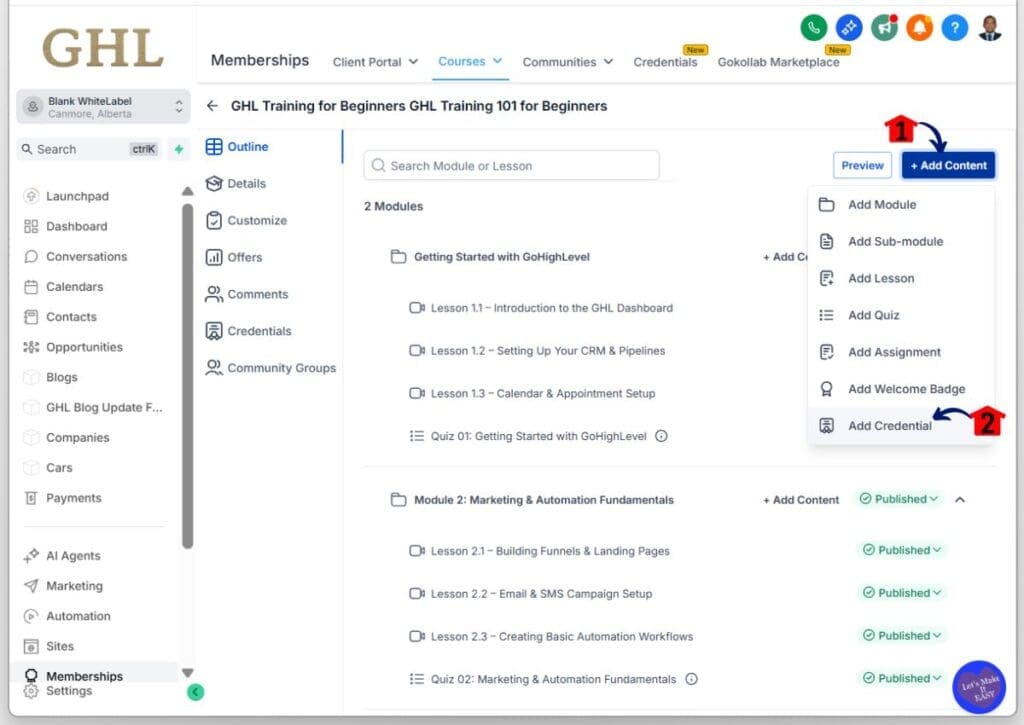
- Complete your full course outline by adding a credential.
24.1 Click the + Add Content button in the upper right corner.
- The dropdown menu will appear.
24.2 Select Add Credential from the dropdown.
- The option will highlight when you hover over it, making it easier to build online course content efficiently.
Step 25 – Choose a certificate template from the Certificate Library
- The Course Completion Credential popup will appear, where you can choose a credential template.
- This template can be a certificate or a badge.
- By default, you will be directed to the Certificates Templates tab.
25.1 Select your preferred certificate template.
- As you build online course content, a dark highlight will appear to indicate your selection.
25.2 Click the Apply button.
- The button will turn blue once selected.

Step 26 – Open the Course Details section of your online course
- Access the course details, where you can add the instructor details for the course.
26.1 Click the Details tab from the left menu.
- It is located under the Outline tab.
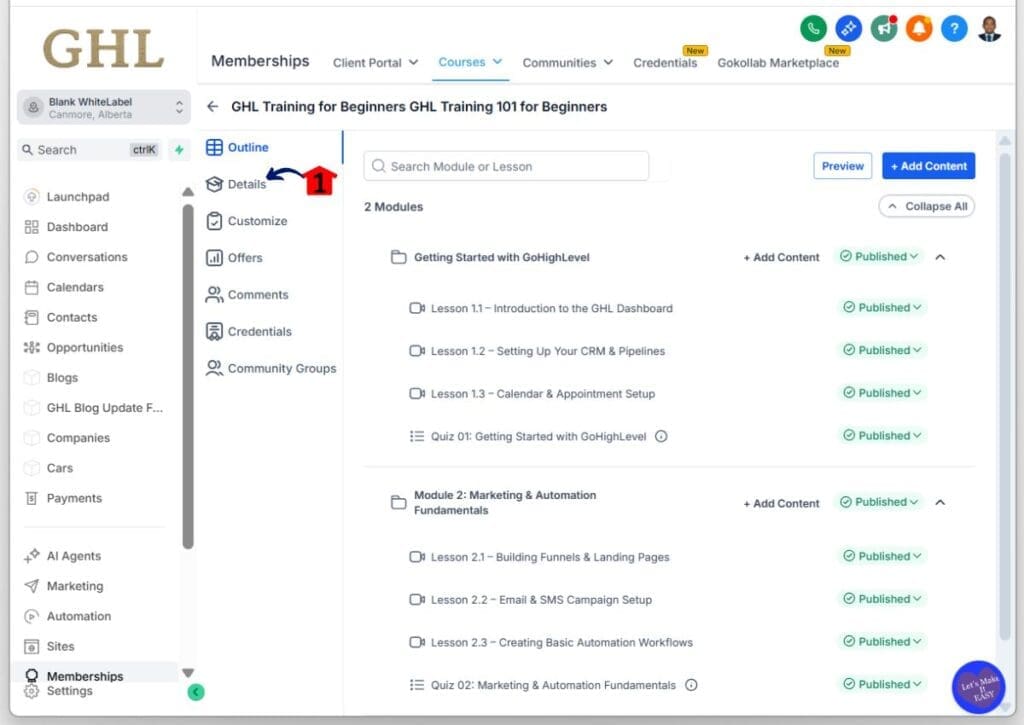
Step 27 – Edit the instructor information
- You are now in the Details section, where you need to add the instructor’s name, position, skills, and other information.
27.1 Click the Instructor Details tab.
- A dropdown panel will appear.
27.2 Fill in all instructor information.
- To avoid errors while you build online course materials, stay within the character limits for every field.

Step 28 – Add your branding logos before moving to theme customization
- Scroll down to view more settings to add your branding logos.
28.1 Click the Customization tab.
- A panel will appear where you can upload your logo and favicon.
28.2 Upload your logo and favicon.
- Drag and drop each file into the upload popup.
28.3 Click Save once finished.
- While you build online course pages, look for the button in the lower right corner.
28.4 Click the Customize tab in the Course Builder menu.
- It is located below the Details tab.

Step 29 – Browse the course theme templates
- You are now in the Customize section, where you can choose a theme template for the course.
- The Neo Classic Theme is selected as the default theme for your course.
29.1 Click Browse Templates.
- A popup will appear with available themes.

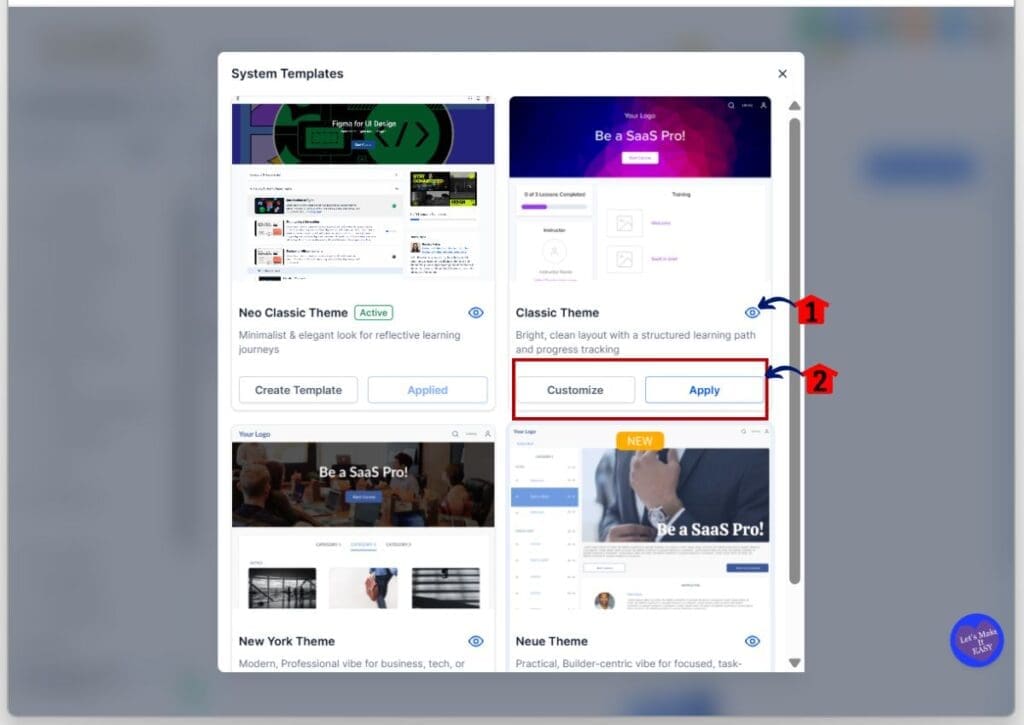
Step 30 – Preview and apply a theme to your course
- The theme selection popup will appear, where you can review and apply a course theme.
30.1 Click the Preview icon on a theme.
- A new browser tab will open.
30.2 Click Apply on your chosen theme.
- When you build online course pages, click Customize to adjust your branding colors.
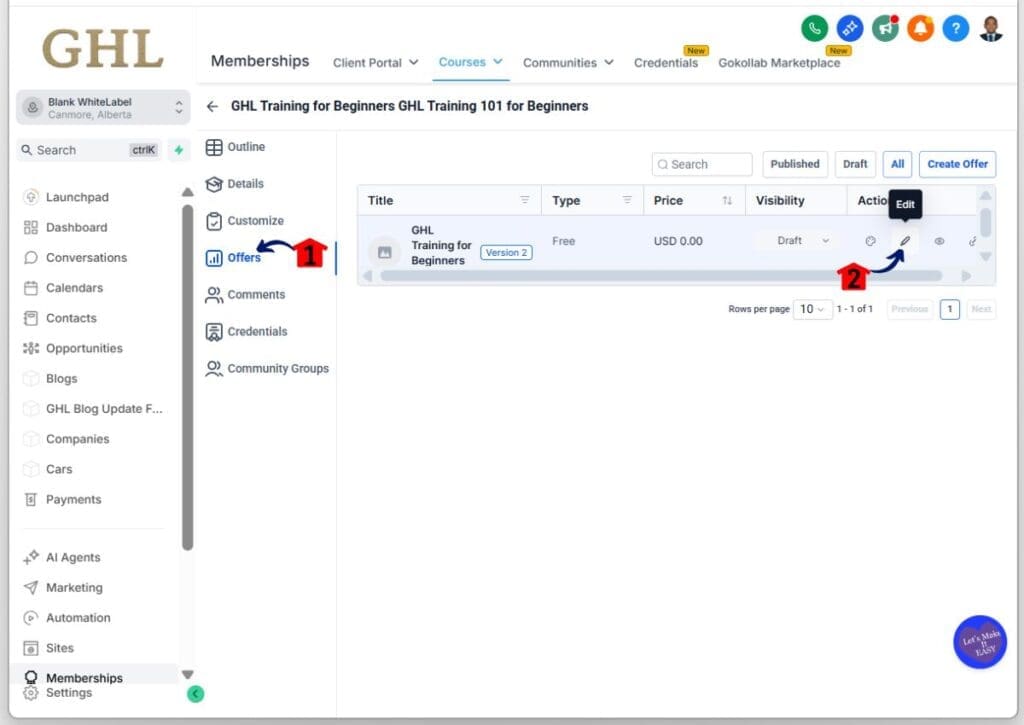
Step 31 – Open the Offers section of your online course
- Your selected theme is now active, and you should now be editing the offer details for your course.
31.1 Click the Offers tab in the Course Builder menu.
- Your newly created course will appear in Draft status.
31.2 Click the pencil icon to edit the offer.
Step 32 – Edit the Offer details of your Online Course
- When you build online course offers, you will be taken to the Offer Details page.
32.1 Enter the checkout description.
- Clearly describe your modules and lessons.
32.2 Confirm the correct product appears in the Add Products field.
- Make sure the right course is included.

Step 33 – Upload your Offer thumbnail and Publish the course
- Scroll down to add your offer thumbnail, then publish your course.
33.1 Upload your offer thumbnail.
- This image will appear in the student library.
33.2 Click Save and Publish when ready.
- Click Save if you want to keep it as draft to build online course.

Step 34 – Preview the Checkout Page of your course
- Scroll to the top of the Offer Details page, where you can view the front end of your course.
34.1 Click the Preview button.
- When you build online course pages, you can also click Edit Checkout to make changes.

Step 35 – Test Your Course
- A new browser tab will open with your checkout page when you test your course.
35.1 Complete a test enrollment.
- Use a different email address from your GHL sub account to test properly while you build online course content.

Pro Tips for Building Online Courses in GHL
These tips will help you build online course efficiently in GHL. Each tip focuses on practical steps you can apply immediately. Following them improves student engagement and course completion rates.
- Use Clear Lesson Titles. Always name modules and lessons clearly for easy navigation. Confusing names reduce student completion so let’s avoid that.
- Drip Content Scheduling Works. Release lessons gradually to keep learners engaged consistently. In my experience, it doubles course completion rates.
- Test Quizzes Before Publishing. Check each quiz for accuracy and proper scoring. Mistakes frustrate students and reduce engagement significantly.
- Assign Membership Tiers Correctly. Ensure the right learners access proper modules automatically. Manual access often causes confusion and delays course progress.
- Customize Certificates Professionally. Add logos, colors, and text to certificates. Students value branded completion proof, boosting credibility and satisfaction.
- Optimize Media File Sizes. Compress videos and files to reduce load times. Slow-loading lessons decrease engagement and completion rates drastically.
- Track Engagement Metrics Regularly. Monitor student activity to see drop-off points and use the insights to build online course content that improves completion and retention.
- Break Lessons Into Small Chunks. Avoid overloading students with long lessons. Shorter segments increase focus and retention according to my sub-account tests.
Common Questions to Build Online Courses in GHL
Building a course in GHL can feel complex. Many creators share similar questions before they start. This section answers common concerns in simple terms. You will learn how to set up lessons and access. We also cover quizzes, certificates, and selling options.
Final Steps for Building Online Courses
To build online courses in GoHighLevel allows agencies and businesses to create structured, professional learning programs efficiently. This guide demonstrated how to set up modules, add lessons, quizzes, and certificates, and manage student access step by step. Using GoHighLevel Course Builder ensures content is organized, trackable, and delivered consistently for learners or clients.
Key Takeaways
- Set up modules and lessons clearly to guide learners effectively.
- Add media, quizzes, and resources to enhance engagement.
- Assign membership tiers to automate access and permissions.
- Enable certificates to recognize completion and validate learning.
- Monitor student progress using GHL dashboards to optimize outcomes.
So what are you waiting for? Build online courses in GHL today and manage content efficiently for better learner results.
Scale Your Business Today.
Streamline your workflow with GoHighLevel’s powerful tools.


