- Lock your availability to specific dates so customers only book inside the exact window you choose.
- Quick Summary – Fixed Booking Window Essentials
- What’s New With a Fixed Booking Window
- Why This Matters to You
- How to Use a Fixed Booking Window in GoHighLevel
- Pro / Quick Tips for a Fixed Booking Window
- What This Means for Your Business
- Frequently Asked Questions About a Fixed Booking Window
- Conclusion: Fixed Booking Window in GoHighLevel
Lock your availability to specific dates so customers only book inside the exact window you choose.
Fixed Booking Window in GoHighLevel
A fixed booking window solves a common GoHighLevel problem. Your calendar looks fine today, then it quietly opens future dates you never meant to offer.
Services (v2) now lets you pick how that window works. You can keep the current days-based mode that rolls forward automatically. Or you can switch to date-based mode and set a hard start date and end date.
Once you turn on date-based mode, only dates inside your range can be booked. The window will not move unless you change it. If you have no availability set inside that range, the calendar will show no open slots.

With a fixed booking window, you can lock your GoHighLevel availability to exact start and end dates, so customers only book what you’ve planned. No more surprise appointments sneaking into unconfigured future weeks.
Quick Summary – Fixed Booking Window Essentials
Purpose: This guide shows you how to turn on a fixed booking window in GoHighLevel Services (v2) so customers can only book inside the dates you choose.
Why It Matters: It prevents surprise future bookings and keeps your calendar aligned with staffing, seasons, and campaign timelines.
What You Get: You will learn the difference between Days-based and Date-based booking windows, plus the exact steps to set Start Date and End Date the right way.
Time To Complete: Most users can set up a fixed booking window in about 5 to 10 minutes.
Difficulty Level: This is beginner-friendly and only requires a simple settings change.
Key Outcome: Your booking calendar will only show bookable dates inside your selected range, and it will not roll forward unless you update it.
What’s New With a Fixed Booking Window
Services (v2) now gives you a clean choice for booking availability. You can run a days-based window (the old way) or switch to a fixed booking window with real start and end dates.
In days-based mode, GoHighLevel keeps a rolling window open. If it is set to 30 days, it will always show the next 30 days, and it keeps moving forward on its own. That is fine for teams that always have future availability planned out.
Automate marketing, manage leads, and grow faster with GoHighLevel.

In date-based mode, you set a Start Date and an End Date. Only dates inside that range can be booked. The window does not roll forward, and it will not open anything past your end date unless you change it.
There are a few rules to know. Your date range has to be valid, and it can be up to 365 days max. Also, if you set a range but you have no availability inside it, the calendar will show no available slots. That is not a bug. It is the system doing exactly what you told it to do.
Why This Matters to You
A fixed booking window gives you tighter control over what customers can book. If you run a seasonal schedule, a short campaign, or a limited-time service, you do not want your calendar to keep opening new dates in the background. This setting stops that.
It also cuts down on bad bookings. No more someone grabbing an appointment two months out when you have not built that schedule yet. For agencies, this means fewer support messages from clients asking why “random future days” showed up as available.
One more thing: it keeps the calendar honest. Your booking page will only show dates inside the window you set. If there is no availability inside that range, it will show no slots, which is exactly what you want when you are not taking bookings.
How to Use a Fixed Booking Window in GoHighLevel
A fixed booking window is set inside Services (v2) settings. You are not rebuilding your calendar or changing your services one by one. You are simply switching the Booking Window mode to Date-based, then choosing the Start Date and End Date so customers can only book inside that range.
Here are the steps to set up and manage a fixed booking window.
- Access the Settings area in GoHighLevel .
- Open Services in Settings in Calendar.
- Switch the Booking Window to Date-based.
- Set Start Date.
- Set the End Date.
To start, make sure you are logged in to your GoHighLevel sub-account.
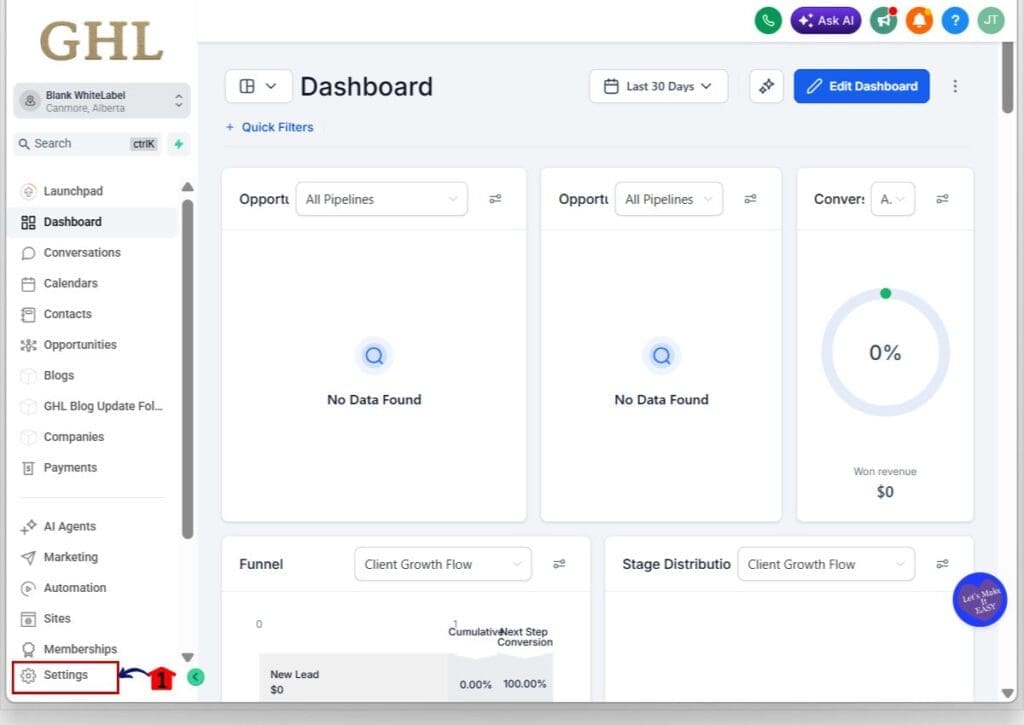
Step 01 – Access the Settings area in GoHighLevel
- Go to the bottom of the Main Menu on the left-hand sidebar.
1.1 Click the Settings gear icon ⚙️.
- This opens the Settings dashboard.
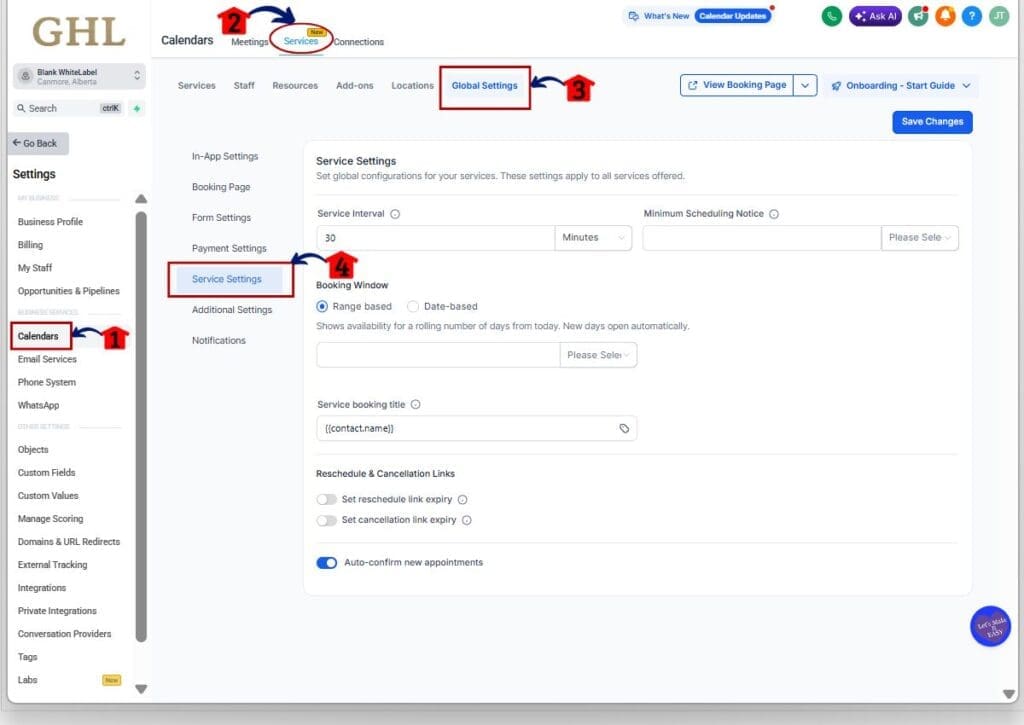
Step 02 – Open Services in Settings in Calendar
- This is where Services (v2) settings are managed.
2.1 In the Settings dashboard, click Calendars.
- This opens the Calendar Dashboard.
2.2 Click Services on the menu tab.
- This opens the Services Dashboard. Look for Global Settings in the services menu tab.
2.3 Click on the Global Settings.
- This opens the Global Settings Dashboard where you can access the Service Settings.
2.4 On the Left menu of Global Settings, click on the Service Settings.
- This is where you can access the Service Settings.
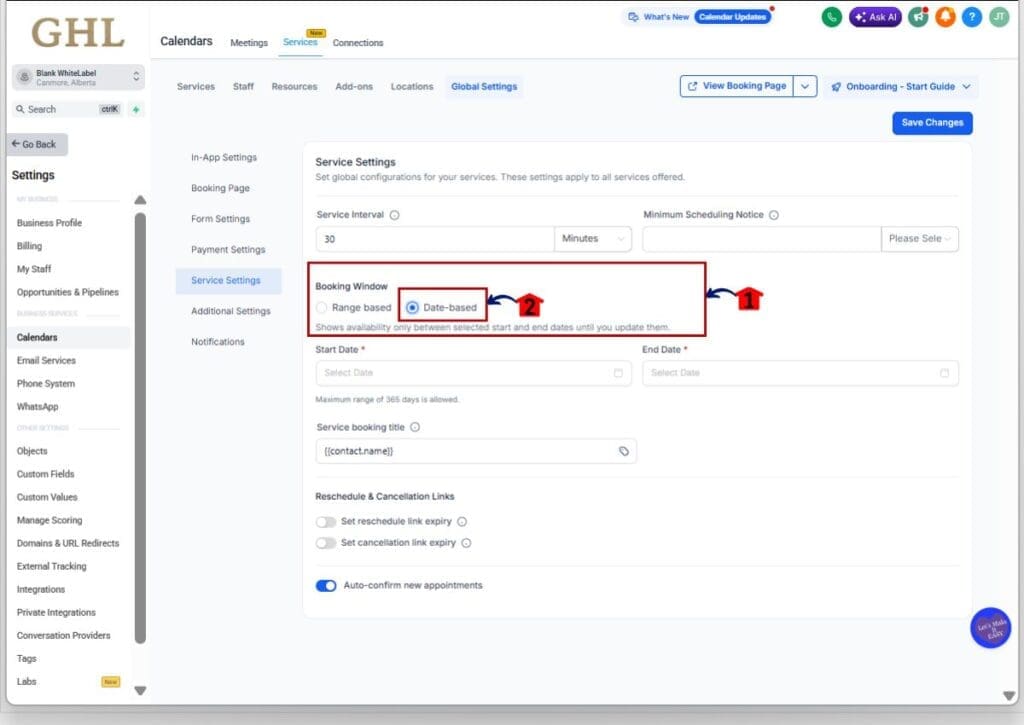
Step 03 – Switch the Booking Window to Date-based
- This changes your rolling window into a fixed booking window.
3.1 Inside Service Settings, find the Booking Window section.
- You will see options for Range based and Date-based.
3.2 Select Date-based.
- The screen updates and shows Start Date and End Date fields.
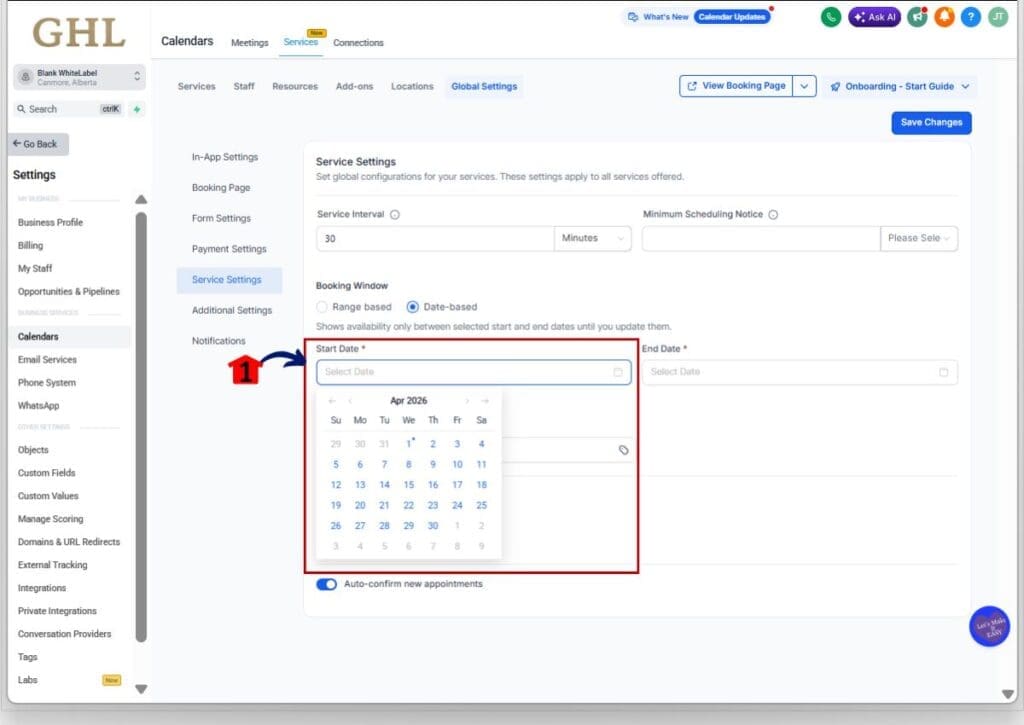
Step 04 – Set Start Date
- These dates control what customers can book.
4.1 Click Start Date and choose the first day customers can book.
- A date picker opens so you can select your start date.
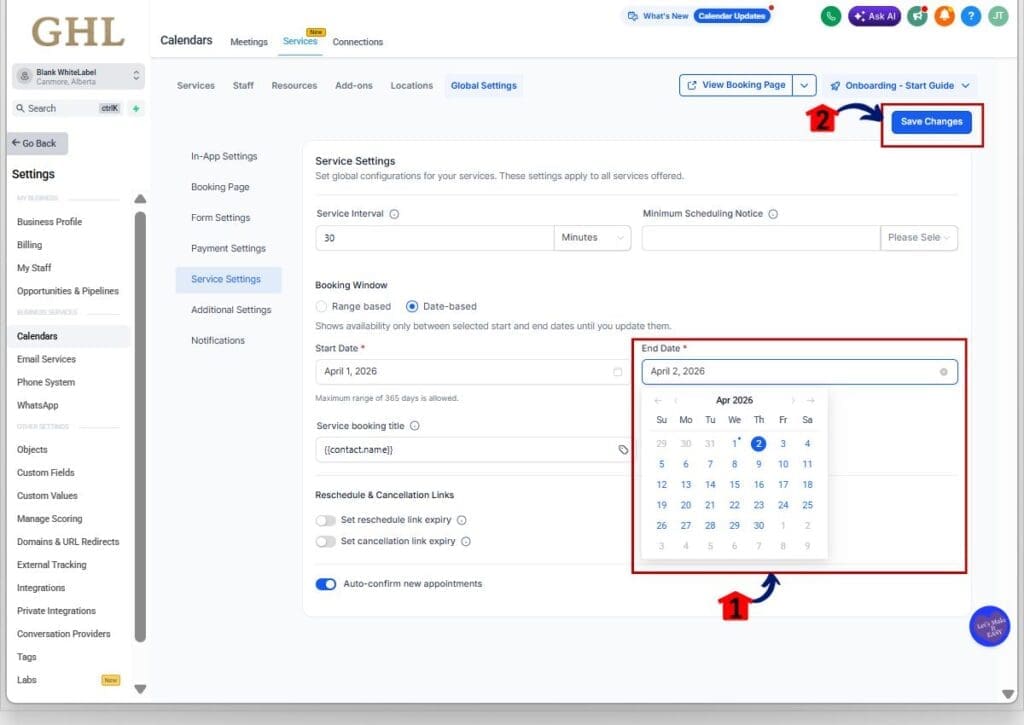
Step 05 – Set the End Date
- This locks the final day customers can book.
5.1 Click End Date and choose the last day customers can book.
- A date picker opens so you can select your end date.
5.2 Click Save Changes.
- Your fixed booking window is now active.
- The valid date range must be no more than 365 days.
Pro / Quick Tips for a Fixed Booking Window
A fixed booking window is best when you want tight control. Use these tips so you do not block bookings by mistake.
Tip 1: Use it for seasons and campaigns
- Set Start Date and End Date to match your seasonal schedule or promo run.
- This prevents bookings outside the dates you planned.
Tip 2: If you see no slots, it’s usually availability
- Date-based mode only shows what is inside your date range.
- If you have no availability set inside that range, the calendar will show nothing.
Tip 3: Remember it does not roll forward
- Days-based keeps moving automatically.
- Date-based stays fixed until you update the dates.
Tip 4: Add a small buffer when needed
- If time zones or last-minute bookings are a problem, add 1 extra day on each end.
- You can still control times with your availability rules.
What This Means for Your Business
A fixed booking window is one of those small settings that prevents big problems. It helps you control what customers can book without babysitting your calendar every week. If you manage multiple calendars, or you onboard clients as an agency, this is a simple way to keep things clean and predictable.
Here are a few real situations where this makes a difference.
Seasonal schedule
If a business only takes appointments during certain months, this keeps the calendar aligned with reality.
- Set the Start Date to the first day of the season.
- Set the End Date to the last day you want bookings.
- Customers will not see or book dates outside that season.
Limited-time offer or campaign
If you are running a promo, you do not want bookings landing outside the offer window.
- Match the booking window to the campaign dates.
- This prevents “late bookings” that your team did not plan for.
- It also keeps the booking page focused on the current offer.
Short-term staff availability
If you have a contractor, temp staff, or a rotating schedule, this helps you avoid gaps.
- Only open the dates you know are covered.
- When coverage changes, update the date range.
- This reduces reschedules and the back-and-forth that comes with them.
Avoiding surprises in future bookings
This is the big one for most teams.
- Range-based mode can open future days automatically.
- Date-based mode keeps future dates closed until you choose to open them.
- That means fewer “Why did someone book that day?” messages.
Frequently Asked Questions About a Fixed Booking Window
Conclusion: Fixed Booking Window in GoHighLevel
A fixed booking window in Services (v2) gives you one clear win: control. You set the Start Date and End Date, and GoHighLevel only allows bookings inside that range. No rolling calendar, no surprise future bookings, and no guessing what customers can grab next.
Before you move on, do one quick check. Make sure you have availability set inside your date range. If you do not, your calendar will look empty, and that is expected behavior.
If you want the cleanest setup, start with a tight date range, test your booking page, and then expand the window when you are ready. Have you switched your account to Date-based yet, or are you still using the rolling range based window?
Scale Your Business Today.
Streamline your workflow with GoHighLevel’s powerful tools.