- Pick any timeframe, compare performance fast, and turn Social Planner numbers into client-ready insights
- Quick Summary – Custom Date Range Reporting Essentials
- What's New with Custom Date Range Reporting
- What's New with Comparative View
- What's Changed in the Charts
- Why This Matters to You
- How to Use Custom Date Range Reporting in Social Planner
- PRO / QUICK TIPS
- What This Means for Your Business
- Frequently Asked Questions about Custom date range reporting
- Custom date range reporting: your next steps
Pick any timeframe, compare performance fast, and turn Social Planner numbers into client-ready insights
Custom date range reporting
Custom date range reporting in GoHighLevel Social Planner finally lets you pick the exact start and end dates you actually care about. No more being stuck with a fixed 7-day snapshot when your campaign ran for 10 days, two weeks, or a full month.
Social Planner Statistics is where you check how your scheduled and published posts are performing in GHL. You can see totals and trends like posts, likes, followers, impressions, and comments, all in one place.
Now you can also compare that custom date range against a previous equivalent period and see the percent change right on the screen. It’s a simple upgrade, but it makes weekly check-ins, campaign recaps, and client reporting way easier.
Custom date range reporting in GoHighLevel Social Planner lets you measure exact campaign windows and compare results to the previous period in seconds. That means faster insights, cleaner trend stories, and less time messing with exports.
Quick Summary – Custom Date Range Reporting Essentials
Purpose: This guide shows how to use custom date range reporting in GoHighLevel Social Planner Statistics, plus how to compare results to the previous period.
Why It Matters: You can report on exact campaign windows and explain performance changes without exports or outside analytics tools.
What You Get: You get a clear workflow to select a date range, turn on Compare, and read KPI changes and charts with less guesswork.
Time To Complete: Most users can set this up and pull a clean report in 3 to 7 minutes.
Difficulty Level: Beginner friendly, with a simple step-by-step process inside the Social Planner stats screen.
Key Outcome: You can create faster, clearer, client-ready Social Planner reports using custom date range reporting and built-in comparisons.
What’s New with Custom Date Range Reporting
Custom date range reporting is now built into Social Planner Statistics, so you can review results for any timeframe you choose. You pick the start date and end date, and the dashboard updates right away.
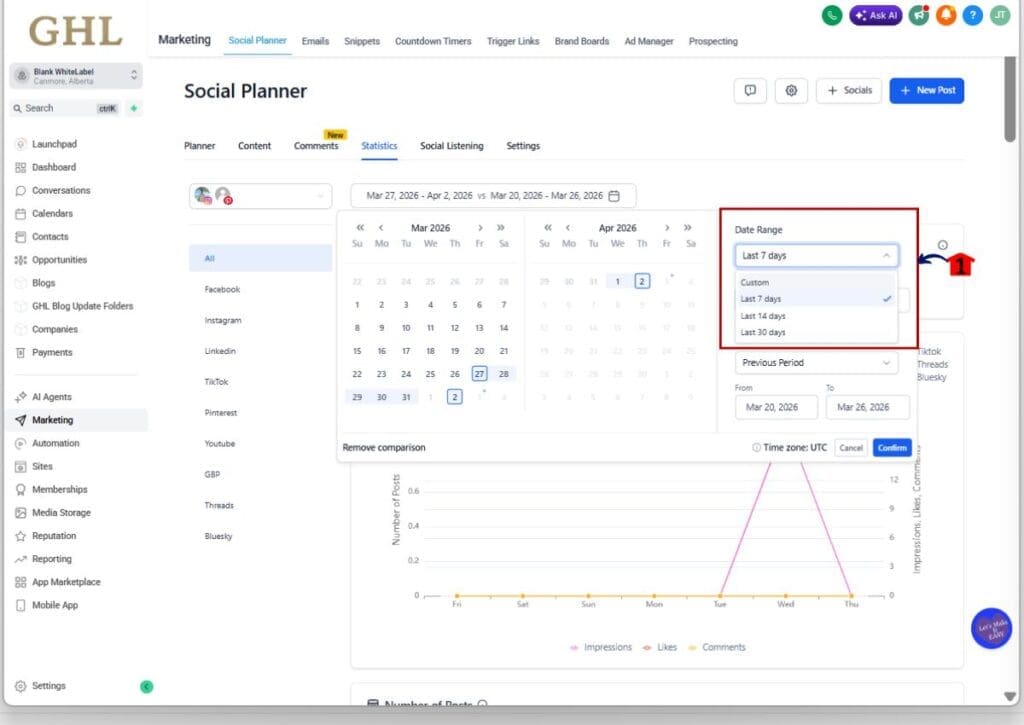
You’ll also see quick presets like 7 days, 14 days, 30 days, and Custom. That makes it easy to jump between a quick weekly pulse check and a longer trend view without doing math in your head.
Automate marketing, manage leads, and grow faster with GoHighLevel.

Once your range is set, your KPIs, totals, and charts refresh to match that exact window. So when you’re looking at performance, you’re looking at the real story, not a random slice of time.
What’s New with Comparative View
Custom date range reporting now comes with a comparative view, so you can see how your results stack up against a prior timeframe. Pick your date range, then compare it to the previous equivalent period, which is the same number of days right before your selected window.
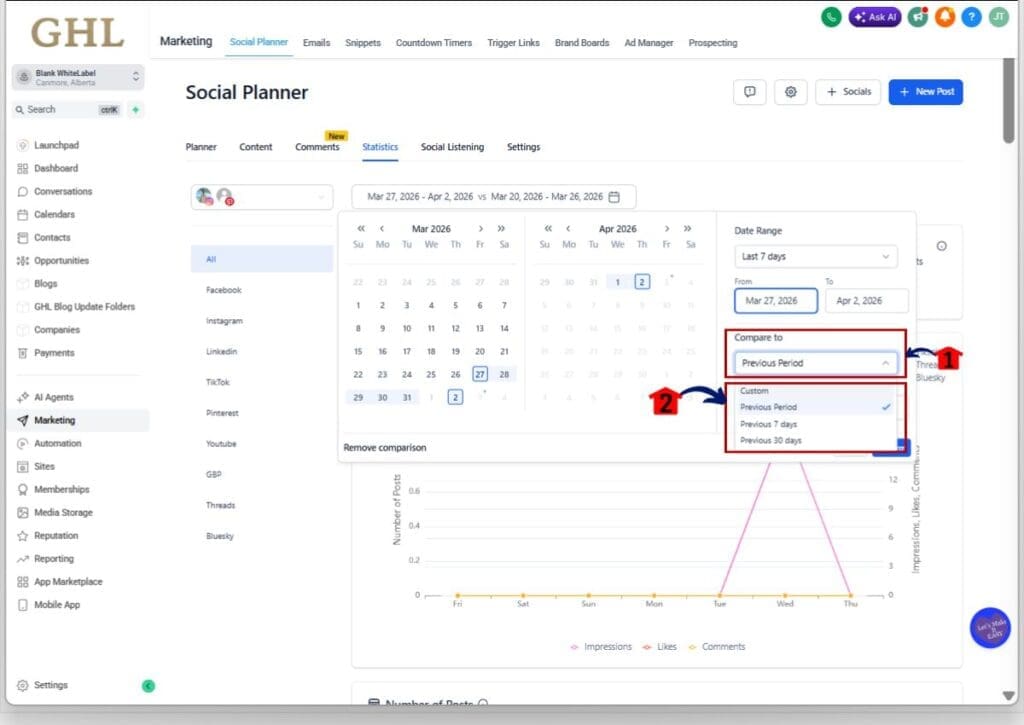
You can also use presets like Previous Period, Previous 7 days, Previous 30 days, or Custom. That keeps it simple when you just need a fast before-and-after check without digging around.
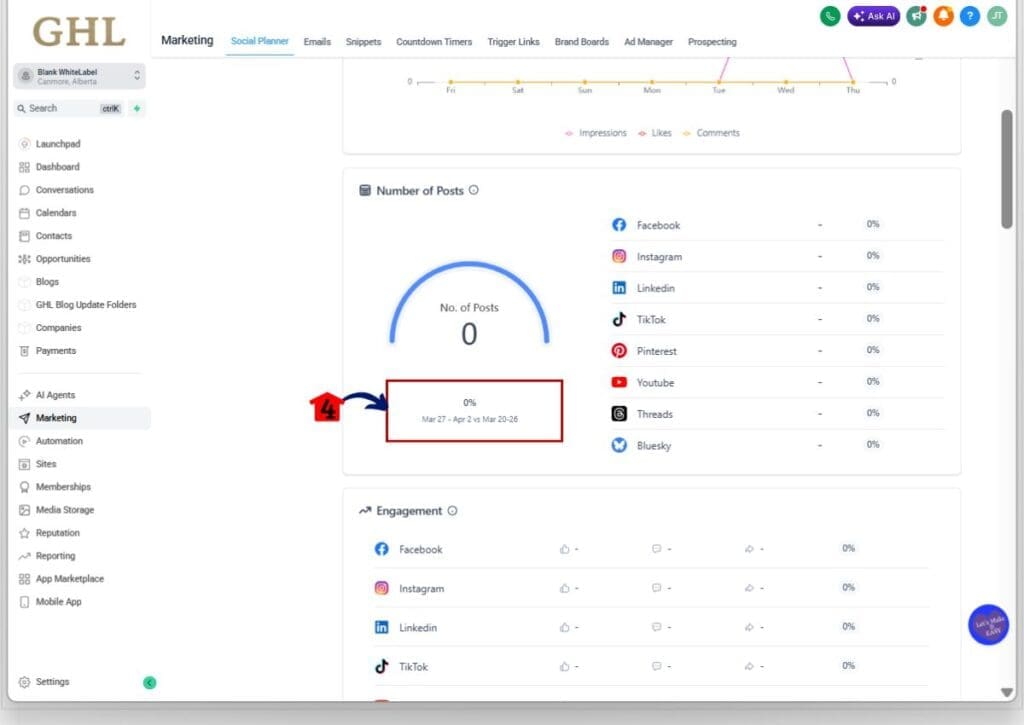
Once it’s turned on, GoHighLevel shows percent change indicators across the key stats, like Total Posts, Likes, Followers, Impressions, and Comments. This makes it easier to explain what moved and by how much without exporting anything.
What’s Changed in the Charts
Custom date range reporting also changes how the charts behave, and that’s a good thing. When you pick a short range, the stats show daily data points so you can spot quick spikes and dips without guessing.
When you pick a longer range, GoHighLevel automatically switches to an aggregated view so the chart stays readable. You get a cleaner trend line instead of a messy row of tiny daily bumps that no one can explain on a client call.
Bottom line: the system now scales the graph to match the timeframe. That means your Social Planner charts are easier to read, easier to present, and way less likely to cause confusion.
Why This Matters to You
Custom date range reporting fixes a real problem that agencies run into all the time. Most campaigns do not fit into a neat 7-day box. If you launch a promo from April 3 to April 17, you want the report to match those exact dates. Now it can.
It also makes comparisons simpler and faster. Instead of exporting stats, building a sheet, and trying to explain it later, you can compare your chosen range to the previous period right inside Social Planner. That gives you a clear “up or down” story in seconds, which is exactly what clients ask for.
Also, because the charts scale based on the timeframe, your reporting looks cleaner. Less chart noise means fewer distractions. You can focus on what matters, which is whether the content is improving, what changed, and what you should do next.
How to Use Custom Date Range Reporting in Social Planner
Custom date range reporting is used inside Social Planner Statistics. You’ll open the Statistics view, pick the exact start and end dates you want, then turn on Compare to see how that range performed versus the previous equivalent period.
Here are the steps to use custom date range reporting with a comparative view in GoHighLevel.
- Access the Social Planner and Open Social Planner Statistics.
- Set a custom date range.
- Use a preset range when you want speed.
- Turn on comparative view for the same timeframe.
To start make sure you are logged in to your GoHighLevel sub-account.
Step 01 – Access the Social Planner and Open Social Planner Statistics
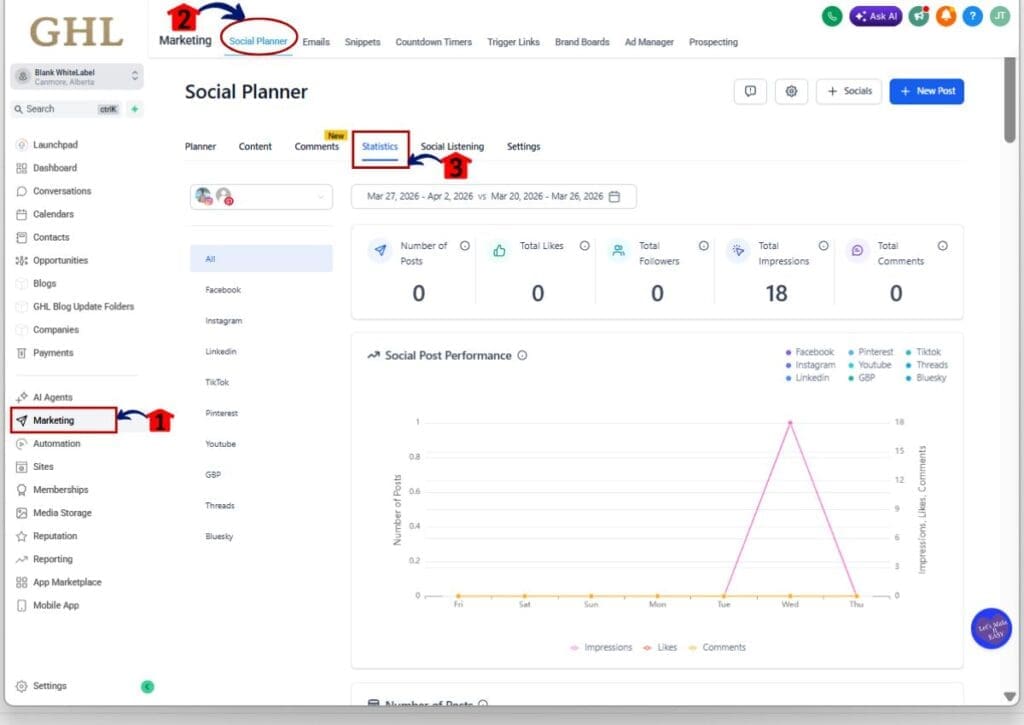
- The Main Menu on the left side of your screen has all the main areas that you work in when using GHL.
1.1 Click Marketing main menu item.
- This opens the Marketing section where you can access Social Planner, Emails and more.
1.2 Click the Social Planner main menu item.
- This opens the Social Planner area where you manage scheduled and published posts.
1.3 Click the Statistics inside Social Planner.
- You should now see KPI tiles and a performance chart.
Step 02 – Set a custom date range
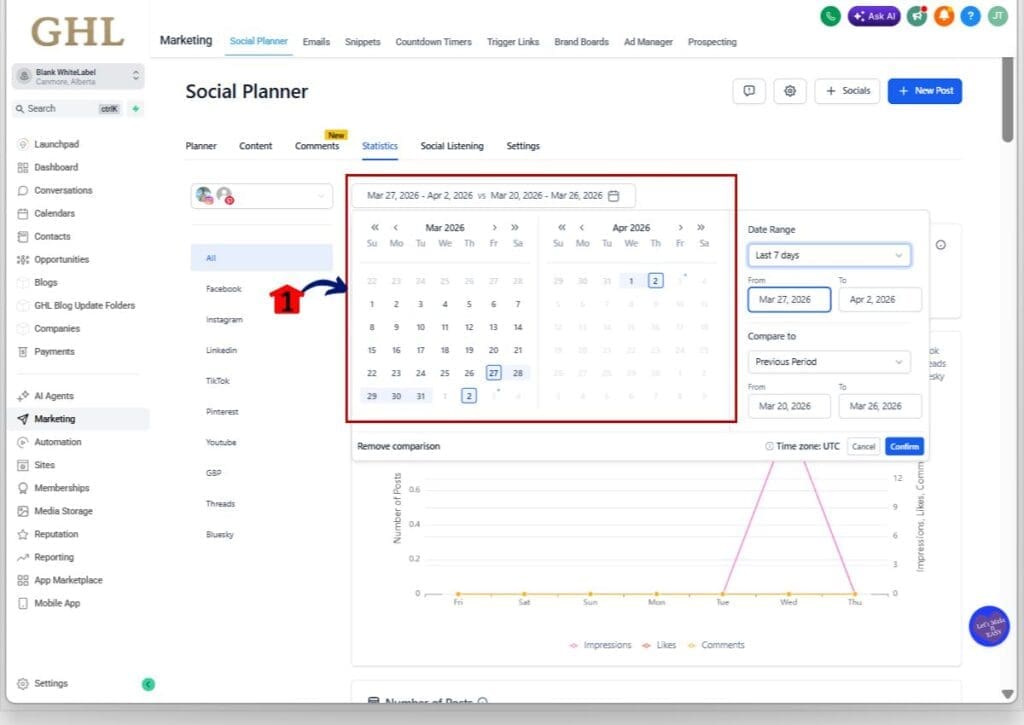
- Find the date range selector near the top of the Statistics page.
2.1 Click the date range selector to open the calendar picker.
- Select your start date.
- Select your end date.
Step 03 – Use a preset range when you want speed
3.1 Click the preset dropdown near the date range selector.
3.2 Select the preset you want.
- 7 days.
- 14 days.
- 30 days.
- Custom.
Step 04 – Turn on comparative view for the same timeframe
- Find the Compare option near the date range controls.
4.1 Click the comparison dropdown.
4.2 Select Previous Period.
- This compares the same number of days right before your selected range.
4.3 If needed, choose a different comparison preset.
- Previous 7 days.
- Previous 30 days.
- Custom.
4.4 Click on the Confirm button to save changes.
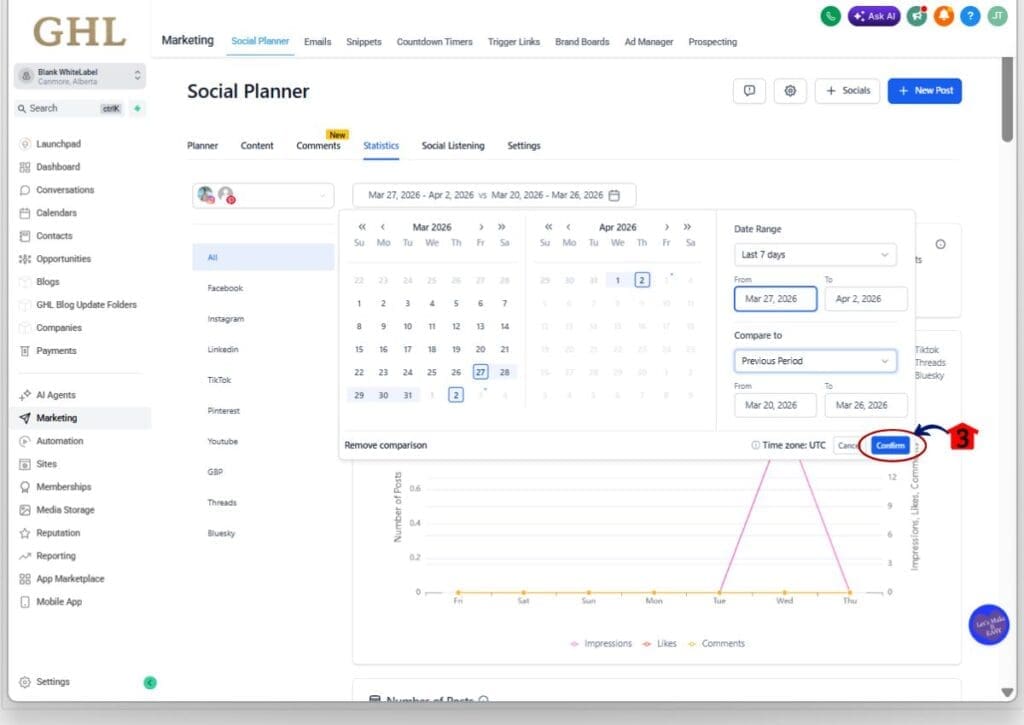
4.5 Confirm the comparison is active.
- You should now see percent change indicators across metrics like Total Posts, Likes, Followers, Impressions, and Comments.
PRO / QUICK TIPS
Custom date range reporting is powerful, but only if you read it like a grown-up. The percent change number is not the full story. It is just the scoreboard.
Start by checking Total Posts before you judge the results. If you posted a lot more this period, most metrics will rise even if the content was average. If you posted less, numbers can drop even when the posts were strong. That is why volume comes first.
Next, match the date range to the job. Use 7 days for quick weekly check-ins, 30 days for trend tracking, and exact campaign dates for promos. Also watch the chart style. Short ranges show daily points; longer ranges can be grouped, so focus on the trend when the view is aggregated.
What This Means for Your Business
Custom date range reporting makes client reporting feel less like a chore and more like a quick check. You can pull numbers that match the real campaign dates, not whatever the last 7 days happened to be. That alone cuts down on confusion during calls.
For agencies, the best win is speed. You can compare this period to the previous one in a few clicks and explain what changed with clear numbers. It also helps you spot trends early, like reach sliding, engagement climbing, or posting volume dropping off.
And when a client asks, “Is it working?”, you can answer with confidence. You are not guessing. You are showing a clean timeframe, a clean comparison, and a chart that is easy to read.
Frequently Asked Questions about Custom date range reporting
Custom date range reporting: your next steps
Custom date range reporting in GoHighLevel Social Planner is a simple upgrade, but it fixes a real reporting headache. You can finally measure the exact dates that matter, whether that’s a promo, a launch, or a full month of content.
The comparative view makes it even better. You can show what changed versus the previous period right inside the stats screen, with clear percent shifts across the main KPIs. No exports. No spreadsheet cleanup. Just a clean before-and-after story.
Next step: pick one active client, set a 30-day custom range, turn on Previous Period, and write down the one metric that moved the most. Then decide what you will change this week to improve it. Check back to the GHL Growth Garage blog for more GoHighLevel Mini-Guides.
Have you tried the new Social Planner stats yet? What date range do you report on most often?
Scale Your Business Today.
Streamline your workflow with GoHighLevel’s powerful tools.