- Use Discover to showcase your course catalog and bundles, choose what learners can explore, and give them a direct path to checkout.
- Quick Summary – Course Storefront at a Glance
- What’s New in Your GHL Course Storefront
- Why a Course Storefront Matters to You
- How to Set Up Your Course Storefront
- Quick Tips for Your Course Storefront
- What a Course Storefront Means for Your Business
- Course Storefront Frequently Asked Questions
- Put Your Course Storefront to Work
Use Discover to showcase your course catalog and bundles, choose what learners can explore, and give them a direct path to checkout.
Your Client Portal as a Course Storefront
A course storefront helps learners see what else you offer, not just the course they’ve already bought. Your GoHighLevel Client Portal gives them a place to access their training. But once they finish a course, they may not know you have more training ready for them.
Discover adds a way to browse courses, bundles, and communities from inside the portal. Learners can check course details and prices, then head to the checkout page when they’re ready to buy. You choose which courses and published offers appear, so you stay in control of what’s on display.
For course creators and agencies, a course storefront puts more of your content where learners already spend time. It won’t replace your marketing, but it gives them another way to find their next course. This guide covers how to enable Discover in GHL, choose your listings, and test the full path from browsing to checkout.

Put your next course or bundle in front of learners who already use your GHL Client Portal. With a course storefront, you choose what they can discover and give them a direct path to checkout.
Quick Summary – Course Storefront at a Glance
Purpose: Turn your GHL Client Portal into a course storefront where learners can explore your published courses and offers.
Why It Matters: Learners can find more of your training without leaving the Client Portal or waiting for another promotion.
What You Get: You can choose which offers appear in Discover and give learners a simple path to checkout.
Time to Complete: About 5–10 minutes if your offers are already published.
Difficulty Level: Beginner. You only need to update a few settings.
Key Outcome: Your course storefront makes it easier for current learners to find and purchase more of your content.
What’s New in Your GHL Course Storefront
Your GHL course storefront gives learners a way to browse beyond the courses they already own. Discover brings courses and published offers into one section alongside communities. Course listings show thumbnails, prices, descriptions, and tags, while published offers appear as bundles.
Learners can use search to find content or narrow their choices with filters for Free, Language, Difficulty, and Topic. When they find a course or bundle that suits their needs, they can open its checkout page. There’s no need to wait for a separate sales link from you.
Automate marketing, manage leads, and grow faster with GoHighLevel.
You choose what appears in your course storefront with the “Show in Discover” toggle. Find it in a course’s Pricing tab or within a published offer. You can also set Discover as the Client Portal’s default landing page, so learners see it when they arrive. This setting is optional, so you don’t need to change where learners start.
Why a Course Storefront Matters to You
A course storefront gives your current learners a way to explore more of your training. They don’t need to wait for your next email to see what else you offer. Discover lets them browse courses and bundles in the GoHighLevel Client Portal, then move to checkout when they’re ready.
For example, a course creator could list an advanced course for learners who want to build on the basics. Agencies could use the same approach in a client’s GHL portal. Membership businesses could also show courses alongside communities, giving members one place to explore what’s available.
Your course storefront creates a chance for more sales, not a guarantee. The value comes from helping learners find training that fits their next goal. Clear listings, fair prices, and useful courses still matter when someone decides to buy. Treat Discover as another way to support your marketing, rather than a reason to stop it.
How to Set Up Your Course Storefront
The new Discover feature lets you show your published courses and offers in the GoHighLevel Client Portal. You can choose which offers learners can see and give them a way to explore more of your content.
Here are the steps we will follow:
- Open the Client Portal Settings.
- Enable Discover in App Permissions.
- Open the Courses Offers section.
- Enable Show in Discover for a published offer.
To start, make sure you are logged in to the correct GoHighLevel sub-account and have access to the Client Apps section.
Step 01 – Open the Client Portal Settings
- The Client Portal Settings are found inside the Client Apps section of your GoHighLevel sub-account.
1.1 Click the Client Apps icon from the main left-hand menu.
- This opens the Client Apps menu, where you can manage your courses, communities, and Client Portal.
1.2 Click Client Portal from the Client Apps menu.
- This expands the Client Portal menu and shows the available options.
1.3 Click Client Portal Settings.
- This opens the Client Portal Settings page, where you can manage app permissions, branding, and other portal settings.

Step 02 – Enable Discover in App Permissions
- The App Permissions section lets you choose which features learners can access from your Client Portal.
2.1 Click App Permissions from the Client Portal Settings page.
- This opens the App Permissions page, where you can enable or disable apps for your learners.

2.2 Find Discover in the list of available apps.
- Scroll down the list until you see Discover, then check the box on the right to enable it.
- This makes the Discover section available in your Client Portal.

Step 03 – Open the Courses Offers Section
- The Offers section lets you manage course offers and choose which ones learners can find in Discover.
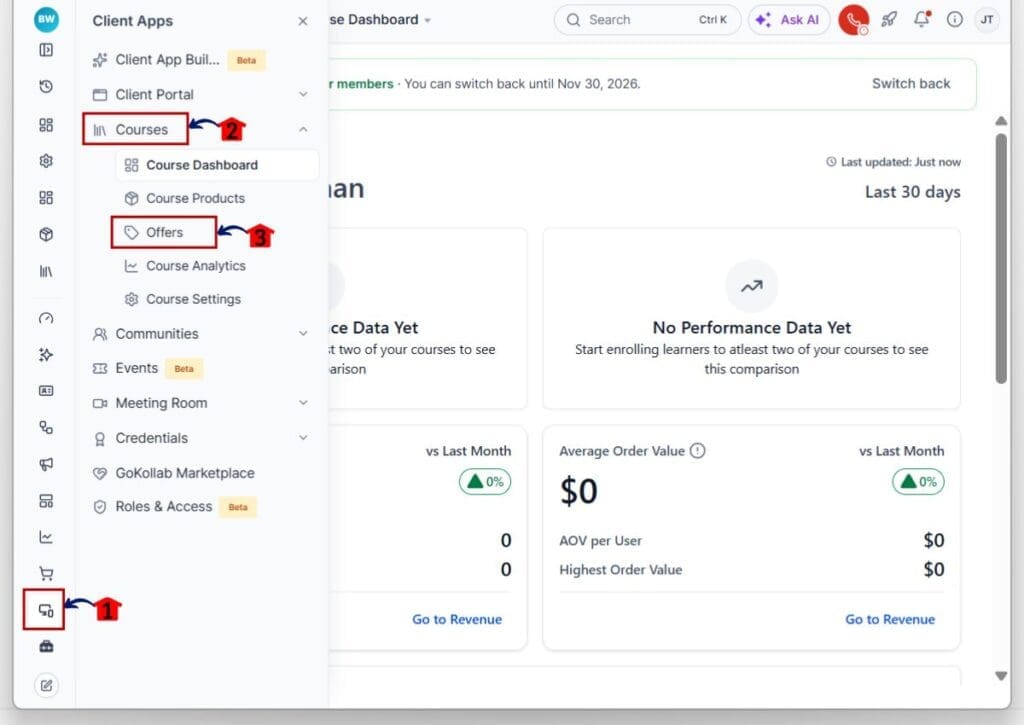
3.1 Click the Client Apps icon from the main left-hand menu.
- This opens the Client Apps menu, where you can access your course settings and offers.
3.2 Click Courses from the Client Apps menu.
- This expands the Courses menu and shows the available course tools.
3.3 Click Offers.
- This opens the Offers page, where you can view your existing offers, pricing, and publication status.
Step 04 – Enable Show in Discover for an Offer
- The Offers page lets you choose which published offers appear in your course storefront.
4.1 Find the published offer you want to display.
- Use the search bar or the Published filter to find your offer.
- Make sure the offer’s Visibility status is set to Published.
4.2 Click the pencil icon under Actions.
- This opens the offer editor, where you can review its details and settings.

4.3 Click Details from the left-hand menu.
- This opens the Offer Details page, where you can review the title, description, pricing, and other settings.
4.4 Find Show in Discover and turn on the toggle.
- The Show in Discover option is found on the right side of the Offer Details page.
- Once enabled, learners who haven’t enrolled can see the offer in the Discover section of their Client Portal.

Your course storefront is now set up to display the published offer in Discover. You can repeat these steps for other offers you want learners to explore. Before sharing the portal, check that the offer appears as expected and that its checkout page is ready for purchases.
Quick Tips for Your Course Storefront
Once Discover is enabled, take a few minutes to check how your offers appear to learners. A well-organized course storefront makes it easier for people to find training that fits their needs.
- Start with your best offers. Choose a few courses or bundles that are useful to your current learners. You don’t need to display every offer at once.
- Use clear titles and descriptions. Let learners know what they’ll get from each offer. Keep the wording simple so they can tell if the training is right for them.
- Check your course thumbnails. Use images that match the topic and are easy to recognize. A clear image helps learners find what they’re looking for.
- Review your pricing and checkout. Make sure each published offer has the correct price and a working checkout page before you turn on Show in Discover.
- Test the learner view. Open Discover as a learner and check what appears. This helps you catch missing details or offers that shouldn’t be visible.
You can update your course storefront as you add new training or change your offers. Review it from time to time to keep the content useful and up to date.
What a Course Storefront Means for Your Business
A course storefront helps you show more of your training to learners who already use your Client Portal. Instead of relying on emails or outside promotions, you can let them explore your courses and offers in one place. This makes it easier for them to find training that meets their needs.
For example, say you run a marketing agency with beginner and advanced GHL courses. When someone finishes the beginner course, they can use Discover to find the next level of training. They can check the course details, review the price, and go to checkout if they want to buy.
For agencies that manage courses for clients, this is also a useful feature to offer. You can help clients choose which courses to display and keep their listings up to date. While a course storefront won’t guarantee more sales, it gives learners a simple way to find and buy more of your content.
Course Storefront Frequently Asked Questions
Put Your Course Storefront to Work
The new Discover feature gives learners an easier way to find more of your courses and offers. With a course storefront inside your GoHighLevel Client Portal, you can show what’s available and let learners explore your content without leaving the portal.
Getting started is simple. Enable Discover, choose which published offers to display, and check that your listings and checkout pages work as expected. You can start with just a few offers and add more as your course library grows.
If you already sell courses through GHL, this update is worth trying. It gives your current learners another way to find training that meets their needs. Have you tried Discover yet? What courses or bundles do you plan to showcase first?
Scale Your Business Today.
Streamline your workflow with GoHighLevel’s powerful tools.