- Easier product and collection editing in GHL
- Quick Summary – Product Selection UX Overview
- New Product Selection UX in Builder
- What Changed in Product and Collection Editing
- Why Product Selection UX Improves Workflow
- How to Use Product Selection on Canvas
- Quick Tips for Using the New Selection Tools
- What to Expect from This UX Update
- Product Selection UX FAQ
- Final Takeaway for GHL Users
Easier product and collection editing in GHL
The latest GoHighLevel builder update improves the product selection UX by letting users interact with featured product and collection elements directly on the canvas. That means less clicking around and faster updates where it counts. It’s a small fix with a big payoff, especially for agencies managing ecommerce builds.
Before this change, editing these elements took extra steps. You had to select an item, jump into the sidebar, then open a drawer to make changes. It worked, but it wasn’t quick. Now, the whole process feels a lot more natural.
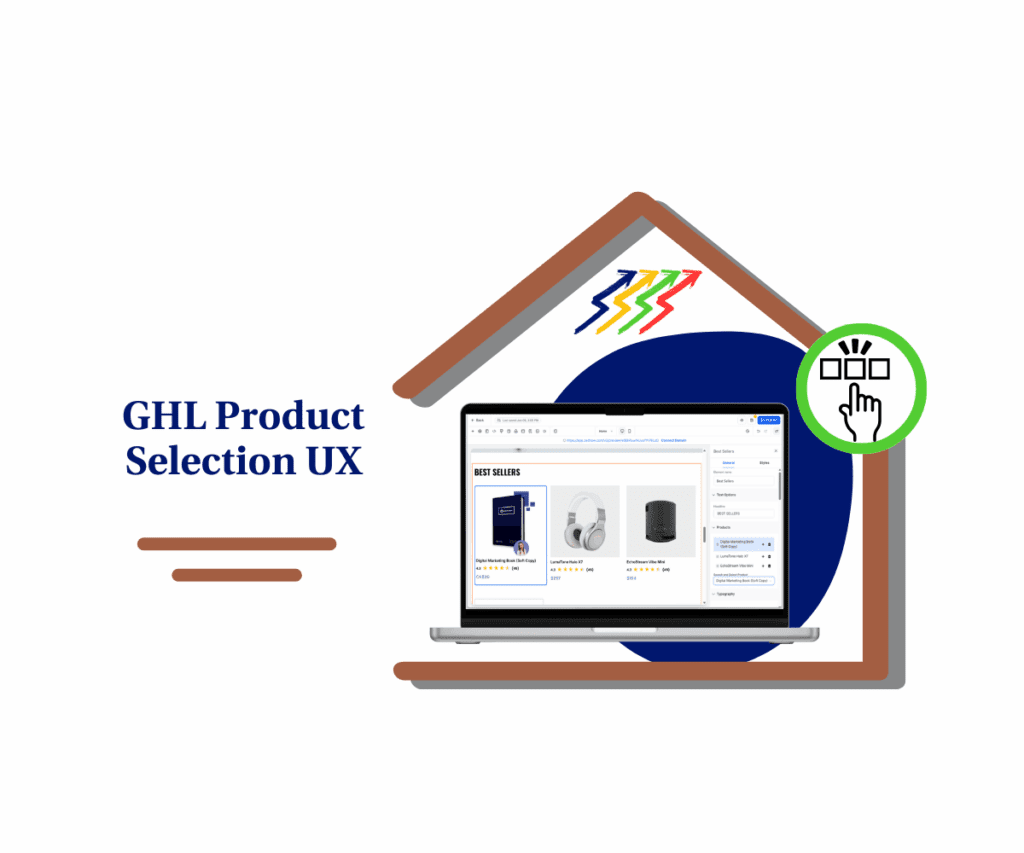
With this new product selection UX, users can double-click right on the canvas to assign or confirm mapped products and collections. It’s a faster, cleaner way to work inside GHL.
Quick Summary – Product Selection UX Overview
Purpose: Make it easier to assign products and collections inside the builder
Why It Matters: Cuts down on clicks and keeps the editing flow simple
What You Get: Canvas-level control with quick highlights and two-way syncing
Time To Complete: No setup needed, works right away
Difficulty Level: Very easy to use
Key Outcome: Faster product selection UX and fewer mistakes when editing
New Product Selection UX in Builder
GoHighLevel just made a helpful change to how users interact with featured product and collection elements inside the builder. Instead of clicking around in the sidebar to make edits, users can now manage everything right on the canvas.
This update is all about improving the product selection UX. It makes everyday editing faster and easier.
Automate marketing, manage leads, and grow faster with GoHighLevel.

Here’s what’s different:
- Double-click to start: Users can now double-click any featured product or collection on the canvas to interact with it.
- Quick selection for unmapped items: If the item hasn’t been connected yet, the selection drawer pops open so users can assign it right away.
- Clear highlights for mapped items: If a product or collection is already linked, it gets highlighted on the canvas for easy confirmation.
- Canvas and sidebar stay in sync: When something is selected on the canvas, the sidebar updates with the same info automatically.
This new product selection UX saves time and reduces confusion, especially for users managing ecommerce pages with multiple elements.
What Changed in Product and Collection Editing
GoHighLevel made a small but important update to how featured products and collections are handled inside the builder. Before, the only way to manage these elements was through the sidebar. That meant more steps and more room for errors.
With the new product selection UX, the workflow is cleaner and easier to follow.
Here’s what’s different now:
- Users can double-click product or collection elements directly on the canvas.
- If the item isn’t connected yet, the drawer opens right away to let you assign it.
- If the item is already set, it gets a subtle highlight so you know what’s active.
- The canvas and sidebar stay connected. When something is selected or changed, both views update together.
This update helps users spend less time navigating and more time building. It also reduces the chance of selecting the wrong product by mistake. For anyone managing ecommerce elements in GHL, this is a step in the right direction.
Why Product Selection UX Improves Workflow
The updated product selection UX in GoHighLevel is a small change that makes a noticeable difference. It takes a task that used to feel slow and turns it into something quick and easy.
Before this, users had to jump into the sidebar every time they wanted to check or change a product or collection. That meant more clicks, more steps, and more chances to miss something.
Now, it all happens right on the canvas.
Why this matters:
- Users can assign or confirm items without leaving the page view.
- Highlighting mapped items helps prevent mistakes.
- The process feels more natural, especially during fast-paced builds.
- It’s easier to show clients what’s selected during reviews or walkthroughs.
This product selection UX helps users stay focused while they work. It’s a cleaner way to handle updates, especially for agencies building ecommerce pages every day.
How to Use Product Selection on Canvas
GoHighLevel made this update easy to use. It fits right into how users already build and edit pages. The new product selection UX keeps everything on the canvas, so there’s less jumping between panels.
Here’s how it works:
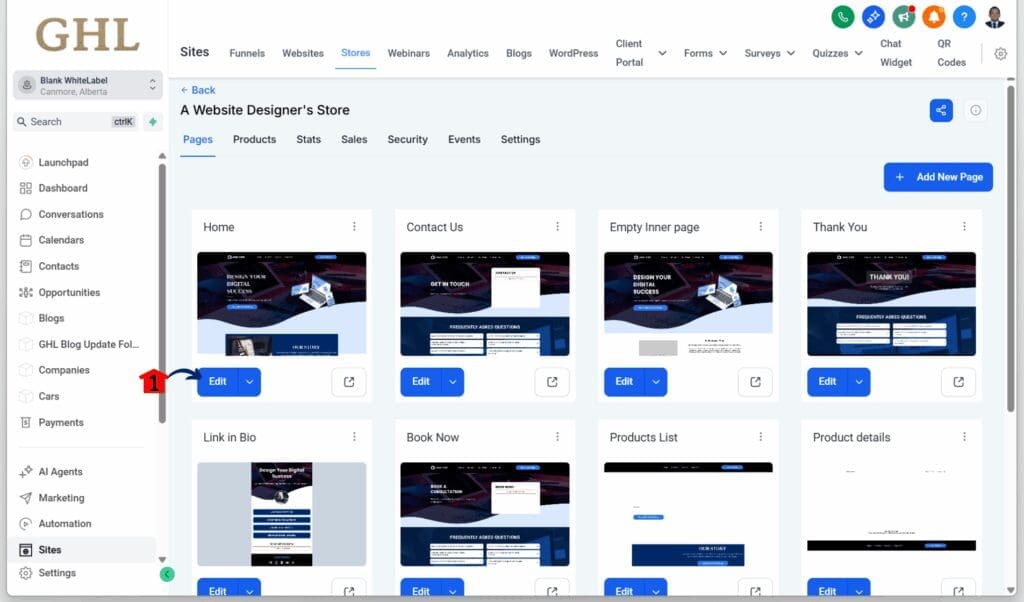
Step 01 – Access the Main Menu in GoHighLevel
- The main menu on the left side of your screen includes all the main areas you work in when using GoHighLevel (GHL).
1.1 Click on the Sites menu item to access the Stores section.
- You’ll now be in the Sites section, where you can access the Stores tab from the top menu.
1.2 Click the Stores tab.
1.3 Click an existing store.
- This store should have featured products on at least one of its pages.

Step 02 – Open the Store Page Library
- The user should now be in the selected store’s pages library.
2.1 Click Edit on the page where the featured products are displayed.
Step 03 – Select the Featured Products Element
- The user should now be inside the GoHighLevel page builder.
3.1 Click the Featured Products element on the canvas.
- The configuration panel for the featured products element should appear.
3.2 Click the specific product from the list that needs to be changed.
- A dropdown will appear at the bottom of the list, allowing quick search and selection.
3.3 Click the dropdown button for that specific product.

Step 04 – Choose a Replacement Product
- A list of previously created products should appear in the dropdown menu.
4.1 Click the product that will replace the existing one.

Step 05 – Confirm the Product Update
- The user should remain in the page builder, and the featured product configuration panel should now close.
5.1 The updated product should now appear on the canvas, with no need to switch menus or side panels.

This product selection UX only applies to Featured Product and Collection List elements. Other parts of the builder stay the same.
It’s a faster way to manage product mapping without breaking your focus. For users building ecommerce pages in GHL, this small change keeps things simple.
Quick Tips for Using the New Selection Tools
The updated product selection UX keeps things simple, but a few small habits can help users get more out of it. These tips are especially useful for teams managing ecommerce pages in GoHighLevel.
- Only use it on supported elements. This update works with Featured Product and Collection List elements. If you try it on other blocks, nothing will happen.
- Double-click, not single. A single click selects the block, but it will not open the drawer or show highlights. Make sure to double-click to trigger the interaction.
- Keep product names and images clear. Clean titles and good visuals make it easier to see what’s been mapped, especially when the highlight shows up.
- Check your selections before moving on. After making a change, take a second to look at the canvas. The visual feedback is helpful, but it’s always smart to confirm.
- Let clients know about it. If clients edit their own product blocks, show them how this works. It saves questions and helps them feel more confident.
These quick steps keep the editing process clean. The product selection UX is built to be fast, but using it well still makes a difference.
What to Expect from This UX Update
This update doesn’t overhaul the builder, but it does improve how it feels to work inside it. The new product selection UX in GoHighLevel makes small tasks easier, which adds up over time.
Here’s what users will notice:
- Quicker product mapping. Double-clicking on the canvas is faster than opening the sidebar every time. It saves time, especially when editing multiple items.
- Fewer clicks to get things done. Staying on the canvas helps users keep their focus without switching views.
- Better accuracy. The highlight helps confirm what’s selected. That means fewer mistakes and less backtracking.
- Clearer for teams and clients. When reviewing a page, anyone can see what’s been assigned without opening extra menus.
- Smoother project updates. Whether handing off a funnel or revising a live store, this makes the process feel more steady and reliable.
This product selection UX update may be simple, but it helps users move through their work with less friction. It’s a quality-of-life change that supports a smoother build process.
Product Selection UX FAQ
As users explore the new product selection UX in GoHighLevel, a few common questions tend to come up. Here are straightforward answers to help clear things up.
This update gives users more control and saves time without changing how products are managed in GHL.
Final Takeaway for GHL Users
The new product selection UX in GoHighLevel is a simple update that improves a task users do often. It cuts down on clicks, reduces confusion, and helps users stay focused inside the builder.
Instead of switching to the sidebar every time, users can now double-click right on the canvas to assign or review products and collections. It’s a faster way to work, especially when pages have several ecommerce elements.
For agencies and teams, this helps with speed and clarity. It also makes it easier for clients who edit their own pages to stay on track.
This update won’t change how you build, but it does make things feel smoother. And in a busy workflow, that’s always a win.
Scale Your Business Today.
Streamline your workflow with GoHighLevel’s powerful tools.