

- Detect risky posts and alert your team for review
- Quick Summary – Community Post Moderation at a Glance
- Video Guide: Community Post Moderation in GHL
- What's New in Community Post Moderation
- What's Changed in Community Post Moderation
- Why Community Post Moderation Matters
- How to Set Up Community Post Moderation in GHL
- Pro Tips for Better Community Post Moderation
- Results You Can Expect from Community Post Moderation
- Frequently Asked Questions About Community Post Moderation
- Keep Your GHL Community Safe with Post Moderation
Detect risky posts and alert your team for review
To set up Community Post Moderation in GHL, start with a new workflow. Add the Group Post Created trigger to track new posts. Use AI Intent Detection to check each post for risks. Then add an internal alert to warn your team when a post may need review.
When I look at this setup, one thing stands out. The rules you give the AI are key. If the rules are too broad, safe posts may get flagged. Clear rules help your team focus on posts that may cause harm.
A group with 100 members can be hard to watch as more people post each day. You can’t check every post all the time. This workflow uses three main tools to help your team keep track of new posts.

In this guide, you’ll learn how to pick a group, set rules, and send alerts. By the end, you’ll have a simple way to spot risky posts, alert your team, and review content before you act.
Quick Summary – Community Post Moderation at a Glance
Purpose: You can use Community Post Moderation in GHL to check new group posts and alert your team when a post may pose a risk.
Why It Matters: You don’t need to check each post by hand. AI helps you spot posts that may need a closer look, so your team can act sooner.
What You Get: You’ll set up a workflow that checks new posts with AI Intent Detection and sends an alert when a post gets flagged.
Time to Complete: You can plan for about 10 to 15 minutes to set up and test the workflow. It may take longer if you need to fine-tune your AI rules.
Difficulty Level: This is a beginner-friendly task. You only need to know how to use the GHL Workflow Builder.
Key Outcome: Your team gets an alert when AI flags a post that may pose a risk. You can then review the post and choose what to do next.
Video Guide: Community Post Moderation in GHL
You can’t watch your GHL group all day. With Community Post Moderation, you can use AI to check new posts and alert your team when a post may pose a risk.
Inside this video, you’ll learn how to:
Automate marketing, manage leads, and grow faster with GoHighLevel.

- Set up a GHL workflow to track new group posts.
- Use AI to spot spam, scams, or harmful posts.
- Send alerts to your team when a post needs review.
- Test your workflow to make sure alerts work as planned.
What’s New in Community Post Moderation
You can now use GHL workflows to check new group posts and alert your team when a post may need review. This gives you a simple way to handle Community Post Moderation without having to watch your group all day.
You only need three workflow tools to set it up.
- Group Post Created Trigger. Starts the workflow each time someone adds a new post to your chosen group.
- AI Intent Detection. Checks each post based on the rules you set. It then sorts the result as Positive, Negative, or None.
- Send Internal Notification. Sends an alert to your team when a post follows the Negative path and needs a closer look.
The goal isn’t to let AI make every choice for you. It’s to help your team find posts that may pose a risk. With this Community Post Moderation setup, you can spend less time checking posts by hand and more time on those that need your attention. Your team still makes the final call.
What’s Changed in Community Post Moderation
You no longer need to check each new GHL group post by hand. As your group grows, it’s easy to miss posts that may cause harm. With Community Post Moderation, you can set up a workflow to check new posts and alert your team when needed.
Here’s how it works.
- New posts start the workflow. When someone adds a post to your chosen group, GHL starts the process.
- AI checks each post. It uses the rules you set to sort posts as Positive, Negative, or None.
- Flagged posts send alerts. If a post takes the Negative path, GHL sends an alert to the team members you choose.
- Other posts need no next step. In this setup, the Positive and None paths end with no alert.
The big change is how you find posts that need a closer look. Instead of going through each post, your team gets an alert when the AI flags a risk. This saves time and helps you review posts sooner. You still have full control over what happens next.
Why Community Post Moderation Matters
When you run a GHL group, you want it to be a safe place for your members. But as your group grows, it gets harder to keep track of new posts. Spam, scams, and rude comments can go unseen when you’re busy. That’s where Community Post Moderation can help.
Here’s why this setup is worth your time.
- Save time on post checks. You won’t need to scan each new post by hand to find one that may pose a risk.
- Spot issues sooner. AI checks new posts based on your rules and flags those that may need a closer look.
- Keep your team informed. GHL sends an alert to the team members you choose when a post gets flagged.
- Stay on top of client groups. If you run groups for clients, you can use this same setup in each GHL account.
The point of Community Post Moderation isn’t to let AI run your group. It’s to help you spot posts that need your time. AI can make mistakes, so your team should still check each flagged post. You stay in charge of what happens next.
How to Set Up Community Post Moderation in GHL
You can set up Community Post Moderation in GHL with a simple workflow. First, you’ll choose which group to watch. Then, you’ll use AI to check new posts for risks and send an alert to your team when a post needs review.
You’ll also set the rules for AI, choose who gets the alerts, and test the workflow to make sure it works. Here are the steps to set up Community Post Moderation in GoHighLevel.
- Open the Workflow Builder from the Automation Section.
- Rename Your Workflow and Add the Group Posted Created Trigger.
- Rename the Group Posted Created Trigger and Select Your Group.
- Find and Add the AI Intent Detection Element.
- Rename AI Intent Detection and Enter Your Instructions.
- Find and Add the Send Internal Notification Element.
- Set the Action Name and Create Your Team Alert.
- Set the Redirect Page and Choose Your Team Members.
- Open Workflow Settings and Set the Contact Timezone.
- Publish and Save Your Workflow.
To start, make sure you are logged in to your GoHighLevel sub-account. Make sure you’ve created a community group in GHL.
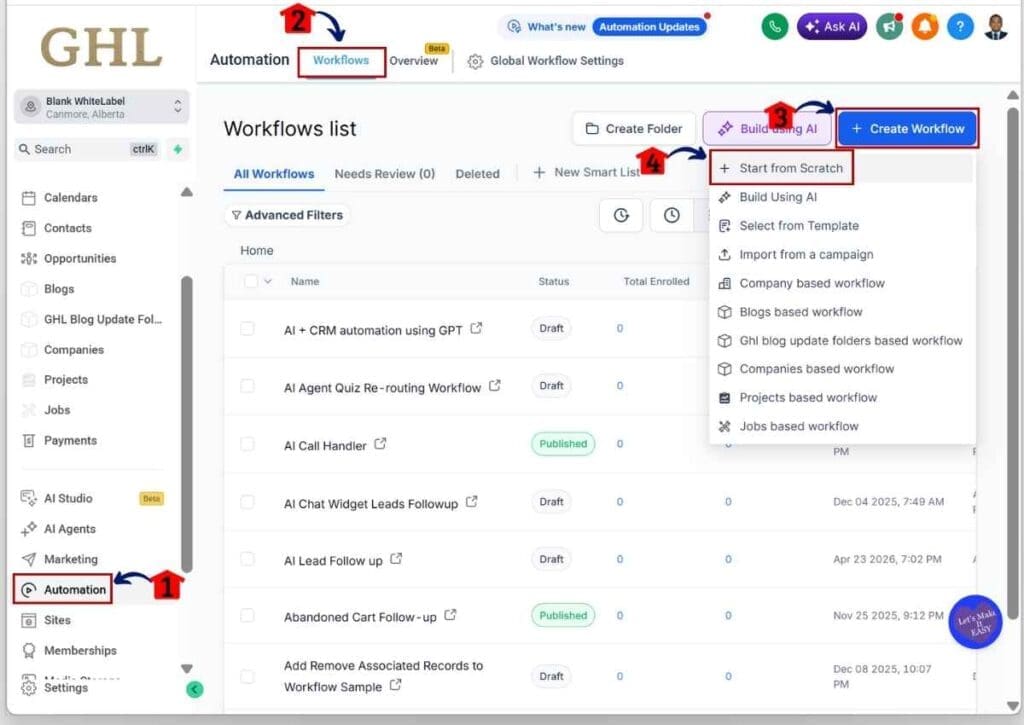
Step 01 – Access the Workflow Builder from the Automation Section
- Create your Community Post Moderation workflow using the Workflow Builder in the Automation section.
1.1 Click Automation.
- You will be taken to the Workflows tab by default.
1.2 Click Workflows.
- You will see a list of workflows, along with options such as Create Folder, Build Using AI, and + Create Workflow.
1.3 Click + Create Workflow.
- A dropdown menu will appear with several options, including + Start from Scratch.
1.4 Click + Start from Scratch.
- You will be taken to the Workflow Builder.
Step 02 – Set the Group Posted Created Trigger After Renaming Your Workflow
- Rename your Community Post Moderation workflow, then set the Group Posted Created trigger.
2.1 Rename your Community Post Moderation workflow.
- Click the Pencil icon at the top of the Workflow Builder and enter a new name for your workflow.
2.2 Click Add New Trigger.
- The trigger library will appear, where you can search for and select a trigger.
2.3 Search for and select Group Posted Created.
- You will be taken to the Group Posted Created trigger settings.

Step 03 – Rename the Group Posted Created Trigger and Set Group Before Saving the Trigger
- Give the Group Posted Created trigger a clear name, then set the group before saving it.
3.1 Rename the Group Access Revoked trigger.
- This makes it easier to identify on the Community Post Moderation workflow canvas.
3.2 Select Group from the first drop-down filter set.
- Another drop-down filter will appear below the first filter.
3.3 Choose Is as the operator
- The chosen option should appear in this specific filter.
3.4 Choose your created community.
- The chosen community should appear in the first drop-down filter.
3.5 Click Save Trigger.
- The trigger will now appear on the Community Post Moderation workflow canvas.

Step 04 – Search for and Add the AI Intent Detection Element
- Click the Add Actions button, then search for and choose the AI Intent Detection action element.
4.1 Click Add New Element.
- The action element library should appear on the right side of the canvas.
4.2 Search for and select the AI Intent Detection action element.
- You will be taken to the AI Intent Detection settings.

Step 05 – Rename AI Intent Detection and Enter Your Instructions
- Give the action a clear name, then add the instructions you want the AI to follow.
5.1 Rename the action element.
- This makes the action easier to find on the Community Post Moderation workflow canvas.
5.2 Enter your instructions in the Input Text field.
- Make sure your instructions are clear and include the Positive and Negative output branches.
5.3 Click Save Action.
- The action element will now appear on the workflow canvas.

Step 06 – Search for and Add the Send Internal Notification Element
- Click Add New Element, then search for and select the Send Internal Notification action element.
6.1 Click Add New Element.
- The action library will appear on the right side of the canvas.
6.2 Search for and select the Send Internal Notification action element.
- You will be taken to the Send Internal Notification settings page.

Step 07 – Set the Action Name and Internal Notification for Your Team
- Rename the Send Internal Notification action element, then create the notification for your team.
7.1 Rename the Send Internal Notification action element.
- Use a clear and simple name.
7.2 Choose the Notification Type.
- The Title, Message, and other notification fields will appear for you to complete.
7.3 Enter the team member notification title.
- Keep it short and easy to understand.
7.4 Enter the Send Internal Notification message for your team.
- Write clear instructions so your team knows what to do next.
- Add the appropriate custom values as well so the team member can easily identify the member’s negative post.

Step 08 – Set the Redirect Page and Team Assignee
- Set the redirect page so your team can open the client’s contact details.
8.1 Set the Redirect Page to Contact.
8.2 Choose the User Type.
- For this example, All Users is selected.
8.3 Click the Save Action button.
- The action element will now appear on the Community Post Moderation workflow canvas.

Step 09 – Open the Workflow Settings, Then Set the Contact Timezone Before Returning to the Builder
- Click the Settings tab at the top of the workflow canvas, then set the Contact Timezone in the Communication section before returning to the workflow builder.
9.1 Click the Settings tab.
- You will be taken to the Community Post Moderation workflow settings section.
9.2 Toggle on Allow re-entry and Allow multiple opportunities.
9.3 Set the Contact Timezone.
- This helps the workflow send messages based on the contact’s local timezone.
9.4 Click the Builder tab.
- You will return to the workflow canvas.

Step 10 – Publish and Save Your Workflow
- Turn on Publish and save your Community Post Moderation workflow.
10.1 Turn on the Publish toggle.
- The toggle will turn blue to show that it is active.
10.2 Click Save.
- The red dot on the Save button will disappear, confirming that your Community Post Moderation workflow has been saved.

Pro Tips for Better Community Post Moderation
Once your workflow is live, check how well it works. Good Community Post Moderation starts with clear AI rules. If your rules are too broad, you may get alerts for posts that pose no risk. A few simple checks can help you get better results.
Here are some tips to help you keep things on track.
- Set clear AI rules. Tell the AI to look for spam, scams, threats, or rude posts. Be clear about what counts as a risk.
- Test different posts. Try both safe and risky posts to see how the AI sorts them. Check if each post takes the right path.
- Pick the right team members. Send alerts to people who can check posts and take action. You don’t need to alert the whole team.
- Check for false alerts. If safe posts get flagged, change your AI rules and test them again.
- Review each flagged post. AI can get things wrong. Read the full post before you choose what to do next.
The key is to keep your Community Post Moderation setup simple and useful. Check your results from time to time and update your rules as your group grows. This helps your team focus on posts that need care, not every post that comes in.
Results You Can Expect from Community Post Moderation
Once your workflow is live, you’ll have a simple way to keep track of new posts in your GHL group. Community Post Moderation helps you spot posts that may pose a risk. Your team can then focus on posts that need a closer look.
Here’s what you can expect from this setup.
- Spend less time on post checks. AI checks new posts based on your rules, so you don’t have to read each one by hand.
- Get alerts sooner. Your team gets an alert when AI flags a post that may pose a risk.
- Keep your team informed. The right people know when a post needs review and can choose what to do next.
- Stay in control of your group. You can change the AI rules and choose who gets alerts as your group grows.
Keep in mind that AI can make mistakes. It may flag a safe post or miss one that poses a risk. That’s why your team should still check each alert before taking action. With Community Post Moderation, you’ll have a clear way to spot issues and keep your group on track.
Frequently Asked Questions About Community Post Moderation
Before you set up Community Post Moderation in GHL, you may have a few questions about how it works. Here are five key things to know about AI checks, team alerts, and what happens when a post gets flagged.
Keep Your GHL Community Safe with Post Moderation
You can’t watch your GHL group all day, and you shouldn’t have to. With Community Post Moderation, you can check new posts for risks and alert your team when a post needs review.
The workflow does most of the work for you. A new group post starts the process, AI checks it based on your rules, and GHL sends an alert if it finds a possible risk. You choose which group to watch and who gets the alerts.
Of course, AI won’t get it right every time. That’s why your team should still check each flagged post before taking action. The goal is to help you spot issues, not let AI make the final call.
Start with one group and test a few posts. Check the results, make changes to your AI rules, and see what works best. With Community Post Moderation in place, you’ll spend less time on post checks and have more time to help your members.
Scale Your Business Today.
Streamline your workflow with GoHighLevel’s powerful tools.


