- Add Facebook, Instagram, TikTok, or other social accounts easily
- Quick Summary – Connect Social Accounts Overview
- Quick Video Guide to Connect Social Accounts in GHL
- What does connecting social accounts do in GHL
- Why connecting social accounts matters for your workflow
- How to connect social accounts in GHL's Social Planner
- Fix common issues when you connect social accounts
- Tips to manage connected social accounts
- Connect social accounts for scheduling content
- Connect social accounts in GHL FAQs
- Final thoughts on connecting social accounts
Add Facebook, Instagram, TikTok, or other social accounts easily
To connect social accounts in GHL Social Planner, go to the Marketing tab, open Social Planner, and click Add Socials. Pick your platform, choose the right profile, and confirm the connection. This simple step-by-step process helps you connect social accounts like Facebook, Instagram, and TikTok so you can start posting without delays.
In real use, the steps are not the problem. What usually slows you down is selecting the wrong profile or not being logged into the correct account first. That is where most connection issues happen, even when everything looks right.
This matters more than it seems. Most failed setups happen because of login or permission issues during connection. If you do not connect social accounts properly, your posts will not publish, and your workflow stops before it starts.

In this guide, you will learn the best way to connect social accounts step-by-step inside GHL. You will avoid common setup mistakes, confirm everything is working, and start scheduling content with confidence.
Quick Summary – Connect Social Accounts Overview
Purpose: This guide shows you how to connect social accounts in GHL Social Planner so you can manage your content from one place without confusion.
Why It Matters: When you connect social accounts the right way, you avoid posting issues, save time, and keep your workflow simple and easy to manage.
What You Get: You get clear steps to connect Facebook, Instagram, and TikTok so you can start using Social Planner without setup problems.
Time To Complete: You can connect social accounts in just a few minutes when you follow the steps in order.
Difficulty Level: This process is simple and beginner-friendly, even if you are new to GHL.
Key Outcome: You will have your social accounts connected and ready to schedule posts without switching between platforms.
Quick Video Guide to Connect Social Accounts in GHL
Connect your social accounts fast and avoid setup issues. This helps you start posting without delays.
What you’ll see:
Automate marketing, manage leads, and grow faster with GoHighLevel.

- How to open Social Planner in GHL.
- How to choose the right social platform.
- How to pick the correct profile to connect.
- How to confirm your account is fully connected.
What does connecting social accounts do in GHL
When you connect social accounts in GHL Social Planner, you turn it from a basic tool into something you will actually use every day. Instead of jumping between Facebook, Instagram, and TikTok, you manage everything in one place. That alone makes your workflow cleaner and easier to handle.
Once you connect social accounts, you control your content from a single dashboard. You can plan posts, set schedules, and stay consistent without logging in and out of different platforms. Just keep this in mind. Connecting your account does not post for you. It simply gives GHL permission to publish when you are ready.
Here is what you get when you connect social accounts the right way inside GHL:
- Post to Facebook, Instagram, and TikTok from one dashboard.
- Schedule content ahead of time instead of posting manually.
- Manage multiple client accounts without switching logins.
- Keep your content organized and easy to track.
- Batch your posts so you are not working every day.
If you are running an agency or managing clients, this setup saves time fast. You are not just connecting accounts. You are building a simple system that keeps your content moving without extra effort.
Why connecting social accounts matters for your workflow
When you connect social accounts in GHL, your workflow starts to feel a lot more under control. You are no longer jumping between apps or trying to remember where you left off. Everything sits in one place, and that makes your day easier to manage.
In real use, this is where things click. You stop guessing what has been posted or what is coming next. You can see your content clearly, make quick changes, and stay consistent without adding more work to your day.
Here is what improves once you connect social accounts inside GHL:
- You save time by working from one dashboard.
- You avoid missing posts or forgetting schedules.
- You keep your content organized and easy to track.
- You reduce simple mistakes from switching platforms.
- You stay consistent without posting every day.
If you manage clients or run an agency, this becomes even more important. Things can get messy fast without a system. When you connect social accounts the right way, you keep everything simple, clear, and easy to run.
How to connect social accounts in GHL’s Social Planner
Connecting social accounts in GHL Social Planner is handled inside the Marketing section of your sub-account. You will open Social Planner, start the connection process, choose your platform, and select the correct profile to link your account properly.
This process is simple, but you need to follow each step in order and make sure you are using the correct login and permissions. In the steps below, you will connect your social account and confirm it is ready for posting inside GHL.
- Access the Connect Socials in the GHL Marketing Social Planner.
- Connect and integrate a social media account.
- Select a social account type.
- Choose a social media account profile you want to connect to.
- Close and exit the social integration pop-up.
- Click the Social Planner Settings to confirm social integration.
- Check and confirm the integrated social media account.
To start, make sure you are logged in to your GoHighLevel sub-account and your social media accounts.
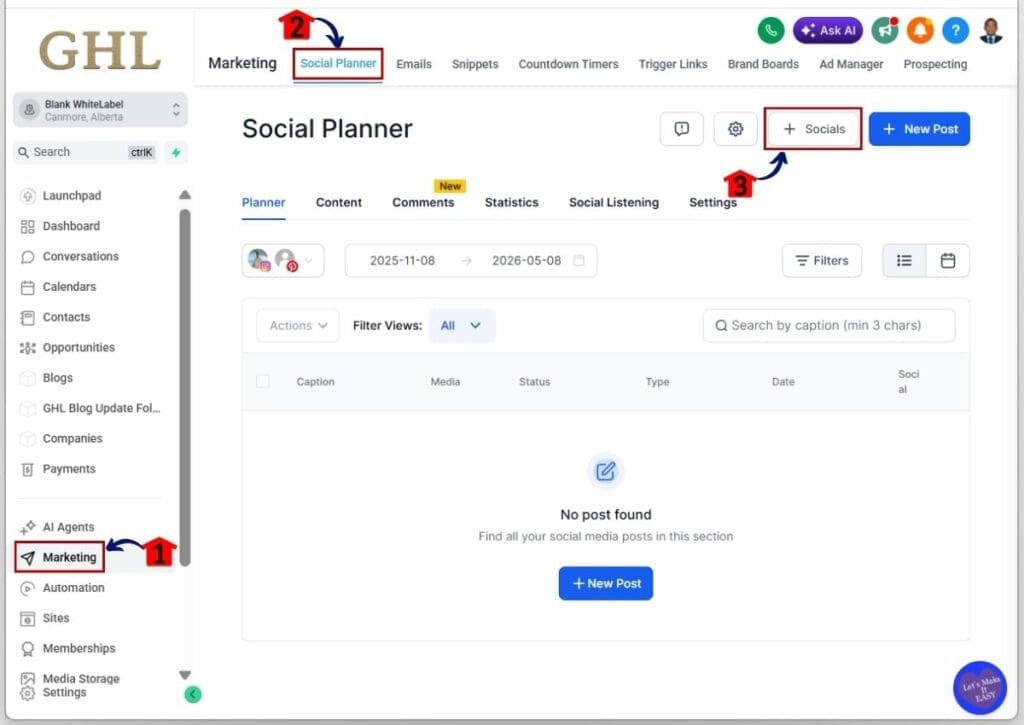
Step 01 – Access the Connect Socials in the GHL Marketing Social Planner
- Find the Connect Socials button inside the Social Planner in the Marketing section.
1.1 Click the Marketing section
- You will now be in the Marketing section, where you can see tabs like Social Planner, Emails, Snippets, and other marketing features.
1.2 Click the Social Planner tab
- You should be in the Social Planner tab by default.
1.3 Click the + Socials button in the Social Planner
- A pop-up will appear with different social media integration options.
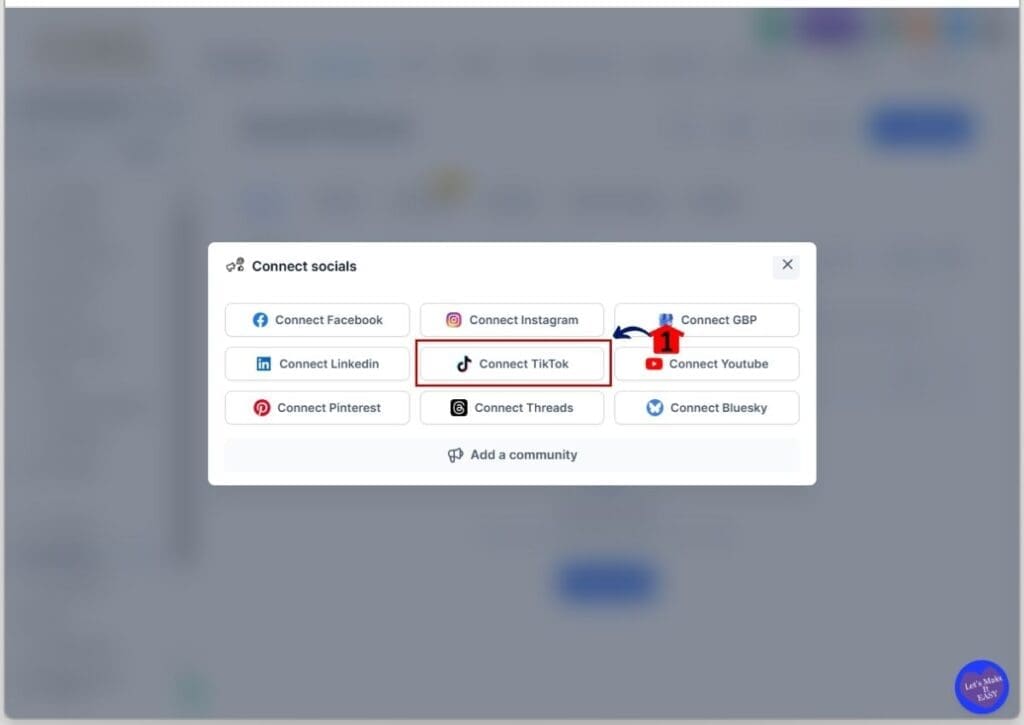
Step 02 – Connect and integrate a social media account
- Choose the social media platform you want to connect to in your GHL Social Planner.
2.1 Click a social media integration button
- For this example, the TikTok integration button is selected.
- You will be taken to another pop-up where you can choose the account type.
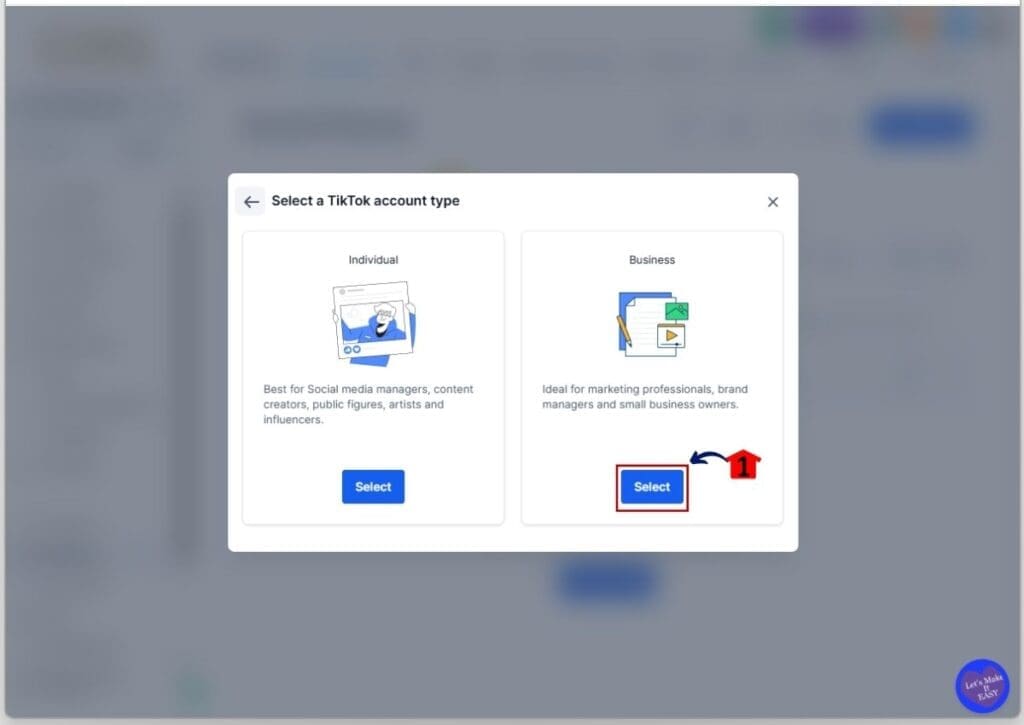
Step 03 – Select a social account type
- Choose between a personal or business account type for this connection.
3.1 Click the Select button for your preferred account type
- In this example, the business account type is selected.
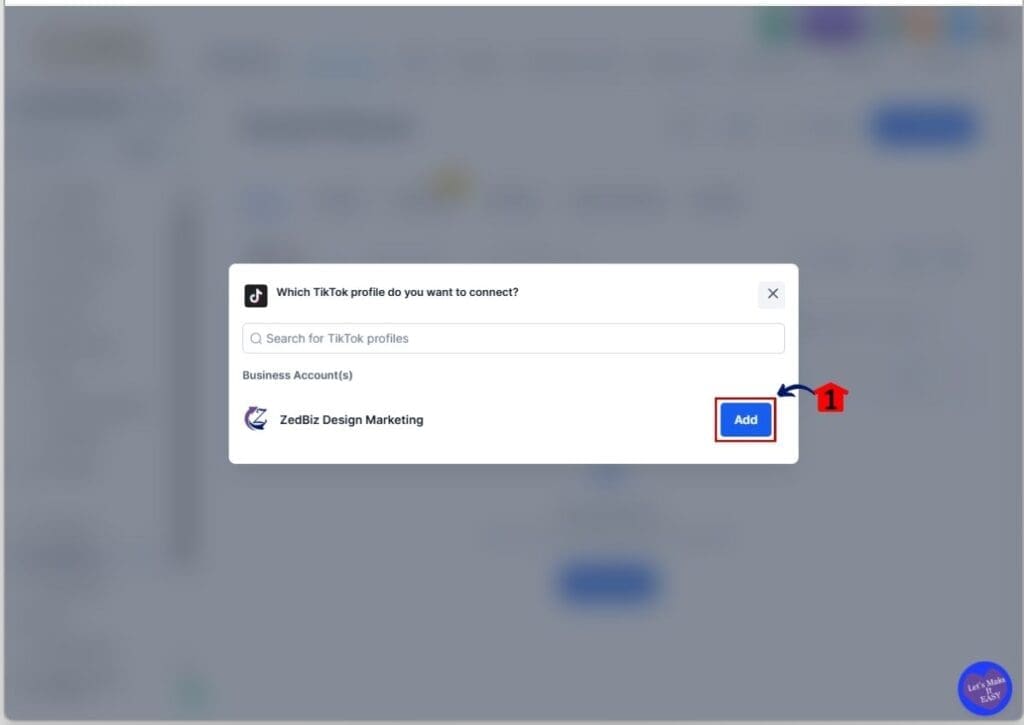
Step 04 – Choose a social media account profile you want to connect to
- Select the social media profile or page you want to connect to your GHL Social Planner.
4.1 Click the Add button next to that profile
- The word “Connected” will appear to confirm that the integration is successful.
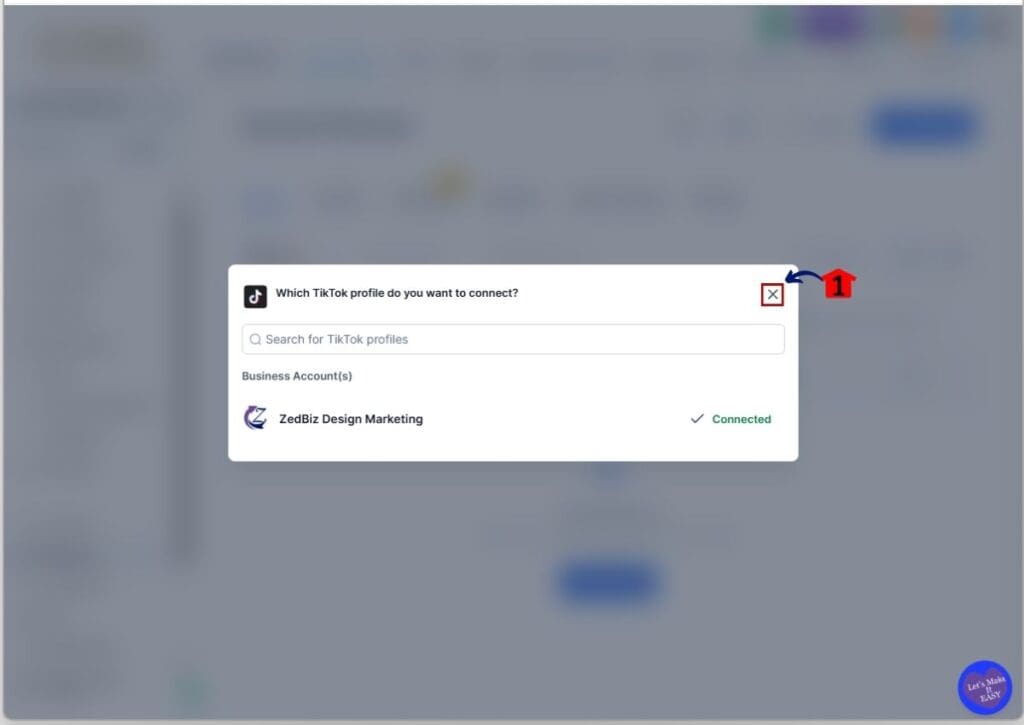
Step 05 – Close and exit the social integration pop-up
- Close the pop-up after you select the social profiles you want to connect.
5.1 Click the Exit button on the pop-up
- You will return to the Social Planner dashboard.
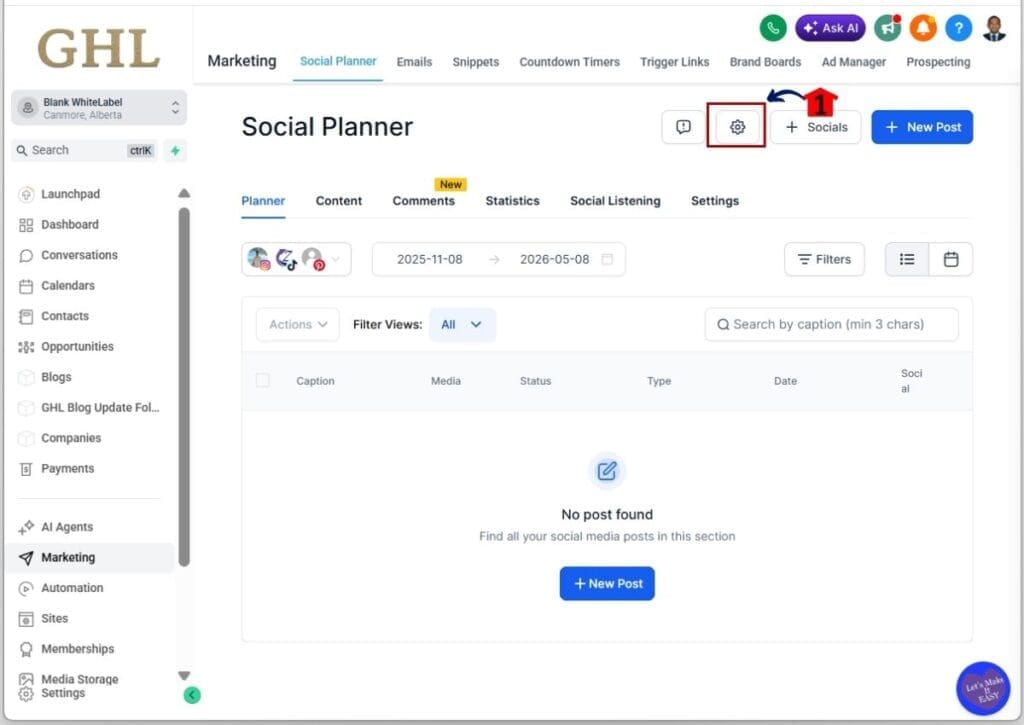
Step 06 – Click the Social Planner Settings to confirm social integration
- Open the Social Planner settings to check your connected accounts.
6.1 Click the Social Planner settings
- This is the gear icon between the Feedback and Social Integration buttons.
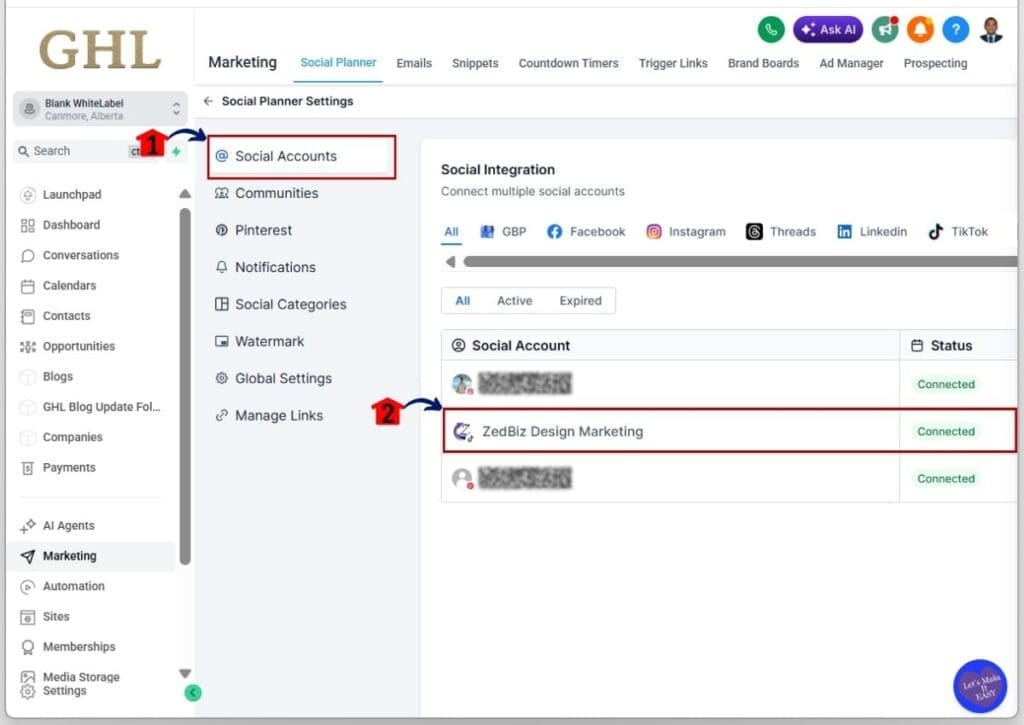
Step 07 – Check and confirm the integrated social media account
- Make sure your social media account shows as connected in GHL Social Planner.
7.1 Click the Social Accounts subsection
- You should be in this section by default.
7.2 Check that the social media account shows a “Connected” status
- In this example, the TikTok account shows a “Connected” status.
Fix common issues when you connect social accounts
When you connect social accounts in GHL, most issues are not caused by the platform itself. In most cases, the problem comes from login sessions, missing permissions, or choosing the wrong profile during setup. These small details are what usually slow you down.
Before you try again, take a moment to check the basics. Fixing one small issue is often enough to get everything working without repeating the whole process.
Here are the most common problems to look for when you connect social accounts:
- You are not logged into the correct social media account before starting.
- You selected the wrong Facebook page or Instagram profile.
- Your account does not have admin or full access permissions.
- Your browser is blocking pop-ups during the connection.
- Your session expired while connecting the account.
If something fails, do not rush through the steps again. Log out of your social account, log back in, and reconnect. That simple reset fixes most issues.
If it still does not work, remove the account and connect social accounts again from the start. Once your login and permissions are correct, the setup usually works without problems.
Tips to manage connected social accounts
Once you connect social accounts in GHL, the job is not done. You still need to keep things clean and easy to manage. This is where many users slip up, especially when handling more than one account.
In real use, small mistakes add up fast. Posting to the wrong page or losing access can happen if your setup is not clear. You want a simple system that keeps everything in order.
Here are a few ways to manage your setup after you connect social accounts:
- Check the account name before you schedule any post.
- Use clear names if you manage more than one client.
- Keep your login details consistent across platforms.
- Reconnect accounts if posting starts to fail.
- Review permissions if an account suddenly stops working.
If you manage client accounts, take an extra moment to confirm each one is linked to the right profile. One wrong post can cause problems you do not need.
When you connect social accounts and keep them organized, your workflow stays smooth. Your content goes out on time, and you spend less time fixing simple issues.
Connect social accounts for scheduling content
When you connect social accounts in GHL, this is where things start to feel easier. You are no longer posting one by one or jumping between apps. You manage everything from one place, and that saves you time right away.
In practice, this is what makes Social Planner useful. You can plan your content ahead, stay consistent, and avoid last-minute posting. Once you connect social accounts, your focus shifts from posting to planning.
Here is how you can use your setup for scheduling:
- Create posts for Facebook, Instagram, and TikTok in one dashboard.
- Schedule posts ahead of time instead of posting manually.
- Batch your content for the week or month in one sitting.
- Keep your posting consistent without daily effort.
- Manage multiple client accounts without switching platforms.
If you handle clients or run an agency, this becomes a simple system you can rely on. You can plan content in blocks, review everything in one place, and keep things running without stress.
When you connect social accounts and use scheduling properly, your workflow becomes steady. Your content goes out on time, and you spend less time posting and more time improving your strategy.
Connect social accounts in GHL FAQs
Here are the most common questions you will run into when you connect social accounts in GHL. These answers will help you fix issues faster and keep your setup running without confusion.
Final thoughts on connecting social accounts
Connecting your accounts is one of the first things you should set up in Social Planner. When you connect social accounts in GHL, you are setting the base for how your content will be planned and published going forward.
The steps are simple, but the small details matter. You need to be logged into the right account, choose the correct profile, and confirm everything is connected. Most problems happen when one of these steps is missed.
Once you connect social accounts the right way, your workflow becomes easier to manage. You can plan content, stay consistent, and avoid switching between platforms. This helps you stay focused and keeps your posting on track.
If you have not set this up yet, take a few minutes to connect social accounts inside GHL Social Planner. It is a quick step that makes everything else easier.
Have you connected your accounts yet?
Scale Your Business Today.
Streamline your workflow with GoHighLevel’s powerful tools.