- Create coupons that apply cleanly at checkout, inside funnels, and across your offers
- Quick Summary – Create Coupons at a Glance
- What You Can Do When You Create Coupons in GoHighLevel
- Before You Create Coupons in GoHighLevel: Quick Prep Checklist
- How to Create Coupons in GoHighLevel
- How Customers Apply Coupons Inside Your Order Form
- Pro / Quick Tips When You Create Coupons in GoHighLevel
- Common Mistakes When You Create Coupons in GoHighLevel (And Quick Fixes)
- Frequently Asked Questions About How to Create Coupons in GoHighLevel
- Wrap-up: Create Coupons in GoHighLevel Like a System
Create coupons that apply cleanly at checkout, inside funnels, and across your offers
Coupons sound simple until you’re the one cleaning up a discount mess. One wrong setting, and you’ve got expired codes still working, a promo that applies to the wrong offer, or a “VIP” discount your team accidentally reuses for every new launch. That’s why this mini-guide focuses on one thing: how to create coupons the right way in GoHighLevel, so your promos stay clean and predictable.
In this guide, you’ll learn how to create coupons using a repeatable setup process you can hand to any team member. You’ll also see where the coupon field shows up on your order form, so you know what customers will interact with when they’re ready to apply a code.
This is built for agencies and marketers who need fast implementation without guessing. No fluff. No theory. Just the exact steps, the key settings that matter, and the small choices that prevent big “why isn’t this working?” headaches later.
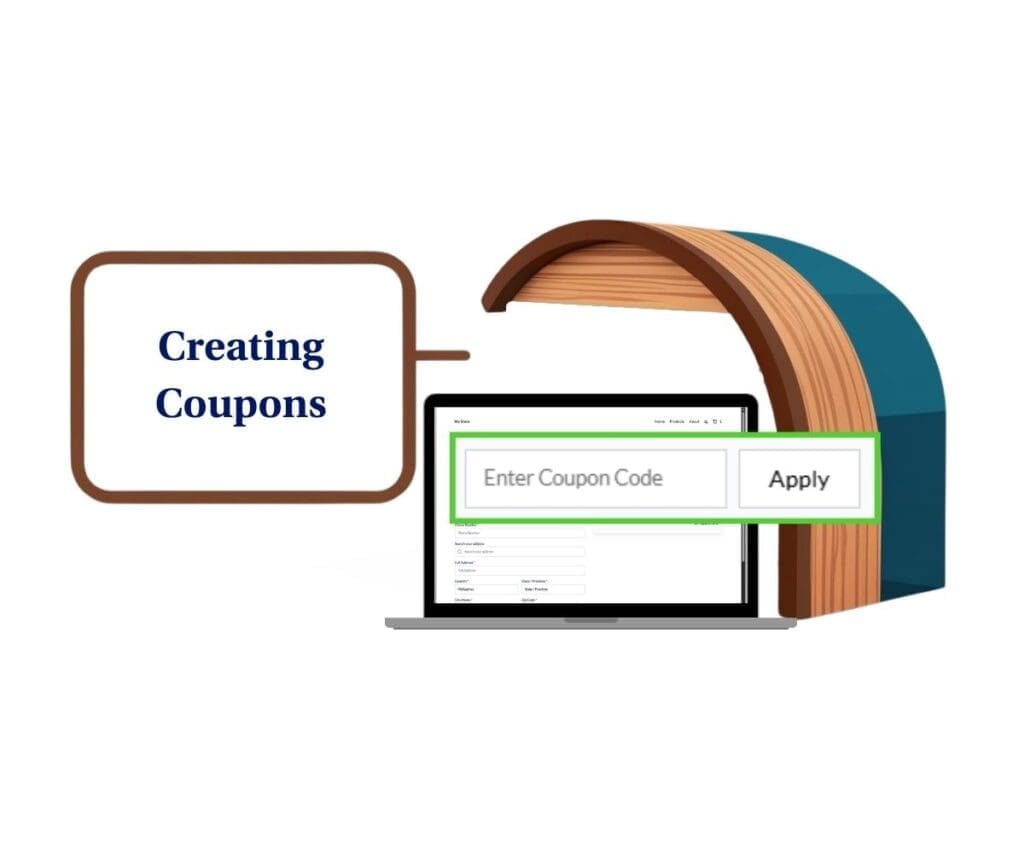
Creating coupons in GoHighLevel lets you increase conversions, attract new leads, and reward loyal customers effortlessly. Use this guide to implement coupons seamlessly into your funnels and campaigns.
Quick Summary – Create Coupons at a Glance
Purpose: This mini-guide shows you exactly how to create coupons in GoHighLevel so your discounts are controlled, consistent, and easy to repeat across campaigns.
Why it matters: A clean coupon setup prevents expired promos, wrong-offer discounts, and team confusion that turns into support tickets.
What you get: You’ll walk away with a simple, reliable coupon creation process plus clarity on where the coupon field appears on your order form.
Time to Complete: Most users can finish the setup in about 5–10 minutes once they know their discount rules.
Difficulty Level: Easy, with a few settings that matter if you’re running time-based or limited promos.
Key Outcome: You can create coupons confidently, reuse your process for any campaign, and keep your client accounts organized.
What You Can Do When You Create Coupons in GoHighLevel
When you create coupons in GoHighLevel, you’re not just making a discount code. You’re creating a controlled “permission slip” for a specific price change, with rules around when it works, how often it works, and who it’s meant for. That control is what makes coupons useful for agencies, because you can run promos without manually changing prices or rebuilding offers every time.
One of the most common uses is launching short promos without touching your core pricing. You keep your main offer the same, then drop a coupon code for a 48-hour sale, a webinar bonus, or a holiday push. When the promo ends, the coupon expires and your normal pricing stays intact.
Automate marketing, manage leads, and grow faster with GoHighLevel.

Coupons are also perfect for segmentation. You can give a “VIP” code to your best clients, a “WINBACK” code to past buyers, or a “PARTNER” code for referral traffic. In other words, you can keep one order form live, but let different audiences pay different prices based on the coupon you issue.
And if you’re running multiple campaigns at once, coupons let you track performance without chaos. Even without heavy reporting, the coupon code itself becomes a clean label you can use in your workflow, your inbox, and your team communication. Everyone knows which promo is running, what it’s worth, and when it should stop.
Before You Create Coupons in GoHighLevel: Quick Prep Checklist
Before you jump into setup, take two minutes to decide what your coupon is supposed to do. Most coupon problems come from missing one small detail (like the wrong dates, the wrong discount type, or a code name your team can’t recognize later).
Here’s the quick checklist I run through before I create coupons for any client:
Confirm what the coupon is for
Is this a launch promo, a limited bonus, a VIP discount, or a win-back offer?
Choose the discount type
Percentage discounts are best when you want the discount to scale with price. Fixed discounts are best when you want an exact dollar amount off.
Set the promo window
Know your start date and your hard stop date up front. If you don’t set an end date, you’re basically betting you’ll remember to turn it off later.
Decide if it needs limits
If it’s meant to be exclusive, decide your limits now (example: “first 25 redemptions” or “one use per customer”).
Pick a clean coupon code format
Avoid confusing characters and keep it readable. A simple pattern helps:
CAMPAIGN25, SPRING50, VIP10, WINBACK20
Use a team naming habit (agency-friendly)
If multiple people build promos in your account, add a consistent internal label in the name so nobody reuses the wrong code later.
Once you’ve got those decisions made, the setup inside GoHighLevel takes only a few minutes.
How to Create Coupons in GoHighLevel
Creating coupons in GoHighLevel is a straightforward, multi-step setup inside your sub-account’s Payments area. In this section, you’ll go from opening the Coupons screen to building a coupon code with the right discount type, value, dates, limits, and (if needed) product restrictions.
Here are the steps to create coupons in GoHighLevel.
- Access the Coupons page of GoHighLevel.
- Create a New Coupon.
- Enter the Coupon Details.
To start make sure you are logged in to your GoHighLevel sub-account.
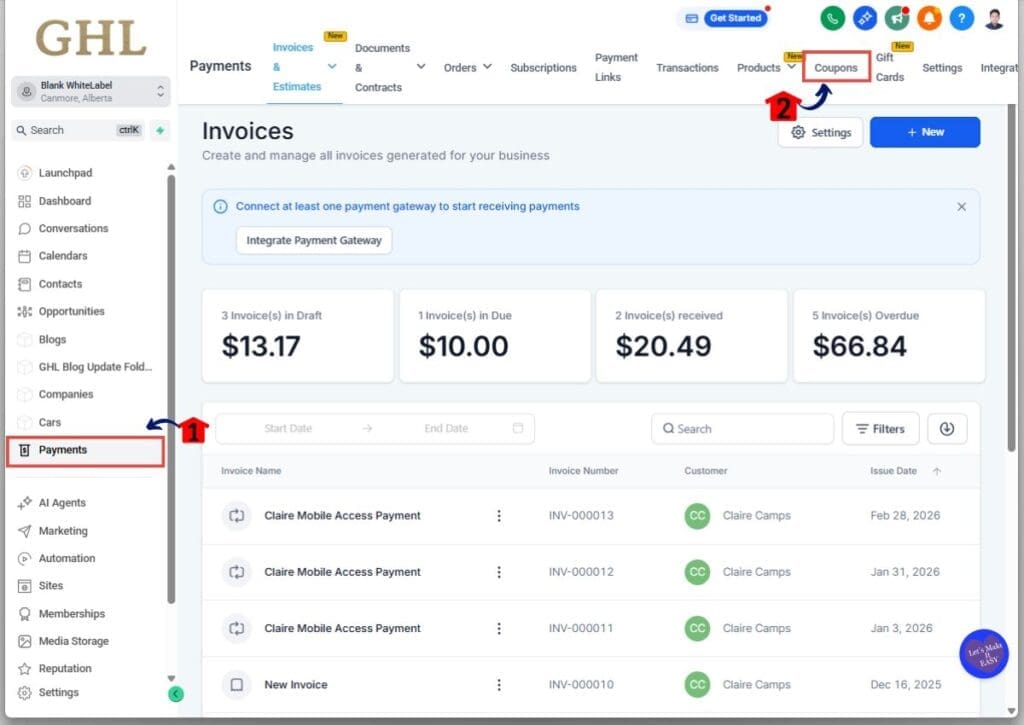
Step 01 – Access the Coupons page of GoHighLevel
The Main Menu on the Left side of your screen has all the main areas that you work in when using GHL
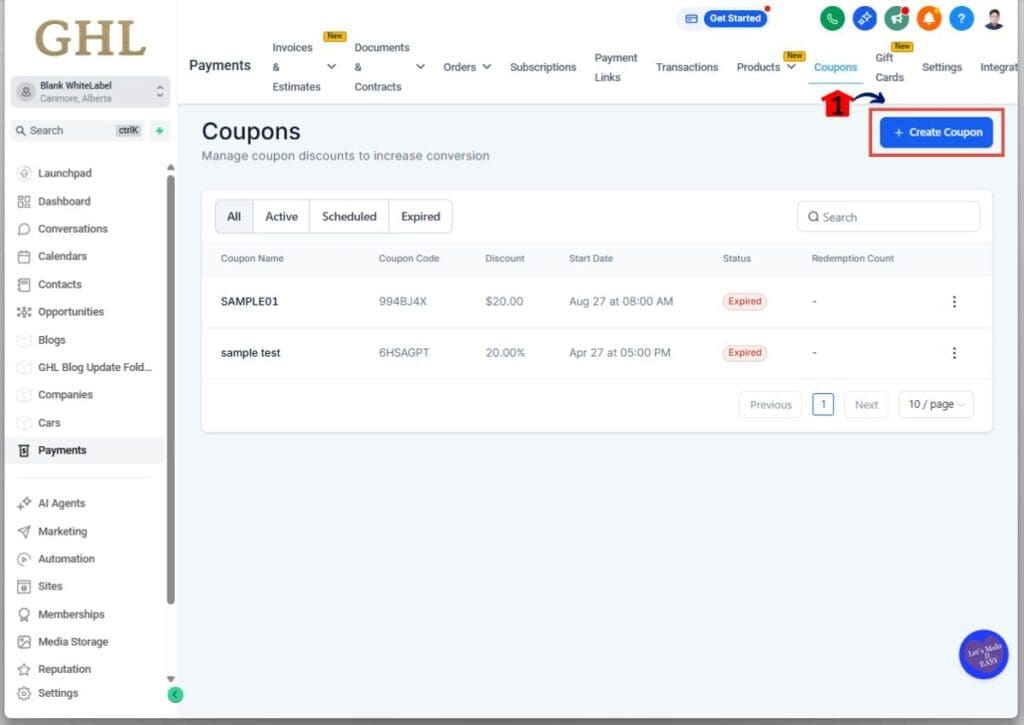
1.1 Click Payments in the main menu.
- In the Payments section, you will find Invoices & Estimates, Documents & Contracts, Orders, and more.
1.2 Click Coupons.
- This opens the Coupons page where you can view existing coupons and create new ones.
Step 02 – Create a New Coupon
Start creating your new coupon so you can define a new promo code and its discount rules.
2.1 Click the Create Coupon button.
- This opens the coupon setup form.
Step 03 – Enter the Coupon Details
Configure the coupon’s name, code, discount type/value, active dates, and conditions, then save it so it’s ready to use.
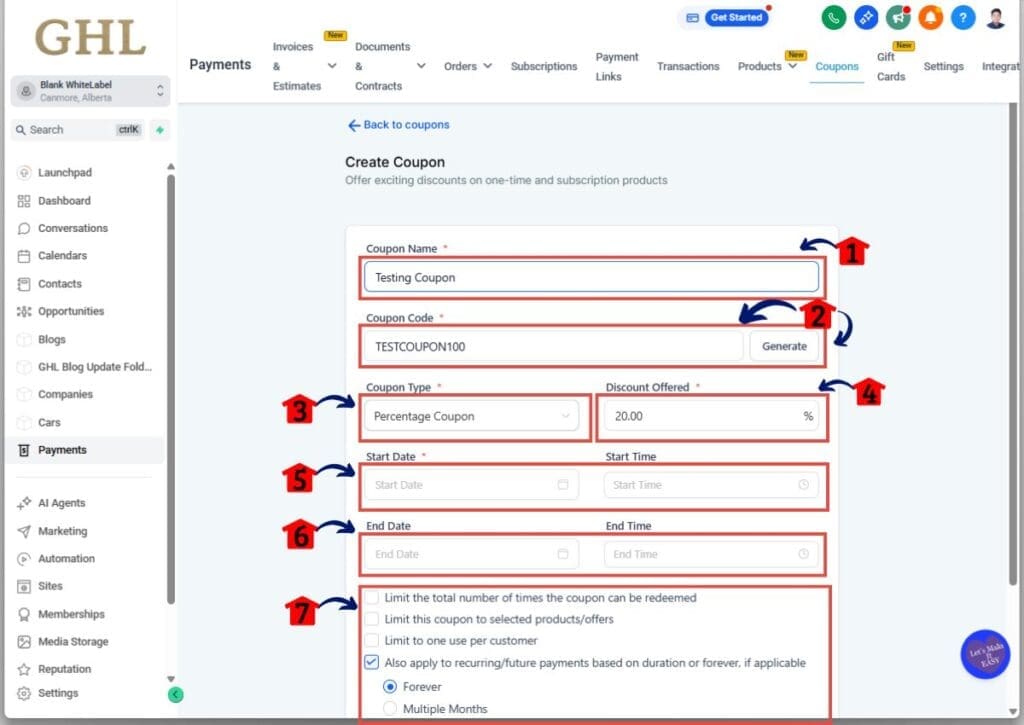
3.1 Enter a coupon name.
- Use a clear name your team will recognize.
3.2 Enter the coupon code, or click Generate to create a random code.
- Keep codes simple and readable for customers.
- Special characters and spaces aren’t supported.
3.3 Select the coupon type.
- Choose whether it’s a Percentage or Fixed Coupon.
3.4 Enter the discount value.
- Type the percent off or the fixed amount to discount.
3.5 Set the start date and time.
- This controls when the coupon becomes active.
3.6 Set the expiration date and time.
- This controls when the coupon stops working.
3.7 Select any conditions you want to apply.
- Another field will appear when some of these checkboxes are enabled. Set it according to your needs.
- Only enable the conditions you actually need so the coupon behaves predictably.
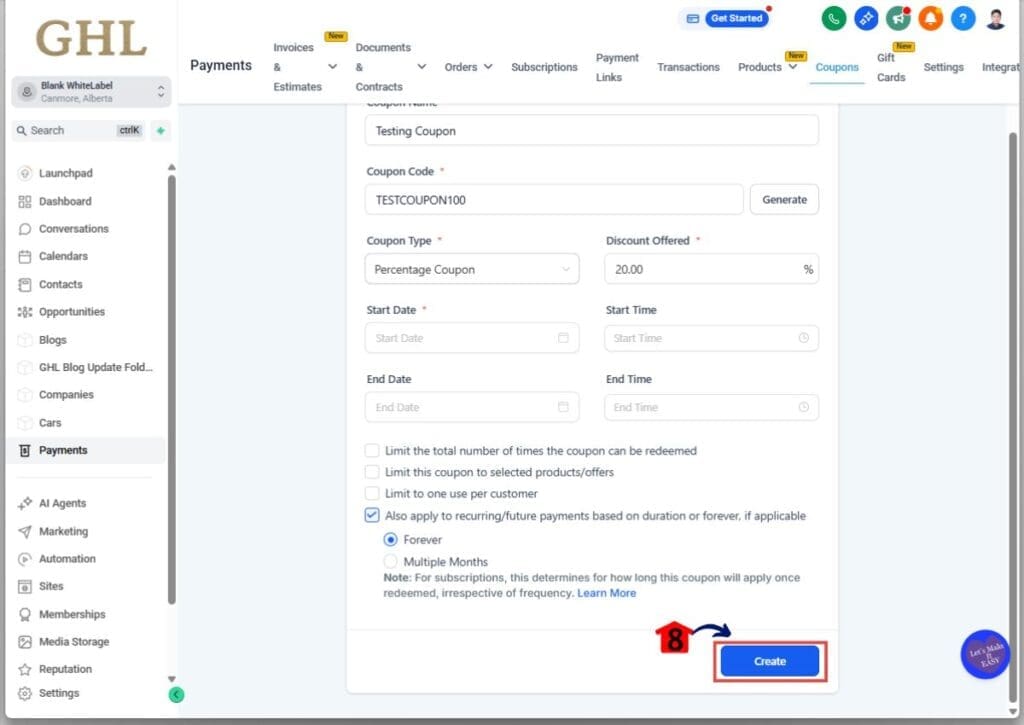
3.8 Click Create to save the coupon.
- Your coupon will now appear in the Coupons list.
How Customers Apply Coupons Inside Your Order Form
On your GoHighLevel order form, customers apply a coupon by using the coupon field that’s built into the form experience. This is the small input field labeled something like “Coupon Code” or “Promo Code,” depending on how the form is styled. It’s designed to be simple: the customer clicks into the field, types the code, and then uses the apply action (usually a button right beside or near the field) to submit that code.
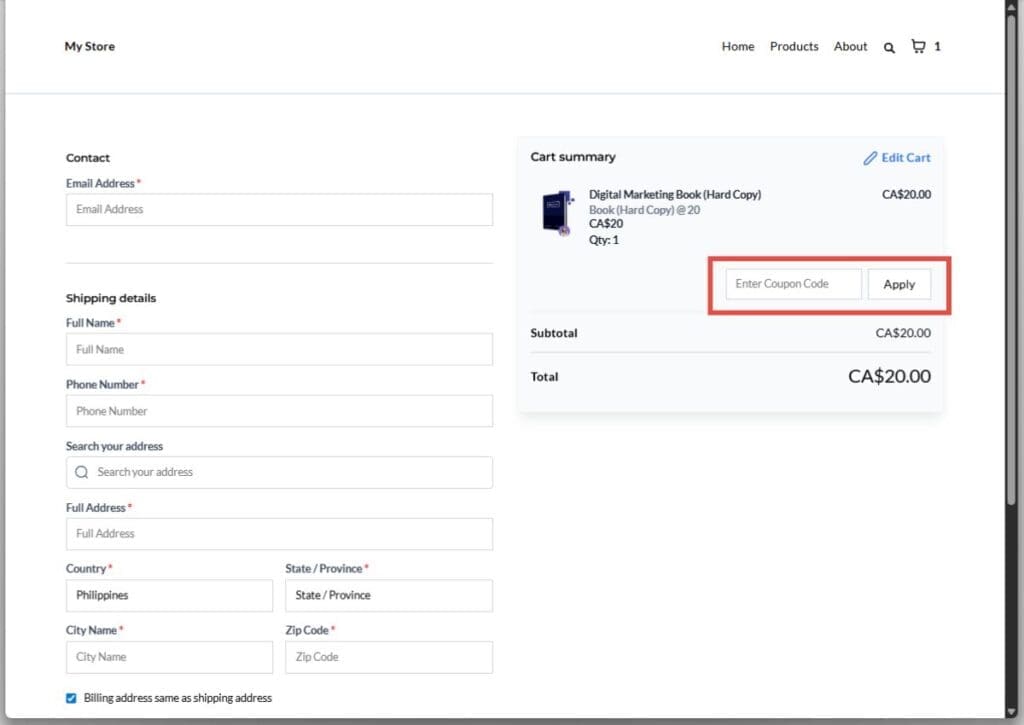
From the customer’s perspective, this field is the only place they need to interact with the coupon. They don’t need a special link, they don’t need a separate checkout page, and they don’t need to message support to “activate” it. If the order form includes the coupon field, that’s where they enter the code, and that’s the moment the coupon gets attempted.
This is also why consistency matters when you hand out coupon codes. Since customers are manually typing into a single field, short and clear codes reduce mistakes. If your code has confusing characters, extra length, or formatting that looks like it includes spaces, the coupon field becomes the friction point.
Pro / Quick Tips When You Create Coupons in GoHighLevel
If you want coupons to stay clean (especially when you’re managing promos for multiple clients), the biggest win is building tiny rules your team follows every time. That way, you don’t end up with “random codes” floating around that nobody remembers, trusts, or can confidently reuse.
Here are the tips that keep coupon setups predictable:
Use short, readable codes
You want something customers can type correctly the first time. Think VIP10, SPRING25, BONUS50.
Put the campaign in the code
If you’re running multiple promos, this avoids confusion fast. Example: WEBINAR20, WINBACK15.
Always set an end date
Even if it’s far out, give it a stopping point. This prevents “zombie discounts” that keep working months later.
Decide limits before you publish
If it’s meant to feel exclusive, set a redemption limit from the start instead of trying to “turn it off” mid-campaign.
Don’t reuse the same code name across different promos
Same code reused for different offers = support tickets. If you do reuse a theme, add a date: SPRING25-2026.
Keep one internal “coupon log”
A simple doc or note that lists active coupon codes, what they’re for, and expiry dates saves your team from guessing later.
These aren’t complicated, but they’re the difference between “coupons that work” and “coupons you can trust.”
Common Mistakes When You Create Coupons in GoHighLevel (And Quick Fixes)
Most coupon issues aren’t “bugs.” They’re usually one setting that was skipped, misunderstood, or changed after the code was shared. Here are the most common problems I see, along with the fastest way to fix each one.
Mistake 1: The coupon code “doesn’t work” because the format is wrong
If someone created a code with spaces or special characters, it’s going to cause confusion fast. Keep codes clean and simple. GoHighLevel coupon codes should be alphanumeric only, with no spaces or special characters, and the system isn’t case-sensitive (it converts codes to uppercase). That means a customer typing “vip10” should still match “VIP10,” but “VIP 10” can create problems.
Mistake 2: The coupon exists, but it doesn’t apply to the item being purchased
This usually happens when the coupon was restricted to selected products, but the buyer is purchasing a different product (or you forgot you limited it). If your intent is “site-wide” for a specific funnel or campaign, double-check whether you selected specific products during setup.
Mistake 3: The coupon is expired (or not active yet)
If your start date is in the future, the code won’t apply. If your end date has passed, it’s done. This is why I always recommend setting promo windows deliberately and matching them to the campaign calendar before you send the code out.
Mistake 4: The redemption limit was hit
If you set a redemption limit and the campaign performs well, the coupon can stop working earlier than expected. That’s not a failure, it’s the rule doing its job. If you still want the promo live, you’ll need to increase the limit or create a fresh coupon.
Mistake 5: The team can’t tell which coupon is the “right one”
This is the silent killer for agencies. Coupon names don’t have to be unique, but coupon codes do. So if your naming is sloppy, your team will waste time opening multiple coupons to find the correct one. Fix it with a naming habit that ties the code to the campaign.
Frequently Asked Questions About How to Create Coupons in GoHighLevel
Wrap-up: Create Coupons in GoHighLevel Like a System
You now know how to create coupons in GoHighLevel in a way that’s clean, controlled, and repeatable. The real risk with coupons isn’t setup. It’s the “one-off” approach that turns into confusion later, when nobody remembers what a code was for, whether it’s still active, or what it should apply to.
If you’re an agency, treat coupon creation like a mini process, not a random task. Decide the promo goal first, choose the discount type, lock in start and end dates, and use a clear code format your team can recognize instantly. When coupon codes are organized and consistent, promos run smoother, customers make fewer mistakes, and your support load drops.
If you want to tighten it even further, assign one person to own coupons inside each client sub-account so promos don’t overlap and codes don’t get duplicated.
Scale Your Business Today.
Streamline your workflow with GoHighLevel’s powerful tools.