- How to edit and use them inside GHL
- Quick Summary – Workflow Templates Overview
- Video Guide to Using Workflow Templates in GHL
- What Workflow Templates Are and Why They Matter
- How to Edit Workflow Templates in GHL
- Common Mistakes When Using Workflow Templates
- Pro Tips for Agencies Using Workflow Templates
- What Results You Can Expect from Workflow Templates
- Workflow Templates FAQ
- Final Thoughts on Using Workflow Templates in GHL
How to edit and use them inside GHL
In the next 6 minutes, this Workflow Templates guide gives GHL users a clear answer to the headline. It shows exactly how to edit and use Workflow Templates inside GHL without guesswork. Instead of rebuilding automations from scratch, users can take proven systems and adjust them the right way. That is the direct purpose of this guide.
Many agencies waste hours rebuilding the same campaigns for each client. Workflow Templates exist to solve that problem. They allow users to duplicate proven automation structures and customize them instead of starting over. When used correctly, they reduce setup time and create consistent systems across accounts.
The issue is not the template itself. The issue is how it is edited. If triggers are not reviewed, tags are not updated, or messages are not checked, the workflow can misfire. Contacts may receive the wrong message. Pipelines may update incorrectly. Small mistakes create big problems inside GHL.
This Workflow Templates guide shows how to properly review triggers, adjust actions, update content, and test before publishing inside GHL. By following the steps in this article, users can build faster, reduce errors, and launch automations with confidence.
Quick Summary – Workflow Templates Overview
Purpose: This guide shows how to properly edit and use Workflow Templates inside GHL so agencies can build automations the right way from the start.
Why It Matters: Workflow Templates help agencies avoid rebuilding the same systems over and over. When used correctly, they reduce errors and keep automations consistent across client accounts.
What You Get: Readers get a clear and practical process for reviewing triggers, updating actions, adjusting messages, testing the workflow, and launching it safely inside GHL.
Time To Complete: It takes about 6 minutes to read this guide. Applying the Workflow Templates process inside GHL usually takes 10 to 20 minutes depending on the setup.
Difficulty Level: Beginner to Intermediate. Any GHL user who understands the basics of the workflow builder can follow this structure without confusion.
Key Outcome: By using Workflow Templates with a clear review process, agencies can build faster, reduce automation mistakes, and create repeatable systems that support steady growth inside GHL.
Video Guide to Using Workflow Templates in GHL
Stop rebuilding the same automations again and again. Learn how to edit Workflow Templates the right way inside GHL.
Inside this video:
Automate marketing, manage leads, and grow faster with GoHighLevel.

- How to open and review a workflow template step by step
- How to check and fix triggers before you publish
- How to update action elements like messages, tags, and delays correctly
- How to save and publish workflows
This video walks through the exact steps to safely edit and launch Workflow Templates inside GHL. Clear. Simple. Practical.
What Workflow Templates Are and Why They Matter
Workflow Templates inside GHL are pre-built automation systems that users can copy and adjust. They already include triggers, actions, delays, and basic logic. Instead of staring at a blank workflow builder, the structure is ready. The user simply edits it to match the client.
Most agencies build the same automations again and again. New lead follow-up. Appointment reminders. Review requests. Missed call text back. The pattern rarely changes. That is why Workflow Templates matter. They remove the need to rebuild what already works.
Common types of Workflow Templates include:
- Lead nurture campaigns
- Appointment confirmation and reminder flows
- Missed call text back automations
- Review request sequences
- Pipeline follow-up workflows
The value is not just speed. It is consistency. When teams build from scratch, small errors slip in. A trigger fires too soon. A tag is wrong. A delay is missing. Workflow Templates reduce those mistakes because the foundation is already set. When used correctly inside GHL, they help agencies work faster, stay organized, and build automations that run the same way every time.
How to Edit Workflow Templates in GHL
Editing Workflow Templates inside GoHighLevel is a structured process that happens within the Workflows area of your sub-account. You are not creating a workflow from scratch. Instead, you are selecting a pre-built template, customizing it to match your marketing goal, and making sure every trigger and action is configured correctly before you publish it. It is important to review each part of the template carefully so it works as expected in your account.
Here are the steps on how to use and edit a workflow template in GoHighLevel.
- Access the Workflow Templates Library inside GHL Workflows.
- Choose Your Template from the Template Library.
- Choose a Trigger After Renaming Your Template.
- Configure the Trigger Settings.
- Add an Action Element if Necessary.
- Configure the Action Settings Before Saving.
- Review and Adjust All Workflow Elements of the Template.
- Save and Publish the Workflow.
To start, make sure you are logged in to your GoHighLevel sub-account.
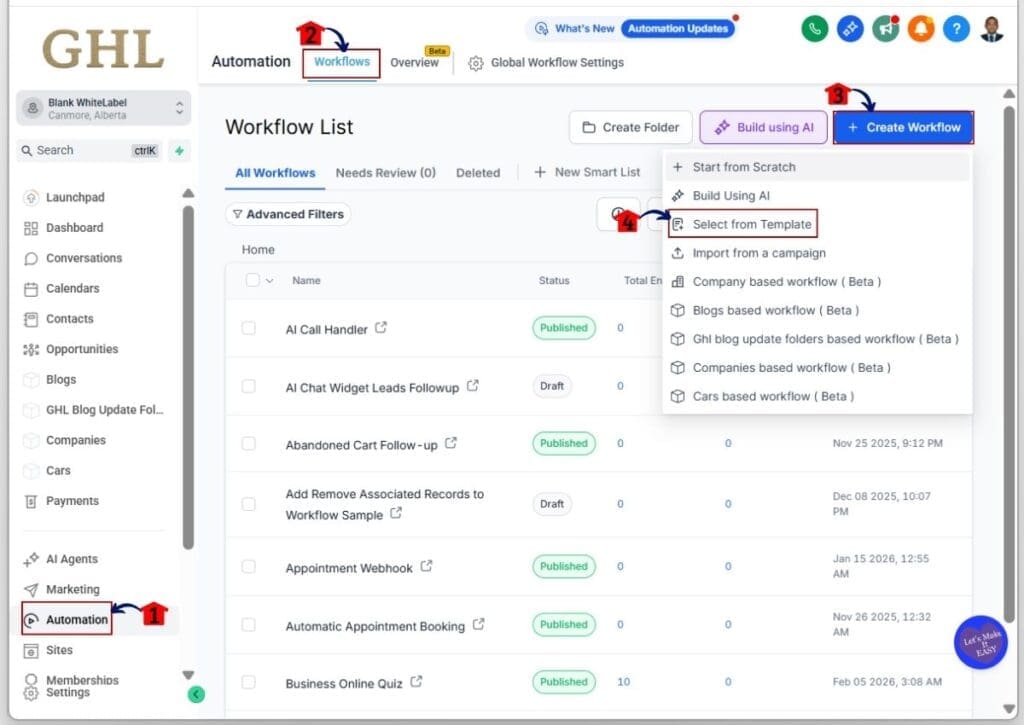
Step 01 – Access the Workflow Templates Library inside GHL Workflows
- The Workflow Templates Library appears when you click the Select from Template option while creating a new workflow.
1.1 Click on the Automation menu item to access the Workflows section.
- Inside the Automation section, you will see Workflows, Overview, and Global Workflow Settings.
- You will be directed to the Workflows tab by default.
1.2 Click the Workflows tab in the top menu.
- This is where you can see your created workflows, build new ones, and create folders to organize them.
1.3 Click the + Create Workflow button.
- Several options will appear, including the Select from Template option.
1.4 Choose the Select from Template option.
- The template library will appear, showing different workflow templates you can use.
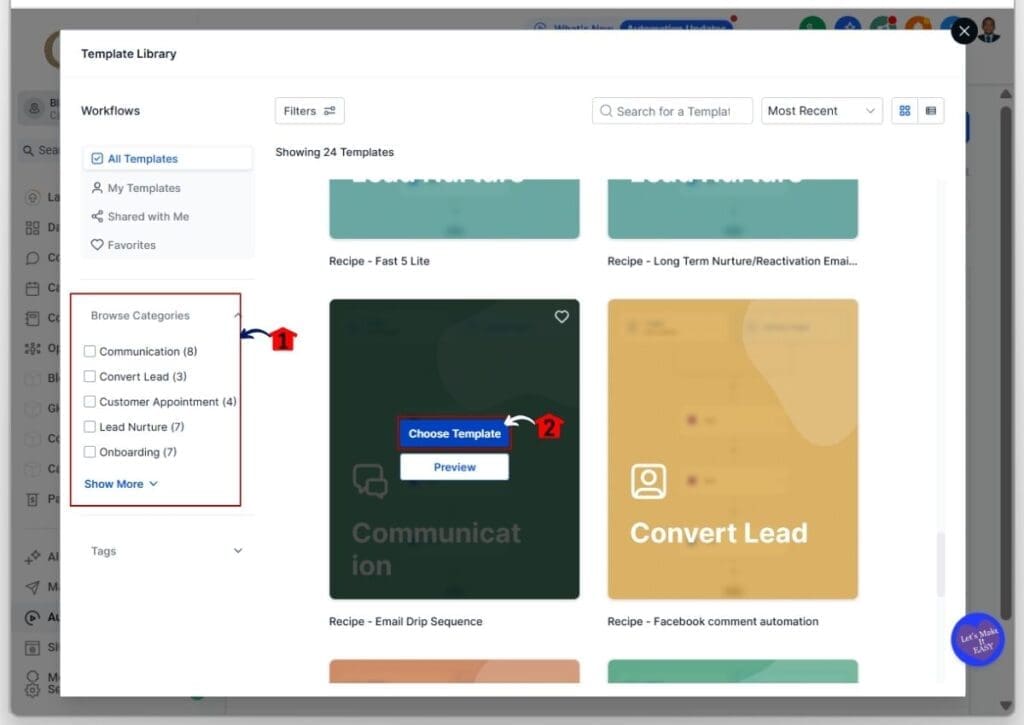
Step 02 – Choose Your Template from the Template Library
- You will see a list of available workflow templates and category filters you can use.
2.1 Browse the categories and turn them on to filter workflows that match your marketing goal.
- Tick the checkboxes for the specific categories you want. The workflows under those categories will appear in the template library.
2.2 Hover over the chosen template and click the Choose Template option.
- When you hover over a template, two options will appear: Choose Template and Preview.
- For this example, the Email Drip Sequence template is selected.
- The system will direct you to the workflow editor, where you can edit the uploaded workflow.
Step 03 – Choose a Trigger After Renaming Your Template
- You will see workflow elements arranged on the workflow canvas. These follow the base structure of the selected workflow function.
- This template serves as a starting point. You must complete all required elements for it to work properly.
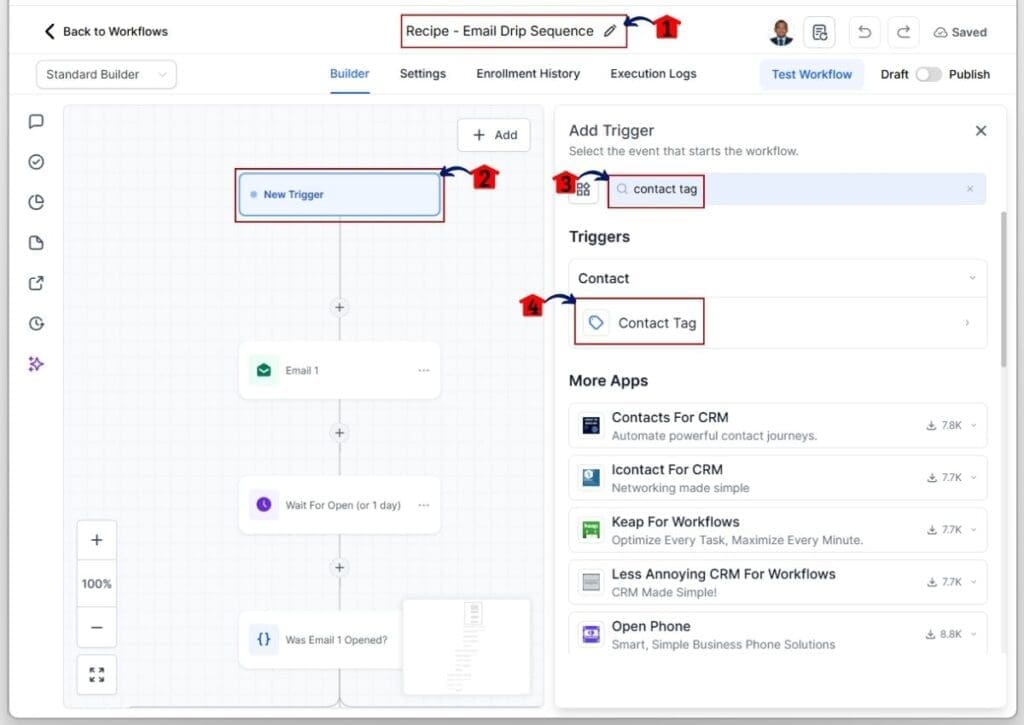
3.1 Rename the workflow template.
- This is located at the top of the workflow canvas.
- Click the pencil icon to rename your workflow.
3.2 Set the Trigger of your workflow.
- The Trigger library will appear, where you can search for and select one or more triggers for this workflow template.
- Make sure the trigger is set correctly. It could be an added tag, a form submission, or a digital product purchase. The trigger should match your marketing goal.
3.3 Search for the trigger element that needs to be set.
- For this example, the Contact Tag trigger is used.
3.4 Click the trigger element that needs to be added.
- The trigger configuration panel will appear, where you can adjust the trigger settings.
Step 04 – Configure the Trigger Settings
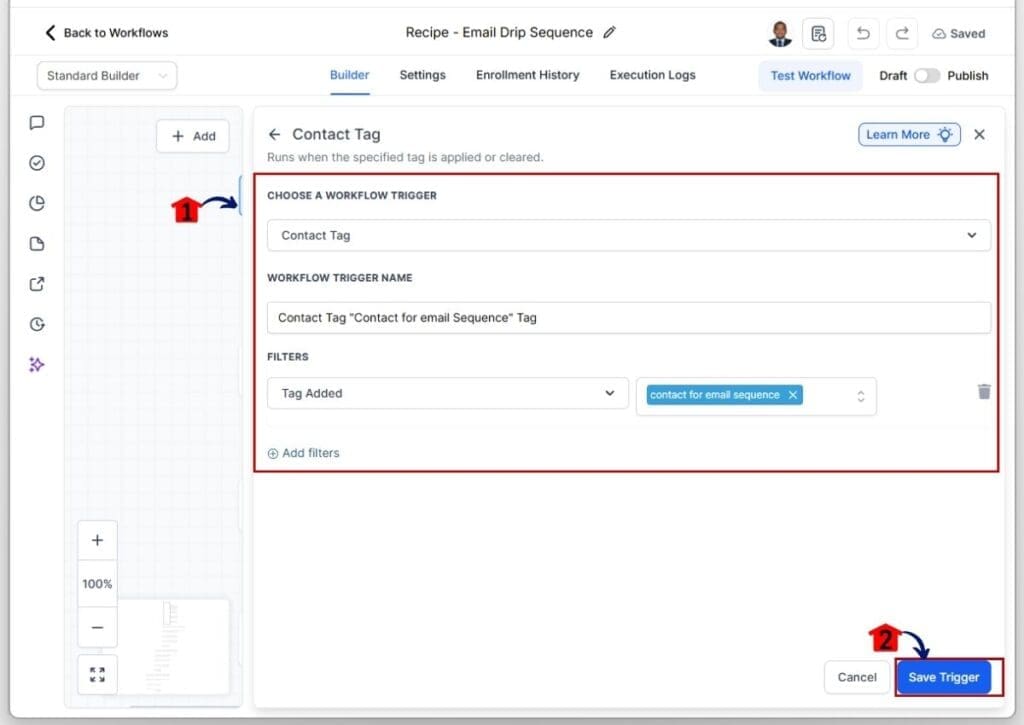
- The trigger settings panel will appear with input boxes, filters, and other configuration options.
4.1 Fill in all the required settings so they match the purpose of the trigger.
- The more specific the trigger settings are, the better the workflow will perform.
4.2 Click the Save Trigger button.
- The trigger element will update, and you will return to the workflow canvas.
Step 05 – Add an Action Element if Necessary
- Action elements are the steps that happen after the trigger is activated.
- For this example, adding action elements is optional. However, adding them helps achieve your specific marketing goal.
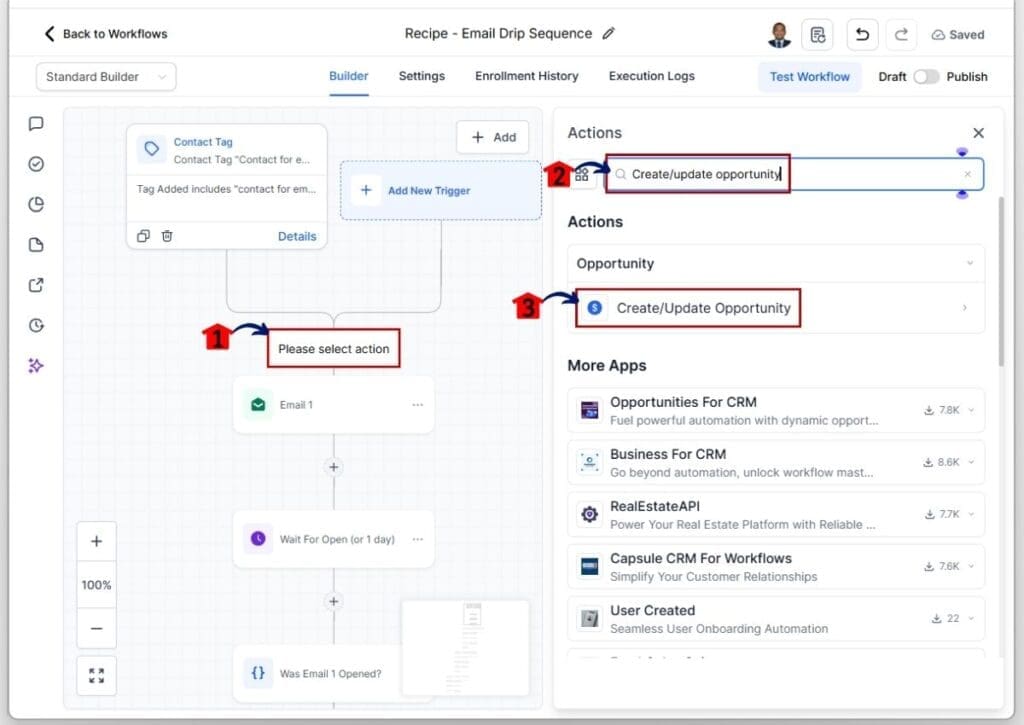
5.1 Click the + icon between workflow elements to add an action element.
- The action library will appear, where action elements can be searched and added.
5.2 Type the name of an action element that needs to be added.
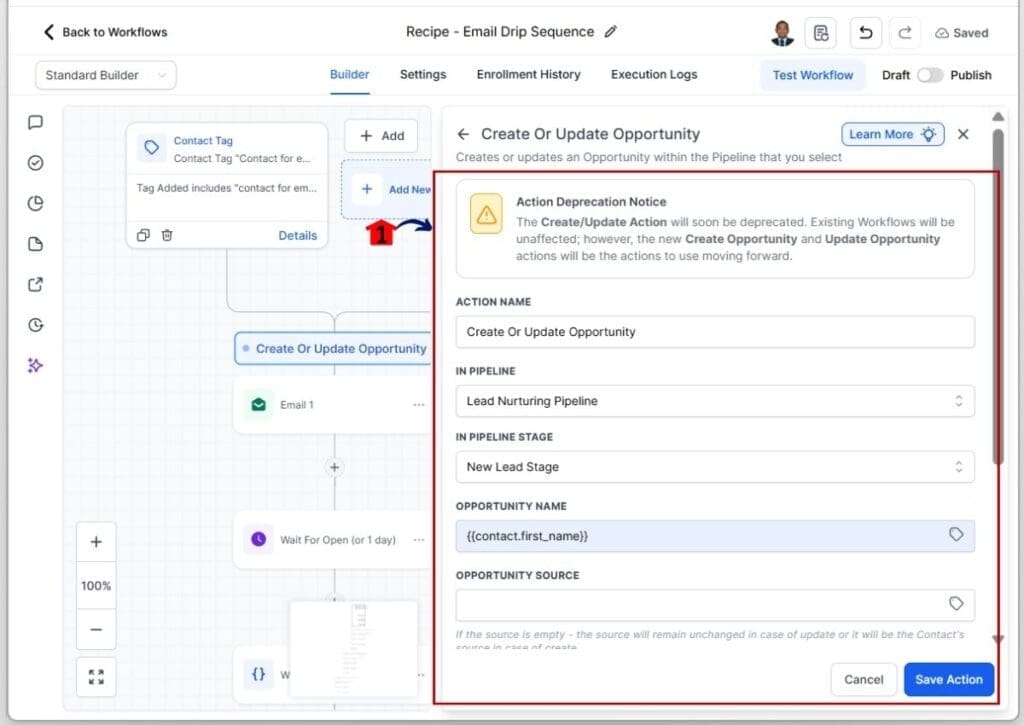
- For this example, the Create or Update Opportunity action is added to track the contact’s stage in the selected pipeline.
5.3 Add the action element.
- The action configuration panel will appear, where you can set up the selected action.
Step 06 – Configure the Action Settings Before Saving
- The action settings panel will appear with input fields and configuration options. You can also rename the action element if needed.
6.1 Set up the action element correctly to ensure it works as expected.
- Click the Save Action button once you finish configuring the action element.
Step 07 – Review and Adjust All Workflow Elements of the Template
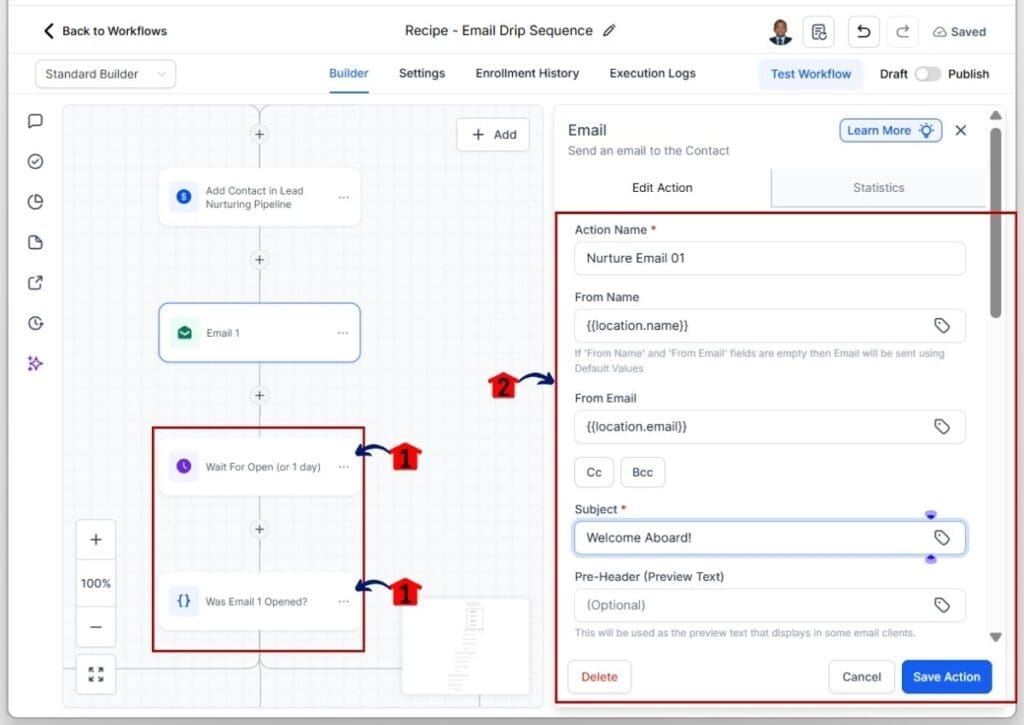
- Review each action element in this base template carefully.
7.1 Review and edit each element in the workflow to ensure it aligns with your marketing goal.
- Check every element and complete all required fields so the workflow works properly.
- You can add or remove elements if they do not match your marketing goal.
- When you click on an element, the configuration panel will appear so you can adjust its settings.
7.2 Configure each action element and complete all required fields marked with an asterisk.
- Fill in all required details for each action element.
- Click the Save Action button after editing each action element.
Step 08 – Save and Publish the Workflow
- Your changes will now be visible in the workflow template.
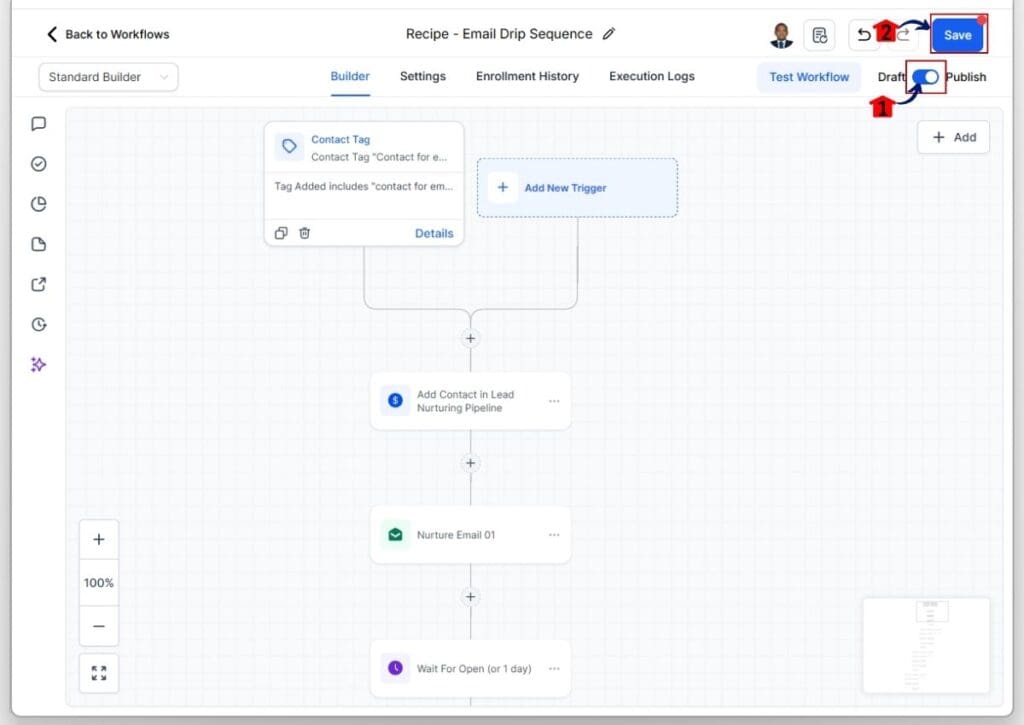
8.1 Turn on the Publish toggle once everything is complete.
- The toggle will turn blue, which means the workflow is now published.
8.2 Click the Save button.
- A red circle will appear in the upper-right corner of the Save button when changes are made to the workflow.
- The red circle will disappear after you click Save, which means your workflow is saved in the workflows library.
Common Mistakes When Using Workflow Templates
Workflow Templates inside GHL are powerful, but they are not magic. Many automation problems happen because users move too fast. They import the workflow, glance at it, and hit publish. That is where trouble starts.
A professional always checks the trigger first. If the trigger is wrong, the entire workflow fails. Some Workflow Templates are built around specific tags, forms, or pipeline stages. If those do not match the current account, the automation will either not fire or fire at the wrong time. That small detail can create big confusion.
Other common mistakes include:
- Leaving default tags unchanged
- Forgetting to update pipeline stages
- Assigning leads to the wrong team member
- Keeping generic template messages
- Ignoring delays between steps
These issues may look minor, but they affect real leads. A contact may receive the wrong message. A deal may move to the wrong stage. A notification may go to the wrong person. Small gaps in Workflow Templates lead to messy systems.
The final mistake is skipping testing. Even experienced users miss something. Running one test contact through the workflow inside GHL takes only a few minutes. Fixing errors after it goes live takes much longer. Careful review and testing keep Workflow Templates clean and reliable.
Pro Tips for Agencies Using Workflow Templates
Agencies that use Workflow Templates the right way do not treat them like quick fixes. They treat them like systems. A template should not just save time today. It should make every future setup easier inside GHL.
Experienced teams build Workflow Templates around the industries they serve. A contractor follow up system will not look the same as a medical office reminder sequence. Instead of adjusting the same generic template over and over, professionals create versions that fit each niche. That way, the structure already matches the client before edits even begin.
Strong agencies follow simple habits like these:
- Build niche specific Workflow Templates
- Use clear naming so every workflow is easy to find
- Clone a master template instead of editing the original
- Store proven workflows inside snapshots
- Keep internal notes explaining how each template works
Cloning matters more than most people think. When a clean master version of Workflow Templates is saved, the team always has a safe starting point. No one risks breaking the base system. That keeps builds consistent and training simple.
When Workflow Templates are used as part of a repeatable process inside GHL, onboarding becomes faster, mistakes drop, and the team gains confidence. The work feels organized instead of rushed. That is how agencies grow without creating chaos.
What Results You Can Expect from Workflow Templates
When Workflow Templates are used properly inside GHL, the first thing agencies notice is time saved. Instead of rebuilding the same automation again and again, they start with a proven setup and adjust it. That alone removes hours of repeat work each month. The team can focus on strategy instead of rebuilding structure.
Another clear result is consistency. When Workflow Templates are standardized, every client account follows the same logic. Triggers fire the same way. Messages go out in the same order. Pipeline stages move predictably. This creates a stable system that the team understands and trusts.
Workflow Templates also reduce mistakes. When the base structure has already been reviewed and tested, there is less room for error. Leads are less likely to fall through gaps. Messages are less likely to send at the wrong time. The automation behaves the way it was designed to behave. That reliability builds confidence inside the team.
Over time, these improvements compound. Faster onboarding. Smoother training. Cleaner reporting. Workflow Templates help agencies inside GHL move from random automation builds to structured systems. And structured systems are what support long term growth.
Workflow Templates FAQ
Final Thoughts on Using Workflow Templates in GHL
Workflow Templates inside GHL are not just time savers. They are the starting point for clean automation systems. A professional understands that strong systems are built on structure, not guesswork. When Workflow Templates are used with care, they create order inside what can easily become a messy automation setup.
The difference comes down to process. Experienced users do not rush. They review the trigger first. They confirm tags and pipeline stages. They update every message so it fits the client. They test before turning anything live. That steady approach keeps Workflow Templates reliable and predictable inside GHL.
Over time, this method changes how an agency works. Builds become faster because the structure is already proven. Team members follow a clear setup process instead of relying on memory. Clients receive consistent automations that behave the same way across accounts. That consistency builds confidence.
Workflow Templates work best when they are treated like long term assets. When agencies refine and document them, they create repeatable systems that support steady growth. Simple structure. Careful review. Clean execution. That is how Workflow Templates inside GHL turn automation into something dependable.
Scale Your Business Today.
Streamline your workflow with GoHighLevel’s powerful tools.