- AI Image Generation in GHL Just Got Automated
- Quick Summary – AI Image Generation
- Here are this week's HighLevel Updates 🚀
- Why AI Image Generation Matters for GHL Users
- What’s New With AI Image Generation in GHL
- How to Use AI Image Generation in GHL
- Quick Tips for Better AI Image Generation
- What AI Image Generation Means for Your Business
- Real-World AI Image Generation Use Cases
- AI Image Generation FAQs for GHL
- Put AI Image Generation to Work in GHL
AI Image Generation in GHL Just Got Automated
AI Image Generation is now built directly into GoHighLevel workflows. Instead of creating an image somewhere else, uploading it, and then adding it to your automation, GHL can generate the visual while the workflow is running.
The new AI Image Generation action sits under AI Actions. You give it a prompt, choose your settings, and an AI model creates the image. GHL then saves the finished image to Media Storage and returns an Image URL that you can use in later workflow actions.
This gets even more useful when you add dynamic data. Your prompt can pull information from a contact field, webhook payload, or an earlier workflow action. That means AI Image Generation can create a different visual based on the data moving through your automation.
For agencies, this opens up some interesting possibilities. You could create promotional graphics, personalized campaign images, product visuals, or social content without manually designing every image first. You can also apply your Design Kit and Brand Voice to help keep generated content aligned with the brand.
AI Image Generation lets you automatically create unique visuals from prompts and workflow data, then use the generated image in later GHL actions. This means less manual design work and more opportunities to build personalized visual automations at scale.
Before you add this to a live workflow, there are a couple of things worth knowing. Every time the action runs, there’s an extra charge. The finished image also gets its own public URL, so anyone who has that link can view it. If you’re pulling contact details into your prompt, think carefully about what information you include.
The latest GoHighLevel Changelog includes several other GHL feature updates that round out your daily workflow:
- Wait Action Enhancement: TikTok DM Replies
- India Recurring Mandate Support for Affiliate Indian Signup Pages
- Housecall Pro – More Workflow Actions & Triggers
- Email Services Dashboard for Agencies
- Email Sequences Now Available in Beta Labs
- Group Your Contacts by Source in Dashboards & Reporting
- MMLite Adoption Banner in Conversations
Keep reading for much more on all these updates and a deep dive into the AI Image Generation feature!

Quick Summary – AI Image Generation
Purpose: AI Image Generation lets GHL workflows automatically create new visuals from fixed prompts or dynamic workflow data.
Why It Matters: You can remove manual image creation from selected automations and generate visuals when your workflow actually needs them.
What You Get: You can choose from four AI models, use templates, enhance prompts, control image settings, apply brand context, and receive an Image URL for later workflow actions.
Time To Complete: You can add and configure the AI Image Generation action in just a few minutes, although testing your prompts and image settings may take longer.
Difficulty Level: Beginner to intermediate. The basic setup is simple, while dynamic prompts and more advanced workflow use cases require some automation experience.
Key Outcome: You can build GHL workflows that create, store, and reuse AI-generated images automatically while reducing repetitive creative work.
Important to Know: AI Image Generation is a premium action with an additional charge per execution, and generated images use public URLs that anyone with the link can access.
Here are this week’s HighLevel Updates 🚀
Wait Action Enhancement: TikTok DM Replies
What’s New:
Instead of continuing after a fixed delay, your workflow can pause until someone replies to your TikTok DM.
Where in GHL:
Found in Automation → Workflows using the Wait action after sending a TikTok DM.
Automate marketing, manage leads, and grow faster with GoHighLevel.

Impact:
Your automation responds when someone actually joins the conversation, rather than after a timer runs out.
Recommended For:
Anyone using TikTok DMs to start conversations with potential customers.
India Recurring Mandate Support for Affiliate Indian Signup Pages
What’s New:
Supports recurring payment mandates for Indian affiliates, helping subscriptions comply with local banking requirements.
Where in GHL:
Available on Affiliate Program signup pages for users in India.
Impact:
Creates a smoother signup experience while reducing payment failures for recurring subscriptions.
Recommended For:
Agencies, SaaS businesses, and affiliate programs onboarding customers in India.
Housecall Pro – More Workflow Actions & Triggers
What’s New:
Adds new workflow triggers and actions for the Housecall Pro integration, giving you more ways to automate field service processes.
Where in GHL:
Inside Automation → Workflows when using the Housecall Pro integration.
Impact:
Expands automation possibilities between HighLevel and Housecall Pro, reducing manual work and improving operational efficiency.
Recommended For:
Home service businesses, field service companies, and agencies managing Housecall Pro clients.
Email Services Dashboard for Agencies
What’s New:
Introduces a centralized dashboard where agencies can monitor email services across their accounts.
Where in GHL:
Found in the Agency View under the new Email Services Dashboard.
Impact:
Makes it easier to monitor email health, identify issues, and manage deliverability from one place.
Recommended For:
Agency owners, support teams, and admins managing multiple client email services.
Email Sequences Now Available in Beta Labs
What’s New:
Introduces Email Sequences as a Beta Labs feature, providing another way to create structured email follow-up campaigns.
Where in GHL:
Enable it from Settings → Labs, then access Email Sequences after activation.
Impact:
Cuts down the time spent checking different areas just to see how your email services are performing.
Recommended For:
Marketers, agencies, coaches, and businesses running nurture campaigns or onboarding emails.
Group Your Contacts by Source in Dashboards & Reporting
What’s New:
Lets you organize contact reports based on where your leads originated.
Where in GHL:
Available within Dashboards & Reporting when viewing contact analytics.
Impact:
Makes it easier to compare lead sources and identify which marketing channels are producing the best results.
Recommended For:
Marketing teams, agency owners, and businesses tracking campaign performance across multiple lead sources.
MMLite Adoption Banner in Conversations
What’s New:
Displays a helpful banner inside Conversations to encourage users to adopt the new MMLite messaging experience.
Where in GHL:
Appears within the Conversations module for eligible accounts.
Impact:
Helps users discover and transition to MMLite while highlighting its benefits directly inside the messaging interface.
Recommended For:
Current HighLevel users exploring the latest messaging experience and teams preparing to migrate to MMLite.
Why AI Image Generation Matters for GHL Users
Most GHL workflows are great at moving information and triggering actions. They can send messages, update contacts, create opportunities, fire webhooks, and move data between tools. But when a workflow needs a fresh visual, that usually means creating the image before the automation starts.
AI Image Generation changes that. The workflow can now create the visual when it needs it. Instead of choosing from a library of pre-made graphics, GHL can generate a new image based on the information available at that exact point in the workflow.
That’s where AI Image Generation gets interesting for agencies. Your prompt doesn’t have to stay the same for every execution. It can use a contact field, webhook payload, or information returned by an earlier action. As the input changes, the image can change too.
For example, a workflow could receive product information, generate a promotional image, and then pass the Image URL into another action. Another workflow could use different customer or campaign data to create a more personalized visual.
You’re not just automating where an image goes. You’re automating the creation of the image itself.
That can remove repetitive creative steps from campaigns and give agencies more ways to build visual content into automated processes. Just remember that every AI Image Generation execution has an additional cost, so it makes sense to use the action where automated image creation provides a clear benefit.
What’s New With AI Image Generation in GHL
The new AI Image Generation action gives you several ways to control what your workflow creates. It starts with your choice of four AI models: GPT Image 2, Gemini 3 Pro Image (Nano Banana Pro), Gemini 3.1 Flash Image (Nano Banana 2), or Gemini 2.5 Flash Image (Nano Banana).
You can write a standard prompt directly inside the action or make it dynamic. GHL lets you insert custom values from contact fields, webhook payloads, or earlier workflow actions. There’s also an Enhance Prompt option that can expand a short prompt with one click.
If you don’t want to start from scratch, AI Image Generation includes templates for Product Mockups, Social Posts, Promo Flyers, and Lifestyle images. You can also choose Auto, High, Medium, or Low image quality. Auto is the default setting.
You’ve also got some say over how the finished image comes out. Change the size, pick the background, and choose the file type you need. If you’re creating images for clients, you can bring in their Design Kit and Brand Voice to keep things more in line with their branding.
Once the image is created, GHL automatically sends it to Media Storage. The action then returns an Image URL as a variable, allowing the workflow to use that image in later actions.
Keep the cost in mind when building high-volume automations. AI Image Generation is a premium action, and each execution has an additional charge. The actual cost can vary depending on the model, quality, image size, and extra context such as Design Kit or Brand Voice.
How to Use AI Image Generation in GHL
AI Image Generation is added as an action inside your GHL workflow. You’ll choose the AI model and quality, enter your image prompt, and then set options such as the image size, background, and file format.
Once the action runs, GHL creates the image, saves it to Media Storage, and gives you an Image URL that can be used in later workflow actions. Here are the steps to set up and use AI Image Generation in a GoHighLevel workflow.
- Access Workflows in GoHighLevel.
- Add the AI Image Generation Action.
- Configure Your AI Image Generation.
- Choose Your Image Settings.
To start, make sure you are logged in to your GoHighLevel sub-account.
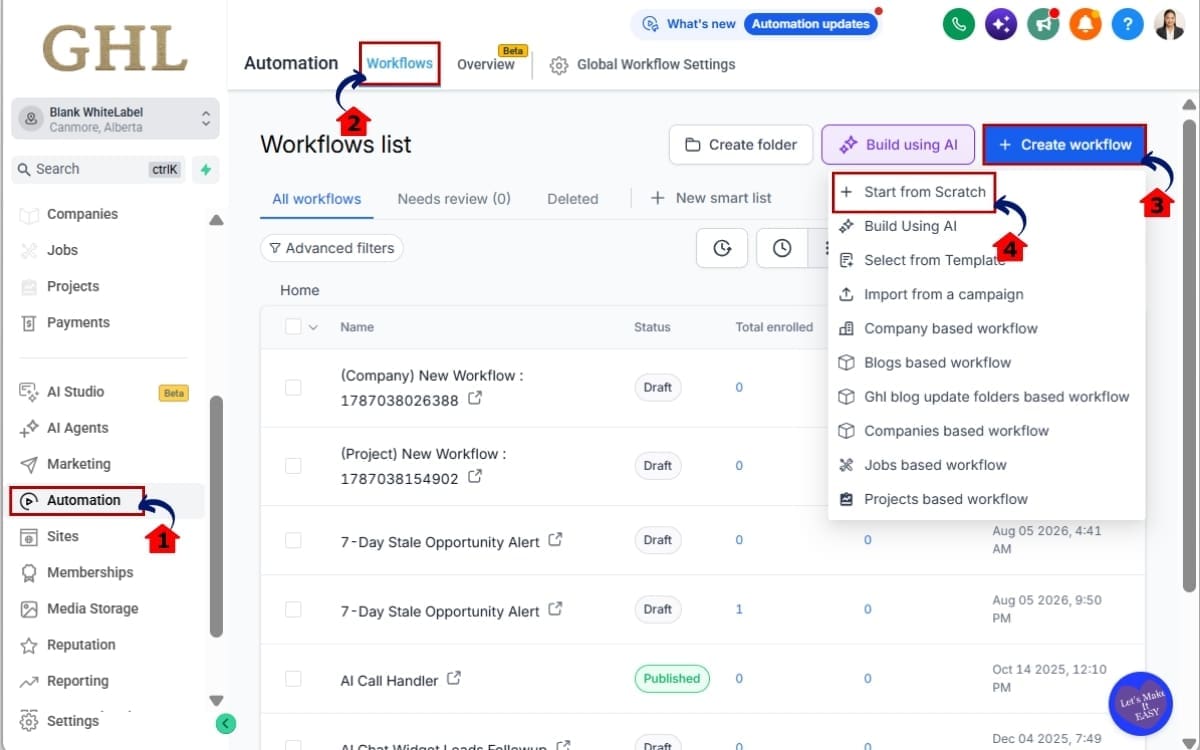
Step 01 – Access Workflows in GoHighLevel
- Start by logging in to the GoHighLevel sub-account where you want to build your automation.
1.1 Go to the main menu on the left side of your screen. Click Automation.
- This opens the Automation area where you can access and manage your GHL Workflows.
1.2 Open the Workflows section.
- This is where you’ll find your existing automations and the option to create a new Workflow.
1.3 Create a new Workflow.
- Starting a new Workflow gives you a clean setup for building your workflow from the beginning.
1.4 Click Start from Scratch.
- This opens a blank Workflow so you can add your triggers, RCS actions, and follow-up steps exactly where you need them.
Step 02 – Add the AI Image Generation Action
- Add the action at the exact point in your workflow where you want the image to be created.
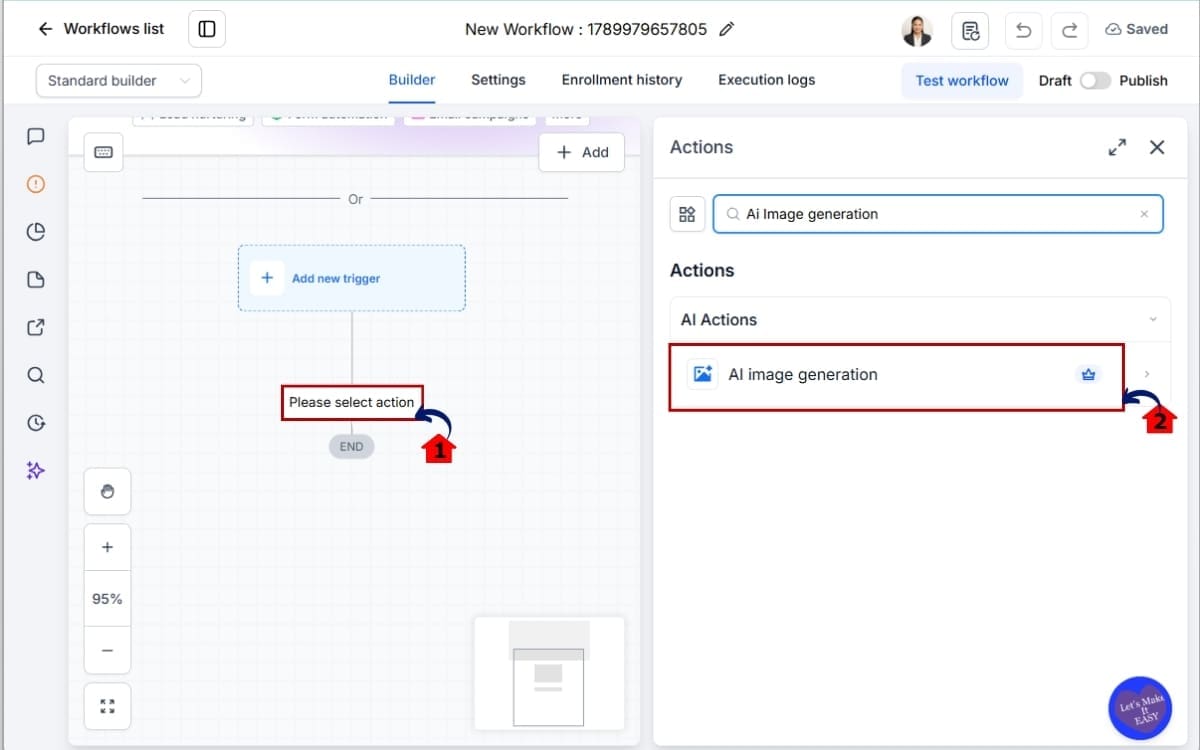
2.1 Click the + icon at the point where you want GHL to create the image.
- The + icon opens the list of workflow actions you can add at that stage of the automation.
2.2 Select AI Image Generation from the available AI Actions.
- This adds the AI Image Generation action to your workflow so you can start configuring the model, prompt, quality, and image settings.
Step 03 – Configure Your AI Image Generation
- This is where you control the image quality, tell the AI what you want to create, and choose how much help you want with the prompt.
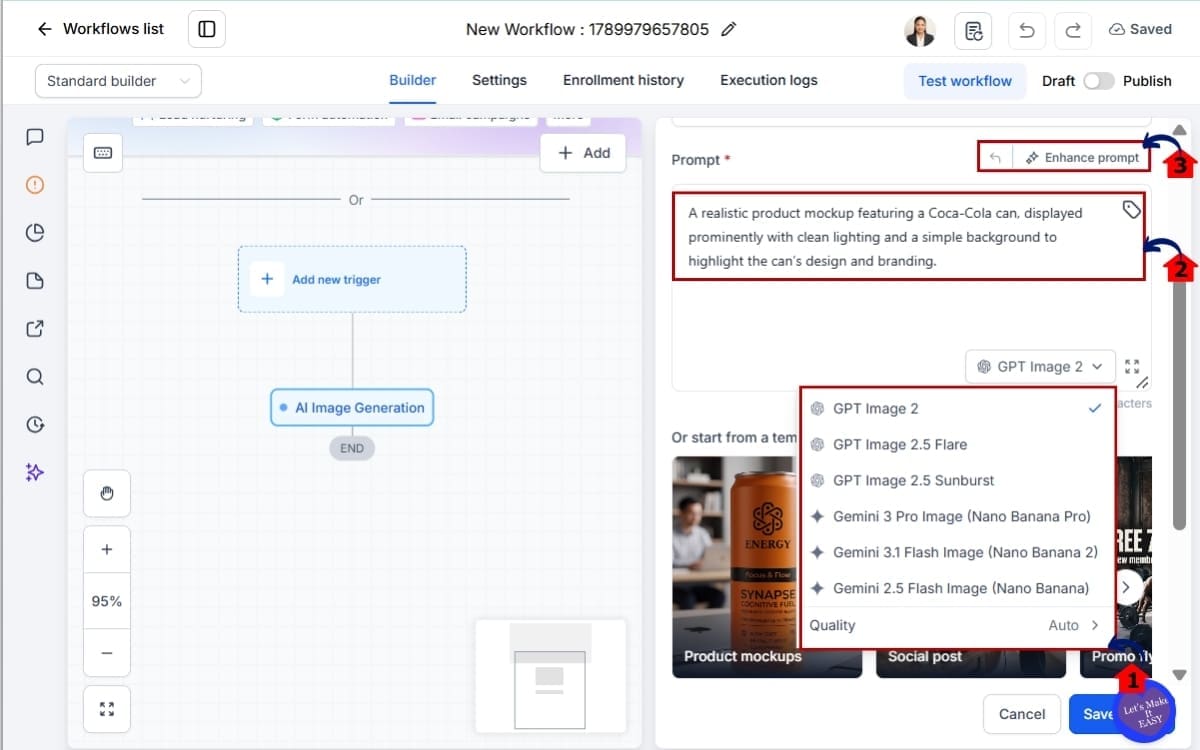
3.1 Select Auto, High, Medium, or Low quality. Auto is the default.
- Start with Auto if you’re unsure which setting to use, then adjust the quality based on the results you need.
3.2 Enter your image prompt. You can write a fixed prompt or insert a custom value using data from a contact field, webhook payload, or earlier workflow action.
- Use custom values when you want the prompt, and therefore the generated image, to change based on the data moving through your workflow.
3.3 Use Enhance Prompt if you want GHL to expand a shorter prompt. You can also start with a Product Mockup, Social Post, Promo Flyer, or Lifestyle template.
- Enhance Prompt is useful when you have the basic idea but need more detail, while the templates give you a quicker starting point for common image types.
Step 04 – Choose Your Image Settings
- Use these settings to control the finished image and give GHL extra brand information when needed.
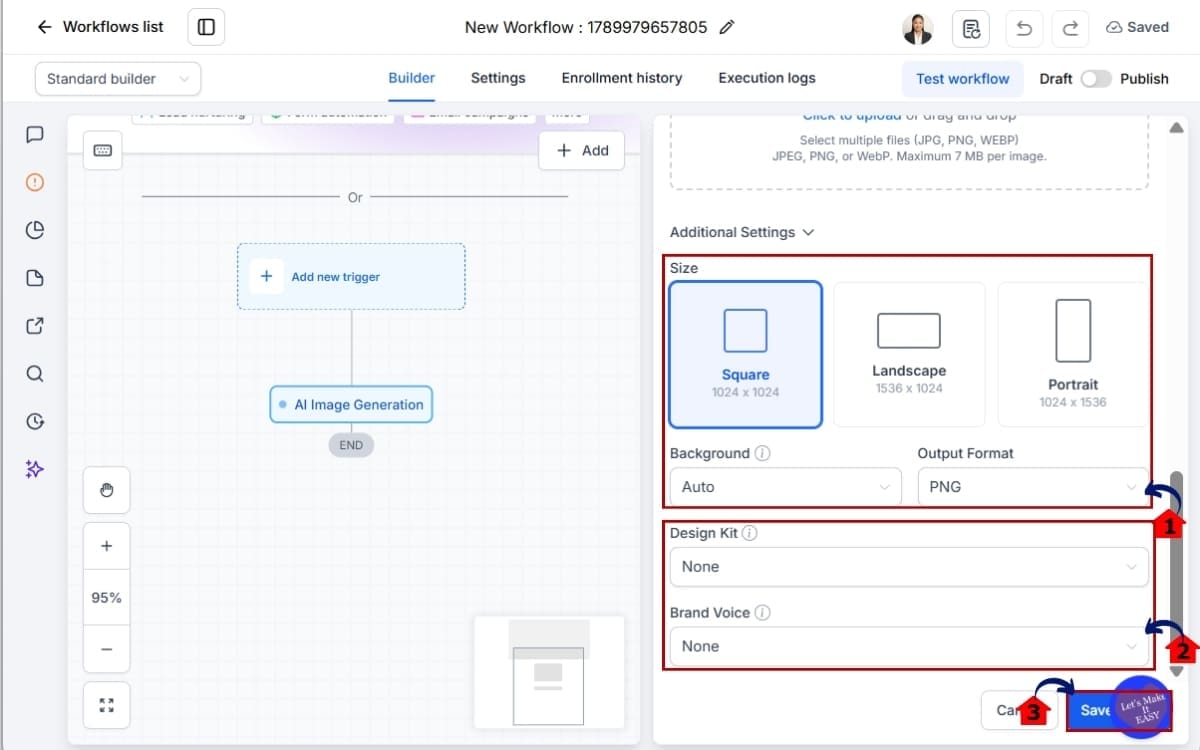
4.1 Open Additional Settings and select your preferred image size, background, and output format.
- Choose the settings that suit where you plan to use the finished image, such as a social post, promotion, or other campaign asset.
4.2 Apply a Design Kit or Brand Voice when you want additional brand context included.
- Add these options when the generated image needs to follow the look and direction of a particular brand more closely.
4.3 Save the action and test your workflow before using it at scale.
- Run a small test first to check the image, prompt, settings, and returned Image URL before the action starts running regularly.
Once AI Image Generation runs, GHL automatically stores the finished image in Media Storage and returns an Image URL. You can use that variable in later workflow actions, such as sending the image, saving its URL, publishing content, or passing it to another platform through a webhook.
Remember that the generated image uses a public URL. Anyone with the link can open it without logging in, so avoid passing sensitive customer information into prompts unnecessarily.
Quick Tips for Better AI Image Generation
A vague request can send the image in all sorts of directions. Rather than telling GHL to make a marketing graphic, give it some boundaries. Describe the main idea, the visual style, the setting, your preferred colors, and what the image needs to accomplish.
Got the idea but not the prompt? That’s fine. Type the basics and use Enhance Prompt to fill things out. GHL also gives you a few starting points for common creative jobs, with templates for Product Mockups, Social Posts, Promo Flyers, and Lifestyle images.
For dynamic AI Image Generation, be selective with your custom values. Just because you can pull contact fields and webhook data into a prompt doesn’t mean you need everything. Use the information that actually helps create the visual, and avoid including sensitive customer data.
Start with Auto quality when testing a new workflow. Once you know the automation works and the images meet your needs, you can experiment with the other quality settings. Remember, model, quality, size, and additional context can affect your generation cost.
Finally, test before you scale. Run a few sample contacts through the workflow, check the generated images in Media Storage, and confirm that the Image URL works correctly in your later actions. A quick test can save you from paying for hundreds of AI Image Generation executions that don’t produce the result you expected.
What AI Image Generation Means for Your Business
AI Image Generation gives agencies another way to remove repetitive creative work from their processes. Instead of designing every visual in advance, you can let a GHL workflow create an image at the exact point it’s needed.
That can be useful when you manage campaigns across multiple clients, products, locations, or offers. A single workflow could use changing data to produce different visuals without someone manually creating and uploading each image.
The bigger opportunity is personalization. Because AI Image Generation can use custom values, the prompt can change based on information already moving through the workflow. This gives you more flexibility to create visuals around a specific product, campaign, contact, or other dynamic information.
For agencies offering white-labeled services, this could also become part of your automated delivery process. You might build workflows that create campaign graphics, promotional images, or social content as part of a larger client system. Design Kit and Brand Voice can provide additional brand context when generating those assets.
But automation doesn’t mean you should generate an image at every opportunity. Each execution comes with an additional charge, so the best approach is to use AI Image Generation where it removes meaningful manual work or adds useful personalization.
When used in the right places, GHL isn’t simply moving your creative assets through an automation. It can now help create those assets while the automation is running.
Real-World AI Image Generation Use Cases
AI Image Generation becomes much more useful when you connect it to real data moving through your GHL workflows. Instead of generating the same graphic every time, you can change the prompt based on the contact, campaign, product, or information received from another platform.
One example is social content. A workflow could receive details about a new offer, use those details to generate a promotional graphic, and then pass the Image URL into a later action. This can reduce the time spent creating individual campaign graphics by hand.
You could also use AI Image Generation with external data. For example, if information from a Google Sheet enters your automation, each row could provide different details for the prompt. GHL could then generate a unique image for each item and return the corresponding Image URL.
Another option is personalized campaign content. Contact fields or earlier workflow actions could supply relevant information for the prompt, allowing the generated visual to change as the workflow runs. Just avoid using sensitive customer information, since the finished image is stored at a public URL.
The Image URL also makes the output flexible. You can use it in later actions, save it to a custom field, attach the generated visual to supported messages or content, or pass the URL to another system through a webhook.
The key is to use AI Image Generation where changing data actually benefits from a changing visual. That’s where this new GHL action can turn a standard automation into a more dynamic content workflow.
AI Image Generation FAQs for GHL
Put AI Image Generation to Work in GHL
AI Image Generation takes GHL workflows beyond simply moving information from one action to another. Your automation can now create a visual when it needs one, store it automatically, and pass the Image URL into the next part of your workflow.
The real value comes from combining image creation with dynamic data. Contact fields, webhook payloads, and earlier workflow actions can change the prompt each time the automation runs. That gives agencies more options for creating personalized campaign graphics, social content, promotional visuals, and other assets without manually preparing every image.
You also have plenty of control. Choose between four AI models, adjust the quality and output settings, start with built-in templates, enhance your prompts, and use Design Kit or Brand Voice when you need additional brand context.
Just keep the practical limits in mind. AI Image Generation is a premium action, so every execution can add to your costs. Generated images also use public URLs, so avoid putting sensitive customer information into prompts or generated visuals.
The best place to start is with a small test workflow. Generate a few images, review the results in Media Storage, and make sure the returned Image URL works correctly in your next action. Once you’ve got the prompt and settings dialed in, you can decide where AI-generated visuals make sense across your GHL automations.
AI Image Generation won’t replace every part of your creative process. But when a workflow needs a fresh visual at the right time, GHL can now create it without stopping the automation.
Scale Your Business Today.
Streamline your workflow with GoHighLevel’s powerful tools.