- Connect Canva directly to your sub-account, eliminate tab switching, prevent duplicate uploads, and speed up your creative workflow in minutes.
- Quick Summary Box – Canva Integration Overview
- What’s New With This Canva Integration
- How Canva Integration Works Inside Media Storage
- How To Connect Canva Integration Inside Media Storage
- Why This Canva Integration Matters for Agencies
- Real-World Marketing Workflow Using Canva Integration
- Frequently Asked Questions About Canva Integration
- Conclusion – Canva Integration Changes Creative Workflow
Connect Canva directly to your sub-account, eliminate tab switching, prevent duplicate uploads, and speed up your creative workflow in minutes.
Canva Integration just changed how you manage design assets inside GHL. And honestly, it’s about time. If you’ve ever designed something in Canva, downloaded it, uploaded it into Media Storage, then realized you needed to fix one tiny thing… you know the pain. Tab switching. Duplicate files. Version confusion. It slows everything down. Now, Canva Integration lives directly inside Media Storage. You can browse your Canva designs, edit them, download them, and import them into My Media without leaving your sub-account.
No more bouncing between platforms. No more messy folders. No more “Final-Final-v3.png” chaos. This update connects Canva at the location level using OAuth, which means your whole team can view assets in one place. The installer gets full edit access. Other users can search, download, and import designs without breaking anything. The result?Cleaner asset management. Faster creative workflows. Less friction between design and execution. The team here at GHL Growth Garage loves updates like this because they remove busy work and give agencies back time. And when you save time, you scale faster.
The new Canva Integration removes creative bottlenecks inside GHL by letting you edit, import, and manage design assets directly inside Media Storage. It speeds up workflows, prevents duplicate uploads, and centralizes your entire creative process.
Quick Summary Box – Canva Integration Overview
Purpose: This update connects Canva directly to Media Storage inside your sub-account so you can browse, edit, and import designs without switching platforms.
Why It Matters: It removes manual downloads, prevents duplicate uploads, and keeps your creative workflow centralized inside GHL.
What You Get: Direct Canva access inside Media Storage, in-app editing, Smart Design Tracking, and controlled team permissions at the location level.
Time to Complete: The setup takes about 3–5 minutes per sub-account.
Difficulty Level: Beginner-friendly. If you can install an app and log into Canva, you can complete this.
Key Outcome: Faster creative execution, cleaner asset management, and fewer version-control mistakes across funnels, emails, and websites.
What’s New With This Canva Integration
The Canva Integration inside Media Storage is not just a shortcut. It’s a full workflow upgrade.
Here’s what’s now available inside your sub-account:
Automate marketing, manage leads, and grow faster with GoHighLevel.

You can browse all your Canva designs directly inside Media Storage. No separate login window. No switching tabs.
You can click the 3-dot menu on any design and select Edit in Canva. Make your changes. Then import the updated version straight back into My Media.
You can also download designs or import them into Media Storage with just a few clicks.
It works similarly to the Google Drive integration, but with specific access rules based on Canva’s Marketplace requirements.
Here’s what makes it powerful:
• Canva is connected at the location (sub-account) level
• Only one Canva account can be connected per location
• All users inside that location can view available assets
• The installer gets full edit access
• Other users can view, search, download, and import
• Proxy “Login As” users cannot access Canva
There’s also Smart Design Tracking built in.
This prevents duplicate Canva copies when editing from My Media. That means no more cluttered asset libraries filled with nearly identical files.
And one important note.
Files must be imported into Media Storage before they can be used in funnels or emails. The integration gives you access, but import is still required for deployment.
This update was built to reduce friction, eliminate duplicate uploads, and centralize asset management.
Less chaos. More control.
How Canva Integration Works Inside Media Storage
The Canva Integration is installed through the App Marketplace, but it lives inside Media Storage once connected.
It is connected at the location level. That means each sub-account can connect one Canva account.
Not per user.
Per location.
Once connected, all users inside that sub-account can view the available Canva assets. This makes it easier for teams to collaborate without constantly sharing download links.
Here’s how access works:
• Only one Canva account can be connected per location
• The user who installs the integration gets full edit access
• Other users can view, search, download, and import designs
• Proxy “Login As” users cannot access the Canva tab
• Private Canva files cannot be edited
This setup protects account ownership while still giving teams access to shared creative assets.
Another important detail is import control.
You must import a design into Media Storage before you can use it in funnels, emails, websites, or automation workflows. The integration gives you visibility and editing access, but deployment requires importing the file into My Media.
If you disconnect Canva later by uninstalling it from the App Marketplace, previously imported files will remain inside Media Storage. You will not lose any assets you already brought in.
This structure keeps creative control centralized while still protecting file integrity and account permissions.
Simple. Secure. Organized.
How To Connect Canva Integration Inside Media Storage
How To Connect Canva Integration Through the App Marketplace
Connecting Canva to your sub-account starts in the App Marketplace. This allows you to authorize Canva using OAuth and link one Canva account to the entire location.
Once installed, your Canva designs will appear inside Media Storage and be available to your team based on permissions.
Here are the steps to connect Canva Integration inside GoHighLevel:
• Access the App Marketplace
• Locate the Canva App
• Install Canva Integration
• Complete OAuth Authorization
• Confirm Canva is visible inside Media Storage
To start make sure you are logged in to your GoHighLevel sub-account.
Step 01 – Access the App Marketplace Page of GoHighLevel
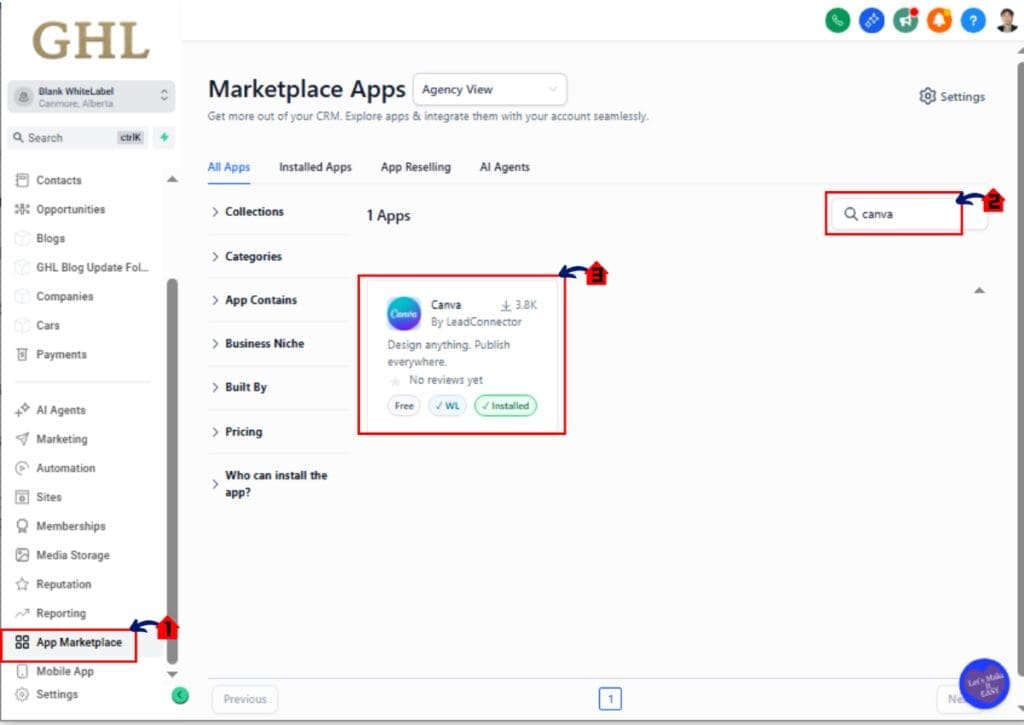
- The Main Menu on the left side of your screen has all the main areas that you work in when using GHL.
1.1 Click App Marketplace main menu item.
• This opens the App Marketplace Page
• You will see available third-party integrations
• You may see featured apps or a search bar at the top
1.2 Use the search bar at the top of the App Marketplace Page.
Type Canva into the search field.
• The Canva app card should appear in the results
• The app will display the Canva logo and name
1.3 Click the Canva App to Install
Step 02 – Connect Canva App
2.1 Connect Canva
• A confirmation window may appear
• The system prepares the OAuth authorization process
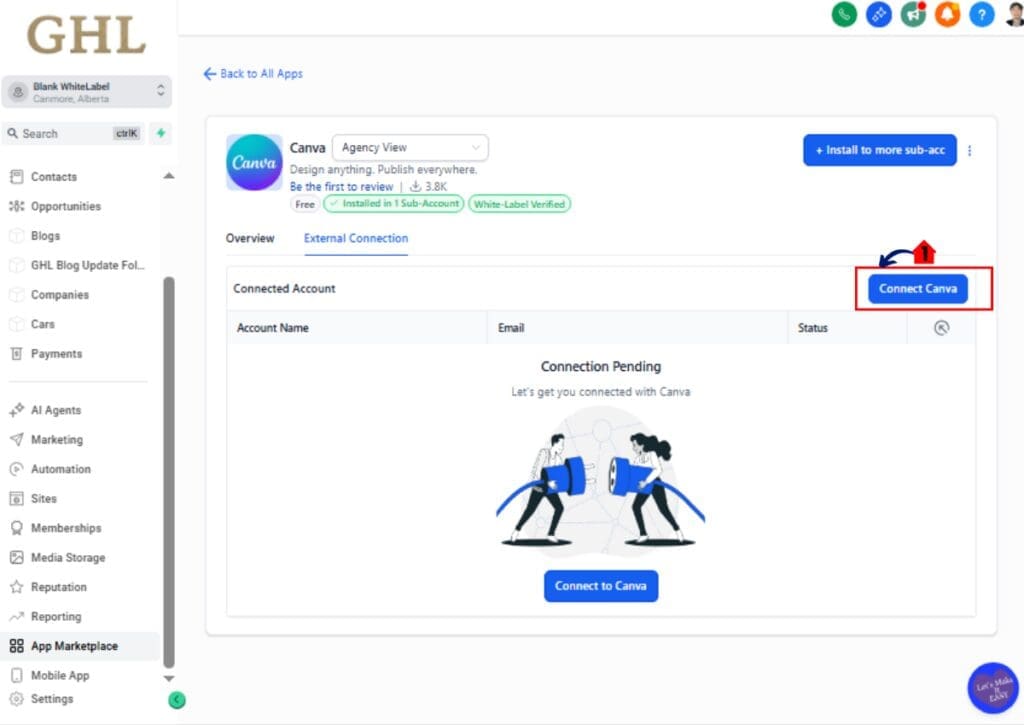
2.2 Confirm installation if prompted.
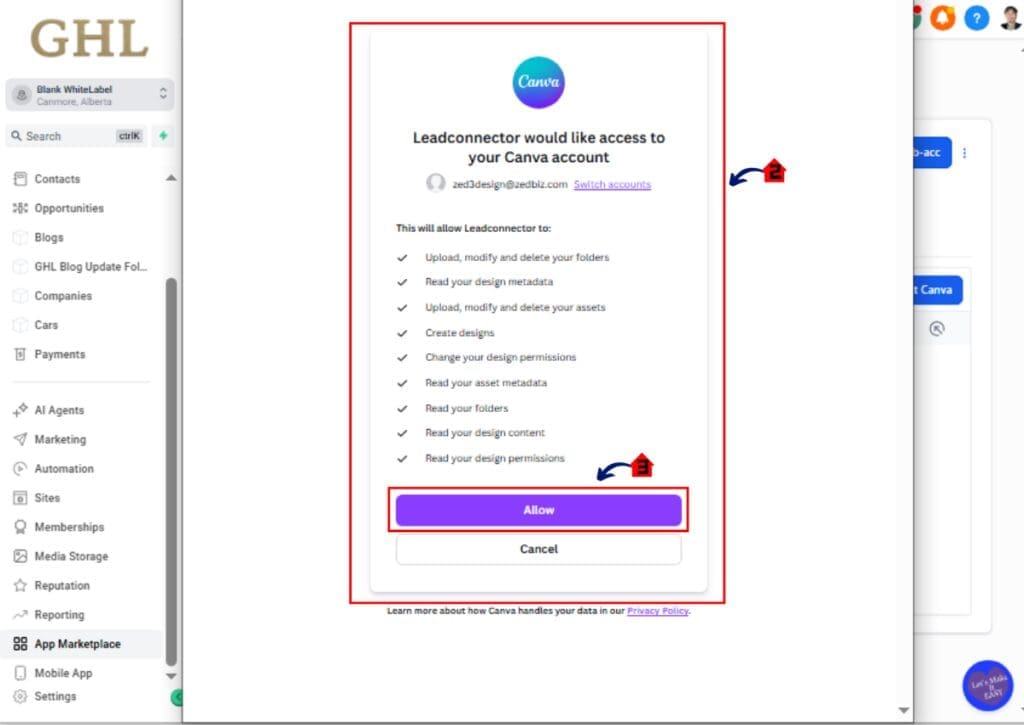
- A new Canva login window will open
- You will be redirected to Canva’s authorization screen
2.3 Click Allow to grant permissions.
• This authorizes GoHighLevel to access your Canva designs
• The OAuth window will close automatically after approval
Step 03 – Confirm Canva Integration Inside Media Storage
- Now that installation is complete, verify the connection.
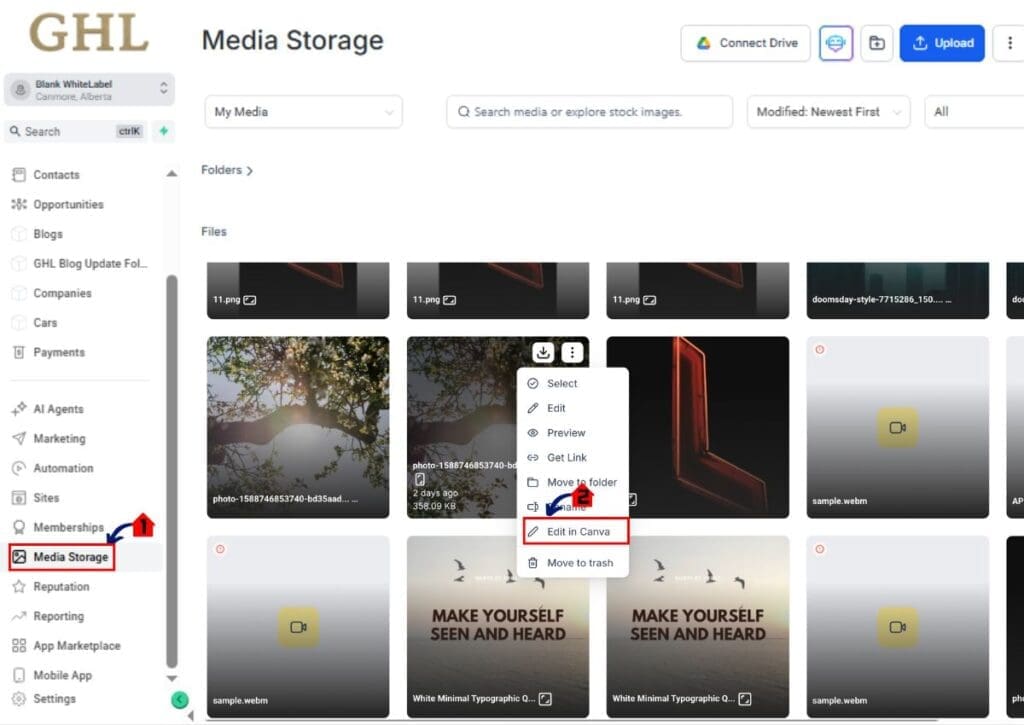
3.1 Click Media Storage.
• This opens the Media Storage Page
3.2 Click the three dots
• Your Canva designs should now be visible
• You can search, preview, download, and edit designs
• If designs do not appear, refresh the page
If Canva designs do not appear:
• Confirm OAuth was completed successfully
• Confirm you are not logged in as a Proxy “Login As” user
• Confirm the connected Canva account contains existing designs
This completes the Canva Integration setup process.
Permissions & Access Rules for Canva Integration
The Canva Integration is designed for team collaboration, but it also protects account ownership and design control.
This connection works at the location level. That means only one Canva account can be connected per sub-account.
Not per user.
Per location.
The user who installs the integration becomes the primary connection holder. This user has full edit access to Canva designs inside Media Storage.
All other users inside the same location can:
• View Canva designs
• Search designs
• Download files
• Import files into My Media
However, they do not have full editing rights unless they are the original installer.
If a non-installer attempts to edit a file, they will see this message:
“You have view-only access to this media. To make changes, import it into your own storage or reach out to your admin for access.”
This protects the Canva account owner while still allowing teams to use shared creative assets.
There are also a few important limitations to understand.
Proxy users using the “Login As” feature cannot access the Canva tab. This is a security restriction.
Private Canva files cannot be edited through the integration. The design must be accessible through the connected Canva account.
Only one OAuth connection is allowed per installation. If you need to switch Canva accounts, you must uninstall the app from the App Marketplace and reconnect a different account.
If you uninstall the Canva Integration:
• Previously imported files remain in Media Storage
• You will not lose any assets already brought into GHL
• The live connection to Canva will be removed
This structure keeps your creative workflow centralized, secure, and controlled.
Clean permissions. Clear boundaries. No chaos.
Why This Canva Integration Matters for Agencies
The Canva Integration is not just a convenience feature. It fixes a real operational problem.
Agencies constantly move between Canva and GHL. Design something. Download it. Upload it. Realize there’s a typo. Go back. Re-download. Re-upload.
It’s messy.
This update removes that friction.
Now your Canva Integration lives directly inside Media Storage. That means your design and deployment workflows happen in one place.
Here’s why that matters.
First, it eliminates tab switching. Your team stays inside GHL while managing creative assets. That alone saves time every single day.
Second, it prevents duplicate uploads. Smart Design Tracking helps stop the “banner-final-v2-final.png” madness that clutters Media Storage.
Third, it centralizes asset management at the location level. Everyone in the sub-account can view and import approved designs. No more chasing Dropbox links or Slack files.
Fourth, it speeds up client revisions. If a client wants a headline change on a funnel graphic, your designer edits in Canva, re-imports, and the updated version is ready to use. No rebuilding pages. No confusion.
This is especially powerful for:
• Agency owners managing multiple client sub-accounts
• VAs handling content uploads
• Designers working alongside funnel builders
• Teams running email campaigns and promotions
Creative work should not slow down marketing execution.
This update keeps your creative pipeline clean, controlled, and fast.
Less friction means faster launches.
Faster launches mean better results.
Pro Tips to Maximize Canva Integration
The Canva Integration is simple to use. But if you want to get the most out of it, you need a system.
Here’s how smart agencies will use this feature.
First, assign one Canva account owner per location. Since only one Canva account can connect per sub-account, choose the account that holds your brand assets. This prevents confusion later.
Second, organize your Canva folders before connecting. Clean up outdated designs. Use clear folder names like “Funnel Graphics,” “Email Banners,” or “Client Promo Assets.” A clean Canva structure makes Media Storage easier to manage.
Third, always import before deploying. Even though you can see designs in the Canva tab, they must be imported into My Media before using them in Funnels, Emails, Websites, or Automations. Make this part of your standard workflow.
Fourth, use consistent file naming. Smart Design Tracking helps prevent duplicates, but strong naming conventions make asset management even cleaner.
For example:
• clientname-funnel-hero-v1
• clientname-email-banner-march
• webinar-promo-square
Fifth, train your team on permission rules. Non-installers will not have full edit rights. If someone needs editing control, plan who installs the integration carefully.
Sixth, avoid private Canva files for shared assets. If a design is private in Canva, it cannot be edited through the integration. Make sure important assets are accessible through the connected account.
Seventh, combine Canva Integration with Brand Boards inside GHL. Keep fonts, colors, and logos aligned across designs and funnels.
When used correctly, this integration becomes a creative command center.
Not just a shortcut.
A system.
Real-World Marketing Workflow Using Canva Integration
Let’s make this practical.
You run an agency. You’re building a new landing page for a client’s webinar campaign.
Your designer creates the hero banner in Canva. Normally, this would mean downloading the file, renaming it, uploading it into Media Storage, and replacing it inside the funnel.
Now it’s different.
With Canva Integration, the workflow looks like this:
The designer opens the Media Page inside GHL.
They click the Canva tab.
They locate the webinar banner design.
They click the 3-dot menu and select Edit in Canva.
The Canva editor opens. They update the headline and adjust the date.
They save.
They return to Media Storage and import the updated version.
Done.
No manual downloads.
No file renaming.
No duplicate uploads.
Now the funnel builder selects the updated image from My Media and drops it into the Funnel Builder.
If the client requests another change?
Repeat the same process.
The updated version replaces cleanly thanks to Smart Design Tracking.
This also works beautifully for:
• Email campaign graphics
• Social promo images
• Seasonal sales banners
• Course thumbnails
• Membership graphics
Your creative team stays in Canva.
Your execution team stays in GHL.
And your workflow stays clean.
That’s what real operational efficiency looks like.
Not just a new feature.
A faster marketing machine.
Frequently Asked Questions About Canva Integration
Conclusion – Canva Integration Changes Creative Workflow
The Canva Integration inside Media Storage is one of those updates that quietly fixes a big operational headache.
- No more downloading.
- No more re-uploading.
- No more version confusion.
You now have a direct bridge between Canva and GHL.
You can browse designs.
Edit in Canva.
Import updated versions.
Manage everything inside one clean Media Storage system.
For agencies, this means faster turnarounds. Cleaner asset libraries. Better team collaboration. And fewer mistakes when updating funnels, emails, and websites.
For VAs and marketers, it means less busy work.
For designers, it means they stay in Canva where they belong.
And for business owners?
It means creative work stops slowing down execution.
The Canva Integration removes friction from one of the most common workflows inside GoHighLevel. That alone makes it worth setting up today.
If you have not connected Canva inside your sub-account yet, now is the time.
Log in. Install it. Test it. Clean up your Media Storage. And build a smoother marketing machine.
The team here at GHL Growth Garage will keep breaking down every important GoHighLevel update so you can stay ahead and move faster.
Have you connected Canva Integration yet?
If so, how has it improved your workflow?
Scale Your Business Today.
Streamline your workflow with GoHighLevel’s powerful tools.