

- Automate member activity in GoHighLevel with the updated User Login trigger, now supporting both the new Client Portal and legacy membership experience.
- Quick Summary – Client Portal Login at a Glance
- What’s New With Client Portal Login
- What Changed for Client Portal Login Triggers
- Why Client Portal Login Automation Matters
- How to Use the Client Portal Login Trigger
- What Client Portal Login Means for Agencies
- Put Client Portal Login to Work
Automate member activity in GoHighLevel with the updated User Login trigger, now supporting both the new Client Portal and legacy membership experience.
If you’re using GoHighLevel’s new Client Portal, there’s an important automation update worth knowing about. The User login workflow trigger now works when a client successfully signs in through the new Client Portal experience. Previously, the User login trigger was tied to legacy membership logins. That meant agencies moving clients over to the new portal couldn’t rely on the same trigger to start workflows when someone logged in. This update closes that gap and makes Client Portal Login activity much more useful for automation. Better yet, you don’t need to rebuild your existing workflows. If you already use the User login trigger, those workflows can now respond to successful logins from both legacy memberships and the new Client Portal.
Client Portal Login automation now gives agencies a simple way to trigger workflows when clients access the new GoHighLevel Client Portal. Existing User login workflows gain this support automatically, so you can respond to client activity without rebuilding your automations. HighLevel has also cleaned up where these triggers live. User login and Client portal file uploaded are now grouped under a dedicated Client Portal category in the workflow trigger picker. That makes the right automation easier to find and makes its purpose much clearer. For agencies, this opens the door to smarter follow-ups based on real client activity. You can build automations around when clients actually access their portal instead of relying only on emails, forms, or other engagement signals.

Client Portal Login automation now gives agencies a simple way to trigger workflows when clients access the new GoHighLevel Client Portal. Existing User login workflows gain this support automatically, so you can respond to client activity without rebuilding your automations.
Quick Summary – Client Portal Login at a Glance
Purpose: This GoHighLevel update expands the User login workflow trigger so it works with successful logins from the new Client Portal as well as legacy memberships.
Why It Matters: Agencies can now use Client Portal Login activity to start workflows, closing the automation gap that previously existed for users of the new Client Portal.
What You Get: You get one User login trigger that supports both Client Portal and legacy membership logins, plus a dedicated Client Portal category that makes related workflow triggers easier to find.
Time To Complete: Setting up a new Client Portal Login trigger should only take a few minutes if your workflow is already created.
Difficulty Level: Beginner. You only need to find the User login trigger under the Client Portal category, add it to your workflow, and save it.
Key Outcome: You can build more consistent GHL workflows around actual Client Portal Login activity without creating separate login triggers for the old and new portal experiences.
Existing Workflows: If you already use the User login trigger, no reconfiguration is required. Your existing workflow automatically gains support for successful logins through the new Client Portal.
What’s New With Client Portal Login
The biggest change is simple: a successful Client Portal Login can now fire the User login workflow trigger in GoHighLevel. This brings the new Client Portal experience in line with the legacy membership system.
Before this update, the User login trigger only responded to legacy membership logins. If your clients were using the new Client Portal, their login activity wouldn’t activate workflows built around that trigger. Agencies had fewer options for automating actions based on when a client actually entered their portal.
Automate marketing, manage leads, and grow faster with GoHighLevel.

Now, both experiences are covered. When someone completes a successful Client Portal Login, GoHighLevel sends the same User login workflow event used for legacy membership logins. That means you can use one trigger to support clients across both experiences.
There’s also good news if you already have User login workflows running. You don’t need to replace the trigger, rebuild the workflow, or change its settings. Existing workflows automatically gain support for the new Client Portal Login event.
This makes the update especially useful for agencies already moving clients onto the newer portal. You can keep your current automations in place while gaining another way to respond to client activity inside GHL.
What Changed for Client Portal Login Triggers
Along with expanding Client Portal Login support, GoHighLevel has cleaned up where its Client Portal workflow triggers live. This is a small interface change, but it should make building workflows easier.
You’ll now find a dedicated Client Portal category inside the workflow trigger picker. The User login trigger has moved from the Courses category into Client Portal. The Client portal file uploaded trigger has also moved from Membership into this new category.
This means the two triggers connected directly to Client Portal activity are now grouped together. Instead of searching through Courses or Membership, you can head straight to Client Portal when building an automation around portal activity.
GoHighLevel has also updated the helper text for the User login trigger. It now makes it clearer that the trigger supports both legacy membership logins and the new Client Portal Login experience. That removes some of the guesswork around exactly which type of login will start your workflow.
Most importantly, this organizational change doesn’t mean you need to update existing workflows. If you already use the User login trigger, it will continue working while automatically gaining support for successful logins through the new Client Portal.
Why Client Portal Login Automation Matters
Client Portal Login activity gives agencies another useful signal for understanding client engagement. A login tells you that someone has actively entered their portal, which can be a useful moment to start the next step in a workflow.
Before this update, agencies using the new Client Portal couldn’t use the existing User login trigger to automate around that activity. The trigger only covered legacy membership logins. That created an automation gap for businesses moving clients to the newer portal experience.
Now, GoHighLevel can use Client Portal Login activity to start the same workflows across both experiences. For example, an agency could use a login to trigger an internal notification, update a workflow path, or begin a follow-up sequence connected to the client’s portal activity.
It also makes workflow management simpler. You don’t need separate login triggers for the legacy membership area and the new Client Portal. One User login trigger can cover both, helping reduce unnecessary workflow duplication.
For agencies managing multiple clients, small improvements like this can add up. You get a more consistent way to automate around portal engagement while keeping your GHL workflow setup easier to understand and maintain.
How to Use the Client Portal Login Trigger
The Client Portal Login update lets you start a workflow when a user successfully logs in through the new GoHighLevel Client Portal. You’ll set this up inside the Workflow Builder using the existing User login trigger, which is now located under the Client Portal category.
You don’t need a separate trigger for the new Client Portal and legacy memberships. The same User login trigger now supports both login experiences. If you already have a workflow using this trigger, you don’t need to reconfigure it.
Here are the steps to set up the Client Portal Login trigger in GoHighLevel:
- Access the GoHighLevel Workflows page
- Open the Workflow Builder
- Add the User login workflow trigger
- Select the User login trigger from Client Portal
- Save the Client Portal Login trigger
To start make sure you are logged in to your GoHighLevel sub-account.
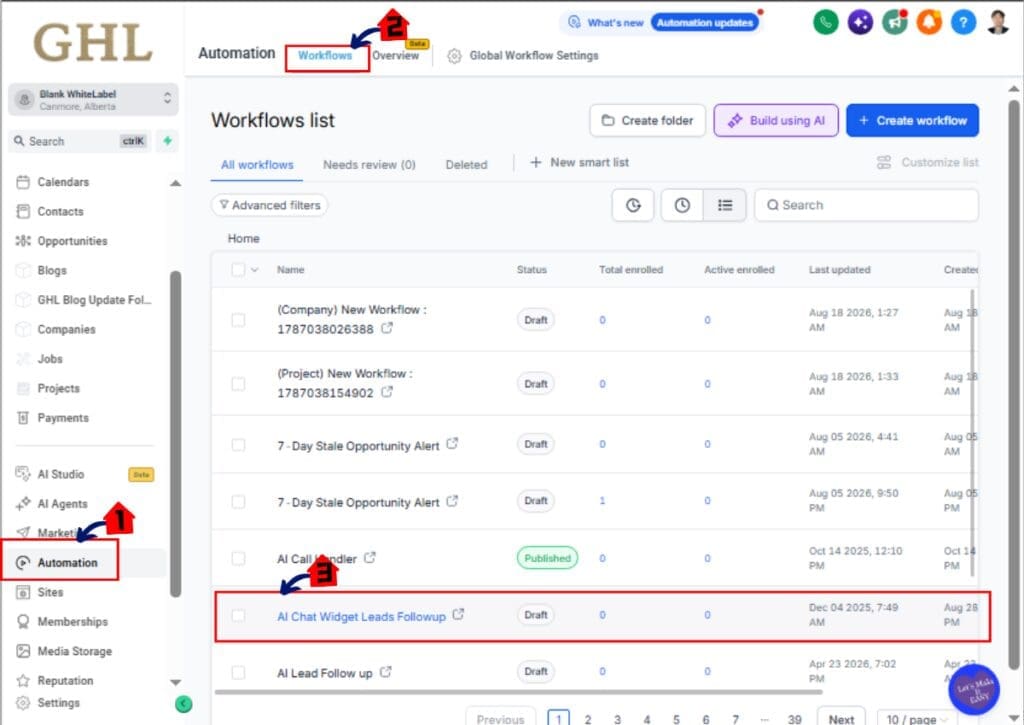
Step 01 – Access the GoHighLevel Workflows page
The Main Menu on the left side of your screen includes all the main areas you work in when using GHL.
1.1 Click Automation in the Main Menu.
- Inside the Automation section you can access your workflows and other workflow tools.
1.2 Click Workflows in the top menu if the Workflow List page is not already showing.
- The Workflow List page displays the workflows available inside your GoHighLevel sub-account.
1.3 Open the workflow where you want to use the Client Portal Login trigger.
- This opens the Workflow Builder where you can add and manage the triggers and actions for that workflow.
- You can also create a new workflow if you don’t already have one set up for this automation.
Step 02 – Add the User login workflow trigger
2.1 Click Add New Trigger at the top of the Workflow Builder.
- The workflow trigger section opens and allows you to choose the event that will start your workflow.
2.2 Search for User login.
- The User login trigger will appear as an available workflow trigger.

Step 03 – Save the Client Portal Login trigger
3.1 Save the User login trigger.
- The User login trigger is added to your workflow.
- You can then build the workflow actions you want to happen after a successful Client Portal Login.

If you already have a workflow using the User login trigger, there’s nothing you need to change. Existing workflows automatically recognize successful logins from the new Client Portal as well as legacy membership logins.
Quick Tips for Client Portal Login Workflows
Now that Client Portal Login activity can trigger workflows, think about what should happen when a client actually enters their portal. A login is a useful engagement signal, but the automation that follows should have a clear purpose.
Use Client Portal Login workflows for actions that make sense at the moment someone accesses their account. For example, you could notify your team that a client has logged in or start the next stage of an existing client process. Keep the workflow focused so a simple login doesn’t trigger unnecessary actions.
You also don’t need to build separate workflows for the new Client Portal and legacy memberships. The User login trigger now supports both experiences. Using the same trigger can help keep your GoHighLevel workflow setup cleaner and easier to manage.
If you already use the User login trigger, review the actions that follow it. Your existing workflow can now run when users access the new Client Portal, so make sure those actions still make sense for both types of users.
Finally, test any new Client Portal Login workflow before using it as part of an important client process. Log in through the Client Portal and confirm that the workflow starts and the expected actions follow.
What Client Portal Login Means for Agencies
For agencies, Client Portal Login automation creates another way to respond to what clients are actually doing inside GoHighLevel. Instead of treating portal access as a separate activity, you can now connect a successful login directly to your workflows.
This can be useful during client onboarding. If accessing the Client Portal is part of your onboarding process, the User login trigger can help move the client into the next stage of your workflow after they successfully log in. You could also use the trigger to notify your team that the client has accessed their portal.
The update also helps agencies that are moving from legacy memberships to the new Client Portal. You don’t need one workflow for legacy users and another just to recognize a new Client Portal Login. The same User login trigger supports both experiences.
That makes your GHL automation easier to manage as your Client Portal setup changes. Existing User login workflows continue working, while new portal logins can now enter those workflows automatically.
The key is to use Client Portal Login as a meaningful activity signal. Connect it to actions that improve your client process rather than adding automation simply because the trigger is available.
Results From Better Client Portal Login Automation
The biggest result from this Client Portal Login update is more consistent automation. Your User login workflows can now respond whether someone signs in through a legacy membership or the new GoHighLevel Client Portal.
That consistency can make workflows easier to manage. You don’t need to rebuild an existing User login workflow just because clients are using the newer portal experience. Existing workflows automatically gain support for those successful Client Portal logins.
You should also have an easier time finding the right trigger when building new workflows. GoHighLevel has moved User login into the Client Portal category alongside Client portal file uploaded. This creates a clearer place to look when you want to automate around Client Portal activity.
For agencies, the practical result is more flexibility. A Client Portal Login can become the starting point for an internal notification, the next part of a client process, or another appropriate workflow action.
You still need to decide what should happen after the login. But GHL now gives you the missing trigger event, allowing you to build that automation around activity taking place in the new Client Portal.
Put Client Portal Login to Work
The Client Portal Login update fixes a simple but important automation gap in GoHighLevel. The User login workflow trigger now recognizes successful logins from both legacy memberships and the new Client Portal experience.
For existing workflows, there’s nothing you need to rebuild. If you already use the User login trigger, your workflow automatically gains support for new Client Portal logins. For new workflows, you’ll now find User login where you’d expect it: inside the dedicated Client Portal category.
This gives agencies another useful way to build automation around real client activity. A successful login can help trigger the next part of an onboarding process, alert your team to client activity, or start another workflow action that makes sense for your business.
Take a look at how your clients currently use their portal and consider where Client Portal Login activity could help remove a manual step or improve your client process.
How could you use a Client Portal Login to make one of your existing GHL workflows smarter?
Scale Your Business Today.
Streamline your workflow with GoHighLevel’s powerful tools.


