

- Import an industry-ready setup with objects, fields in folders, and clean associations.
- Quick Summary – Custom Object Templates Overview
- What’s New With Custom Object Templates
- Why Custom Object Templates Matter for You
- How to Use Custom Object Templates in GoHighLevel
- Pro Tips for Custom Object Templates
- Results You Can Expect From Custom Object Templates
- Frequently Asked Questions About Custom Object Templates
- Custom Object Templates
Import an industry-ready setup with objects, fields in folders, and clean associations.
Custom Object Templates
Custom Object Templates give you a clean GoHighLevel CRM setup in minutes, not hours. Instead of building objects, fields, and links from scratch, you pick an industry template and import it in one click.
If you have set up Custom Objects before, you know the routine. Create the object. Add fields. Try to keep it organized. Then realize nothing is connected the way your team needs, so you go back and fix associations.
With Custom Object Templates, the structure shows up ready to use. You get industry objects, fields grouped into folders, and associations that connect records to the right contacts and companies.

Custom Object Templates cut CRM setup down to minutes, not hours. You get a clean, industry-ready structure with fields and associations already organized, so your team can start working right away.
Quick Summary – Custom Object Templates Overview
Purpose: This guide shows how to use Custom Object Templates in GoHighLevel to import an industry-ready CRM structure in a few clicks.
Why It Matters: It reduces setup time and helps you keep objects, fields, and associations consistent across sub-accounts.
What You Get: You get pre-built custom objects, fields organized into folders, and associations that connect records to the right contacts and companies.
Time To Complete: Most imports and checks take about 10 to 20 minutes per sub-account, depending on how much you review after import.
Difficulty Level: Beginner-friendly, as long as you follow the import steps in order.
Key Outcome: You finish with a clean CRM foundation that is easier to train on, easier to report on, and easier to automate.
Best For: Agencies onboarding new clients, or any team that wants a repeatable CRM setup process.
What’s New With Custom Object Templates
Custom Object Templates are now built into GoHighLevel, so you can set up Custom Objects using pre-built, industry layouts instead of starting from zero. You pick a template, preview what it adds, and then import the objects in one click.
Each template comes with three things that normally take the most time to build. First, you get pre-configured custom objects that match the industry. Second, you get industry-relevant fields, and those fields are already grouped into folders, so your team is not scrolling through a messy list. Third, you get associations that connect records to the right contacts and companies, which keeps your CRM usable from day one.
Automate marketing, manage leads, and grow faster with GoHighLevel.

Right now, GoHighLevel includes templates for Real Estate, Insurance, Automotive, SaaS, Events, Pets, and Home Services. Each one includes the common record types that niche tracks every day, like Properties and Transactions, or Policies and Claims.
For agency admins, Custom Object Templates live in the existing Template Library, so the controls feel familiar. You can hide or show Custom Object Templates per sub-account, and you can hide entire categories globally if you want to keep the experience focused on your niche.
Bottom line: Custom Object Templates turn CRM setup into a quick import, with structure already in place.
Why Custom Object Templates Matter for You
Custom Object Templates save you time, but the bigger win is consistency. In GoHighLevel, a CRM only works well when the data is structured the same way every time. If each new sub-account gets a different object setup, your team slows down, reporting gets messy, and automation becomes harder than it needs to be.
These templates also reduce “CRM clutter.” Since fields come grouped into folders, your staff sees a cleaner layout right away. And because associations are already set, records connect to the right contacts and companies without extra manual linking. That means fewer broken workflows and fewer “where do I find this?” questions from your team.
This is especially useful for agencies onboarding new clients. You can launch a solid baseline fast, then adjust only what is unique to that client. The result is a CRM that is easier to train on, easier to manage, and easier to scale across multiple locations.
How to Use Custom Object Templates in GoHighLevel
Custom Object Templates let you set up industry-ready Custom Objects without building everything from scratch. You pick a template, review what it will import, then click Import objects to add the objects, fields in folders, and associations to your sub-account.
Here are the steps to import Custom Object Templates in GoHighLevel:
- Access the Settings area in GoHighLevel.
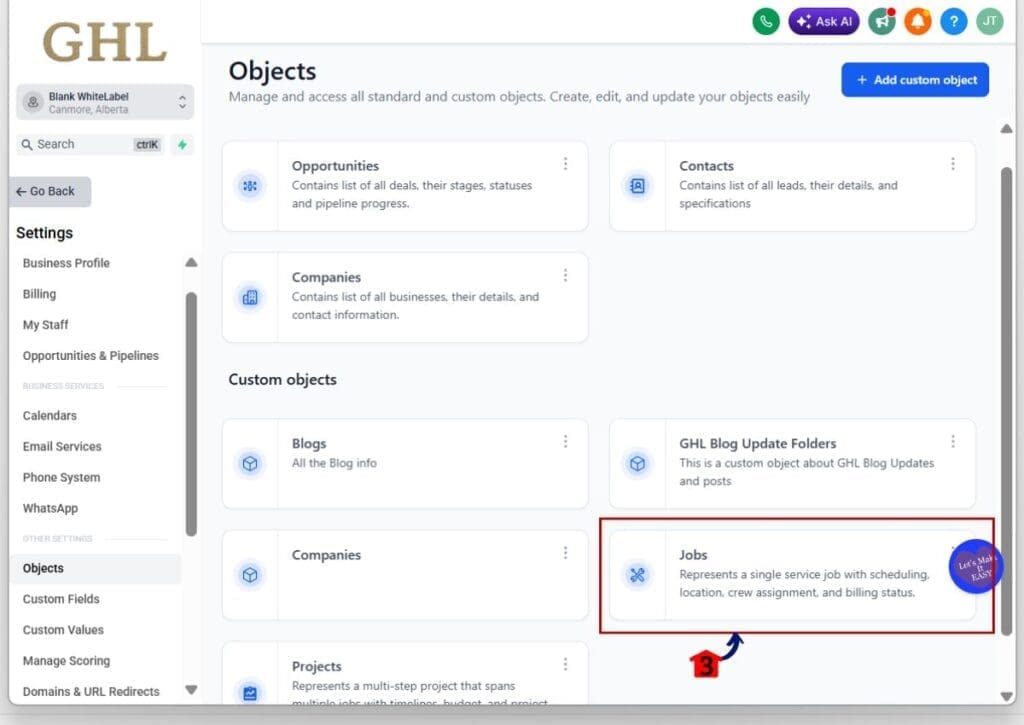
- Open the Objects page.
- Start the template flow.
- Browse Custom Object Templates in the Template Library.
- Open and Choose the template.
- Review items to import, then import objects.
To start, make sure you are logged in to the correct GoHighLevel sub-account.
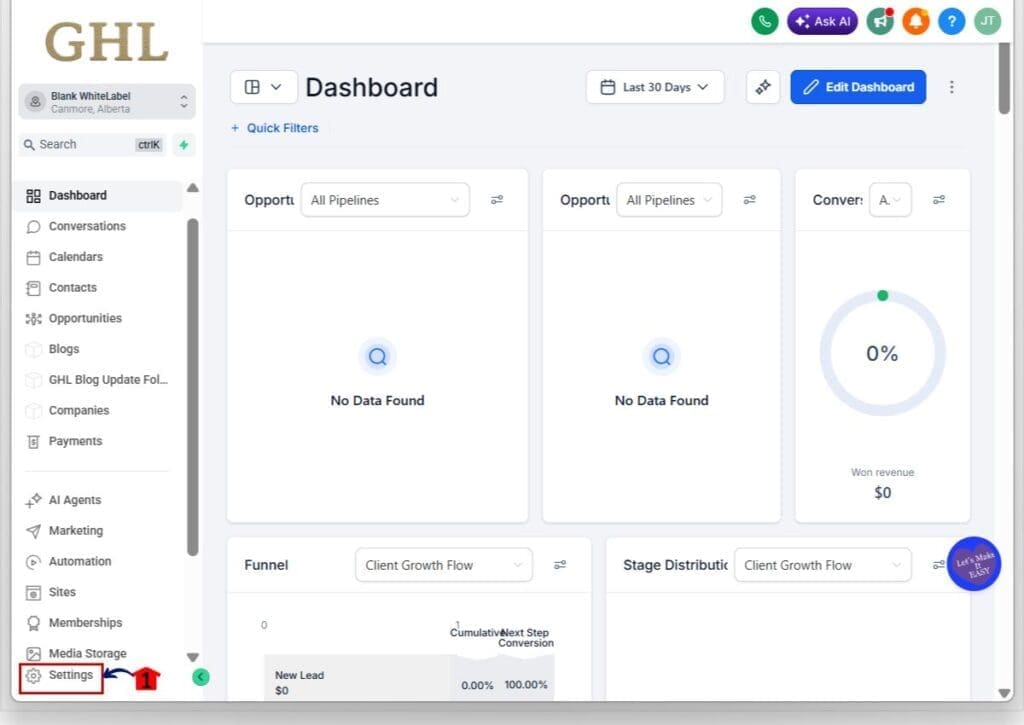
Step 01 – Access the Settings area in GoHighLevel
- Go to the bottom of the Main Menu on the left-hand sidebar.
1.1 Click the Settings gear icon ⚙️.
- This opens the Settings dashboard.
Step 02 – Open the Objects page
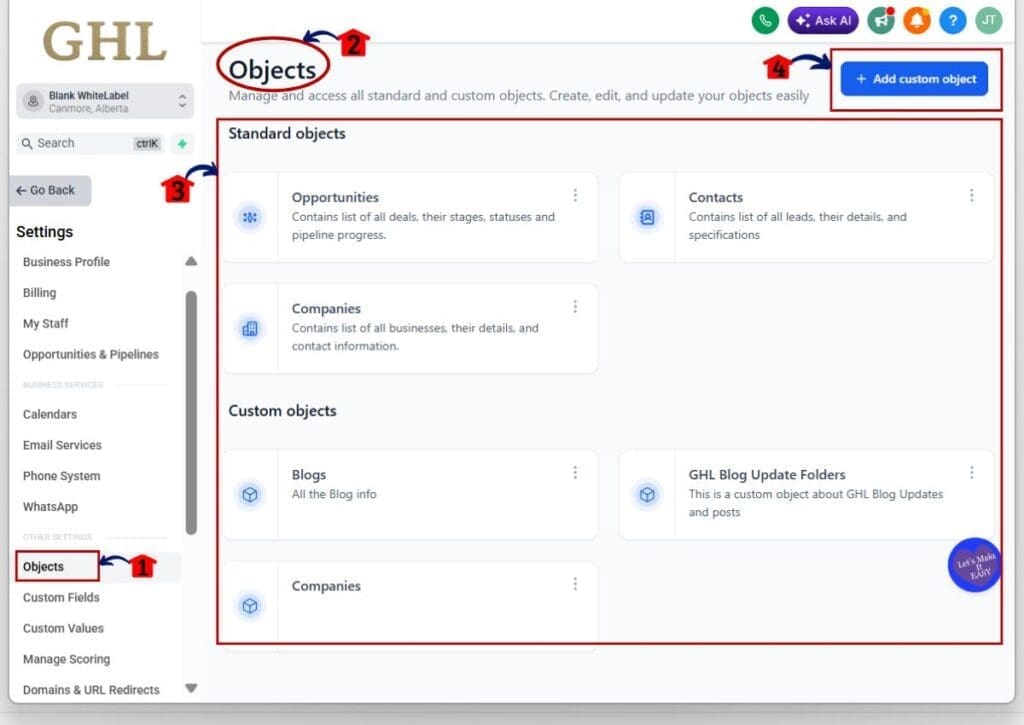
- This is where you manage standard objects and custom objects.
2.1 In the Settings menu, click Objects.
2.2 Confirm you are on the Objects page.
2.3 Look to the top right and find the Add custom object button.
2.4 Click Add custom object.
Step 03 – Start the template flow
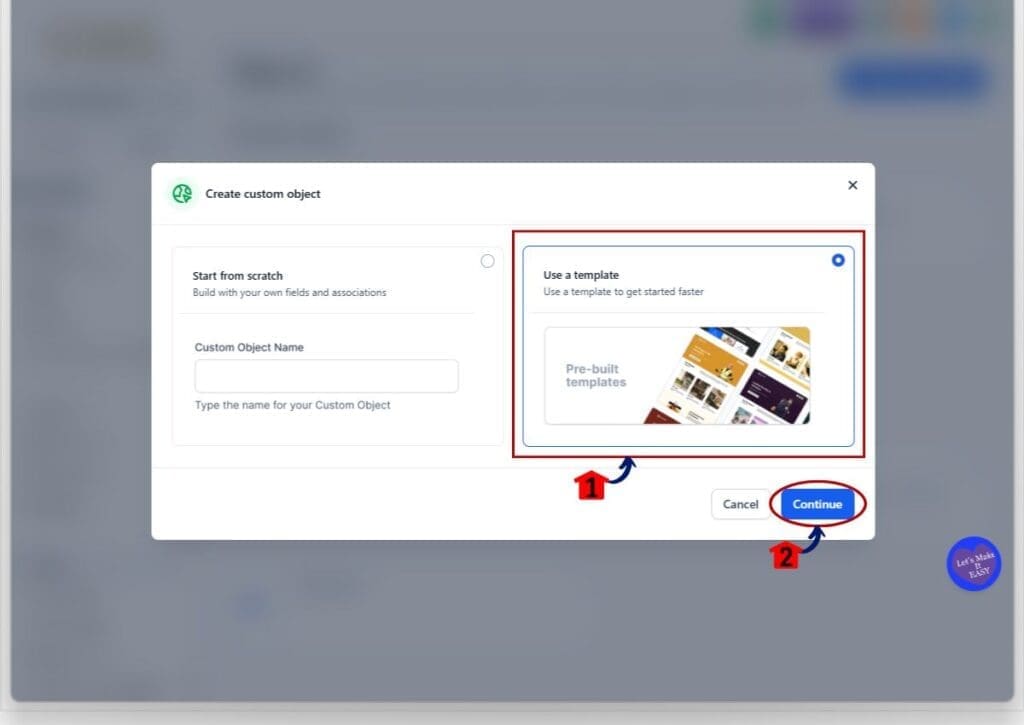
- This is where you choose to import a template instead of starting from scratch.
3.1 Select Use a template.
3.3 Click Continue button.
Step 04 – Browse Custom Object Templates in the Template Library
- This is where you can filter by category and pick the right template.
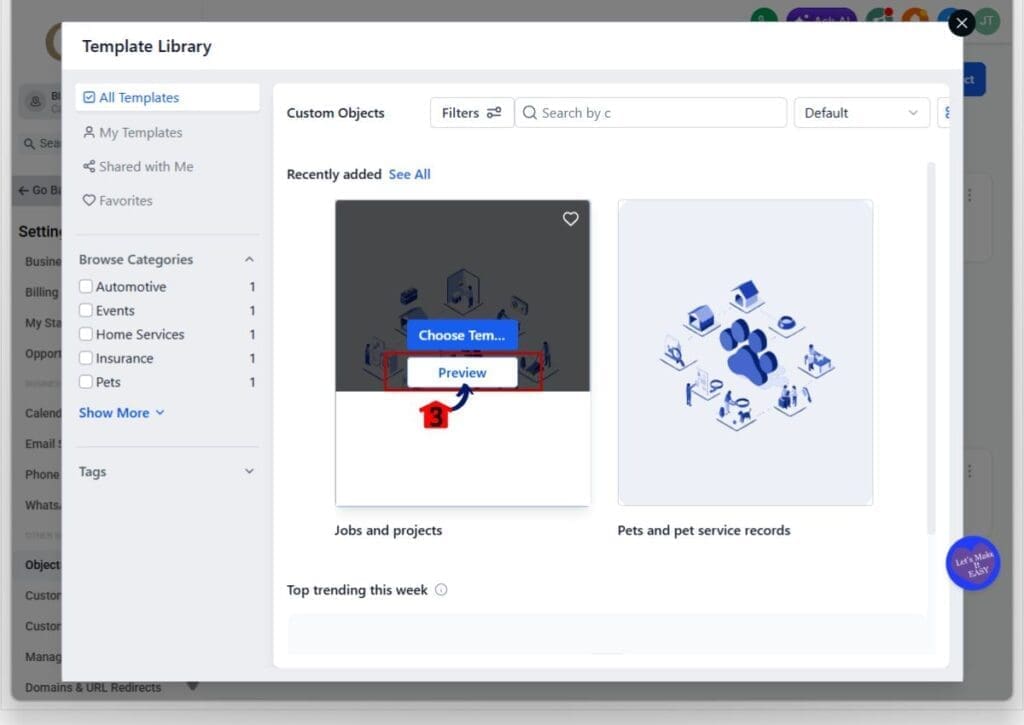
4.1 In the Template Library, confirm you are in the Custom Objects section.
4.2 Use Browse Categories on the left to filter by niche (Example: Home Services, Pets, Insurance).
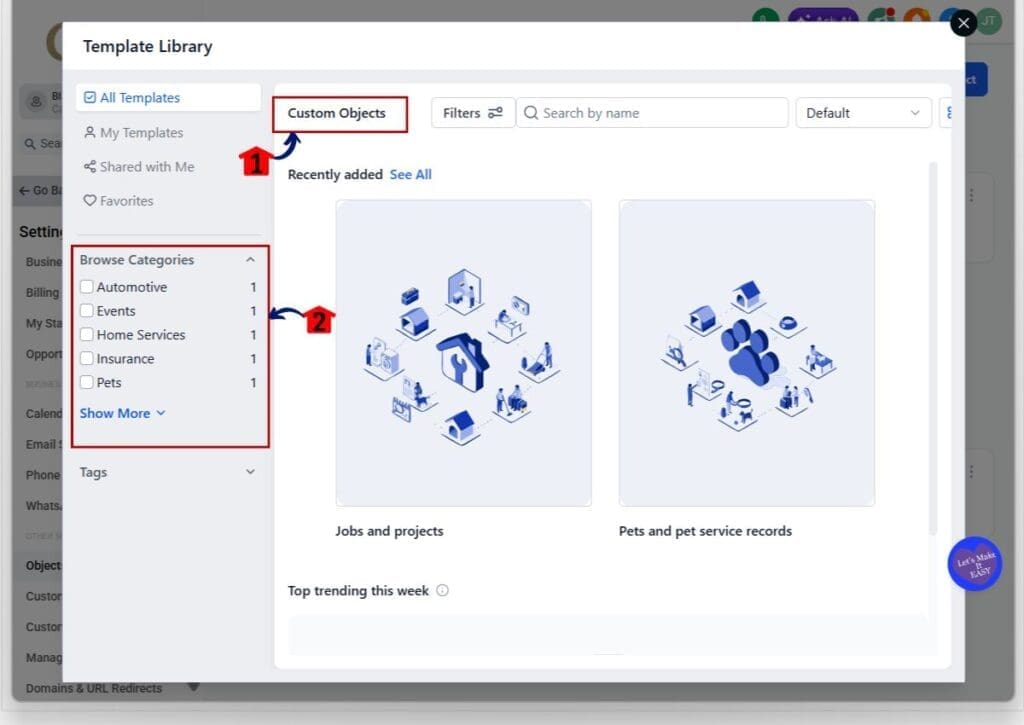
4.3 Click Preview on a template card if you want to see details before choosing it.
Step 05 – Open and Choose the template
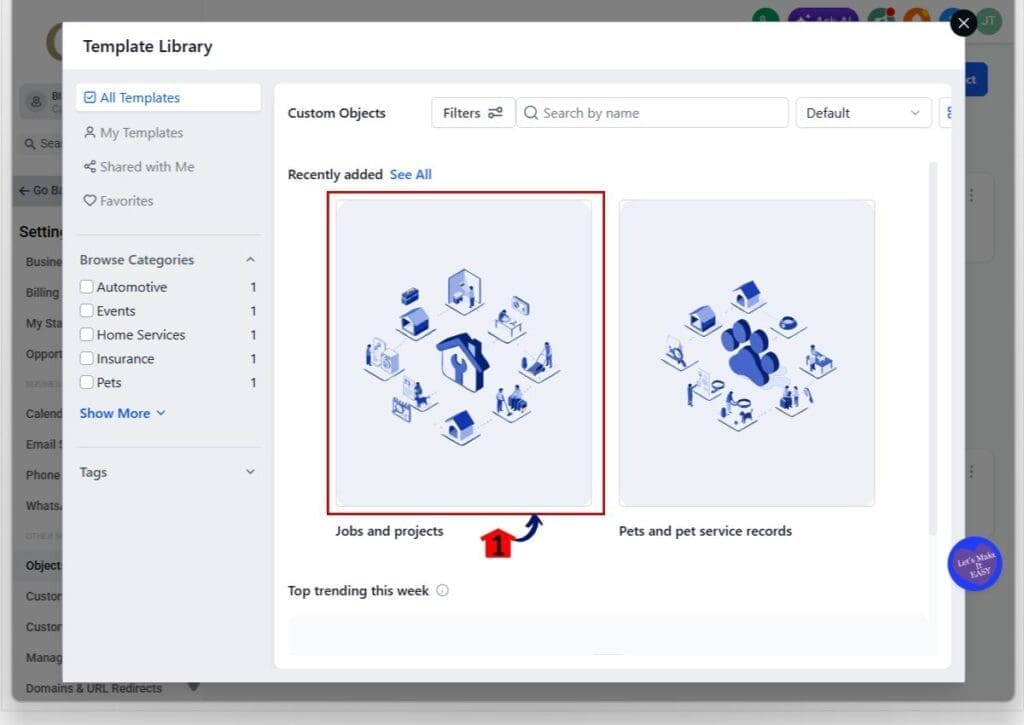
- This is where you can read what the template includes before applying it.
5.1 Click the template card to open it (Example: Jobs and projects).
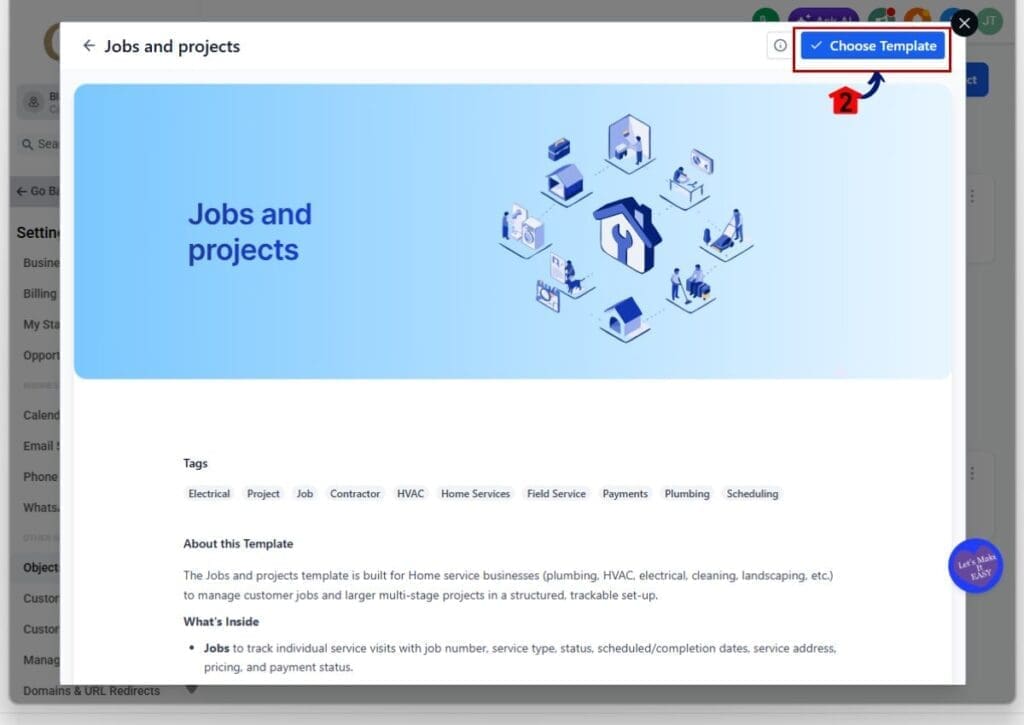
5.2 Click the Choose Template button.
- A pop-up window will appear.
Step 06 – Review items to import, then import objects
- This is the final checkpoint before anything is added to your account.
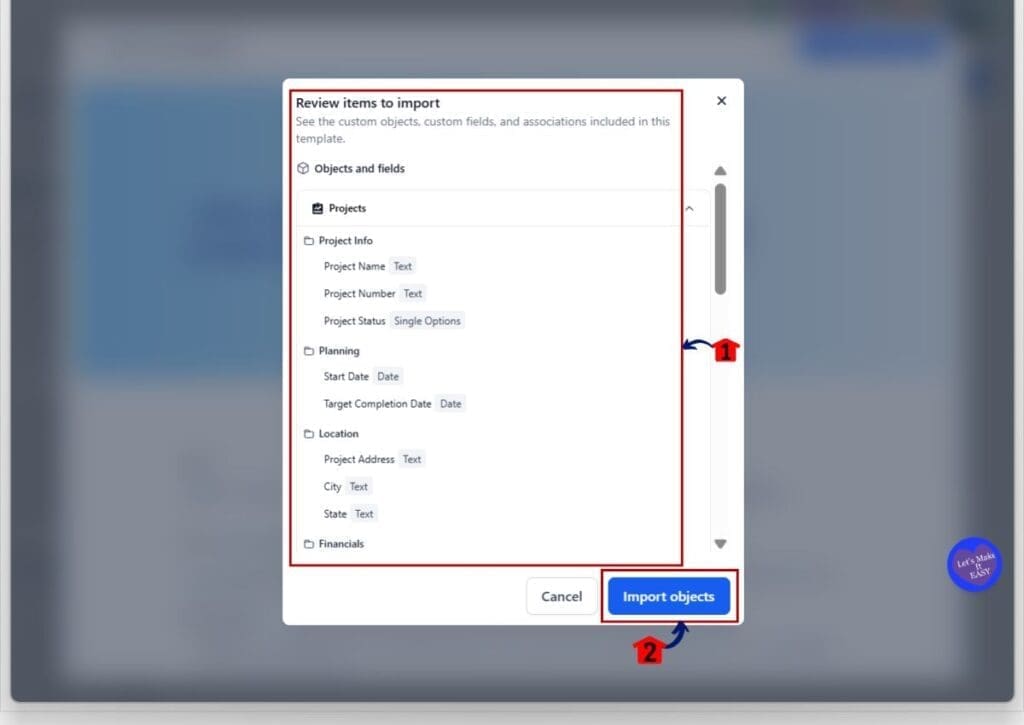
6.1 In the Review items to import window, review Objects and fields.
- Scroll the list and check the field folders and key fields.
6.2 Click Import objects button.
6.3 After the import, return to Objects and confirm the new custom objects appear in the list.
Pro Tips for Custom Object Templates
Start small with Custom Object Templates, even if the template looks perfect. Import it, run a few real records through it, and then decide what needs to change. Most teams break their CRM by over-customizing on day one, before anyone has used it in the real world.
Pick one person to “own” the object setup. In agencies, this is usually the admin or ops lead. If everyone edits fields and folders, it gets messy fast. A simple rule helps: import first, test second, then make changes with a clear reason.
Keep naming consistent across sub-accounts. If you call it “Service Job” in one location and “Work Order” in another, your reporting and workflows become harder to reuse. Consistent object names also make staff training easier, especially when you onboard new VAs.
Use the folders as your guardrails. If a field does not belong, move it into a better folder or remove it. Clean navigation reduces wrong data entry, and wrong data entry is what kills automation later.Agency admin tip: use Template Library settings to hide templates your niche will never use. This keeps clients from importing the wrong structure and creating cleanup work for your team later.
Results You Can Expect From Custom Object Templates
Custom Object Templates speed up CRM setup, but the real result is a cleaner system that your team can actually use. When objects, fields, and associations are created the right way from the start, you spend less time fixing your CRM and more time running the business.
You can expect faster onboarding for new sub-accounts. Instead of spending hours building a structure, you import a template, do a quick review, and start tracking real records. That alone can cut your client setup time down a lot, especially if you onboard in batches.
You can also expect more consistent data entry. Field folders keep the view cleaner, so staff are less likely to miss fields or type notes into the wrong spot. Cleaner inputs lead to cleaner reporting, and cleaner reporting leads to better decisions.
The biggest long-term win is automation readiness. Since associations are already in place, your records connect to the right contacts and companies. That makes it easier to build workflows that reference the right data, and it reduces the “why didn’t this trigger?” problems that happen when records are not linked correctly.
Frequently Asked Questions About Custom Object Templates
Custom Object Templates
Custom Object Templates make GoHighLevel CRM setup faster and cleaner. Instead of building Custom Objects one piece at a time, you can import an industry-ready structure with fields in folders and associations already in place.
For agencies, this is a simple way to standardize how you build sub-accounts. You start with a solid baseline, test it with real records, then make small changes based on how your team actually works. That keeps your CRM easy to use, easy to train on, and easier to scale.
Have you tried Custom Object Templates yet? If you have, which industry template are you starting with, and what did you change after the import?
Scale Your Business Today.
Streamline your workflow with GoHighLevel’s powerful tools.


