

- Introduction – GHL Workflow Task Scheduling
- Quick Summary – Workflow Task Scheduling
- Here are this weeks HighLevel Updates
- Why Workflow Task Scheduling Matters in GHL
- What’s New in GHL Workflow Task Scheduling
- What’s Changed in GHL Workflow Task Scheduling
- How to Use GHL Workflow Task Scheduling
- Pro Tips for Smarter Workflow Task Scheduling in GHL
- Real-World Applications of Workflow Task Scheduling in GHL
- FAQs About Workflow Task Scheduling in GHL
- Conclusion: Smarter Workflow Task Scheduling in GHL
Introduction – GHL Workflow Task Scheduling
If you’ve ever built task automation inside GHL, you know the real challenge isn’t creating the Workflow Task Scheduling. It’s controlling the timing properly. Setting short delays was easy. Planning follow-ups weeks or months out with exact due times? Not so much. And if you needed tasks to land at a specific hour or avoid weekends, things got clunky fast.
It worked, sure. But it wasn’t flexible.
Now, Workflow Task Scheduling inside GHL gives you real control over how and when tasks are created. Instead of being locked into short day-based delays, you can set due dates using days, weeks, months, or even years. You can assign an exact due time. You can exclude weekends. And you can see a live preview of the final evaluated date before saving anything.
No more guessing. No more mental math.
You can also format task descriptions with rich text, so your team gets clean, structured instructions instead of a plain text block. What you write is exactly what they see.
For agencies running complex automations, this is a serious upgrade. Smarter Workflow Task Scheduling reduces timing errors, improves follow-up precision, and makes long-term automation planning inside GHL far more practical. What used to feel limited now feels controlled.
The latest GoHighLevel Changelog includes several other GHL feature updates that round out your daily workflow:
- New QR Code Styling Options: Shapes, Borders, and Rim Text
- Collapse & Resize Pipeline Stages in Kanban View
- Notes just got smarter for the contacts page!
- New Asana actions in workflows – Find Project and Find section
- Email AI + Knowledge Base Integration 🚀
- Dialer: Auto-minimize, Pin & Drag
- Schema Markup Using AI
Keep reading for much more on all these updates and a deep dive into the Workflow Find Replace feature!
Quick Summary – Workflow Task Scheduling
Purpose: This update enhances Workflow Task Scheduling inside GHL by allowing flexible due dates, exact time control, weekend exclusions, live previews, and rich text task descriptions.
Why It Matters: It removes previous task timing limitations and gives agencies and teams more precision when planning automated follow-ups and internal execution steps.
What You Get: You can now schedule tasks using days, weeks, months, or years, assign a specific due time, skip weekends automatically, preview the evaluated due date, and format task instructions clearly.
Time to Complete: Setting up the improved task configuration takes less than five minutes inside any workflow.
Difficulty Level: Beginner-friendly. If you can build a workflow, you can configure the new task scheduling settings.
Key Outcome: Smarter Workflow Task Scheduling means fewer missed follow-ups, better operational structure, and more scalable automation systems inside GHL.
Here are this weeks HighLevel Updates
New QR Code Styling Options: Shapes, Borders, and Rim Text
What it does:
Lets you stop using boring QR codes. You can now tweak the shape, style the border, and add text around the edge.
Where in GHL:
Accessible via Sites → QR Codes and within QR tools embedded in Funnel and Website builders.
Automate marketing, manage leads, and grow faster with GoHighLevel.

Impact:
Improves visual presentation and brand alignment while increasing scan appeal.
Best suited for:
Agencies that care about branding, small businesses running local promotions, online stores, and teams pushing QR campaigns.
Collapse & Resize Pipeline Stages in Kanban View
What it does:
Lets you hide pipeline stages you’re not actively using and adjust column widths so your board fits the way you work.
Where in GHL:
Inside Opportunities when you’re viewing your pipeline in Kanban mode.
Impact:
No more dragging your screen forever just to find the deals that matter.
Best suited for:
Owners running multi-stage pipelines, reps working deals every day, and anyone fed up with a messy board.
Notes Just Got Smarter for the Contacts Page
What it does:
Upgrades the notes area so it’s easier to write, review, and keep things organized inside a contact record.
Where in GHL:
Found directly within each contact’s profile under Notes.
Impact:
Makes it simpler to see what’s been discussed and who added what — without digging through clutter.
Best suited for:
Teams collaborating on accounts and businesses that document every client touchpoint.
New Asana Actions in Workflows – Find Project & Find Section
What it does:
Lets your workflow check what already exists in Asana before adding anything new.
Where in GHL:
Go to Workflows, add an action, and choose the Asana integration.
Impact:
No more duplicate projects. No more messy task boards. Just cleaner automation.
Best suited for:
Operations teams and agencies that rely on Asana to manage client delivery.
Email AI + Knowledge Base Integration
- What it does:
Allows Email AI to reference your Knowledge Base for smarter, more accurate responses. - Where in GHL:
Found in Conversations → Email composer with AI enabled and Knowledge Base settings under AI configuration. - Impact:
Smarter email suggestions that understand your business and help you reply quicker. - Best suited for:
Support teams, agencies managing inboxes, and businesses scaling communication with AI.
Dialer: Auto-Minimize, Pin & Drag
- What it does:
Lets you auto-minimize the dialer during calls, pin it in place, and drag it anywhere on screen. - Where in GHL:
Found in Conversations → Dialer. - Impact:
Cleaner workspace and easier multitasking during sales or support calls. - Best suited for:
Sales teams, outbound callers, appointment setters, and agencies making daily calls.
Schema Markup Using AI
- What it does:
Generates structured schema markup automatically using AI for SEO enhancement. - Where in GHL:
Found in Sites → Website or Funnel settings within AI or SEO sections. - Impact:
Improves search visibility without manual coding. - This works well for:
Teams building websites that need stronger search visibility, from agencies to small local businesses.
Why Workflow Task Scheduling Matters in GHL
Workflow Task Scheduling is one of those features you don’t think about until it breaks your system. Tasks drive follow-up. Follow-up drives revenue. If your timing is off, everything downstream feels sloppy.
Up until now, task deadlines were stuck in short day-based increments. That worked for quick follow-ups, but not for structured planning. Want something due 30 days out at 9:00 AM sharp? It wasn’t built for that. You had to improvise.
With the new update, you don’t. You can schedule tasks the way your business actually runs.
With smarter Workflow Task Scheduling in GHL, you can:
- Assign tasks weeks, months, or even years out
- Choose the exact time the task becomes due
- Skip weekends automatically
- Preview the evaluated due date before saving
- Create formatted task instructions your team can actually read
That’s not just convenience. That’s operational clarity.
For agencies, this means fewer missed follow-ups and cleaner delegation to account managers and VAs. For sales teams, it means calls happen at the right time, not just “sometime that day.” For service businesses, it means structured onboarding and long-term nurture without manual reminders.
When you’re running a lot of automations, timing isn’t a small detail. It changes outcomes. An 8:00 AM task hits differently than one that shows up at 4:45 PM. And if you’ve ever walked into a Monday buried in weekend spillover, you know how frustrating that is. A few small timing adjustments can make your whole system feel calmer and more organized.
This upgrade turns Workflow Task Scheduling from basic to strategic.
What’s New in GHL Workflow Task Scheduling
This isn’t a small tweak. GHL upgraded multiple parts of the Add Task workflow action at once. The result is more control, better visibility, and cleaner task delivery for your team.
Here’s exactly what’s new inside Workflow Task Scheduling.
Flexible “Due In” Time Units
Instead of being locked into short-term day delays, you can now set task deadlines using:
- Days
- Weeks
- Months
- Years
That means long-term follow-ups are finally practical inside workflows. You can build 30-day check-ins, 90-day nurture tasks, or even annual client follow-ups without stacking messy delays.
Specific Due Time Selection
It used to be vague. Tasks were due that day… but when, exactly? Now you decide. 10:30 AM follow-up? No problem. 8:00 AM onboarding review so it’s the first thing handled? Set it and forget it.
This gives your team consistency. And consistency creates better execution.
Exclude Weekends Toggle
This one is simple but powerful. If you enable “Exclude Weekends,” GHL automatically skips Saturdays and Sundays when calculating the due date. The system adjusts the deadline forward using the same logic you see in the preview. No more Monday overload from weekend-triggered automations.
Live Due Date Preview
This is where things get smarter. As you configure the Due In value and time settings, GHL shows a live preview of what the final due date and time would be if the workflow ran right now.
No guessing. No mental math. No surprise deadlines. You see the evaluated result before you save.
Rich Text Task Descriptions
Task descriptions are no longer plain text only.
You can now format instructions using rich text formatting. That means:
- Structured instructions
- Line breaks
- Clean formatting
- Better readability
And the formatting is preserved when the task is saved and displayed across task surfaces inside GHL.
That’s a big upgrade for agencies assigning detailed client tasks.
These improvements together transform Workflow Task Scheduling from basic delay logic into a real operational tool.
What’s Changed in GHL Workflow Task Scheduling
To understand how big this upgrade is, you need to remember how Workflow Task Scheduling used to work inside GHL. It was basic.
Previously, the Add Task action allowed you to set a due date based only on a short day-based delay. That meant:
- No long-term scheduling beyond simple day increments
- No way to choose a specific time of day
- No visibility into the final evaluated due date
- No weekend logic control
- Plain text only for task descriptions
For basic reminders, it did the job. But the second you tried building a real automation system around it, you could tell it wasn’t built for that.
If you wanted a 2-week follow-up at exactly 10:30 AM, you couldn’t control the time. If you wanted to skip weekends, you had to manually adjust logic elsewhere. And if you were assigning detailed instructions, you were stuck with plain text blocks that weren’t easy to scan. Now that’s changed.
Workflow Task Scheduling in GHL now supports:
- Extended time units beyond days
- Exact due time selection
- Optional weekend exclusion
- Live preview before saving
- Rich text formatting that stays intact
The difference is control. Instead of working around limitations, you’re configuring task timing precisely the way your business operates. That makes workflows more predictable, more professional, and easier to scale.
For agencies managing multiple client automations, this upgrade removes friction. What used to require workaround thinking now works the way you’d expect from a modern automation platform.
This isn’t flashy. But it’s foundational.
How to Use GHL Workflow Task Scheduling
You will complete this setup inside the Workflows area of your GHL sub-account. In the steps below, you will open a workflow, add or edit an Add Task action, configure the new Due In time units, set a specific due time, enable weekend exclusions if needed, and format your task description using rich text.
By the end of this process, you will have a properly scheduled automated task with a verified due date using the live preview. Follow the steps carefully to ensure your timing and formatting are configured correctly.
- Access the Main Left Hand Menu in GoHighLevel.
- Add the Add Task Action in Workflow.
- Configure the “Due In” Field and Set a Specific Due Time.
- Enable “Exclude Weekends” Toggle (Optional).
- Add a Rich Text Task Description in the Action.
- Save and Test Your Workflow.
To start, make sure you are logged in to your GoHighLevel sub-account.
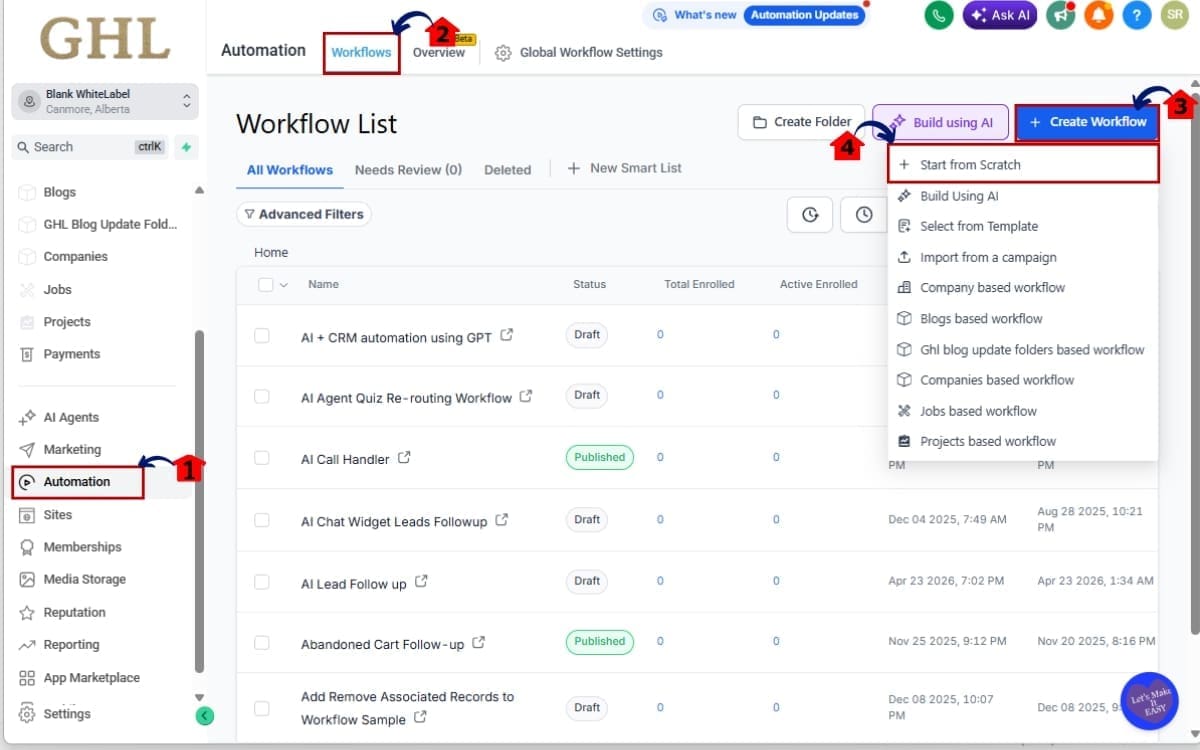
Step 01 – Access the Main Left Hand Menu in GoHighLevel
- The Main Menu on the left side of your screen contains all the core working areas inside GHL.
1.1 Click on the “Automation” menu item.
- This opens the Automation dashboard where all workflow tools are located.
1.2 Click on “Workflows.”
- This takes you to the Workflow management area where you can view, edit, or organize your automations.
1.3 Click “Create Workflow” to build a new one.
- This starts the workflow creation process and opens the workflow setup options.
1.4 Choose “Start from Scratch” or use a template.
- Select “Start from Scratch” to build a custom workflow or choose a template to modify an existing framework.
Step 02 – Add the Add Task Action in Workflow
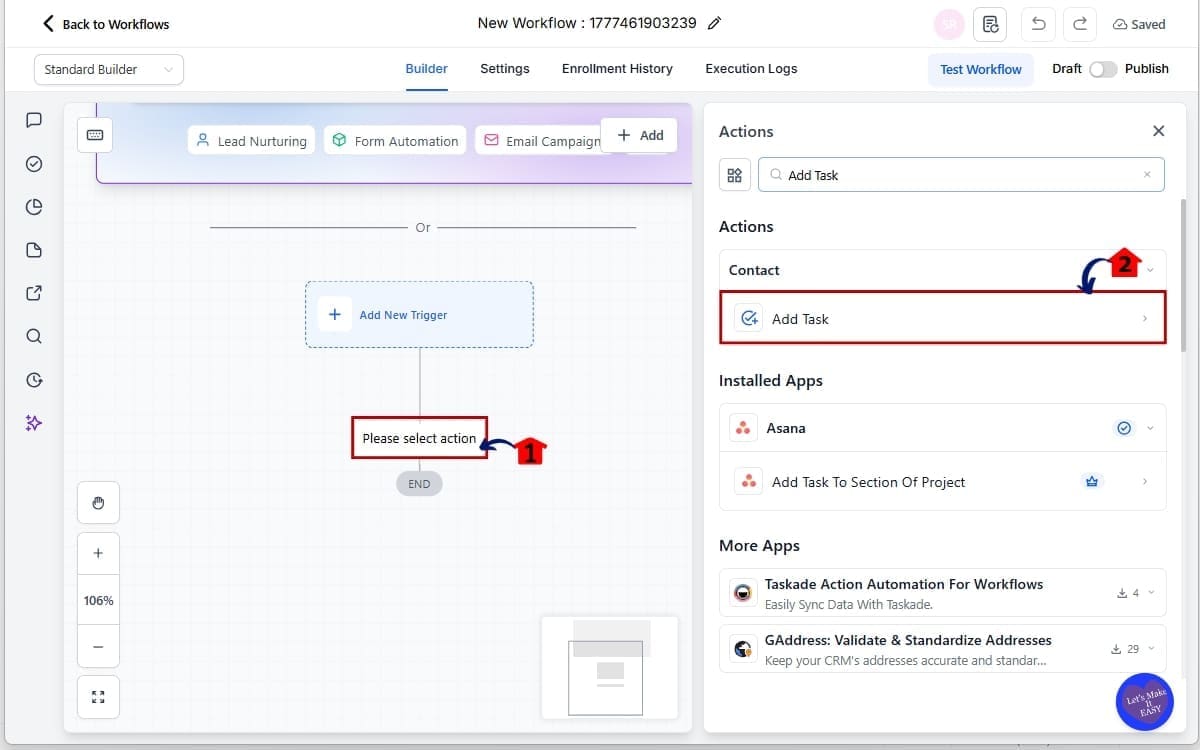
- In this step, you will insert the task into your workflow. This is where the new Workflow Task Scheduling settings become available and where you will configure the task timing and details.
2.1 Inside the workflow canvas, click the “+” button where you want the task to be created.
- This allows you to insert a new action at that specific point in your automation sequence.
2.2 From the action list, choose “Add Task.”
- This opens the Add Task configuration panel where you will set the task details and scheduling options.
Step 03 – Configure the “Due In” Field and Set a Specific Due Time
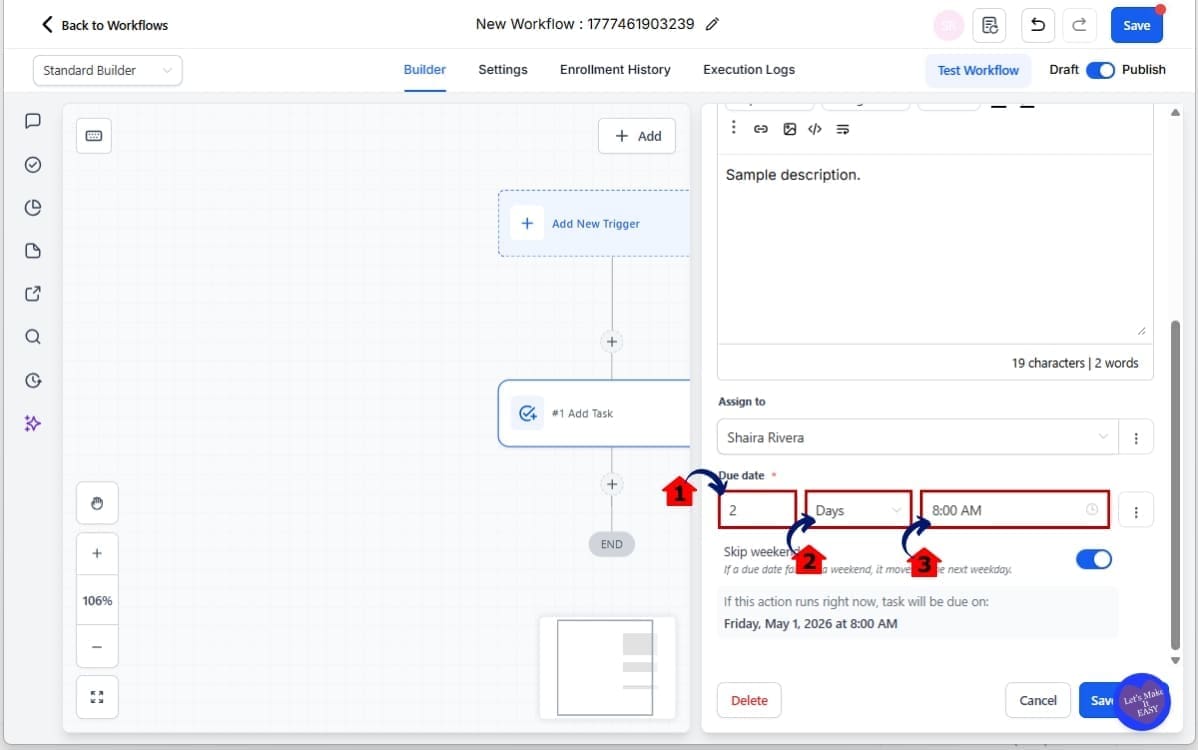
- In this step, you will define when the task becomes due. This is where you control the timeframe and exact deadline using the upgraded Workflow Task Scheduling options.
3.1 Locate the “Due In” input field and enter a numeric value.
- Example: 2. This number represents how far out the task will be scheduled from the workflow trigger.
3.2 Select the time unit from the dropdown.
- Example: Days. Choose from Days, Weeks, Months, or Years depending on how far in advance you want the task due.
3.3 Locate the Due Time setting and select the exact time the task should be due.
- Example: 8:00 AM for morning call blocks. Setting a specific time ensures the task appears when your team is actually scheduled to take action.
Step 04 – Enable “Exclude Weekends” Toggle (Optional)
- In this step, you can control whether task deadlines should avoid weekends. This setting ensures tasks are assigned only on working days if your business does not operate on Saturdays or Sundays.
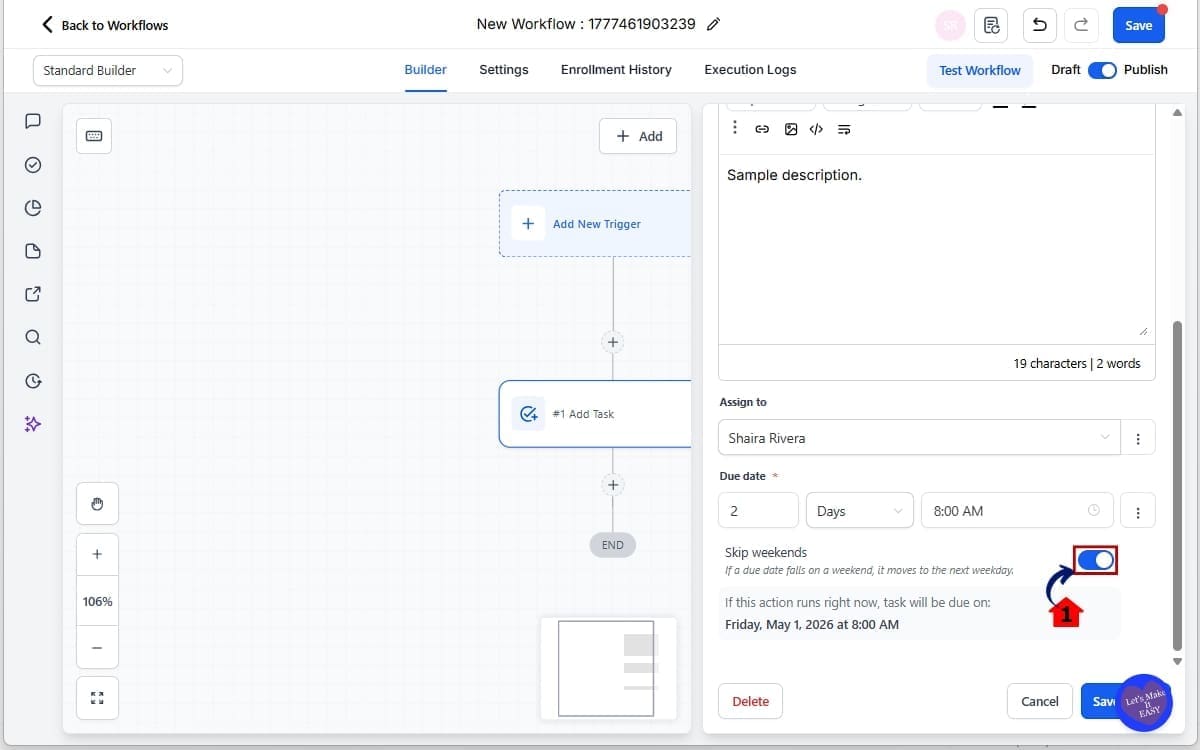
4.1 Toggle on “Exclude Weekends” if you do not want deadlines landing on Saturdays or Sundays.
- When enabled, GHL automatically moves the due date forward to the next available business day.
Step 05 – Add a Rich Text Task Description in the Action
- In this step, you will enter the task instructions and format them for clarity. This ensures your team understands exactly what needs to be completed when the task appears.
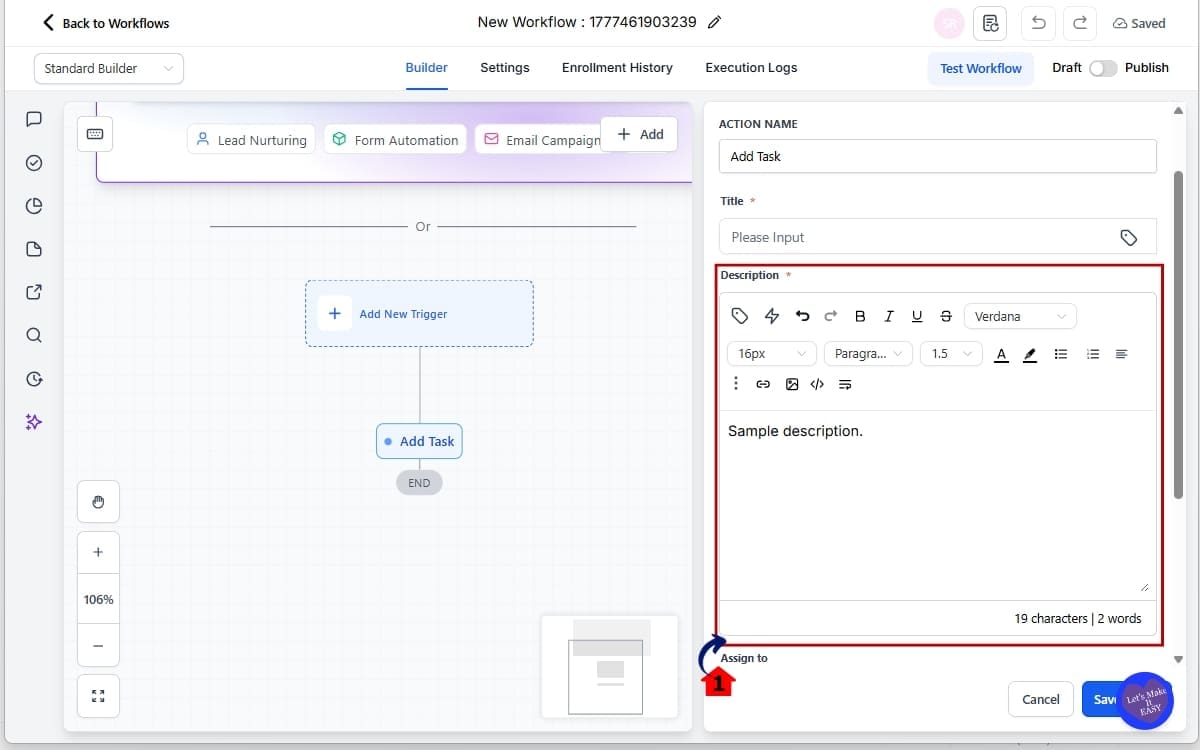
5.1 Scroll to the Task Description field and enter your instructions.
- Use the rich text formatting tools to organize the content clearly and improve readability.
Step 06 – Save and Test Your Workflow
- In this final step, you will test the workflow to confirm the task timing and formatting are working correctly before making it live. This helps prevent errors and ensures your task is scheduled exactly as intended.
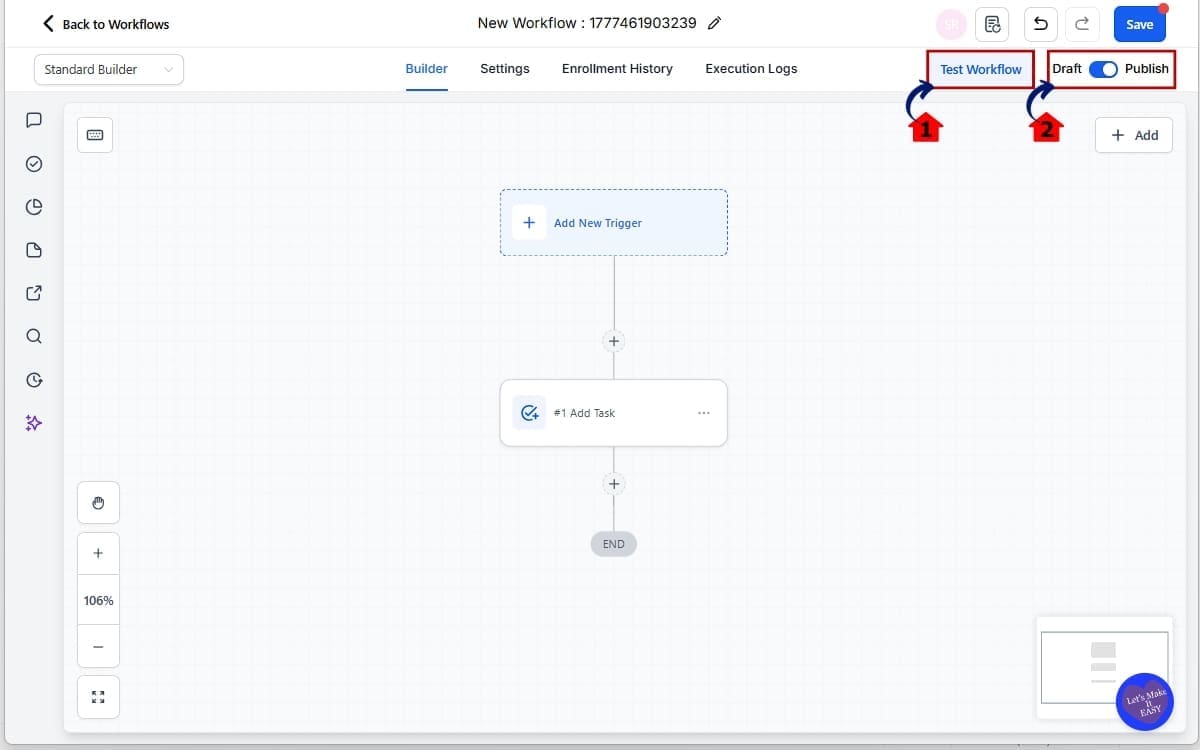
6.1 Click “Test Workflow.”
- This allows you to run a test contact through the workflow to verify the task is created with the correct due date and time.
6.2 Click “Publish.”
- Publishing activates the workflow so it can run automatically for live contacts.
6.3 Click “Save.”
- Saving ensures all recent changes are stored and prevents any configuration from being lost.
Testing prevents surprises later. That’s it. You’ve now configured smarter Workflow Task Scheduling inside GHL.
Pro Tips for Smarter Workflow Task Scheduling in GHL
Alright, you know how it works. Now let’s talk about how to actually use it properly. Because just turning it on isn’t the same as using it strategically. A few small adjustments can mean fewer errors and a much smoother setup inside GHL.
Standardize Your Due Times
Don’t randomly assign times.
Pick consistent task blocks like:
- 8:00 AM for morning outbound calls
- 10:30 AM for scheduled follow-ups
- 4:00 PM for admin review tasks
When your team knows tasks always land at predictable times, execution improves. Random timing creates friction.
Use Months for Long-Term Nurture
Most people only think in days. But now you can use months.
Examples:
- 3-month client check-in
- 6-month reactivation call
- 12-month renewal reminder
This makes Workflow Task Scheduling powerful for retention and upsell systems.
Always Review the Live Preview
This sounds obvious. But don’t skip it.
The live preview shows you exactly when the task will be due if triggered right now. Use that to double-check:
- Weekend adjustments
- Time zone assumptions
- Long-term date calculations
If the preview looks off, fix it before saving.
Use Rich Text for Clarity
If you assign detailed tasks, structure them.
Instead of writing:
Call client about onboarding and ask about assets and timeline
Format it like this:
- Confirm onboarding assets received
- Review timeline expectations
- Schedule kickoff call
Clean formatting reduces mistakes. Especially when delegating to VAs.
Pair Tasks with Pipeline Triggers
Workflow Task Scheduling becomes even stronger when tied to:
- Pipeline stage changes
- Appointment no-shows
- Form submissions
- Payment events
This creates contextual tasks instead of generic reminders.
Avoid Over-Automating Tasks
Just because you can schedule tasks months out doesn’t mean you should flood your team. Too many automated tasks create noise. Be intentional. Only automate what requires human action.
Use “Exclude Weekends” Strategically If your team works Monday to Friday, turn it on. If you run a 7-day sales operation, leave it off.
Don’t assume. Match your real-world business schedule. Small configuration decisions make a big difference at scale.
When used properly, Workflow Task Scheduling in GHL becomes less about reminders and more about structured execution.
Real-World Applications of Workflow Task Scheduling in GHL
This is where smarter Workflow Task Scheduling stops being a feature… and starts becoming leverage. Let’s look at how this plays out in real businesses.
Real Estate Follow-Up System
A prospect tours a property. Your workflow triggers automatically.
You create a task:
- Have it land two weeks out
- Scheduled for 10:30 AM.
- Exclude Weekends: On
- Description: Structured follow-up checklist
Instead of “Call sometime that week,” your agent gets a task at 10:30 AM sharp on a weekday. Right in their call block. That increases connection rates.
Small timing improvement. Big impact.
Agency Client Onboarding
A new client signs. Your onboarding workflow fires.
You automatically create:
- A 7-day onboarding review task
- A 30-day performance check task
- A 90-day strategy review task
Each task has:
- Clean rich text instructions
- Clear action steps
- Standardized due time
No manual reminders. No sticky notes. No “Did we follow up?” Workflow Task Scheduling handles it.
Long-Term Nurture & Reactivation
Most businesses forget past clients. Now you don’t have to.
Build a workflow that creates:
- 6-month reactivation call
- 12-month renewal review
- 1-year testimonial request
Because you can now schedule in months or years, this becomes scalable. What used to require a spreadsheet now runs automatically inside GHL.
Appointment No-Show Recovery
A lead misses an appointment. Workflow triggers.
You create:
- Same-day follow-up task at 4:00 PM
- 3-day follow-up task
- 2-week re-engagement task
All precisely timed. Your team doesn’t guess. They execute. This is what smart Workflow Task Scheduling looks like in practice. It’s not about adding more tasks.
It’s about placing the right task at the right time with the right instructions. And once you start thinking this way, your workflows feel less like automation… and more like a managed operating system.
FAQs About Workflow Task Scheduling in GHL
Conclusion: Smarter Workflow Task Scheduling in GHL
Workflow Task Scheduling inside GHL just moved from basic to strategic.
You’re no longer stuck with short day-based delays. You’re no longer guessing what the final deadline will be. And you’re no longer assigning messy, plain-text task instructions that create confusion.
Now you can:
- Schedule tasks days, weeks, months, or years out
- Assign an exact due time
- Skip weekends automatically
- Preview the final evaluated due date
- Format task descriptions clearly
That’s real operational control.
For agencies, this means fewer missed follow-ups and cleaner delegation. For sales teams, it means calls happen when they should. For service businesses, it means structured onboarding and long-term client retention without manual reminders.
This update won’t grab headlines. But it will improve how your systems run every single day.
The team here at GHL Growth Garage loves upgrades like this because they reduce friction where it actually matters, execution.
If you haven’t updated your workflows yet, go test it. Add a task. Adjust the timing. Turn on weekend exclusions. Use the preview. You’ll feel the difference immediately.
Have you started using the new Workflow Task Scheduling inside GHL yet? How are you applying it inside your automations?
Let us know, and check back for more GHL Mini Guides that help you build smarter systems. 🚀
Scale Your Business Today.
Streamline your workflow with GoHighLevel’s powerful tools.


