

- Take Control of Community Navigation Tabs
- Quick Summary – Community Navigation Tabs
- Here are this week's HighLevel Updates 🚀
- Why Community Navigation Tabs Matter
- How to Customize Community Navigation Tabs
- Quick Tips for Better Community Navigation Tabs
- What Community Navigation Tabs Mean for Your Business
- Real-World Uses for Community Navigation Tabs
- FAQs – Community Navigation Tabs
- Build a Better With Community Navigation Tabs
Take Control of Community Navigation Tabs
Next time someone needs to move an appointment, try the new link and see how it fits into your workflow. For more GHL tips and walkthroughs, there’s plenty more waiting for you at Community Navigation Tabs.
You can now reorder Community Navigation Tabs to put your most important sections first, rename tabs to better match your brand or program, and hide tabs your members don’t need. That means a coaching community, membership program, client hub, or training portal can have navigation that makes more sense for the people using it.
This is especially useful for agencies building communities for different clients. One client may want Learning front and center, while another may care more about Events, Members, or Discussion. Instead of forcing every community into the same navigation structure, GoHighLevel now gives you more control over the member experience.
Community Navigation Tabs give you more control over how members move through your GoHighLevel community. Reorder, rename, and hide unnecessary tabs to create a cleaner experience that better matches your brand and how your members actually use the community.
The latest GoHighLevel Changelog includes several other GHL feature updates that round out your daily workflow:
- Wait Action Enhancement: TikTok DM Replies
- India Recurring Mandate Support for Affiliate Indian Signup Pages
- Housecall Pro – More Workflow Actions & Triggers
- Email Services Dashboard for Agencies
- Email Sequences Now Available in Beta Labs
- Group Your Contacts by Source in Dashboards & Reporting
- MMLite Adoption Banner in Conversations
Keep reading for much more on all these updates and a deep dive into the Community Navigation Tabs feature!

Quick Summary – Community Navigation Tabs
Purpose: This GoHighLevel update gives community admins and owners more control over Community Navigation Tabs, including their order, names, and visibility.
Why It Matters: Better Community Navigation Tabs help remove unnecessary clutter and make it easier for members to find the content, events, discussions, and resources that matter most.
What You Get: You can reorder tabs, create custom tab labels, and show or hide supported sections to better match your community’s structure and branding.
Time To Complete: Most community owners should be able to review and customize their Community Navigation Tabs in about 5–10 minutes.
Difficulty Level: Beginner-friendly. The new controls are managed directly from the Community Tabs settings and don’t require coding or advanced GHL knowledge.
Key Outcome: You get a cleaner, more intentional community navigation experience that better reflects your offer, your brand, and the way your members use your community.
Here are this week’s HighLevel Updates 🚀
Wait Action Enhancement: TikTok DM Replies
What’s New:
Instead of continuing after a fixed delay, your workflow can pause until someone replies to your TikTok DM.
Where in GHL:
Found in Automation → Workflows using the Wait action after sending a TikTok DM.
Automate marketing, manage leads, and grow faster with GoHighLevel.

Impact:
Your automation responds when someone actually joins the conversation, rather than after a timer runs out.
Recommended For:
Anyone using TikTok DMs to start conversations with potential customers.
India Recurring Mandate Support for Affiliate Indian Signup Pages
What’s New:
Supports recurring payment mandates for Indian affiliates, helping subscriptions comply with local banking requirements.
Where in GHL:
Available on Affiliate Program signup pages for users in India.
Impact:
Creates a smoother signup experience while reducing payment failures for recurring subscriptions.
Recommended For:
Agencies, SaaS businesses, and affiliate programs onboarding customers in India.
Housecall Pro – More Workflow Actions & Triggers
What’s New:
Adds new workflow triggers and actions for the Housecall Pro integration, giving you more ways to automate field service processes.
Where in GHL:
Inside Automation → Workflows when using the Housecall Pro integration.
Impact:
Expands automation possibilities between HighLevel and Housecall Pro, reducing manual work and improving operational efficiency.
Recommended For:
Home service businesses, field service companies, and agencies managing Housecall Pro clients.
Email Services Dashboard for Agencies
What’s New:
Introduces a centralized dashboard where agencies can monitor email services across their accounts.
Where in GHL:
Found in the Agency View under the new Email Services Dashboard.
Impact:
Makes it easier to monitor email health, identify issues, and manage deliverability from one place.
Recommended For:
Agency owners, support teams, and admins managing multiple client email services.
Email Sequences Now Available in Beta Labs
What’s New:
Introduces Email Sequences as a Beta Labs feature, providing another way to create structured email follow-up campaigns.
Where in GHL:
Enable it from Settings → Labs, then access Email Sequences after activation.
Impact:
Cuts down the time spent checking different areas just to see how your email services are performing.
Recommended For:
Marketers, agencies, coaches, and businesses running nurture campaigns or onboarding emails.
Group Your Contacts by Source in Dashboards & Reporting
What’s New:
Lets you organize contact reports based on where your leads originated.
Where in GHL:
Available within Dashboards & Reporting when viewing contact analytics.
Impact:
Makes it easier to compare lead sources and identify which marketing channels are producing the best results.
Recommended For:
Marketing teams, agency owners, and businesses tracking campaign performance across multiple lead sources.
MMLite Adoption Banner in Conversations
What’s New:
Displays a helpful banner inside Conversations to encourage users to adopt the new MMLite messaging experience.
Where in GHL:
Appears within the Conversations module for eligible accounts.
Impact:
Helps users discover and transition to MMLite while highlighting its benefits directly inside the messaging interface.
Recommended For:
Current HighLevel users exploring the latest messaging experience and teams preparing to migrate to MMLite.
Why Community Navigation Tabs Matter
A community should be easy to understand from the moment a member logs in. But not every community uses the same features in the same way. That’s why having more control over Community Navigation Tabs can make a real difference to the member experience.
For example, a coaching program may rely heavily on Learning and Events, while a networking group may want Discussion and Members to get more attention. With the new controls, you can move the sections that matter most higher in the navigation instead of making members hunt for them.
You can also rename Community Navigation Tabs to use language that fits your offer. If your members know your training area as an “Academy,” “Resource Hub,” or another branded term, you can adjust the label to make the navigation feel more familiar. Just remember that custom names display exactly as entered and aren’t automatically translated.
There’s also less reason to leave unused sections sitting in the menu. Supported tabs can be switched off when they aren’t relevant, helping you create a cleaner layout. Discussion and About are exceptions and can’t be disabled.
For agencies, this gives you another simple way to tailor GoHighLevel communities around each client. Instead of every community feeling like it came from the same template, the navigation can better reflect the client’s content, terminology, and member journey.
How to Customize Community Navigation Tabs
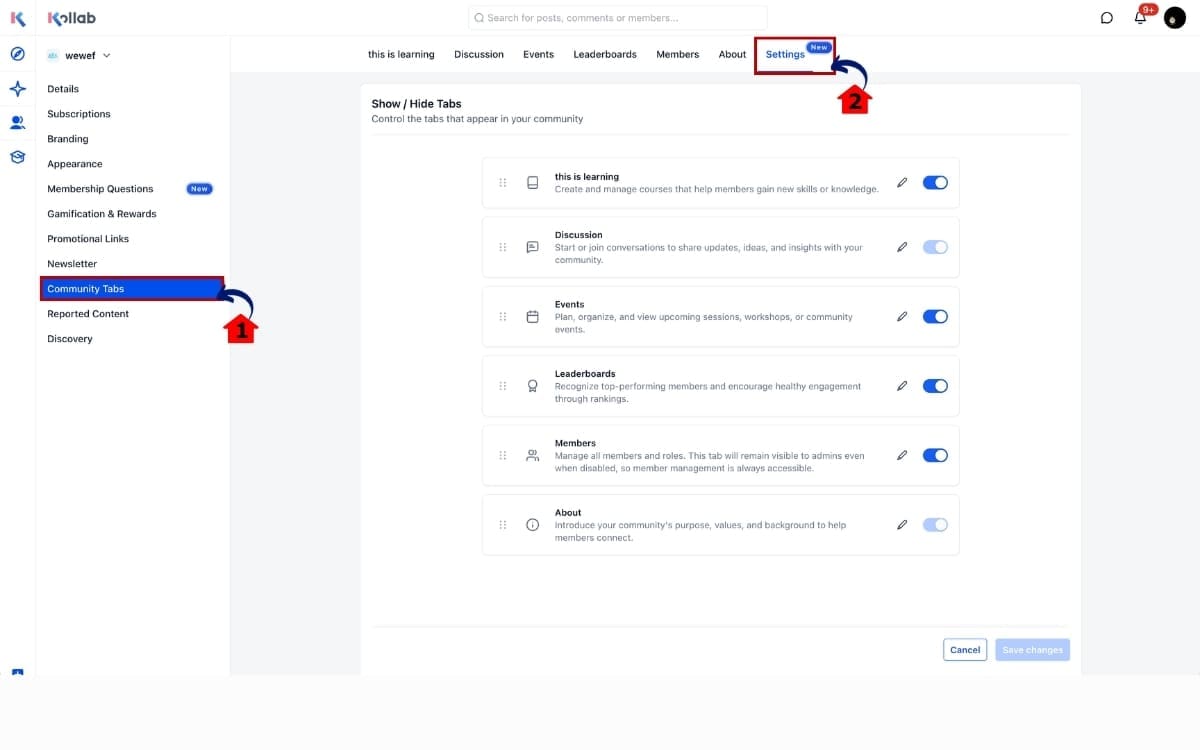
area in GoHighLevel. From here, you’ll reorder your tabs, rename them to match your community, show or hide the tabs you need, and save the new layout for your members.
You’ll need to be a community admin or owner to make these changes. Here are the steps to customize your Community Navigation Tabs in GoHighLevel.
- Access Your Community Tab Settings.
- Reorder Your Community Navigation Tabs.
- Rename Your Community Navigation Tabs.
- Show or Hide Community Navigation Tabs.
To start, make sure you’re logged in to the correct GoHighLevel sub-account.
Step 01 – Access Your Community Tab Settings
- This is where you can manage the order, names, and visibility of your Community Navigation Tabs.
1.1 Navigate to Settings → Community Tabs.
- This opens the area where admins and owners can customize how the community navigation appears to members.
1.2 You’ll see the available community tabs, including Discussion, Learning, Events, Leaderboards, Members, and About.
- From here, you can review your current layout before deciding which tabs to reorder, rename, show, or hide.
Step 02 – Reorder Your Community Navigation Tabs
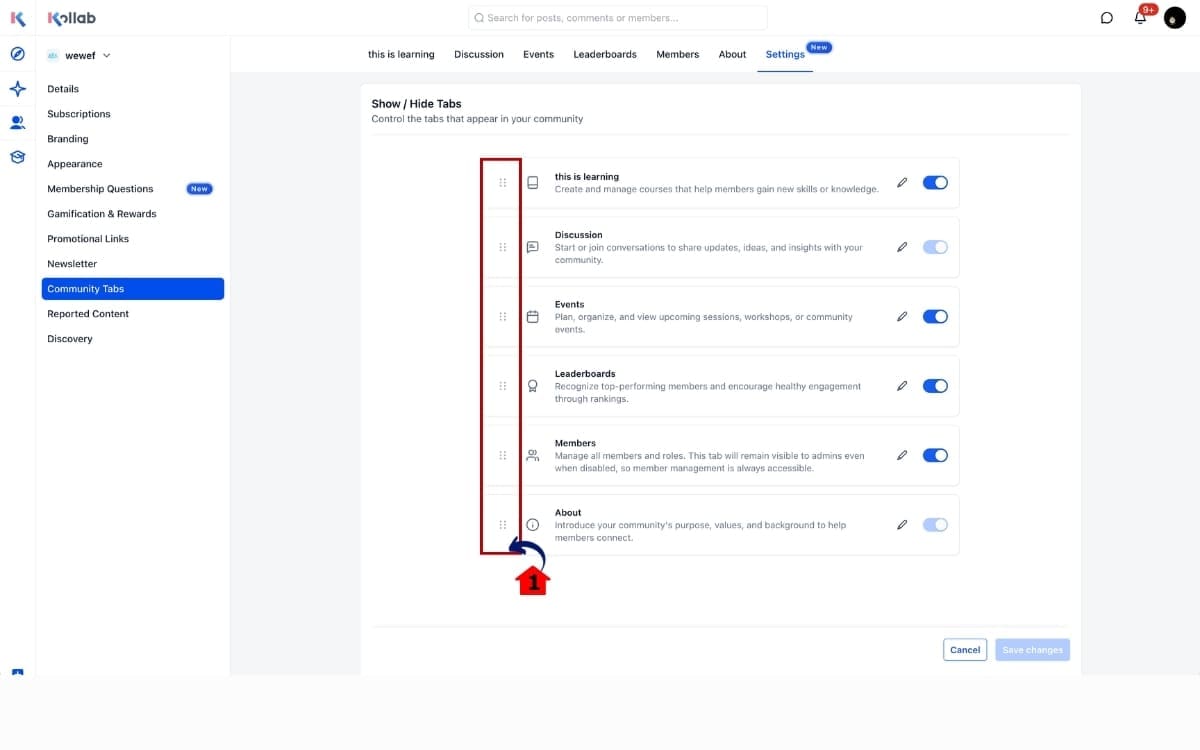
- Reordering your tabs lets you put the most important community sections where members can find them faster.
2.1 Find the drag handle beside the tab you want to move. Drag the tab into your preferred position.
- Repeat this process until the most important areas of your community appear where you want members to see them.
Step 03 – Rename Your Community Navigation Tabs
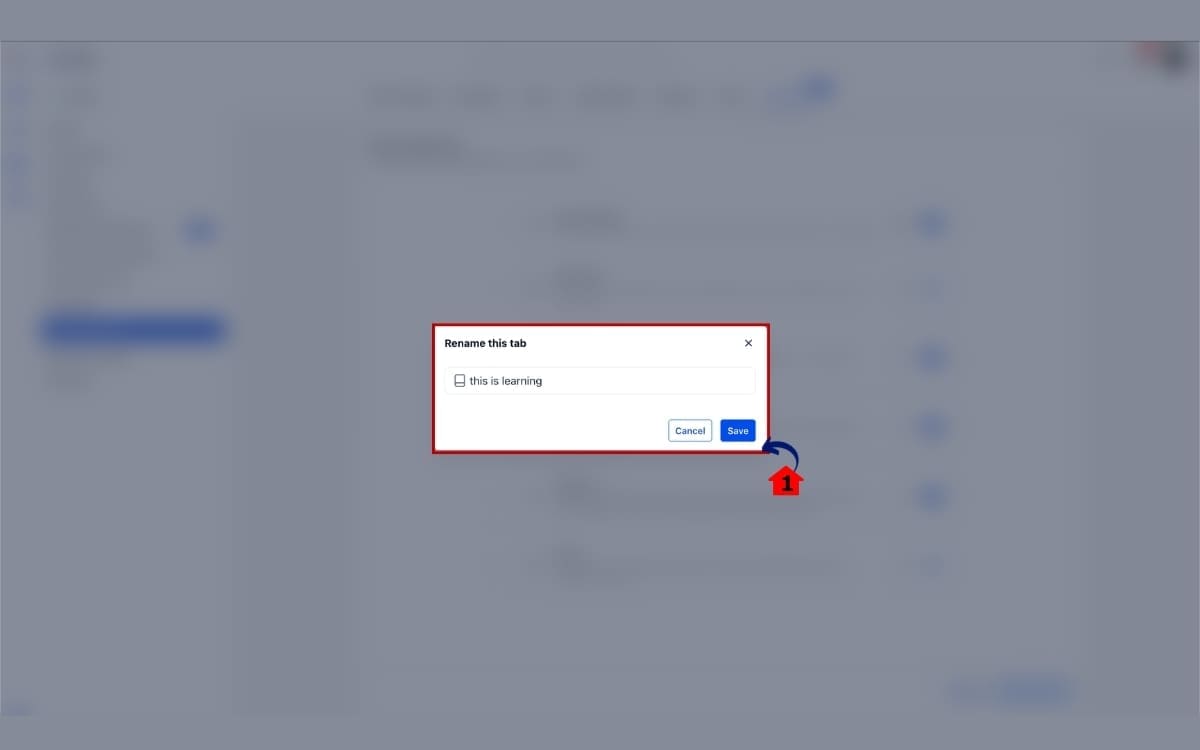
- Renaming tabs lets you use labels that better match your community, program, or brand terminology.
3.1 Enter your new custom label in the rename dialog.
- Choose names your members will immediately understand. Custom tab names aren’t translated, so members will see the wording exactly as you enter it.
Step 04 – Show or Hide Community Navigation Tabs
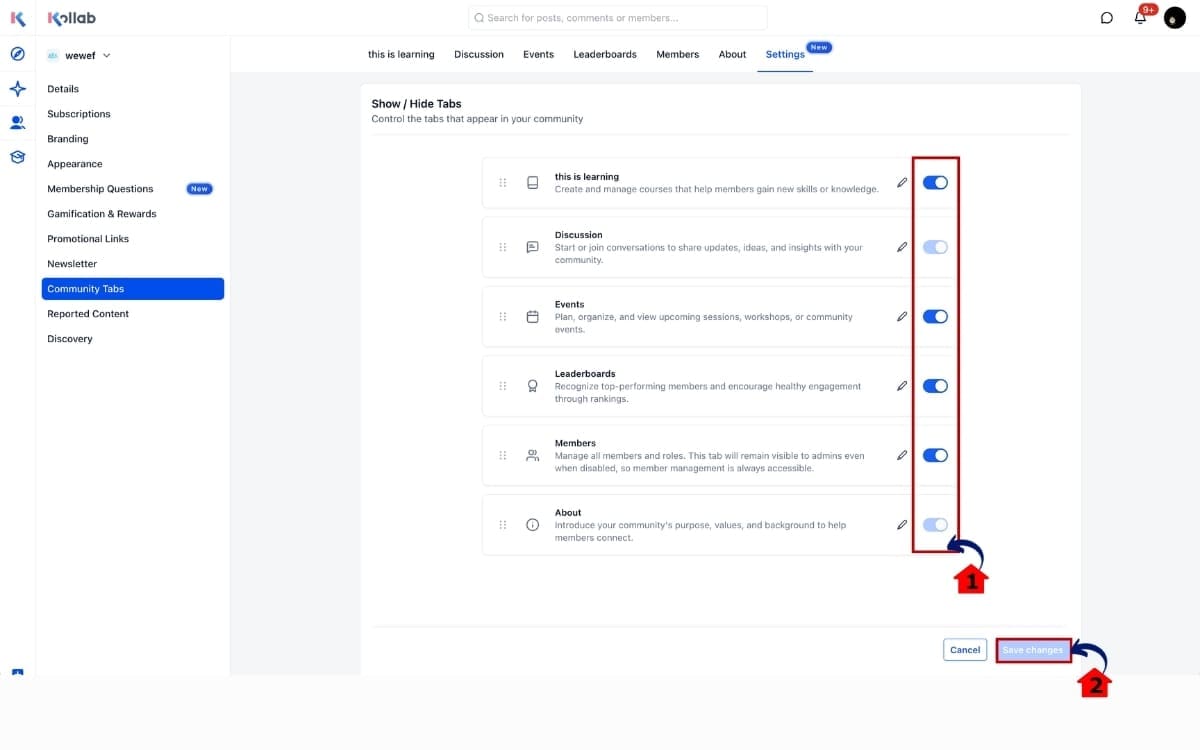
- Find the visibility switch beside the tab you want to manage.
4.1 Turn the switch off to hide a tab your community doesn’t need.
- Keep essential sections switched on and easy to find. Keep in mind that GoHighLevel doesn’t allow the Discussion or About tabs to be disabled.
4.2 Save your changes.
- Once saved, the updated Community Navigation Tabs layout is reflected for all members.
Your changes also persist across sessions, so you won’t need to rebuild the navigation each time you log in.
Quick Tips for Better Community Navigation Tabs
Once your Community Navigation Tabs are set up, spend a few extra minutes looking at the navigation from a member’s point of view. The goal isn’t to customize every tab just because you can. It’s to make your community easier to use.
Start by putting your most valuable sections first. If members regularly access training, move Learning higher. If your community is built around live sessions, Events may deserve a more prominent position. Your Community Navigation Tabs should support what you want members to do next.
Don’t overthink your tab names. Branding them is fine, but members should still know what they’re clicking on without having to guess. One thing to watch: whatever custom name you type in stays exactly that way for everyone. GHL won’t translate it.
Your community menu doesn’t need to show everything. Turn off the tabs that aren’t doing anything useful and leave members with the places they actually need. Just know that Discussion and About can’t be switched off.
Finally, review the finished layout before considering the job done. Check the order, wording, and visible tabs together. A few small changes can turn a generic GoHighLevel community menu into navigation that feels much more intentional.
What Community Navigation Tabs Mean for Your Business
Community Navigation Tabs may look like a small customization feature, but they give agencies and community owners more control over how a GoHighLevel community feels to members.
For agencies, that extra control matters when you’re building communities for different clients. A coaching business, membership program, training company, and networking group won’t necessarily use the same sections. Now you can organize Community Navigation Tabs around each client’s actual offer instead of leaving every community with the same navigation experience.
Renaming tabs also gives you another way to match the community to the client’s terminology. A training business might prefer “Academy” instead of “Learning,” for example. Using familiar labels can help members understand where they need to go without adding extra instructions.
You can also remove supported tabs that don’t serve a purpose. This helps reduce clutter and keeps attention on the areas members actually need. Combined with better ordering, Community Navigation Tabs can create a simpler path through content, events, discussions, and other community resources.
For agencies delivering GoHighLevel as part of a white-labeled service, these controls can also make each setup feel more tailored to the client. You’re not changing how the underlying community works. You’re simply presenting it in a way that better matches the business, its content, and its members.
Real-World Uses for Community Navigation Tabs
The best Community Navigation Tabs layout depends on what you want members to do after they log in. With the new GoHighLevel controls, you can organize the navigation around the purpose of each community instead of using the same setup every time.
For a coaching community, Learning and Events could sit near the front of the navigation. This makes it easier for members to find training material and upcoming sessions without searching through sections they rarely use.
A networking community may take a different approach. Discussion and Members could receive more attention because conversations and connections are the main reason people joined. Community Navigation Tabs let you put those areas where members are more likely to find them.
Agencies can also use custom labels to match a client’s existing programs. For example, Learning could become “Academy” or another name members already recognize. This can make the community feel more connected to the client’s offer instead of using generic platform terminology.
You can also simplify communities that don’t need every available section. If Leaderboards or Events aren’t part of the member experience, supported tabs can be hidden rather than left sitting unused in the navigation.
The key is to avoid creating one Community Navigation Tabs layout and using it for every client. Think about the community’s main goal, decide which areas members need most, and build the navigation around that journey.
FAQs – Community Navigation Tabs
Build a Better With Community Navigation Tabs
The new Community Navigation Tabs controls give you a simple way to make your GoHighLevel community easier to navigate. Instead of sticking with the default layout, you can decide which sections members see first, rename tabs using language they understand, and hide supported areas that don’t add value.
If you manage more than one client community, a one-size-fits-all menu doesn’t make much sense. You can arrange the tabs around what each client actually offers. Think Learning and Events for a coaching business versus Discussion and Members for a networking group.
Keep this part simple. Put the stuff people actually use within easy reach, clear out anything that’s getting in the way, and name each section so nobody has to guess what it is.
Community admins have a bit more say over what members see in the menu now. It’s a good excuse to open yours up and have a look. Can people find what they came for without hunting around?
A few small changes to your Community Navigation Tabs could make the entire community feel cleaner, more intentional, and easier to use.
Scale Your Business Today.
Streamline your workflow with GoHighLevel’s powerful tools.


