

- Email AI can now spot deadlines and help you add the right timer faster.
- Quick Summary – Email Countdown Timer Overview
- What’s New with the Email Countdown Timer
- Why the Email Countdown Timer Matters
- How to Add an Email Countdown Timer with Email AI
- Quick Tips for Better Email Countdown Timers
- What This Means for Your Business
- Frequently Asked Questions about Email Countdown Timer
- Make Deadline Emails Easier with Email AI
Email AI can now spot deadlines and help you add the right timer faster.
Email Countdown Timer Makes GHL Email AI Smarter
Email Countdown Timer tools just got easier to use with GoHighLevel Email AI. GHL can now spot when an email has a real deadline and suggest adding a timer while you build or update the message.
This works well for flash sales, product launches, webinars, and expiring offers. Instead of adding the timer by hand, Email AI can help you choose an existing timer or create a new one with the right end date, style, and link.
The main benefit is simple. You can add urgency faster, keep the setup clean, and only use a timer when it actually fits the email.

The new Email Countdown Timer support in Email AI makes it easier to build deadline-based emails without extra setup. GHL can spot when urgency makes sense, then help you choose or create the right timer for the campaign.
Quick Summary – Email Countdown Timer Overview
Purpose: This update helps you add an Email Countdown Timer to deadline-based emails with help from GHL Email AI.
Why It Matters: Email AI can spot time-sensitive campaigns and suggest a timer when it actually fits the message.
What You Get: You can reuse an existing timer or create a new one with the end date, style, and destination link you need.
Time To Complete: Most users should be able to add and review a timer in just a few minutes.
Difficulty Level: Easy. The process is built into the email creation flow and does not require custom code.
Key Outcome: You can build deadline-based emails faster while keeping the timer relevant to the campaign.
What’s New with the Email Countdown Timer
The Email Countdown Timer now works more closely with GoHighLevel Email AI. Instead of making you decide on your own if a timer belongs in the email, GHL can now look at the message and suggest one when there is a clear deadline.
If the email is about a flash sale, product launch, webinar, or expiring offer, Email AI can guide you through the next step. You can pick an existing timer or create a new one by adding the end date, style, and destination link.
Automate marketing, manage leads, and grow faster with GoHighLevel.

GHL then places the selected timer into the email for you. If you skip the prompt or do not respond, the process can still continue without causing a problem. That keeps the feature useful without making it feel forced.
Why the Email Countdown Timer Matters
The Email Countdown Timer update cuts out a few small steps that can slow down email creation. Instead of stopping to decide if a timer fits the message, GHL Email AI can recognize a real deadline and suggest one when it makes sense.
This is useful for agency owners, marketers, VAs, and small teams that build a lot of campaigns. You can move faster on flash sales, webinar reminders, launches, and expiring offers without adding extra work to the process.
The biggest win is better context. GHL does not need to suggest a timer in every email. It can keep the idea tied to messages where urgency is actually useful, which helps keep your emails clear and more relevant.
How to Add an Email Countdown Timer with Email AI
The Email Countdown Timer update lets GoHighLevel Email AI spot when an email has a real deadline and suggest a live timer during the build process. This works well for flash sales, webinars, launches, and other time-sensitive offers.
For this example, we will create a new email template for a flash sale and let Email AI suggest the countdown timer.
Here are the steps we will follow:
- Open a New Email Template.
- Choose the Design Editor.
- Give Email AI Your Campaign Prompt.
- Review the Brand Board Option.
- Choose a Countdown Timer.
- Review and Save the Finished Email.
To start, make sure you are logged in to the correct GoHighLevel sub-account.
Step 01 – Open a New Email Template
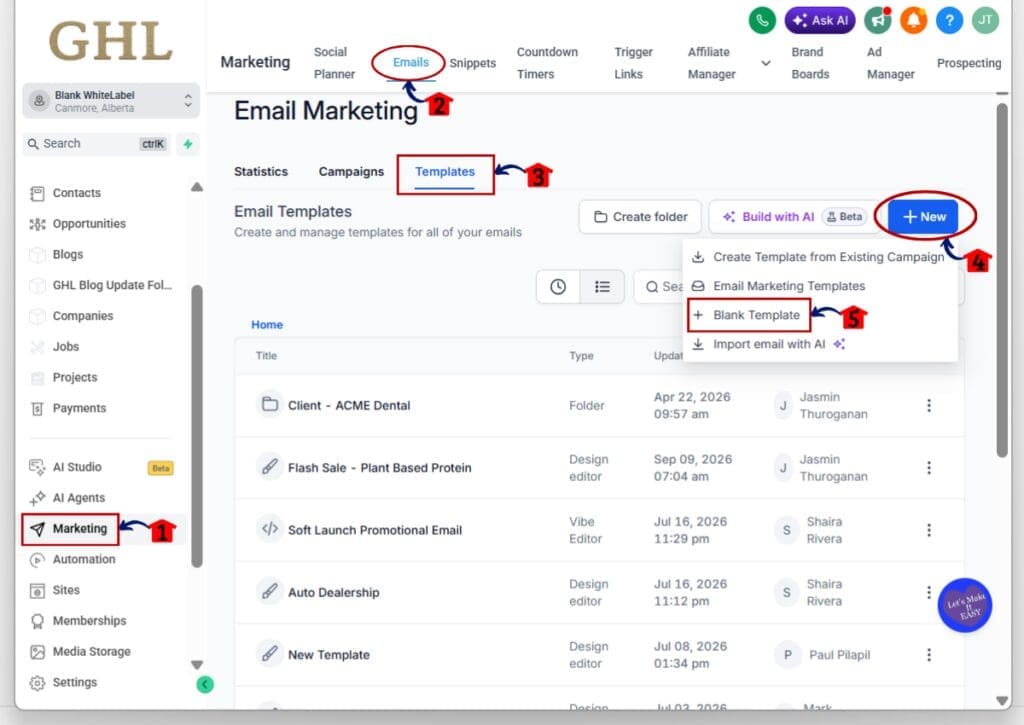
- The Marketing area includes the main email tools inside GoHighLevel.
1.1 Click Marketing in the left-hand menu.
- This opens the Marketing area in your GHL sub-account.
1.2 Click Emails in the top menu.
- This opens the Email Marketing section.
1.3 Click the Templates tab.
- You will see the email templates already created in the sub-account.
1.4 Click + New in the top-right corner.
- A menu will open with the available template options.
1.5 Click Blank Template.
- This starts the process of creating a new email template.
Step 02 – Choose the Design Editor
- GoHighLevel will ask which editing experience you want to use.
2.1 Click Select under Design editor.
- This opens the visual drag-and-drop email builder.
- The Design Editor also gives you access to Email AI while building the template.

Step 03 – Give Email AI Your Campaign Prompt
- Once the email builder opens, Email AI appears on the left side of the screen.
3.1 Make sure the Build tab is selected in Email AI.
- This is where you can ask Email AI to create the email layout and content.
3.2 Enter your campaign instructions in the prompt box.
- Include what the email is about.
- Add the offer, goal, and any deadline that matters.
For example:
- Create a flash sale template for my plant based protein ecommerce store with limited time offers of up to 30% discount with code SALE30.
3.3 Click the send arrow to submit the prompt.
- Email AI will review your instructions and begin building the email.

Step 04 – Review the Brand Board Option
- Email AI may ask whether you want to use a saved Brand Board before it finishes the template.
4.1 Review the Apply your saved brand board to this template? prompt.
- Choose Use it if you want the email to follow your saved brand styles.
- Choose Skip if you do not want to apply to the Brand Board.
4.2 Select the option that fits your email.
- Email AI will continue building the template based on your choice.

Step 05 – Choose a Countdown Timer
- When Email AI detects that the email has a real deadline, it can suggest adding a live Email Countdown Timer.
5.1 Review the Want a live countdown timer in this email? prompt.
- GHL may show an existing timer that fits the campaign.
- You can also create a new timer.
- You can skip the timer if you do not need one.
5.2 Select the existing countdown timer if it already matches your campaign.
- This lets you reuse a timer without creating another one.
5.3 Choose Create a new timer if you need a different countdown.
- Email AI can then guide you through the timer setup.
5.4 Choose Skip if the email does not need a timer.
- The email creation process can continue without one.

Step 06 – Review and Save the Finished Email
- After Email AI finishes the build, review the full email before saving it.
6.1 Check the email layout and content.
- Make sure the offer, headline, images, and call to action all match the campaign.
6.2 Review the Email Countdown Timer.
- Check that the timer appears in the right place.
- Make sure the deadline supports the offer shown in the email.
6.3 Click Preview if you want to review the finished email before saving.
- This helps you check how the email will look to the reader.
6.4 Click Save template when you are happy with the result.
- The completed email template will now be saved in your GoHighLevel account.
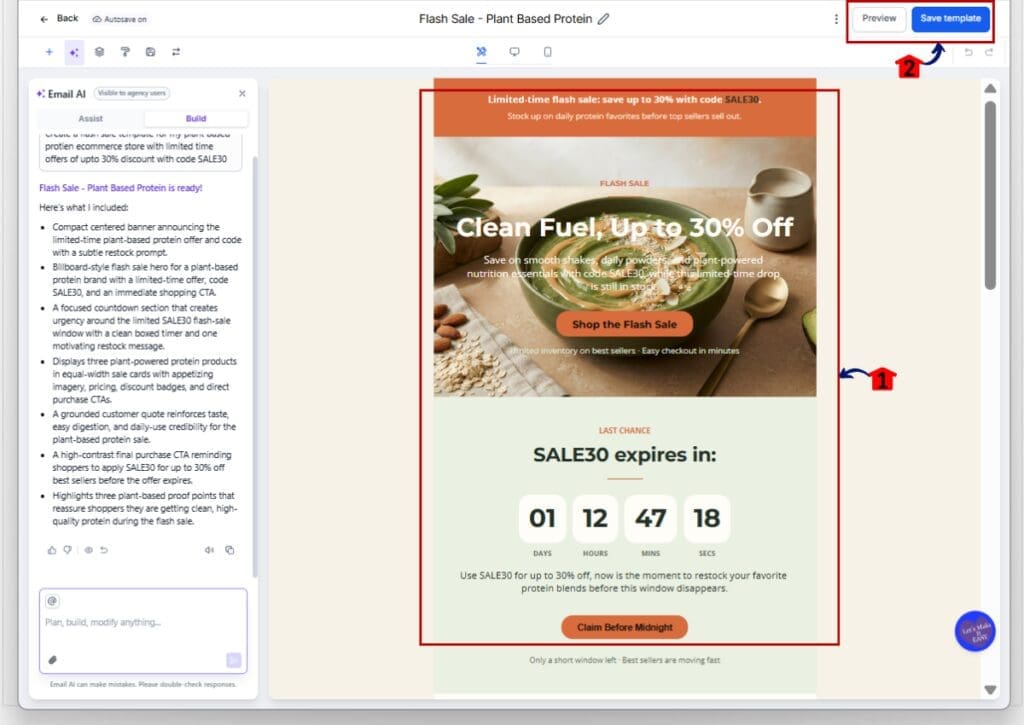
The key change here is that Email AI can now recognize when a deadline matters and bring the Email Countdown Timer into the build process at the right time. That cuts out extra setup and keeps the timer tied to campaigns where urgency actually makes sense.
Quick Tips for Better Email Countdown Timers
An Email Countdown Timer works best when the deadline is real and easy to understand. Keep it close to the main offer or call to action so readers can quickly see what ends and what they should do next.
Reuse an existing timer when it already fits the campaign. Before sending, check the end date, timer style, and destination link so everything matches the offer.
You do not need a timer in every email. If the message is not truly time-sensitive, skip it. That keeps the countdown useful instead of turning it into background noise.
What This Means for Your Business
The Email Countdown Timer update can save time when you build deadline-based campaigns. Instead of setting up urgency from scratch, GHL Email AI can spot the deadline and bring the timer into the email build when it fits.
For agencies, this can make client campaigns easier to produce. A flash sale, webinar, launch, or expiring offer can move from idea to finish email with fewer manual steps and less back-and-forth.
The real value is consistency. You can use urgency when it makes sense, keep the message clear, and build time-sensitive emails faster without adding extra work to the process.
Frequently Asked Questions about Email Countdown Timer
Make Deadline Emails Easier with Email AI
The Email Countdown Timer update makes it easier to build emails around a real deadline. GHL Email AI can now spot when a timer makes sense, suggest one during the build, and help you use an existing timer or create a new one.
For agencies and marketers, that means less manual setup and a cleaner email workflow. You still stay in control, since you can use the timer when it fits and skip it when it does not.
Try it on your next flash sale, webinar, launch, or expiring offer and see how it fits your process. How do you plan to use the new Email Countdown Timer in your GHL campaigns?
Scale Your Business Today.
Streamline your workflow with GoHighLevel’s powerful tools.


