- Add or remove linked records in GHL workflows
- Quick Summary – Associated Records Automation Essentials
- New GHL workflow actions now available
- Why associated automation is a big deal
- How to add associated records to a workflow
- How to remove associated records from a workflow
- Examples of associated records automation in real use cases
- Pro tips for better automation results
- FAQ about associated records automation
- Expected results from using the associated records automation update
- Final thoughts and what to do next
Add or remove linked records in GHL workflows
Associated records automation in GoHighLevel means users can now automatically manage linked records inside workflows. Instead of handling related contacts, companies, or custom objects manually, these new actions take care of it inside your automation.
This update adds two options: one to add associated records to a workflow and one to remove them. It applies to all workflow types including contact-based, company-based, and custom object workflows.
For example, if a student contact triggers a workflow, the system can instantly add the parent contact to a different workflow. Or if a company is marked inactive, GHL can remove all employee records from an ongoing sequence. It keeps things clean and up to date without extra tagging, filters, or workarounds.

This new Associated Records Automation update lets users automate associated records across contacts, companies, and custom objects. It saves time, keeps CRM data synced, and removes the need for manual updates.
Quick Summary – Associated Records Automation Essentials
Purpose: The Associated Records Automation update adds two new workflow actions in GoHighLevel that let users manage associated records with less effort and more accuracy.
Why It Matters: It helps users keep workflows clean and current by moving connected records in or out based on real CRM relationships.
What You Get: Two simple actions that add or remove associated records using object type, connection label, and the workflow you choose.
Time to Complete: About 5 to 10 minutes if your records are already linked with the right labels.
Difficulty Level: Easy to set up for anyone who’s used GoHighLevel workflows before.
Key Outcome: A faster way to manage related records in your CRM without needing extra steps or tagging tricks.
New GHL workflow actions now available
GoHighLevel just made it easier to automate how related records move through your workflows. With the new associated records automation feature, users can now add or remove linked records based on how they’re connected to the main object.
There are two new actions to work with:
Automate marketing, manage leads, and grow faster with GoHighLevel.

- Add Associated Records to Workflow
- Remove Associated Records from Workflow
These actions are available in all workflow types, including:
- Contact workflows
- Company workflows
- Custom Object workflows
Both actions follow the same setup:
- Select the object type: Choose if you’re targeting a contact, company, or custom object.
- Choose the association label: This label tells GHL which records to include. For example, a student might be linked to a parent under the label “Parent-Child.”
- Pick the target workflow: Decide which workflow the associated records should be added to or removed from.
Once saved, these actions run automatically when the workflow is triggered. There’s no need for extra tags or filters. It’s a simple way to manage connected records using clean automation logic inside GoHighLevel.
Why associated automation is a big deal
In the past, setting up automation for connected records often took extra time. If a company had linked contacts or a custom object had related users, it usually meant building extra steps or using workarounds to make it all function smoothly.
With associated records automation in GoHighLevel, that’s no longer needed. Now, when one record changes, the related records can be added to or removed from other workflows automatically.
Here’s why this feature matters to most users:
- Fewer manual tasks. Users no longer need to tag, filter, or manually move related records between workflows.
- Simpler workflows. One automation rule can handle a group of related records without creating long, messy branches.
- More accurate updates. When something changes, related records are updated right away. This keeps the data clean and current.
- Better control. Users can decide exactly when associated records enter or leave a workflow, without delay.
This Associated Records Automation feature helps teams save time, reduce mistakes, and build more flexible systems. It also keeps workflows focused and easier to manage, which is especially helpful for agencies working with layered CRM setups.
How to add associated records to a workflow
To use the “Add Associated Records to Workflow” action, users will first need to make sure their associations are already set up in their GHL account. These associations are what connect one record to another, like linking a parent contact to a student, or an employee to a company.
Once that’s in place, here’s how to set it up the Associated Records Automation update inside any workflow:
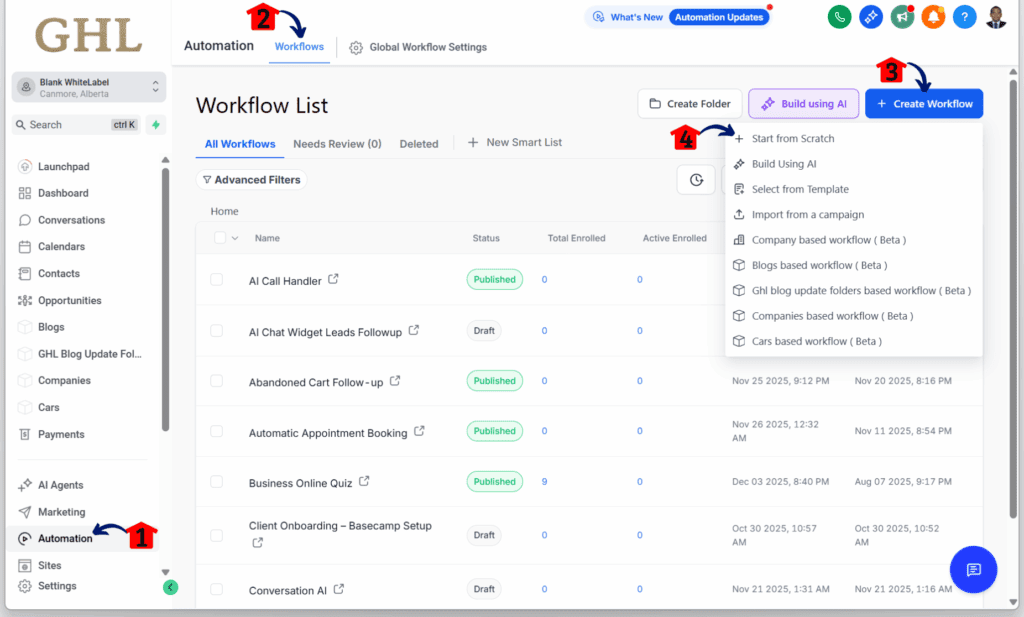
Step 01 – Access the Main Menu in GoHighLevel
- The main menu on the left side of your screen includes all the main areas you work in when using GoHighLevel (GHL).
1.1 Click on the Automation menu item to access the Workflows section.
- You’ll now be in the Automation section, where you can access the Workflows tab from the top menu.
1.2 Click the Workflows tab.
1.3 Click the Create Workflow button.
1.4 Choose the Start from Scratch option.
Step 02: Add a Workflow Action
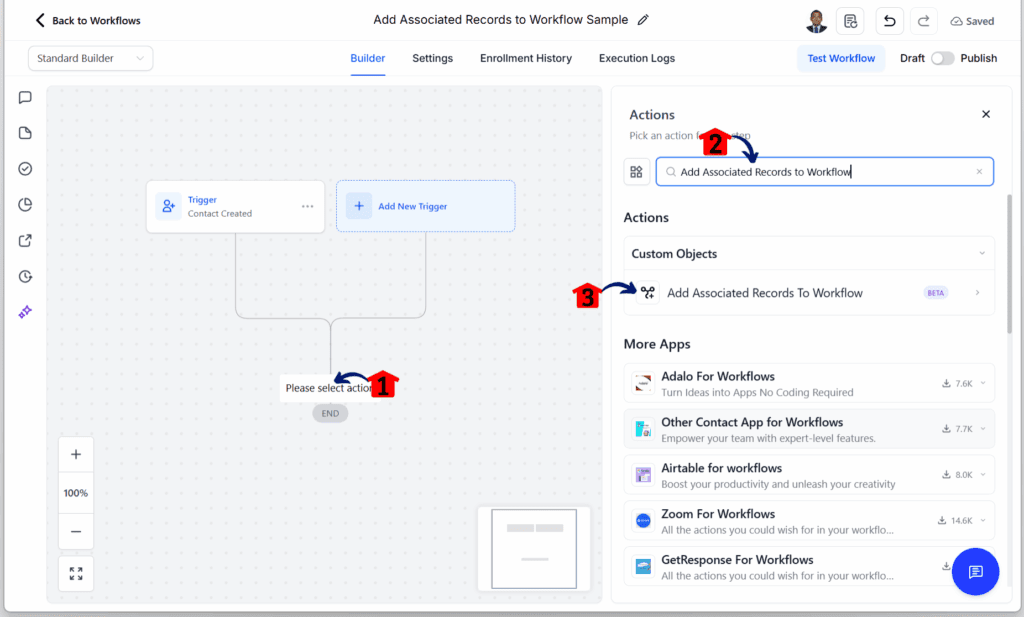
- You should now be inside the workflow editor.
2.1 Click the plus button to add an action element.
2.2 Search for Add Associated Records to Workflow.
- The Add Associated Records to Workflow element should appear in the actions library.
2.3 Click the Add Associated Records to Workflow element.
Step 03: Adjust the Action Settings
- The Add Associated Records to Workflow settings should slide up.
3.1 Rename the action element.
3.2 Select an object.
- The contact, company, or any custom objects should appear as options.
3.3 Select an association label for the element.
3.4 Choose the workflow where this element should take effect.
3.5 Click the Save button.
- This appears at the bottom right of the action settings.
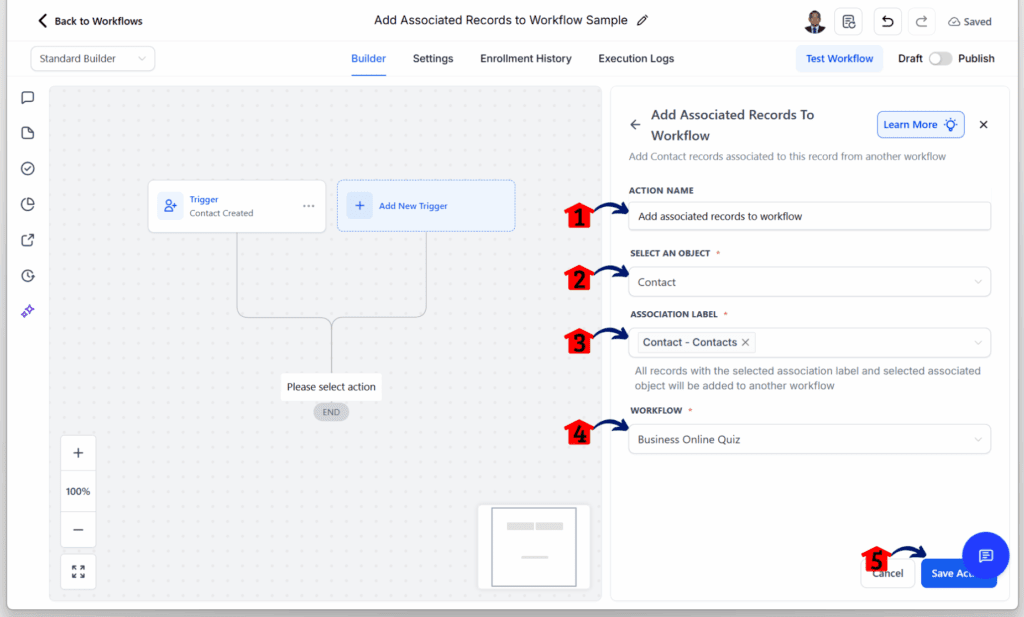
After this, any time the main workflow runs, GoHighLevel will find the associated records and enroll them in the workflow you selected. This lets users build logic that goes beyond a single contact and brings other connected records into the automation without extra effort.
How to remove associated records from a workflow
GoHighLevel now makes it easy to remove associated records from a workflow when they no longer meet your conditions. This helps teams keep their automations clean and focused. It also avoids sending messages or running steps for people who shouldn’t be there anymore.
This action is useful when a record changes in a way that affects its linked data. For example, when a student contact graduates, it might make sense to remove the parent contact from a notification workflow.
Here’s how to use the “Remove Associated Records from Workflow” action:
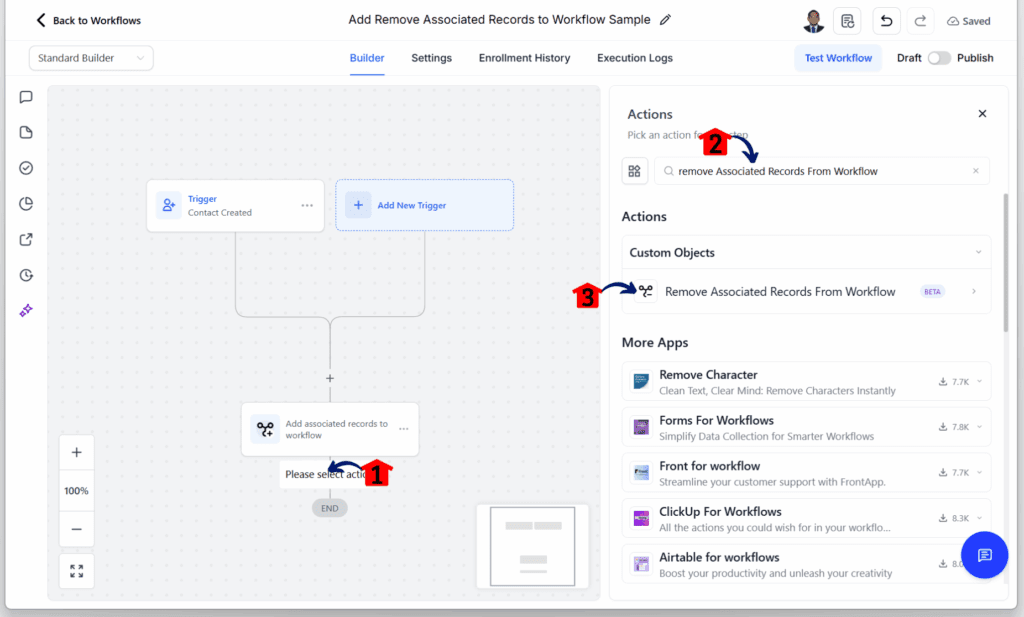
Step 04: Add a Removal Action
- You should now be back in the workflow editor.
4.1 Click the plus button to add an action element.
4.2 Search for Remove Associated Records from Workflow.
- The Remove Associated Records from Workflow element should show in the actions library.
4.3 Click the Remove Associated Records from Workflow element.
Step 05: Adjust the Removal Settings
- The Remove Associated Records from Workflow settings should slide up.
5.1 Rename the action element.
5.2 Select an object.
- The contact, company, or any custom objects should appear as options.
5.3 Select an association label for the element.
5.4 Choose the workflow where this element should take effect.
5.5 Click the Save button.
- This appears at the bottom right of the action settings.
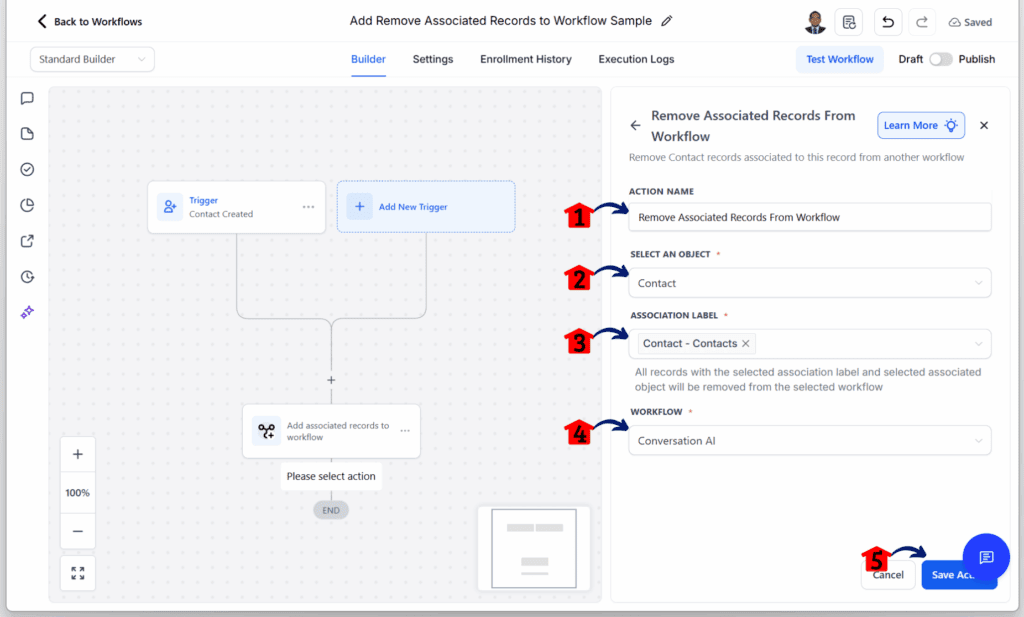
With this setup in place, GoHighLevel will handle the rest. When the workflow runs, it will automatically remove the associated records from the selected workflow. This is a direct and reliable way to apply associated records automation without needing manual cleanup.
Examples of associated records automation in real use cases
The best way to understand associated records automation is by looking at how it works in real situations. These examples show how different businesses can use the feature to save time and keep their workflows on track.
Car and Dealer (Custom Object to Custom Object)
A dealership might use a custom object to manage cars and link them to dealers using the label “Assigned Dealer.”
- When a car is marked “Ready for Sale,” GoHighLevel can add the assigned dealers to a workflow that sends out alerts.
- If that same car is later marked “Sold,” those dealers can be removed so they stop receiving updates.
Student and Parent (Contact to Contact)
In education settings, student contacts can be linked to their parents using a “Parent-Child” label.
- When a student triggers a semester start workflow, the parent can also be added to a related workflow for reminders.
- After the student graduates, the parent can be removed from that workflow to avoid unnecessary messages.
Company and Employees (Company to Contact)
Many companies use the “Employee” association to link contacts to a business.
- If the company joins a VIP program, all connected employees can be added to a special communication workflow.
- If the company status changes to inactive, those employees can be removed from that workflow right away.
These examples show how associated records automation can handle real-life situations without needing manual fixes. It gives users more control and saves time by automatically keeping the right records in the right workflows.
Pro tips for better automation results
Associated records automation can do a lot of the heavy lifting in GoHighLevel, but it still helps to set things up right. A few smart steps can prevent mistakes and keep your workflows working the way they should.
- Start with clean associations. Before you add any workflow action, check your CRM records. Make sure contacts, companies, or custom objects are connected properly. The system needs at least one matching association to run the action.
- Use clear and specific labels. Give each association label a name that tells you exactly what the link means. Avoid using the same label for different types of relationships. This keeps everything easy to manage and reduces confusion later.
- Keep workflows simple. Instead of loading everything into one workflow, split them into smaller ones by type or purpose. It’s easier to track what’s going on and fix things if needed.
- Watch for trigger loops. If one action leads to another workflow that circles back, it can create a loop. Test carefully to make sure records don’t keep bouncing between workflows.
- Always test first. Run the setup on a few test records. Look at how the associated records respond. If something looks off, it’s easier to catch and fix it before going live.
Following these tips will help users get the most out of associated records automation. It keeps things running smooth without adding complexity to the setup.
FAQ about associated records automation
Even with a solid feature like associated records automation, users may still run into questions. Here are a few common ones with clear answers to help things run smoothly.
These answers should help make things clearer as you set up or adjust your automation. Always double-check labels and connections before you test or go live.
Expected results from using the associated records automation update
the busywork. It tracks linked records and moves them in or out of other workflows based on the setup. That means less time spent managing details and more time focusing on strategy.
Here’s what users can expect when they start using it:
- Save time on manual tasks. With the system handling linked records automatically, users won’t have to tag, filter, or adjust them by hand.
- Keep your CRM clean. Only the right records stay in the right workflows. This helps prevent clutter and keeps customer data organized.
- Improve message timing. When records are removed at the right moment, it reduces the chance of sending updates to the wrong people.
- Stay in control. Users decide exactly when records get added or removed. It’s easy to adjust based on the type of connection or business rule.
- Grow without adding complexity. As businesses take on more clients or accounts, workflows can scale without extra setup or manual checks.
With just a few clicks, teams can use associated records automation to build smarter, more flexible workflows. It helps maintain structure even when things grow fast.
Final thoughts and what to do next
Associated records automation gives GoHighLevel users a cleaner way to manage how connected records move through workflows. It removes the need for workarounds and helps users keep their systems simple and accurate.
This update is especially helpful for teams working with complex setups like parent-child contacts, linked companies, or custom object relationships. Instead of checking and tagging everything by hand, the automation takes care of it when it counts.
To start using it, check that your associations and labels are already in place. Then add the new actions to a workflow and test them with a few sample records. Once it’s working the way you expect, it’s ready to use.
The Associated Records Automation feature doesn’t require advanced setup. It just needs a bit of planning. After that, GoHighLevel handles the process for you.
Scale Your Business Today.
Streamline your workflow with GoHighLevel’s powerful tools.